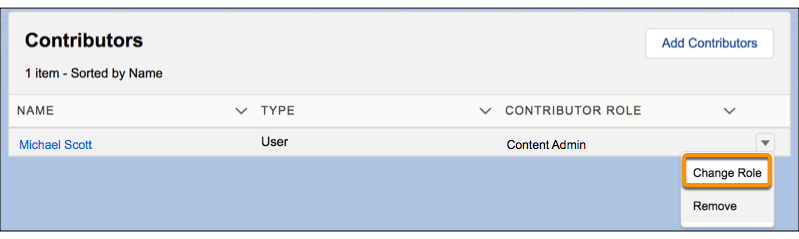
You can change a contributor’s access role to increase or decrease the level of
access. A contributor’s access role is specific to a CMS workspace, so you must change the
contributor’s role in each assigned workspace. Admins can’t change their own role.
Required Editions
| Available in: Lightning Experience |
| Available in: Enterprise, Performance, Unlimited, and
Developer Editions
|
| User Permissions
Needed |
| To manage contributors in a CMS workspace: |
A CMS workspace contributor role of content admin |
-
In the Digital Experiences app, go to CMS
Workspaces and open the appropriate workspace.
-
On the Contributor’s tab, click next to the contributor you want to change and
select Change Role.
-
Select the new contributor role, and click Update.