---
schema_version: "1"
id: fd7a8aaa7cdd815c539e88e983d95edecb56fc614e03ae9e07c048d2940876ea
title: Change a Contributor’s Access Role
collection: admin
version: current
locale: en-us
portal_url: https://docs.salesforce.com/admin/current/en-us/xcloud/264-0-0/cms_access_control_change_contributor.md
canonical_url: https://help.salesforce.com/s/articleView?id=xcloud.cms_access_control_change_contributor.htm&release=264.0.0&type=5
source_site: help.salesforce.com
content_type: documentation
content_hash: 1af50563b9e05df44c0f2a2f8170d83409d2eb2b0cf6e53d3e7ce62d33b97591
description: You can change a contributor’s access role to increase or decrease the level of access. A contributor’s access role is specific to a CMS workspace, so you must change the contributor’s role in each assigned workspace. Admins can’t change their own role.
products:
- Salesforce CMS
- Cross Cloud
release: "264"
---
# Change a Contributor’s Access Role
You can change a contributor’s access role to increase or decrease the level of access. A contributor’s access role is specific to a CMS workspace, so you must change the contributor’s role in each assigned workspace. Admins can’t change their own role.
### Required Editions
Available in: Lightning Experience
Available in: Enterprise, Performance, Unlimited, and Developer Editions
User Permissions
Needed
To manage contributors in a CMS workspace:
A CMS workspace contributor role of content admin
1. In the Digital Experiences app, go to CMS Workspaces and open the appropriate workspace.
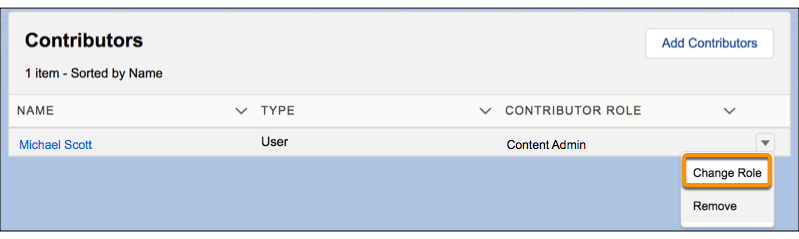
2. On the Contributor’s tab, click next to the contributor you want to change and select **Change Role**.

Note To prevent you from accidentally removing your access to a workspace, you can’t edit or remove your own contributor role. To change your level of access, another admin must update your role.
3. Select the new contributor role, and click **Update**.
#### See Also
- [Role-Based Access in Experience Builder](https://help.salesforce.com/s/articleView?id=experience.networks_access_control_overview.htm&type=5&language=en_US)
- [Control Chatter Access Through Permission Sets](https://help.salesforce.com/articleView?id=collab_pbr_perm_sets.htm&type=5&language=en_US)