To let your users create a document no matter where they are in Lightning Experience,
add the New Document global quick action manually to individual global publisher
layouts.
Required Editions
| Available in: Lightning Experience |
| User Permissions Needed |
| To create actions: |
Customize Application |
| To customize action layouts and page layouts: |
Customize Application |
| To view page layouts: |
View Setup |
-
In Salesforce Setup, from the Quick Find box, enter Publisher
Layouts, and then select Publisher Layouts.
-
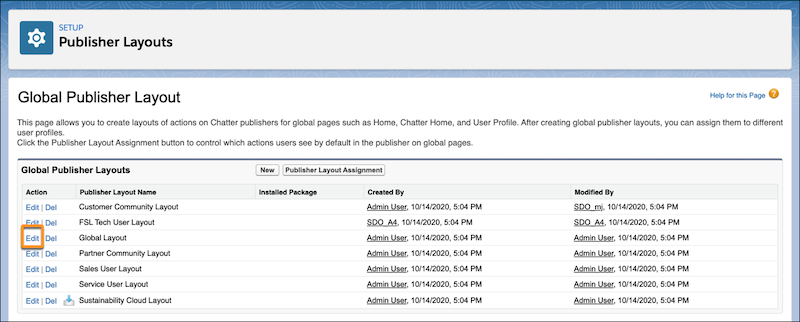
Under Global Publisher Layout, find Global Layout, and click
Edit.
-
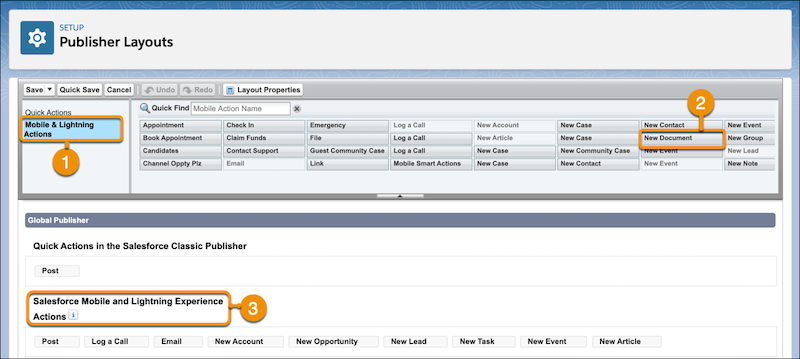
Select Mobile & Lightning Actions (1). Find New
Document (2) and drag it to the Salesforce Mobile and Lightning Experience palette
(3).
-
To reorder your actions, select an action and drag it to a new position.
-
Save the action.

 Note If it’s your first time editing the Salesforce Mobile and Lightning Experience palette, select override the predefined actions.