---
schema_version: "1"
id: df0fc5ace6a4c85fcdd7c29f3f52d225481b91ed2c2c1798630c9e5c4b48c767
title: Add the New Document Global Action Manually
collection: admin
version: current
locale: en-us
portal_url: https://docs.salesforce.com/admin/current/en-us/xcloud/264-0-0/anywhere_new_doc_global_action_setup.md
canonical_url: https://help.salesforce.com/s/articleView?id=xcloud.anywhere_new_doc_global_action_setup.htm&release=264.0.0&type=5
source_site: help.salesforce.com
content_type: documentation
content_hash: b8ac5e94e95d366dabae25f49099c45a795d5b7dfcb89979cc3d24d0398929b2
description: To let your users create a document no matter where they are in Lightning Experience, add the New Document global quick action manually to individual global publisher layouts.
products:
- Quip
- Cross Cloud
release: "264"
---
# Add the New Document Global Action Manually
To let your users create a document no matter where they are in Lightning Experience, add the New Document global quick action manually to individual global publisher layouts.
### Required Editions
Available in: Lightning Experience
User Permissions Needed
To create actions:
Customize Application
To customize action layouts and page layouts:
Customize Application
To view page layouts:
View Setup
1. In Salesforce Setup, from the Quick Find box, enter Publisher Layouts, and then select **Publisher Layouts**.
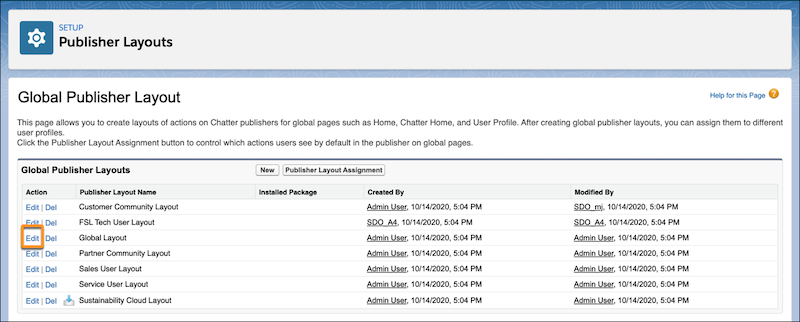
2. Under Global Publisher Layout, find Global Layout, and click **Edit**.
3. Select **Mobile & Lightning Actions** (1). Find **New Document** (2) and drag it to the Salesforce Mobile and Lightning Experience palette (3).
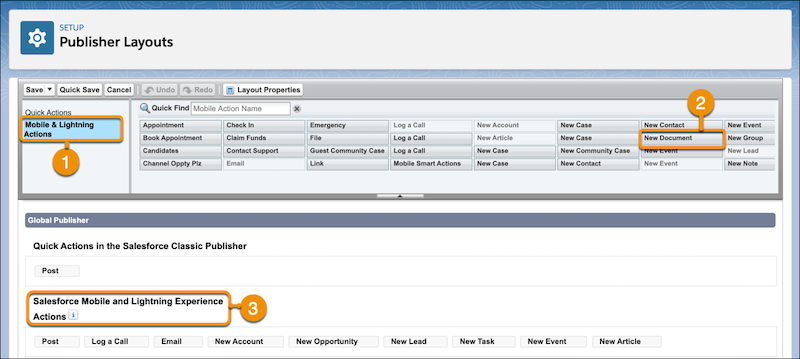

Note If it’s your first time editing the Salesforce Mobile and Lightning Experience palette, select **override the predefined actions**.
4. To reorder your actions, select an action and drag it to a new position.
5. Save the action.
#### See Also
- [Create a Document in Lightning Experience](https://help.salesforce.com/s/articleView?id=xcloud.anywhere_create_doc_lex.htm&release=264.0.0&type=5 "Create a document no matter where you are in Lightning Experience and link it to a record. Use the New Document global action to take freeform notes that stay open as you move around Lightning Experience.")
- [Action Limits and Limitations](https://help.salesforce.com/s/articleView?id=platform.actions_limitations.htm&type=5&language=en_US)