
Connect the Trailhead App in Slack to a Trailhead or Enablement Site (myTrailhead) Account
Install the Trailhead app in your Slack workspace and connect to a Trailhead or enablement site (myTrailhead) account.
Required Editions
| Available in: Enterprise, Performance, and Unlimited Editions |
| User Roles and Permissions | |
|---|---|
| Enablement Site User Roles | |
| This topic supports these enablement site roles: |
|
| Required System Permissions | |
| To access content on your enablement site: | Permission to access at least one content collection |
You can connect a Trailhead or enablement site account using the Slack desktop, mobile, and web apps. The information that you provide for connecting an account depends on which account you’re connecting to:
- To connect a Trailhead account, provide your Trailhead login credentials.
- To connect an enablement site account for a site that uses Trailblazer.me (TBID) authentication, provide your enablement site's login credentials.
- To connect an enablement site account for a site that uses Salesforce Identity for Enablement authentication, provide the login URL that you receive from your Salesforce admin.
To connect your account:
-
From the Slack Marketplace, search for
Trailhead.
 Important A Slack admin must approve the app before it’s available in your workspace.
 - To connect a Trailhead account or an enablement site that uses TBID authentication,
complete these steps.
- From the Apps section in the Slack sidebar, select Trailhead.
- On the Home tab, click Connect Your Account. Slack opens a new tab
in your browser.
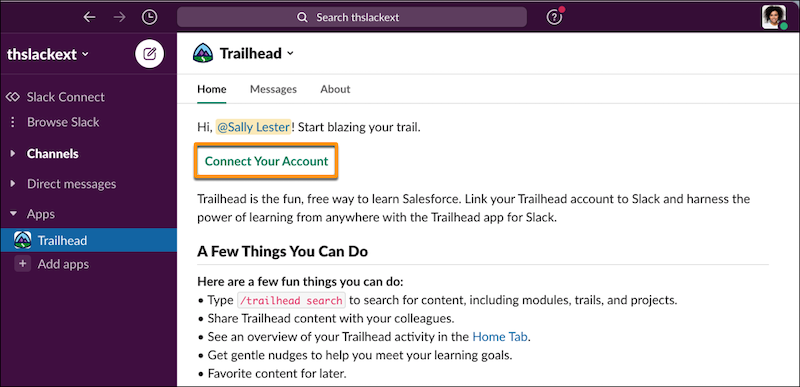
- Review the permissions that the Trailhead app is requesting, and click Allow.
- Log in with your Trailhead or enablement site credentials.
- Select your public Trailhead account or private enablement site subdomain name.
 Note This selection determines which account to use for viewing and searching content in the app. Later, you can switch between Trailhead and your enablement site on the Settings tab in the Trailhead Slack app.
- To connect an enablement site that uses Salesforce Identity for Enablement authentication,
complete these steps.
- Enter /trailhead-login in any Slack message, and pass the
enablement site's login URL as a parameter. Use the login URL that you receive from your
Salesforce admin.
For example, to connect to an enablement site with the My Domain login URL https://purealoe.my.salesforce.com, enter:
/trailhead-login https://purealoe.my.salesforce.com - Review the permissions that the Trailhead app is requesting, and click Allow.
- Log in with your enablement site credentials.
- Select your enablement site subdomain name.
- Enter /trailhead-login in any Slack message, and pass the
enablement site's login URL as a parameter. Use the login URL that you receive from your
Salesforce admin.
After you connect your account, return to your Slack workspace where you can use the Trailhead app's Home tab to:
- Search for trails, modules, projects, or Trailblazer Community feed items such as posts or questions. You can also search from any channel using the command /trailhead-search.
- Favorite trails, modules, or projects.
- View assigned or in-progress modules and trailmixes.
- Share a trail, module, project, or Trailblazer Community feed item to a channel or direct message.
- Navigate to content on Trailhead or your enablement site.
- Receive reminders for completing in-progress modules (Trailhead content only).
- Update the app’s settings, including which account—Trailhead or enablement site—to use with the app.
When you search for or share content in the Trailhead Slack app, your experience can be affected by the type of account you connected and the content you're accessing. See Limitations for Searching and Sharing with the Trailhead App in Slack.

Tip If you're new to Trailhead, first complete the recommended quick look modules
for Trailhead and Trailblazer Community. Then, the other options for viewing and filtering
content become available on the Home tab.