# admin Slack - Full Documentation # Activate a Feed Channel Set up Slack feed channels so that users can see notifications about deals that your team is watching or have closed. Two predefined feed channels are available: Deals to Watch and Deals Won. You can also create feed channels and broadcast topics for other announcements. ### Required Editions
User Permissions Needed
To set up Slack apps and features: Customize Application
Ideally, set up feed channels and broadcast topics before you have users connect to Sales Cloud for Slack for the first time. That way, users see their available channels in their Slack welcome message when they first log in. 1. From Setup, in the Quick Find box, enter Slack, and select **Sales Cloud for Slack**. 2. Select a channel and click **Activate Channel**. 3. Add the users who can access the channel. If you don’t want to add everyone, edit the user roles. 4. Select the workspace that you want to add the feed channel to. 5. Choose whether the channel is public or private. Users can view or join a private channel only by invitation. Anyone in the team’s Slack workspace can view or join a public channel. ![Note](https://sf-zdocs-cdn-prod.zoominsoftware.com/tdta-slack-slack_apps-264-0-0-production-enus/68481d6c-8c01-419d-9d5c-ebe6efa3b5f3/images/icon_note.png) Note After a channel is set to private, you can’t change it to public. 6. Select whether to automatically add users in the selected roles to the channel now or to have users join the feed channel manually. If you opted to include the channels in users’ welcome message, they can find the channel easily. If you’re adding Salesforce users to feed channels using roles, user roles from your role hierarchy that are above the role that you select don’t inherit access to the channel. 7. Click **Next**. 8. To create the feed channel and invite users, click **Activate Channel**. - **[Create a Broadcast Topic Type for a Feed Channel](https://help.salesforce.com/s/articleView?id=slack.slack_apps_sales_create_broadcast_topic_type.htm&release=264.0.0&type=5)** A broadcast topic type directs the kind of announcements that are sent to your feed channels. In addition to the predefined Deals Won and Deals to Watch topic types, you can create other topics, each with its own feed channel. Assign a broadcast topic type for each feed channel that you create. - **[Create a Feed Channel](https://help.salesforce.com/s/articleView?id=slack.slack_apps_sales_create_a_feed_channel.htm&release=264.0.0&type=5)** Keep users up to date on announcements using your own feed channel. A channel must be connected to a broadcast topic. - **[Deactivate a Feed Channel](https://help.salesforce.com/s/articleView?id=slack.slack_app_sales_deactivate_feed_channels.htm&release=264.0.0&type=5)** Sales Cloud for Slack comes with two preconfigured feed channels, Deals-to-Watch and Deals-Won, which you can activate to keep you up to date on important progress and deal closings. To deactivate these channels, you have two options: deactivate the flow sending notifications to these channels or archive the channel completely. #### See Also - [Controlling Access Hierarchies](https://trailhead.salesforce.com/en/content/learn/modules/business_process_automation/flow?trail_id=automate_business_processes) - [Controlling Access Using Hierarchies](https://help.salesforce.com/s/articleView?id=platform.security_controlling_access_using_hierarchies.htm&type=5&language=en_US) # Activate Sales Cloud for Slack Notifications​​ in Flow Builder After you choose the Sales Cloud for Slack notifications that you want to set up for your users, here’s how you activate them in Flow Builder. ### Required Editions
User Permissions Needed
To duplicate and save a flow in Flow Builder: Manage Flow
![Note](https://sf-zdocs-cdn-prod.zoominsoftware.com/tdta-slack-slack_apps-264-0-0-production-enus/68481d6c-8c01-419d-9d5c-ebe6efa3b5f3/images/icon_note.png) Note Avoid changing Sales Cloud for Slack flows when you save a copy of the templates during notification setup. Editing a flow setting can prevent a notification from firing, or cause the notification text to mismatch the notification behavior. However, the feed channel flow Deals to Watch is customizable. 1. From Setup, in the Quick Find box, enter Flows, and then select **Flows**. 2. In the Flows list view, click the flow to view its template. Remember not to change notification flows, except for the Deals to Watch flow. You can change the Probability field percentage and the Amount field number to make those notification triggers useful for your company. The default probability trigger is greater or equal to 50, and an amount trigger is greater than $0. 3. Click Save As to save a copy of the flow that you can use. Use a name and description that helps you remember which notification the flow is for. Otherwise it can get lost easily! We recommend using the same name as provided in the template so your flows are easy to find again. 4. From the flow that you saved, click Activate. 5. If setting up the Send Slack Reminder When Opportunity Next Step is Unchanged notification, you must enable [Opportunity Field History](https://help.salesforce.com/s/articleView?id=sales.opp_history.htm&type=5&language=en_US). Enabling Opportunity Field History triggers the notification for the opportunity Next Step field and sent to users. You can enable opportunity field history from the [Object Manager](https://trailhead.salesforce.com/en/content/learn/modules/setup-quick-look/learn-to-use-setup-and-the-object-manager). Go to the Opportunity page and click the **Fields & Relationships** tab. Then click **Set History Tracking**. Last, enable Opportunity Field History for the opportunity Next Step field. All reminders that you activated are now set up for app users. Reminders are sent directly to users in the Message tab of the Sales Cloud for Slack app. If you’re setting up feed channel or sales channel notifications, keep following along to fully enable those features for users. #### See Also - [Guide Users Through Your Business Processes with Flow Builder](https://trailhead.salesforce.com/en/content/learn/modules/business_process_automation/flow?trail_id=automate_business_processes) # Add Apps in Your Personal Slack Sidebar After your Salesforce and Slack admins have approved and installed Slack Apps for Salesforce in your company's workspace, you can add them to your personal Slack sidebar and connect them to your Salesforce account. To get started with Slack Apps in Salesforce, follow these steps. 1. In the Slack sidebar, click **Apps**. If necessary, locate **Apps** by clicking **More** first. 2. Search for the Salesforce app, tool, or service you want, and then click to add it. 3. Follow the prompt to connect your account. 4. Enter your Salesforce username and password, and click **Log In**. Or, if your org uses a company-specific login URL, such as mycompany.my.salesforce.com, log in by clicking **Use Custom Domain** instead. 5. Select **I agree to allow Slack to access my Salesforce account**, and then click **Allow**. That’s it! Now you can start collaborating with colleagues to work faster and smarter in Slack! # Add Connected External Object Related Lists to Leads and Opportunities If you opted to store read-only record updates made by users in the other Salesforce org, you must make those records available to your users. We recommend adding Connected External Lead and Connected External Opportunity as related lists to your Lead and Opportunity page layouts. Doing so lets users view their peer’s version of the record in the context of your org’s version of that same shared deal. ### Required Editions
Available in Lightning Experience in Enterprise and Unlimited Editions with Sales or Service. Vendors must purchase a PRM add-on license for the partner admin user and each partner user who exports records. Partners aren’t required to purchase PRM licenses to use Legacy Partner Connect.
User Permissions Needed
To set up Partner Connect in the vendor org: Customize Application
To set up Partner Connect in the partner org:

Customize Application

AND

Set Up Partner Connect for a Partner Org

Before making read-only versions of your peer’s records available to users, Salesforce admins must also complete these prerequisites. - The vendor admin must select the Send & Receive Updates option when selecting objects and fields to integrate with their partner’s org. - Both vendor and partner admins must prepare the connected external objects for storing the records in their respective orgs. 1. From Setup, in the Quick Find Box, enter Partner Connect. Vendor admins select **Partner Connect for Vendors**. Partner admins select **Partner Connect**. 2. Under Configure, find the Add Connected External Object Related Lists to Page Layouts section. If you’re storing updates on any Lead fields, go to the page layout for Lead. If you’re storing updates on any Opportunity fields, go to the page layout for Opportunity. 3. From the Object Manager, click **Page Layout**, and then from the enhanced page layout editor palette, click **Related Lists**. 4. Drag the Connected External Lead or Connected External Opportunity related list from the palette to the Related Lists section of the page layout. Click **Save**. 5. Add the fields that you want to show on the related list. From the Related Lists section of the page layout, click ![Related list properties wrench icon](https://sf-zdocs-cdn-prod.zoominsoftware.com/tdta-slack-salesforce_prm-264-0-0-production-enus/35cdbed0-3c5d-4ddb-94ea-c7445aa90b95/resources-global/_corporate/images/wrench.png). Then add the fields that you want to users to see from the related list. We recommend adding the integrated fields that are most important to your sales reps. 6. Repeat steps 2–4 for every connected external object that you want users to see. If you haven’t already, contact the admin at the other company to check in on setup progress. If all of these steps are completed, vendor admins are ready to give partner users permission to export records, rolling out Partner Connect. - The vendor admin has invited a partner to connect and selected their objects and fields for integration. - The partner admin has completed their field mappings. #### See Also - [Prepare Legacy Partner Connect Objects for Connected External Records](https://help.salesforce.com/s/articleView?id=slack.prm_pc_setup_prepare_cnnctd_extl_objects.htm&release=264.0.0&type=5 "To let your users see and track the progress of shared leads and opportunities, you can opt to store a read-only version of the other org’s record in your own org. The Connected External Lead and Connected External Opportunity objects store these read-only records. Learn how vendor and partner admins can prepare the connected external objects to make sure they're ready to save the read-only records for Partner Connect.") # Add Export Buttons to the Vendor’s Partner Site To let partner users export records from the vendor’s Experience Cloud partner site to the partner’s Salesforce org, vendor admins must add the Export to My CRM button to object list views ### Required Editions
User Permissions Needed
To set up Partner Connect in a vendor org: Customize Application
Though list view button layouts determine what's shown on all of your list views, the Export to My CRM button is blocked from appearing in your Salesforce org. In your partner sites, the button is visible only to users who are assigned the Export Vendor Records to Authorized Partner Org permission. That permission is included in the Partner User Approved for Exporting Records permission set, which we recommend assigning as the last step of vendor setup. That way, partner users can't see the button until you're ready to roll out Partner Connect. Even if you want partners to export records from multiple partner sites, you're required to add the Export button to each object only one time. 1. From Setup, in the Quick Find box, enter PRM, and then select **Partner Connect for Vendors**. 2. Under Configure, find the Add Export Buttons to Your Partner Sites section. 3. Add the Export to My CRM button to the object list views for the objects you’re integrating with your partner. If you’re integrating leads, go to the layout for Lead. If you’re integrating opportunities, go to the layout for Opportunity. 4. From the List View Button Layout page, select **Export to My CRM**, then click **Save**. 5. Repeat steps 2–4 for every object you chose to integrate. After adding the export button to your partner site, you're ready to invite a partner company to connect with your org. #### See Also - [Export Vendor Records to Your Salesforce Org and View Vendor Record Updates](https://help.salesforce.com/s/articleView?id=slack.prm_pc_partner_export.htm&release=264.0.0&type=5 "Partner Connect lets partner users export a vendor’s leads or opportunities from the vendor’s Experience Cloud partner site to their own Salesforce org. If the feature is configured, partner users also get a read-only glimpse of how the record is progressing in the vendor's system. If the admin with the vendor company gave users permission to create and customize list views, partner users can also add the Export Status field to Lead and Opportunity list views.") # Add Quick Actions to the Account Page Layout Give your users access to launch the flow from the account - household record page layout and to create a Slack channel automatically for that household record. ### Required Editions
Available in: Lightning Experience in Professional, Enterprise, and Unlimited editions that have Financial Services Cloud enabled.
User Permissions Needed
To add quick actions: Customize Application
1. From Setup, open **Object Manager**. 2. In the Quick Find box, enter Account, and then select **Account**. 3. Click **Page Layouts**, and then click **Account Layout**. 4. On the palette, select **Mobile & Lightning Actions**. 5. Drag the quick actions to the Salesforce Mobile and Lightning Experience Actions section. ![Mobile and lightning add actions](https://sf-zdocs-cdn-prod.zoominsoftware.com/tdta-slack-slack_apps-264-0-0-production-enus/68481d6c-8c01-419d-9d5c-ebe6efa3b5f3/slack_apps/images/fsc_slack_flow_page_layout_add_button.PNG) 6. Save your changes. ![Note](https://sf-zdocs-cdn-prod.zoominsoftware.com/tdta-slack-slack_apps-264-0-0-production-enus/68481d6c-8c01-419d-9d5c-ebe6efa3b5f3/images/icon_note.png) Note To invoke the flow, users must have access to the underlying object and its fields. # Add Quick Actions to the Financial Deal Page Layout Give your users access to launch the flow from the financial deal record page layout and to create a Slack channel automatically for that deal record. ### Required Editions
Available in: Lightning Experience in Professional, Enterprise, and Unlimited editions that have Financial Services Cloud enabled.
User Permissions Needed
To add quick actions: Customize Application
1. From Setup, open **Object Manager**. 2. In the Quick Find box, enter Financial Deal, and then select **Financial Deal**. 3. Click **Page Layouts**, and then click **Financial Deal Layout.** 4. On the palette, select **Mobile & Lightning Actions**. 5. Drag the quick actions to the Salesforce Mobile and Lightning Experience Actions section. 6. Save your changes. ![Note](https://sf-zdocs-cdn-prod.zoominsoftware.com/tdta-slack-slack_apps-264-0-0-production-enus/68481d6c-8c01-419d-9d5c-ebe6efa3b5f3/images/icon_note.png) Note To invoke the flow, users must have access to the underlying object and its fields. # Add the Leads to Review Component to the Channel Management Console Add the Leads to Review component to the Channel Management Console so channel managers can review deals that partners register from their Experience Cloud sites. ### Required Editions
Available for channel managers in Lightning Experience in Enterprise, Performance, Unlimited, and Developer Editions with Sales or Service. You must have at least one PRM add-on license.
User Permissions Needed
To set up the console:

Customize Application

AND

View Setup and Configuration

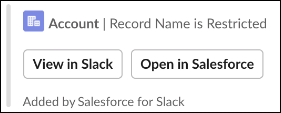
By default, Leads to Review displays leads from the list view, Leads Created by Partners This Month. That list view shows only leads that are related to partner accounts. Leads to Review performs best when you make sure that relating partner accounts to your leads is a required part of your indirect sales process. Likewise, verify from the Object Manager in Setup that the Partner Account field is visible from the Lead object. If your company prefers not to use partner accounts, consider changing which list view is used when you customize the default experience. ![Note](https://sf-zdocs-cdn-prod.zoominsoftware.com/tdta-slack-salesforce_prm-264-0-0-production-enus/35cdbed0-3c5d-4ddb-94ea-c7445aa90b95/images/icon_note.png) Note Each time you open the channel management console home page from the Channel Management page in PRM Setup, a new version of the default home page is created. To edit an existing version of the home page that you created previously, go to the Lightning App Builder page in Setup and open the existing home page from that location. 1. From Setup, in the Quick Find box, enter PRM, and then select **Channel Management**. 2. Under the Manage Channels from a Console App section, from the Add the Leads to Review Component step, click **Go to App Builder**. The default Channel Management Console home page opens in Lightning App Builder. 3. Under Components, search for Leads to Review and drag it onto the console layout. 4. [Customize the default experience](https://help.salesforce.com/s/articleView?id=slack.salesforce_prm_setup_cmc_leads_to_review_customize.htm&type=5&language=en_US). 5. Click **Save**. 6. From App Builder, set this page as the home page for the Channel Management App. 1. Click Activation. 2. Click the App Default tab. 3. Click Assign to Apps. 4. Select the Channel Management app and click Next. 5. Click Save. 7. Verify that the Approved and Rejected picklist values are added to the Status field on the Lead object. 1. From Setup, in the Quick Find box, enter Object Manager, and then select **Object Manager**. 2. Click **Lead** and then click **Fields & Relationships**. 3. Click **Lead Status**. 4. Check the Lead Status Picklist Values section for the Approved and Rejected values. If you see those values, skip this step. If you see those values in the Inactive Values section, activate them. If you don’t see those values, click **New** in the Lead Status Picklist Values section to add them. Return to the Channel Management page in Setup to [finish setting up the Channel Management Console](https://help.salesforce.com/s/articleView?id=slack.salesforce_prm_setup_cmc.htm&release=264.0.0&type=5 "To give channel managers access to the Channel Management Console, Salesforce admins must enable the console, assign permissions, and share default components with channel managers, such as the Channel Management Overview Dashboard. Salesforce admins can customize the console some aspects of the console directly from PRM Setup, such as adding custom objects, adding the Leads to Review component, and setting Channel Management as the default app for channel managers. Salesforce admins can customize the console further from the App Builder by altering the Leads to Review component or creating other useful components and adding them to the console."). # Add the Service Cloud for Slack App to an Existing Channel Use the Service Cloud for Slack app to swarm in a channel that was created without a Swarming flow. ![Important](https://sf-zdocs-cdn-prod.zoominsoftware.com/tdta-slack-slack_apps-264-0-0-production-enus/68481d6c-8c01-419d-9d5c-ebe6efa3b5f3/images/icon_important.png) Important For Swarming flows and actions to work in a private channel, manually add the Service Cloud for Slack app to the channel. 1. Select the dropdown menu next to the channel name, and then go to the Integrations tab. 2. Click **Add an App**. 3. Find Service Cloud for Slack in Apps and click **Install**. ![Service Cloud for Slack app listing highlighted](https://sf-zdocs-cdn-prod.zoominsoftware.com/tdta-slack-slack_apps-264-0-0-production-enus/68481d6c-8c01-419d-9d5c-ebe6efa3b5f3/slack_apps/images/swarm_slack_install_app.png) 4. Connect the Service Cloud for Slack app to your workspace and log in to your Salesforce account. # Add the Slack Connector To complete the Slack integration, add the Slack connector in Account Engagement settings. ### Required Editions
Available in: All Account Engagement Editions
Available in: Slack (where approved by a workspace admin)
1. In the Lightning app, select **Account Engagement Settings**, and then select **Connectors**. 2. Click **Add Connector**, and select **Slack**. 3. On the connector setup page, click **Add Workspace**. 4. Select the workspace that the Account Engagement app is installed in, and click **Add Workspace**. 5. On the Channels tab, click **Add Channel**. 6. In the Slack app, right-click your channel in the sidebar, and select **Copy Link**. The channel must be public and not read-only. 7. On the Channels tab in Account Engagement, paste the link for the Slack channel. 8. Verify the channel URL, and then save your work. 9. To add more channels, repeat steps 5 through 9. After you add a verified workspace and at least one channel, the Slack connector displays as verified on the Connectors page in Account Engagement settings. As your team adds the Slack completion action to assets, the actions and associated assets show on the Usage tab for the Slack connector. You can see the asset name, designated channel, trigger, and other information. # Agentforce Sales in Slack Ready to bring Agentforce Sales agents and real-time Salesforce data into your everyday workspace? See how Agentforce Sales links sales agents with Slackbot to keep your work moving without leaving your conversation pane. Head to its dedicated Go page, turn it on, and get your team started selling smarter right inside Slack. Agentforce Sales is built right into Slack — no Marketplace app to install. - **[Bring Agentforce Sales to Your Slack Flow of Work](https://help.salesforce.com/s/articleView?id=slack.slack_agentforce_sales_for_slack.htm&release=264.0.0&type=5)** Agentforce Sales in Slack brings sales agents, Salesforce data, and full business context directly into your Slack workspace. Prioritize leads, progress deals, and identify next steps by interacting with Slackbot—never leaving your flow of work. - **[Turn On Agentforce Sales in Slack](https://help.salesforce.com/s/articleView?id=slack.slack_set_up_agentforce_sales_for_slack.htm&release=264.0.0&type=5)** Before you can use Agentforce Sales in Slack, turn it on from its Salesforce Go page. # Approvals in Slack With Salesforce for Slack, you can manage your approvals from within your Slack workspace. Typically, a user creates a record in Salesforce and submits it for approval. The assigned approvers receive a request notification in Slack, enabling them to approve or reject the request. ### Required Editions
Available in: Lightning Experience
Available in: Enterprise, Performance, Unlimited, and Developer Editions
User Permissions Needed
To create an approval process: Customize Application
Before you can work with approvals in Slack, follow these steps. 1. [Set Up an Approval Process](https://help.salesforce.com/s/articleView?id=platform.approvals_getting_started.htm&type=5&language=en_US). 2. [Prepare Your Org for Approvals](https://help.salesforce.com/s/articleView?id=platform.approvals_prep_org.htm&type=5&language=en_US). ![Note](https://sf-zdocs-cdn-prod.zoominsoftware.com/tdta-slack-slack_apps-264-0-0-production-enus/68481d6c-8c01-419d-9d5c-ebe6efa3b5f3/images/icon_note.png) Note Approval notifications are automatically enabled in Slack if you have the Salesforce for Slack app installed. See [Enable Approval Notifications in Slack](https://help.salesforce.com/s/articleView?id=platform.approvals_for_slack_enabling.htm&type=5&language=en_US). - **[Approve or Reject a Request in Slack](https://help.salesforce.com/s/articleView?id=slack.slack_apps_digital_hq_approvals_use.htm&release=264.0.0&type=5)** If you’re an assigned approver, you can approve or reject a request from within a Slack workspace. # Approve App Installation To start using PRM for Slack, approve the app for installation in your Slack workspace. ### Required Editions

Available in: Lightning Experience with Slack Apps in Salesforce Enabled

Available in: Enterprise and Unlimited Editions with Slack Apps in Salesforce Enabled

Available in: Slack Enterprise Grid

User Permissions Needed
To approve an app installation in Slack: Org Owner & Org Admin
1. Select your workspace name and select **Settings & Administration**. 2. To open the Slack Marketplace, select **Manage Apps**. 3. Search for the PRM for Slack app. 4. In the app page, click **Approve**. #### See Also - [Enable Partner Account Managers to Invite Partners](https://help.salesforce.com/s/articleView?id=slack.slack_apps_prm_enable_pam_invite_partners.htm&release=264.0.0&type=5 "Connect your partner account managers (PAMs) with partners in partner channels. To let PAMs invite partners to channels in PRM for Slack, assign the required permissions in Slack Connect. To manage permissions in Slack, coordinate with your Slack Enterprise Grid admin.") # Approve or Reject a Request in Slack If you’re an assigned approver, you can approve or reject a request from within a Slack workspace. ### Required Editions
User Permissions Needed
To respond to an approval request in Slack: Read on the associated record
1. Under Apps in the Slack sidebar, click **Salesforce for Slack**. 2. On the Messages tab, view your approval requests. 3. Click **Approve** or **Reject**. Slack updates the request message by replacing the Approve and Reject buttons with a confirmation message. Click **Show More** to see the request details. For [multiple-step approvals](https://help.salesforce.com/s/articleView?id=platform.approvals_creating_approval_steps.htm&type=5&language=en_US), you can manually choose the next approver. When you approve the request in Salesforce, you’re prompted to select the next approver. If you approve the request in Slack, a message notifies you to log in to Salesforce to select the next approver. ![Note](https://sf-zdocs-cdn-prod.zoominsoftware.com/tdta-slack-slack_apps-264-0-0-production-enus/68481d6c-8c01-419d-9d5c-ebe6efa3b5f3/images/icon_note.png) Note An approver can also approve or reject a request from within Salesforce, which then posts a notification on the Salesforce for Slack app's Messages tab in Slack. When you click the Approve or Reject button on a request message, the message updates to inform you that another user already processed the request. # Archive a Partner Channel When you’re finished with a partner channel, you can archive it to remove the feed, members, and shared files from the workspace. ### Required Editions

Available in: Lightning Experience with Slack Apps in Salesforce Enabled

Available in: Enterprise and Unlimited Editions with Slack Apps in Salesforce Enabled

Available in: Slack Enterprise Grid

User Permissions Needed
To archive channels: Read, create, edit, and delete in Swarm
1. Go to the Partner Account record page where you want to edit a channel. 2. Find your channel in the list under **Related List** | **Partner Account Channels**, and then click **Archive** in its action menu. 3. To save your changes, select **Archive**. ![Warning](https://sf-zdocs-cdn-prod.zoominsoftware.com/tdta-slack-slack_apps-264-0-0-production-enus/68481d6c-8c01-419d-9d5c-ebe6efa3b5f3/images/icon_warning.png) Warning Archiving a channel removes all external partners, along with any files and attachments they shared. #### See Also - [Engage Partners in Real Time in Partner Channels](https://help.salesforce.com/s/articleView?id=slack.slack_apps_prm_use_partner_channels.htm&release=264.0.0&type=5 "Share CRM data, cultivate leads, and manage partner opportunities in partner channels. You can create channels from either Salesforce or Slack.") - [Edit a Partner Channel](https://help.salesforce.com/s/articleView?id=slack.slack_apps_prm_edit_partner_channel_in_sf.htm&release=264.0.0&type=5 "In Salesforce, update details for partner channels, such as topic, description, or memberships, for PRM for Slack.") # Assess Export, Import, and Update Issues With a Legacy Partner Connect Status Report Vendor and partner admins can diagnose recurring export, import, and update issues by building Partner Connect status reports and working together to interpret the issues. ### Required Editions
User Permissions Needed
To create, edit, and delete a Partner Connect Status Report in a private folder:

Create and Customize Reports

AND

View All Data

To create and update custom report types and build reports:

Manage Custom Report Types

AND

View Setup and Configuration

AND

View Roles & Role Hierarchy

1. [Build and run a Partner Connect status report](https://help.salesforce.com/s/articleView?id=slack.prm_pc_fix_exp_imp_up_report.htm&release=264.0.0&type=5 "Vendor and partner admins can build a report to see the status of the export, import, and update transactions sent between orgs. Doing so lets admins address recurring issues, such as failed exports, imports, or updates."). 2. [Learn how to interpret outbound and inbound transaction failures](https://help.salesforce.com/s/articleView?id=slack.prm_pc_transact.htm&release=264.0.0&type=5 "Before addressing Partner Connect export, import, and update issues, vendor admins and partner admins must first understand what makes a data transaction successful. Then admins can learn where failed transactions are shown and what details are provided to resolve issues."). 3. Check the Inbound and Outbound statuses and note any repeated failure statuses. 4. Check the External Record Share Connection: Connection Name and note which connections are impacted by the failing transactions. 5. Review [Legacy Partner Connect Export, Import, and Update Statuses](https://help.salesforce.com/s/articleView?id=slack.prm_pc_fix_exp_imp_up_report_statuses.htm&release=264.0.0&type=5 "See the outbound and inbound statuses for records that are exported, imported, or updated by using Partner Connect. If you’re a vendor admin, you see export and update issues only (because vendor orgs don’t import data). If you’re a partner admin, you can see import and update issues only (because vendor orgs don’t export data).") and follow its advice for addressing recurring transaction failures. In some cases, resolving issues requires vendor and partner admins to both run Partner Connect reports and work together to compare and contrast issues. To cross-reference corresponding outbound and inbound transactions across reports, open the record that you want to trace from the report. Internal Record: Full Name shows leads and Internal Record: Opportunity Name shows opportunities. From the record view, check the connected external related list to see the name the external org is using for their version of the record. Next, each admin can return to their respective reports, check the corresponding outbound and inbound transaction statuses, and compare their findings. # Assessing Contact, Lead, and Pipeline Activity Using Enhanced List Views for Partners When partners have access to Contact Intelligence View, Lead Intelligence View, and Pipeline Inspection, partners can view activities, complete actions, and update records from a single page of their Experience Cloud site.
Available for partners in Experience Cloud Aura sites, accessed through Lightning Experience in Enterprise, Performance, and Unlimited Editions with Sales or Service. A PRM add-on license is required for each partner user.
Available with Sales Cloud Einstein, which is available in Performance and Unlimited Editions, and for an extra cost in Enterprise Edition.
Your site admin can add an enhanced view of your contacts, leads, or deals from your partner site. Some partner sites let you access enhanced list views from Leads, Contacts, or Deals on the main site navigation menu (1). If you can’t find the enhanced list views on your site, ask your site admin for help. Let’s take a closer look at the enhanced list view for leads. ![Partner site showing navigation to lead or contact intelligence view, filters for records that the user owns that were created this quarter, and a series of metrics including 3 leads with no activity, 3 leads with overdue activity, and 5 with upcoming activity scheduled.](https://sf-zdocs-cdn-prod.zoominsoftware.com/tdta-slack-salesforce_prm-264-0-0-production-enus/35cdbed0-3c5d-4ddb-94ea-c7445aa90b95/salesforce_prm/images/prm_li_ci_metrics_filters.png) Select one of your leads list views to filter the leads you want to peruse (2). If you want, further filter records (3) and check out the aggregate activity statistics across the displayed list (4). To see activity metrics and health insights on a record, click the side panel icon (5). From the side panel, see more activity metrics, such as which records are overdue (5) and which have activities scheduled today (6). You can also send an email to the prospect or customer (7), or create a task or log a call (8). ![Partner site showing an overdue task, a task and event scheduled for today, the Send Email button, and two action menu activities to create a task or log a call.](https://sf-zdocs-cdn-prod.zoominsoftware.com/tdta-slack-salesforce_prm-264-0-0-production-enus/35cdbed0-3c5d-4ddb-94ea-c7445aa90b95/salesforce_prm/images/prm_li_ci_activity.png) The contacts enhanced list view is similar to leads, but it also includes Case Insights from the Insights tab on the side panel. The pipeline enhanced list view includes a different collection of metrics and insights. After selecting a list view, select quick filters for narrowing the opportunities partners are viewing by owner, projected close date, and the time frame of recent changes. See health metrics across the opportunities listed, such as the amount of pipeline that’s overdue, open, or lost (1). ![Partner site showing pipeline inspection view with filters for records that the user owns that are scheduled to close this month, closing metrics, a high opportunity score, a task due tomorrow to send a quote, a meeting scheduled yesterday, and a call logged for today.](https://sf-zdocs-cdn-prod.zoominsoftware.com/tdta-slack-salesforce_prm-264-0-0-production-enus/35cdbed0-3c5d-4ddb-94ea-c7445aa90b95/salesforce_prm/images/prm_pi_activity.png) ![Partner site showing pipeline inspection view with filters for records that the user owns that are scheduled to close this month, closing metrics, a high opportunity score, a task due tomorrow to send a quote, a meeting scheduled yesterday, and a call logged for today.](https://sf-zdocs-cdn-prod.zoominsoftware.com/tdta-slack-salesforce_prm-264-0-0-production-enus/35cdbed0-3c5d-4ddb-94ea-c7445aa90b95/salesforce_prm/images/prm_pi_activity.png) To see activity metrics and health insights on a record, click the side panel icon (2). The side panel shows opportunity metrics for Days to Close, Days in Stage, and Push Count (3). For partner users who are assigned the Sales Cloud Einstein for Partners permission set, an Opportunity Score insight is also available (4). From the Activity tab (5), see upcoming (6) and recent (7) activities, and edit them (8). Partners can also complete actions, such as sending emails (9); logging related calls, events, and tasks; and editing the opportunity’s next step (10). From the Insights tab, you can also see more insights on scores, activities, service cases, and the likelihood of the deal to close. # Assign PRM for Slack Permissions to Partner Account Managers Assign the permissions needed for partner account managers (PAMs) to connect their Salesforce account to Slack. You can select the default permission set or customize your own. ### Required Editions

Available in: Lightning Experience with Slack Apps in Salesforce Enabled

Available in: Enterprise and Unlimited Editions with Slack Apps in Salesforce Enabled

Available in: Slack Enterprise Grid

User Permissions Needed
To assign permissions:

Customize Application

AND

View Setup and Configuration

You can assign permissions in Initial Slack Setup, through the **Profiles** menu, or you can follow a few steps. 1. From Setup, in the Quick Find box, enter Permission, and then select **Permission Sets**. 2. Select the **PRM for Slack app Salesforce User** permission set. 3. Click **Manage Assignments**. 4. Click **Add Assignments**. 5. Select all users you want to assign this permission set. 6. Click **Assign**. #### See Also - [Assign PRM for Slack Permissions to Partners](https://help.salesforce.com/s/articleView?id=slack.slack_apps_prm_assign_partner_permissions_in_sf.htm&release=264.0.0&type=5 "Assign partners the permission sets needed to connect their partner experience to PRM for Slack. Permission sets for partners depend on which license they’re running.") # Assign PRM for Slack Permissions to Partners Assign partners the permission sets needed to connect their partner experience to PRM for Slack. Permission sets for partners depend on which license they’re running. ### Required Editions

Available in: Lightning Experience with Slack Apps in Salesforce Enabled

Available in: Enterprise and Unlimited Editions with Slack Apps in Salesforce Enabled

Available in: Slack Enterprise Grid

User Permissions Needed
To assign permissions:

Customize Application

AND

View Setup and Configuration

Work with partner account managers to determine which license and corresponding permission set to assign to partner users. You can assign permissions through Initial Slack Setup, through the **Profiles** menu, or you can follow a few steps. 1. From Setup, in the Quick Find box, enter Permission, and then select **Permission Sets**. 2. Select the **PRM for Slack Partner app User** permission set corresponding to your partner’s license. ![Note](https://sf-zdocs-cdn-prod.zoominsoftware.com/tdta-slack-slack_apps-264-0-0-production-enus/68481d6c-8c01-419d-9d5c-ebe6efa3b5f3/images/icon_note.png) Note Portal access is controlled with permission sets, so this permission set or the partner's profile must be added to the portal. 3. Click **Manage Assignments**. 4. Click **Add Assignments**. 5. Select the partners you want to assign to this permission set. 6. Click **Assign**. #### See Also - [Assign PRM for Slack Permissions to Partner Account Managers](https://help.salesforce.com/s/articleView?id=slack.slack_apps_prm_assign_pam_perms_in_sf.htm&release=264.0.0&type=5 "Assign the permissions needed for partner account managers (PAMs) to connect their Salesforce account to Slack. You can select the default permission set or customize your own.") - [Add Members to Your Experience Cloud Site](https://help.salesforce.com/s/articleView?id=platform.networks_customize_members.htm&type=5&language=en_US) # Authorize Unfurling Links that Show Record Data Set up authorization to preview Salesforce record data in unfurled links when users share any salesforce.com or force.com URL. Once authorization is enabled, Slack users can access record data directly from any unfurled link pointing to a record home page in the connected Salesforce org. 1. In a Slack message, paste a link that is registered as a salesforce.com or force.com domain. By default, details of a record aren’t visible. ![Slack Link with contact object. “Contact | Record Name is Restricted](https://sf-zdocs-cdn-prod.zoominsoftware.com/tdta-slack-slack_apps-264-0-0-production-enus/68481d6c-8c01-419d-9d5c-ebe6efa3b5f3/slack_apps/images/unfurl_hidden_record.png) 2. If the user hasn’t authorized the Salesforce for Slack app with Salesforce, a prompt is shown to the user to connect Salesforce for Slack to a Salesforce organization. Select **Connect** and then **Allow** to confirm authorization. ![Salesforce for Slack App. Hi there, it’s great to meet you! Connect the app to get started](https://sf-zdocs-cdn-prod.zoominsoftware.com/tdta-slack-slack_apps-264-0-0-production-enus/68481d6c-8c01-419d-9d5c-ebe6efa3b5f3/slack_apps/images/unfurl_authorize.png) 3. Return to the original link and click **View in Slack**. The record details appear in a compact or Slack record layout based on your organization’s settings ![Slack Record Layout with contact object.](https://sf-zdocs-cdn-prod.zoominsoftware.com/tdta-slack-slack_apps-264-0-0-production-enus/68481d6c-8c01-419d-9d5c-ebe6efa3b5f3/slack_apps/images/unfurl_record_details.png) # Automating Actions in Slack You can supercharge your Slack integration by using Flow Builder to automate actions like channel creation, message posting, inviting users to channels, and more. Salesforce admins can automate several processes using the following actions in Flow Builder. - Archive Slack Channel - Check If Users Are Connected to Slack - Create Slack Channel - Edit Slack Message - Get Information about Slack Conversation - Invite Users to Slack Channel - Pin or Unpin Slack Message (Beta) - Send Slack Message To automate processes, some flows require you to provide the Sales Cloud for Slack App ID in Flow Builder: A028VJ1KG3G. The Slack actions are in the Slack category. #### See Also - [Provided Flow Core Actions](https://help.salesforce.com/s/articleView?id=platform.flow_ref_elements_actions_list.htm&type=5&language=en_US) - [Flows](https://help.salesforce.com/s/articleView?id=platform.flow.htm&type=5&language=en_US) # Automating Business Processes in PRM for Slack Make collaborating faster and closing a deal easier by creating or customizing Lightning flows and global actions. ### Required Editions

Available in: Lightning Experience with Slack Apps in Salesforce Enabled

Available in: Enterprise and Unlimited Editions with Slack Apps in Salesforce Enabled

Available in: Slack Enterprise Grid

- **[Customize Predesigned Flows in PRM for Slack](https://help.salesforce.com/s/articleView?id=slack.slack_apps_prm_configure_business_process_slack.htm&release=264.0.0&type=5)** Streamline business processes with flows in PRM for Slack. Customize predesigned flows such as registering a deal for partners or approving a deal registration for partner account managers (PAMs). You can also create automated flows or global actions in Salesforce Setup. - **[Enable Flows in PRM for Slack](https://help.salesforce.com/s/articleView?id=slack.slack_apps_prm_configure_business_process_slack.htm&release=264.0.0&type=5)** After flows are created or customized in Flow Builder, enable them in PRM for Slack so they show in Setup. - **[Enable Global Actions in PRM for Slack](https://help.salesforce.com/s/articleView?id=slack.slack_apps_prm_configure_business_process_slack.htm&release=264.0.0&type=5)** After you create a global action in Salesforce Setup, enable it in PRM for Slack Setup. #### See Also - [Automating Business Processes in PRM for Slack](https://help.salesforce.com/s/articleView?id=slack.slack_apps_prm_configure_business_process_slack.htm&release=264.0.0&type=5 "Make collaborating faster and closing a deal easier by creating or customizing Lightning flows and global actions.") - [Create Global Quick Actions](https://help.salesforce.com/s/articleView?id=experience.rss_flow_component.htm&type=5&language=en_US) - [Flows](https://help.salesforce.com/s/articleView?id=experience.rss_flow_component.htm&type=5&language=en_US) - [Flow Builder](https://help.salesforce.com/s/articleView?id=platform.flow.htm&type=5&language=en_US) - [Create a Global Action to Let Partners Register Deals](https://help.salesforce.com/s/articleView?id=experience.networks_deal_reg_global_actions.htm&type=5&language=en_US) ## Customize Predesigned Flows in PRM for Slack Streamline business processes with flows in PRM for Slack. Customize predesigned flows such as registering a deal for partners or approving a deal registration for partner account managers (PAMs). You can also create automated flows or global actions in Salesforce Setup. ### Required Editions

Available in: Lightning Experience with Slack Apps in Salesforce Enabled

Available in: Enterprise and Unlimited Editions with Slack Apps in Salesforce Enabled

Available in: Slack Enterprise Grid

User Permissions Needed
To create, configure, and enable business processes: Customize Application
Two predesigned flows are available: Register a Deal and Approve a Deal. Go to the Configure Business Processes tab and complete one of these actions. 1. To create a business process, select **Create New Flow**. 2. To customize a preinstalled business process, select **Register a Deal**, **Notify Approvers of a Deal**, or **Approve a Deal** under Preconfigured Business Processes. ## Enable Flows in PRM for Slack After flows are created or customized in Flow Builder, enable them in PRM for Slack so they show in Setup. ### Required Editions ![Important](https://sf-zdocs-cdn-prod.zoominsoftware.com/tdta-slack-slack_apps-264-0-0-production-enus/68481d6c-8c01-419d-9d5c-ebe6efa3b5f3/images/icon_important.png) Important Flows must be cloned and customized before they work in PRM for Slack.

Available in: Lightning Experience with Slack Apps in Salesforce Enabled

Available in: Enterprise and Unlimited Editions with Slack Apps in Salesforce Enabled

Available in: Slack Enterprise Grid

User Permissions Needed
To create, configure, and enable flows: Customize Application
1. Go to the Configure Business Processes tab in PRM for Slack Setup. 2. Select the flow to enable, and then click **Enable** from its action menu. Go to the PRM for Slack Home tab and click **Looking for more actions** to see your enabled actions. ![Tip](https://sf-zdocs-cdn-prod.zoominsoftware.com/tdta-slack-slack_apps-264-0-0-production-enus/68481d6c-8c01-419d-9d5c-ebe6efa3b5f3/images/icon_tip.png) Tip Flows are configured for internal and partner users in Salesforce, and access is linked to user-specific profiles. All flows that are enabled for Slack in your Salesforce org appear in the PRM for Slack app. ## Enable Global Actions in PRM for Slack After you create a global action in Salesforce Setup, enable it in PRM for Slack Setup. ### Required Editions

Available in: Lightning Experience with Slack Apps in Salesforce Enabled

Available in: Enterprise and Unlimited Editions with Slack Apps in Salesforce Enabled

Available in: Slack Enterprise Grid

User Permissions Needed
To create, configure, and enable global actions: Customize Application
1. Go to the Configure Business Processes tab in PRM for Slack Setup. 2. To enable a global action, select it and click **Enable** from its action menu. Go to the PRM for Slack Home tab and click **Looking for more actions** to see your enabled actions. ![Tip](https://sf-zdocs-cdn-prod.zoominsoftware.com/tdta-slack-slack_apps-264-0-0-production-enus/68481d6c-8c01-419d-9d5c-ebe6efa3b5f3/images/icon_tip.png) Tip Global actions are configured for internal and partner users in Salesforce, and access is linked to user-specific profiles. All global actions that are enabled for Slack in your Salesforce org appear in the PRM for Slack app. # Best Practices for Creating Sales Channels To avoid introducing duplicate channels and ensure that the channels you create are easy to find, follow these best practices before you start creating channels. Spend a few minutes reviewing our advice for planning a sales channel strategy. See Plan Your Sales Channel Strategy section in [Preparing for Sales Cloud for Slack](https://help.salesforce.com/s/articleView?id=slack.slack_apps_sales_prepare_your_org_for_sales_cloud_for_slack.htm&release=264.0.0&type=5 "Before you turn on the app and roll it out to your users, take some initial planning steps, and complete some initial setup in Salesforce."). Or ask a sales leader if your company has established your own strategy. Plan which opportunities or accounts can benefit from a sales channel. Note any Slack channels where your sales teams are already working on any of those accounts or opportunities, and retain a list of those channels. Rather than uprooting conversations that are in progress, convert those existing Slack channels to sales channels. Only spin up new channels for records that don’t have an established presence in Slack. Decide whether any new channels are private or public. Determine the list of team members to invite to each channel. Ask your sales leader or manager if your company uses a naming convention for sales channels, and follow that convention. Use a common naming convention to make finding channels set up for sales channels as easy as possible. If not, we recommend using a name such as #oppty-opportunity-name, #acct-account-name, or #sales-acct-name-oppty-name, depending on which records are in the channel. Create your sales channels, connecting each channel to the appropriate opportunities and accounts. Create a post to welcome people to the channel and start selling as a team. #### See Also - [How Does a Sales Channel Work?](https://help.salesforce.com/s/articleView?id=slack.slack_apps_sales_how_does_a_sales_channel_work.htm&release=264.0.0&type=5 "Check out what a sales channel looks like and how it can help you and your sales team keep selling directly from Slack.") - [Create Sales Channels from Slack](https://help.salesforce.com/s/articleView?id=slack.slack_apps_sales_create_sales_channels_from_slack.htm&release=264.0.0&type=5 "You can create sales channels in Slack from the Sales Cloud for Slack app. After creating the sales channel, open it and invite members.") - [Create Sales Channels from Salesforce](https://help.salesforce.com/s/articleView?id=slack.slack_apps_sales_create_sales_channels_from_salesforce.htm&release=264.0.0&type=5 "You can create sales channels directly from opportunity or account records. Send invitations to team members while you’re creating the channel, or opt to invite members later from Slack.") # Billing Considerations for Slackbot Slackbot uses native Slack and Salesforce tools to complete tasks, and Slackbot can use Standard and Advanced Actions to do things like research, build reports, or generate content. Use of Slackbot Standard Actions or Advanced Actions impacts the consumption of credits in these usage types. Use Digital Wallet to check which consumption cards are active in your org, find out how many credits are available on each card, and determine how many credits have been consumed in each usage type. Some usage types aren't metered for certain licenses or editions. Check your licenses and review license documentation for more information. ## Slackbot Usage in Slack When you use Slackbot, your org consumes credits from the Flex Credits consumption card, only after your plan’s included Slackbot message allowance is exhausted. For more information, see [Flex Credits Billable Usage Types for Slackbot](https://help.salesforce.com/s/articleView?id=slack.slack_billable_usage_types.htm&release=264.0.0&type=5 "Usage of certain Slackbot features impacts Flex Credits consumption when Slack is connected to a Salesforce org that has Flex Credits. To monitor usage, access your org’s Digital Wallet.") and [Slackbot limits and credit usage](https://slack.com/help/articles/53579676130195-Slackbot-limits-and-credit-usage) in Slack Help. To check multipliers for each usage type, see the Slackbot section within the [Flex Credits Rate Card](https://www.salesforce.com/agentforce/rates/). The cost of each credit is determined by your contract. | Digital Wallet Consumption Card | Usage Type | Usage Type Description | Notes | | --- | --- | --- | --- | | Flex Credits | Slackbot Standard Action | The default billable unit for a user-visible tool call. Covers most native Slack and Salesforce actions, including search, reads, and writes to records, canvases, lists, calendars, automations, and messages, along with Model Context Protocol (MCP) tool calls other than Salesforce MCP calls, which aren’t metered. | The meter runs once per unique tool per turn. Multiple calls toward the same outcome, such as three searches to find the right thread, are grouped and billed as one action. | | Flex Credits | Slackbot Advanced Action | Premium, higher-value functionality, including deep research, report and dashboard creation, reading Salesforce files, and creating or editing slides, documents, or spreadsheets in third-party tools. | Advanced Actions bill in addition to any Standard Actions in the same turn. A single message can generate both. | For more information on how usage is billed, refer to your contract or contact your account executive. ## Reduce Slackbot Costs Lower Slackbot credit consumption in several ways. - Combine related asks into a single message so Slackbot can group tool calls toward one outcome instead of running separate turns for each step. - Use Standard Actions (search, canvas, list, calendar tools) where they get the job done, and reserve Advanced Actions like Deep Research, slide, or report creation for when you actually need that depth. - Check Digital Wallet regularly to monitor consumption trends and catch unexpected spikes early. - Avoid re-running the same request repeatedly to troubleshoot. Each turn bills at least 1 Standard Action even if the result doesn't change. #### See Also - [Flex Credits Billable Usage Types for Slackbot](https://help.salesforce.com/s/articleView?id=slack.slack_billable_usage_types.htm&release=264.0.0&type=5 "Usage of certain Slackbot features impacts Flex Credits consumption when Slack is connected to a Salesforce org that has Flex Credits. To monitor usage, access your org’s Digital Wallet.") - [About Digital Wallet](https://help.salesforce.com/s/articleView?id=xcloud.wallet_about.htm&type=5&language=en_US) - [Set up Flex Credits for Slackbot usage](https://slack.com/help/articles/54291336348051-Set-up-Flex-Credits-for-Slackbot-usage) - [Slackbot limits and credit usage](https://slack.com/help/articles/53579676130195-Slackbot-limits-and-credit-usage) # Bring Agentforce Sales to Your Slack Flow of Work Agentforce Sales in Slack brings sales agents, Salesforce data, and full business context directly into your Slack workspace. Prioritize leads, progress deals, and identify next steps by interacting with Slackbot—never leaving your flow of work. Because Slack and Salesforce are integrated, actions that you take in Slack automatically sync to Salesforce, which keeps records up to date and forecasts accurate. You and your team avoid constant tab-switching and stay in your flow of work. The Agentforce Sales Model Context Protocol (MCP) server powers Agentforce Sales in Slack. The server enables Slackbot to connect to Agentforce Sales agents. After setup, Salesforce installs the Agentforce Sales MCP server into Slack's MCP client, making capabilities such as Pipeline Management available to Slackbot as callable tools. For more information about MCP servers, see [Salesforce Hosted MCP Servers](https://developer.salesforce.com/docs/platform/hosted-mcp-servers/guide/hosted-mcp-servers-overview.html). ## Agentforce Sales in Slack Go Page The Go page centralizes the essential onboarding tasks, such as turning on Agentforce Sales in Slack and connecting your Slack workspace. The Go page handles the rest automatically, with no extra setup for Salesforce or Slack admins. ![The Agentforce Sales in Slack Go page, showing the onboarding steps to turn on the feature and connect your Slack workspace.](https://sf-zdocs-cdn-prod.zoominsoftware.com/tdta-slack-slack_apps-264-0-0-production-enus/68481d6c-8c01-419d-9d5c-ebe6efa3b5f3/slack_apps/images/agentforce_sales_in_slack_go_page.png) To set up Agentforce Sales in Slack, see [Turn On Agentforce Sales in Slack](https://help.salesforce.com/s/articleView?id=slack.slack_set_up_agentforce_sales_for_slack.htm&release=264.0.0&type=5 "Before you can use Agentforce Sales in Slack, turn it on from its Salesforce Go page."). For more information about Salesforce Go pages, see [Discover and Set Up Features with Salesforce Go](https://help.salesforce.com/s/articleView?id=xcloud.setup_salesforce_go.htm&type=5&language=en_US). ## Included Tools
Agentforce Sales in Slack Included Tools
Feature Description

Pipeline Management

With Pipeline Management, the agent reviews recent calls, emails, and notes associated with opportunities in Salesforce to suggest updates to opportunity fields, such as Next Step or Stage. It highlights stale deals and inactivity, missing and incomplete opportunity fields, and contact and buyer gaps.

# Bring the Power of Slack to your Corporate and Investment Banking Landscape Use the digital assistant for Financial Services Cloud to execute financial deals efficiently and to turn conversations into actions. First, learn about Financial Services Cloud for Slack features and how to manage Salesforce records in Slack. Next, review the app considerations so that you know what to expect with Financial Services Cloud for Slack. ### Required Editions

Available in: Lightning Experience

Available in: Enterprise, Performance, and Unlimited editions

Available in: Slack (where approved by a workspace admin)

Are you ready to build and deepen customer relationships with Slack? Let’s get started! - **[Manage Salesforce Records in Slack](https://help.salesforce.com/s/articleView?id=slack.fsc_slack_app_manage_salesforce_records_in_slack.htm&release=264.0.0&type=5)** Create interactions and interaction summaries directly from Slack. Verify the details of accounts, financial deals, interactions, and interaction summaries without leaving Slack. - **[Enable Financial Deal Management for Slack](https://help.salesforce.com/s/articleView?id=slack.fsc_slack_app_enable_financial_deal_management_for_slack.htm&release=264.0.0&type=5)** Turn on the Financial Deal Management for Slack setting. - **[Stay Up to Date on Interactions and Financial Deals With Financial Deal Channels](https://help.salesforce.com/s/articleView?id=slack.fsc_slack_app_stay_up_to_date.htm&release=264.0.0&type=5)** Salesforce provides a standard Lightning Flow template that you can use to automatically create Slack channels for financial deal records. Slack channels help streamline collaboration with other users. - **[Financial Services Cloud for Slack Slash Commands](https://help.salesforce.com/s/articleView?id=slack.fsc_slack_app_financial_services_cloud_for_slack_slash_commands.htm&release=264.0.0&type=5)** Slack slash commands are the entry points to complex workflows. These shortcuts and slash commands are available in the Financial Services Cloud for Slack app. Start entering these commands directly in the Slack message field. - **[Review Considerations for Financial Services Cloud for Slack](https://help.salesforce.com/s/articleView?id=slack.fsc_slack_app_review_considerations_for_financial_services_cloud_for_slack.htm&release=264.0.0&type=5)** Before setting up the app, learn about these channel and app considerations. # Browse, Search, and View Analytics in Slack Find all your analytics items in the CRM Analytics for Slack app and in your channel. In the app, your top items appear on the Home tab. In your channels, you can access analytics items using slash commands. **Recents and Favorites** The Home tab in the CRM Analytics for Slack app shows your top three recent items and top three favorite items from Lightning Reports and Dashboards and CRM Analytics. To view more from the Home tab or to view recents or favorites in your channels, type slash command /analytics-recents or /analytics-favorites in the message field. Or, click the **\+ plus icon** at the left of the message field to open the shortcuts menu. These actions are available for recent and favorite items: - To open an item in Salesforce, click its name. - To open a menu with actions such as view details and share, click the three dots next to an item’s name. **Search** Search for items by name in the CRM Analytics for Slack app or in your channels. To search for analytics items, type slash command /analytics-search plus the search term, for example /analytics-search open deals. Or, click the **\+ plus icon** at the left of the message field to open the shortcuts menu. These actions are available for items returned by a search. - To open an item in Salesforce, click its name. - To open a menu with actions such as view details and share, click the three dots next to an item’s name. **View Details** When you get a message about an analytics item, whether in the CRM Analytics for Slack app or in your channels, you can view more information about it. To view details about an item: 1. Click the three dots next to an item to open its action menu. 2. Select **View Details**. Depending on the item, from the details view, you can share, view a snapshot of the item, subscribe to it, or download it as a .pdf file. **View Snapshot** Wherever an analytics item is listed, you can see a snapshot view of it. The snapshot is created by running the analytics item with the latest data and capturing your view of it. To open the snapshot view: 1. Click the three dots next to an item to open its action menu. 2. Select **View Snapshot**. 3. If the item is a dashboard that has saved views, select the view to snapshot. The snapshot is posted in your CRM Analytics for Slack app Messages tab. Depending on the item, from the snapshot view, you can share, subscribe, or download it as a .pdf file. ![Note](https://sf-zdocs-cdn-prod.zoominsoftware.com/tdta-slack-slack_apps-264-0-0-production-enus/68481d6c-8c01-419d-9d5c-ebe6efa3b5f3/images/icon_note.png) Note Lightning Web Components within dashboards don't appear in snapshots posted in Slack. **Download as PDF** Download CRM Analytics dashboards and lenses and Lightning reports, and view and share the .pdf files in Slack. Analytics items are downloaded as accessible .pdf files, created by running the analytics item with the latest data and capturing your view of it. In addition to a snapshot image of the item, the accessible .pdf file includes the data behind each of the item's visualizations and KPIs in screen-reader friendly, tabular format. To create a PDF: 1. Click the three dots next to a CRM Analytics dashboard, lens, or Lightning report to open its action menu. To download a report as a .pdf file, the report must have a chart. 2. Select **Download as PDF**. The .pdf file is sent to your CRM Analytics for Slack app Messages tab. On the post’s thread, you can click to view the .pdf file in Slack and download it. # Build and Run a Legacy Partner Connect Status Report Vendor and partner admins can build a report to see the status of the export, import, and update transactions sent between orgs. Doing so lets admins address recurring issues, such as failed exports, imports, or updates. ### Required Editions
User Permissions Needed
To create, edit, and delete a Partner Connect Status Report in a private folder:

Create and Customize Reports

AND

View All Data

To create and update custom report types and build reports:

Manage Custom Report Types

AND

View Setup and Configuration

AND

View Roles & Role Hierarchy

1. [Create a custom report type](https://help.salesforce.com/s/articleView?id=xcloud.reports_defining_report_types.htm&type=5&language=en_US) for External Record Share Record Mappings so you can build a report on Partner Connect export, import, and update transactions. For the Primary Object, select **External Record Share Record Mappings**. If you want users who don’t have the Manage Custom Report Types to build reports using the Partner Connect report type, set the Deployment Status to **Deployed**. Otherwise, select **In Development**. 2. To include the name of the vendor or partner company that’s involved with each transaction, add a lookup field to the External Record Share Connection object on this custom report type. From the saved view of the custom report type, click **Edit Layout** on the Fields Available for Reports section. 1. From View: External Record Share Record Mappings Fields, click **Add fields related via lookup**. 2. From the Add Fields via Lookup screen, click **External Record Share Connection**. 3. Select the fields you want to add to your report. We recommend adding Connection Name. Then click **OK**. 3. Start building the report. On the Analytics tab, select **Create** | **Report**, or on the Reports tab, click **New Report**. 4. For the report type, select the custom report type that you created for External Record Share Record Mappings in step 1 and click **Start Report**. 5. Include the fields you want in the report by adding them as columns. We recommend adding these columns: External Record Share Connection: Connection Name, Internal Record: Full Name (if you’re integrating leads), Internal Record: Opportunity Name (if you’re integrating opportunities), Outbound Status, Inbound Status, and Last Modified Sent. 6. Click **Run**. Then click the action menu down arrow, click **Save**, and give the report a name and description. Save the report in your Private Folder unless you want users in your org with permission to run reports to have access to it. The report that you created shows the inbound and outbound statuses of the latest attempted record exports and imports, and the latest attempted updates to connected external records. For help interpreting your Partner Connect Report, see [Assess Export, Import, and Update Issues With a Legacy Partner Connect Status Report](https://help.salesforce.com/s/articleView?id=slack.prm_pc_fix_exp_imp_up_report_assess.htm&release=264.0.0&type=5 "Vendor and partner admins can diagnose recurring export, import, and update issues by building Partner Connect status reports and working together to interpret the issues."). #### See Also - [Design the Field Layout for Reports Created from Your Custom Report Type](https://help.salesforce.com/s/articleView?id=xcloud.reports_report_type_setup.htm&type=5&language=en_US) # Campaigns for Slack Create space for team collaboration through dedicated campaign record channels in Slack. Each channel acts as a central workspace where members can post messages to plan campaign strategies and share ideas in real time. Channel notifications keep the members informed about important changes, so that they can work efficiently and stay connected. Key campaign information, such as its name, status, and description, appears in the channel's Campaign details tab. The Summary tab provides a brief overview of what's happening in the channel. Channel participants stay informed by automatic campaign updates, which are triggered by these important actions: - Updates to campaign and brief specifications - Adding or removing campaign members - Sending a campaign email - Adding, updating, or removing flows - Adding or removing attachments In Slack, a campaign record channel is always public. Team members can access past conversations and notifications just by scrolling or searching the channel. - **[Create a Campaign Record Channel](https://help.salesforce.com/s/articleView?id=slack.slack_apps_create_campaign_channel_from_salesforce.htm&release=264.0.0&type=5)** You can create a Slack channel directly from a campaign record in Salesforce. Use this channel to collaborate with your team and receive important campaign updates. # Channel Management Console Monitor your channel business like a pro from the Channel Management Console.
Available for channel managers in Lightning Experience in Enterprise, Performance, Unlimited, and Developer Editions with Sales or Service. You must have at least one PRM add-on license.
- **[Monitoring Channel Business from the Channel Management Console](https://help.salesforce.com/s/articleView?id=slack.salesforce_prm_cmc_overview.htm&release=264.0.0&type=5)** Channel managers can see a complete view of partners’ sales activity from the Channel Management Console. Follow the performance metrics you care about most from the console dashboard. Review and approve partners’ leads and easily access frequently-used objects. - **[Setting Up the Channel Management Console](https://help.salesforce.com/s/articleView?id=slack.salesforce_prm_setup_cmc_parent.htm&release=264.0.0&type=5)** The Channel Management Console lets channel managers monitor partner activities and performance from a standard Lightning console app. Salesforce admins must give channel managers access to the console and its features. If they want, Salesforce admins can customize the console. # Close a Swarm in Slack When the collaboration is over and the issue is resolved, close the swarm from the swarm’s Slack channel. Finishing a swarm sets the end date and time and changes the status and all associated swarm members to Closed. It also frees up space on agents’ Omni-Channel presence configurations so that they can accept more work. And it shows who’s involved in a swarm in reports. 1. In Slack, from the swarm thread that you want to close, select **Finish Swarming**. You can also use the /service-swarm-close slash command. 2. If applicable, select the swarm that you want to close. 3. Optionally add members that weren’t accounted for to give them credit for collaborating in the swarm. 4. Select **Finish**. You can still add members to a closed swarm. Doing so reopens the swarm, adds a new swarm request, and sets the swarm record status to In Progress. # Collaborate on Household Account Records with Householding Slack Channels Improve team collaboration using Slack channels for account - household records. In Salesforce create a Slack Channel for a household record. Then, add team members who work on the Household records to the Slack channel. Salesforce provides a standard Lightning Flow template that you can use to create a Slack channel from an account - household record in Salesforce. ### Required Editions

Available in: Lightning Experience

Available in: Enterprise, Performance, and Unlimited editions

Available in: Slack (where approved by a workspace admin)

- **[Customize the Salesforce Lightning Flow Template for Householding](https://help.salesforce.com/s/articleView?id=slack.fsc_slack_app_get_the_financial_services_cloud_householding_customize_flow_template.htm&release=264.0.0&type=5)** The Create Slack Channel for Account flow lets you create Slack channels from household account records in Salesforce. The flow is installed as a standard flow template. You can clone the template to customize it according to your business process. - **[Create a Quick Action for the Flow for Householding](https://help.salesforce.com/s/articleView?id=slack.fsc_slack_app_get_the_financial_services_cloud_householding_create_quick_action.htm&release=264.0.0&type=5)** Allow users to easily access a flow by creating a quick action. When you add the quick action to the Account - Household page layout, users can launch the flow from account - household record pages. - **[Add Quick Actions to the Account Page Layout](https://help.salesforce.com/s/articleView?id=slack.fsc_slack_app_get_the_financial_services_cloud_householding_add_quick_action.htm&release=264.0.0&type=5)** Give your users access to launch the flow from the account - household record page layout and to create a Slack channel automatically for that household record. - **[Launch the Flow to Create a Slack Channel](https://help.salesforce.com/s/articleView?id=slack.fsc_slack_app_get_the_financial_services_cloud_householding_launch_flow.htm&release=264.0.0&type=5)** After your Slack admin adds the Financial Services Cloud Slack app to a workspace, members from that workspace can start to create Slack channels for an account - household record. Members can streamline collaboration with other channel users and view household members and financial accounts that are related to the Household, all without leaving Slack. - **[Use Slash Commands in Household Channels](https://help.salesforce.com/s/articleView?id=slack.fsc_slack_app_get_the_financial_services_cloud_householding_slash_commands.htm&release=264.0.0&type=5)** View a household account and household members by using Slack slash commands. These shortcut slash commands are available in the Financial Services Cloud for Slack app for your Household Channels. Enter the slash commands into the text field: #### See Also - [Set Up Financial Services Cloud for Slack for Your Salesforce Users](https://help.salesforce.com/s/articleView?id=slack.fsc_slack_app_setup_financial_services_cloud.htm&release=264.0.0&type=5 "Get Salesforce users up and running with the Financial Services Cloud for Slack app. First, complete some configuration in Salesforce Setup to get your Financial Services Cloud features ready to work with the app. Then enable Financial Cloud for Slack, also in Salesforce Setup. Lastly, work with your Slack admin to install the app in your Slack workspace.") # Collaborate on Your Leads and Referrals in Slack Track prospects with Leads and Referrals in Slack. Save time by collaborating on leads and referrals in Slack. The experience of creating, viewing, updating, and converting a lead or referral in Slack is similar to the experience in Salesforce. ### Required Editions

Available in: Lightning Experience

Available in: Enterprise, Performance, and Unlimited editions

Available in: Slack (where approved by a workspace admin)

![Example](https://sf-zdocs-cdn-prod.zoominsoftware.com/tdta-slack-slack_apps-264-0-0-production-enus/68481d6c-8c01-419d-9d5c-ebe6efa3b5f3/images/icon_example.png) Example For example, when a bank representative talks to an existing client about their checking account, the client expresses interest about opening a new savings account. In Slack, the bank representative creates a lead and assigns it to the financial manager. When the financial manager gets a notification in Slack about the lead, they open it, review the details, and update the status. In Slack, the financial manager sends a message to the lead creator for additional information. Finally, after contacting the customer and finalizing the details about the new savings account, the financial manager converts the lead in Slack. - **[Enable Lead and Referral for Slack](https://help.salesforce.com/s/articleView?id=slack.fsc_slack_app_collaborate_leads_referrals_setup.htm&release=264.0.0&type=5)** Turn on the setting for leads and referrals in Slack. - **[Customize the Salesforce Lightning Flow Template for Leads and Referrals](https://help.salesforce.com/s/articleView?id=slack.fsc_slack_app_collaborate_leads_referrals_flow.htm&release=264.0.0&type=5)** Send Slack notifications to users when a lead or referral is created by a user or when a lead or referral is assigned to a user. Salesforce provides a standard lightning flow template that you can use to send lead and referral Slack notifications. You can clone the template to customize it to suit your business process. - **[Navigate Leads and Referrals in Slack](https://help.salesforce.com/s/articleView?id=slack.fsc_slack_app_collaborate_leads_referrals_navigate.htm&release=264.0.0&type=5)** View and update your leads and referrals in Slack. - **[Create a Lead or Referral in Slack](https://help.salesforce.com/s/articleView?id=slack.fsc_slack_app_collaborate_leads_referrals_create.htm&release=264.0.0&type=5)** Save time by creating a lead or referral in Slack. - **[Convert a Lead or Referral in Slack](https://help.salesforce.com/s/articleView?id=slack.fsc_slack_app_collaborate_leads_referrals_convert.htm&release=264.0.0&type=5)** Create a contact, along with an account and opportunity when you convert a lead or referral in Slack. - **[Use Slash Commands in Leads and Referrals](https://help.salesforce.com/s/articleView?id=slack.fsc_slack_app_collaborate_leads_referrals_slash_commands.htm&release=264.0.0&type=5)** Create a lead or referral by using the Slack slash command. The shortcut slash command is available in the Financial Services Cloud for Slack app where Leads and Referrals is turned on. #### See Also - [Set Up Financial Services Cloud for Slack for Your Salesforce Users](https://help.salesforce.com/s/articleView?id=slack.fsc_slack_app_setup_financial_services_cloud.htm&release=264.0.0&type=5 "Get Salesforce users up and running with the Financial Services Cloud for Slack app. First, complete some configuration in Salesforce Setup to get your Financial Services Cloud features ready to work with the app. Then enable Financial Cloud for Slack, also in Salesforce Setup. Lastly, work with your Slack admin to install the app in your Slack workspace.") # Collaborating With Partners Using PRM for Slack Enhance productivity with real-time collaboration, automate business processes with key AI-infused insights, and grow your channel with actionable analytics in operational dashboards, all without leaving Slack. ### Required Editions ![Note](https://sf-zdocs-cdn-prod.zoominsoftware.com/tdta-slack-salesforce_prm-264-0-0-production-enus/35cdbed0-3c5d-4ddb-94ea-c7445aa90b95/images/icon_note.png) Note For documentation on the PRM for Slack app, see [PRM for Slack Features](https://help.salesforce.com/s/articleView?id=slack.slack_apps_prm_for_slack_features.htm&type=5&language=en_US).

Available in: Lightning Experience with Slack Apps in Salesforce Enabled

Available in: Enterprise and Unlimited Editions with Slack Apps in Salesforce Enabled

Available in: Slack Enterprise Grid

# Collaborating with Partners with PRM for Slack To start working directly with partners using partner channels, sign in to the Slack workspace designated for PRM for Slack and install the app. To share and collaborate on CRM data with your partners, connect the PRM for Slack app with your Salesforce account. - **[Sign In to Your Slack Workspace](https://help.salesforce.com/s/articleView?id=slack.slack_apps_prm_sign_into_slack_workspace.htm&release=264.0.0&type=5)** To use PRM for Slack, sign in to the Slack workspace designated for PRM for Slack. - **[Install PRM for Slack](https://help.salesforce.com/s/articleView?id=slack.slack_apps_prm_install_enable_pam_users.htm&release=264.0.0&type=5)** To start collaborating in partner channels, install PRM for Slack. - **[Engage Partners in Real Time in Partner Channels](https://help.salesforce.com/s/articleView?id=slack.slack_apps_prm_use_partner_channels.htm&release=264.0.0&type=5)** Share CRM data, cultivate leads, and manage partner opportunities in partner channels. You can create channels from either Salesforce or Slack. - **[Connect and Customize PRM for Slack with Salesforce](https://help.salesforce.com/s/articleView?id=slack.slack_apps_prm_connect_prm_to_sf.htm&release=264.0.0&type=5)** To search, post, and edit Salesforce records from the PRM for Slack app, connect the app to your Salesforce account. - **[Edit a Partner Channel](https://help.salesforce.com/s/articleView?id=slack.slack_apps_prm_edit_partner_channel_in_sf.htm&release=264.0.0&type=5)** In Salesforce, update details for partner channels, such as topic, description, or memberships, for PRM for Slack. - **[Archive a Partner Channel](https://help.salesforce.com/s/articleView?id=slack.slack_apps_prm_archive_partner_channel_in_sf.htm&release=264.0.0&type=5)** When you’re finished with a partner channel, you can archive it to remove the feed, members, and shared files from the workspace. - **[Search and Post a CRM Record in a Partner Channel](https://help.salesforce.com/s/articleView?id=slack.slack_apps_prm_search_and_post_record.htm&release=264.0.0&type=5)** To share Salesforce records with your partners in PRM for Slack, use the Search and Post feature. #### See Also - [Sign In to Your Slack Workspace](https://help.salesforce.com/s/articleView?id=slack.slack_apps_prm_sign_into_slack_workspace.htm&release=264.0.0&type=5 "To use PRM for Slack, sign in to the Slack workspace designated for PRM for Slack.") # Communicate in a Salesforce Channel After you join a Salesforce channel, you can start using it to communicate with your team. Any updates that you make in a Salesforce channel in Salesforce automatically appear in Slack as well. ### Required Editions
Available in: Lightning Experience
Available in: Essentials, Starter, Pro Suite, Professional, Enterprise, Unlimited, and Developer Editions
User Permissions Needed
To communicate in a Salesforce channel: Access to the record
## Create or Join a Salesforce Channel If you don’t see Slack on a record, ask your Salesforce admin for help. 1. From a record, click **Slack** to open the Slack panel, or find the Slack component. 2. Click **Join Channel**. If the record doesn’t have an associated channel yet, click **Create Channel** to create one. ## Add Channel Members Add other people to the channel to start the conversation. 1. From a record, click **Slack** to open the Slack panel, or find the Slack component. 2. To add members: - If you access Salesforce channels via the Slack panel, open the dropdown menu and select **View Channel Members**. - If you access Salesforce channels via the Slack web component, click ![Manage Members icon](https://sf-zdocs-cdn-prod.zoominsoftware.com/tdta-slack-slack_apps-264-0-0-production-enus/68481d6c-8c01-419d-9d5c-ebe6efa3b5f3/slack_apps/images/manage_members_icon.png) in the channel header. 3. Click **Add people**. 4. In the dropdown menu, search for and select a user to add to the channel. Repeat this step to add multiple people. 5. Click **Add People**. ## Send a Message 1. From a record, click **Slack** to open the Slack panel, or select the message field in the Slack component. 2. Type a message, then select the options above the message field to add attachments, formatting, or emoji. 3. Press **Enter** to send your message. ## Mention a Teammate In Salesforce channels, you can get a teammate’s attention by mentioning them. When you mention a teammate, they see a notification in the corresponding Salesforce channel in Slack. 1. From a record, click **Slack** to open the Slack panel, or select the message field in the Slack component. 2. As you compose a message, enter the @ symbol. 3. Enter and select a member’s name. 4. Press **Enter** to send your message. ## Start or Reply to a Thread To keep conversations organized, reply to a message in a thread. 1. From a Salesforce channel, hover over a message. 2. Click ![Reply in thread icon](https://sf-zdocs-cdn-prod.zoominsoftware.com/tdta-slack-slack_apps-264-0-0-production-enus/68481d6c-8c01-419d-9d5c-ebe6efa3b5f3/slack_apps/images/slack_sf_reply.png). 3. Type your reply, then press **Enter** to send your message. ## React to a Message by Using Emoji Use an emoji reaction to quickly reply to a message without words. An emoji reaction can often replace the need for a follow-up message. 1. From a Salesforce channel component, hover over the message you’d like to reply to. 2. Click ![Add reaction icon](https://sf-zdocs-cdn-prod.zoominsoftware.com/tdta-slack-slack_apps-264-0-0-production-enus/68481d6c-8c01-419d-9d5c-ebe6efa3b5f3/slack_apps/images/slack_sf_reaction.png) and select an emoji. ## Edit or Delete a Message If you send a message but notice it’s not quite right, you can edit or delete it. 1. From a Salesforce channel, hover over a message. 2. Click ![More actions icon](https://sf-zdocs-cdn-prod.zoominsoftware.com/tdta-slack-slack_apps-264-0-0-production-enus/68481d6c-8c01-419d-9d5c-ebe6efa3b5f3/slack_apps/images/slack_sf_more.png), then select **Edit message** or **Delete message**. ![Tip](https://sf-zdocs-cdn-prod.zoominsoftware.com/tdta-slack-slack_apps-264-0-0-production-enus/68481d6c-8c01-419d-9d5c-ebe6efa3b5f3/images/icon_tip.png) Tip To open the Salesforce channel directly in Slack, click ![More actions icon](https://sf-zdocs-cdn-prod.zoominsoftware.com/tdta-slack-slack_apps-264-0-0-production-enus/68481d6c-8c01-419d-9d5c-ebe6efa3b5f3/slack_apps/images/slack_sf_more.png), then select **Open Channel in Slack**. Learn more about getting started with Slack in the [Slack Help Center](https://slack.com/help/articles/360059928654-How-to-use-Slack--your-quick-start-guide). # Configure Partner Org Settings for Legacy Partner Connect Before completing the vendor’s connection request, partner admins must manage their required fields. If partners want to store read-only versions of their vendor’s records locally, partner admins must also prepare Partner Connect objects for storing the vendor records. To make sure users can see the vendor records from the partner org, partner admins must add related lists for Partner Connect objects to their Lead and Opportunity page layouts. ### Required Editions
User Permissions Needed
To turn on Partner Connect in the partner org:

Customize Application

AND

Set Up Partner Connect for a Partner Org

1. [Managing the required fields on the objects you plan to integrate with your vendor.](https://help.salesforce.com/s/articleView?id=slack.prm_pc_setup_partner_manage_req_fields.htm&release=264.0.0&type=5 "Review your vendor’s plan for integrating objects and fields. Then decide how you want to map your objects and fields to your vendor’s selections. In some cases, you can decide not to import or store fields that you don’t want, even if your vendor opted to share them. To import data into your Salesforce org successfully, make sure that you understand how your vendor uses every field they want to share, and verify that your selections meet the mapping requirements.") 2. [Prepare Partner Connect objects for storing records](https://help.salesforce.com/s/articleView?id=slack.prm_pc_setup_prepare_cnnctd_extl_objects.htm&release=264.0.0&type=5 "To let your users see and track the progress of shared leads and opportunities, you can opt to store a read-only version of the other org’s record in your own org. The Connected External Lead and Connected External Opportunity objects store these read-only records. Learn how vendor and partner admins can prepare the connected external objects to make sure they're ready to save the read-only records for Partner Connect.") if you want to store read-only versions of their vendor’s records locally. 3. [Add Partner Connect object related lists to Lead and Opportunity page layouts](https://help.salesforce.com/s/articleView?id=slack.prm_pc_setup_add_cnnctd_extl_objects.htm&release=264.0.0&type=5 "If you opted to store read-only record updates made by users in the other Salesforce org, you must make those records available to your users. We recommend adding Connected External Lead and Connected External Opportunity as related lists to your Lead and Opportunity page layouts. Doing so lets users view their peer’s version of the record in the context of your org’s version of that same shared deal.") if you want users to see the read-only versions of the vendor records from your org. After configuring partner org settings, you’re ready to complete your vendor’s connection request. # Connect a New Salesforce Org to Slack With Salesforce for Slack, users can connect multiple Salesforce orgs to Slack. ### Required Editions
Available in: Lightning Experience
Available in: Enterprise, Performance, Unlimited, and Developer Editions
User Permissions Needed
To connect Salesforce for Slack to a Salesforce org: Connect Salesforce with Slack
To manage org connections: Manage Slack App Organization Connections for Slack Apps permission
To connect a Salesforce org to Slack, you must be a Slack admin or have the manage org connections permission. Install the Salesforce for Slack app, enable Slack on the Initial Slack Setup page in Salesforce, and then connect. Connect a Salesforce org to Slack. 1. Click **Connect New Org**. 2. Sign in to the org to connect to Slack. 3. Click **Allow**. 4. To enable Slack to access Salesforce data, select **Agree** and then **Allow**. 5. A confirmation message appears. 6. Open Salesforce for Slack in your Slack workspace. 7. Click the **Home** tab. 8. Click **Manage Orgs**, and the management window appears with an updated list of current connections. #### See Also - [Data Sharing with Slack Multi-Org Management (Release Update)](https://help.salesforce.com/s/articleView?id=slack.digital_hq_slack_apps_rns_multiorg.htm&type=5&language=en_US) - [Manage Existing Connections to Slack](https://help.salesforce.com/s/articleView?id=slack.slack_apps_digital_hq_multiorg_manage_connect.htm&release=264.0.0&type=5 "Learn how to manage multiple Salesforce orgs connected to your Slack workspace by using a slash command or button in the app Home tab.") # Connect an Existing Slack Workspace to Salesforce To easily manage access to Salesforce tools such as Salesforce channels and Agentforce Sales in Slack, set up a connection with Salesforce. Create and manage configurations to automatically or manually map member accounts. ### Required Editions
Available in: Lightning Experience
Available in: Essentials, Starter, Pro Suite, Professional, Enterprise, Unlimited, and Developer Editions
See [Connect Salesforce and Slack](https://slack.com/help/articles/30754346665747) in the Slack Help Center. See the [Connecting Slack alongside your Salesforce Org](https://resources.docs.salesforce.com/rel1/doc/en-us/static/pdf/Launching-Slack-Alongside-Your-Salesforce-Org.pdf) launch guide. # Connect and Customize PRM for Slack with Salesforce To search, post, and edit Salesforce records from the PRM for Slack app, connect the app to your Salesforce account. ### Required Editions

Available in: Lightning Experience with Slack Apps in Salesforce Enabled

Available in: Enterprise and Unlimited Editions with Slack Apps in Salesforce Enabled

Available in: Slack Enterprise Grid

User Permissions Needed
To connect PRM for Slack with Salesforce and customize the application: Workspace membership
1. On the Home tab, select **Connect to Salesforce**. 2. Sign in to Salesforce with your Salesforce credentials. ![Note](https://sf-zdocs-cdn-prod.zoominsoftware.com/tdta-slack-slack_apps-264-0-0-production-enus/68481d6c-8c01-419d-9d5c-ebe6efa3b5f3/images/icon_note.png) Note (Optional) To customize the app, go to the Home tab and select **View Settings**. 3. Select **Salesforce Setup**. # Connect the Salesforce for Slack App to a Salesforce Org Use the Salesforce for Slack app to authenticate across Salesforce for Slack integrations. After you connect the app to Salesforce, you don’t need to authenticate to the other apps in your workspace. ### Required Editions ![Note](https://sf-zdocs-cdn-prod.zoominsoftware.com/tdta-slack-slack_apps-264-0-0-production-enus/68481d6c-8c01-419d-9d5c-ebe6efa3b5f3/images/icon_note.png) Note Salesforce for Slack is a legacy app that is installed from the Slack Marketplace. For the newest experience, start with Agentforce Sales in Slack.
Available in: Lightning Experience
Available in: Enterprise, Performance, Unlimited, and Developer Editions
User Permissions Needed
To connect Salesforce for Slack to a Salesforce org: Connect Salesforce with Slack
A Slack admin must approve and install Salesforce for Slack before it’s available in your workspace. You can connect Salesforce for Slack to a Salesforce org by entering /sfhq-connect and following the on-screen instructions. If you're already connected, this slash command replies with your connection status. Alternatively, to connect to a Salesforce org: 1. From the Apps section in the Slack sidebar, select **Salesforce**. 2. On the App Home tab, click **Connect your account**. 3. In the browser window, click **Connect**. 4. Enter your Salesforce username and password, and click **Log In**. If your org uses a custom domain, log in by clicking **Use Custom Domain** instead. 5. Select the workspace where you want to use the app and allow access. 6. When prompted to give the app access to your workspace, click **Allow**. 7. Salesforce prompts you that Slack wants to access your Salesforce account. Select **I agree to allow Slack to access my Salesforce account**, and then click **Allow**. Salesforce for Slack is now connected to Salesforce, and the browser redirects you back to the app in Slack. #### See Also - [Salesforce for Slack App User Mappings](https://help.salesforce.com/s/articleView?id=slack.slack_apps_digital_hq_shared_mapping.htm&release=264.0.0&type=5 "The Salesforce for Slack app shared user mapping enables a Slack user to authenticate to a Salesforce org one time for all Salesforce for Slack integrations. The apps must be installed in the same Salesforce org within the same Slack workspace. When a user authenticates successfully to Salesforce for Slack, the user mapping is created.") # Connect the Trailhead App in Slack to a Trailhead or Enablement Site (myTrailhead) Account Install the Trailhead app in your Slack workspace and connect to a Trailhead or enablement site (myTrailhead) account. ### Required Editions
Available in: Enterprise, Performance, and Unlimited Editions
User Roles and Permissions
Enablement Site User Roles  
This topic supports these enablement site roles:
  • Content Creators
  • Learners
Required System Permissions  
To access content on your enablement site: Permission to access at least one content collection
You can connect a Trailhead or enablement site account using the Slack desktop, mobile, and web apps. The information that you provide for connecting an account depends on which account you’re connecting to: - To connect a Trailhead account, provide your Trailhead login credentials. - To connect an enablement site account for a site that uses Trailblazer.me (TBID) authentication, provide your enablement site's login credentials. - To connect an enablement site account for a site that uses Salesforce Identity for Enablement authentication, provide the login URL that you receive from your Salesforce admin. To connect your account: 1. From the Slack Marketplace, search for Trailhead. ![Important](https://sf-zdocs-cdn-prod.zoominsoftware.com/tdta-slack-slack_apps-264-0-0-production-enus/68481d6c-8c01-419d-9d5c-ebe6efa3b5f3/images/icon_important.png) Important A Slack admin must approve the app before it’s available in your workspace. 2. To connect a Trailhead account or an enablement site that uses TBID authentication, complete these steps. 1. From the Apps section in the Slack sidebar, select **Trailhead**. 2. On the Home tab, click **Connect Your Account**. Slack opens a new tab in your browser. ![The Home tab in the Trailhead Slack app, showing the Connect Your Account button](https://sf-zdocs-cdn-prod.zoominsoftware.com/tdta-slack-slack_apps-264-0-0-production-enus/68481d6c-8c01-419d-9d5c-ebe6efa3b5f3/slack_apps/images/trailhead_mth_connect.png) 3. Review the permissions that the Trailhead app is requesting, and click **Allow**. 4. Log in with your Trailhead or enablement site credentials. 5. Select your public Trailhead account or private enablement site subdomain name. ![Note](https://sf-zdocs-cdn-prod.zoominsoftware.com/tdta-slack-slack_apps-264-0-0-production-enus/68481d6c-8c01-419d-9d5c-ebe6efa3b5f3/images/icon_note.png) Note This selection determines which account to use for viewing and searching content in the app. Later, you can switch between Trailhead and your enablement site on the Settings tab in the Trailhead Slack app. 3. To connect an enablement site that uses Salesforce Identity for Enablement authentication, complete these steps. 1. Enter /trailhead-login in any Slack message, and pass the enablement site's login URL as a parameter. Use the login URL that you receive from your Salesforce admin. For example, to connect to an enablement site with the My Domain login URL https://purealoe.my.salesforce.com, enter: ``` /trailhead-login https://purealoe.my.salesforce.com ``` 2. Review the permissions that the Trailhead app is requesting, and click **Allow**. 3. Log in with your enablement site credentials. 4. Select your enablement site subdomain name. After you connect your account, return to your Slack workspace where you can use the Trailhead app's Home tab to: - Search for trails, modules, projects, or Trailblazer Community feed items such as posts or questions. You can also search from any channel using the command /trailhead-search. - Favorite trails, modules, or projects. - View assigned or in-progress modules and trailmixes. - Share a trail, module, project, or Trailblazer Community feed item to a channel or direct message. - Navigate to content on Trailhead or your enablement site. - Receive reminders for completing in-progress modules (Trailhead content only). - Update the app’s settings, including which account—Trailhead or enablement site—to use with the app. When you search for or share content in the Trailhead Slack app, your experience can be affected by the type of account you connected and the content you're accessing. See [Limitations for Searching and Sharing with the Trailhead App in Slack](https://help.salesforce.com/s/articleView?id=slack.slack_apps_trailhead_search.htm&release=264.0.0&type=5 "When you search for or share content in the Trailhead Slack app, your experience can be affected by the type of account you connected and the content you're accessing."). ![Tip](https://sf-zdocs-cdn-prod.zoominsoftware.com/tdta-slack-slack_apps-264-0-0-production-enus/68481d6c-8c01-419d-9d5c-ebe6efa3b5f3/images/icon_tip.png) Tip If you're new to Trailhead, first complete the recommended quick look modules for Trailhead and Trailblazer Community. Then, the other options for viewing and filtering content become available on the Home tab. #### See Also - [Limitations for Searching and Sharing with the Trailhead App in Slack](https://help.salesforce.com/s/articleView?id=slack.slack_apps_trailhead_search.htm&release=264.0.0&type=5 "When you search for or share content in the Trailhead Slack app, your experience can be affected by the type of account you connected and the content you're accessing.") - [Authentication Providers for Your Enablement Site](https://help.salesforce.com/s/articleView?id=sales.mth_set_up_authentication_provider_for_your_subdomain.htm&type=5&language=en_US) # Connect to a Vendor Org with Legacy Partner Connect After receiving an email from Salesforce, you have the details that are required to establish a connection with your vendor. ### Required Editions
User Permissions Needed
To turn on Partner Connect in the partner org:

Customize Application (in the partner org)

AND

Set Up Partner Connect for a Partner Org (in the partner org)

AND

Establish an Approved PRM External Integration (in the vendor org)

AND

API Enabled (in the vendor org)

Before completing your vendor’s connection request, make sure that you review the partner org settings for Partner Connect and configure what’s necessary. 1. From Setup, in the Quick Find box, enter Integrations, and then select **Partner Connect**. 2. Under Connect, from the Connect with a Vendor section, click **Add Vendor**. 3. Provide the account for the company you’re working with, and then click **Done**. The account can be an [account](https://help.salesforce.com/s/articleView?id=xcloud.basics_creating_records_on_tabs.htm&type=5&language=en_US) or a [partner account](https://help.salesforce.com/s/articleView?id=experience.networks_partner_community_create_account.htm&type=5&language=en_US). Partner Connect adds the vendor account name to the external client app created for this connection. That way, you and other admins at your company can see which external client app connects you to each vendor org. 4. Enter the connection details provided in the email that you received from Salesforce. If you don’t recall your partner site password, you can set it from the partner site with your username. This vendor is added to the Vendors list. After the vendor and partner orgs are connected, you see a connection status banner on this vendor that shows as Connected. But partner users can’t export records from the vendor’s Experience Cloud site until all vendor and partner setup steps are complete. The next setup step for partner admins is to select the objects and fields to integrate with the vendor’s org. Partner admins can proceed to that step after the vendor admin selects their own objects and fields for mapping. When your vendor is done with that step, Salesforce sends you an email with instructions on how to proceed. #### See Also - [Give Partners Permission to Establish a Connection with the Vendor Org](https://help.salesforce.com/s/articleView?id=slack.prm_pc_setup_vendor_assign_partner_admin_perm_set.htm&release=264.0.0&type=5 "Before Partner Connect allows a partner admin to establish a connection with a vendor org, the vendor admin must first acknowledge the partner admin as a trusted contact. To do so, the vendor admin must assign the Partner Admin Approved for Vendor Org Connection permission set to the partner admin. Vendor admins must repeat this task each time they want to connect with a new partner Salesforce org.") - [Creating Records That Establish the Vendor-Partner Relationship](https://help.salesforce.com/s/articleView?id=slack.prm_pc_setup_prereq_establish_relationship.htm&release=264.0.0&type=5 "Salesforce admins at both companies must create records that establish the vendor-partner relationship in Salesforce. Admins provide these records during Partner Connect setup.") - [Legacy Partner Connect Security and Design](https://help.salesforce.com/s/articleView?id=slack.prm_pc_security.htm&release=264.0.0&type=5 "External Client Apps allow Partner Connect to establish a secure connection between a vendor and partner Salesforce org using APIs and security protocols. As vendor and partner admins work through Partner Connect setup, Partner Connect deploys a dedicated app to each org that uses OAuth 2.0 client credentials to securely integrate the two orgs. After a secure connection is established, partners can export approved records from the vendor’s Experience Cloud site to their own partner org. Both vendors and partners get a view of how progress is going in the opposite system from a read-only child record that Partner Connect creates automatically.") - [Select a Partner to Connect With](https://help.salesforce.com/s/articleView?id=slack.prm_pc_setup_vendor_add_partner.htm&release=264.0.0&type=5 "After giving partner admins permission to connect to the vendor’s Salesforce org, vendor admins kick off the Partner Connect setup process by selecting a partner company to connect with. After a vendor admin selects a partner, Salesforce sends an email to the partner admin with instructions on how to complete the connection request.") # Connect Your Account Now that you added apps to your Slack sidebar, use the Slack sidebar to locate the Financial Services Cloud for Slack app. Then open the app to connect Slack with Salesforce. ### Required Editions

Available in: Lightning Experience

Available in: Enterprise, Performance, and Unlimited editions

Available in: Slack (where approved by a workspace admin)

User Permissions Needed
To install the Financial Services Cloud for Slack app:

Connect Salesforce with Slack

AND

Financial Services Cloud for Slack User

1. From the Slack navigation menu, click **Apps**. If you don’t see it, open the More menu. 2. Type Financial Services Cloud, and then click the app to open it. 3. From the Financial Services Cloud app, click the **Home** tab. 4. Click **Connect Your Account.** 5. You’re prompted to enter your Salesforce login credentials. Click **Allow**. 6. You’re prompted to authorize the connection between Slack and Salesforce. Click **Allow**. 7. You’re prompted to allow Slack to access your Salesforce account. Select the checkbox to agree to the terms. Then click **Allow**. 8. Close the successfully authorized browser window. You can now start to collaborate with your colleagues by using Financial Services Cloud for Slack. #### See Also - [Stay Up to Date on Interactions and Financial Deals With Financial Deal Channels](https://help.salesforce.com/s/articleView?id=slack.fsc_slack_app_stay_up_to_date.htm&release=264.0.0&type=5 "Salesforce provides a standard Lightning Flow template that you can use to automatically create Slack channels for financial deal records. Slack channels help streamline collaboration with other users.") # Connect Your Account Now that you’ve added Apps to your Slack sidebar, use it to find the Sales app. Then open the app and connect Slack with Salesforce. ### Required Editions
User Permissions Needed
To install the Sales Cloud for Slack app:

Connect Salesforce with Slack

AND

Slack Sales User

1. From the Slack navigation menu, click **Apps**. If you don’t see it, open the More menu. 2. Type Sales, and then click the app to open it. 3. From the Sales app, click the Home tab. ![Sales Cloud for Slack home tab](https://sf-zdocs-cdn-prod.zoominsoftware.com/tdta-slack-slack_apps-264-0-0-production-enus/68481d6c-8c01-419d-9d5c-ebe6efa3b5f3/slack_apps/images/sales_slack_connect_account_home_tab.png) 4. Click **Connect Your Account**. ![Sales Cloud for Slack connect your account button](https://sf-zdocs-cdn-prod.zoominsoftware.com/tdta-slack-slack_apps-264-0-0-production-enus/68481d6c-8c01-419d-9d5c-ebe6efa3b5f3/slack_apps/images/sales_slack_scfs_connect_your_account_button.png) 5. You’re prompted to enter your Salesforce login credentials. 6. You’re prompted to authorize the connection between Slack and Salesforce. Click **Allow**. 7. You’re prompted to allow Slack to access your Salesforce account. Select the checkbox to agree to the terms. Then click **Allow**. 8. Close the successfully authorized browser window. That’s it! Now start collaborating with your colleagues using Sales Cloud for Slack! #### See Also - [Sales Cloud for Slack Features](https://help.salesforce.com/s/articleView?id=slack.slack_apps_sell_faster_and_smarter_using_scfs_parent.htm&release=264.0.0&type=5 "Learn about Sales Cloud for Slack features and how to use the app.") # Considerations for Partner Relationship Management Get to know the potential caveats for partner relationship management (PRM) before you set up and start using PRM. ### Required Editions
Available for channel managers in Salesforce Classic and Lightning Experience in Enterprise, Performance, Unlimited, Developer Editions with Sales or Service. You must have at least one PRM add-on license.
Available for partners in supported Experience Cloud sites, accessed through Lightning Experience in Enterprise, Performance, Unlimited, Developer Editions with Sales or Service. A PRM add-on license is required for each partner user.
## Permission Sets for Enhanced List Views Partners can see records that are assigned to other partners who fall below them in the External Account Hierarchy of their site prior to assigning permission sets, assuming the partner has at least Read access to the record’s corresponding object. But partners can't see where in the hierarchy partners are positioned. The Contact Intelligence View for Partners, Lead Intelligence View for Partners, and Pipeline Inspection for Partners permission sets include the View Roles and Role Hierarchy permission. This permission gives partners visibility into the hierarchy of the partners that fall below them. ## Unavailable Enhance List View Features These Contact Intelligence, Lead Intelligence, and Pipeline Inspection features aren’t available for partners from the Enhanced List View component in Experience Cloud sites. - Account Insights - Einstein Activity Capture and features that required it, such as Email Insights and Activity Metric - Einstein Conversation Insights and features that require it, such as Conversation Insight. # Considerations for PRM for Slack Make sure you review some key points before you configure the PRM for Slack app. When setting up PRM for Slack, review the licensing requirements to determine which features are best for you. ### Required Editions

Available in: Lightning Experience with Slack Apps in Salesforce Enabled

Available in: Enterprise and Unlimited Editions with Slack Apps in Salesforce Enabled

Available in: Slack Enterprise Grid

## General Considerations - You must enable the PRM for Slack app in Initial Slack Setup. - You must be a Salesforce PRM customer and use Slack Enterprise Grid. - Partner users need a Partner Community license. Either Logins and Members or the Partner Relationship Management SKUs satisfy this requirement. - Partners must have a Slack workspace before they can work with the PRM for Slack app. We recommend vendors and partners use their workspaces when working with PRM for Slack. If the vendor’s Enterprise Grid allows connections to free workspaces, partners who aren’t Slack customers can create and use a free workspace. ## PRM for Slack - Using PRM for Slack requires setting up in both Salesforce and Slack. - Partner users on a login-based license use only one login the first time they authenticate to the PRM for Slack app. No more logins are consumed throughout the session’s lifetime. - PRM for Slack is built on Slack Connect, which allows for channel creation with users outside your company’s workspace. Vendor users connect PRM for Slack to their Salesforce account, and partner users connect PRM for Slack to their partner portal. With these connections, records are shared between vendors and partners. Record access includes read and write permissions corresponding to their Salesforce and portal permissions. - Slack Connect channels on the Enterprise Grid ensure any new workspaces a partner creates persist past their 90-day free Slack trial. - Partner account managers (PAMs) can create a channel with multiple partners from different workspaces where they can work together using the current partner channel invitation structure. #### See Also - [Enable Salesforce for Slack Integrations](https://help.salesforce.com/s/articleView?id=slack.slack_apps_enable.htm&type=5&language=en_US) - [Setting Up PRM for Slack in Slack](https://help.salesforce.com/s/articleView?id=slack.slack_apps_prm_get_started_in_slack.htm&release=264.0.0&type=5 "To get your partner account managers (PAMs) and partners sharing CRM data, install the PRM for Slack app in your workspace.") - [Setting Up PRM for Slack in Salesforce](https://help.salesforce.com/s/articleView?id=slack.slack_apps_prm_prepare_for_prm.htm&release=264.0.0&type=5 "Get partner account managers (PAMs) and partners started with the PRM for Slack app in Salesforce.") # Considerations for Sales Cloud for Slack Before setting up the app, learn about these product and installation considerations. ## Overall Sales Cloud for Slack Considerations - Sales Cloud for Slack doesn't support Slack Connect channels, which are channels in your company workspace that include people outside of your company. - Avoid changing Sales Cloud for Slack flows when you save a copy of the templates during notification setup. Editing a flow setting can prevent a notification from firing, or cause the notification text to mismatch the notification behavior. However, the feed channel flow Deals to Watch is customizable. See [Sales Cloud for Slack Notification Flows](https://help.salesforce.com/s/articleView?id=slack.slack_app_sales_notifications_flow_reference.htm&release=264.0.0&type=5 "Sales Cloud for Slack notifications are sent using Flow Builder. When you turn on Sales Cloud for Slack, we add a flow to Salesforce for each Sales Cloud for Slack notification. First, review the available notifications and choose the ones that you want to activate for your Sales Cloud for Slack users. Next we show you how to activate the flows that you chose."). ## Considerations for Installing Sales Cloud for Slack - The Sales Cloud for Slack app can connect a single Slack workspace to a single Salesforce org. Before installing, plan for the workspace and org that you want to connect. - Some Slack workspaces restrict app installation so that only Slack workspace admins can provide authorization. - Slack workspaces can enable admin approval features where users can't directly install apps but can solicit their Slack admin for installation permission through a guided interface. Slack admins can then screen these requests and selectively approve for installation. # Considerations for the Swarm Conversations Component Before you use the Swarm Conversations component, make sure you understand its limitations. ## Component Compatibility - You can add the Swarm Conversations component to page layouts for only the objects that support Swarming. - You can see and interact with only the Slack channels that are linked to the record’s swarm. For example, if a swarm was started for a case, you can see the related Slack swarm channel conversation from the case’s Swarm Conversations component. - Only public and private channels are supported in the Swarm Conversations component. You can’t see direct messages or group messages from the component. - Users can see only the Slack channels that they have access to in Slack. - You can receive real-time messages from only the Slack channels that have the Service Cloud for Slack app installed. - The Swarm Conversations component automatically resizes based on the page’s available space, but doesn’t account for Comfy or Compact display density changes by the user. - The Enter or Return key doesn’t send a Slack message from the Swarm Conversations component. Use the Send button instead. - The Swarm Conversations component doesn’t automatically redirect to the newest message for Firefox users. - You can’t send a thread reply to the rest of the Slack channel from the Swarm Conversations component. - For optimal performance, don’t add more than two Swarm Conversations components to your page layout. ## Slack Actions - Using and creating Slack slash commands aren’t supported from the Swarm Conversations component. - Using and creating Slack workflows aren’t supported from the Swarm Conversations component. - Some Slack blocks, like actions, aren’t supported from the Swarm Conversations component. To view a message’s unsupported block element, open the message in Slack. ## Message Formatting - You can send, receive, and view Slack messages from the Swarm Conversations component in Lightning Experience. - You can @mention Slack users from the Swarm Conversations component. When @mentioning the user, you see their availability status as set in Slack. - @here and @Everyone aren’t supported from the Swarm Conversations component. - To @mention a Slack channel from the Swarm Conversations component, enter # followed by the channel name. You can mention only the Slack channels that you have access to. - To send an emoji from the Swarm Conversations component, enter : followed by the emoji’s short name. - The Swarm Conversations component doesn’t support partial formatting. For example, if part of a message is bolded but the rest isn’t, the message appears as unbolded. - Nested lists, inline code, code blocks, block quotes, and date formatting aren’t supported for outbound messages from the Swarm Conversations component. ## Attachments - You can upload, send, preview, and download attachments from the Swarm Conversations component. - You can upload an attachment of up to 3 MB from the Swarm Conversations component. - To preview an attachment sent from Slack, from the Swarm Conversations component, find, and download the file. - Deleting an attachment from Slack also deletes it from the Swarm Conversations component. You can’t delete an attachment from the Swarm Conversations component. # Considerations for Using the Slack Integration Keep these considerations in mind when setting up and using the Slack integration. ### Required Editions
Available in: All Account Engagement Editions
Available in: Slack (where approved by a workspace admin)
- To install the Account Engagement app and complete the connector setup requires a Slack workspace admin, a Salesforce admin, and an Account Engagement admin. - The Slack connector requires a verified Salesforce Connector. - To set up the integration, first enable Slack in Salesforce and assign the Connect Salesforce with Slack permission to your Slack workspace admin. - The Slack connector setup is available only in Account Engagement Lightning App. If you’re not using the Lightning app, [download the Account Engagement Lightning App Implementation Guide](https://resources.docs.salesforce.com/latest/latest/en-us/sfdc/pdf/pardot_lightning_app_implementation_guide.pdf) and enable it for your org. - You can connect one Slack workspace and add up to 10 Slack channels. - The Slack connector supports only public Slack channels. - The completion action to notify a Slack channel is available for Account Engagement forms, form handlers, file downloads, custom redirects, and page actions. It’s also available for classic and enhanced emails. - Each custom message can have up to 3,000 characters, including the field values automatically populated with Account Engagement data. Messages that are longer than 3,000 characters don’t render in Slack. # Convert a Lead or Referral in Slack Create a contact, along with an account and opportunity when you convert a lead or referral in Slack. ### Required Editions

Available in: Lightning Experience

Available in: Enterprise, Performance, and Unlimited editions

Available in: Slack (where approved by a workspace admin)

User Permissions Needed
To use Salesforce with Slack: Connect Salesforce with Slack
To use Action Plans:

Financial Services Cloud Extension permission set

AND

Customize Application

1. In Slack, open the Financial Services Cloud app. 2. Click **View Your Leads and Referrals**. If you don’t see the View Your Leads and Referrals button, contact your Salesforce Admin for help. 3. Click **Convert**. 4. Configure your lead or referral, and then click **Convert**. ![Convert lead button](https://sf-zdocs-cdn-prod.zoominsoftware.com/tdta-slack-slack_apps-264-0-0-production-enus/68481d6c-8c01-419d-9d5c-ebe6efa3b5f3/slack_apps/images/fsc_slack_convertlead_button.png) The account, contact, and opportunity sections are filled with data from the lead that is being converted. You can customize the sections based on your business needs. 1. In the Account section, to associate the lead or referral to an existing account, select **Choose Existing**. Enter the name of the account in the Account Search box, and select an account. ![Convert lead account](https://sf-zdocs-cdn-prod.zoominsoftware.com/tdta-slack-slack_apps-264-0-0-production-enus/68481d6c-8c01-419d-9d5c-ebe6efa3b5f3/slack_apps/images/fsc_slack_convert_select_account.png) 2. In the Contact section, to associate the lead or referral to an existing content, select **Choose Existing**. Enter the name of the contact in the Contact Search box, and select a contact. 3. In the Opportunity section, to associate the lead or referral to an existing opportunity, select Choose Existing. 4. From the list of existing opportunities on the account that match the lead or referral, select an opportunity. If no existing opportunities match the lead or referral, select **Create New**, and create an opportunity. 5. To not create an opportunity when the lead is converted, select **Don’t create an opportunity upon conversion**. ![Convert lead opportunity](https://sf-zdocs-cdn-prod.zoominsoftware.com/tdta-slack-slack_apps-264-0-0-production-enus/68481d6c-8c01-419d-9d5c-ebe6efa3b5f3/slack_apps/images/fsc_slack_convert_select_opportunity.png) 6. The Converted Status is automatically set to Closed - Converted. 7. The Record Owner is automatically set to the user converting the lead, also known as the lead owner. 8. Click **Convert**. ![Convert lead status](https://sf-zdocs-cdn-prod.zoominsoftware.com/tdta-slack-slack_apps-264-0-0-production-enus/68481d6c-8c01-419d-9d5c-ebe6efa3b5f3/slack_apps/images/fsc_slack_convert_status.png) # Create a Broadcast Topic Type for a Feed Channel A broadcast topic type directs the kind of announcements that are sent to your feed channels. In addition to the predefined Deals Won and Deals to Watch topic types, you can create other topics, each with its own feed channel. Assign a broadcast topic type for each feed channel that you create. ### Required Editions
 
User Permissions Needed
To add topics to Slack: Customize Application
1. In App Launcher, enter Broadcast Topics, and select **Broadcast Topics**. 2. Select **Setup** | **Edit Object**. 3. In the Fields and Relationships section, click **Topic Type**. 4. Under Topic Type Picklist Values, click **New**. 5. Add each topic type on its own line. 6. Click **Save**. # Create a Campaign Record Channel You can create a Slack channel directly from a campaign record in Salesforce. Use this channel to collaborate with your team and receive important campaign updates. ### Required Editions
Available in: Salesforce Lightning Experience
Available in: Salesforce Starter and Pro Suite Editions.
User Permissions Needed
To set up Slack channels in Salesforce: Modify All Data
To create campaign record channels in Salesforce:

Edit on campaigns

OR

Marketing User selected in User Details

1. [Set up Slack channels in Salesforce](https://help.salesforce.com/s/articleView?id=slack.slack_salesforce_channels_setup.htm&type=5&language=en_US) with campaign as the supported object. 2. Open the campaign record that you want to work with. 3. Click **Slack**. 4. Select where you want to collaborate. - To convert an existing Slack channel into a campaign record channel, click **Link an existing channel** and follow the prompts. If you opt to invite colleagues to the channel, invitees are added to the channel as soon as it’s created. You can also add members to the channel later from Slack. If you can't add an invitee when the channel is created, they get an email telling them how to join the channel. You can't add an invitee if they aren't a member of the Slack workspace where you created the channel. - To create a channel, enter a message, and then click **Send now**. This action creates a Slack channel with the same title as the campaign name. ## Work With Campaign Channels - To continue collaborating, enter messages in the pane. You can format your messages, mention specific colleagues, and add links and attachments. You can also pin the Slack pane to your campaign. - When you enter a message that mentions someone who isn’t a part of the channel, click **Add Them** to add them to the channel. - To view the channel in Slack, click the arrow icon next to the channel name in the pane and click **Open Channel in Slack**. # Create a Feed Channel Keep users up to date on announcements using your own feed channel. A channel must be connected to a broadcast topic. ### Required Editions
User Permissions Needed
To create a feed channel: Customize Application
1. From the App Launcher, find and select **Broadcast Topics**. 2. Click **New**. 3. Name the broadcast topic, and select a topic type. If the topic type that you want doesn’t exist, you can create one. Assign only one feed channel to each broadcast topic. 4. Enter a description for the broadcast topic. 5. Select if you want this topic featured in your onboarding message on Slack, and click **Save**. 6. From the dropdown in the upper-right corner, select **Set Up Feed Channel**. 7. Select the user roles to include in this channel, and click **Next**. 8. Select the workspace that you want to add the feed channel to. 9. Name the feed channel. The name is visible to channel members in Slack. 10. Choose whether the channel is public or private. Users can view or join a private channel only by invitation. Anyone in the team’s Slack workspace can view or join a public channel. ![Note](https://sf-zdocs-cdn-prod.zoominsoftware.com/tdta-slack-slack_apps-264-0-0-production-enus/68481d6c-8c01-419d-9d5c-ebe6efa3b5f3/images/icon_note.png) Note After a channel is set to private, you can’t change it to public. 11. Select whether to automatically add users in the selected roles to the channel now or to have users join the feed channel manually. If you opted to include the channels in users’ welcome message, they can find the channel easily. If you’re adding Salesforce users to feed channels using roles, user roles from your role hierarchy that are above the role that you select don’t inherit access to the channel. 12. Click **Next**. 13. Configure a notification flow that feeds into this broadcast topic. If you don’t activate a flow, the channel doesn’t receive notifications. 14. To create the feed channel and invite users, click **Activate Channel**. #### See Also - [Controlling Access Using Hierarchies](https://help.salesforce.com/s/articleView?id=platform.security_controlling_access_using_hierarchies.htm&type=5&language=en_US) - [Sales Cloud for Slack Notification Flows Reference](https://help.salesforce.com/s/articleView?id=slack.slack_app_sales_notifications_flow_reference.htm&release=264.0.0&type=5 "Sales Cloud for Slack notifications are sent using Flow Builder. When you turn on Sales Cloud for Slack, we add a flow to Salesforce for each Sales Cloud for Slack notification. First, review the available notifications and choose the ones that you want to activate for your Sales Cloud for Slack users. Next we show you how to activate the flows that you chose.") - [Activate Sales Cloud for Slack Notifications​​ in Flow Builder](https://help.salesforce.com/s/articleView?id=slack.slack_apps_sales_premade_notifications.htm&release=264.0.0&type=5 "After you choose the Sales Cloud for Slack notifications that you want to set up for your users, here’s how you activate them in Flow Builder.") # Create a Knowledge Draft in Slack To capture important team knowledge when a swarm is resolved in Slack, create a knowledge article draft from a Slack message. To create knowledge articles from Slack messages, complete the [Servie Cloud for Slack app and Swarming setup](https://help.salesforce.com/s/articleView?id=service.set_up_swarming.htm&type=5&language=en_US) and make sure you have Knowledge creation permissions in Salesforce. 1. From a message in Slack, select **More actions**, and then **Create Knowledge Draft**. 2. If applicable, select a knowledge article type. This determines which Knowledge fields you can map your Slack content to. 3. Map the selected content to a field on the knowledge article record. You can edit the content or add more information in a later step. ![New Knowledge Draft modal](https://sf-zdocs-cdn-prod.zoominsoftware.com/tdta-slack-slack_apps-264-0-0-production-enus/68481d6c-8c01-419d-9d5c-ebe6efa3b5f3/slack_apps/images/swarm_slack_attach_kb_draft.png) 4. Optionally, map the Slack metadata, such as the message author or time the message was sent, to a Knowledge field. Click **Next**. 5. Optionally, attach the knowledge article draft to a record in Salesforce, such as the swarm’s parent case record. 6. Complete the required Knowledge fields, edit the mapped content, and then save your changes. After you create a knowledge article draft from Slack, the draft is saved to Salesforce where you can make updates, add formatting and images, and publish it. # Create a Lead or Referral in Slack Save time by creating a lead or referral in Slack. ### Required Editions

Available in: Lightning Experience

Available in: Enterprise, Performance, and Unlimited editions

Available in: Slack (where approved by a workspace admin)

User Permissions Needed
To use Salesforce with Slack: Connect Salesforce with Slack
To use Action Plans:

Financial Services Cloud Extension permission set

AND

Customize Application

1. In Slack, open the Financial Services Cloud app. 2. Click View Your Leads and Referrals. 3. Click Create a New Lead or Referral. 4. Select a record type, and click Next. 5. Enter the lead details, and click Save. ![New lead and referral](https://sf-zdocs-cdn-prod.zoominsoftware.com/tdta-slack-slack_apps-264-0-0-production-enus/68481d6c-8c01-419d-9d5c-ebe6efa3b5f3/slack_apps/images/fsc_slack_lead_referral_new.png) # Create a New CRUD Slack Record Layout Create record layouts for accounts, opportunities, leads, cases, and contacts. In this example, the Slack Record Layout uses the Lead object in Setup. ### Required Editions
Available in: Lightning Experience
Available in: Enterprise, Performance, Unlimited, and Developer Editions
User Permissions Needed
To connect Salesforce for Slack to a Salesforce org: Connect Salesforce with Slack
1. From Setup, in the Object Manager, select **Lead**, and then select **Slack Record Layouts**. 2. Click **New**. 3. Select **Record CRUD Layout** and then **Next**. 4. From the New Slack Record Layout window, enter Lead Layout. In the API Name field, enter Lead\_Layout. 5. In the Available list of fields, move Address and Annual Revenue to the Selected list. Preselected fields show the lock icon and are required for use cases to create or edit records. 6. Click **Next**. 7. From the Customize Field Attributes window left column, select **Address**. In the Display Modes, deselect **View**. Optionally, from Other Attributes, you can make a field required. A required field must be in Create and Edit modes, but View mode is optional. 8. Select **Annual Revenue**. In Display Modes, deselect **Create and Edit**. 9. Click **Next**. 10. From the Assign Actions window in the Available list of fields, move New Account and New Contact to the Selected list. You can use the Assign Actions window to add quick actions that are available in view mode on your record layout 11. Click **Next**. 12. Select **Slack Record Layout**. 13. Click **Done**. For each profile and each record type associated with this entity, you can uniquely assign the layout individually or in bulk. Creating record layouts for every profile, record type or object isn’t required for your app to work. # Create a New URL Unfurling Slack Record Layout Create a Slack Record Layout to use to preview a Salesforce record in a Slack message when a record link is shared. ### Required Editions
Available in: Lightning Experience
Available in: Enterprise, Performance, Unlimited, and Developer Editions
User Permissions Needed
To connect Salesforce for Slack to a Salesforce org: Connect Salesforce with Slack
1. From Setup, in the Object Manager, select **Account**, and then select **Slack Record Layouts**. 2. Click **New**. 3. Select **URL Unfurling Layout** and then **Next**. 4. From the New Slack Record Layout window, in the Layout Name field, enter Account Layout. In the API Name field, the name Account\_Layout is entered for you. 5. In the Available list of fields, select **Account Record Type**, **Annual Revenue**, and **Phone**, then move them to the Selected list. 6. Click **Next**. 7. From the Assign Layouts window, select **Profile** to select all profiles for the new Account Layout. Creating record layouts for every profile, record type or object isn’t required for your app to work. If a Slack Record Layout isn’t assigned, it defaults to a compact layout. 8. Click **Done**. 9. Select **Slack Record Layout**. 10. Click **Done**. # Create a Quick Action Button How to add a new quick action button and associate the button to a Slack Record Layout. ### Required Editions
Available in: Lightning Experience
Available in: Enterprise, Performance, Unlimited, and Developer Editions
User Permissions Needed
To connect Salesforce for Slack to a Salesforce org: Connect Salesforce with Slack
Create a Quick Action Button and Associate it to a Slack Record Layout. 1. From Setup, in the Object Manager, select Lead, and then **Button, Links and Actions**. 2. Click **New Action**. 3. On the New Action page, for Action Type, select **Create a Record**. 4. For Target Object, select **Note**. 5. In the **Name** field, enter Add\_Note. 6. In the Success Message Field, enter Success!. 7. Save your changes. 8. Then save the configuration page for the new quick action button after it appears. 9. Now it's time to associate your quick actions to your Slack Record Layout. From Setup, in the Object Manager, select **Lead**, and then select **Slack Record Layouts**. 10. Select a layout to associate your quick actions button to. If there’s no Slack Record Layout, see Create a New Slack Record Layout. 11. Click **Edit** 12. To find the Assign Actions window, Click **Next** and then **Next**. Move **New Note** to the Selected list of quick actions. 13. Click **Next** and **Done**. # Create a Quick Action for a Flow Allow users to easily access a flow by creating a quick action. When you add the quick action to the Financial Deal page layout, users can launch the flow from financial deal record pages. ### Required Editions
Available in: Lightning Experience in Professional, Enterprise, and Unlimited editions that have Financial Services Cloud enabled.
User Permissions Needed
To create a quick action: Customize Application
1. From Setup, open **Object Manager**. 2. Click **Financial Deal**. 3. Click **Buttons, Links, and Actions**, and then click **New Action**. 4. In the Action Type list, select **Flow**. 5. In the Flow list, select the flow that you created. 6. Make no changes in the Standard Label Type field. 7. Enter a label for the action. Users see this label as the name of the action. 8. Save your changes. Add the quick action to the Financial Deal page layout. # Create a Quick Action for the Flow for Householding Allow users to easily access a flow by creating a quick action. When you add the quick action to the Account - Household page layout, users can launch the flow from account - household record pages. ### Required Editions
Available in: Lightning Experience in Professional, Enterprise, and Unlimited editions that have Financial Services Cloud enabled.
User Permissions Needed
To create a quick action: Customize Application
1. From Setup, open **Object Manager**. 2. Click **Account**. 3. Click **Buttons, Links, and Actions**, and then click **New Action**. 4. In the Action Type list, select **Flow**. 5. In the Flow list, select the flow that you created. 6. Don’t change the Standard Label Type field. 7. Enter a label for the action. Users see this label as the name of the action. ![Create new quick action for slack channel](https://sf-zdocs-cdn-prod.zoominsoftware.com/tdta-slack-slack_apps-264-0-0-production-enus/68481d6c-8c01-419d-9d5c-ebe6efa3b5f3/slack_apps/images/fsc_slack_flow_add_button.PNG) 8. Save your changes. # Create a Record in Slack Collaborate and maintain a single source of truth all from one place, when you create a Salesforce record in Slack. 1. Select the **/service-create** slash command from the list in the About tab, find its global shortcut in **Attachments and shortcuts**, or enter /service-create directly in the messenger. 2. Select the object you want to create. You can also append the object you want to create to the slash command, and then invoke the command to launch the modal. For example, to create a case, append \-case. Create cases and Customer Service Incident Management objects including Incident, Problem and Change Request. The slash command or other object name isn't case sensitive. ![New Case modal in Slack](https://sf-zdocs-cdn-prod.zoominsoftware.com/tdta-slack-slack_apps-264-0-0-production-enus/68481d6c-8c01-419d-9d5c-ebe6efa3b5f3/slack_apps/images/service_slack_create_case.png) # Create a Sales Channel Notification Type Set up notification types to accompany sales channel notification flows. ### Required Editions

Available in: Lightning Experience

Available in: Enterprise, Performance, Unlimited, and Developer Editions

Available in: Slack (where approved by a workspace admin)

User Permissions Needed
To create sales channel notification types: Manage Flow
   
1. From Setup, in the Quick Find box, enter notifications, and then select **Custom Notifications**. The notification type can use only the Opportunity or Account objects with sales channels. 2. Select **New**, select the Slack tile, and then click **Next**. 3. Name your notification, select the object your notification is about, and then click **Next**. 4. Select the distribution app for your notification, and then click **Next**. 5. Enter a title for your notification content. 6. Enter the text of your notification. 7. To add a button to your notification, click **Add Button**. You can select up to three. 8. Click **Done**. #### See Also - [Sales Cloud for Slack Notification Flows Reference](https://help.salesforce.com/s/articleView?id=slack.slack_app_sales_notifications_flow_reference.htm&release=264.0.0&type=5 "Sales Cloud for Slack notifications are sent using Flow Builder. When you turn on Sales Cloud for Slack, we add a flow to Salesforce for each Sales Cloud for Slack notification. First, review the available notifications and choose the ones that you want to activate for your Sales Cloud for Slack users. Next we show you how to activate the flows that you chose.") # Create an Installation Link for Partner Users Create an installation link for PRM for Slack to give to your partners. ### Required Editions

Available in: Lightning Experience with Slack Apps in Salesforce Enabled

Available in: Enterprise and Unlimited Editions with Slack Apps in Salesforce Enabled

Available in: Slack Enterprise Grid

User Permissions Needed
To create partner channels and invite partners: Org Owner and Org Admin
1. In PRM for Slack Setup, go to the **Getting Started** tab. 2. Under the Share the PRM for Slack installation link, select a partner site to create the installation link. 3. To copy the installation link, select **Copy Link** and then send it to your partner portal administrator. 4. Click **I’m done distributing PRM for Slack link to Communities**. After the app is installed, it’s available to all authorized members of that workspace. We attempt to prompt a partner to install the app with this same link if they join a channel but haven’t authenticated the app into the partner portal. # Create Sales Channels from Salesforce You can create sales channels directly from opportunity or account records. Send invitations to team members while you’re creating the channel, or opt to invite members later from Slack. ### Required Editions
User Permissions Needed
To install and log in to the Sales Cloud for Slack app:

Connect Salesforce with Slack

AND

Slack Sales User

To view sales channels in Salesforce: Read on Swarms
To create sales channels in Salesforce:

Read AND Create on Swarms

AND

Run Flows

1. Open an opportunity or account record that you want to link to the sales channel. 2. From the record action menu, click **Link a Slack Channel**. 3. Follow the prompts to create a sales channel. If you opt to invite colleagues to the channel, invitees are added to the channel as soon as it’s created. You can also add members to the channel later on from Slack. Any invitees who can’t be added when the channel is created get an email telling them how to join the channel. Invitees can’t be added in either of these cases: - The invitee isn't a member of the Slack workspace where you created the channel. - The invitee hasn’t completed user set up for the Sales Cloud for Slack app, including connecting the app to Salesforce. #### See Also - [How Does a Sales Channel Work?](https://help.salesforce.com/s/articleView?id=slack.slack_apps_sales_how_does_a_sales_channel_work.htm&release=264.0.0&type=5 "Check out what a sales channel looks like and how it can help you and your sales team keep selling directly from Slack.") - [Best Practices for Creating Sales Channels](https://help.salesforce.com/s/articleView?id=slack.slack_apps_sales_sc_best_pract.htm&release=264.0.0&type=5 "To avoid introducing duplicate channels and ensure that the channels you create are easy to find, follow these best practices before you start creating channels.") - [Create Sales Channels from Slack](https://help.salesforce.com/s/articleView?id=slack.slack_apps_sales_create_sales_channels_from_slack.htm&release=264.0.0&type=5 "You can create sales channels in Slack from the Sales Cloud for Slack app. After creating the sales channel, open it and invite members.") - [Setting Up Users to Create Sales Channels](https://help.salesforce.com/s/articleView?id=slack.slack_apps_sales_set_up_users_to_create_sales_channels.htm&release=264.0.0&type=5 "To set up users to create sales channels from Slack, give users access to the Swarms object in Salesforce. To set up users to create sales channels from Salesforce, you must configure some additional settings.") # Create Sales Channels from Slack You can create sales channels in Slack from the Sales Cloud for Slack app. After creating the sales channel, open it and invite members. ### Required Editions
User Permissions Needed
To install and log in to the Sales Cloud for Slack app:

Connect Salesforce with Slack

AND

Slack Sales User

To create sales channels in Slack: Read AND Create on Swarms
1. From the Slack sidebar, click the **Sales** app in your Apps list. 2. After the app opens, click the shortcuts menu (![Slack shortcut icon on the Slack message bar](https://sf-zdocs-cdn-prod.zoominsoftware.com/tdta-slack-slack_apps-264-0-0-production-enus/68481d6c-8c01-419d-9d5c-ebe6efa3b5f3/slack_apps/images/slack_scut_icon.png)), select **Sales Cloud for Slack**, and then select **Create a sales channel**. Or, type /create a sales channel into the Slack message field. ![Slack message field](https://sf-zdocs-cdn-prod.zoominsoftware.com/tdta-slack-slack_apps-264-0-0-production-enus/68481d6c-8c01-419d-9d5c-ebe6efa3b5f3/slack_apps/images/slack_message_bar.png) 3. Select where you want to collaborate. 1. If you have a Slack channel that you want to convert to a sales channel, choose **Existing channel**. 2. To create a channel, choose **New channel**, select whether to make the channel private, and name the channel. ![Note](https://sf-zdocs-cdn-prod.zoominsoftware.com/tdta-slack-slack_apps-264-0-0-production-enus/68481d6c-8c01-419d-9d5c-ebe6efa3b5f3/images/icon_note.png) Note If you can’t find the existing channel you’re searching for, check whether the channel includes any members that are external to your company (also known as a Slack Connect channel). If the channel is a Slack Connect channel, you can still use it for your sales channel if you can remove all external members from the channel. Return to the sales channel shortcut, and search for the existing channel again. You can now finish creating the sales channel. When you’re done, add any external members to the sales channel. 4. Select the Salesforce records that the sales channel is about. You can select only records that you have access to in Salesforce. 5. Select whether you want the sales channel to be notified about changes to the linked records. 6. Save the sales channel. Just like that, you have a sales channel! When you’re ready, open the channel and invite your sales team. If you save this step for last, you can manage the first impression and be confident that your sales channel works as you intended. #### See Also - [How Does a Sales Channel Work?](https://help.salesforce.com/s/articleView?id=slack.slack_apps_sales_how_does_a_sales_channel_work.htm&release=264.0.0&type=5 "Check out what a sales channel looks like and how it can help you and your sales team keep selling directly from Slack.") - [Best Practices for Creating Sales Channels](https://help.salesforce.com/s/articleView?id=slack.slack_apps_sales_sc_best_pract.htm&release=264.0.0&type=5 "To avoid introducing duplicate channels and ensure that the channels you create are easy to find, follow these best practices before you start creating channels.") - [Create Sales Channels from Salesforce](https://help.salesforce.com/s/articleView?id=slack.slack_apps_sales_create_sales_channels_from_salesforce.htm&release=264.0.0&type=5 "You can create sales channels directly from opportunity or account records. Send invitations to team members while you’re creating the channel, or opt to invite members later from Slack.") - [Setting Up Users to Create Sales Channels](https://help.salesforce.com/s/articleView?id=slack.slack_apps_sales_set_up_users_to_create_sales_channels.htm&release=264.0.0&type=5 "To set up users to create sales channels from Slack, give users access to the Swarms object in Salesforce. To set up users to create sales channels from Salesforce, you must configure some additional settings.") # Creating Records That Establish the Vendor-Partner Relationship Salesforce admins at both companies must create records that establish the vendor-partner relationship in Salesforce. Admins provide these records during Partner Connect setup. - From the vendor org, the vendor admin must complete these steps. - - Verify that the vendor org has a partner account that represents the partner company. - Verify that the vendor org has a partner user to represent the partner admin and that the user has access to the vendor’s Experience Cloud partner site. The partner user must be added as a related contact on the partner account that represents the partner company. - Verify that the vendor org includes a partner user for each user whom the vendor wants to export records. - From the partner org, the partner admin must verify that the partner org has an account that represents the vendor company. The account can be an [account](https://help.salesforce.com/s/articleView?id=xcloud.basics_creating_records_on_tabs.htm&type=5&language=en_US) or a [partner account](https://help.salesforce.com/s/articleView?id=experience.networks_partner_community_create_account.htm&type=5&language=en_US). #### See Also - [Select a Partner to Connect With](https://help.salesforce.com/s/articleView?id=slack.prm_pc_setup_vendor_add_partner.htm&release=264.0.0&type=5 "After giving partner admins permission to connect to the vendor’s Salesforce org, vendor admins kick off the Partner Connect setup process by selecting a partner company to connect with. After a vendor admin selects a partner, Salesforce sends an email to the partner admin with instructions on how to complete the connection request.") - [Connect to a Vendor Org with Legacy Partner Connect](https://help.salesforce.com/s/articleView?id=slack.prm_pc_setup_partner_add_vendor.htm&release=264.0.0&type=5 "After receiving an email from Salesforce, you have the details that are required to establish a connection with your vendor.") - [Create Partner Users](https://help.salesforce.com/s/articleView?id=platform.networks_create_external_users.htm&type=5&language=en_US) # CRM Analytics for Slack CRM Analytics for Slack makes it easy to access your analytics right where collaboration happens in Slack. Now you can seamlessly find, share, and collaborate on reports, dashboards, and CRM Analytics insights within Slack and stay up to date on all of your data. CRM Analytics for Slack installs from the Slack Marketplace. ### Required Editions
Available for use where approved by a workspace admin and installed in Slack.
Works with CRM Analytics in Salesforce Classic and Lightning Experience.
CRM Analytics is available for an extra cost in Enterprise, Performance, and Unlimited Editions. Also available in Developer Edition.
Permissions Needed
To use CRM Analytics for Slack: Connect Salesforce with Slack
To view CRM Analytics items within Slack: Use CRM Analytics
To subscribe to dashboards in CRM Analytics for Slack: Subscribe to CRM Analytics Assets
To share CRM Analytics notifications in Slack: Add Recipients to CRM Analytics Notifications
If you enabled the Secure Image Sharing and Downloading setting, but you want users to be able to share images in Slack:

Share Analytics Images

Note: Sharing preview images of CRM Analytics dashboards and lenses is enabled by default, but you can control who can share with the Secure Image Sharing and Downloading setting and Share Analytics Images permission. For more information, see Secure Image Sharing and Downloading.

To view Einstein Discovery predictions, improvements and related details that are derived from the deployed model: View Einstein Discovery Recommendations
To import Lightning report subscriptions: Subscribe to Reports
To share Lightning report subscriptions in Slack: Subscribe to Reports: Add Recipients
To import Lightning dashboard subscriptions: Subscribe to Dashboards
To share Lightning dashboard subscriptions in Slack: Subscribe to Dashboards: Add Recipients
[Enable Dashboard Views](https://help.salesforce.com/s/articleView?id=analytics.bi_setup_enable_dashboard_views.htm&type=5&language=en_US) must be on to view snapshots. The setting is enabled by default. Verify that these Session Settings are disabled. - Lock sessions to the IP address from which they originated. - Enforce login IP ranges on every request. With CRM Analytics for Slack, you and your team can: - Browse and Search—Browse recent and favorite analytics or search to find specific items. View details and snapshots of your items. - Share and Collaborate—Share links to analytics items and snapshots of reports, dashboards, and lenses. Collaborate with the team, and even loop in external stakeholders like partners, vendors, and customers with Slack Connect. - Stay Updated—Keep up to date from anywhere. Subscribe to CRM Analytics dashboards for periodic updates, and import CRM Analytics notifications to get notified when data thresholds are met. Import Lightning Reports and Dashboards subscriptions into Slack. Share all of your notifications and subscriptions to your teammates. - Learn the Why Behind Your Data—Run Einstein Discovery on Lightning reports to drive better business outcomes with AI-powered predictions and recommendations. Share relevant and actionable predictions, improvements, and top factors with your Slack channels and colleagues. - **[Browse, Search, and View Analytics in Slack](https://help.salesforce.com/s/articleView?id=slack.crm_analytics_slack_app_browse_search.htm&release=264.0.0&type=5)** Find all your analytics items in the CRM Analytics for Slack app and in your channel. In the app, your top items appear on the Home tab. In your channels, you can access analytics items using slash commands. - **[Share Analytics with Your Teammates in Slack](https://help.salesforce.com/s/articleView?id=slack.crm_analytics_slack_app_share.htm&release=264.0.0&type=5)** Wherever analytics items appear, whether in the CRM Analytics for Slack app or in your channels, you can share them with teammates. - **[Subscribe to CRM Analytics Dashboards in Slack](https://help.salesforce.com/s/articleView?id=slack.crm_analytics_slack_app_subscriptions.htm&release=264.0.0&type=5)** Schedule regular delivery of dashboard snapshots. When viewing a CRM Analytics dashboard in Slack, you can subscribe to it and specify the delivery schedule and Slack recipients. The subscription runs the dashboard at your scheduled times (in your org’s time zone) and delivers fresh snapshots to you and your selected recipients. - **[Import and Add Recipients to CRM Analytics Notifications in Slack](https://help.salesforce.com/s/articleView?id=slack.crm_analytics_slack_app_notifications.htm&release=264.0.0&type=5)** With notifications, you can learn about changes to your business metrics and get notified when data conditions are met. Notifications are set on dashboard widgets in CRM Analytics. To receive notifications in Slack, simply import them. After notifications are imported, you can share them with others in Slack. - **[Subscribe to Lightning Reports and Dashboards in Slack](https://help.salesforce.com/s/articleView?id=slack.crm_analytics_slack_app_r_and_d_subscribe_direct.htm&release=264.0.0&type=5)** Get reports and dashboards that you want to see regularly by subscribing for yourself and others in the CRM Analytics for Slack app. A subscription refreshes the report or dashboard on a schedule that you set and posts a snapshot of the item to you and your specified recipients in Slack. - **[Import and Add Recipients to Lightning Report and Dashboard Subscriptions in Slack](https://help.salesforce.com/s/articleView?id=slack.crm_analytics_slack_app_r_and_d_subscriptions.htm&release=264.0.0&type=5)** Subscribe to reports and dashboards to get refreshed results on set schedules. Subscriptions are set on reports and dashboards in Lightning Experience. To receive subscriptions in Slack, simply import them. After subscriptions are imported, you can share them with others in Slack. - **[Run Einstein Discovery Predictions in Slack](https://help.salesforce.com/s/articleView?id=slack.crm_analytics_slack_app_predictions.htm&release=264.0.0&type=5)** Get Einstein Discovery predictions on records in your Lightning Reports—directly in Slack. Use the CRM Analytics for Slack app to run an Einstein Discovery model on the records in the report. The app returns the average prediction score, top-influencing factors, recommended actions, and the most at-risk records in the report. Share the predictions with your Slack channels and colleagues. - **[CRM Analytics for Slack Slash Command Reference](https://help.salesforce.com/s/articleView?id=slack.crm_analytics_slack_app_cmd_ref.htm&release=264.0.0&type=5)** These slash commands are available in the CRM Analytics for Slack app. If you use other Slack apps connected to Salesforce, you could have additional commands available to you. #### See Also - [Enable Slack Apps in Salesforce](https://help.salesforce.com/s/articleView?id=slack.slack_apps_enable.htm&release=264.0.0&type=5 "Integrate Slack and Salesforce to unlock access to Slack apps, tools, and services. This page covers the admin procedures for enabling Slack apps in Salesforce.") - [Add Apps in Your Personal Slack Sidebar](https://help.salesforce.com/s/articleView?id=slack.slack_apps_get_started.htm&release=264.0.0&type=5 "After your Salesforce and Slack admins have approved and installed Slack Apps for Salesforce in your company's workspace, you can add them to your personal Slack sidebar and connect them to your Salesforce account.") - [Salesforce Apps for Slack Limitations](https://help.salesforce.com/s/articleView?id=slack.slack_apps_limitations.htm&release=264.0.0&type=5 "Learn about limitations in the Salesforce apps for Slack.") - [Post Lightning Dashboards to Slack](https://help.salesforce.com/s/articleView?id=analytics.dashboards_post_to_slack.htm&type=5&language=en_US) # CRM Analytics for Slack Slash Command Reference These slash commands are available in the CRM Analytics for Slack app. If you use other Slack apps connected to Salesforce, you could have additional commands available to you. | Command | Description | | --- | --- | | /analytics-recents | Shows the mostly recently used analytics items in the Messages tab. | | /analytics-favorites | Shows the mostly recently used favorited analytics items in the Messages. tab. | | /analytics-search | Returns analytics items with titles that match the search term. Example: /tcrm-search open deals | | /analytics-crma-subscriptions | Opens a window where you can view and manage CRM Analytics dashboard subscriptions. | | /analytics-crma-notifications | Opens a window where you can view and manage CRM Analytics notifications. | | /analytics-lx-rpt-subscriptions | Opens a window where you can view and manage Lightning reports subscriptions. | | /analytics-lx-db-subscriptions | Opens a window where you can view and manage Lightning dashboard subscriptions. | | /analytics-help | Lists the slash commands available for use with CRM Analytics for Slack, with links to Help and Feedback. | For more information, see [Slash commands in Slack](https://slack.com/help/articles/201259356-Slash-commands-in-Slack). # Customizable Sales Channel Notifications You can create and customize notifications for your sales channels to accommodate notification types, notification time frames, and alternate objects. ### Required Editions

Available in: Lightning Experience

Available in: Enterprise, Performance, Unlimited, and Developer Editions

Available in: Slack (where approved by a workspace admin)

When you create a custom notification, you’re determining these factors - The message you want the notification to contain - When and why you want notifications to be sent - To whom you want to send the notifications (such as individual users, channels, sales channels, feed channels) You determine these factors using all the Flow and Slack flow actions features. We recommend you use the notification flows provided as examples to learn how to send the various types of notifications. We also recommend you clone our notification types and notification flows as your starting point. In particular, to send notifications to sales channels or feed channels, it’s easier to use the complex logic included in our notification flows. #### See Also - [How Does a Sales Channel Work?](https://help.salesforce.com/s/articleView?id=slack.slack_apps_sales_how_does_a_sales_channel_work.htm&release=264.0.0&type=5 "Check out what a sales channel looks like and how it can help you and your sales team keep selling directly from Slack.") - [Best Practices for Creating Sales Channels](https://help.salesforce.com/s/articleView?id=slack.slack_apps_sales_sc_best_pract.htm&release=264.0.0&type=5 "To avoid introducing duplicate channels and ensure that the channels you create are easy to find, follow these best practices before you start creating channels.") - [Create a Sales Channel Notification Type](https://help.salesforce.com/s/articleView?id=slack.slack_app_sales_create_a_sales_channel_notification_type.htm&release=264.0.0&type=5 "Set up notification types to accompany sales channel notification flows.") - [Setting Up Users to Create Sales Channels](https://help.salesforce.com/s/articleView?id=slack.slack_apps_sales_set_up_users_to_create_sales_channels.htm&release=264.0.0&type=5 "To set up users to create sales channels from Slack, give users access to the Swarms object in Salesforce. To set up users to create sales channels from Salesforce, you must configure some additional settings.") - [Set Up Users to Create Sales Channels from Salesforce](https://help.salesforce.com/s/articleView?id=slack.slack_apps_sales_set_up_users_to_create_sales_channels_from_salesforce_parent.htm&release=264.0.0&type=5 "To let users create sales channels from Salesforce, assign the Run Flows permission to your users’ permission set. Also, make sure the Link a Slack Channel action is added to opportunity and account record pages.") # Customize Record Details to Unfurl Record Data in Slack Your users can share Salesforce record data through private channels, direct messages, multi-user direct messages or Slack Connect channels. You can set details to show as much or as little data as needed when your users unfurl a link. 1. From Setup, in the Quick Find Box, enter Slack and then select **Initial Slack Setup**. 2. Scroll to the Verify Data Sharing Options section. Configure the way unfurled links appear in Slack. ![Initial Slack Settings page highlighting the link unfurling options in Verify Data Sharing Options](https://sf-zdocs-cdn-prod.zoominsoftware.com/tdta-slack-slack_apps-264-0-0-production-enus/68481d6c-8c01-419d-9d5c-ebe6efa3b5f3/slack_apps/images/unfurl_verify_data_options.png) 3. Select **I'm done selecting Object Permissions.** You also have the option to use Slack Record Layouts to create a custom URL Unfurling Layout. #### See Also - [Unfurling Slack Record Layouts with Data Sharing Options](https://help.salesforce.com/s/articleView?id=slack.slack_apps_digital_hq_connect_usrl.htm&release=264.0.0&type=5 "Understand the role of URL Unfurling Slack Record Layouts.") - [Create a New CRUD Slack Record Layout](https://help.salesforce.com/s/articleView?id=slack.slack_apps_digital_hq_record_layout.htm&release=264.0.0&type=5 "Create record layouts for accounts, opportunities, leads, cases, and contacts. In this example, the Slack Record Layout uses the Lead object in Setup.") # Customize the Deals to Watch Feed Channel The deals to watch feed channel notifies members when a Salesforce opportunity within a certain probability and amount range is created or updated. Salesforce admins can customize the probability percentage and range that triggers notification. Customize which opportunity changes trigger feed channel notifications using Flow Builder. ### Required Editions
User Permissions Needed
To open and edit a flow in Flow Builder: Manage Flow
By default, the Deals to Watch flow sends notifications when an opportunity is created or updated with a probability greater or equal to 50 and an amount greater than $0. 1. From Setup, go to Flows. 2. Open the Send Slack Notification When template, and save it with a unique name. 3. Save the flow, and activate it. 4. Open the activated flow, and click **Start**. 5. To edit the Probability and Amount triggers, in the Object: Opportunity section, click **Edit**. 6. Under Set Entry Conditions, specify the probability and the amount. . For example, your company wants to stay on top of opportunities that have at least a 70% probability of closing and bring in $100,000 or more. The Probability field is updated when an opportunity’s Stage value changes, even if the field is marked as read only on your page layout. Users with edit access to the Probability field can override the value. 7. For the Configure Trigger, we recommend leaving **A record is created or updated** selected. Doing so ensures that notifications are sent for newly created opportunities that start later stages, which also causes the Probability field to start at a higher percentage. #### See Also - [Activate Sales Cloud for Slack Notifications​​ in Flow Builder](https://help.salesforce.com/s/articleView?id=slack.slack_apps_sales_premade_notifications.htm&release=264.0.0&type=5 "After you choose the Sales Cloud for Slack notifications that you want to set up for your users, here’s how you activate them in Flow Builder.") # Customize the Message of a Sales Channel Notification You can create sales channels in Slack from the Sales Cloud for Slack app. After creating the sales channel, open it and invite members. These channels send automated messages on a timeline you customize or in response to changes in records. You can change the message they send out by modifying notification types and the flows that send them. ### Required Editions

Available in: Lightning Experience

Available in: Enterprise, Performance, Unlimited, and Developer Editions

Available in: Slack (where approved by a workspace admin)

Before modifying sales channel notifications, create a notification type.
User Permissions Needed
To create sales channel notification types: Manage Flow
   
1. From Setup, in the Quick Find box, enter Flows, and then select **Flows**. 2. Select a notification flow template to modify. 3. In the Auto-Layout mode of the flow, add an Action element next to the Send Notifications element. 4. Select **Notifications** in the Filter by menu, and then search for the notification type you want, or choose one from the list. ![Important](https://sf-zdocs-cdn-prod.zoominsoftware.com/tdta-slack-slack_apps-264-0-0-production-enus/68481d6c-8c01-419d-9d5c-ebe6efa3b5f3/images/icon_important.png) Important Notification types are hard-bound to an object such as Account or Opportunity. If you create a notification type to use in a flow, make sure the new notification type is for the same object. 5. Define the inputs for the recipients and record references in the new action. You can copy and paste data from the old action into the new. 6. Click **Done**. 7. Delete the old element. 8. Save this flow as a new flow, and then click **Activate**. Keep your teams updated with messages you create on the schedule you want. #### See Also - [Sales Cloud for Slack Notification Flows Reference](https://help.salesforce.com/s/articleView?id=slack.slack_app_sales_notifications_flow_reference.htm&release=264.0.0&type=5 "Sales Cloud for Slack notifications are sent using Flow Builder. When you turn on Sales Cloud for Slack, we add a flow to Salesforce for each Sales Cloud for Slack notification. First, review the available notifications and choose the ones that you want to activate for your Sales Cloud for Slack users. Next we show you how to activate the flows that you chose.") - [Create a Sales Channel Notification Type](https://help.salesforce.com/s/articleView?id=slack.slack_app_sales_create_a_sales_channel_notification_type.htm&release=264.0.0&type=5 "Set up notification types to accompany sales channel notification flows.") # Customize the Salesforce Lightning Flow Template The Create Financial Deal Slack Channel Lightning Flow helps create Slack channels for financial deal records automatically. The flow is installed as a standard flow template. You can clone the template to customize it according to your business processes. ### Required Editions
Available in: Lightning Experience in Professional, Enterprise, and Unlimited editions that have Financial Services Cloud enabled.
User Permissions Needed
To open, edit, or create a flow in Flow Builder: Manage Flow
To run a flow: Run Flows
1. From Setup, in the Quick Find box, enter Flows, and then select **Flows**. 2. Click **New Flow**. 3. In the list of templates, select the Create Financial Deal Slack Channel template, and then click **Create**. 4. Configure the Create Slack Channel and Invite Member action elements with Slack workspace details such as Workspace ID and Channel ID. 5. Edit the Create Collaboration Room element, and then replace the TeamKey field value with the Slack workspace ID. 6. Set a default name for the new Slack channels. The flow evaluates the ChannelNameFormat variable to determine the default names for new channels. 1. Replace the default ChannelPrefix and ChannelNameFormat variable values, if necessary . 7. Customize the flow according to your business requirements, and then save your changes. 8. Activate the flow. Next, create a quick action to invoke the flow. # Customize the Salesforce Lightning Flow Template for Householding The Create Slack Channel for Account flow lets you create Slack channels from household account records in Salesforce. The flow is installed as a standard flow template. You can clone the template to customize it according to your business process. ### Required Editions
Available in: Lightning Experience in Professional, Enterprise, and Unlimited editions that have Financial Services Cloud enabled.
User Permissions Needed
To open, edit, or create a flow in Flow Builder: Manage Flow
To run a flow: Run Flows
1. From Setup, in the Quick Find box, enter Flows, and then select **Flows**. 2. Click **New Flow** click **All + Templates**. 3. In the list of templates, select the **Create Slack Channel for Account** template, and then click **Create**. ![New flow create slack channel](https://sf-zdocs-cdn-prod.zoominsoftware.com/tdta-slack-slack_apps-264-0-0-production-enus/68481d6c-8c01-419d-9d5c-ebe6efa3b5f3/slack_apps/images/fsc_slack_flow_template.png) 4. Configure the Create Slack Channel and Invite Member action elements with Slack workspace details such as Workspace ID and Channel ID. 5. Edit the Create Collaboration Room element, and then replace the TeamKey field value with the Slack workspace ID. 6. Customize the flow according to your business requirements, and then save your changes. 7. Activate the flow. # Customize the Salesforce Lightning Flow Template for Leads and Referrals Send Slack notifications to users when a lead or referral is created by a user or when a lead or referral is assigned to a user. Salesforce provides a standard lightning flow template that you can use to send lead and referral Slack notifications. You can clone the template to customize it to suit your business process. ### Required Editions

Available in: Lightning Experience

Available in: Enterprise, Performance, and Unlimited editions

Available in: Slack (where approved by a workspace admin)

User Permissions Needed
To open, edit, or create a flow in Flow Builder: Manage Flow
To run a flow: Run Flows
1. From Setup, in the Quick Find box, enter Flows, and then select **Flows**. 2. Click New Flow, and then click **All + Templates**. 3. In the list of templates, select **Send Slack Notifications for Lead and Referral Creation and Assignment**, and then click **Create**. 4. Edit the Start element, and in Set Entry Conditions, update the conditions. 1. Conditions Requirement Select **All conditions are met(AND)**. 2. Field: Select **Internal Referrer**. 3. Operator: Select **Is Null**. 4. Value: Select **$GlobalConstant.False**. 5. Click **Done**. ![Configure start](https://sf-zdocs-cdn-prod.zoominsoftware.com/tdta-slack-slack_apps-264-0-0-production-enus/68481d6c-8c01-419d-9d5c-ebe6efa3b5f3/slack_apps/images/fsc_slack_set_entry_configuration.png) 5. Edit the Creating or Assignment Decision element. 1. Condition Requirements to Execute, update the value for the second condition. 2. Value: Select **$Record**. 3. Inside the brackets: Select **FSC9gs0\_\_ReferredByUser\_\_c**. 4. Click **Done**. ![Edit decision](https://sf-zdocs-cdn-prod.zoominsoftware.com/tdta-slack-slack_apps-264-0-0-production-enus/68481d6c-8c01-419d-9d5c-ebe6efa3b5f3/slack_apps/images/fsc_slack_update_value.png) 6. Customize the flow according to your business requirements, and then save your changes. 7. Save and activate the flow. # Customizing the Leads to Review Component Leads to Review lets channel managers review deals that partners register from their Experience Cloud sites. Learn about the default functionality for Leads to Review and review some considerations for Salesforce admins who want to customize it.
Available for channel managers in Lightning Experience in Enterprise, Performance, Unlimited, and Developer Editions with Sales or Service. You must have at least one PRM add-on license.
## About Leads to Review Leads to Review is a Lightning Web Component that’s included with supported Partner Relationship Management add-on licenses. Salesforce admins can give channel managers access to the Leads to Review component by adding it to the Channel Management Console or any other Lightning app meant for managing leads. Leads to Review shows a list of leads, each with an action menu. The default experience displays the first five leads from the Leads Created by Partners This Month list view. Each lead includes an action menu that lets channel managers approve or reject the deal for the assigned partner. ![The leads to review panel from the Channel Management Console, showing a list of leads and an action menu with the Approve a Deal option.](https://sf-zdocs-cdn-prod.zoominsoftware.com/tdta-slack-salesforce_prm-264-0-0-production-enus/35cdbed0-3c5d-4ddb-94ea-c7445aa90b95/salesforce_prm/images/prm_cmc_leads_to_approve.png) To learn more about how Leads to Review works, see [Monitoring Channel Business from the Channel Management Console](https://help.salesforce.com/s/articleView?id=slack.salesforce_prm_cmc_overview.htm&release=264.0.0&type=5 "Channel managers can see a complete view of partners’ sales activity from the Channel Management Console. Follow the performance metrics you care about most from the console dashboard. Review and approve partners’ leads and easily access frequently-used objects."). ## Customizing the Component You can customize this behavior from Lightning App Builder. - The list view that displays leads to channel managers - How many leads display in a single view (up to 10) - Which flow-based actions are available for the channel manager from the action menu - Who can see the component on their console, by filtering visibility by user or user permissions. If you decide to customize the component, keep these considerations in mind. - The default list view, Leads Created by Partners This Month, shows only leads that are related to partner accounts. If your company doesn’t use partner accounts, consider using a different list view to show inbound leads from partners. - You can customize the actions available on the action menu using flows built with Flow Builder. Leads to Review supports only flows in which the Lead ID field is used as a flow variable, and that the variable is available for input from outside of the flow. # Data Access in Sales Cloud for Slack Notifications Your Salesforce admin determines how much data is shared in reminder, sales channel, and feed channel notifications. The setting is set from the Record Detail Setting on the Enable Slack for Salesforce page in Setup. If you don’t have access to the record in Salesforce, you can’t access additional details about the notification. If the setting is at the most restrictive level, notifications sent to the channel show the record’s object type and details about the notification. If you don’t have access to the record in Salesforce, you can’t access additional details about the record in Slack. For example, in a sales channel, a notification like the following could be sent to a channel, and all members can see the notification. The record name is restricted, but users can see that the amount was updated on an opportunity record. ![A notification in Slack when the restricted setting is selected](https://sf-zdocs-cdn-prod.zoominsoftware.com/tdta-slack-slack_apps-264-0-0-production-enus/68481d6c-8c01-419d-9d5c-ebe6efa3b5f3/slack_apps/images/slack_restricted_record.png) If the setting is at the least restrictive level, channel users see the record’s object type, the notification details, and the opportunity name. For a list of what’s considered a notification detail see [Sales Cloud for Slack Notification Flows](https://help.salesforce.com/s/articleView?id=slack.slack_app_sales_notifications_flow_reference.htm&release=264.0.0&type=5 "Sales Cloud for Slack notifications are sent using Flow Builder. When you turn on Sales Cloud for Slack, we add a flow to Salesforce for each Sales Cloud for Slack notification. First, review the available notifications and choose the ones that you want to activate for your Sales Cloud for Slack users. Next we show you how to activate the flows that you chose."). ![A notification in Slack when the least restrictive setting is selected](https://sf-zdocs-cdn-prod.zoominsoftware.com/tdta-slack-slack_apps-264-0-0-production-enus/68481d6c-8c01-419d-9d5c-ebe6efa3b5f3/slack_apps/images/slack_nonrestricted_record.png) # Deactivate a Feed Channel Sales Cloud for Slack comes with two preconfigured feed channels, Deals-to-Watch and Deals-Won, which you can activate to keep you up to date on important progress and deal closings. To deactivate these channels, you have two options: deactivate the flow sending notifications to these channels or archive the channel completely. ### Required Editions

Available in: Lightning Experience

Available in: Enterprise, Performance, Unlimited, and Developer Editions

Available in: Slack (where approved by a workspace admin)

User Permissions Needed
To modify feed channels: Customize Application
When you or another admin activates the feed channel, you clone and activate the template flow we provide, saved with a new name. To help you find the flow, here are the names of the template flows that are cloned. - Deals-Won: Send Slack Notifications for Deals Won - Deals-to-Watch: Send Slack Notifications for Deals to Watch 1. From Setup, in the Quick Find box, enter Flows, and then select **Flows**. 2. In Flow Builder, open the flow that you want to deactivate, and then click **Deactivate**. 3. In the App Launcher, go to Broadcast Topics. 4. Open the broadcast topic record you want to archive, Deals-Won or Deals-to-Watch. 5. Go to the Related tab. 6. Delete any Broadcast Topic Collaboration Room records in that related list. 7. Delete any Broadcast Topic User Roles records in that related list. 8. To delete the Broadcast Topic record, click **Delete**. 9. In Slack, go to the channel you want to archive, Deals-Won or Deals-to-Watch. 10. To see channel settings, click the down arrow next to the channel title, and then select **Settings**. # Delete Connections and Turn Off Legacy Partner Connect If you’re having an issue related to a connection, the vendor or partner admin can delete the connection. After deletion, partner users can no longer export vendor records to the partner org, and updates no longer flow between connected records. Related connection items are also removed from the org depending on which admin initiates the deletion. If admins want to reconnect their orgs, they must step through the end-to-end setup process again. If either admin doesn’t intend to use Partner Connect again in the near term, we recommend turning off the feature. ### Required Editions
User Permissions Needed
To disconnect Partner Connect in a vendor org: Customize Application
To disconnect Partner Connect in a partner org:

Customize Application

AND

Set Up Partner Connect for a Partner Org

![Warning](https://sf-zdocs-cdn-prod.zoominsoftware.com/tdta-slack-salesforce_prm-264-0-0-production-enus/35cdbed0-3c5d-4ddb-94ea-c7445aa90b95/images/icon_warning.png) Warning We recommend that you alert your peer admin when you’re disabling, reconnecting, or deleting a connection. 1. From Setup, in the Quick Find Box, enter Partner Connect. Vendor admins select **Partner Connect for Vendors**. Partner admins select **Partner Connect**. 2. Under Connect, find the connection that you want to delete. Vendor admins find connections in the Partners list. Partner admins find connections in the Vendors list. 3. Click the action menu arrow on the connection that you want to delete, and select **Delete**. Partners’ attempted exports fail to flow to the partner org, and record updates fail to flow in either direction. The connection is removed from the list in the org where the connection was deleted. Object and field mappings and the named credential–external credential pair are also removed. In the other org, the connection status banner continues to show as Connected and related connection items remain until the other admin completes steps 1 and 2. 4. If you want to delete multiple connections, repeat step 2 for each connection. 5. If you no longer want to use Partner Connect, turn it off. The PRM External Integration user license is unassigned from the PRM External Integration User, and the user is deactivated. #### See Also - [Disable or Reconnect a Legacy Partner Connect Connection](https://help.salesforce.com/s/articleView?id=slack.prm_pc_disconnect_disable.htm&release=264.0.0&type=5 "To temporarily pause record exports, imports, and updates from flowing between Salesforce orgs, Salesforce admins can disable the connection. Disabling a connection lets admins reconnect easily without requiring admins to step through the connection process again. The vendor or partner admin can disable their connection. To reinstate the connection, each admin who disabled must also reconnect.") - [Legacy Partner Connect Security and Design](https://help.salesforce.com/s/articleView?id=slack.prm_pc_security.htm&release=264.0.0&type=5 "External Client Apps allow Partner Connect to establish a secure connection between a vendor and partner Salesforce org using APIs and security protocols. As vendor and partner admins work through Partner Connect setup, Partner Connect deploys a dedicated app to each org that uses OAuth 2.0 client credentials to securely integrate the two orgs. After a secure connection is established, partners can export approved records from the vendor’s Experience Cloud site to their own partner org. Both vendors and partners get a view of how progress is going in the opposite system from a read-only child record that Partner Connect creates automatically.") - [Turn On Legacy Partner Connect as a Vendor](https://help.salesforce.com/s/articleView?id=slack.prm_pc_setup_vendor_enable.htm&release=264.0.0&type=5 "To get started with Partner Connect, vendor admins must first turn on the feature from Setup.") - [Turn On Legacy Partner Connect as a Partner](https://help.salesforce.com/s/articleView?id=slack.prm_pc_setup_partner_enable.htm&release=264.0.0&type=5 "To get started with Partner Connect, partner admins must first turn on the feature from Setup.") # Disable or Reconnect a Legacy Partner Connect Connection To temporarily pause record exports, imports, and updates from flowing between Salesforce orgs, Salesforce admins can disable the connection. Disabling a connection lets admins reconnect easily without requiring admins to step through the connection process again. The vendor or partner admin can disable their connection. To reinstate the connection, each admin who disabled must also reconnect. ### Required Editions
User Permissions Needed
To disconnect Partner Connect in a vendor org: Customize Application
To disconnect Partner Connect in a partner org:

Customize Application

AND

Set Up Partner Connect for a Partner Org

![Warning](https://sf-zdocs-cdn-prod.zoominsoftware.com/tdta-slack-salesforce_prm-264-0-0-production-enus/35cdbed0-3c5d-4ddb-94ea-c7445aa90b95/images/icon_warning.png) Warning We recommend that you alert your peer admin when you’re disabling, reconnecting, or deleting a connection. 1. From Setup, in the Quick Find Box, enter Partner Connect. Vendor admins select **Partner Connect for Vendors**. Partner admins select **Partner Connect**. 2. Under Connect, find the connection that you want to disable. Vendor admins find connections in the Partners list. Partner admins find connections in the Vendors list. 3. Click the action menu down arrow on the connection that you want to disable, and select **Disable**. Partners’ attempted exports fail to flow to the partner org, and record updates fail to flow in either direction. The connection status banner in the org where the connection was disabled shows as Disabled. The connection status banner in the other org continues to show as Connected, unless the admin in the other org explicitly disables or deletes the connection from that org. 4. To resume record exports, imports, and updates, admins in all orgs showing the Disabled connection status must click the action menu down arrow and select **Reconnect**. Exports, imports, and updates begin to flow between orgs. Updates that were missed while the connection was disabled are sent the next time an integrated field on that record is updated. The connection status banners in both orgs show as Connected. #### See Also - [Delete Connections and Turn Off Legacy Partner Connect](https://help.salesforce.com/s/articleView?id=slack.prm_pc_disconnect_delete.htm&release=264.0.0&type=5 "If you’re having an issue related to a connection, the vendor or partner admin can delete the connection. After deletion, partner users can no longer export vendor records to the partner org, and updates no longer flow between connected records. Related connection items are also removed from the org depending on which admin initiates the deletion. If admins want to reconnect their orgs, they must step through the end-to-end setup process again. If either admin doesn’t intend to use Partner Connect again in the near term, we recommend turning off the feature.") # Disable, Reconnect, or Delete Legacy Partner Connect Connections Vendor and partner admins have two options for preventing record exports, imports, and updates from flowing between Salesforce orgs. Admins can temporarily disable a vendor-partner connection so the Salesforce orgs can be reconnected easily. Or admins can fully delete a vendor-partner connection and turn off Partner Connect.
Available in Lightning Experience in Enterprise and Unlimited Editions with Sales or Service. Vendors must purchase a PRM add-on license for the partner admin user and each partner user who exports records. Partners aren’t required to purchase PRM licenses to use Legacy Partner Connect.
- **[Disable or Reconnect a Legacy Partner Connect Connection](https://help.salesforce.com/s/articleView?id=slack.prm_pc_disconnect_disable.htm&release=264.0.0&type=5)** To temporarily pause record exports, imports, and updates from flowing between Salesforce orgs, Salesforce admins can disable the connection. Disabling a connection lets admins reconnect easily without requiring admins to step through the connection process again. The vendor or partner admin can disable their connection. To reinstate the connection, each admin who disabled must also reconnect. - **[Delete Connections and Turn Off Legacy Partner Connect](https://help.salesforce.com/s/articleView?id=slack.prm_pc_disconnect_delete.htm&release=264.0.0&type=5)** If you’re having an issue related to a connection, the vendor or partner admin can delete the connection. After deletion, partner users can no longer export vendor records to the partner org, and updates no longer flow between connected records. Related connection items are also removed from the org depending on which admin initiates the deletion. If admins want to reconnect their orgs, they must step through the end-to-end setup process again. If either admin doesn’t intend to use Partner Connect again in the near term, we recommend turning off the feature. # Disconnect from Slack You can disconnect the Slack integration by deleting your workspace and channel details in Account Engagement and then deleting the connector. ### Required Editions
Available in: All Account Engagement Editions
Available in: Slack (where approved by a workspace admin)
User Permissions Needed
To disconnect the Slack connector: Account Engagement Administrator role
1. Reference the Usage tab for the Slack connector and remove the Slack completion action from all Account Engagement assets. 2. In the Account Engagement Lightning app, select **Account Engagement Settings**, and then **Connectors**. 3. For the Slack connecter, click the ![Gear icon](https://sf-zdocs-cdn-prod.zoominsoftware.com/tdta-slack-slack_apps-264-0-0-production-enus/68481d6c-8c01-419d-9d5c-ebe6efa3b5f3/resources-global/_corporate/images/gear.png) icon and select **Edit**. 4. On the Channels tab, click the action menu for a channel and select **Delete**. Repeat this step to delete all the channels from your connector. 5. On the Workspace tab, click the action menu for your workspace and select **Delete**. 6. Click **Connectors**, and then click the ![Gear icon](https://sf-zdocs-cdn-prod.zoominsoftware.com/tdta-slack-slack_apps-264-0-0-production-enus/68481d6c-8c01-419d-9d5c-ebe6efa3b5f3/resources-global/_corporate/images/gear.png) icon for the Slack connector and select **Delete**. To completely disconnect Salesforce and Slack, remove the Account Engagement app from your Slack workspace and disable Slack in Salesforce Setup. To reconnect or connect with a new workspace, complete the setup process again. #### See Also - [_Salesforce Help_: Enable or Disable Salesforce for Slack Integrations](https://help.salesforce.com/s/articleView?id=slack.slack_apps_enable.htm&type=5&language=en_US) # Disconnect Slack from Salesforce This page covers the admin procedures for disconnecting a Slack app from Salesforce and removing Salesforce user mappings and associations from a Slack app. Disconnect a user's Salesforce account from Slack by deleting the user mapping. This action disconnects all Slack apps from the Salesforce account. To disconnect Slack from Salesforce, complete these steps. 1. In Salesforce, click the user icon in the upper right corner to open the user profile menu. 2. Select **Settings**. 3. In the navigation panel, select **Slack User Mappings**. 4. Open the menu for the Slack user, and select **Delete**. 5. In the confirmation box, select **Delete**. ## Remove a Slack app from a Workspace Delete a Slack app from a workspace to remove all user mappings and Salesforce association with the app. This is useful if you want to connect the app to a different org or reset mappings. To remove an app, complete these steps. 1. In Slack, on the About tab of the app, click **Configuration**. 2. In the Slack Marketplace in your browser window, select **Remove App**. 3. In the confirmation box, click **Remove App**. # Edit a Partner Channel In Salesforce, update details for partner channels, such as topic, description, or memberships, for PRM for Slack. ### Required Editions

Available in: Lightning Experience with Slack Apps in Salesforce Enabled

Available in: Enterprise and Unlimited Editions with Slack Apps in Salesforce Enabled

Available in: Slack Enterprise Grid

User Permissions Needed
To edit channels: Read, create, and edit in Swarm
1. Go to the Partner Account record page where you want to edit a channel. 2. Find your channel in the list under **Related List** | **Partner Account Channels**, and then click **Edit** in its action menu. 3. Update your settings, and then save your changes. #### See Also - [Engage Partners in Real Time in Partner Channels](https://help.salesforce.com/s/articleView?id=slack.slack_apps_prm_use_partner_channels.htm&release=264.0.0&type=5 "Share CRM data, cultivate leads, and manage partner opportunities in partner channels. You can create channels from either Salesforce or Slack.") - [Archive a Partner Channel](https://help.salesforce.com/s/articleView?id=slack.slack_apps_prm_archive_partner_channel_in_sf.htm&release=264.0.0&type=5 "When you’re finished with a partner channel, you can archive it to remove the feed, members, and shared files from the workspace.") # Enable Action Plans for Slack Turn on the setting for Action Plans Slack. ### Required Editions

Available in: Lightning Experience

Available in: Enterprise, Performance, and Unlimited editions

Available in: Slack (where approved by a workspace admin)

User Permissions Needed
To use Salesforce with Slack: Connect Salesforce with Slack
To enable Action Plans:

Financial Services Cloud Extension permission set

AND

Customize Application

To set up Slack apps and features: Customize Application
1. From Setup, in the Quick Find box, enter Slack, and then select **Financial Services Cloud for Slack**. 2. Turn on **Action Plans for Slack**. #### See Also - [Set Up Financial Services Cloud for Slack for Your Salesforce Users](https://help.salesforce.com/s/articleView?id=slack.fsc_slack_app_setup_financial_services_cloud.htm&release=264.0.0&type=5 "Get Salesforce users up and running with the Financial Services Cloud for Slack app. First, complete some configuration in Salesforce Setup to get your Financial Services Cloud features ready to work with the app. Then enable Financial Cloud for Slack, also in Salesforce Setup. Lastly, work with your Slack admin to install the app in your Slack workspace.") # Enable Financial Deal Management for Slack Turn on the Financial Deal Management for Slack setting. ### Required Editions

Available in: Lightning Experience

Available in: Enterprise, Performance, and Unlimited editions

Available in: Slack (where approved by a workspace admin)

User Permissions Needed
To use Salesforce with Slack: Connect Salesforce with Slack
To enable Interaction Summaries and Financial Deal Management:

Financial Services Cloud Extension permission set

AND

Customize Application

To set up Slack apps and features: Customize Application
You must enable Interaction Summaries and Financial Deal Management features in Salesforce and also have access to the Slack app. 1. From Salesforce Setup, in the Quick Find box, enter Slack, and select **Financial Services Cloud for Slack**. 2. Turn on **Slack for Financial Deal Management**. # Enable Financial Services Cloud for Slack First, enable the Slack apps option in Salesforce. Then turn on the Financial Services Cloud for Slack setting. ### Required Editions

Available in: Lightning Experience

Available in: Enterprise, Performance, and Unlimited editions

Available in: Slack (where approved by a workspace admin)

User Permissions Needed
To use Salesforce with Slack: Connect Salesforce with Slack
To enable Interaction Summaries and Financial Deal Management:

Financial Services Cloud Extension permission set

AND

Customize Application

To set up Slack apps and features: Customize Application
1. From Setup, in the Quick Find box, enter Slack, and then select **Enable Slack for Salesforce**. Accept the terms of service and select your preferred record detail settings. For more information, see [Enable Slack for Salesforce](https://help.salesforce.com/s/articleView?id=slack_apps_enable.htm&type=5&language=en_US). 2. From Setup, in the Quick Find box, enter Slack, and then select **Financial Services Cloud for Slack**. #### See Also - [Enable and Configure Interaction Summaries](https://developer.salesforce.com/docs/atlas.en-us.financial_services_cloud_admin_guide.meta/financial_services_cloud_admin_guide/fsc_enable_config_interaction_summaries.htm) - [Enable and Configure Financial Deals](https://developer.salesforce.com/docs/atlas.en-us.financial_services_cloud_admin_guide.meta/financial_services_cloud_admin_guide/fsc_enable_config_deal_management.htm) # Enable Financial Services Cloud for Slack in Salesforce The next step in setting up Financial Services Cloud for Slack is to enable Slack apps in Salesforce and configure the features of Financial Services Cloud for Slack. ### Required Editions

Available in: Lightning Experience

Available in: Enterprise, Performance, and Unlimited editions

Available in: Slack (where approved by a workspace admin)

- **[Enable Financial Services Cloud for Slack](https://help.salesforce.com/s/articleView?id=slack.fsc_slack_app_enable_financial_services_cloud_for_slack.htm&release=264.0.0&type=5)** First, enable the Slack apps option in Salesforce. Then turn on the Financial Services Cloud for Slack setting. - **[Install Financial Services Cloud for Slack in Your Company's Workspace](https://help.salesforce.com/s/articleView?id=slack.fsc_slack_app_install_financial_services_cloud_for_slack.htm&release=264.0.0&type=5)** Before your users get started with the Financial Services Cloud for Slack app, you must work with the Slack admin at your company to install the app in your company’s Slack workspace. # Enable Lead and Referral for Slack Turn on the setting for leads and referrals in Slack. ### Required Editions

Available in: Lightning Experience

Available in: Enterprise, Performance, and Unlimited editions

Available in: Slack (where approved by a workspace admin)

User Permissions Needed
To enable Lead and Referral in Slack:

Financial Services Cloud Extension permission set

and

Customize Application

1. From Setup, in the Quick Find box, enter Slack, and then select **Financial Services Cloud for Slack**. 2. Turn on **Slack for Leads and Referrals**. ![Financial Services Cloud for Slack](https://sf-zdocs-cdn-prod.zoominsoftware.com/tdta-slack-slack_apps-264-0-0-production-enus/68481d6c-8c01-419d-9d5c-ebe6efa3b5f3/slack_apps/images/fsc_slack_enable_leads_referral.png) # Enable Partner Account Managers to Invite Partners Connect your partner account managers (PAMs) with partners in partner channels. To let PAMs invite partners to channels in PRM for Slack, assign the required permissions in Slack Connect. To manage permissions in Slack, coordinate with your Slack Enterprise Grid admin. ### Required Editions

Available in: Lightning Experience with Slack Apps in Salesforce Enabled

Available in: Enterprise and Unlimited Editions with Slack Apps in Salesforce Enabled

Available in: Slack Enterprise Grid

User Permissions Needed
Manage channels with Slack Connect: Org Owner and Org Admin
1. Go to **Slack Connect** | **Settings** | **Permissions** | **Channels**. 2. Select **Edit**. 3. Under With permission to post, invite, and more, select **Everyone, except guests (default)**. 4. Save your changes. ![Tip](https://sf-zdocs-cdn-prod.zoominsoftware.com/tdta-slack-slack_apps-264-0-0-production-enus/68481d6c-8c01-419d-9d5c-ebe6efa3b5f3/images/icon_tip.png) Tip Ensure that the workspace where you’re using PRM for Slack is configured in Enterprise Grid to allow partners to accept invitations from PRM for Slack. 5. Go to **Slack Connect** | **Settings** | **Requests** | **Require approval for channel invitations**. 6. Click **Edit**. 7. Select **Never require approval**. 8. Save your settings. #### See Also - [Approve App Installation](https://help.salesforce.com/s/articleView?id=slack.slack_apps_prm_approve_app_install.htm&release=264.0.0&type=5 "To start using PRM for Slack, approve the app for installation in your Slack workspace.") # Enable PRM for Slack App in Salesforce In Salesforce, enable Slack apps, turn on PRM for Slack, and assign permissions to customize features. To manage workspace permissions in Slack, turn on PRM for Slack. ### Required Editions

Available in: Lightning Experience with Slack Apps in Salesforce Enabled

Available in: Enterprise and Unlimited Editions with Slack Apps in Salesforce Enabled

Available in: Slack Enterprise Grid

User Permissions Needed
To enable and configure PRM for Slack in Salesforce:

Customize Application

AND

View Setup and Configuration

Complete the steps in [Enable Slack Apps in Salesforce](https://help.salesforce.com/s/articleView?id=slack.slack_apps_enable.htm&type=5&language=en_US) before returning to complete the PRM for Slack setup. ![Note](https://sf-zdocs-cdn-prod.zoominsoftware.com/tdta-slack-slack_apps-264-0-0-production-enus/68481d6c-8c01-419d-9d5c-ebe6efa3b5f3/images/icon_note.png) Note We recommend using a workspace you’ve already been using, but you can create a workspace for PRM for Slack. # Enable PRM for Slack in Slack Enable the PRM for Slack app in Enterprise Grid settings. Ensure that partner workspaces are enabled to accept Slack Connect invitations. ### Required Editions

Available in: Lightning Experience with Slack Apps in Salesforce Enabled

Available in: Enterprise and Unlimited Editions with Slack Apps in Salesforce Enabled

Available in: Slack Enterprise Grid

User Permissions Needed
Manage channels with Slack Connect: Org Owner
![Important](https://sf-zdocs-cdn-prod.zoominsoftware.com/tdta-slack-slack_apps-264-0-0-production-enus/68481d6c-8c01-419d-9d5c-ebe6efa3b5f3/images/icon_important.png) Important Only the Salesforce orgs that you completed the Slack app setup for can connect to the PRM for Slack app. You must approve PRM for Slack before it can be installed. Adjust the workspace settings to approve the installation of PRM for Slack. 1. In Slack Enterprise Grid, go to **Slack Connect** | **Settings** | **Enable for channels in which workspaces** for Slack Connect and select **Edit**. 2. Select the workspace where you want to enable Slack Connect. 3. Save your changes. ![Tip](https://sf-zdocs-cdn-prod.zoominsoftware.com/tdta-slack-slack_apps-264-0-0-production-enus/68481d6c-8c01-419d-9d5c-ebe6efa3b5f3/images/icon_tip.png) Tip If the partner you’re collaborating with plans to use a free workspace, ensure that you’ve enabled the PRM for Slack app to connect with free workspaces. 4. Go to **Slack Connect** | **Settings** | **Security** | **Use Slack Connect with free teams** and select **Enable**. #### See Also - [Approve App Installation](https://help.salesforce.com/s/articleView?id=slack.slack_apps_prm_approve_app_install.htm&release=264.0.0&type=5 "To start using PRM for Slack, approve the app for installation in your Slack workspace.") - [Slack App Directory](https://slack.com/apps/A04HWE26PGT-prm-for-slack) # Enable Sales Channels and Set Up Users to Create Sales Channels in Slack To set up users to create sales channels, first set the level of record access that you want sales channel creators to have. Next, give users the required permissions for the Swarms object. The Swarms object controls access to sales channels. ### Required Editions
User Permissions Needed
To set up users to create sales channels: Customize Application
![Note](https://sf-zdocs-cdn-prod.zoominsoftware.com/tdta-slack-slack_apps-264-0-0-production-enus/68481d6c-8c01-419d-9d5c-ebe6efa3b5f3/images/icon_note.png) Note If you use the Service app for Slack, giving users access to see the Swarms object also gives those users access to see Service app swarms. Swarms are Slack channels that are linked to cases. 1. From Setup, enter Slack in the Quick Find box and click **Sales Cloud for Slack**. 2. From the Set Up Sales Channels section, select the level of record access that you want users to have. 3. From users’ permission sets or profiles, give users Read and Create object permissions to Swarms. You can give more [object permissions](https://help.salesforce.com/s/articleView?id=platform.users_profiles_object_perms.htm&type=5&language=en_US) as needed. For example, to let users delete sales channels, assign the Delete permission. Now users can create sales channels from Sales Cloud for Slack. To let users create sales channels from Salesforce, follow the remaining Sales Channel setup steps. #### See Also - [Control Access to Objects](https://trailhead.salesforce.com/content/learn/modules/data_security/data_security_objects) - [Create Sales Channels from Slack](https://help.salesforce.com/s/articleView?id=slack.slack_apps_sales_create_sales_channels_from_slack.htm&release=264.0.0&type=5 "You can create sales channels in Slack from the Sales Cloud for Slack app. After creating the sales channel, open it and invite members.") # Enable Sales Cloud for Slack First, enable Slack apps in Salesforce. Then turn on Sales Cloud for Slack and start configuring the features that you want your sales teams to have access to. ### Required Editions

Available in: Lightning Experience

Available in: Enterprise, Performance, Unlimited, and Developer Editions

Available in: Slack (where approved by a workspace admin)

User Permissions Needed
To set up Slack apps and features: Customize Application
To enable Sales Cloud for Slack, see the steps on [Enable Slack Apps in Salesforce](https://help.salesforce.com/s/articleView?id=slack.slack_apps_enable.htm&type=5&language=en_US) before returning to complete Sales Cloud for Slack setup. You can see more settings for enabling sales and feed channels on the Sales Cloud for Slack page in Setup. Keep working through Sales Cloud for Slack setup instructions to complete full setup for those features. We also tell you how to enable record reminder notifications for users. Let’s keep going! # Enable Service Cloud for Slack First, complete the Swarming setup, then enable Slack apps in Salesforce. Then, turn on Service Cloud for Slack and start configuring the features that you want your swarming teams to have access to. 1. Complete the Swarming setup. See [Set Up Swarming](https://help.salesforce.com/s/articleView?id=service.set_up_swarming.htm&type=5&language=en_US). 2. To enable Service Cloud for Slack, see the steps on [Enable Salesforce for Slack Integrations](https://help.salesforce.com/s/articleView?id=slack.slack_apps_enable.htm&release=264.0.0&type=5 "Integrate Slack and Salesforce to unlock access to Slack apps, tools, and services. This page covers the admin procedures for enabling Slack apps in Salesforce."). ![Important](https://sf-zdocs-cdn-prod.zoominsoftware.com/tdta-slack-slack_apps-264-0-0-production-enus/68481d6c-8c01-419d-9d5c-ebe6efa3b5f3/images/icon_important.png) Important Make sure to review and accept the terms and conditions. 3. Download the Service Cloud for Slack app from the Slack Marketplace. Select any channel and allow the Service Cloud for Slack app to view, create, and post necessary content to the workspace before other users access the app. ![Warning](https://sf-zdocs-cdn-prod.zoominsoftware.com/tdta-slack-slack_apps-264-0-0-production-enus/68481d6c-8c01-419d-9d5c-ebe6efa3b5f3/images/icon_warning.png) Warning The Service Cloud for Slack app has limited support for Slack Connect. 4. After you enable Service Cloud for Slack, select Slack as your collaboration tool on the Swarming setup page. ![Slack as a collaboration tool selected](https://sf-zdocs-cdn-prod.zoominsoftware.com/tdta-slack-slack_apps-264-0-0-production-enus/68481d6c-8c01-419d-9d5c-ebe6efa3b5f3/slack_apps/images/swarming_setup_select_slack.png) # Enable Slack Apps in Salesforce Integrate Slack and Salesforce to unlock access to Slack apps, tools, and services. This page covers the admin procedures for enabling Slack apps in Salesforce.
Permissions or Permission Sets Needed
To connect Salesforce and Slack (required for most Slack apps):

Connect Salesforce with Slack

(system permission on supported Salesforce licenses)

To use the Sales Cloud for Slack app: Slack Sales User
To use the PRM for Slack app: PRM for Slack app Salesforce User or PRM for Slack Partner app User
To use the Service Cloud for Slack app: Connect Salesforce with Slack, Slack Service User, Run Flows
To use the CRM Analytics for Slack app:

Connect Salesforce with Slack

Also recommended: Use CRM Analytics, Subscribe to CRM Analytics Assets, Add Recipients to CRM Analytics Notifications, Subscribe to Reports, Subscribe to Reports: Add Recipients, Subscribe to Dashboards, Subscribe to Dashboards: Add Recipients, View Einstein Discovery Recommendations

![Note](https://sf-zdocs-cdn-prod.zoominsoftware.com/tdta-slack-slack_apps-264-0-0-production-enus/68481d6c-8c01-419d-9d5c-ebe6efa3b5f3/images/icon_note.png) Note Salesforce for Slack apps and their integrations aren’t supported in Government Cloud. Don’t turn on the feature in Government Cloud or Government Cloud Plus orgs. Contact your Salesforce account executive for more details. To enable Slack Apps in Salesforce, complete these steps. 1. From Setup, in the Quick Find box, enter Slack Apps, and then select **Slack Apps Setup**. Optionally, click **Learn More in Help** to open this Help page for easy referral at any time during the process. 2. In section 2, review the terms and conditions, and then click to accept. 3. In section 3, click to enable the applications you want to make available to your users. ![Note](https://sf-zdocs-cdn-prod.zoominsoftware.com/tdta-slack-slack_apps-264-0-0-production-enus/68481d6c-8c01-419d-9d5c-ebe6efa3b5f3/images/icon_note.png) Note Some apps have an additional setup page. For those apps, complete the steps on the app's setup page under Specialized Slack Apps, and then return to the Slack Apps Setup page. 4. In section 4, if you haven’t already, click to set up required and recommended permissions for users. ![Important](https://sf-zdocs-cdn-prod.zoominsoftware.com/tdta-slack-slack_apps-264-0-0-production-enus/68481d6c-8c01-419d-9d5c-ebe6efa3b5f3/images/icon_important.png) Important Unless otherwise specified, each Slack user, including the Slack workspace owner that adds apps in Slack, must be assigned a permission set on the Salesforce license that has the Connect Salesforce with Slack system permission. Some licenses don’t support Slack integration. If the user license doesn't support the permission, an error displays when you try to assign the permission set to the user. 5. In section 5, set up users with object permissions to view and edit records in Slack. For record detail security, select either **Show Object Type Only** or **Show Record Name and Object Type**. You can also select link unfurling options in this section. 6. In section 6, click to install Slack apps from the Slack Marketplace. ![Note](https://sf-zdocs-cdn-prod.zoominsoftware.com/tdta-slack-slack_apps-264-0-0-production-enus/68481d6c-8c01-419d-9d5c-ebe6efa3b5f3/images/icon_note.png) Note It's a prerequisite to work with your Slack workspace owner or Slack enterprise grid admin to approve and install apps, tools, and services in your company’s Slack workspace. The owner or admin must log in to Salesforce. 1. In the Slack Marketplace, find the app, tool, or service to install, and click **Add to Slack**. 2. Click **Connect**, and log in to your Salesforce org or sandbox using your admin credentials. 3. Verify that the correct workspace is listed, and click **Allow**. ![Slack access to workspace confirmation window](https://sf-zdocs-cdn-prod.zoominsoftware.com/tdta-slack-slack_apps-264-0-0-production-enus/68481d6c-8c01-419d-9d5c-ebe6efa3b5f3/slack_apps/images/sales_slack_add_app_to_workspace.jpg) 4. Select the checkbox to agree to the access conditions, and then click **Allow**. 7. In section 7, complete any additional steps to set up features for your app. 8. (Optional) In section 8, customize which fields users can access in Slack. Grant access to required fields so that users can save new or updated records within Slack. 9. Instruct individual users to add the app, tool, or service to their personal Slack sidebar and connect their Salesforce account. See [Add Apps in Your Personal Slack Sidebar](https://help.salesforce.com/s/articleView?id=slack.slack_apps_get_started.htm&release=264.0.0&type=5 "After your Salesforce and Slack admins have approved and installed Slack Apps for Salesforce in your company's workspace, you can add them to your personal Slack sidebar and connect them to your Salesforce account."). #### See Also - [Set Record Detail Security for Your Salesforce Apps](https://help.salesforce.com/s/articleView?id=slack.slack_crm_setup_privacy.htm&release=264.0.0&type=5 "From Salesforce Setup, you can set the level of detail for Salesforce record previews in Slack. At this time, this setting affects the Sales Cloud for Slack app only.") - [Salesforce Apps for Slack Limitations](https://help.salesforce.com/s/articleView?id=slack.slack_apps_limitations.htm&release=264.0.0&type=5 "Learn about limitations in the Salesforce apps for Slack.") - [Disconnect Slack from Salesforce](https://help.salesforce.com/s/articleView?id=slack.slack_apps_disconnect.htm&release=264.0.0&type=5 "This page covers the admin procedures for disconnecting a Slack app from Salesforce and removing Salesforce user mappings and associations from a Slack app.") # Enable the Channel Management Console and Assign Permissions To give channel managers access to the Channel Management Console, Salesforce admins must enable the console, assign permissions, and share default components with channel managers, such as the Channel Management Overview Dashboard. Salesforce admins can customize the console some aspects of the console directly from PRM Setup, such as adding custom objects, adding the Leads to Review component, and setting Channel Management as the default app for channel managers. Salesforce admins can customize the console further from the App Builder by altering the Leads to Review component or creating other useful components and adding them to the console. ### Required Editions
Available for channel managers in Lightning Experience in Enterprise, Performance, Unlimited, and Developer Editions with Sales or Service. You must have at least one PRM add-on license.
User Permissions Needed
To set up the console:

Customize Application

AND

View Setup and Configuration

1. From Setup, in the Quick Find box, enter PRM, and then select **Channel Management**. 2. From the Manage Channels from a Console App section, turn on the Channel Management Console. 3. Add custom objects to the console that your channel managers use regularly to manage partners. 1. From the Add Custom Objects step, click **Go to App Builder**. 2. Click **Navigation Items** and add objects to the default list. 3. Click **Save**. 4. [Add the Leads to Review component to the console home page](https://help.salesforce.com/s/articleView?id=slack.salesforce_prm_setup_cmc_leads_to_review.htm&release=264.0.0&type=5 "Add the Leads to Review component to the Channel Management Console so channel managers can review deals that partners register from their Experience Cloud sites."). 5. Set Channel Management as the default app for channel managers. 1. Return to the Manage Channels from a Console App section on the Channel Management page from step 2. 2. From the Set Channel Management as the Default App step, click **Go to Profiles**. 3. Click **Edit** for the profile that you use for your channel managers. 1. Under Custom App settings, find the Channel Management app and select **Default**. 6. [Share the Channel Management Overview Dashboard with channel managers](https://help.salesforce.com/s/articleView?id=slack.salesforce_prm_setup_share_analytics.htm&release=264.0.0&type=5 "Salesforce admins can help channel managers analyze partner performance and activity by giving them access to a collection of predesigned PRM reports and dashboards."). 7. Assign the channel manager permission set to channel managers. 1. Return to the Manage Channels from a Console App section on the Channel Management page from step 2. 2. From the Assign the Channel Manager Permission Set to Channel Managers step click **Go to Permissions**. 3. Select the **Channel Manager** permission set and assign it to channel managers. After completing setup for the Channel Management Console, channel managers can access the console by searching for Channel Management in the App Launcher. Or, if you set the console as the default app, the console is displayed when channel managers log in to Salesforce. # Enable the Service Cloud for Slack App in Existing Channels Salesforce Slack apps installed in the same workspace and connected to the same org share the user mapping between apps for any given Slack user. To swarm in a channel that’s created without a Service Cloud for Slack app flow, manually add the Service Cloud for Slack app. 1. Select the channel name, then go to **Integrations**. 2. Find Service Cloud for Slack in Apps, and add it to the channel. ![Slack apps button](https://sf-zdocs-cdn-prod.zoominsoftware.com/tdta-slack-slack_apps-264-0-0-production-enus/68481d6c-8c01-419d-9d5c-ebe6efa3b5f3/slack_apps/images/slack_apps.png) # Enabling and Guiding Your Partners Equip partners with the resources and content that drives growth for your business, all from within your branded partner experience. Partner Enablement and In-App Guidance are available in supported Experience Cloud sites. Deliver Enablement programs, prompts, and walkthroughs to partners in the flow of their daily work, and then track progress towards goals with enablement-focused analytics.
Available in Lightning Experience for Enterprise, Performance, and Unlimited Editions with Sales or Service. An Enablement add-on license and a supported PRM add-on license are required.
![Note](https://sf-zdocs-cdn-prod.zoominsoftware.com/tdta-slack-salesforce_prm-264-0-0-production-enus/35cdbed0-3c5d-4ddb-94ea-c7445aa90b95/images/icon_note.png) Note For documentation on Partner Enablement, see [Managing Partner Enablement Programs](https://help.salesforce.com/s/articleView?id=sales.enablement_partner.htm&type=5&language=en_US). # Enabling Sales Cloud for Slack in Salesforce The next step to setting up Sales Cloud for Slack is to enable Slack apps in Salesforce and configure Sales Cloud for Slack features. 1. **[Enable Sales Cloud for Slack](https://help.salesforce.com/s/articleView?id=slack.slack_apps_sales_enable_the_sales_cloud_for_slack_app.htm&release=264.0.0&type=5)** First, enable Slack apps in Salesforce. Then turn on Sales Cloud for Slack and start configuring the features that you want your sales teams to have access to. 2. **[Setting Up Users to Create Sales Channels](https://help.salesforce.com/s/articleView?id=slack.slack_apps_sales_set_up_users_to_create_sales_channels.htm&release=264.0.0&type=5)** To set up users to create sales channels from Slack, give users access to the Swarms object in Salesforce. To set up users to create sales channels from Salesforce, you must configure some additional settings. 3. **[Setting Up Sales Cloud for Slack App Notifications](https://help.salesforce.com/s/articleView?id=slack.slack_apps_sales_notifications.htm&release=264.0.0&type=5)** Set up record reminders, and activate sales and feed channel notifications. First, decide which Sales Cloud for Slack reminders and notifications that you want to set up. Then activate flows for those notifications using the Salesforce feature Flow Builder. 4. **[Install Sales Cloud for Slack in Your Company's Workspace](https://help.salesforce.com/s/articleView?id=slack.slack_apps_sales_install_the_app_in_your_company_s_slack_workspace.htm&release=264.0.0&type=5)** Before your users get started with the Sales Cloud for Slack app, you must work with the Slack admin at your company to install the app in your company’s Slack Workspace. 5. **[Activate a Feed Channel](https://help.salesforce.com/s/articleView?id=slack.slack_apps_sales_add_feed_channels.htm&release=264.0.0&type=5)** Set up Slack feed channels so that users can see notifications about deals that your team is watching or have closed. Two predefined feed channels are available: Deals to Watch and Deals Won. You can also create feed channels and broadcast topics for other announcements. # Engage Partners in Real Time in Partner Channels Share CRM data, cultivate leads, and manage partner opportunities in partner channels. You can create channels from either Salesforce or Slack. ### Required Editions

Available in: Lightning Experience with Slack Apps in Salesforce Enabled

Available in: Enterprise and Unlimited Editions with Slack Apps in Salesforce Enabled

Available in: Slack Enterprise Grid

Add partner users to existing channels or create partner channels in Slack or in Salesforce. - **[Create Partner Channels and Invite Partners in Slack](https://help.salesforce.com/s/articleView?id=slack.slack_apps_prm_use_partner_channels.htm&release=264.0.0&type=5)** Collaborate with partners using partner channels and start sharing CRM data, communicating on deal closing, and cultivating leads. - **[Create Partner Channels and Invite Partners in Salesforce](https://help.salesforce.com/s/articleView?id=slack.slack_apps_prm_use_partner_channels.htm&release=264.0.0&type=5)** Create collaborative partner channels in Salesforce to start sharing CRM data and communicating on deals. - **[Add Partner Accounts and Partner Users to Preexisting Channels](https://help.salesforce.com/s/articleView?id=slack.slack_apps_prm_use_partner_channels.htm&release=264.0.0&type=5)** After creating a partner channel, you can add partner accounts and partners at any time. #### See Also - [Engage Partners in Real Time in Partner Channels](https://help.salesforce.com/s/articleView?id=slack.slack_apps_prm_use_partner_channels.htm&release=264.0.0&type=5 "Share CRM data, cultivate leads, and manage partner opportunities in partner channels. You can create channels from either Salesforce or Slack.") - [Edit a Partner Channel](https://help.salesforce.com/s/articleView?id=slack.slack_apps_prm_edit_partner_channel_in_sf.htm&release=264.0.0&type=5 "In Salesforce, update details for partner channels, such as topic, description, or memberships, for PRM for Slack.") - [Archive a Partner Channel](https://help.salesforce.com/s/articleView?id=slack.slack_apps_prm_archive_partner_channel_in_sf.htm&release=264.0.0&type=5 "When you’re finished with a partner channel, you can archive it to remove the feed, members, and shared files from the workspace.") ## Create Partner Channels and Invite Partners in Slack Collaborate with partners using partner channels and start sharing CRM data, communicating on deal closing, and cultivating leads. ### Required Editions

Available in: Lightning Experience with Slack Apps in Salesforce Enabled

Available in: Enterprise and Unlimited Editions with Slack Apps in Salesforce Enabled

Available in: Slack Enterprise Grid

User Permissions Needed
To create partner channels and invite partners: Workspace membership
1. On the Home tab of PRM for Slack app, select **Manage Partner Channel**. 2. Enter the relevant information about the channel you want to create. 3. Click **Create**. You can invite partner accounts and partners now or later. To select partner users, add a partner account to select partner users. ## Create Partner Channels and Invite Partners in Salesforce Create collaborative partner channels in Salesforce to start sharing CRM data and communicating on deals. ### Required Editions

Available in: Lightning Experience with Slack Apps in Salesforce Enabled

Available in: Enterprise and Unlimited Editions with Slack Apps in Salesforce Enabled

Available in: Slack Enterprise Grid

User Permissions Needed
To create channels and invite partners: Read, create, and edit in Swarm
Before you create partner account channels, set up Related lists and enable partner accounts. - Add the Partner Account Channels Related list to the Account Object page layout before you create a partner account channel. - You must enable the Account as a Partner Account. 1. Go to the Partner Account record page where you want to create a channel. 2. Select **New** under Related List > Partner Account Channels. 3. Select the workspace, and then click **Next**. 4. Add a channel name, and then click **Next**. You can enter a channel topic and description. 5. Add any partner and internal users. All partner users associated with this account are automatically added. Also, as the channel creator, you’re automatically added to the channel. 6. Review your information, and then select **Submit**. ## Add Partner Accounts and Partner Users to Preexisting Channels After creating a partner channel, you can add partner accounts and partners at any time. ### Required Editions

Available in: Lightning Experience with Slack Apps in Salesforce Enabled

Available in: Enterprise and Unlimited Editions with Slack Apps in Salesforce Enabled

Available in: Slack Enterprise Grid

User Permissions Needed
To manage partner channels: Workspace membership
1. On the Home tab in the app, select **Manage Partner Channel**. 2. Select **Use an existing channel**. 3. Select the channel to which you want to add a partner account and users from a selected partner account. 4. Type the name of the users you want to add into the Partner Users box. 5. Save your changes. # Enhance Collaboration and Productivity with Action Plans in Slack Enhance your team’s collaboration and productivity with Action Plans in Slack. In the Financial Services Cloud Slack App, users can view their Action Plans and Action Plan Items. They can stay on top of deadlines, see important record details, and update the record status as they complete tasks and items. ### Required Editions

Available in: Lightning Experience

Available in: Enterprise, Performance, and Unlimited editions

Available in: Slack (where approved by a workspace admin)

- **[Enable Action Plans for Slack](https://help.salesforce.com/s/articleView?id=slack.fsc_slack_app_get_the_financial_services_cloud_enable_action_plans.htm&release=264.0.0&type=5)** Turn on the setting for Action Plans Slack. - **[Navigate Action Plans in Slack](https://help.salesforce.com/s/articleView?id=slack.fsc_slack_app_get_the_financial_services_cloud_navigate_action_plans.htm&release=264.0.0&type=5)** View and act on your Action Plans in Slack. - **[Navigate Action Plan Items in Slack](https://help.salesforce.com/s/articleView?id=slack.fsc_slack_app_get_the_financial_services_cloud_navigate_action_plan_items.htm&release=264.0.0&type=5)** View and act on your incomplete tasks and document checklist items. # Experience Cloud Template Configuration Requirements for Partner Relationship Management Features Some Experience Cloud templates come with configured Partner Relationship Management (PRM) features. The steps for adding each feature to your site depend on which features you’re enabling, which Experience Cloud template you’re using, and the Salesforce release in which you create your site.
Available for partners in Experience Cloud Aura sites, accessed through Lightning Experience in Enterprise, Performance, and Unlimited Editions with Sales or Service. A PRM add-on license is required for each partner user.
Feature and Setup Instructions Component Comes Configured in These Templates Component Is Added to a Site Page in These Templates, but Navigation Must Be Configured Component Must Be Manually Added to a Site Page in These Templates and Navigation Must Be Configured
Einstein Scoring component: Leads

Partner Central sites created in Spring ’24 or later.

After admins set up Einstein Lead Scoring, partners see a Lead Score from the Leads detail page.

—
  • Partner Central (if the site is created before Spring ’24)
  • Automotive
  • Build Your Own (Aura)
  • Financial Service Client Portal
  • Insurance Agent Portal
  • Manufacturing
Enhanced List View component: Contacts — —
  • Partner Central
  • Build Your Own (Aura)
  • Financial Service Client Portal
  • Insurance Agent Portal
  • Manufacturing
Enhanced List View component: Leads

Partner Central sites created in Spring ’24 or later.

After admins set up Lead Intelligence View, partners can access the enhanced list view from Leads on the navigation menu.

—
  • Partner Central (if the site is created before Spring ’24)
  • Build Your Own (Aura)
  • Financial Service Client Portal
  • Insurance Agent Portal
  • Manufacturing
Enhanced List View component: Pipeline Inspection

Partner Central sites created in Spring ’24 or later.

After admins set up Pipeline Inspection, partners can access the enhanced list view from Deals on the navigation menu.

—
  • Partner Central (if the site is created before Spring ’24)
  • Build Your Own (Aura)
  • Financial Service Client Portal
  • Insurance Agent Portal
  • Manufacturing
Partner Enablement components

Partner Central sites created in Spring ’24 or later.

After Enablement admins create partner programs and make them available, partners can find and take programs in your site pages.

  • Partner Central (if the site is created before Spring ’24)
  • Automotive
  • Build Your Own (Aura)
  • Financial Service Client Portal
  • Insurance Agent Portal
  • Aura-based B2B Commerce templates (no longer sold)
  • Build Your Own (Aura)
  • Aura-based B2B Commerce templates (no longer sold)
# Export Vendor Records to Your Salesforce Org and View Vendor Record Updates Partner Connect lets partner users export a vendor’s leads or opportunities from the vendor’s Experience Cloud partner site to their own Salesforce org. If the feature is configured, partner users also get a read-only glimpse of how the record is progressing in the vendor's system. If the admin with the vendor company gave users permission to create and customize list views, partner users can also add the Export Status field to Lead and Opportunity list views. ### Required Editions
Available in Lightning Experience in Enterprise and Unlimited Editions with Sales or Service. Vendors must purchase a PRM add-on license for the partner admin user and each partner user who exports records. Partners aren’t required to purchase PRM licenses to use Legacy Partner Connect.
User Permissions Needed
To export records from a vendor org to an authorized partner org: Export Vendor Records to an Authorized Partner Org (in the vendor org)
To create and customize list views on the vendor's Experience Cloud partner site: Create and Customize List Views (in the vendor org)
![Tip](https://sf-zdocs-cdn-prod.zoominsoftware.com/tdta-slack-salesforce_prm-264-0-0-production-enus/35cdbed0-3c5d-4ddb-94ea-c7445aa90b95/images/icon_tip.png) Tip Try adding the Export Status field to your Lead and Opportunity list views. The field shows these export statuses: Exported, Not Exported, Export In Progress, or Export Error. If you can't add the field to your list views, ask the Salesforce admin at your vendor to assign you access. 1. Log in to your vendor’s partner site. 2. Go to the page that contains the records that you want to export. Depending on your vendor's settings, export is available for leads, opportunities, or both. 3. Select the records that you want to export. You can export up to 200 records at one time. 4. Click the Export to My CRM button. ![Export to My CRM button on the an opportunities list view](https://sf-zdocs-cdn-prod.zoominsoftware.com/tdta-slack-salesforce_prm-264-0-0-production-enus/35cdbed0-3c5d-4ddb-94ea-c7445aa90b95/salesforce_prm/images/prm_pc_export_button.png) After records are exported, we send an email to the Partner Connect admin at your company that confirms which records were imported to your Salesforce org. After a record is imported, only users in the partner org can edit it. If vendors decided to continue sending and receiving record updates, a read-only connected external lead or opportunity is also created. That record represents the vendor's version of the record. 5. To view the vendor’s version of the record, log in to your Salesforce org and open any imported lead or opportunity. The Connected External Lead or Connected External Opportunity related list shows the read-only version of the vendor’s record. ![Connected external opportunity related list on an imported opportunity](https://sf-zdocs-cdn-prod.zoominsoftware.com/tdta-slack-salesforce_prm-264-0-0-production-enus/35cdbed0-3c5d-4ddb-94ea-c7445aa90b95/salesforce_prm/images/prm_pc_cnctd_extl_oppty.png) Sometimes vendors decide not to share updates for all fields on a record, even if the field was included during export. #### See Also - [How Legacy Partner Connect Helps Vendors and Partners Integrate Shared Business](https://help.salesforce.com/s/articleView?id=slack.prm_pc_overview.htm&release=264.0.0&type=5 "Vendors and partners already work together to sell complementary products and services. Why not incorporate technology that makes collaboration easier? Partner Connect lets vendors and partners automate lead and opportunity management between their Salesforce orgs to save time, collaborate transparently, and increase revenue.") - [How Legacy Partner Connect Exports, Imports, and Integrates Records Across Orgs](https://help.salesforce.com/s/articleView?id=slack.prm_pc_overview_how_biz_tracked.htm&release=264.0.0&type=5 "Learn about how Partner Connect lets vendors and partners work on shared leads and opportunities independently while still providing cross-org visibility into how each record is progressing.") # Financial Services Cloud for Slack Access key Financial Services Cloud features while continuing to collaborate with teams on Slack. Financial Services Cloud for Slack installs from the Slack Marketplace. ### Required Editions

Available in: Lightning Experience

Available in: Enterprise, Performance, and Unlimited editions

Available in: Slack (where approved by a workspace admin)

- **[Set Up Financial Services Cloud for Slack for Your Salesforce Users](https://help.salesforce.com/s/articleView?id=slack.fsc_slack_app_setup_financial_services_cloud.htm&release=264.0.0&type=5)** Get Salesforce users up and running with the Financial Services Cloud for Slack app. First, complete some configuration in Salesforce Setup to get your Financial Services Cloud features ready to work with the app. Then enable Financial Cloud for Slack, also in Salesforce Setup. Lastly, work with your Slack admin to install the app in your Slack workspace. - **[Learn about Financial Services Cloud for Slack Features](https://help.salesforce.com/s/articleView?id=slack.fsc_slack_app_learn_about_fsc_for_slack_features.htm&release=264.0.0&type=5)** Help your users stay on top of client interactions and financial deals. The Slack app for Financial Services Cloud makes it easy for your users to capture client interactions, follow up on action items, collaborate with other users on financial deals, and do more without leaving Slack. - **[Bring the Power of Slack to your Corporate and Investment Banking Landscape](https://help.salesforce.com/s/articleView?id=slack.fsc_slack_app_bring_the_power_of_slack.htm&release=264.0.0&type=5)** Use the digital assistant for Financial Services Cloud to execute financial deals efficiently and to turn conversations into actions. First, learn about Financial Services Cloud for Slack features and how to manage Salesforce records in Slack. Next, review the app considerations so that you know what to expect with Financial Services Cloud for Slack. - **[Enhance Collaboration and Productivity with Action Plans in Slack](https://help.salesforce.com/s/articleView?id=slack.fsc_slack_app_financial_services_cloud_action_plans.htm&release=264.0.0&type=5)** Enhance your team’s collaboration and productivity with Action Plans in Slack. In the Financial Services Cloud Slack App, users can view their Action Plans and Action Plan Items. They can stay on top of deadlines, see important record details, and update the record status as they complete tasks and items. - **[Collaborate on Household Account Records with Householding Slack Channels](https://help.salesforce.com/s/articleView?id=slack.fsc_slack_app_get_the_financial_services_cloud_householding.htm&release=264.0.0&type=5)** Improve team collaboration using Slack channels for account - household records. In Salesforce create a Slack Channel for a household record. Then, add team members who work on the Household records to the Slack channel. Salesforce provides a standard Lightning Flow template that you can use to create a Slack channel from an account - household record in Salesforce. - **[Collaborate on Your Leads and Referrals in Slack](https://help.salesforce.com/s/articleView?id=slack.fsc_slack_app_collaborate_leads_referrals.htm&release=264.0.0&type=5)** Track prospects with Leads and Referrals in Slack. Save time by collaborating on leads and referrals in Slack. The experience of creating, viewing, updating, and converting a lead or referral in Slack is similar to the experience in Salesforce. # Financial Services Cloud for Slack Slash Commands Slack slash commands are the entry points to complex workflows. These shortcuts and slash commands are available in the Financial Services Cloud for Slack app. Start entering these commands directly in the Slack message field. ### Required Editions

Available in: Lightning Experience

Available in: Enterprise, Performance, and Unlimited editions

Available in: Slack (where approved by a workspace admin)

Financial Services Cloud for Slack Slash Commands | Slash Command | Supported In | Details | | --- | --- | --- | | /finserv view interactions | Channel, App | View the interactions of a financial deal or account. | | /finserv view interaction summaries | Channel, App | View the interaction summaries of a financial deal or account. | | /finserv view account | Channel, App | View the details of an account. | | /finserv view deal | Channel | View the details of a financial deal. | | /finserv create interaction | App | Create interactions for a financial deal. | | /finserv create interaction summary | App | Create interaction summaries for a financial deal. | If you start to type a slash command and the type-ahead menu appears with no results, either restart the Slack desktop app or close your browser and reopen it. #### See Also - [Capture and Share Interaction Summaries](https://developer.salesforce.com/docs/atlas.en-us.financial_services_cloud_admin_guide.meta/financial_services_cloud_admin_guide/fsc_interaction_summaries.htm) - [Track and Manage a Financial Deal Lifecycle](https://developer.salesforce.com/docs/atlas.en-us.financial_services_cloud_admin_guide.meta/financial_services_cloud_admin_guide/fsc_financial_deals.htm) # Find Relevant Sales Channels from Salesforce Join in on the conversation. Locate sales channels where your colleagues are collaborating on key opportunities and accounts. ### Required Editions
User Permissions Needed
To view sales channels in Salesforce: Read on Swarms
You can get two different views of your sales channels from Salesforce. You can see all of your company's sales channels in one list and see sales channels linked to each record. Sales reps can see a list view of all sales channels by clicking the Swarm tab in Salesforce. The tab also shows any swarm channels created using the Service app for Slack. 1. To access the Swarm tab, [add it to your navigation bar](https://help.salesforce.com/s/articleView?id=xcloud.user_userdisplay_tabs_lex.htm&type=5&language=en_US). 2. To see all sales channels and swarm channels in Salesforce, click the Swarm tab. ![Swarm list view in Salesforce](https://sf-zdocs-cdn-prod.zoominsoftware.com/tdta-slack-slack_apps-264-0-0-production-enus/68481d6c-8c01-419d-9d5c-ebe6efa3b5f3/slack_apps/images/crm_swarms_list_view.png) ## See Sales Channels Linked to Each Record 1. Open an account or opportunity in Salesforce and click the Related tab to see the related lists on the record. If the record is linked to any sales channels, you see them listed in the Sales Channels related list. 2. Click a sales channel from the list, and it opens the channel in Slack. ![Sales channel related list on a Salesforce record](https://sf-zdocs-cdn-prod.zoominsoftware.com/tdta-slack-slack_apps-264-0-0-production-enus/68481d6c-8c01-419d-9d5c-ebe6efa3b5f3/slack_apps/images/sales_slack_sales_chan_rl.png) # Finding and Interpreting the Statuses of Legacy Partner Connect Data Transactions Before addressing Partner Connect export, import, and update issues, vendor admins and partner admins must first understand what makes a data transaction successful. Then admins can learn where failed transactions are shown and what details are provided to resolve issues.
Available in Lightning Experience in Enterprise and Unlimited Editions with Sales or Service. Vendors must purchase a PRM add-on license for the partner admin user and each partner user who exports records. Partners aren’t required to purchase PRM licenses to use Legacy Partner Connect.
## What Makes a Data Transaction Successful? For Partner Connect to get data from one org to another, two successful data transactions are required. - An outbound transaction. Outbound transactions include exports and updates. The status of an outbound transaction answers the question: Was record data sent successfully? - An inbound transaction. Inbound transactions include imports and updates. The status of an inbound transaction answers the question: Was record data received successfully? Here’s an example of how inbound and outbound transactions work when a batch of records is exported from the vendor org and imported to the partner org. First, Partner Connect packages the record data from the vendor’s org, checks vendor object and field mappings to see what fields must be sent, and attempts an export. This end-to-end process is an outbound transaction, and can succeed, be skipped, or fail. Next, Partner Connect attempts to import the records to the partner org. To import, Partner Connect interprets the vendor’s exported data, checks it against the partner object and field mappings, and creates the imported record or records in the partner org. This end-to-end process is an inbound transaction, and can succeed or fail. If the vendor org elected to send and receive record updates between orgs, a connected external record is also created in the partner org during import. The first time a partner user updates an imported parent record, a connected external record is also created in the vendor org. The vendor’s connected external record is also paired as a child to the vendor’s original parent record. See [How Legacy Partner Connect Exports, Imports, and Integrates Records Across Orgs](https://help.salesforce.com/s/articleView?id=slack.prm_pc_overview_how_biz_tracked.htm&release=264.0.0&type=5 "Learn about how Partner Connect lets vendors and partners work on shared leads and opportunities independently while still providing cross-org visibility into how each record is progressing."). Outbound and inbound transactions for updates work similarly to the way they do for exports and imports. After a parent record is updated, an outbound transaction occurs in the org that initiates the update, and an inbound transaction occurs in the org that receives the update. If the outbound or inbound transaction on an export, import, or update process is skipped or fails, Partner Connect fails to complete one of these actions. - Create a record in the partner org with data exported from the vendor org. - Create a connected external record in either org with data from the external org. - Send data updates to an org. - Receive data updates from an org. ## Identifying Failed Data Transactions Because each export, import, or update requires several end-to-end processes to successfully transfer data between orgs, one-off transaction failures can occur. One-off failures aren’t indicative of a deeper problem, and in many cases Partner Connect resolves one-off failures on your behalf. But recurring failures are indicative of configuration or connection issues that the vendor admin, partner admin, or an IT professional at the partner company must address. Transaction failures are presented to users and admins in several ways. - For export issues that occur immediately after the partner user attempts an export, Partner Connect show an error to partner users so that they can try again or contact an admin for help. - For import issues, Partner Connect sends an import status email to the last partner admin who updated field mappings from the Partner Connect page in Setup. The email summarizes the number of successful imports, plus any failed or skipped import attempts. Any details known about import failures are attached to the email as a csv file so partner admins can troubleshoot issues. Partner admins must sometimes work with an IT professional at their company or the vendor admin for the connected org to resolve issues. - To get more information about recurring export, import, and update issues, vendor and partner admins can build and run a Partner Connect status report from their respective orgs. Then admins can follow Partner Connect recommendations for diagnosing and addressing issues. In some cases, vendor and partner admins must work together to resolve issues. ## Tracking Outbound and Inbound Data Transactions With a Status Report To observe the status of record exports, imports, and updates, vendor and partner admins can build a Partner Connect Status Report on the External Record Share Record Mapping object. See [Build and Run a Legacy Partner Connect Status Report](https://help.salesforce.com/s/articleView?id=slack.prm_pc_fix_exp_imp_up_report.htm&release=264.0.0&type=5 "Vendor and partner admins can build a report to see the status of the export, import, and update transactions sent between orgs. Doing so lets admins address recurring issues, such as failed exports, imports, or updates."). The External Record Share Record Mapping object stores outbound and inbound transaction data for attempted and successful exports, imports, and updates. After building the report, admins can run it to identify recurring failed data transactions. Then admins can then resolve the issues described by outbound and inbound failure statuses. See [Finding and Interpreting the Statuses of Legacy Partner Connect Data Transactions](https://help.salesforce.com/s/articleView?id=slack.prm_pc_transact.htm&release=264.0.0&type=5 "Before addressing Partner Connect export, import, and update issues, vendor admins and partner admins must first understand what makes a data transaction successful. Then admins can learn where failed transactions are shown and what details are provided to resolve issues."). When building their reports, we recommend that admins add these External Record Share Record Mapping fields and lookup fields to get the information they must diagnose issues.
Field What It Tells You
External Record Share Connection: Connection Name

The vendor or partner connection that pertains to each transaction. Adding this field to your Partner Connect status report is helpful if you maintain connections with multiple companies, so you can narrow down which connection configuration is causing issues.

Connection Name is a field from the External Record Share Connection object, but you can add this related field to your External Record Share Record Mapping report type to incorporate it into your reports.

Internal Record: Full Name

The name of the internal lead in your org that your company uses to track lead data, which Partner Connect has either exported or imported.

To see the name of a lead in the external org that’s connected to your internal lead, open the internal lead and check the record name or names shown on the Connected External Leads related list.

Internal Record: Opportunity Name

The name of the internal opportunity in your org that your company uses to track opportunity data, which Partner Connect has either exported or imported.

To see the name of an opportunity in the external org that’s connected to your internal opportunity, open the internal opportunity and check the record name or names shown on the Connected External Opportunities related list.

Outbound Status

The status of the most recent outbound transaction that your org sent.

Outbound statuses are always either exports or outbound updates that your org sent to the external org. Because partner orgs don’t export data, export transactions don’t show in a partner’s report.

The inbound status that correlates with each of your outbound statuses occurred in the external org. If you want to track the end-to-end journey of an export or outbound update, ask your peer admin to build their own version of the Partner Connect status report and share the findings.

Inbound Status

The status of the most recent inbound transaction that your org received.

Inbound statuses are always either imports or inbound updates that your org received from the external org. Because vendor orgs don’t import data, import transactions don’t show in a vendor’s report.

The outbound status that correlates with each of your inbound statuses occurred in the external org. If you want to track the end-to-end journey of an import or inbound update, ask your peer admin to build their own version of the Partner Connect status report and share the findings.

Last Modified Sent The data and time of the most recent outbound transaction that your org sent to the external org.
![Note](https://sf-zdocs-cdn-prod.zoominsoftware.com/tdta-slack-salesforce_prm-264-0-0-production-enus/35cdbed0-3c5d-4ddb-94ea-c7445aa90b95/images/icon_note.png) Note On the External Record Share Record Mapping object, Last Modified Date tells you the date and time of the most recent transaction that your org performed on the pair of records mapped across orgs. Last Modified Date could pertain to either an outbound or inbound transaction that occurred to a record, whichever happened to have occurred most recently. Because Last Modified Date doesn’t offer the specificity necessary to assess transaction issues, we recommend using Last Modified Sent when building your Partner Connect status report. #### See Also - [ExtlRecShrCnct](https://developer.salesforce.com/docs/atlas.en-us.object_reference.meta/object_reference/sforce_api_objects_extlrecshrcnct.htm) - [ExtlRecShrFieldMap](https://developer.salesforce.com/docs/atlas.en-us.object_reference.meta/object_reference/sforce_api_objects_extlrecshrfieldmap.htm) # Finding and Organizing Your Sales Cloud for Slack Channels Whether you’re working in Salesforce or Slack, learn how to find relevant channels and keep them organized. - **[Find Relevant Sales Channels from Salesforce](https://help.salesforce.com/s/articleView?id=slack.slack_apps_sales_find_relevant_sales_channels_from_salesforce.htm&release=264.0.0&type=5)** Join in on the conversation. Locate sales channels where your colleagues are collaborating on key opportunities and accounts. - **[Finding Relevant Sales and Feed Channels in Slack](https://help.salesforce.com/s/articleView?id=slack.slack_apps_sales_find_relevant_sales_and_feed_channels_from_slack.htm&release=264.0.0&type=5)** Find and join public sales and feed channels in Slack. Any Slack user in your workspace can view public sales or feed channels. But to take notification actions or view records from Slack, you must have access to the Sales Cloud for Slack app, and have connected Slack to Salesforce. To join and view private channels, a member must invite you. # Finding Relevant Sales and Feed Channels in Slack Find and join public sales and feed channels in Slack. Any Slack user in your workspace can view public sales or feed channels. But to take notification actions or view records from Slack, you must have access to the Sales Cloud for Slack app, and have connected Slack to Salesforce. To join and view private channels, a member must invite you. ### Required Editions
 
## Find Sales Channels Find and join sales channels by searching the available channels in your workspace or by asking a teammate to add you. Ask your sales leader or manager if your company uses a naming convention for sales channels so that you know what to search for. If your company has no convention, we recommend searching for your opportunity or account name in Slack. You can also find sales channels in Salesforce. ## Find Feed Channels Find and join feed channels to stay informed about deals that are important to your company. Two feed channels, Deals Won (usually named #deals-won) and Deals to Watch (usually named #deals-to-watch) carry updates on closed: won deals and deals that are important to your company. ## Organize Your Sales Channels in Slack When you start working with your sales and feed channels, make channels easier to find by grouping like channels into one section in Slack. #### See Also - [_Slack Help:_Introducing Channel Search](https://slack.com/blog/productivity/introducing-channel-search-for-slack) # Fixing Legacy Partner Connect Export, Import, and Update Issues Vendor and partner admins can learn how to build and run a Partner Connect Status report, interpret the results, and work with their peer admin to resolve problems. Partner admins can also use their import notification email to identify failed import and review advice for troubleshooting those issues.
Available in Lightning Experience in Enterprise and Unlimited Editions with Sales or Service. Vendors must purchase a PRM add-on license for the partner admin user and each partner user who exports records. Partners aren’t required to purchase PRM licenses to use Legacy Partner Connect.
- **[Finding and Interpreting the Statuses of Legacy Partner Connect Data Transactions](https://help.salesforce.com/s/articleView?id=slack.prm_pc_transact.htm&release=264.0.0&type=5)** Before addressing Partner Connect export, import, and update issues, vendor admins and partner admins must first understand what makes a data transaction successful. Then admins can learn where failed transactions are shown and what details are provided to resolve issues. - **[Build and Run a Legacy Partner Connect Status Report](https://help.salesforce.com/s/articleView?id=slack.prm_pc_fix_exp_imp_up_report.htm&release=264.0.0&type=5)** Vendor and partner admins can build a report to see the status of the export, import, and update transactions sent between orgs. Doing so lets admins address recurring issues, such as failed exports, imports, or updates. - **[Assess Export, Import, and Update Issues With a Legacy Partner Connect Status Report](https://help.salesforce.com/s/articleView?id=slack.prm_pc_fix_exp_imp_up_report_assess.htm&release=264.0.0&type=5)** Vendor and partner admins can diagnose recurring export, import, and update issues by building Partner Connect status reports and working together to interpret the issues. - **[Legacy Partner Connect Export, Import, and Update Statuses](https://help.salesforce.com/s/articleView?id=slack.prm_pc_fix_exp_imp_up_report_statuses.htm&release=264.0.0&type=5)** See the outbound and inbound statuses for records that are exported, imported, or updated by using Partner Connect. If you’re a vendor admin, you see export and update issues only (because vendor orgs don’t import data). If you’re a partner admin, you can see import and update issues only (because vendor orgs don’t export data). # Flex Credits Billable Usage Types for Slackbot Usage of certain Slackbot features impacts Flex Credits consumption when Slack is connected to a Salesforce org that has Flex Credits. To monitor usage, access your org’s Digital Wallet. Slackbot Consumption draws on Flex Credits only after your Slack plan's pre-allocated message allowance is exhausted. For more information on how Flex Credits usage is billed, refer to your contract or contact your account executive. Review your org’s licenses and Digital Wallet to determine how your org is billed. - Flex Credits billing is supported only for connections to production Salesforce orgs that have Flex Credits. Slack doesn't currently support drawdown from Sandbox orgs, since there's no sandbox equivalent for Slackbot today. - For plan-level Slackbot inclusion details, see [Slackbot limits and credit usage](https://slack.com/help/articles/53579676130195-Slackbot-limits-and-credit-usage) in Slack Help. The number of Flex Credits consumed is based on the number of units of each usage type used, multiplied by the multiplier listed on the Flex Credits rate card for the usage type. ## Messages and Actions A single message to Slackbot doesn't always equal a single billable action. One message can trigger multiple actions depending on what it asks Slackbot to do. For example, asking Slackbot "Can you find a message that I sent to Mr. Smith?" might run several underlying tool calls (a search plus a user lookup), but is billed as just 1 Standard Action, since all the calls serve one outcome and the lookup is accessory to the search. A message can also span both action types. Asking Slackbot to "Find our latest updates on Project X and put them into a slide deck" runs Slack search calls (consolidated into 1 Standard Action) plus a Create Slides call (1 Advanced Action). This is billed as 1 Standard Action and 1 Advanced Action. ## How Slackbot Actions Are Billed Each time you send a message and Slackbot responds, that’s one turn. Slackbot bills actions according to these rules. - Only user-visible actions are billed. Internal and system actions aren’t metered. - Each unique tool is billed once per turn. Tool-call errors aren’t billed. - Multiple create or update calls toward the same outcome in one turn count as a single action. - Actions are grouped by outcome, not by implementation. A tool that's later split or refactored internally still bills the same way. - All MCP tool calls count as one Standard Action, except Salesforce MCP tool calls, which are unmetered. - Every turn bills at least one Standard Action, even with zero tool calls, or when only unmetered tools were invoked. ## Flex Credits Usage Types for Slackbot In Digital Wallet, Slackbot consumption for customers with Flex Credits is tracked on the Flex Credits consumption card in these usage types. To check multipliers for each usage type, see the Slackbot section within the [Flex Credits Rate Card](https://www.salesforce.com/agentforce/rates/). Your contract determines the cost per credit. | Digital Wallet Consumption Card | Usage Type | Usage Type Description | Notes | | --- | --- | --- | --- | | Flex Credits | Slackbot Standard Action | The default billable unit for a user-visible tool call. Covers most native Slack and Salesforce actions, including search, reads, and writes to records, canvases, lists, calendars, automations, and messages, along with MCP tool calls other than Salesforce MCP calls, which aren’t metered. | The meter runs once per unique tool per turn. Multiple calls toward the same outcome, such as three searches to find the right thread, are grouped and billed as one action. | | Flex Credits | Slackbot Advanced Action | Premium, higher-value functionality, including deep research, report and dashboard creation, reading Salesforce files, and creating or editing slides, documents, or spreadsheets in third-party tools. | Advanced Actions bill in addition to any Standard Actions in the same turn. A single message can generate both. | Some Slackbot actions are unmetered. Internal or system-level actions, such as tool discovery or MCP routing, are not billed, because they aren't user-visible outcomes. Accessory tool calls that only support billable actions, such as a user lookup that enables a search, also aren't charged separately. #### See Also - [Billing Considerations for Slackbot](https://help.salesforce.com/s/articleView?id=slack.slack_slackbot_billing_considerations.htm&release=264.0.0&type=5 "Slackbot uses native Slack and Salesforce tools to complete tasks, and Slackbot can use Standard and Advanced Actions to do things like research, build reports, or generate content. Use of Slackbot Standard Actions or Advanced Actions impacts the consumption of credits in these usage types.") - [Set up Flex Credits for Slackbot usage](https://slack.com/help/articles/54291336348051-Set-up-Flex-Credits-for-Slackbot-usage) - [Slackbot limits and credit usage](https://slack.com/help/articles/53579676130195-Slackbot-limits-and-credit-usage) # Get Started with Financial Services Cloud for Slack After your Salesforce admin installs the Financial Services Cloud for Slack app in your team’s Slack workspace, get the app from Slack and connect it to your Salesforce user account. Then you can start to use the Financial Services Cloud for Slack to streamline how your users handle client or partner interactions and execute financial deals. ### Required Editions

Available in: Lightning Experience

Available in: Enterprise, Performance, and Unlimited editions

Available in: Slack (where approved by a workspace admin)

- **[Get the Financial Services Cloud for Slack App](https://help.salesforce.com/s/articleView?id=slack.fsc_slack_app_get_the_financial_services_cloud_for_slack_app.htm&release=264.0.0&type=5)** To start using Financial Services Cloud for Slack, install it in your Slack workspaces. - **[Connect Your Account](https://help.salesforce.com/s/articleView?id=slack.fsc_slack_app_connect_your_account.htm&release=264.0.0&type=5)** Now that you added apps to your Slack sidebar, use the Slack sidebar to locate the Financial Services Cloud for Slack app. Then open the app to connect Slack with Salesforce. # Get Started with Multi-Org Management With the Multi-Org feature, you can connect multiple Salesforce orgs to one Slack workspace. Access this feature with a button on the Salesforce for Slack Home Tab or a slash command. ### Required Editions
Available in: Lightning Experience
Available in: Enterprise, Performance, Unlimited, and Developer Editions
User Permissions Needed
To connect Salesforce for Slack to a Salesforce org: Connect Salesforce with Slack
With Multi-org Management, you can connect up to five Salesforce orgs, manage all org connections and view existing connections. Users can: - Connect and disconnect your Salesforce user - Set the selected connection as preferred - View the selected preferred Salesforce org Salesforce admins or designated managing users also can: - Disconnect a connection - Select a default connection - View the selected default connection The Preferred and Default labels determine which Salesforce org handles slash commands or shortcuts. - Preferred: Preferred takes highest precedence. The user sets their Preferred org. Slash commands or shortcuts use the Preferred org. - Default: The Salesforce Admin sets the default. If there’s no Preferred org, the Default org is used. #### See Also - [Data Sharing with Slack Multi-Org Management (Release Update)](https://help.salesforce.com/s/articleView?id=slack.digital_hq_slack_apps_rns_multiorg.htm&type=5&language=en_US) - [Connect a New Salesforce Org to Slack](https://help.salesforce.com/s/articleView?id=slack.slack_apps_digital_hq_multiorg_connect_org.htm&release=264.0.0&type=5 "With Salesforce for Slack, users can connect multiple Salesforce orgs to Slack.") - [Manage Existing Connections to Slack](https://help.salesforce.com/s/articleView?id=slack.slack_apps_digital_hq_multiorg_manage_connect.htm&release=264.0.0&type=5 "Learn how to manage multiple Salesforce orgs connected to your Slack workspace by using a slash command or button in the app Home tab.") # Get Started with Slack in Salesforce Use Slack in your Salesforce org to collaborate in real-time, automate key processes, and more. If you don’t use Slack yet, you can use the Slack guided setup to create a workspace, configure Salesforce channels, and invite users to Slack. ### Required Editions
Available in: Lightning Experience
Available in: Essentials, Starter, Pro Suite, Professional, Enterprise, Unlimited, and Developer Editions
User Permissions Needed
To create a Slack workspace: Salesforce admin
![Tip](https://sf-zdocs-cdn-prod.zoominsoftware.com/tdta-slack-slack_apps-264-0-0-production-enus/68481d6c-8c01-419d-9d5c-ebe6efa3b5f3/images/icon_tip.png) Tip If you’re unfamiliar with Slack, check out [What is Slack?](https://slack.com/help/articles/115004071768-What-is-Slack) in the Slack Help Center. Use these steps to get started with Slack in Salesforce. After each step, feel free to pause the process to try out Slack functionality before proceeding to the next step. ## Step 1: Create Your Workspace 1. From Setup, in the Quick Find box, enter Slack Guided Setup and select it. 2. Click **Start Slack Setup**. 3. In Create a Slack workspace, click **Get Started**. 4. Enter a name for your Slack workspace, then click **Save**. To learn more about how to customize your new workspace, visit [Getting started for workspace creators](https://slack.com/help/articles/217626298-Getting-started-for-workspace-creators) in the Slack Help Center. ## Step 2: Add Slack Conversations to Salesforce Record Pages After you create a workspace, you can configure the Slack channel component to appear on Salesforce record pages. The Slack component is a standard page component that allows users to access Salesforce channels on record pages you choose. 1. In Add Slack conversations to record pages, click **Add**. 2. In Slack Channels for Records, select **\+ Add Objects** in the top-right corner. 3. Search for and select the objects that you want to add. 4. To open a record page in Lightning App Builder, click the relevant page under Record Pages and then click **Edit**. 5. To add Slack conversations to the record page, drag the **Slack** component onto the canvas and save your changes. 6. Return to Guided Slack Setup and select **I am done with this step**. For more information on configuring Slack channels in Salesforce, see [Set Up and Manage Salesforce Channels in Your Org](https://help.salesforce.com/s/articleView?id=slack.slack_salesforce_channels_setup.htm&release=264.0.0&type=5 "Configure Salesforce channels to help users collaborate on projects directly in a record and communicate with teammates in a unified channel across Salesforce and Slack. You can make Salesforce channels available on your record pages using the Slack panel or the Slack Lightning web component – no Marketplace app to install."). ## Step 3: Grant User Access to Slack When your Slack workspace is ready, you can allow your users to access it. You can invite all internal users in your Salesforce org or manage access using an identity management tool, such as Okta. If you like, you can also manually invite members via Slack to grant access to a more customized set of users. 1. In Grant users access to Slack automatically, click **Manage**. 2. Choose **Auto create and connect Slack accounts** or **Use identity management tools**, click **Save**, and then follow the prompts to complete your setup. When you use the **Auto create and connect Slack accounts** to grant users access to Slack, they receive an email prompting them to set up their accounts. To get your team up and running in Slack, visit the [Slack Quick Start Guide](https://slack.com/help/articles/360059928654-How-to-use-Slack--your-quick-start-guide) in the Slack Help Center. #### See Also - [Slack Help Center: Invite new members to your workspace](https://slack.com/help/articles/201330256-Invite-new-members-to-your-workspace) # Get the Financial Services Cloud for Slack App To start using Financial Services Cloud for Slack, install it in your Slack workspaces. ### Required Editions

Available in: Lightning Experience

Available in: Enterprise, Performance, and Unlimited editions

Available in: Slack (where approved by a workspace admin)

User Permissions Needed
To install the Financial Services Cloud for Slack app:

Connect Salesforce with Slack

Financial Services Cloud Slack User

1. From the Slack navigation menu, select the workspace in which your admin installed the app. Not every workspace supports the app, unless otherwise indicated by your admin. 2. Click **More**. 3. Click **Apps**. 4. Search for Financial Services Cloud for Slack. 5. Click the **Financial Services Cloud** **for Slack** app to install it. ![Tip](https://sf-zdocs-cdn-prod.zoominsoftware.com/tdta-slack-slack_apps-264-0-0-production-enus/68481d6c-8c01-419d-9d5c-ebe6efa3b5f3/images/icon_tip.png) Tip Update your Slack sidebar preferences so that you can always find the Financial Services Cloud for Slack app. Customize the top of your sidebar so that the Apps section always shows. You can get to the Financial Services Cloud app easily from that section. For help, see the Customize button at the top of your sidebar section in [Set your Sidebar Preferences](https://slack.com/intl/en-gb/help/articles/212596808-Adjust-your-sidebar-preferences). Under Always show in the sidebar, select **Apps**. # Get the Latest Partner Relationship Management Reports and Dashboards If reports, dashboard widgets, or any analytics metrics are missing from your predesigned Partner Relationship Management (PRM) reports and dashboards, Salesforce admins can generate the most recently released versions manually. ### Required Editions
Available for channel managers in Salesforce Classic and Lightning Experience in Enterprise, Performance, Unlimited, Developer Editions with Sales or Service. You must have at least one PRM add-on license.
User Permissions Needed
To get the latest PRM dashboards: Run Reports AND Create and Customize Dashboards
Every release, an automated process delivers the latest PRM report and dashboard improvements to your org. But if the release occurs before you configure setup on a particular feature, related analytics aren’t included. Rather than waiting for the next release’s automated process to deliver updated versions, you can get the latest reports and dashboard by generating them manually. When you create the latest PRM reports and dashboards manually, a new version of each predesigned report and dashboard is added to your PRM analytics folders. Previously released versions of reports and dashboards are retained. 1. From Setup, in the Quick Find box, enter PRM, and then select **Channel Management**. 2. From the Get the Latest Reports and Dashboards section, click **Create**. Creating reports and dashboards sometimes takes a few minutes. 3. Go to your Reports and Dashboards folder and check the new versions to verify that any missing items are available. The new versions have the same name as the originals, but the version number is appended to the file name. If you still don’t see the reports, dashboard widgets, or analytics metrics you were looking for, verify that you completed the setup properly for the related features. Correct any missed steps, and then try creating the latest reports and dashboards again. Or, open a case with Salesforce Customer Support. # Get the Sales Cloud for Slack App To start using Sales Cloud for Slack, install it in your Slack workspaces. ### Required Editions Before you can connect the app to Salesforce, Salesforce and Slack admins must complete Sales Cloud for Slack setup.
User Permissions Needed
To install the Sales Cloud for Slack app:

Connect Salesforce with Slack

Slack Sales User

1. From the Slack navigation menu, select the workspace that your admin installed the app in. Not every workspace supports the app, unless otherwise indicated by your admin. ![Slack workspace sidebar](https://sf-zdocs-cdn-prod.zoominsoftware.com/tdta-slack-slack_apps-264-0-0-production-enus/68481d6c-8c01-419d-9d5c-ebe6efa3b5f3/slack_apps/images/sales_slack_get_app_workspace_external.png) 2. Click **More**. 3. Click **Apps**. 4. Search for Sales Cloud for Slack. 5. Click the **Sales Cloud for Slack** app to install it. ![Slack Marketplace search bar with Sales Cloud for Slack](https://sf-zdocs-cdn-prod.zoominsoftware.com/tdta-slack-slack_apps-264-0-0-production-enus/68481d6c-8c01-419d-9d5c-ebe6efa3b5f3/slack_apps/images/sales_slack_get_app_click_scfs.png) ![Tip](https://sf-zdocs-cdn-prod.zoominsoftware.com/tdta-slack-slack_apps-264-0-0-production-enus/68481d6c-8c01-419d-9d5c-ebe6efa3b5f3/images/icon_tip.png) Tip Update your Slack sidebar preferences so that you can always find the Sales Cloud for Slack app. Customize the top of your sidebar so that the Apps section always shows. You can get to the Sales app easily from that section. For help, see the Customize the top of your sidebar section in [Set your Sidebar Preferences](https://slack.com/help/articles/212596808-Set-your-sidebar-preferences). Under Always show in the sidebar, select **Apps**. # Get the Service Cloud for Slack App To get started with Swarming in Slack, install the Service Cloud for Slack app in your Slack workspace. Only the Salesforce orgs that your Salesforce admin completed the Slack app setup for can connect to the Service Cloud for Slack app. 1. From the Slack navigation menu, select the workspace that your admin installed the app in. Only provisioned workspaces support the Service Cloud for Slack app. 2. Select **More**. ![More apps in Slack](https://sf-zdocs-cdn-prod.zoominsoftware.com/tdta-slack-slack_apps-264-0-0-production-enus/68481d6c-8c01-419d-9d5c-ebe6efa3b5f3/slack_apps/images/more.png) 3. Click **Apps** ![Apps tile in Slack](https://sf-zdocs-cdn-prod.zoominsoftware.com/tdta-slack-slack_apps-264-0-0-production-enus/68481d6c-8c01-419d-9d5c-ebe6efa3b5f3/slack_apps/images/apps.png) 4. Search for Service. ![Service search in Slack app](https://sf-zdocs-cdn-prod.zoominsoftware.com/tdta-slack-slack_apps-264-0-0-production-enus/68481d6c-8c01-419d-9d5c-ebe6efa3b5f3/slack_apps/images/big_apps.png) 5. Click the Service Cloud for Slack app. 6. Connect your Salesforce account to Slack. # Getting Started with Partner Relationship Management Getting started with Partner Relationship Management is about designing your ideal partner experience. Plan your site strategy, establish your partner users, partner accounts, and external account hierarchy, create an Experience Cloud site, and set up some basic features. ### Required Editions
Available for channel managers in Salesforce Classic and Lightning Experience in Enterprise, Performance, Unlimited, Developer Editions with Sales or Service. You must have at least one PRM add-on license.
Available for partners in supported Experience Cloud sites, accessed through Lightning Experience in Enterprise, Performance, Unlimited, Developer Editions with Sales or Service. A PRM add-on license is required for each partner user.
To get started with Partner Relationship Management basics such as initial site setup, see [Managing Partner Relationships with Experience Cloud Sites](https://help.salesforce.com/s/articleView?id=experience.networks_partners_intro.htm&type=5&language=en_US). # Getting Started with Sales Cloud for Slack After your Salesforce admin has installed the Sales Cloud for Slack app in your sales team’s Slack workspace, get the app from Slack and connect it to your Salesforce user account. Then you can start using Sales Cloud for Slack to streamline how you sell with your sales team. ### Required Editions

Available in: Lightning Experience

Available in: Enterprise, Performance, Unlimited, and Developer Editions

Available in: Slack (where approved by a workspace admin)

1. **[Get the Sales Cloud for Slack App](https://help.salesforce.com/s/articleView?id=slack.slack_apps_sales_get_the_sales_cloud_for_slack_app.htm&release=264.0.0&type=5)** To start using Sales Cloud for Slack, install it in your Slack workspaces. 2. **[Connect Your Account](https://help.salesforce.com/s/articleView?id=slack.slack_apps_sales_connect_your_account.htm&release=264.0.0&type=5)** Now that you’ve added Apps to your Slack sidebar, use it to find the Sales app. Then open the app and connect Slack with Salesforce. # Give Partner Admins Access to Partner Connect Setup Before partner admins can begin Partner Connect setup, they must be assigned the permissions required to access the setup page. Partner admins require the Customize Application permission and the Partner Connect Partner Admin Setup permission set. ### Required Editions
User Permissions Needed
To assign permission sets to users: Customize Application
1. From Setup, in the Quick Find box, enter Permission Sets, and then select it. 2. Find the Partner Connect Partner Admin Setup permission set and assign it to yourself or to another user who you want to act as the partner admin for Partner Connect. This permissions set contains the Set Up Partner Connect for a Partner Org permission, which gives a Salesforce admin access to the Partner Connect page in the Integrations section of Setup. 3. Assign the Customize Application permission to the partner admin, if it isn't already assigned. See [Enable User Permissions in Permission Sets](https://help.salesforce.com/s/articleView?id=platform.perm_sets_app_perms.htm&type=5&language=en_US). Remember that this permission gives the user access to configure many features and settings for your org from Setup. After assigning partner admin permissions, the partner admin can set up Partner Connect for a partner company. # Give Partner Users Permission to Use Partner Connect When vendor admins are ready to roll out Partner Connect, vendor admins must give partners the permission to export records from your Experience Cloud partner site. We also recommend verifying that partner users have permission to customize list views. That way, partners can add the Export Status field to their list views, so they can see which leads and opportunities have been exported to the partner org already. Salesforce admins don’t have access to the Export Status field, so you can’t add the field to list views on partner users’ behalf. ### Required Editions
Available in Lightning Experience in Enterprise and Unlimited Editions with Sales or Service. Vendors must purchase a PRM add-on license for the partner admin user and each partner user who exports records. Partners aren’t required to purchase PRM licenses to use Legacy Partner Connect.
User Permissions Needed
To assign permission sets to users: Customize Application
After your partner admin is done with field mapping, you can assign partner users the permissions to start using Partner Connect. Salesforce doesn't notify you when partner field mapping is complete, so check in with the partner admin if they don't follow up. 1. From Setup, in the Quick Find box, enter Permission Sets, and select it. 2. Find the Partner User Approved for Exporting Records permission set. This permissions set contains the Export Vendor Records to Authorized Partner Org user permission. 3. Assign the permission set to Partner Connect users. Or if you want to give partner users permission to customize list views, first clone the permission set, then add the Create and Customize List Views permission to the clone. Then assign the cloned permission set to partner users. ![Note](https://sf-zdocs-cdn-prod.zoominsoftware.com/tdta-slack-salesforce_prm-264-0-0-production-enus/35cdbed0-3c5d-4ddb-94ea-c7445aa90b95/images/icon_note.png) Note Vendor admins don't have access to the Export Status field on Lead and Opportunity. So vendor admins can't add Export Status to list views on Lead and Opportunity record detail pages in the Experience Cloud partner site. #### See Also - [Export Vendor Records to Your Salesforce Org and View Vendor Record Updates](https://help.salesforce.com/s/articleView?id=slack.prm_pc_partner_export.htm&release=264.0.0&type=5 "Partner Connect lets partner users export a vendor’s leads or opportunities from the vendor’s Experience Cloud partner site to their own Salesforce org. If the feature is configured, partner users also get a read-only glimpse of how the record is progressing in the vendor's system. If the admin with the vendor company gave users permission to create and customize list views, partner users can also add the Export Status field to Lead and Opportunity list views.") # Give Partners Permission to Establish a Connection with the Vendor Org Before Partner Connect allows a partner admin to establish a connection with a vendor org, the vendor admin must first acknowledge the partner admin as a trusted contact. To do so, the vendor admin must assign the Partner Admin Approved for Vendor Org Connection permission set to the partner admin. Vendor admins must repeat this task each time they want to connect with a new partner Salesforce org. ### Required Editions
Available in Lightning Experience in Enterprise and Unlimited Editions with Sales or Service. Vendors must purchase a PRM add-on license for the partner admin user and each partner user who exports records. Partners aren’t required to purchase PRM licenses to use Legacy Partner Connect.
User Permissions Needed
To assign permission sets to users: Customize Application
Before assigning the Partner Admin Approved for Vendor Org Connection permission set to your partner admin, create a partner user that represents your partner admin. See [Establish the Vendor-Partner Relationship in Salesforce](https://help.salesforce.com/s/articleView?id=slack.prm_pc_setup_prereq_establish_relationship.htm&release=264.0.0&type=5 "Salesforce admins at both companies must create records that establish the vendor-partner relationship in Salesforce. Admins provide these records during Partner Connect setup."). The Partner Admin Approved for Vendor Org Connection permission set includes two user permissions. - The Establish an Approved PRM External Integration user permission acknowledges that the partner admin is a trusted contact on behalf of whom Salesforce creates a named credential in your org. The named credential verifies the secure connection between orgs by using the External Client App service. - The API Enabled user permission lets the partner admin use Partner Connect to make API requests to your org via the Partner Connect external client app. This permission is required to let Partner Connect share data across the vendor and partner org according to the integration settings that you put in place during Partner Connect setup. ![Warning](https://sf-zdocs-cdn-prod.zoominsoftware.com/tdta-slack-salesforce_prm-264-0-0-production-enus/35cdbed0-3c5d-4ddb-94ea-c7445aa90b95/images/icon_warning.png) Warning Assign the permission set only to trusted individuals whose identity you can verify. To establish the connection, the partner admin must access Setup from their own org. Consider verifying with the partner company that the person you select is a person who is assigned the Customize Application permission in their org. 1. From Setup, in the Quick Find box, enter PRM, and then select **Partner Connect for Vendors**. 2. Under Configure, find the Give Partner Admins Permission to Connect section, and click **Go to Permission Sets**. 3. From the Permission Sets list, find the Partner Admin Approved for Vendor Org Connection permission set and assign it to the partner admin that you want to connect with. See [Manage Permission Set Assignments](https://help.salesforce.com/s/articleView?id=platform.perm_sets_manage_assignments.htm&type=5&language=en_US). After giving partner admins permission to connect, you're ready to invite the partner admin to establish the connection. Doing so sends an email to the partner admin, inviting them to complete your connection request from their org. #### See Also - [Legacy Partner Connect Security and Design](https://help.salesforce.com/s/articleView?id=slack.prm_pc_security.htm&release=264.0.0&type=5 "External Client Apps allow Partner Connect to establish a secure connection between a vendor and partner Salesforce org using APIs and security protocols. As vendor and partner admins work through Partner Connect setup, Partner Connect deploys a dedicated app to each org that uses OAuth 2.0 client credentials to securely integrate the two orgs. After a secure connection is established, partners can export approved records from the vendor’s Experience Cloud site to their own partner org. Both vendors and partners get a view of how progress is going in the opposite system from a read-only child record that Partner Connect creates automatically.") # Giving Users Access to the PRM for Slack App After you install PRM for Slack in your workspace, all users in your workspace with the appropriate permissions can access it. ### Required Editions

Available in: Lightning Experience with Slack Apps in Salesforce Enabled

Available in: Enterprise and Unlimited Editions with Slack Apps in Salesforce Enabled

Available in: Slack Enterprise Grid

With the appropriate permissions, partner account managers (PAMs) manage partner channels, where they can add partners, search and post Salesforce records, and approve new deals. Users with the correct access can also edit records from within PRM for Slack. # How Does a Sales Channel Work? Check out what a sales channel looks like and how it can help you and your sales team keep selling directly from Slack. Sales channels are notified about changes to opportunity records (1). Notifications are sent when the Amount, Stage, or Close Date fields are updated on an opportunity linked to the channel. The record details that other channel members can see (2) depends on the Record Detail Settings your Salesforce admin set for Slack apps in Salesforce Setup. The sales channel also provides one place to give status updates, share related records, post files, and ask questions about the sale (3). ![A sales channel with an opportunity notification, a restricted record name, and a post to the channel by a member about the deal](https://sf-zdocs-cdn-prod.zoominsoftware.com/tdta-slack-slack_apps-264-0-0-production-enus/68481d6c-8c01-419d-9d5c-ebe6efa3b5f3/slack_apps/images/sales_slack_sc_overview.png) Members see each linked record pinned to the channel description. All members can quickly find, view, or edit those records, right from the sales channel. ![A Salesforce Account and a Salesforce Opportunity pinned to the sales channel](https://sf-zdocs-cdn-prod.zoominsoftware.com/tdta-slack-slack_apps-264-0-0-production-enus/68481d6c-8c01-419d-9d5c-ebe6efa3b5f3/slack_apps/images/sales_slack_sc_pinned.png) Channels can be public or private, to more precisely manage who’s involved in the sales process and when they’re brought into the conversation. And because the conversation is housed in Slack, team members can always access past conversations just by scrolling or searching the channel. #### See Also - [Best Practices for Creating Sales Channels](https://help.salesforce.com/s/articleView?id=slack.slack_apps_sales_sc_best_pract.htm&release=264.0.0&type=5 "To avoid introducing duplicate channels and ensure that the channels you create are easy to find, follow these best practices before you start creating channels.") - [Create Sales Channels from Slack](https://help.salesforce.com/s/articleView?id=slack.slack_apps_sales_create_sales_channels_from_slack.htm&release=264.0.0&type=5 "You can create sales channels in Slack from the Sales Cloud for Slack app. After creating the sales channel, open it and invite members.") - [Create Sales Channels from Salesforce](https://help.salesforce.com/s/articleView?id=slack.slack_apps_sales_create_sales_channels_from_salesforce.htm&release=264.0.0&type=5 "You can create sales channels directly from opportunity or account records. Send invitations to team members while you’re creating the channel, or opt to invite members later from Slack.") - [Data Access in Sales Cloud for Slack Notifications](https://help.salesforce.com/s/articleView?id=slack.slack_apps_sales_data_access_in_sales_channel_notifications.htm&release=264.0.0&type=5 "Your Salesforce admin determines how much data is shared in reminder, sales channel, and feed channel notifications. The setting is set from the Record Detail Setting on the Enable Slack for Salesforce page in Setup. If you don’t have access to the record in Salesforce, you can’t access additional details about the notification.") - [Setting Up Sales Cloud for Slack for Your Salesforce Users](https://help.salesforce.com/s/articleView?id=slack.slack_apps_sales_set_up_sales_cloud_for_slack_parent.htm&release=264.0.0&type=5 "Get Salesforce users up and running with the Sales Cloud for Slack app. First, review the app considerations so you know what to expect with Sales Cloud for Slack. Next, complete some preparatory planning and configuration in Salesforce Setup to get your sales features ready to work with the app. Then enable Sales Cloud for Slack and configure its features, also in Salesforce Setup. Lastly, work with your Slack admin to install the app in your Slack workspace.") # How Legacy Partner Connect Exports, Imports, and Integrates Records Across Orgs Learn about how Partner Connect lets vendors and partners work on shared leads and opportunities independently while still providing cross-org visibility into how each record is progressing.
Available in Lightning Experience in Enterprise and Unlimited Editions with Sales or Service. Vendors must purchase a PRM add-on license for the partner admin user and each partner user who exports records. Partners aren’t required to purchase PRM licenses to use Legacy Partner Connect.
## Kicking Off Legacy Partner Connect Across Salesforce Orgs To get started with Partner Connect, vendor and partner admins work together to set up the product. Admins securely connect their Salesforce orgs, agree on which lead and opportunity fields are integrated, and configure the user experience. When both orgs are ready to roll out the feature, vendor admins assign permission to only the partner users who they want to export records. During setup, admins kick off an automated connection process in which Partner Connect deploys an external client app and a PRM External Integration User to both orgs. These services work together to securely transfer data during export and import. See [Partner Connect Security](https://help.salesforce.com/s/articleView?id=slack.prm_pc_security.htm&type=5&language=en_US). ## Exporting and Importing Records After setup is complete, partner users can log in to the vendor’s Experience Cloud partner site (1), select leads or opportunities of interest, and export the records to the partner’s own Salesforce org. If Partner Connect exports the records successfully from the vendor’s org (2), Partner Connect then attempts to import the records to the partner’s org (3). ![Diagram of a vendor org, the vendor's partner site, and a partner org, showing the user logging in to the partner site (1), exporting leads and opportunities (2), and the partner site attempting to import the leads and opportunities (3)](https://sf-zdocs-cdn-prod.zoominsoftware.com/tdta-slack-salesforce_prm-264-0-0-production-enus/35cdbed0-3c5d-4ddb-94ea-c7445aa90b95/salesforce_prm/images/prm_pc_diagram_export_import.png) Because Partner Connect doesn’t override the vendor’s sharing settings, partner users can see only the records that vendors want them to see from the Experience Cloud site. Vendor and partner admins can further limit which objects and fields can be exported during Partner Connect setup. For example, say a vendor admin makes a subset of their accounts, contacts, leads, and opportunities available from the partner site. Vendor and partner admins can then configure Partner Connect to let partner users export leads, opportunities, or both. If the vendor and partner agree to export opportunities only, they can further narrow what data is sent during the export by limiting the opportunity fields that they want to share. So if a vendor has 25 fields on their opportunity, but they want the partner to export the data for only 10 of those fields, the vendor admin proposes that selection during setup. During their own setup, the partner admin can further narrow what’s shared by agreeing to import only a subset of the vendor’s proposed 10 fields. So maybe in the end, only 6 or 7 fields are exported and imported. Upon import, a version of each exported vendor record is created in the partner’s org. Now, because a version of each exported record exists in each org, vendor users and partner users can update their own versions, so each version can evolve independently over time. ## Sending Record Updates Across Salesforce Orgs During setup, the vendor admin can also choose whether they want updates between the original vendor record and the new partner record to continue to flow between the two orgs. Doing so can provide vendor and partner users with a glimpse of how their peer’s record is progressing over time. In this way, both companies can track distinct data on shared business by saving unique sales stages, deal size, or deal outcome, and the other org can follow along efficiently. Vendors can opt to send and receive updates on up to 10 fields for each object that they integrate with a partner. Because vendor admins can choose by field, the vendor has fine-tuned control over what data is exported one time versus what data is shared over time. As a result, the companies can be transparent about their mutual interests while maintaining data privacy where it’s required. If vendors choose the option to send and receive updates between orgs, a read-only version of the record is also created on the Connected External Lead or Connected External Opportunity object. The original vendor record and the partner’s connected external record are mapped across orgs. Every time a vendor user updates a field that the vendor admin elected to send and receive updates for, that change is shown in the partner’s org on the corresponding connected external record. ![Note](https://sf-zdocs-cdn-prod.zoominsoftware.com/tdta-slack-salesforce_prm-264-0-0-production-enus/35cdbed0-3c5d-4ddb-94ea-c7445aa90b95/images/icon_note.png) Note The Account Name and Primary Campaign Source lookup fields on the Opportunity object are exceptions. A vendor can propose these fields for integration, but a partner can see only the name of the referenced field. These lookup fields don’t support sending or receiving updates. ![A diagram showing two orgs, with the original vendor opportunity linked to the partner's connected external opportunity](https://sf-zdocs-cdn-prod.zoominsoftware.com/tdta-slack-salesforce_prm-264-0-0-production-enus/35cdbed0-3c5d-4ddb-94ea-c7445aa90b95/salesforce_prm/images/prm_pc_diagram_partner_cnncted_extl_rec.png) After a partner user makes an update to a field for which updates are sent and received, a read-only version of the partner’s imported record is created in the vendor’s org. Every time a partner user updates a field on the imported record, that change is shown in the vendor’s org on the corresponding connected external record. ![A diagram showing two orgs, with an imported partner opportunity linked to the vendor's connected external opportunity](https://sf-zdocs-cdn-prod.zoominsoftware.com/tdta-slack-salesforce_prm-264-0-0-production-enus/35cdbed0-3c5d-4ddb-94ea-c7445aa90b95/salesforce_prm/images/prm_pc_diagram_vendor_cnncted_extl_rec.png) Salesforce admins can add the Connected External Leads and Connected External Opportunities related lists to their Lead and Opportunity records. Doing so lets users see the connected external lead and opportunity records that reflect the latest data saved in the peer’s system (1). In this example, the vendor and partner who shared this opportunity decided to integrate the fields that show their opportunity stages (2) but not the amounts of their opportunities (3). ![The exported opportunity in the partner's org highligting the read-only connected external opportunity (1) and the empty account field that the vendor didn't share (2).](https://sf-zdocs-cdn-prod.zoominsoftware.com/tdta-slack-salesforce_prm-264-0-0-production-enus/35cdbed0-3c5d-4ddb-94ea-c7445aa90b95/salesforce_prm/images/prm_pc_partner_rec.png) # How Legacy Partner Connect Helps Vendors and Partners Integrate Shared Business Vendors and partners already work together to sell complementary products and services. Why not incorporate technology that makes collaboration easier? Partner Connect lets vendors and partners automate lead and opportunity management between their Salesforce orgs to save time, collaborate transparently, and increase revenue.
Available in Lightning Experience in Enterprise and Unlimited Editions with Sales or Service. Vendors must purchase a PRM add-on license for the partner admin user and each partner user who exports records. Partners aren’t required to purchase PRM licenses to use Legacy Partner Connect.
## Selling with Your Partners, Not Through Them Strategic partnerships between vendors and partners can play out in a multitude of ways. For vendors and partners who sell shared solutions to customers collaboratively, managing deals across companies can become tedious. Manual steps, multiple points of contact, and incompatible technology introduce inefficiency for sellers and reduce selling velocity. Partner Connect streamlines collaborative selling because it provides visibility on shared deals while allowing vendors and partners to work from the comfort of their own Salesforce orgs. Partners users can log in to the vendor's Experience Cloud partner site, peruse the leads or opportunities that the vendor has provided access to, and select records of interest (1). Then a partner can securely export selected records to the partners own Salesforce org (2). Our external client apps service authorizes the connection, ensuring a secure data exchange. ![An opportunity list view in an Experience Cloud partner site highligting four selected opportunities for the Acme account (1) and highlighting the Export to My CRM button (2).](https://sf-zdocs-cdn-prod.zoominsoftware.com/tdta-slack-salesforce_prm-264-0-0-production-enus/35cdbed0-3c5d-4ddb-94ea-c7445aa90b95/salesforce_prm/images/prm_pc_partner_exp.png) Vendors set the tone of the collaboration by establishing which objects and fields are shared and which partner users are allowed to export records. And because Partner Connect doesn’t override the vendor’s record sharing settings, partners can export only records that partners have access to from the partner site. ## Tracking How Shared Business Evolves Because working and tracking deals independently is essential for vendors and partners to drive the success of their own businesses, Partner Connect doesn't keep shared deals in sync across orgs. Instead, after a vendor’s record is imported into the org of an authorized partner, each version can evolve independently, so sellers at both companies can set their own sales stages and deal sizes. And sales leaders at both companies can track and analyze their own deal progress. But vendors and partners also crave visibility into their collaborators' side of the business. Maybe the vendor who originally sourced the exported leads wants to analyze which leads were converted to opportunities that the partner won. Or maybe partner sellers can identify upsell opportunities on vendor deals, but because partners can't access the deals, potential revenue is lost for both companies. To achieve the visibility necessary to sell together effectively, Partner Connect provides vendors and partners with a read-only glimpse of their peers' version of the shared deal. ![Connected external opportunity related list on an imported opportunity](https://sf-zdocs-cdn-prod.zoominsoftware.com/tdta-slack-salesforce_prm-264-0-0-production-enus/35cdbed0-3c5d-4ddb-94ea-c7445aa90b95/salesforce_prm/images/prm_pc_cnctd_extl_oppty.png) Only the fields that vendors and partners agree on integrating are shared, so companies choose to integrate only the data necessary for their business partnership to flourish. ## Supporting Unique Selling Relationships Partner Connect provides the flexibility to nurture multiple vendor-partner relationships and to assume the role that best aligns with your arrangement. Vendors can connect and share records with up to 50 unique partner orgs. ![A diagram showing a vendor org connected to three unique partner orgs](https://sf-zdocs-cdn-prod.zoominsoftware.com/tdta-slack-salesforce_prm-264-0-0-production-enus/35cdbed0-3c5d-4ddb-94ea-c7445aa90b95/salesforce_prm/images/prm_pc_diagram_multi_partner.png) Partners can connect with up to 50 vendors. It’s also possible to play the role of vendor in some connections while playing the role of partner in others. Your only limitation is that you can’t connect to the same org as both a vendor and partner. #### See Also - [Legacy Partner Connect Security and Design](https://help.salesforce.com/s/articleView?id=slack.prm_pc_security.htm&release=264.0.0&type=5 "External Client Apps allow Partner Connect to establish a secure connection between a vendor and partner Salesforce org using APIs and security protocols. As vendor and partner admins work through Partner Connect setup, Partner Connect deploys a dedicated app to each org that uses OAuth 2.0 client credentials to securely integrate the two orgs. After a secure connection is established, partners can export approved records from the vendor’s Experience Cloud site to their own partner org. Both vendors and partners get a view of how progress is going in the opposite system from a read-only child record that Partner Connect creates automatically.") - [Legacy Partner Connect Limits and Limitations](https://help.salesforce.com/s/articleView?id=slack.prm_pc_limits.htm&release=264.0.0&type=5 "Review limits and limitations for Partner Connect.") - [Legacy Partner Connect Roles and Responsibilities](https://help.salesforce.com/s/articleView?id=slack.prm_pc_roles_responsibilites.htm&release=264.0.0&type=5 "After a vendor company selects a partner company with whom they want to integrate records, companies must designate a vendor admin and partner admin. Admins must have the bandwidth to collaborate on Partner Connect planning, setup, and maintenance. If record export, import, or update issues occur, an IT professional at the partner company can also offer support.") - [Export Vendor Records to Your Salesforce Org and View Vendor Record Updates](https://help.salesforce.com/s/articleView?id=slack.prm_pc_partner_export.htm&release=264.0.0&type=5 "Partner Connect lets partner users export a vendor’s leads or opportunities from the vendor’s Experience Cloud partner site to their own Salesforce org. If the feature is configured, partner users also get a read-only glimpse of how the record is progressing in the vendor's system. If the admin with the vendor company gave users permission to create and customize list views, partner users can also add the Export Status field to Lead and Opportunity list views.") - [How Legacy Partner Connect Exports, Imports, and Integrates Records Across Orgs](https://help.salesforce.com/s/articleView?id=slack.prm_pc_overview_how_biz_tracked.htm&release=264.0.0&type=5 "Learn about how Partner Connect lets vendors and partners work on shared leads and opportunities independently while still providing cross-org visibility into how each record is progressing.") # Import and Add Recipients to CRM Analytics Notifications in Slack With notifications, you can learn about changes to your business metrics and get notified when data conditions are met. Notifications are set on dashboard widgets in CRM Analytics. To receive notifications in Slack, simply import them. After notifications are imported, you can share them with others in Slack. ![Tip](https://sf-zdocs-cdn-prod.zoominsoftware.com/tdta-slack-slack_apps-264-0-0-production-enus/68481d6c-8c01-419d-9d5c-ebe6efa3b5f3/images/icon_tip.png) Tip To learn more about CRM Analytics notifications, see [Set and Send Smart Notifications](https://help.salesforce.com/s/articleView?id=analytics.bi_notifications.htm&type=5&language=en_US). **Import Notifications** If you have active notifications in CRM Analytics, you can import them and then the notifications are sent to the Messages tab. To import notifications: 1. On the Home tab, click **View & Manage Notifications**. Alternatively, enter the /analytics-crma-notifications command in the message field anywhere in Slack. 2. Click **Import Notifications**. After importing notifications to Slack, subsequent notifications that you create in CRM Analytics import to Slack automatically. ![Note](https://sf-zdocs-cdn-prod.zoominsoftware.com/tdta-slack-slack_apps-264-0-0-production-enus/68481d6c-8c01-419d-9d5c-ebe6efa3b5f3/images/icon_note.png) Note When notifications are imported to Slack, you're the only recipient. To add other recipients in Slack, continue with the next section, Send Notifications to Others. **Send Notifications to Others** Specify people and channels in Slack to receive your notifications. To send notifications: 1. On the Home tab, click **View & Manage Notifications**. Alternatively, enter the /analytics-crma-notifications command in the message field anywhere in Slack. 2. Next to the notification you want to send, open the menu and select **Edit**. 3. Add or remove recipients. 4. Click **Done**. **Remove Notifications** To stop notifications from appearing in Slack: 1. On the Home tab, click **View & Manage Notifications**. Alternatively, enter the /analytics-crma-notifications command in the message field anywhere in Slack. 2. Next to the notification you want to remove, open the menu and select **Edit**. 3. Remove all recipients, including yourself. 4. Click **Done**. ![Note](https://sf-zdocs-cdn-prod.zoominsoftware.com/tdta-slack-slack_apps-264-0-0-production-enus/68481d6c-8c01-419d-9d5c-ebe6efa3b5f3/images/icon_note.png) Note Removing notifications from Slack doesn’t affect your notifications in CRM Analytics. # Import and Add Recipients to Lightning Report and Dashboard Subscriptions in Slack Subscribe to reports and dashboards to get refreshed results on set schedules. Subscriptions are set on reports and dashboards in Lightning Experience. To receive subscriptions in Slack, simply import them. After subscriptions are imported, you can share them with others in Slack. ![Tip](https://sf-zdocs-cdn-prod.zoominsoftware.com/tdta-slack-slack_apps-264-0-0-production-enus/68481d6c-8c01-419d-9d5c-ebe6efa3b5f3/images/icon_tip.png) Tip To learn more about subscriptions to reports, see [Schedule and Subscribe to Reports](https://help.salesforce.com/s/articleView?id=analytics.reports_subscribe_overview.htm&type=5&language=en_US). To learn more about subscriptions to dashboards, see [Subscribe to or Schedule Dashboards](https://help.salesforce.com/s/articleView?id=analytics.dashboards_subscribe_overview.htm&type=5&language=en_US). **Import Subscriptions** If you have active subscriptions in Lightning Experience, you can import them. The subscriptions are then sent to the Messages tab on the schedule you specified for the report or dashboard. To import subscriptions: 1. On the Home tab, click **View & Manage Subscriptions**. 2. Click **Import Subscriptions**. After importing subscriptions to Slack, subsequent subscriptions that you create in Lightning Experience import to Slack automatically. ![Note](https://sf-zdocs-cdn-prod.zoominsoftware.com/tdta-slack-slack_apps-264-0-0-production-enus/68481d6c-8c01-419d-9d5c-ebe6efa3b5f3/images/icon_note.png) Note When subscriptions are imported to Slack, you're the only recipient. To add other recipients in Slack, continue with the next section, Send Subscriptions to Others. **Send Subscriptions to Others** Specify people and channels in Slack to receive your subscriptions. To send subscriptions: 1. On the Home tab, click **View & Manage Subscriptions**. Alternatively, enter /analytics-lx-rpt-subscriptions (for reports) or /analytics-lx-db-subscriptions (for dashboards) in the message field anywhere in Slack. 2. Next to the subscription you want to send, open the menu and select **Edit**. 3. Add or remove recipients. 4. Click **Done**. **Remove Subscriptions** To stop subscriptions from appearing in Slack: 1. On the Home tab, click **View & Manage Subscriptions**. Alternatively, enter /analytics-lx-rpt-subscriptions (for reports) or /analytics-lx-db-subscriptions (for dashboards) in the message field anywhere in Slack. 2. Next to the subscription you want to remove, open the menu and select **Edit**. 3. Remove all recipients, including yourself. 4. Click **Done**. ![Note](https://sf-zdocs-cdn-prod.zoominsoftware.com/tdta-slack-slack_apps-264-0-0-production-enus/68481d6c-8c01-419d-9d5c-ebe6efa3b5f3/images/icon_note.png) Note Removing subscriptions from Slack doesn’t affect your subscriptions in Lightning Experience. # Install Financial Services Cloud for Slack in Your Company's Workspace Before your users get started with the Financial Services Cloud for Slack app, you must work with the Slack admin at your company to install the app in your company’s Slack workspace. ### Required Editions

Available in: Lightning Experience

Available in: Enterprise, Performance, and Unlimited editions

Available in: Slack (where approved by a workspace admin)

User Permissions Needed
To install the Financial Services Cloud for Slack app for all users in a workspace: Administrative access to your Slack account
To connect the Sales Cloud for Slack app to your Salesforce org:

Modify All Data

Connect Salesforce with Slack

1. Search the Slack Marketplacefor **Financial Services Cloud for Slack.** 2. Verify that you want to add the app to the workspace that's shown on the Slack authorization page. If the incorrect workspace is listed, change the workspace from the dropdown menu that's available on the upper-right corner of the page. 3. When the authorization page shows the correct workspace, click **Allow**. 4. To initiate the connection to Salesforce, click **Connect**. 5. Use your admin credentials to log in to the Salesforce org that you want to connect to your Slack workspace. To log in to a custom domain, click the **Use Custom Domain** link. 6. To agree to the terms, select the checkbox. Then to let Slack access your Salesforce account, click **Allow**. 7. Close the successfully authorized browser window. Financial Services Cloud for Slack is now available for your users to add to their individual workspaces and connect their accounts directly from Slack. # Install Marketing Cloud Account Engagement for Slack To use the Slack completion action, the Slack admin installs the Account Engagement app in the Slack workspace. Individual users don’t need to add the app to use the completion action. The app is available in the Slack Marketplace. ### Required Editions
Available in: All Account Engagement Editions
Available in: Slack (where approved by a workspace admin)
User Permissions Needed
To install a Slack app: Slack workspace admin
To authenticate to Salesforce from Slack: Connect Salesforce with Slack
![Important](https://sf-zdocs-cdn-prod.zoominsoftware.com/tdta-slack-slack_apps-264-0-0-production-enus/68481d6c-8c01-419d-9d5c-ebe6efa3b5f3/images/icon_important.png) Important Make sure that Slack is enabled in your Salesforce org and that you have the Connect Salesforce with Slack user permission. 1. Open the Slack Marketplace page for [Marketing Cloud Account Engagement](https://www.slack.com/apps/A02U1DU291T-marketing-cloud-account-engagement?tab=more_info). 2. Click **Add to Slack**. 3. Follow the prompts to install the app. After the app is installed in your workspace, contact your Account Engagement admin to complete the connector setup. # Install PRM for Slack To start collaborating in partner channels, install PRM for Slack. ### Required Editions

Available in: Lightning Experience with Slack Apps in Salesforce Enabled

Available in: Enterprise and Unlimited Editions with Slack Apps in Salesforce Enabled

Available in: Slack Enterprise Grid

User Permissions Needed
To install PRM for Slack in a Slack workspace: Workspace membership
1. Select **Add apps**. 2. Type PRM for Slack in the Search bar. 3. Select **PRM for Slack**. # Install Sales Cloud for Slack in Your Company's Workspace Before your users get started with the Sales Cloud for Slack app, you must work with the Slack admin at your company to install the app in your company’s Slack Workspace. ### Required Editions
User Permissions Needed
To install the Sales Cloud for Slack app for all users in a workspace: Administrative access to your Slack account
To connect the Sales Cloud for Slack app to your Salesforce org:

Modify All Data

Connect Salesforce with Slack

1. Search the Slack Marketplace for **Sales Cloud for Slack**. ![Slack Marketplace search bar with Sales Cloud for Slack](https://sf-zdocs-cdn-prod.zoominsoftware.com/tdta-slack-slack_apps-264-0-0-production-enus/68481d6c-8c01-419d-9d5c-ebe6efa3b5f3/slack_apps/images/sales_slack_get_app_click_scfs.png) 2. Verify that you want to add the app to the workspace shown on the Slack authorization page. If the wrong workspace is listed, change the workspace from the dropdown menu available on the top right of the page. ![Slack access to workspace confirmation window](https://sf-zdocs-cdn-prod.zoominsoftware.com/tdta-slack-slack_apps-264-0-0-production-enus/68481d6c-8c01-419d-9d5c-ebe6efa3b5f3/slack_apps/images/sales_slack_add_app_to_workspace.jpg) 3. When the authorization page shows the correct workspace, click **Allow**. 4. Click **Connect** to initiate the connection to Salesforce. 5. Log in to the Salesforce org that you want to connect to your Slack workspace using your admin credentials. If you need to log in to a custom domain, follow the **Use Custom Domain** link. 6. Select the checkbox to agree to the terms. Then click **Allow** to let Slack access your Salesforce account. ![Salesforce account access confirmation window](https://sf-zdocs-cdn-prod.zoominsoftware.com/tdta-slack-slack_apps-264-0-0-production-enus/68481d6c-8c01-419d-9d5c-ebe6efa3b5f3/slack_apps/images/sales_slack_sf_access_account.jpg) 7. Close the successfully authorized browser window. That’s it! Now Sales Cloud for Slack is available for your users to add to their individual workspaces, connect their accounts, and start selling as a team, directly from Slack. # Integrating Shared Business Across Salesforce Orgs with Legacy Partner Connect Legacy Partner Connect lets vendors and partners work leads and opportunities together, providing visibility on shared business across Salesforce orgs. Partners users log in to a vendor’s Experience Cloud partner site to export records from approved objects to the partner's Salesforce org. Exported records remain connected across orgs, giving users from both companies a read-only glimpse of how records progress independently for each company.
Available in Lightning Experience in Enterprise and Unlimited Editions with Sales or Service. Vendors must purchase a PRM add-on license for the partner admin user and each partner user who exports records. Partners aren’t required to purchase PRM licenses to use Legacy Partner Connect.
- **[How Legacy Partner Connect Helps Vendors and Partners Integrate Shared Business](https://help.salesforce.com/s/articleView?id=slack.prm_pc_overview.htm&release=264.0.0&type=5)** Vendors and partners already work together to sell complementary products and services. Why not incorporate technology that makes collaboration easier? Partner Connect lets vendors and partners automate lead and opportunity management between their Salesforce orgs to save time, collaborate transparently, and increase revenue. - **[How Legacy Partner Connect Exports, Imports, and Integrates Records Across Orgs](https://help.salesforce.com/s/articleView?id=slack.prm_pc_overview_how_biz_tracked.htm&release=264.0.0&type=5)** Learn about how Partner Connect lets vendors and partners work on shared leads and opportunities independently while still providing cross-org visibility into how each record is progressing. - **[Legacy Partner Connect Security and Design](https://help.salesforce.com/s/articleView?id=slack.prm_pc_security.htm&release=264.0.0&type=5)** External Client Apps allow Partner Connect to establish a secure connection between a vendor and partner Salesforce org using APIs and security protocols. As vendor and partner admins work through Partner Connect setup, Partner Connect deploys a dedicated app to each org that uses OAuth 2.0 client credentials to securely integrate the two orgs. After a secure connection is established, partners can export approved records from the vendor’s Experience Cloud site to their own partner org. Both vendors and partners get a view of how progress is going in the opposite system from a read-only child record that Partner Connect creates automatically. - **[Legacy Partner Connect Roles and Responsibilities](https://help.salesforce.com/s/articleView?id=slack.prm_pc_roles_responsibilites.htm&release=264.0.0&type=5)** After a vendor company selects a partner company with whom they want to integrate records, companies must designate a vendor admin and partner admin. Admins must have the bandwidth to collaborate on Partner Connect planning, setup, and maintenance. If record export, import, or update issues occur, an IT professional at the partner company can also offer support. - **[Legacy Partner Connect Limits and Limitations](https://help.salesforce.com/s/articleView?id=slack.prm_pc_limits.htm&release=264.0.0&type=5)** Review limits and limitations for Partner Connect. - **[Legacy Partner Connect Considerations](https://help.salesforce.com/s/articleView?id=slack.prm_pc_considerations.htm&release=264.0.0&type=5)** Review considerations about Partner Connect support and setup. - **[Legacy Partner Connect Setup Prerequisites](https://help.salesforce.com/s/articleView?id=slack.prm_pc_setup_prereq_parent.htm&release=264.0.0&type=5)** Vendors and partners must work together to complete several prerequisites before beginning Partner Connect setup in Salesforce. - **[Set Up Legacy Partner Connect as a Vendor](https://help.salesforce.com/s/articleView?id=slack.prm_pc_setup_vendor_parent.htm&release=264.0.0&type=5)** Vendor admins kick off Partner Connect setup for vendors and partners by enabling the feature and preparing objects for partner record storage. Then vendor admins can invite partners to connect and select the objects and fields they want to integrate with each connected partner. If vendors want to store read-only versions of their partner's records locally, vendor admins must also prepare Partner Connect objects. - **[Set Up Legacy Partner Connect as a Partner](https://help.salesforce.com/s/articleView?id=slack.prm_pc_setup_partner_parent.htm&release=264.0.0&type=5)** After vendor admins kick off Partner Connect setup, partner admins get an email that describes how to start setup in a partner Salesforce org. Partner admins must be granted permission to access Partner Connect setup. Then partner admins turn on Partner Connect, configure some partner org settings, connect with the vendor org, and map their objects and fields to the objects and fields shared by the vendor. - **[Export Vendor Records to Your Salesforce Org and View Vendor Record Updates](https://help.salesforce.com/s/articleView?id=slack.prm_pc_partner_export.htm&release=264.0.0&type=5)** Partner Connect lets partner users export a vendor’s leads or opportunities from the vendor’s Experience Cloud partner site to their own Salesforce org. If the feature is configured, partner users also get a read-only glimpse of how the record is progressing in the vendor's system. If the admin with the vendor company gave users permission to create and customize list views, partner users can also add the Export Status field to Lead and Opportunity list views. - **[Disable, Reconnect, or Delete Legacy Partner Connect Connections](https://help.salesforce.com/s/articleView?id=slack.prm_pc_disconnect_parent.htm&release=264.0.0&type=5)** Vendor and partner admins have two options for preventing record exports, imports, and updates from flowing between Salesforce orgs. Admins can temporarily disable a vendor-partner connection so the Salesforce orgs can be reconnected easily. Or admins can fully delete a vendor-partner connection and turn off Partner Connect. - **[Fixing Legacy Partner Connect Export, Import, and Update Issues](https://help.salesforce.com/s/articleView?id=slack.prm_pc_fix_exp_imp_up_parent.htm&release=264.0.0&type=5)** Vendor and partner admins can learn how to build and run a Partner Connect Status report, interpret the results, and work with their peer admin to resolve problems. Partner admins can also use their import notification email to identify failed import and review advice for troubleshooting those issues. # Invite a Partner to Connect to Your Vendor Org Use Partner Connect to invite a partner admin to connect with your vendor org.
Available in Lightning Experience in Enterprise and Unlimited Editions with Sales or Service. Vendors must purchase a PRM add-on license for the partner admin user and each partner user who exports records. Partners aren’t required to purchase PRM licenses to use Legacy Partner Connect.
- **[Give Partners Permission to Establish a Connection with the Vendor Org](https://help.salesforce.com/s/articleView?id=slack.prm_pc_setup_vendor_assign_partner_admin_perm_set.htm&release=264.0.0&type=5)** Before Partner Connect allows a partner admin to establish a connection with a vendor org, the vendor admin must first acknowledge the partner admin as a trusted contact. To do so, the vendor admin must assign the Partner Admin Approved for Vendor Org Connection permission set to the partner admin. Vendor admins must repeat this task each time they want to connect with a new partner Salesforce org. - **[Select a Partner to Connect With](https://help.salesforce.com/s/articleView?id=slack.prm_pc_setup_vendor_add_partner.htm&release=264.0.0&type=5)** After giving partner admins permission to connect to the vendor’s Salesforce org, vendor admins kick off the Partner Connect setup process by selecting a partner company to connect with. After a vendor admin selects a partner, Salesforce sends an email to the partner admin with instructions on how to complete the connection request. - **[Select Vendor Objects and Fields to Integrate with the Partner’s Salesforce Org](https://help.salesforce.com/s/articleView?id=slack.prm_pc_setup_vendor_map.htm&release=264.0.0&type=5)** After inviting a partner to connect, vendor admins must select the objects and fields that they want to integrate with their partner’s Salesforce org. During this step, vendors indicate which objects and fields contain data that they want partner users to be able to export. Vendors also select which field updates are sent and received across orgs and where the read-only partner version of the record is stored. Then we email the partner admin, asking them to select the objects and fields that they want to map to yours. # Launch the Flow to a Create Slack Channel After your Slack admin adds the Financial Services Cloud Slack app to a workspace, members from that workspace can start to create Slack channels for a financial deal record. Members can streamline collaboration with channel users and view past interactions or interaction summaries that are related to the financial deal directly on Slack. ### Required Editions
Available in: Lightning Experience in Professional, Enterprise, and Unlimited editions that have Financial Services Cloud enabled.
User Permissions Needed
To open, edit, or create a flow in Flow Builder: Manage Flow
To run a flow: Run Flows
To create Slack channels, you need Read and Create permissions on Swarms. If you don’t have the necessary permissions, contact your Salesforce admin. 1. In Salesforce, on the financial deal record page, click the quick action that you added to the Financial Deal page layout. 2. When prompted, enter a name for the Slack Channel. ![Note](https://sf-zdocs-cdn-prod.zoominsoftware.com/tdta-slack-slack_apps-264-0-0-production-enus/68481d6c-8c01-419d-9d5c-ebe6efa3b5f3/images/icon_note.png) Note The channel name must be unique, can contain only lowercase letters, numbers, hyphens, and underscores, and must be 80 characters or fewer. 3. Click **Finish**. By default, the financial deal record owner is added to the Slack channel automatically. Switch to the Slack app and you can see a channel is created for that financial deal record. Add users to the Slack channel to collaborate with them on that financial deal record. # Launch the Flow to Create a Slack Channel After your Slack admin adds the Financial Services Cloud Slack app to a workspace, members from that workspace can start to create Slack channels for an account - household record. Members can streamline collaboration with other channel users and view household members and financial accounts that are related to the Household, all without leaving Slack. ### Required Editions
Available in: Lightning Experience in Professional, Enterprise, and Unlimited editions that have Financial Services Cloud enabled.
User Permissions Needed
To open, edit, or create a flow in Flow Builder: Manage Flow
To run a flow: Run Flows
To create Slack channels, you need Read and Create permissions on Swarms. If you don’t have the necessary permissions, contact your Salesforce admin. 1. In Salesforce, on the account record page, click the quick action that you added to the Account page layout. ![Create slack channel](https://sf-zdocs-cdn-prod.zoominsoftware.com/tdta-slack-slack_apps-264-0-0-production-enus/68481d6c-8c01-419d-9d5c-ebe6efa3b5f3/slack_apps/images/fsc_slack_flow_click_button.PNG) 2. When prompted, enter a name for the Slack Channel. ![Note](https://sf-zdocs-cdn-prod.zoominsoftware.com/tdta-slack-slack_apps-264-0-0-production-enus/68481d6c-8c01-419d-9d5c-ebe6efa3b5f3/images/icon_note.png) Note The channel name must be unique, can contain only lowercase letters, numbers, hyphens, and underscores, and must be 80 characters or fewer. ![Create slack channel](https://sf-zdocs-cdn-prod.zoominsoftware.com/tdta-slack-slack_apps-264-0-0-production-enus/68481d6c-8c01-419d-9d5c-ebe6efa3b5f3/slack_apps/images/fsc_slack_flow_create_channel.PNG) 3. Click **Next** and then click **Finish**. By default, the account - household record owner is added to the Slack channel automatically. Switch to the Slack app and you can see that a channel is created for that account - household record. To collaborate with other users on that account - household record, add users to the Slack channel. # Learn about Financial Services Cloud for Slack Features Help your users stay on top of client interactions and financial deals. The Slack app for Financial Services Cloud makes it easy for your users to capture client interactions, follow up on action items, collaborate with other users on financial deals, and do more without leaving Slack. ### Required Editions

Available in: Lightning Experience

Available in: Enterprise, Performance, and Unlimited editions

Available in: Slack (where approved by a workspace admin)

After you connect Slack and Salesforce Financial Services Cloud, you can perform these actions: - If your company uses Salesforce Flow to automate behavior, you can set up an action to create Slack channels for financial deals. You can automatically invite your users to the required channels so that they’re always part of the conversation. - Within the Slack channel for a financial deal, your users can see account details, interactions, and interaction summaries for that financial deal. - The Financial Services Cloud Slack app users can quickly view interactions and interaction summaries for either an account or a financial deal - directly from the app. They can also create interactions or interaction summaries for a financial deal without leaving Slack. #### See Also - [Set Up Financial Services Cloud for Slack for Your Salesforce Users](https://help.salesforce.com/s/articleView?id=slack.fsc_slack_app_setup_financial_services_cloud.htm&release=264.0.0&type=5 "Get Salesforce users up and running with the Financial Services Cloud for Slack app. First, complete some configuration in Salesforce Setup to get your Financial Services Cloud features ready to work with the app. Then enable Financial Cloud for Slack, also in Salesforce Setup. Lastly, work with your Slack admin to install the app in your Slack workspace.") - [Review Considerations for Financial Services Cloud for Slack](https://help.salesforce.com/s/articleView?id=slack.fsc_slack_app_review_considerations_for_financial_services_cloud_for_slack.htm&release=264.0.0&type=5 "Before setting up the app, learn about these channel and app considerations.") # Legacy Partner Connect Considerations Review considerations about Partner Connect support and setup.
Available in Lightning Experience in Enterprise and Unlimited Editions with Sales or Service. Vendors must purchase a PRM add-on license for the partner admin user and each partner user who exports records. Partners aren’t required to purchase PRM licenses to use Legacy Partner Connect.
- Partner Connect can support record integration with multiple companies. Each org can establish up to 50 connections as a vendor, and up to 50 connections as a partner. But the same two orgs can’t establish multiple connections between them, even if you play a different role in each connection. For example, if you establish a connection as the vendor, you can’t establish a second connection with the same org in which you play the partner. - Sometimes you’re required to adjust your object and field settings to prepare objects for integration across orgs. To make sure you’re able to make any required adjustments, review the setup prerequisites. - During setup, vendors select the objects and fields that they want to map with their partner’s org. Then Salesforce sends an email for each proposed object mapping to the partner admin, asking them to respond with their own object and field mappings. Each email contains a JSON script that a partner must import into Setup to view the vendor’s proposal. - If the partner admin can’t locate their field-mapping email from Salesforce, the vendor admin can resend the email. Vendor admins can go to their previously saved mappings and select **Email Field Mapping** from the actions dropdown menu. - To locate emails, partners can search for emails with “Partner Connect” in the subject. - Vendor admins can edit their fields selected for integration to share additional fields or reduce the fields they’re sharing. But the partner org doesn’t get exports or updates for newly added fields until the partner admin revisits Setup and gets the vendor’s latest mappings. To get the latest mappings, partner admins can update the JSON for that object and then map any additional fields - Vendor org users can’t export records from the vendor’s partner site to the partner org. Only partner users can export records. - Each record can be imported to the partner’s org one time only. If partner users attempt to export a record again, that export is skipped. To see which records have been previously exported, partner users can add the Export Status field to their Lead and Opportunity list views, but vendor admins must give them the permission to do so. See [Give Partner Users Permission to Use Partner Connect](https://help.salesforce.com/s/articleView?id=slack.prm_pc_setup_vendor_user_perm_set.htm&release=264.0.0&type=5 "When vendor admins are ready to roll out Partner Connect, vendor admins must give partners the permission to export records from your Experience Cloud partner site. We also recommend verifying that partner users have permission to customize list views. That way, partners can add the Export Status field to their list views, so they can see which leads and opportunities have been exported to the partner org already. Salesforce admins don’t have access to the Export Status field, so you can’t add the field to list views on partner users’ behalf.") - After exporting records, a partner user sees a message confirming whether the export attempt was successful. But even successful exports can result in unsuccessful imports to the partner org. Partner Connect sends an email that lists the number of successful, unsuccessful, or skipped imports to the last partner admin who saved the field mappings in the partner org. Admins in either org can prepare a Partner Connect status report to observe export and import issues and evaluate next steps for troubleshooting persistent issues. #### See Also - [Legacy Partner Connect Roles and Responsibilities](https://help.salesforce.com/s/articleView?id=slack.prm_pc_roles_responsibilites.htm&release=264.0.0&type=5 "After a vendor company selects a partner company with whom they want to integrate records, companies must designate a vendor admin and partner admin. Admins must have the bandwidth to collaborate on Partner Connect planning, setup, and maintenance. If record export, import, or update issues occur, an IT professional at the partner company can also offer support.") - [Legacy Partner Connect Setup Prerequisites](https://help.salesforce.com/s/articleView?id=slack.prm_pc_setup_prereq_parent.htm&release=264.0.0&type=5 "Vendors and partners must work together to complete several prerequisites before beginning Partner Connect setup in Salesforce.") - [Map Your Preferred Objects and Fields to Your Vendor’s Org](https://help.salesforce.com/s/articleView?id=slack.prm_pc_prm_pc_setup_partner_map.htm&release=264.0.0&type=5 "After your vendor selects their object and field mappings, you get an email for each object. The emails instruct you on how to complete your mappings. First we guide you through importing your vendor’s object and field selections. Then you select a default user to assign to imported records. Lastly, you select the fields that you want to map to your vendor’s fields. If your vendor elected to send and receive field updates across orgs, you must also review storage options.") - [Integrating Shared Business Across Salesforce Orgs with Legacy Partner Connect](https://help.salesforce.com/s/articleView?id=slack.prm_pc_parent.htm&release=264.0.0&type=5 "Legacy Partner Connect lets vendors and partners work leads and opportunities together, providing visibility on shared business across Salesforce orgs. Partners users log in to a vendor’s Experience Cloud partner site to export records from approved objects to the partner's Salesforce org. Exported records remain connected across orgs, giving users from both companies a read-only glimpse of how records progress independently for each company.") - [How Legacy Partner Connect Exports, Imports, and Integrates Records Across Orgs](https://help.salesforce.com/s/articleView?id=slack.prm_pc_overview_how_biz_tracked.htm&release=264.0.0&type=5 "Learn about how Partner Connect lets vendors and partners work on shared leads and opportunities independently while still providing cross-org visibility into how each record is progressing.") # Legacy Partner Connect Export, Import, and Update Statuses See the outbound and inbound statuses for records that are exported, imported, or updated by using Partner Connect. If you’re a vendor admin, you see export and update issues only (because vendor orgs don’t import data). If you’re a partner admin, you can see import and update issues only (because vendor orgs don’t export data). ## Outbound Statuses: Export and Update
Status What it Means Action for Admin to Take
Duplicate Export Skipped The record was skipped because it was previously exported to the partner org. No further action is necessary.
Exported

The record was successfully exported. For the data to be successfully delivered to the partner org, the partner org must see a corresponding inbound transaction status of Imported.

If the vendor admin has elected to send and receive record updates between orgs, a connected external record was also created in the partner’s org.

No further action is necessary.
Exported: Connected Record Create Error The record was successfully exported, but the corresponding connected external record failed to be created in the partner’s org.

If the issue occurs once or infrequently, no action is required. In most cases, the connected external record is eventually created in the partner org and updated accordingly when a vendor user edits an integrated field on the corresponding vendor record, realigning the connected records.

If the issue occurs repeatedly, it indicates a configuration issue. Vendor and partner admins can verify that they followed the prerequisites for field mapping. See Planning Object and Field Integration for Legacy Partner Connect.

If all prerequisites are met, the vendor admin must delete and recreate the field mappings for this object. After a vendor deletes and remaps their fields, the partner’s field mappings are also removed, and the partner must also remap their fields.

Exporting The record is in the processing of exporting.

Wait for the export to complete or fail to discern if any further action is necessary.

Exports that remain in progress for more than 60 seconds are no longer attempted, and the export is attempted again if a partner user manually retries from the vendor’s Experience Cloud partner site.

If the same record continues to fail to move beyond the Exporting status, contact Salesforce Customer Support.

Not Exported: Connection Error The export failed due to a connection authentication issue between the vendor and partner orgs. Vendor and partner admins must delete their connections and step through the initial setup again. See Delete Connections and Turn Off Legacy Partner Connect.
Not Exported: External Error The export failed because of an opportunity or lead save error in the partner’s org.

The vendor admin must contact the partner admin and ask them to check their email for any import issues around the date and time listed in the Last Modified Sent field for this transaction. The partner admin can rely on their IT professional for help with interpreting any technical descriptions in the csv file attached to the email.

If additional help is needed, the partner admin must contact Salesforce Customer Support.

Not Exported: External Export Error The export failed because Partner Connect encountered an issue with the partner’s ability to receive the transaction data from the vendor org.

If the issue occurs once or infrequently, no action is required. If the issue occurs repeatedly, the vendor admin must contact the partner admin and ask them to check their email for any import issues around the date and time listed in the Last Modified Sent field for this transaction. The partner admin can rely on their IT professional for help with interpreting any technical descriptions in the csv file attached to the email.

If additional help is needed, the partner admin must contact Salesforce Customer Support.

Not Exported: External Field Mapping Error The export failed because Partner Connect encountered an issue with the partner’s field mappings for this connection.

Vendor and partner admins can verify that they followed the prerequisites for field mapping. See Planning Object and Field Integration for Legacy Partner Connect.

If all prerequisites are met, the vendor admin must delete and recreate the field mappings for this object. After a vendor deletes and remaps their fields, the partner’s field mappings are also removed, and the partner must also remap their fields.

Not Exported: Internal Error The export failed because of an unknown error in the vendor org. If the issue occurs once or infrequently, no action is required. If the issue occurs repeatedly, we recommend that the vendor org contacts Salesforce Customer Support.
Not Exported: Internal Field Mapping Error The export failed because Partner Connect encountered an issue with the vendor’s field mappings for this connection.

Vendor and partner admins can verify that they followed the prerequisites for field mapping. See Planning Object and Field Integration for Legacy Partner Connect.

If all prerequisites are met, the vendor admin must delete and recreate the field mappings for this object. After a vendor deletes and remaps their fields, the partner’s field mappings are also removed, and the partner must also remap their fields.

Update Not Sent: Can’t Find External Record Your org can’t send this update because Partner Connect can’t find the parent lead or opportunity record in the external org. You must contact the admin at the external org and ask them to check that the corresponding parent lead or opportunity record exists, and either admin can contact Salesforce Customer Support.
Update Not Sent: Connection Error Your org can’t send this update due to a connection authentication issue occurring in your org. If the issue occurs once or infrequently, no action is required. If the issue occurs repeatedly, vendor and partner admins must delete their connections and step through the initial setup again. Delete Connections and Turn Off Legacy Partner Connect.
Update Not Sent: External Delivery Error Your org can’t send this update because Partner Connect encountered an issue with the external org’s ability to receive the transaction data you’re sending.

If the issue occurs once or infrequently, no action is required. If the issue occurs repeatedly, you must alert the admin at the external org. Recommend that they check that the PRM External Integration User has Create, Read, Update, and Delete access to the platform event External Record Share Event (ExtlRecShrEvent). The admin at the external org can rely on their IT professional for help.

If the PRM External Integration User has the necessary access, we recommend that the admin at the external org contacts Salesforce Customer Support.

Update Not Sent: External Field Mapping Error Your org can’t send this update because Partner Connect identified an issue with the field mappings for this object in the external org.

Vendor and partner admins can verify that they followed the prerequisites for field mapping. See Planning Object and Field Integration for Legacy Partner Connect.

If all prerequisites are met, the vendor admin must delete and recreate the field mappings for this object. After a vendor deletes and remaps their fields, the partner’s field mappings are also removed, and the partner must also remap their fields.

Update Not Sent: Internal Field Mapping Error Your org can’t send this update because Partner Connect identified an issue with your field mappings for this object.

Vendor and partner admins can verify that they followed the prerequisites for field mapping. See Planning Object and Field Integration for Legacy Partner Connect.

If all prerequisites are met, the vendor admin must delete and recreate the field mappings for this object. After a vendor deletes and remaps their fields, the partner’s field mappings are also removed, and the partner must also remap their fields.

Update Not Sent: Internal Unknown Error Your org can’t send this update because of an unknown error in your org. If the issue occurs once or infrequently, no action is required. If the issue occurs repeatedly, we recommend that you contact Salesforce Customer Support.
Update Sending Your org is in the process of sending an update.

Wait for the update to complete or fail to discern if any further action is necessary.

Most updates that remain in the Update Sending status eventually resolve the next time one of your users edits an integrated field on the same record, and both the missed and new updates are saved to the corresponding connected record in the external org at the same time.

You or another user in your org can check whether the issue resolves automatically by attempting another update on the record and running the report again.

Update Sent Your org sent a record update to the external org. For the update to be successfully delivered to the external org, the external org must see a corresponding inbound transaction status of Update Received. No further action is necessary.
## Inbound Statuses: Import and Update
Status What It Means Action for Admin to Take
Imported

The record was successfully imported.

If the vendor admin has elected to send and receive record updates between orgs, a connected external record was also created in the partner’s org.

No further action is necessary.
Imported: Save Error on Connected External Record The record was successfully imported, but the corresponding connected external record failed to be saved in the partner’s org.

If the issue occurs once or infrequently, no action is required. In most cases, the connected external record is eventually created in the partner org and updated accordingly when a vendor user edits an integrated field on the corresponding vendor record, realigning the connected records.

If the issue occurs repeatedly, we recommend that you contact Salesforce Customer Support.

Update Not Received: Field Mapping Error Your org can’t receive this update because Partner Connect can’t map the external org’s field mappings to your field mappings.

Vendor and partner admins can verify that they followed the prerequisites for field mapping. See Planning Object and Field Integration for Legacy Partner Connect.

If all prerequisites are met, the vendor admin must delete and recreate the field mappings for this object. After a vendor deletes and remaps their fields, the partner’s field mappings are also removed, and the partner must also remap their fields.

Update Not Received: Save Error on Connected External Record Your org can’t receive this update because the corresponding connected external record failed to save the changes.

If the issue occurs once or infrequently, no action is required. In most cases, updates that were missed are sent the next time a user in the external org updates an integrated field on the same record. Both the missed and new updates are saved to the corresponding connected record in your org at the same time.

If the issue occurs repeatedly, compare the connected external object for this record and verify that you configured each field to exactly match the corresponding field on the parent object (lead or opportunity).

You could also get more information by having a partner user attempt to export a different but similar record as a test. If you’re able to trigger the same issue, the resulting import notification email sent to the partner admin includes a detailed error message in the attached csv file.

Update Not Received: Unknown Error Your org can’t send this update because of an unknown error. If the issue occurs once or infrequently, no action is required. If the issue occurs repeatedly, we recommend that you contact Salesforce Customer Support.
Update Received Your org received a record update sent from the external org and saved it to the corresponding connected external record. No further action is necessary.
#### See Also - [Build and Run a Legacy Partner Connect Status Report](https://help.salesforce.com/s/articleView?id=slack.prm_pc_fix_exp_imp_up_report.htm&release=264.0.0&type=5 "Vendor and partner admins can build a report to see the status of the export, import, and update transactions sent between orgs. Doing so lets admins address recurring issues, such as failed exports, imports, or updates.") - [Assess Export, Import, and Update Issues With a Legacy Partner Connect Status Report](https://help.salesforce.com/s/articleView?id=slack.prm_pc_fix_exp_imp_up_report_assess.htm&release=264.0.0&type=5 "Vendor and partner admins can diagnose recurring export, import, and update issues by building Partner Connect status reports and working together to interpret the issues.") # Legacy Partner Connect Limits and Limitations Review limits and limitations for Partner Connect.
Available in Lightning Experience in Enterprise and Unlimited Editions with Sales or Service. Vendors must purchase a PRM add-on license for the partner admin user and each partner user who exports records. Partners aren’t required to purchase PRM licenses to use Legacy Partner Connect.
- Only the Lead and Opportunity objects can be integrated across vendor and partner orgs. - Standard and custom fields with these field types are supported for integration. - - Address - Checkbox - Currency - Date - Date/Time - Email - Geolocation (Latitude and Longitude) - Number - Percent - Phone - Picklists (except multi-select) - Time - Text and Text Area (except Text (Encrypted), Text Area (Long), and Text Area (Rich)) - URL - Related records aren’t shared during record exports or updates, but partners can continue to view related records from the vendor’s org on the vendor’s partner site. - When selecting which objects and fields to integrate, vendor admins indicate which fields they want to be included for export. Of the exported fields, vendor admins can also select fields for which they want to updates to be sent and received between the vendor and partner Salesforce orgs. For each partner connection, vendor admins can send and receive updates on up to 10 fields per object. - Most lookup fields aren’t supported for integration, except the Account Name and Primary Campaign Source lookup fields on the Opportunity object. A vendor can mark these fields for export, but a partner can only import the name of the referenced field. These lookup fields don’t support sending or receiving updates. - Partners can attempt to export up to 200 records from a vendor’s partner site at one time. - Encrypted fields, regardless of whether they use Classic Encryption or Shield Platform Encryption, aren’t supported for integration. - To maintain optimum performance, Salesforce balances Lightning Platform API transaction loads by imposing a limit on the number of API requests an org is permitted to make over a 24-hour period. Record exports, imports, and updates made with Partner Connect can cause a partner’s org to reach their 24-hour limit, depending on the number of calls permitted per 24 hours (based on the org’s Salesforce edition). The amount of data and number of records exported, imported, or updated within 24 hours also impacts this limit. If your company consistently reaches the 24-hour API call limit, we recommend limiting the number of partner users you invite to export records, or mapping fewer fields between orgs. - Vendor admins don't have access to the Export Status field on Lead and Opportunity. So vendor admins can't add Export Status to list views on Lead and Opportunity record detail pages in the Experience Cloud partner site. Instead, vendor admins can assign the Create and Customize List Views permission to partner users and tell them to create their own list views that include the field. #### See Also - [Integrating Shared Business Across Salesforce Orgs with Legacy Partner Connect](https://help.salesforce.com/s/articleView?id=slack.prm_pc_parent.htm&release=264.0.0&type=5 "Legacy Partner Connect lets vendors and partners work leads and opportunities together, providing visibility on shared business across Salesforce orgs. Partners users log in to a vendor’s Experience Cloud partner site to export records from approved objects to the partner's Salesforce org. Exported records remain connected across orgs, giving users from both companies a read-only glimpse of how records progress independently for each company.") - [How Legacy Partner Connect Exports, Imports, and Integrates Records Across Orgs](https://help.salesforce.com/s/articleView?id=slack.prm_pc_overview_how_biz_tracked.htm&release=264.0.0&type=5 "Learn about how Partner Connect lets vendors and partners work on shared leads and opportunities independently while still providing cross-org visibility into how each record is progressing.") # Legacy Partner Connect Object and Field Integration Considerations for Partners Review your vendor’s plan for integrating objects and fields. Then decide how you want to map your objects and fields to your vendor’s selections. In some cases, you can decide not to import or store fields that you don’t want, even if your vendor opted to share them. To import data into your Salesforce org successfully, make sure that you understand how your vendor uses every field they want to share, and verify that your selections meet the mapping requirements. ## Map All Your Required Fields to a Required Field in the Vendor's Org Make sure that all required fields on your object are mapped to a field on the vendor’s side that is also required. Otherwise, records can’t be saved and the import fails. In many cases, vendors and partners have the same required fields, and you can simply map each together. But if you introduced custom required fields and your vendor hasn’t shared logical matches, consider these options.  - Set default values for required fields on your Lead and Opportunity objects so a placeholder value is available if no vendor data is imported. Default values aren’t available for all required fields but are available for custom fields and standard picklists. If the vendor record provides a value, the default value you set is overwritten. Default values are supplied when all records are created, even manually by users. But users can update the default value later. See [Define Default Field Values](https://help.salesforce.com/s/articleView?id=platform.fields_defining_default_values.htm&type=5&language=en_US). - Create an auto-launched Flow that makes before-save updates to populated required fields on imported records. See [Record Triggers for Flows that Make Before-Save Updates](https://help.salesforce.com/s/articleView?id=platform.flow_concepts_trigger_record.htm&type=5&language=en_US). - Ask your vendor to share a field with similar data or to create one to represent it. The vendor must set a default value for the field in their org or make the field required. If one of your vendor’s required fields isn’t required in your org, you aren’t required to map it. ## Compare Field Types with Your Vendor - Mapped fields must have the same field type. If the field you use to track something is a different field type than your vendor’s, consider creating a field on your object to receive the vendor’s data. Or choose not to import that field from your vendor. - If your vendor proposed any fields of the field type Picklist, verify that you have similar picklist options to select in your org. If you don’t, create them. - If your vendor proposed any fields of the field type Currency, make sure that both orgs are using the same currency or currencies for those objects. See [Manage Multiple Currencies](https://help.salesforce.com/s/articleView?id=sales.admin_currency.htm&type=5&language=en_US). - If a vendor proposed the Account Name and Primary Campaign Source lookup fields on the Opportunity object, you can import only the name of the referenced field. ## Compare Data Tracking Processes with Your Vendor Review your vendor’s fields and field descriptions. Confirm that you and your vendor agree on the information that you expect to track with each field that you’re integrating. Don’t forget to train your users on any data tracking process changes. ## Take Note of the Fields that Trigger Updates Across Orgs Vendors choose whether updates for integrated fields are sent and received between orgs. ![Note](https://sf-zdocs-cdn-prod.zoominsoftware.com/tdta-slack-salesforce_prm-264-0-0-production-enus/35cdbed0-3c5d-4ddb-94ea-c7445aa90b95/images/icon_note.png) Note The Account Name and Primary Campaign Source lookup fields on the vendor’s Opportunity object don’t support sending or receiving updates. If you want to store the read-only updates sent from the vendor, you must configure storage for each field the vendor selects on the Connected External Lead or Connected External Opportunity objects. But even if you don't want to store the vendor's field data, your org's field data is still shared with the vendor. ## Select a Default Assignee for Imported Records When mapping fields, you must select a default user in your org to whom all imported records are assigned. Select a user who’s responsible for triaging and assigning work. Or create a nonhuman placeholder user to act as owner until a real person can be assigned. You can choose different default users for each object. The default user must have Read and Write permissions to the object that it’s responsible for. #### See Also - [Map Your Preferred Objects and Fields to Your Vendor’s Org](https://help.salesforce.com/s/articleView?id=slack.prm_pc_prm_pc_setup_partner_map.htm&release=264.0.0&type=5 "After your vendor selects their object and field mappings, you get an email for each object. The emails instruct you on how to complete your mappings. First we guide you through importing your vendor’s object and field selections. Then you select a default user to assign to imported records. Lastly, you select the fields that you want to map to your vendor’s fields. If your vendor elected to send and receive field updates across orgs, you must also review storage options.") - [Prepare Legacy Partner Connect Objects for Connected External Records](https://help.salesforce.com/s/articleView?id=slack.prm_pc_setup_prepare_cnnctd_extl_objects.htm&release=264.0.0&type=5 "To let your users see and track the progress of shared leads and opportunities, you can opt to store a read-only version of the other org’s record in your own org. The Connected External Lead and Connected External Opportunity objects store these read-only records. Learn how vendor and partner admins can prepare the connected external objects to make sure they're ready to save the read-only records for Partner Connect.") - [How Legacy Partner Connect Exports, Imports, and Integrates Records Across Orgs](https://help.salesforce.com/s/articleView?id=slack.prm_pc_overview_how_biz_tracked.htm&release=264.0.0&type=5 "Learn about how Partner Connect lets vendors and partners work on shared leads and opportunities independently while still providing cross-org visibility into how each record is progressing.") # Legacy Partner Connect Object and Field Integration Considerations for Vendors Share key details about your object and field integration with your partner admin. Sometimes you must adjust objects, fields, or customize other settings to accommodate discrepancies in how each Salesforce org stores data. - The objects that you plan to integrate (Lead, Opportunity, or both) - The fields on each object that you plan to integrate. Of those fields, indicate these details. - - If not obvious, a description of how you use the field - Required fields - Field types. Not all field types are available for mapping. See [Legacy Partner Connect Limits and Limitations](https://help.salesforce.com/s/articleView?id=slack.prm_pc_limits.htm&release=264.0.0&type=5 "Review limits and limitations for Partner Connect."). - For picklist fields, the picklist options that you provide for users to select - For currency fields, the type of currency - The fields for which you plan to send and receive updates across Salesforce orgs. You can send and receive updates on up to 10 fields per object. Vendors choose fields for update on behalf of both companies. After sharing your plan, wait to hear back from your partner admin on how your objects and fields map to their own. Be prepared to coordinate on a plan for adjusting objects, fields, or customizing other settings to accommodate discrepancies. Don’t forget to train your users on any process changes so that your users are aware of how you plan to track data. #### See Also - [Select Vendor Objects and Fields to Integrate with the Partner’s Salesforce Org](https://help.salesforce.com/s/articleView?id=slack.prm_pc_setup_vendor_map.htm&release=264.0.0&type=5 "After inviting a partner to connect, vendor admins must select the objects and fields that they want to integrate with their partner’s Salesforce org. During this step, vendors indicate which objects and fields contain data that they want partner users to be able to export. Vendors also select which field updates are sent and received across orgs and where the read-only partner version of the record is stored. Then we email the partner admin, asking them to select the objects and fields that they want to map to yours.") - [Prepare Legacy Partner Connect Objects for Connected External Records](https://help.salesforce.com/s/articleView?id=slack.prm_pc_setup_prepare_cnnctd_extl_objects.htm&release=264.0.0&type=5 "To let your users see and track the progress of shared leads and opportunities, you can opt to store a read-only version of the other org’s record in your own org. The Connected External Lead and Connected External Opportunity objects store these read-only records. Learn how vendor and partner admins can prepare the connected external objects to make sure they're ready to save the read-only records for Partner Connect.") - [How Legacy Partner Connect Exports, Imports, and Integrates Records Across Orgs](https://help.salesforce.com/s/articleView?id=slack.prm_pc_overview_how_biz_tracked.htm&release=264.0.0&type=5 "Learn about how Partner Connect lets vendors and partners work on shared leads and opportunities independently while still providing cross-org visibility into how each record is progressing.") # Legacy Partner Connect Roles and Responsibilities After a vendor company selects a partner company with whom they want to integrate records, companies must designate a vendor admin and partner admin. Admins must have the bandwidth to collaborate on Partner Connect planning, setup, and maintenance. If record export, import, or update issues occur, an IT professional at the partner company can also offer support. | Role | Details | | --- | --- | | Vendor admins | A Salesforce admin at the vendor company. Vendor admins initiate each phase of Partner Connect planning and setup. During setup, vendor admins must designate a partner admin, including assigning partner admins permissions within the vendor Salesforce org. Vendor admins also run error reports and, when necessary, work with the partner admin and the partner IT professional to resolve issues. | | Partner admins | A Salesforce admin at the partner company. Partner admins respond to vendor admin requests for planning and completing Partner Connect setup. Partner admins also receive setup and import status emails. Partner admins also run error reports and, when necessary, work with the vendor admin and the partner IT professional to resolve issues. | | Partner IT professional | We recommend that partner companies also recruit an IT professional to occasionally assist partner and vendor admins. Technical experience can be useful in identifying or resolving export and import issues. For example, the import status emails that partner admins receive include specific API errors about unsuccessful imports. | #### See Also - [Integrating Shared Business Across Salesforce Orgs with Legacy Partner Connect](https://help.salesforce.com/s/articleView?id=slack.prm_pc_parent.htm&release=264.0.0&type=5 "Legacy Partner Connect lets vendors and partners work leads and opportunities together, providing visibility on shared business across Salesforce orgs. Partners users log in to a vendor’s Experience Cloud partner site to export records from approved objects to the partner's Salesforce org. Exported records remain connected across orgs, giving users from both companies a read-only glimpse of how records progress independently for each company.") - [Set Up Legacy Partner Connect as a Vendor](https://help.salesforce.com/s/articleView?id=slack.prm_pc_setup_vendor_parent.htm&release=264.0.0&type=5 "Vendor admins kick off Partner Connect setup for vendors and partners by enabling the feature and preparing objects for partner record storage. Then vendor admins can invite partners to connect and select the objects and fields they want to integrate with each connected partner. If vendors want to store read-only versions of their partner's records locally, vendor admins must also prepare Partner Connect objects.") - [Set Up Legacy Partner Connect as a Partner](https://help.salesforce.com/s/articleView?id=slack.prm_pc_setup_partner_parent.htm&release=264.0.0&type=5 "After vendor admins kick off Partner Connect setup, partner admins get an email that describes how to start setup in a partner Salesforce org. Partner admins must be granted permission to access Partner Connect setup. Then partner admins turn on Partner Connect, configure some partner org settings, connect with the vendor org, and map their objects and fields to the objects and fields shared by the vendor.") - [How Legacy Partner Connect Exports, Imports, and Integrates Records Across Orgs](https://help.salesforce.com/s/articleView?id=slack.prm_pc_overview_how_biz_tracked.htm&release=264.0.0&type=5 "Learn about how Partner Connect lets vendors and partners work on shared leads and opportunities independently while still providing cross-org visibility into how each record is progressing.") # Legacy Partner Connect Security and Design External Client Apps allow Partner Connect to establish a secure connection between a vendor and partner Salesforce org using APIs and security protocols. As vendor and partner admins work through Partner Connect setup, Partner Connect deploys a dedicated app to each org that uses OAuth 2.0 client credentials to securely integrate the two orgs. After a secure connection is established, partners can export approved records from the vendor’s Experience Cloud site to their own partner org. Both vendors and partners get a view of how progress is going in the opposite system from a read-only child record that Partner Connect creates automatically.
Available in Lightning Experience in Enterprise and Unlimited Editions with Sales or Service. Vendors must purchase a PRM add-on license for the partner admin user and each partner user who exports records. Partners aren’t required to purchase PRM licenses to use Legacy Partner Connect.
## External Client Apps for Legacy Partner Connect The admin at the vendor company initiates the Partner Connect setup process between orgs. After turning on the Partner Connect setting, the vendor admin provides some basic information about the partner company and partner admin with whom they wish to connect. Then Salesforce invites the partner admin to complete the connection request by email, which includes turning on Partner Connect in their own org. After the partner admin turns on Partner Connect in the partner org, Partner Connect automates creating these items in both orgs. - An external client app that represents the external org’s connection to your org. External client app names are prepended with PRM Partner: or PRM Vendor: and appended by the name of the account record for the external org who you’re connected to. For example, after setup is complete, a vendor admin sees an external client app with a name such as PRM Partner: CTW Sales Agents. The partner admin sees an external client app such as PRM Vendor: Pacifica Inc. - A user named PRM External Integration User and an assigned integration user license called PRM External Integration. The integration user is authorized to export records from the vendor to the partner org and update records between the vendor and partner in both directions. - A paired named credential and external credential. - PRM Partner Named Credential or PRM Vendor Named Credential (appended with the name of the account record for the external org). The named credential identifies the external org’s URL. - PRM Partner External Credential and PRM Vendor External Credential (appended with the name of the account record for the external org). The external credential pairs with the corresponding named credential to gain authorization to the external org as the PRM External Integration user to automate writing exported records and updates to connected external records. After these items are successfully created, a secure connection is established between the vendor and partner orgs. You can’t modify these items after they’re created. If you’re experiencing an issue with any of the items after they’re created, we recommend that both Partner Connect admins delete their connections and step through connection setup again. ## Authentication During Export After a partner user attempts to export records from the vendor’s partner site, the named credential, external client app, and the integration user work together to authenticate the vendor org to the partner org. Here’s how the export authentication flow works. - First, a trusted partner user (who the vendor admin designates by assigning Partner Connect export permissions), logs in to the vendor’s partner site and selects records to export to the partner’s own org. The partner org’s URL is obtained from the PRM Named Credential in the vendor org. - Next, the Salesforce OAuth 2.0 token endpoint validates the PRM External Credential. This process lets the vendor org obtain a token to authenticate to the partner org on behalf of the PRM External Integration User. The Salesforce OAuth 2.0 token endpoint includes a consumer key and consumer secret unique to the PRM\_Connection external client app. Partner Connects makes an API call that uses the vendor’s PRM Named Credential and the retrieved token. Doing so creates a platform event that includes the exported record data requested by the partner user. - Partner Connect makes an API call using the vendor’s PRM Named Credential and the retrieved token. Doing so creates a platform event that includes the exported record data requested by the partner user. The PRM External Integration User only has access to complete these two actions during export. - To read exported record data selected by partner users from the vendor’s org. A partner user can export only the records that the vendor org’s sharing settings, organization-wide access levels, and object and field security allow the partner to see. - To write the exported record data to the partner’s org. Data can be written only to the partner org that the vendor admin authorized during Partner Connect setup. ## Authentication During Updates After a record is successfully exported from a vendor’s partner site and successfully imported into the authorized partner org, Partner Connect lets users in both orgs track how the record evolves over time. To make that information available across orgs, Partner Connect maps the vendor’s original record and the partner’s newly imported record across orgs, establishing and maintaining a connection. A read-only version of the vendor’s record is also created in the partner’s org and established as a child record to the imported record. If the original record was a lead, the read-only record is created on the Connected External Lead object. If the original record is an opportunity, the read-only record is created on the Connected External Opportunity object. Both vendors and partners get a view of how progress is going in the opposite system by viewing the read-only record from a related list in their own org. After a vendor user updates a field that's set to integrate, the named credential, external client app, and the integration user work together to authenticate the vendor org to the partner org. Then Partner Connect writes the vendor user’s updates to the partner org’s connected record. The three steps described in the export authentication flow then occur in the opposite direction, from vendor to partner. After a partner user updates a field that's set to integrate, a read-only version of the partner’s record is created in the vendor’s org. The read-only version is established as a child record to the original record. The named credential, external client app, and the integration user work together to authenticate the partner org to the vendor org. Then the same three steps described in the export authentication flow are repeated to write the partner user’s updates to the vendor org’s connected record. The PRM External Integration User has access to complete only two actions during a record update. - To read record updates made by partner and vendor users. Updates are permitted only for objects and fields that Partner Connect admins elected to integrate during Partner Connect setup. - To write updated record data to the connected external record in the external org. Data can be written only between the orgs that Partner Connect admins authorized during Partner Connect setup. #### See Also - [Give Partners Permission to Establish a Connection with the Vendor Org](https://help.salesforce.com/s/articleView?id=slack.prm_pc_setup_vendor_assign_partner_admin_perm_set.htm&release=264.0.0&type=5 "Before Partner Connect allows a partner admin to establish a connection with a vendor org, the vendor admin must first acknowledge the partner admin as a trusted contact. To do so, the vendor admin must assign the Partner Admin Approved for Vendor Org Connection permission set to the partner admin. Vendor admins must repeat this task each time they want to connect with a new partner Salesforce org.") - [How Legacy Partner Connect Helps Vendors and Partners Integrate Shared Business](https://help.salesforce.com/s/articleView?id=slack.prm_pc_overview.htm&release=264.0.0&type=5 "Vendors and partners already work together to sell complementary products and services. Why not incorporate technology that makes collaboration easier? Partner Connect lets vendors and partners automate lead and opportunity management between their Salesforce orgs to save time, collaborate transparently, and increase revenue.") - [How Legacy Partner Connect Exports, Imports, and Integrates Records Across Orgs](https://help.salesforce.com/s/articleView?id=slack.prm_pc_overview_how_biz_tracked.htm&release=264.0.0&type=5 "Learn about how Partner Connect lets vendors and partners work on shared leads and opportunities independently while still providing cross-org visibility into how each record is progressing.") # Legacy Partner Connect Setup Prerequisites Vendors and partners must work together to complete several prerequisites before beginning Partner Connect setup in Salesforce. 1. **[Planning Object and Field Integration for Legacy Partner Connect](https://help.salesforce.com/s/articleView?id=slack.prm_pc_setup_prereq_mapping_plan.htm&release=264.0.0&type=5)** To avoid revisiting your Partner Connect setup, we recommend that vendors and partners meet to agree on a clear plan for integrating objects and fields across Salesforce orgs. Vendor admins kick off planning by creating a list of the items they want to integrate into the partner’s org. Sometimes admins from either org are required to customize their Lead or Opportunity objects to integrate records smoothly. 2. **[Creating Records That Establish the Vendor-Partner Relationship](https://help.salesforce.com/s/articleView?id=slack.prm_pc_setup_prereq_establish_relationship.htm&release=264.0.0&type=5)** Salesforce admins at both companies must create records that establish the vendor-partner relationship in Salesforce. Admins provide these records during Partner Connect setup. 3. **[Verifying Partner Users and Record Access](https://help.salesforce.com/s/articleView?id=slack.prm_pc_setup_prereq_verify_partner_access.htm&release=264.0.0&type=5)** For partner users to export records, partners must have permission to access the record from the vendor’s Experience Cloud partner site. Before you begin Partner Connect setup, we recommend that vendor admins check that partner users have the level of access that the vendor wants. # Limitations for Searching and Sharing with the Trailhead App in Slack When you search for or share content in the Trailhead Slack app, your experience can be affected by the type of account you connected and the content you're accessing. ### Required Editions
Available in: Enterprise, Performance, and Unlimited Editions
## Trailblazer Community Feed and Private Groups When you view the Trailblazer Community feed on the app's Home tab or search for community feed items, the results can include posts or questions from a private group. - If you're not a member of the private group, you can't view the content of the post or question. - If you share the post or question with someone who isn't a member of the private group, they can't view the content of the post or question. To view a post or question from a private group, you can request to join the group. ## Trailblazer Community Feed and Enablement Sites (myTrailhead) If you connected the app to an enablement site (myTrailhead) subdomain name, the options to view and search the Trailblazer Community feed aren't available. When you search, the results can include only trails, modules, and trailmixes. Viewing and searching community feed items is available only when the app is connected to a Trailhead account. #### See Also - [Connect the Trailhead App in Slack to a Trailhead or Enablement Site (myTrailhead) Account](https://help.salesforce.com/s/articleView?id=slack.slack_apps_trailhead_setup.htm&release=264.0.0&type=5 "Install the Trailhead app in your Slack workspace and connect to a Trailhead or enablement site (myTrailhead) account.") # Manage Channel Search and Post Objects Choose which objects users see in Slack for Search and Post. ### Required Editions

Available in: Lightning Experience with Slack Apps in Salesforce Enabled

Available in: Enterprise and Unlimited Editions with Slack Apps in Salesforce Enabled

Available in: Slack Enterprise Grid

User Permissions Needed
To configure objects in Search and Post: Customize Application
1. From Setup, in the Quick Find box, enter PRM for Slack, and then select **PRM for Slack**. 2. Under Manage Channel Search & Post Objects, enter the name in the Search field to find the object you want. You can also add custom objects. 3. Click **Search**. You can select up to 10 objects for Search and Post in Slack. # Manage Existing Connections to Slack Learn how to manage multiple Salesforce orgs connected to your Slack workspace by using a slash command or button in the app Home tab. ### Required Editions
Available in: Lightning Experience
Available in: Enterprise, Performance, Unlimited, and Developer Editions
User Permissions Needed
To connect Salesforce for Slack to a Salesforce org: Connect Salesforce with Slack
To manage org connections: Manage Slack App Organization Connections for Slack Apps permission
To access the org management configuration page from the Salesforce for Slack app, from the Home tab, click **Manage Orgs** or enter the slash command: /sfhq-manage-orgs. Manage Existing Connections 1. Open Salesforce for Slack in your Slack workspace. 2. Select the Home Tab. 3. Click **Manage Orgs**. 4. Select your Salesforce org and click **Manage** to see details. #### See Also - [Connect a New Salesforce Org to Slack](https://help.salesforce.com/s/articleView?id=slack.slack_apps_digital_hq_multiorg_connect_org.htm&release=264.0.0&type=5 "With Salesforce for Slack, users can connect multiple Salesforce orgs to Slack.") - [Get Started with Multi-Org Management](https://help.salesforce.com/s/articleView?id=slack.slack_apps_digital_hq_multiorg_get_started.htm&release=264.0.0&type=5 "With the Multi-Org feature, you can connect multiple Salesforce orgs to one Slack workspace. Access this feature with a button on the Salesforce for Slack Home Tab or a slash command.") # Manage Salesforce Records in Slack Create interactions and interaction summaries directly from Slack. Verify the details of accounts, financial deals, interactions, and interaction summaries without leaving Slack. ### Required Editions

Available in: Lightning Experience

Available in: Enterprise, Performance, and Unlimited editions

Available in: Slack (where approved by a workspace admin)

If you have the appropriate permissions, you can view related lists and edit the record from the record view. Keep in mind that not everyone has full access to the record. Access depends on the user’s permission settings in Salesforce. ![Note](https://sf-zdocs-cdn-prod.zoominsoftware.com/tdta-slack-slack_apps-264-0-0-production-enus/68481d6c-8c01-419d-9d5c-ebe6efa3b5f3/images/icon_note.png) Note You can see the first 10 records of a related list. To view the full list, open the related list in Salesforce. # Manage Salesforce Records in Slack View, create, and edit records, view your team’s pipeline, and share records with people and channels—all without leaving Slack. ### Required Editions
User Permissions Needed
To install and log in to the Sales Cloud for Slack app:

Connect Salesforce with Slack

AND

Slack Sales User

To view accounts, contacts, leads or opportunities using Sales Cloud for Slack: Read on Account, Contact, Lead or Opportunity
To view accounts, contacts, leads or opportunities using Sales Cloud for Slack: Edit on Account, Contact, Lead or Opportunity
Create, edit, and share records in Slack with these shortcuts and slash commands. Start typing a command directly into the Slack message field. For shortcuts, you can also click the Slack shortcut menu. Copying shortcut text into the message field doesn’t activate the associated action. ![Slack message bar with shortcut button](https://sf-zdocs-cdn-prod.zoominsoftware.com/tdta-slack-slack_apps-264-0-0-production-enus/68481d6c-8c01-419d-9d5c-ebe6efa3b5f3/slack_apps/images/slack_message_bar_scut_callout.png) - Create a record: /create a record with Sales Cloud for Slack - Search for a record: /sales-search \[object\] \[terms\] (For example, to search for an opportunity called Very Good Coffee, type /sales-search opportunity Very Good Coffee.) If you have the correct permissions, you can view related lists and edit the record from the record view. To share a record, open the record and click Share. Keep in mind that not everyone has full access to the record. Access depends on the user’s permission settings in Salesforce. ![Note](https://sf-zdocs-cdn-prod.zoominsoftware.com/tdta-slack-slack_apps-264-0-0-production-enus/68481d6c-8c01-419d-9d5c-ebe6efa3b5f3/images/icon_note.png) Note You can see the first 10 records for a related list. To view the full list, open the related list in Salesforce. # Manage the Slack Lightning Web Component on Record Pages Follow these guidelines to use Salesforce channels on a record page via the Lightning web component. When a record page contains a Slack channel component, users in Salesforce can view or create a Slack channel for that record. ### Required Editions
Available in: Lightning Experience
Available in: Essentials, Starter, Pro Suite, Professional, Enterprise, Unlimited, and Developer Editions
User Permissions Needed
To add the Slack component to record pages: Salesforce admin
After you choose which objects to support in the setup process, add the Slack channel component for those record pages in Lightning App Builder. 1. From Setup, in the Quick Find box, search for and select **Slack Channels for Records**. 2. In the Configured Objects section, open the dropdown next to an object and select **View Record Pages**. 3. Click **Edit** next to a record page configuration. 4. In Lightning App Builder, drag the Slack component from the Components list to a location in the record page. You can move the component around the page to a location that suits your needs. 5. Click **Activation** to activate the record page. 6. Save your changes. To use Salesforce channels via the Slack panel rather than the Lightning web component, see Manage the Slack Panel. #### See Also - [Hide the Slack Panel on Specific Record Pages](https://help.salesforce.com/s/articleView?id=slack.slack_salesforce_channels_manage_panel.htm&release=264.0.0&type=5 "By default, the Slack panel appears on all record pages for configured objects. You can hide the panel on specific record pages.") # Manage the Slack Panel on Record Pages The Slack panel offers a streamlined way to view and collaborate in Salesforce channels. You can open and close the panel with one click, so it takes up less room on a record page than the Slack component when you aren’t using Salesforce channels. ### Required Editions
Available in: Lightning Experience
Available in: Essentials, Starter, Pro Suite, Professional, Enterprise, Unlimited, and Developer Editions
User Permissions Needed
To enable the Slack panel: Salesforce admin
## Enable or Disable the Slack Panel for Your Org Control whether your users can access Salesforce channels from the Slack panel on record pages. 1. From Setup, in the Quick Find box, search for and select **Slack Channels for Records**. 2. Click the toggle for **Show Slack Button on Selected Objects**. ## Hide the Slack Panel on Specific Record Pages By default, the Slack panel appears on all record pages for configured objects. You can hide the panel on specific record pages. 1. From Setup, in the Quick Find box, search for and select **Slack Channels for Records**. 2. Click the dropdown for the relevant object configuration, then select **View Record Pages**. 3. Click **Edit** for a record page configuration. 4. Select the Highlights Panel component. 5. In the property panel, select **Hide Slack button** and save your changes. #### See Also - [Manage the Slack Lightning Web Component on Record Pages](https://help.salesforce.com/s/articleView?id=slack.slack_salesforce_channels_manage_component.htm&release=264.0.0&type=5 "Follow these guidelines to use Salesforce channels on a record page via the Lightning web component. When a record page contains a Slack channel component, users in Salesforce can view or create a Slack channel for that record.") # Manage the Time Frame in Sales Channel Notification Flows Sales channels send automated messages on a preconfigured time frame. This time frame is preconfigured on the three flows we provide with Sales Cloud for Slack. To use a different time frame, you modify the notification flow. ### Required Editions
User Permissions Needed
To modify the time frame in notification flows: Manage Flow
You change the time frame for a sales channel notification flow only in a cloned flow, where you also modify the message in the notification. You can modify the time frame in our three notification flow templates. - Send Slack Notification for Approaching Opportunity Close Date - Send Slack Notification When Opportunity Next Step Is Unchanged - Send Slack Notification When Opportunity Stage Is Unchanged 1. From Setup, in the Quick Find box, enter Flows, and then select **Flows**. 2. Select the notification flow template you cloned. 3. Under Resources, select **#DaysBeforeCloseDate**. The number of days you enter in #DaysBeforeCloseDate must match the number of days you entered into the notification message when creating a notification type. 4. Edit the Default Value to the number of days you want. 5. Click **Done**. 6. Save this flow as a new flow or a new version. #### See Also - [Create a Sales Channel Notification Type](https://help.salesforce.com/s/articleView?id=slack.slack_app_sales_create_a_sales_channel_notification_type.htm&release=264.0.0&type=5 "Set up notification types to accompany sales channel notification flows.") - [How Does a Sales Channel Work?](https://help.salesforce.com/s/articleView?id=slack.slack_apps_sales_how_does_a_sales_channel_work.htm&release=264.0.0&type=5 "Check out what a sales channel looks like and how it can help you and your sales team keep selling directly from Slack.") - [Best Practices for Creating Sales Channels](https://help.salesforce.com/s/articleView?id=slack.slack_apps_sales_sc_best_pract.htm&release=264.0.0&type=5 "To avoid introducing duplicate channels and ensure that the channels you create are easy to find, follow these best practices before you start creating channels.") # Managing Channels Partner Relationship Management (PRM) gives channel managers the tools to lead inbound sales for your company. Stay on top of partner performance and activity using PRM analytics. Get a complete view of partner sales activity from the Channel Management Console.
Available for channel managers in Salesforce Classic and Lightning Experience in Enterprise, Performance, Unlimited, and Developer Editions with Sales or Service. You must have at least one PRM add-on license.
- **[Partner Relationship Management Analytics](https://help.salesforce.com/s/articleView?id=slack.salesforce_prm_analytics_parent.htm&release=264.0.0&type=5)** Every release, an automated process delivers the latest collection of predesigned Partner Relationship Management (PRM) reports and dashboards to your org. Channel managers can use PRM reports and dashboards to see key metrics on partner performance and activity. Channel managers can also build their own reports and dashboards using custom report types for PRM objects. To give access, Salesforce admins must first share PRM reports and dashboards folders with channel managers. If any analytics features are missing, Salesforce admins can generate the most recently released versions manually. - **[Channel Management Console](https://help.salesforce.com/s/articleView?id=slack.salesforce_prm_cmc_parent.htm&release=264.0.0&type=5)** Monitor your channel business like a pro from the Channel Management Console. # Map Your Preferred Objects and Fields to Your Vendor’s Org After your vendor selects their object and field mappings, you get an email for each object. The emails instruct you on how to complete your mappings. First we guide you through importing your vendor’s object and field selections. Then you select a default user to assign to imported records. Lastly, you select the fields that you want to map to your vendor’s fields. If your vendor elected to send and receive field updates across orgs, you must also review storage options. ### Required Editions
User Permissions Needed
To map objects and fields in the partner org:

Customize Application

AND

Set Up Partner Connect for a Partner Org

Before mapping objects and fields, verify that you’ve planned for mapping objects and fields with your vendor admin and managed your required fields. If your vendor admin elected to send and receive updates for any fields, you must also create the necessary fields to store updates on Connected External Lead and Opportunity. ![Note](https://sf-zdocs-cdn-prod.zoominsoftware.com/tdta-slack-salesforce_prm-264-0-0-production-enus/35cdbed0-3c5d-4ddb-94ea-c7445aa90b95/images/icon_note.png) Note The Account Name and Primary Campaign Source lookup fields on the Opportunity object are exceptions. A vendor can propose these fields for integration, but a partner can see only the name of the referenced field. These lookup fields don’t support sending or receiving updates. 1. Check your email for a message or two from Salesforce that says your vendor is ready to map fields. You get a separate email for each object that your vendor wants to integrate. 2. From Setup, in the Quick Find box, enter Integrations, and then select **Partner Connect**. 3. Under Connect, find the vendor company connection that you added. From the Map Objects and Fields to Your Vendor’s Org step, click **Map Objects & Fields**. ![Note](https://sf-zdocs-cdn-prod.zoominsoftware.com/tdta-slack-salesforce_prm-264-0-0-production-enus/35cdbed0-3c5d-4ddb-94ea-c7445aa90b95/images/icon_note.png) Note To edit mappings for an object that was previously mapped, select **Edit** from the actions dropdown menu. 4. Select an object that you want to map to one of the objects the vendor proposed to integrate. Then click **Next**. 5. Get your vendor’s proposed mappings. Paste the JSON script from the email that you received from Salesforce into the JSON Script field and click **Next**. 6. Select a default user to whom all imported records for this object are automatically assigned as the owner. Then click **Next**. Select a person who’s responsible for triaging and assigning work. Or create a user to act as a placeholder owner until a user who’s a real person can be assigned. The default user must have Read and Write access to the object you’re mapping. 7. Select the fields that you want to integrate with your vendor’s fields. You must map all required fields to the required field of a vendor. See [Partner Connect Object and Field Integration Considerations for Partners](https://help.salesforce.com/s/articleView?id=slack.prm_pc_setup_partner_manage_req_fields.htm&release=264.0.0&type=5 "Review your vendor’s plan for integrating objects and fields. Then decide how you want to map your objects and fields to your vendor’s selections. In some cases, you can decide not to import or store fields that you don’t want, even if your vendor opted to share them. To import data into your Salesforce org successfully, make sure that you understand how your vendor uses every field they want to share, and verify that your selections meet the mapping requirements."). You’re required to map only the fields that you want to. Mapping a field results in the vendor’s field data being exported to your org when a partner exports a record. If the vendor elected to send and receive updates for that field, mapping it also lets partner data updates on the field flow to the vendor org. Likewise, vendor data updates for the field flow to your org. Updates from the vendor’s org are saved in your org on the Connected External Lead or Opportunity object. 8. For each field in which you want to store your vendor’s field data updates, select the **Store Vendor Updates** checkbox. If the checkbox isn’t available for a field, your vendor didn’t elect to send and receive updates for this field between orgs. 9. For each field that you want to store, select a corresponding field from the connected external object where you want to store this field data locally. Then click **Save**. The last partner admin who saves the field mappings in the partner org gets an email after a partner user exports a selection of records. The email lists the number of successful, unsuccessful, and skipped imports. 10. To integrate another object, click **Map Objects & Fields** from the vendor connection and repeat steps 4 to 9. Salesforce doesn’t notify your vendor admin when you’re done mapping fields, so we recommend confirming when you’re finished. Partner users can’t export records from your vendor site until all vendor and partner setup steps are complete. Check in with the vendor admin to see if they’re ready to roll out Partner Connect to users. #### See Also - [Prepare Legacy Partner Connect Objects for Connected External Records](https://help.salesforce.com/s/articleView?id=slack.prm_pc_setup_prepare_cnnctd_extl_objects.htm&release=264.0.0&type=5 "To let your users see and track the progress of shared leads and opportunities, you can opt to store a read-only version of the other org’s record in your own org. The Connected External Lead and Connected External Opportunity objects store these read-only records. Learn how vendor and partner admins can prepare the connected external objects to make sure they're ready to save the read-only records for Partner Connect.") - [Planning Object and Field Integration for Legacy Partner Connect](https://help.salesforce.com/s/articleView?id=slack.prm_pc_setup_prereq_mapping_plan.htm&release=264.0.0&type=5 "To avoid revisiting your Partner Connect setup, we recommend that vendors and partners meet to agree on a clear plan for integrating objects and fields across Salesforce orgs. Vendor admins kick off planning by creating a list of the items they want to integrate into the partner’s org. Sometimes admins from either org are required to customize their Lead or Opportunity objects to integrate records smoothly.") - [How Legacy Partner Connect Exports, Imports, and Integrates Records Across Orgs](https://help.salesforce.com/s/articleView?id=slack.prm_pc_overview_how_biz_tracked.htm&release=264.0.0&type=5 "Learn about how Partner Connect lets vendors and partners work on shared leads and opportunities independently while still providing cross-org visibility into how each record is progressing.") # Marketing Cloud Account Engagement for Slack Automate marketing tasks by connecting Account Engagement and Slack. Before installing the app from the Slack Marketplace or setting up the connector in Account Engagement, complete these tasks in Salesforce Setup. ### Required Editions
Available in: All Account Engagement Editions
Available in: Slack (where approved by a workspace admin)
## Before You Begin If you skip these steps, the app installation fails and the connector can’t be verified. - [Enable Slack Apps for Salesforce](https://help.salesforce.com/s/articleView?id=slack.slack_apps_enable.htm&type=5&language=en_US). - Assign the Connect Salesforce to Slack permission to your Slack workspace admin. You can create a permission set for Slack or add the permission to an existing custom permission set. ## Upgrading from Beta If you participated in the beta version, enable Salesforce for Slack and assign the required permission in Setup. Then, install the Account Engagement app in Slack and follow the prompts in Account Engagement to upgrade your Slack connector. The completion actions that you added during the beta remain intact after you upgrade. After you install the new app and upgrade your connector, you can delete the custom app that you created for the beta. The upgrade connects to the same Slack workspace that you used for the beta. To connect a different workspace, remove the Slack connector, follow the steps to set up the generally available version, and add your completion actions again. - **[Considerations for Using the Slack Integration](https://help.salesforce.com/s/articleView?id=slack.pardot_slack_considerations.htm&release=264.0.0&type=5)** Keep these considerations in mind when setting up and using the Slack integration. - **[Install Marketing Cloud Account Engagement for Slack](https://help.salesforce.com/s/articleView?id=slack.pardot_slack_install.htm&release=264.0.0&type=5)** To use the Slack completion action, the Slack admin installs the Account Engagement app in the Slack workspace. Individual users don’t need to add the app to use the completion action. The app is available in the Slack Marketplace. - **[Add the Slack Connector](https://help.salesforce.com/s/articleView?id=slack.pardot_slack_add_connector.htm&release=264.0.0&type=5)** To complete the Slack integration, add the Slack connector in Account Engagement settings. - **[Slack Integration Completion Action](https://help.salesforce.com/s/articleView?id=slack.pardot_slack_using_integration.htm&release=264.0.0&type=5)** After the connector is verified, the completion action to notify a Slack channel is available for Account Engagement marketing assets. You can add the completion action to forms, form handlers, file downloads, custom redirects, and page actions. It’s also available for classic and enhanced emails. After a user adds the Slack completion action to an asset, you can see the details on the Usage tab for the Slack connector. - **[Disconnect from Slack](https://help.salesforce.com/s/articleView?id=slack.pardot_slack_delete_connector.htm&release=264.0.0&type=5)** You can disconnect the Slack integration by deleting your workspace and channel details in Account Engagement and then deleting the connector. #### See Also - [_Salesforce Help_: Enable or Disable Slack for Salesforce](https://help.salesforce.com/s/articleView?id=slack_apps_enable_beta.htm&language=en_US) - [_Salesforce Help_: Create Permission Sets](https://help.salesforce.com/s/articleView?id=platform.perm_sets_create.htm&type=5&language=en_US) - [_Salesforce Help_: Manage Permission Set Assignments](https://help.salesforce.com/s/articleView?id=platform.perm_sets_manage_assignments.htm&type=5&language=en_US) - [_Salesforce Help_: Add Apps in Your Personal Slack Sidebar](https://help.salesforce.com/s/articleView?id=slack.slack_apps_get_started.htm&type=5&language=en_US) # Monitoring Channel Business from the Channel Management Console Channel managers can see a complete view of partners’ sales activity from the Channel Management Console. Follow the performance metrics you care about most from the console dashboard. Review and approve partners’ leads and easily access frequently-used objects.
Available for channel managers in Lightning Experience in Enterprise, Performance, Unlimited, and Developer Editions with Sales or Service. You must have at least one PRM add-on license.
Access the console by searching for Channel Management from the App Launcher. The console lets you follow partner performance closely using a centrally located dashboard showing key productivity metrics. At a glance, see closed revenue, conversion rates, and open opportunities, and more. For channel managers using Partner Enablement, metrics on Enablement program progress are available. ![View of the Channel Management Console app home page, showing the Channel Management Overview Dashboard, the Leads to Review component, and recent records](https://sf-zdocs-cdn-prod.zoominsoftware.com/tdta-slack-salesforce_prm-264-0-0-production-enus/35cdbed0-3c5d-4ddb-94ea-c7445aa90b95/salesforce_prm/images/prm_cmc_home_page.png) From the Leads to Review component, you can breeze through the leads partners created this month. From the action menu of each lead, you can approve or reject them. If you approve the lead, the Status field is set to Approved. If you reject the deal, the Status field is set to Rejected. A Comment field is also available, but comments added from the Leads to Review component aren’t retained. Access partners’ sales records from the Accounts, Contacts, Leads, or Opportunities tabs. Work multiple records efficiently by opening them as subtabs on the same workspace. If your console looks different than the default experience shown here, your Salesforce admins has customized the console to optimize it for the tasks you complete frequently. # Multi-Org Management in Slack Connect up to five Salesforce orgs to a single Slack Workspace with the Salesforce for Slack Multi-Org management feature. ### Required Editions
Available in: Lightning Experience
Available in: Professional, Enterprise, Performance, Unlimited, and Developer Editions
- **[Get Started with Multi-Org Management](https://help.salesforce.com/s/articleView?id=slack.slack_apps_digital_hq_multiorg_get_started.htm&release=264.0.0&type=5)** With the Multi-Org feature, you can connect multiple Salesforce orgs to one Slack workspace. Access this feature with a button on the Salesforce for Slack Home Tab or a slash command. - **[Connect a New Salesforce Org to Slack](https://help.salesforce.com/s/articleView?id=slack.slack_apps_digital_hq_multiorg_connect_org.htm&release=264.0.0&type=5)** With Salesforce for Slack, users can connect multiple Salesforce orgs to Slack. - **[Manage Existing Connections to Slack](https://help.salesforce.com/s/articleView?id=slack.slack_apps_digital_hq_multiorg_manage_connect.htm&release=264.0.0&type=5)** Learn how to manage multiple Salesforce orgs connected to your Slack workspace by using a slash command or button in the app Home tab. # Navigate Action Plan Items in Slack View and act on your incomplete tasks and document checklist items. ### Required Editions

Available in: Lightning Experience

Available in: Enterprise, Performance, and Unlimited editions

Available in: Slack (where approved by a workspace admin)

User Permissions Needed
To use Salesforce with Slack: Connect Salesforce with Slack
To use Action Plans:

Financial Services Cloud Extension permission set

AND

Customize Application

1. In Slack, open the Financial Services Cloud app. ![Financial Services Cloud Slack App](https://sf-zdocs-cdn-prod.zoominsoftware.com/tdta-slack-slack_apps-264-0-0-production-enus/68481d6c-8c01-419d-9d5c-ebe6efa3b5f3/slack_apps/images/fsc_slack_app_action_plans.png) 2. Click **View Your Action Plan Items**. If you don’t see View Your Action Plan Items button, contact your Salesforce Admin for help. 3. In the View Your Action Plan Items section, review a list of your incomplete action plan tasks. 1. To update the status of the action plan tasks, click **Select…** When you update the status to Completed, the action plan task is removed from Slack. Navigate to Salesforce to see completed action plan task. 2. To navigate to Salesforce for more information, click the name of the action plan task. 3. To see all of your action plan tasks, click **View More**. 4. In the View Pending Document Checklist Items section, review the list of documents that you’ve requested from customers. ![FSC Slack View Your Action Plans](https://sf-zdocs-cdn-prod.zoominsoftware.com/tdta-slack-slack_apps-264-0-0-production-enus/68481d6c-8c01-419d-9d5c-ebe6efa3b5f3/slack_apps/images/fsc_slack_app_view_action_plans_items.png) 1. To update the status of the document checklist item, click **Select…**. 2. To navigate to Salesforce for more information, click the name of the task. 3. To show three more document checklist items, click **View More** 4. To navigate to Salesforce and attach files, click **Upload in Salesforce**. 5. To go Salesforce and attach a file, click **Upload in Salesforce**. 6. To view the document checklist item, click **Link**. # Navigate Action Plans in Slack View and act on your Action Plans in Slack. ### Required Editions

Available in: Lightning Experience

Available in: Enterprise, Performance, and Unlimited editions

Available in: Slack (where approved by a workspace admin)

User Permissions Needed
To use Salesforce with Slack: Connect Salesforce with Slack
To use Action Plans:

Financial Services Cloud Extension permission set

AND

Customize Application

1. In Slack, open the Financial Services Cloud app. ![Financial Services Cloud Slack App](https://sf-zdocs-cdn-prod.zoominsoftware.com/tdta-slack-slack_apps-264-0-0-production-enus/68481d6c-8c01-419d-9d5c-ebe6efa3b5f3/slack_apps/images/fsc_slack_app_action_plans.png) 2. Click **View Your Action Plans**. If you don’t see View Your Action Plans button, contact your Salesforce Admin for help. 3. In the View Your Action Plans section, review a list of your incomplete action plans. 1. To update the status of the action plan, click **Select…**. When you update the status to Completed, the action plan is removed from Slack. To see complete action plans, navigate to Salesforce. 2. To navigate to Salesforce for more information, click the name of the action plan. 3. To see all of your action plans, click **View All**. ![FSC Slack View Your Action Plans](https://sf-zdocs-cdn-prod.zoominsoftware.com/tdta-slack-slack_apps-264-0-0-production-enus/68481d6c-8c01-419d-9d5c-ebe6efa3b5f3/slack_apps/images/fsc_slack_app_view_action_plans.png) 4. To view more action plans than the maximum number of action plans that Salck can show, click **View More in Salesforce**. This opens your Salesforce org, on the My Action Plans list view. # Navigate Leads and Referrals in Slack View and update your leads and referrals in Slack. ### Required Editions

Available in: Lightning Experience

Available in: Enterprise, Performance, and Unlimited editions

Available in: Slack (where approved by a workspace admin)

User Permissions Needed
To use Salesforce with Slack: Connect Salesforce with Slack
To use Action Plans:

Financial Services Cloud Extension permission set

AND

Customize Application

1. In Slack, open the Financial Services Cloud app. 2. Click **View Your Leads and Referrals**. If you don’t see the View Your Leads and Referrals button, contact your Salesforce Admin for help. 3. Review the list of your leads and referrals. The sort order is by date, oldest lead, or referral is first. 1. To update the status of the lead, click **Select…**. 2. Select a status, and click **Change**. When you update the status to Closed, the lead is removed from Slack. To see the Closed leads and referrals, go to Salesforce. 3. To go to Salesforce for more information, click the name of the lead. 4. To see more leads, click **View More**. 5. To view more than the maximum number of leads and referrals Slack can show, click **View More in Salesforce**. This opens your Salesforce org, on the Open Referrals I’m assigned list view. 6. To reassign a lead to another user, click **Change Owner**. 7. Click **Search Users…** and select a user. 8. Click **Change Owner**. ![Change lead owner](https://sf-zdocs-cdn-prod.zoominsoftware.com/tdta-slack-slack_apps-264-0-0-production-enus/68481d6c-8c01-419d-9d5c-ebe6efa3b5f3/slack_apps/images/fsc_slack_change_owner.png) # Object-Level Support for Slack Record Layouts Understand the supported and unsupported objects for Slack Record Layouts. ## Support for Non-UI API Supported Objects (Task and Event) Task and Event aren’t supported by the UI APIs for Create, Edit, View, Actions, or Quick Action Target. ## Support for Note Note is supported by the UI APIs, but it has a polymorphic Parent field. Note isn’t present in Object Manager, so you can’t configure Page Layouts or Slack Record Layouts. | Layout | Create | Edit | View | Actions | Quick Action Target | | --- | --- | --- | --- | --- | --- | | Page Layouts | No | No | No | No | Yes | | Slack Record Layouts | No | No | No | No | Yes | ## Support for Custom or Standard Objects with Polymorphic Fields This object must be supported by the UI APIs and have a polymorphic field that appears in Create or Edit modes. | Layout | Create | Edit | View | Actions | Quick Action Target | | --- | --- | --- | --- | --- | --- | | Page Layouts | No | No | Yes | Yes | No | | Slack Record Layouts | Yes | Yes | Yes | Yes | No | ## Support for Custom or Standard Objects without Polymorphic Field(s) For more information, see [All UI API supported objects](https://developer.salesforce.com/docs/atlas.en-us.uiapi.meta/uiapi/ui_api_all_supported_objects.htm). # Partner Relationship Management Maximize channel sales, partner productivity, and collaboration, by delivering a modern, personalized partner experience with Partner Relationship Management (PRM). Get features that help channel managers and partners work together efficiently. ### Required Editions
Available for channel managers in Salesforce Classic and Lightning Experience in Enterprise, Performance, Unlimited, Developer Editions with Sales or Service. You must have at least one PRM add-on license.
Available for partners in supported Experience Cloud sites, accessed through Lightning Experience in Enterprise, Performance, Unlimited, Developer Editions with Sales or Service. A PRM add-on license is required for each partner user.
- **[User License and Experience Cloud Template Support for Partner Relationship Management](https://help.salesforce.com/s/articleView?id=slack.prm_support_license_template.htm&release=264.0.0&type=5)** Partner Relationship Management (PRM) provides channel managers and partners with productivity features that help everyone work together. To gain access to PRM features, you must purchase the required licenses for each feature and your partner site must be built using Experience Cloud templates that support those features. Learn more about license requirements and feature availability in templates. - **[Partner Relationship Management Roles and Responsibilities](https://help.salesforce.com/s/articleView?id=slack.salesforce_prm_roles_responsibilities.htm&release=264.0.0&type=5)** To build a successful partner strategy, you must collaborate with various players both inside and outside of your company. Learn about the relevant players and their responsibilities so you know who can support as you design your ideal partner experience using Partner Relationship Management (PRM). - **[Getting Started with Partner Relationship Management](https://help.salesforce.com/s/articleView?id=slack.prm_basics_parent.htm&release=264.0.0&type=5)** Getting started with Partner Relationship Management is about designing your ideal partner experience. Plan your site strategy, establish your partner users, partner accounts, and external account hierarchy, create an Experience Cloud site, and set up some basic features. - **[Staying Productive as a Partner](https://help.salesforce.com/s/articleView?id=slack.salesforce_prm_partner_productivity_parent.htm&release=264.0.0&type=5)** Boost partner productivity with intelligent sales recommendations, enhanced list views for contacts, events, and opportunities, and the power of AI. - **[Managing Channels](https://help.salesforce.com/s/articleView?id=slack.salesforce_prm_channel_management_parent.htm&release=264.0.0&type=5)** Partner Relationship Management (PRM) gives channel managers the tools to lead inbound sales for your company. Stay on top of partner performance and activity using PRM analytics. Get a complete view of partner sales activity from the Channel Management Console. - **[Enabling and Guiding Your Partners](https://help.salesforce.com/s/articleView?id=slack.salesforce_prm_enablement.htm&release=264.0.0&type=5)** Equip partners with the resources and content that drives growth for your business, all from within your branded partner experience. Partner Enablement and In-App Guidance are available in supported Experience Cloud sites. Deliver Enablement programs, prompts, and walkthroughs to partners in the flow of their daily work, and then track progress towards goals with enablement-focused analytics. - **[Collaborating With Partners Using PRM for Slack](https://help.salesforce.com/s/articleView?id=slack.prm_for_slack_parent.htm&release=264.0.0&type=5)** Enhance productivity with real-time collaboration, automate business processes with key AI-infused insights, and grow your channel with actionable analytics in operational dashboards, all without leaving Slack. - **[Integrating Shared Business Across Salesforce Orgs with Legacy Partner Connect](https://help.salesforce.com/s/articleView?id=slack.prm_pc_parent.htm&release=264.0.0&type=5)** Legacy Partner Connect lets vendors and partners work leads and opportunities together, providing visibility on shared business across Salesforce orgs. Partners users log in to a vendor’s Experience Cloud partner site to export records from approved objects to the partner's Salesforce org. Exported records remain connected across orgs, giving users from both companies a read-only glimpse of how records progress independently for each company. - **[Considerations for Partner Relationship Management](https://help.salesforce.com/s/articleView?id=slack.prm_consideration.htm&release=264.0.0&type=5)** Get to know the potential caveats for partner relationship management (PRM) before you set up and start using PRM. # Partner Relationship Management Analytics Every release, an automated process delivers the latest collection of predesigned Partner Relationship Management (PRM) reports and dashboards to your org. Channel managers can use PRM reports and dashboards to see key metrics on partner performance and activity. Channel managers can also build their own reports and dashboards using custom report types for PRM objects. To give access, Salesforce admins must first share PRM reports and dashboards folders with channel managers. If any analytics features are missing, Salesforce admins can generate the most recently released versions manually.
Available for channel managers in Salesforce Classic and Lightning Experience in Enterprise, Performance, Unlimited, Developer Editions with Sales or Service. You must have at least one PRM add-on license.
- **[Partner Relationship Management Reports and Dashboards](https://help.salesforce.com/s/articleView?id=slack.salesforce_prm_analytics_ref.htm&release=264.0.0&type=5)** See a list of the reports, dashboards, and custom report types that are included with Partner Relationship Management (PRM). Every release, an automated process delivers the latest PRM report and dashboard improvements to your org. Report and dashboard folder names correspond to the Salesforce release when they were delivered. - **[View Partner Relationship Management Reports](https://help.salesforce.com/s/articleView?id=slack.prm_reports.htm&release=264.0.0&type=5)** Channel managers can stay on top of partner performance with the predesigned reports that are included with Partner Relationship Management (PRM). - **[View Partner Relationship Management Dashboards](https://help.salesforce.com/s/articleView?id=slack.prm_operational_dashboards.htm&release=264.0.0&type=5)** A glance at the predesigned dashboards that are included with Partner Relationship Management (PRM) gives channel managers a comprehensive overview of KPIs for partners. - **[Setting Up and Maintaining Analytics for Partner Relationship Management](https://help.salesforce.com/s/articleView?id=slack.salesforce_prm_setup_analytics_parent.htm&release=264.0.0&type=5)** When you set up Partner Relationship Management (PRM), share predesigned reports and dashboards with channel managers. And if you have issues with the latest versions delivered to you by Salesforce, you can get new versions manually. # Partner Relationship Management Reports and Dashboards See a list of the reports, dashboards, and custom report types that are included with Partner Relationship Management (PRM). Every release, an automated process delivers the latest PRM report and dashboard improvements to your org. Report and dashboard folder names correspond to the Salesforce release when they were delivered.
Available for channel managers in Salesforce Classic and Lightning Experience in Enterprise, Performance, Unlimited, Developer Editions with Sales or Service. You must have at least one PRM add-on license.
## PRM Reports
Report Folder Report Description
Partner Engagement Last Logins by Partner Across All Sites What are the most recent logins across all of my partner sites last month?
Partner Logins by Site What's the login history for each of my partner sites last week?
Channel Marketing Approved Partner Fund Claims Which market development fund claims were approved by channel managers?
Approved Partner Fund Requests Which market development fund requests were approved by channel managers?
Open Partner Fund Claims What are the open market development fund claims submitted by partners?
Open Partner Fund Requests What are the open market development fund requests submitted by partners?
Total Partner Marketing Budget What is the amount and creation date for each of my partner marketing budgets, and what's the total of all budgets? Budgets are grouped by partner account.
Channel Productivity Average Lead Score by Lead Status What is the average lead score for the last quarter?
Average Opportunity Score by Stage What is the average opportunity score for the last quarter?
Scored Lead Records How many leads have been scored using Einstein Lead Scoring?
Scored Opportunity Records How many opportunities have been scored using Einstein Opportunity Scoring?
Channel Sales Lead Conversion Rate What percentage of leads have been converted?
Open Opportunities by Partner What opportunities are open from the last quarter?
Open Opportunities by Stage What are the open opportunities, grouped by stage?
Revenue Closed by Quarter How much revenue was closed last quarter?
Top Opportunities What are the top opportunities, sorted by amount?
## PRM Dashboards
Dashboard Description Widgets
Channel Management Track key metrics and get insights about partner sales, productivity, and enablement. This dashboard is included on the standard Channel Management Console app home page. Lead Conversion Rate
Number of Enablement Accounts
Number of Enablement Users1
Overall Program Completion Rate
Open Opportunities by Partner
Open Opportunities by Stage
Revenue Closed by Quarter
Channel Marketing Track key metrics on marketing budget status and progress. Approved Partner Fund Claims
Approved Partner Fund Requests
Open Partner Fund Claims
Open Partner Fund Requests
Total Partner Marketing Budget
Channel Productivity Track key metrics on partner leads and opportunities. Average Lead Score by Lead Status
Average Opportunity Score by Stage
Open Pipeline by Stage
Scored Lead Records
Scored Opportunity Records
Channel Sales Track key metrics on partner sales performance. Lead Conversion Rate
Open Opportunities by Partner
Open Opportunities by Stage
Revenue Closed by Quarter
Top Opportunities
## Custom Report Types PRM includes these predesigned custom report types, which let you create your own reports on partner data. [See Build a Report in Lightning Experience](https://help.salesforce.com/s/articleView?id=analytics.reports_build_lex.htm&type=5&language=en_US). | Report Type | Description | | --- | --- | | Login History for Experience Cloud Site Users | Report on the login history of your Experience Cloud site users. | | Partner Fund Requests | Report on market development fund requests from partners. | | Partner Fund Requests and Partner Fund Claims | Report on market development fund requests and fund claims from partners. | | Partner Marketing Budgets | Report on your partner marketing budgets, including budget amounts per partner account, and the date when the budget is no longer available. | [1](#fnsrc_1) Requires an Enablement license. # Partner Relationship Management Roles and Responsibilities To build a successful partner strategy, you must collaborate with various players both inside and outside of your company. Learn about the relevant players and their responsibilities so you know who can support as you design your ideal partner experience using Partner Relationship Management (PRM). ### Required Editions
Available for channel managers in Salesforce Classic and Lightning Experience in Enterprise, Performance, Unlimited, Developer Editions with Sales or Service. You must have at least one PRM add-on license.
Available for partners in supported Experience Cloud sites, accessed through Lightning Experience in Enterprise, Performance, Unlimited, Developer Editions with Sales or Service. A PRM add-on license is required for each partner user.
Role Responsibilities
Vendors Your company and its representatives are known collectively as a vendor of the goods or services that you provide.
Partners

Individuals who don’t work for your company, but with whom your company collaborates with to achieve business goals. You can collaborate and communicate with partners by building a partner site using Experience Cloud and adopting the PRM for Slack app.

Through these interfaces, partners can track opportunities, get lead and fund approvals, learn insights into deal progress, coordinate marketing campaigns, and manage customer service cases.

Channel managers

Also known as channel account managers. The person or persons at your company who work directly with partners and manages the channels in which partners interact.

Channel managers monitor deal progress, create partner incentives, and coordinate partner enablement. At some companies channel managers are also responsible for creating business accounts for partnering companies, or for creating partner users.

Salesforce admin

The person who can access Setup and customize Salesforce for your company.

To get your company started with Partner Relationship Management and PRM for Slack, a Salesforce admin must give channel managers and partners access to PRM features. Salesforce admins also assign user roles to the channel managers, create partner accounts, and determine record security levels.

Salesforce admins introduce features that help channel managers oversee partner activity and performance, such as productivity metrics.

Salesforce admins also enable products and features in Salesforce that help partners be more productive in partner sites, such as sales, service, and marketing features.

Site developer

The person who uses Digital Experiences to build the Experience Cloud sites where partners complete their daily tasks. Site developers work with Salesforce admins and channel managers to customize workflows that support partner goals, activities, and needs. Sometimes site developers are also responsible for adding key documentation or collateral to partner sites.

At some companies, Salesforce admins hold the role of site developer.

Slack admin or Enterprise grid admin

The person who can access Slack setup and customize PRM for Slack for your company.

Slack admins manage permissions and workspaces in Slack and enable the app for installation on all Channel Manager workspaces. Enterprise Grid admins manage permissions and settings for the Slack Enterprise Grid licensed workspaces.

Sometimes, the Slack admin, Enterprise Grid admin, and Salesforce admin are the same person.

Enablement team The people at your company who design and run enablement programs. Channel managers should collaborate with this team if you are using Partner Enablement.
# Permission Scopes for the Salesforce for Slack App The Salesforce for Slack app uses a set of permission scopes to read, write, and interact with Salesforce. ### Required Editions
Available in: Lightning Experience
Available in: Enterprise, Performance, Unlimited, and Developer Editions
Salesforce for Slack is configured using these permission scopes. | Permission scope | Allows Salesforce for Slack To | | --- | --- | | app\_mentions:read | See a message when a user tags `@Salesforce for Slack` | | channels:join | Join a public channel in a workspace. Users don’t have to explicitly invite the app to a channel. | | channels:manage | Create a channel for a notification that's triggered by Salesforce | | channels:read | See information about a channel so that it can determine how to respond | | chat:write | Post messages in approved channels and conversations. Salesforce for Slack uses this scope to send Slack notifications from Salesforce. | | chat:write.public | Send messages to channels that the app isn’t a member of | | commands | Add shortcuts and slash commands that you can use. You can authenticate and connect with the Salesforce platform using the /sfhq-connect command. | | groups:read | View information about private channels that Salesforce for Slack has been added to | | groups:write | Manage private channels that Salesforce for Slack has been added to and create channels | | im:read | View information about direct messages that Salesforce for Slack has been added to | | im:write | Start a direct message with a Slack user | | incoming-webhook | Create one-way webhooks to post messages to a specific channel | | links:read | View URLs in a message | | links:write | Show a preview of URLs in a message | | mpim:read | View information about group direct messages that Salesforce for Slack has been added to | | mpim:write | Start a group message with Slack users. The app uses this scope to send notifications from Salesforce to specific users. | | team:read | View the name, email domain, and icon for workspaces that the app is connected to | | users:read | View people in a workspace. Salesforce for Slack reads user emails and users to match their identity across apps that share the same user mapping. This scope is used to enable users to authenticate to Salesforce once across multiple Slack apps. | | users:read.email | Reads user emails and users to match their identity across apps that share the same user mapping. This scope is used to enable users to authenticate to Salesforce once across multiple Slack apps. | # Planning Object and Field Integration for Legacy Partner Connect To avoid revisiting your Partner Connect setup, we recommend that vendors and partners meet to agree on a clear plan for integrating objects and fields across Salesforce orgs. Vendor admins kick off planning by creating a list of the items they want to integrate into the partner’s org. Sometimes admins from either org are required to customize their Lead or Opportunity objects to integrate records smoothly.
Available in Lightning Experience in Enterprise and Unlimited Editions with Sales or Service. Vendors must purchase a PRM add-on license for the partner admin user and each partner user who exports records. Partners aren’t required to purchase PRM licenses to use Legacy Partner Connect.
- **[Legacy Partner Connect Object and Field Integration Considerations for Vendors](https://help.salesforce.com/s/articleView?id=slack.prm_pc_setup_prereq_mapping_plan_vendor.htm&release=264.0.0&type=5)** Share key details about your object and field integration with your partner admin. Sometimes you must adjust objects, fields, or customize other settings to accommodate discrepancies in how each Salesforce org stores data. - **[Legacy Partner Connect Object and Field Integration Considerations for Partners](https://help.salesforce.com/s/articleView?id=slack.prm_pc_setup_partner_manage_req_fields.htm&release=264.0.0&type=5)** Review your vendor’s plan for integrating objects and fields. Then decide how you want to map your objects and fields to your vendor’s selections. In some cases, you can decide not to import or store fields that you don’t want, even if your vendor opted to share them. To import data into your Salesforce org successfully, make sure that you understand how your vendor uses every field they want to share, and verify that your selections meet the mapping requirements. # Prepare for Financial Services Cloud for Slack Before you turn on the Financial Services Cloud for Slack app and roll it out to your users, complete some initial setup steps in Salesforce. ### Required Editions

Available in: Lightning Experience

Available in: Enterprise, Performance, and Unlimited editions

Available in: Slack (where approved by a workspace admin)

## Assign App Permissions Assign these Financial Services Cloud for Slack permissions to relevant users, Salesforce admins, and Slack admins who completed setting up the Financial Services Cloud for Slack app. By doing so, users can access Salesforce data from Slack and admins can add the Financial Services Cloud for Slack app to Slack workspaces: - The Slack Capabilities app permission - The Connect Salesforce with Slack system permission You can assign Financial Services Cloud for Slack app permissions in either of these ways: - Assign these permissions to existing permission sets that are already assigned to relevant users and admins. - Create a permission set, add the permissions, and assign the permission set to either relevant users and admins or to relevant user profiles. For more information, see [User Permissions](https://help.salesforce.com/s/articleView?id=platform.admin_userperms.htm&type=5&language=en_US) or [Create Permission Sets.](https://help.salesforce.com/s/articleView?id=platform.perm_sets_create.htm&type=5&language=en_US) ## Verify That Users Have Object Permissions to View and Edit Records from Slack Object permissions control users' access to view, create, edit, or delete records of a specific object within the application. Salesforce admins can update their users' access by [editing object permissions in user profiles](https://help.salesforce.com/s/articleView?id=platform.perm_sets_object_perms_edit.htm&type=5&language=en_US). ## Verify the Fields Users Can Access from Slack When users view or edit Salesforce records from Slack, users can access the abbreviated view. This view is defined by an object’s compact layout and all required fields on that record. Without access to the required fields, users can’t save new or updated records from Slack. You can adjust the [compact layouts](https://help.salesforce.com/s/articleView?id=platform.compact_layout_overview.htm&type=5&language=en_US) for accounts, financial deals, interactions, and interaction summaries. If you’ve never set your compact layouts, a default one is provided. You can change the required fields from [Object Manager](https://trailhead.salesforce.com/en/content/learn/modules/setup-quick-look/learn-to-use-setup-and-the-object-manager), but usually fields are marked as required as part of a business decision that's made by your company. Consider whether it's worth losing that faithfully tracked data point to avoid showing the field in Slack. # Prepare Legacy Partner Connect Objects for Connected External Records To let your users see and track the progress of shared leads and opportunities, you can opt to store a read-only version of the other org’s record in your own org. The Connected External Lead and Connected External Opportunity objects store these read-only records. Learn how vendor and partner admins can prepare the connected external objects to make sure they're ready to save the read-only records for Partner Connect. ### Required Editions
User Permissions Needed
To set up Partner Connect in the vendor org: Customize Application
To set up Partner Connect in the partner org:

Customize Application

AND

Set Up Partner Connect for a Partner Org

Before you prepare the connected external objects for storing records, we recommend that vendors and partners review their field mapping plans together. Doing so lets you know for which fields you’re sending and receiving updates and the field types required to save the updates locally. Vendor admins decide whether record updates are sent and received between vendor and partner orgs when they set up Partner Connect. Vendors can opt to send and receive updates on up to 10 fields for each object that they integrate with a partner. ![Note](https://sf-zdocs-cdn-prod.zoominsoftware.com/tdta-slack-salesforce_prm-264-0-0-production-enus/35cdbed0-3c5d-4ddb-94ea-c7445aa90b95/images/icon_note.png) Note The Account Name and Primary Campaign Source lookup fields on the Opportunity object are exceptions. A vendor can propose these fields for integration, but a partner can see only the name of the referenced field. These lookup fields don’t support sending or receiving updates. Then, to give users access to their peers’ record updates, vendor and partner admins must create fields to store the read-only data on the connected external objects. ![Note](https://sf-zdocs-cdn-prod.zoominsoftware.com/tdta-slack-salesforce_prm-264-0-0-production-enus/35cdbed0-3c5d-4ddb-94ea-c7445aa90b95/images/icon_note.png) Note To avoid storing the updates that a vendor opts to send, the partner admin can skip creating the storage field for it on the connected external object. But the partner’s own org data for that field is still shared with the vendor. 1. From Setup, in the Quick Find Box, enter Partner Connect. Vendor admins select **Partner Connect for Vendors**. Partner admins select **Partner Connect**. 2. Create fields on the connected external objects for storing each field that you want users to see from your org. 1. Under Configure, find the section for preparing objects for record storage. If you’re storing updates on any Lead fields, go to the object manager for Connected External Lead. If you’re storing updates on any Opportunity fields, go to the object manager for Connected External Opportunity. 2. From the Object Manager, create a field on the connected external object for every field that you’re planning to store for your users. Each connected external field that you create must have the same field type as the integrated vendor field and partner field it's storing. ![Important](https://sf-zdocs-cdn-prod.zoominsoftware.com/tdta-slack-salesforce_prm-264-0-0-production-enus/35cdbed0-3c5d-4ddb-94ea-c7445aa90b95/images/icon_important.png) Important Field names for external connected fields can be different from both the vendor and partner org's Lead and Opportunity field names. If you create any connected external fields that are picklists, we recommend deselecting the Restrict picklist to the values defined in the value set setting. Or, if you want to restrict picklist values for the connected external field, the values must exactly match the Opportunity or Lead picklist values that represent the same data from your own org. Otherwise, Partner Connect can't save the picklist value from the other org to the connected external record. 3. Repeat steps 2a and 2b for every integrated object for which you're sharing updates that you want to store locally. ![Example](https://sf-zdocs-cdn-prod.zoominsoftware.com/tdta-slack-salesforce_prm-264-0-0-production-enus/35cdbed0-3c5d-4ddb-94ea-c7445aa90b95/images/icon_example.png) Example To store the standard opportunity field Stage, you must create a field to store that data on the Connected External Opportunity object. Say the other company uses the field name Status for that field. You can name the Connected External Opportunity field Stage, Status, or something else entirely. But the connected external field type must be Picklist. Deselect the Restrict picklist to the values defined in the value set setting, unless you want to create a connected external picklist value to exactly match each of your Opportunity Stage picklist values. After vendors and partners finish preparing their connected external objects, they’re ready to connect orgs. #### See Also - [Planning Object and Field Integration for Legacy Partner Connect](https://help.salesforce.com/s/articleView?id=slack.prm_pc_setup_prereq_mapping_plan.htm&release=264.0.0&type=5 "To avoid revisiting your Partner Connect setup, we recommend that vendors and partners meet to agree on a clear plan for integrating objects and fields across Salesforce orgs. Vendor admins kick off planning by creating a list of the items they want to integrate into the partner’s org. Sometimes admins from either org are required to customize their Lead or Opportunity objects to integrate records smoothly.") - [Select Vendor Objects and Fields to Integrate with the Partner’s Salesforce Org](https://help.salesforce.com/s/articleView?id=slack.prm_pc_setup_vendor_map.htm&release=264.0.0&type=5 "After inviting a partner to connect, vendor admins must select the objects and fields that they want to integrate with their partner’s Salesforce org. During this step, vendors indicate which objects and fields contain data that they want partner users to be able to export. Vendors also select which field updates are sent and received across orgs and where the read-only partner version of the record is stored. Then we email the partner admin, asking them to select the objects and fields that they want to map to yours.") - [Map Your Preferred Objects and Fields to Your Vendor’s Org](https://help.salesforce.com/s/articleView?id=slack.prm_pc_prm_pc_setup_partner_map.htm&release=264.0.0&type=5 "After your vendor selects their object and field mappings, you get an email for each object. The emails instruct you on how to complete your mappings. First we guide you through importing your vendor’s object and field selections. Then you select a default user to assign to imported records. Lastly, you select the fields that you want to map to your vendor’s fields. If your vendor elected to send and receive field updates across orgs, you must also review storage options.") # Preparing for Sales Cloud for Slack Before you turn on the app and roll it out to your users, take some initial planning steps, and complete some initial setup in Salesforce. ## Assign App Permissions Assign these Sales Cloud for Slack permissions to relevant users and to Salesforce admins and Slack admins completing Sales Cloud for Slack setup. Doing so gives users access to Salesforce data from Slack, and allows admins to add the Sales Cloud for Slack app to Slack workspaces. - The app permission Slack Sales User - The system permission Connect Salesforce with Slack You can assign Sales Cloud for Slack app permissions in either of these ways: - Assign these permissions to existing permission sets that are assigned to relevant users and admins. - Create a new permission set, add the permissions, and assign the permission set to relevant users and admins or to relevant user profiles. For help, see [User Permissions](https://help.salesforce.com/s/articleView?id=platform.admin_userperms.htm&type=5&language=en_US) or [Create Permission Sets](https://help.salesforce.com/s/articleView?id=platform.perm_sets_create.htm&type=5&language=en_US). ## Verify That Users Have Object Permissions to View and Edit Records from Slack Salesforce object permissions control users’ access to view and edit accounts, contacts, leads, and opportunities from the Sales Cloud for Slack app. For example, to view opportunities from Slack, a user must have the Read permission for opportunities. To edit an opportunity, a user must have the Edit permission for opportunities. Salesforce admins can update their users' access by [editing object permissions in user profiles](https://help.salesforce.com/s/articleView?id=platform.perm_sets_object_perms_edit.htm&type=5&language=en_US). ## Verify Which Fields Users Can Access from Slack When you work with Salesforce records from Slack, you can adjust the record layout for accounts, leads, and opportunities. You can change required fields from the Object Manager, but usually, fields are marked as required as part of a business decision made by your company. Without access to the required fields, users can’t save new or updated records from Slack. [Learn more about field views](https://help.salesforce.com/s/articleView?id=slack_apps_digital_hq_record_layout.htm&language=en_US). ## Prepare for the Update Opportunity Next Step Reminder If you set up the notification Send Slack Reminder When Opportunity Next Step is Unchanged, you must enable [Opportunity Field History](https://help.salesforce.com/s/articleView?id=sales.opp_history.htm&type=5&language=en_US) for the opportunity Next Step field. You can enable opportunity field history from the [Object Manager](https://trailhead.salesforce.com/en/content/learn/modules/setup-quick-look/learn-to-use-setup-and-the-object-manager). Go to the Opportunity page and click the **Fields & Relationships** tab. Then click **Set History Tracking**. Last, enable Opportunity Field History for the opportunity Next Step field. ## Plan Your Sales Channel Strategy To make sure that your teams get the most out of sales channels, work with someone at your company in a sales operations or sales leadership role. Together, you can determine your strategy and how sales channels best fit into your sales process. Then share your strategy with anyone who you give permission to create sales channels.
Why and when to create a sales channel

Decide why your teams need sales channels and let that decision determine when to create them. For example:

  • Create sales channels to align and collaborate with your team and cross-functional partners. Typically, this type of collaboration happens after the Discovery or Qualification stages or at any time you need your team to rally around a quote or proposal. Sales channels are also helpful if multiple sales reps are selling different products to the same account.
  • Create sales channels to introduce an informational hub for nonessential team members to stay up to date on a deal or an account’s history. Choose this type of collaboration when your deal specifics are established and you’re ready to share updates with others.
How many sales channels to create The number of sales channels that you need depends on your deal volume and your sales team. If you cover a couple accounts that have multiple opportunities, or you work with the same sales team across all your opportunities, a single sales channel can make sense. If you have 20 opportunities or your sales team changes across opportunities, it makes more sense to set up multiple sales channels.
Who to invite to the sales channel When you set up the sales channel, add your core sales team members to the channel. As deals progress through the sales cycle, add other cross-functional team members that have roles in the later stages. For example, your Legal counsel or contract approver isn’t included in the demo stages of your deal. Add those team members as the deal reaches phases that include contract discussions. Also consider whether to create a public or private channel. Any stakeholder can join public channels. To join a private channel, an existing channel member must invite the stakeholder. You can't set a private channel to public later.
What to name a sales channel Establish a common naming convention to make it easy for your sales teams to find sales channels and prevent team members from creating duplicate channels. For example, #oppty-opportunity-name, #acct-account-name, or #sales-acct-name-oppty-name is a convention you can use that’s based on which records are in the channel. You can also establish conventions based on the purpose of the channel, as described in the Why and when to create a sales channel section.
## Manage Roles to Add Sales Teams to Feed Channels If you prefer not to use role hierarchy to assign groups to feed channels, create a channel available to everyone in your Salesforce org. Then either automatically add everyone to the channel or let users decide to join manually based on their own interest. You can use Salesforce roles to add members to feed channels during the setup process in Salesforce. Consider setting up role hierarchy so you can add groups of Salesforce users as channel members. See [Controlling Access Using Hierarchies](https://help.salesforce.com/s/articleView?id=platform.security_controlling_access_using_hierarchies.htm&type=5&language=en_US). ![Note](https://sf-zdocs-cdn-prod.zoominsoftware.com/tdta-slack-slack_apps-264-0-0-production-enus/68481d6c-8c01-419d-9d5c-ebe6efa3b5f3/images/icon_note.png) Note While the role that you add gains channel access, roles above the added role in your role hierarchy don’t automatically inherit channel access. You can also add members one-by-one later in Slack. # PRM for Slack PRM for Slack enables real-time collaboration between partner account managers (PAMs) and partners. Create partner channels, automate business processes, manage opportunities and deals, and share CRM data, all from within Slack. ### Required Editions

Available in: Lightning Experience with Slack Apps in Salesforce Enabled

Available in: Enterprise and Unlimited Editions with Slack Apps in Salesforce Enabled

Available in: Slack Enterprise Grid

- **[Considerations for PRM for Slack](https://help.salesforce.com/s/articleView?id=slack.slack_apps_prm_considerations_for_prm_for_slack.htm&release=264.0.0&type=5)** Make sure you review some key points before you configure the PRM for Slack app. When setting up PRM for Slack, review the licensing requirements to determine which features are best for you. - **[Setting Up PRM for Slack in Salesforce](https://help.salesforce.com/s/articleView?id=slack.slack_apps_prm_prepare_for_prm.htm&release=264.0.0&type=5)** Get partner account managers (PAMs) and partners started with the PRM for Slack app in Salesforce. - **[Collaborating with Partners with PRM for Slack](https://help.salesforce.com/s/articleView?id=slack.slack_apps_prm_use_the_app.htm&release=264.0.0&type=5)** To start working directly with partners using partner channels, sign in to the Slack workspace designated for PRM for Slack and install the app. To share and collaborate on CRM data with your partners, connect the PRM for Slack app with your Salesforce account. #### See Also - [Setting Up PRM for Slack in Salesforce](https://help.salesforce.com/s/articleView?id=slack.slack_apps_prm_prepare_for_prm.htm&release=264.0.0&type=5 "Get partner account managers (PAMs) and partners started with the PRM for Slack app in Salesforce.") - [Collaborating with Partners with PRM for Slack](https://help.salesforce.com/s/articleView?id=slack.slack_apps_prm_use_the_app.htm&release=264.0.0&type=5 "To start working directly with partners using partner channels, sign in to the Slack workspace designated for PRM for Slack and install the app. To share and collaborate on CRM data with your partners, connect the PRM for Slack app with your Salesforce account.") # PRM for Slack Reimagine the partner co-selling experience with PRM for Slack. A true differentiator for the market, PRM for Slack expands visibility into partner deals and gives you the structure to update records quickly so you can create a real-time collaborative space for opportunities and sales. Bring partners into Slack channels and engage a powerful, joint tool for account planning, approvals, and sharing marketing assets. PRM for Slack installs from the Slack Marketplace. - **[PRM for Slack](https://help.salesforce.com/s/articleView?id=slack.slack_apps_prm_for_slack_features.htm&release=264.0.0&type=5)** PRM for Slack enables real-time collaboration between partner account managers (PAMs) and partners. Create partner channels, automate business processes, manage opportunities and deals, and share CRM data, all from within Slack. #### See Also - [Considerations for PRM for Slack](https://help.salesforce.com/s/articleView?id=slack.slack_apps_prm_considerations_for_prm_for_slack.htm&release=264.0.0&type=5 "Make sure you review some key points before you configure the PRM for Slack app. When setting up PRM for Slack, review the licensing requirements to determine which features are best for you.") - [Setting Up PRM for Slack in Salesforce](https://help.salesforce.com/s/articleView?id=slack.slack_apps_prm_prepare_for_prm.htm&release=264.0.0&type=5 "Get partner account managers (PAMs) and partners started with the PRM for Slack app in Salesforce.") - [Setting Up PRM for Slack in Slack](https://help.salesforce.com/s/articleView?id=slack.slack_apps_prm_get_started_in_slack.htm&release=264.0.0&type=5 "To get your partner account managers (PAMs) and partners sharing CRM data, install the PRM for Slack app in your workspace.") # Push a Slack Message to Salesforce Share messages from a Slack swarm channel with case collaborators in Salesforce. The message you send appears in the case feed to provide context about case developments that arise in Slack conversations. 1. Click **More Actions** on the right corner of the message you want to send. ![send a message to salesforce](https://sf-zdocs-cdn-prod.zoominsoftware.com/tdta-slack-slack_apps-264-0-0-production-enus/68481d6c-8c01-419d-9d5c-ebe6efa3b5f3/slack_apps/images/send_to_sf.png) 2. Select the **Send to Salesforce** shortcut. A confirmation notifies you in Slack when the message arrives the the case feed. In Lightning Experience, the message timestamp is set to GMT and can’t be changed. # Reminders to Update Your Deals in Slack When you receive reminders to update records, you never miss the chance to close a deal on time. Plus, when your deal information is current, your sales team and your manager always know where your deals are in the sales cycle. ![User reminders in the Sales Cloud for Slack app](https://sf-zdocs-cdn-prod.zoominsoftware.com/tdta-slack-slack_apps-264-0-0-production-enus/68481d6c-8c01-419d-9d5c-ebe6efa3b5f3/slack_apps/images/sales_slack_reminders.png) If you have any reminders due, they’re sent to the Message tab in the Sales Cloud for Slack app. Before you can get reminders, admins must activate reminders during Sales Cloud for Slack setup. Reminders are sent at the following times in the time zone that you have set in Salesforce. | Reminder | Time Sent | | --- | --- | | An opportunity that you own has a close date that is approaching in 7 days. | 5:01 am | | An opportunity that you own hasn’t had its Next Step field updated for 30 days. | 6:01 am | | An opportunity that you own has a stage that hasn’t been updated for 30 days. | 7:01 am | # Reopen a Swarm in Slack Easily reopen a closed swarm if the issue wasn’t resolved or further collaboration is needed in Slack. Reopening a swarm changes the swarm record’s status from a Closed status to an Open one. And, based on how you decide to reopen the swarm, you can open the swarm with the same swarm members or add new ones. 1. In Slack, from the swarm thread posted by the Service Cloud for Slack app, select **Reopen swarm**. 2. Select either **Basic Reopen** or **Reopen with Swarm Members**. To reopen the swarm and send new swarm requests via Omni-Channel skills-based routing, reopen the swarm from the record in Salesforce. See [Reopen a Swarm in Lightning Experience](https://help.salesforce.com/s/articleView?id=service.reopen_a_swarm.htm&type=5&language=en_US). 3. Select **Finish**. # Review Considerations for Financial Services Cloud for Slack Before setting up the app, learn about these channel and app considerations. ### Required Editions

Available in: Lightning Experience

Available in: Enterprise, Performance, and Unlimited editions

Available in: Slack (where approved by a workspace admin)

## Financial Deal Channel Considerations - When you run the /finserv view account command and select an account from the search results, you can view only these details for that account: - Name - Type - Industry - Phone - Website - AnnualRevenue It isn't possible to configure the list of details that the channel shows for accounts or financial deals. - When you run the /finserv view deal command and select a financial deal, you can view only these details for that financial deal: - Name - Stage - Status - ConfidentialityType - Slack users can view only those object fields on the channel for which they have View access. ## Financial Services Cloud for Slack App Considerations - When members search for accounts or financial deals on the app, either the Search Layout configuration for the account or the financial deal object determines the relevant details that the app shows in the search results. Your Salesforce admin can configure the search layout to show the results that members want. For more information about restrictions around search layouts, see [Search Layouts Limitations](https://help.salesforce.com/s/articleView?language=en_US&type=5&id=sf.customize_searchlayout_notes.htm). - Slack users can view only those object fields on the app for which they have View access. - When you run the /finserv view account command and select an account from the search results, you can view only these details for that account: - Name - Type - Industry - Phone - Website - AnnualRevenue It isn’t possible to configure the list of details that the app shows for accounts or financial deals. - When you run the /finserv view interactions or /finserv view interaction summaries command and then select either an interaction or interaction summary that's related to an account, the Related List configuration for the Account object determines what details that the app shows for that interaction or interaction summary. Your Salesforce admin can configure the Related List for the account object to show the details that members want. - When you run the /finserv view interactions or /finserv view interaction summaries command and then select either an interaction or interaction summary that's related to a financial deal, the Related List configuration for the Financial Deal object determines the relevant details that the app shows for that interaction or interaction summary. Your Salesforce admin can configure the Related List for the financial deal object to show the details that members want. - When you run the /finserv create interaction command, the Compact Layout configuration for the interaction object determines the relevant fields that the app shows to create interactions. Your Salesforce admin can help configure the Compact Layout for the interaction object. - When you run the /finserv create interaction summary command, the app uses the full layout configuration to show the fields for creating interaction summaries. #### See Also - [Capture and Share Interaction Summaries](https://developer.salesforce.com/docs/atlas.en-us.financial_services_cloud_admin_guide.meta/financial_services_cloud_admin_guide/fsc_interaction_summaries.htm) - [Track and Manage a Financial Deal Lifecycle](https://developer.salesforce.com/docs/atlas.en-us.financial_services_cloud_admin_guide.meta/financial_services_cloud_admin_guide/fsc_financial_deals.htm) - [Learn about Financial Services Cloud for Slack Features](https://help.salesforce.com/s/articleView?id=slack.fsc_slack_app_learn_about_fsc_for_slack_features.htm&release=264.0.0&type=5 "Help your users stay on top of client interactions and financial deals. The Slack app for Financial Services Cloud makes it easy for your users to capture client interactions, follow up on action items, collaborate with other users on financial deals, and do more without leaving Slack.") # Run Einstein Discovery Predictions in Slack Get Einstein Discovery predictions on records in your Lightning Reports—directly in Slack. Use the CRM Analytics for Slack app to run an Einstein Discovery model on the records in the report. The app returns the average prediction score, top-influencing factors, recommended actions, and the most at-risk records in the report. Share the predictions with your Slack channels and colleagues. ### Required Editions
User Permissions Needed
To use CRM Analytics for Slack:

Connect Salesforce with Slack

To view Einstein Discovery predictions, improvements, and related details that are derived from the deployed model: View Einstein Discovery Recommendations
![Note](https://sf-zdocs-cdn-prod.zoominsoftware.com/tdta-slack-slack_apps-264-0-0-production-enus/68481d6c-8c01-419d-9d5c-ebe6efa3b5f3/images/icon_note.png) Note Available on Lightning Reports based on a primary object with an Einstein Discovery binary classification or regression model deployed. **Prerequisites** A CRM Analytics Plus or Einstein Predictions license is required to access Einstein Discovery. See [License and Permission Requirements for Einstein Discovery](https://help.salesforce.com/s/articleView?id=bi_edd_about_license.htm&language=en_US). In CRM Analytics, create an Einstein Discovery story and deploy the model to a Salesforce object with all the fields mapped. See [Deploy Models](https://help.salesforce.com/s/articleView?id=bi_edd_model_deploy.htm&type=5&language=en_US). ![Note](https://sf-zdocs-cdn-prod.zoominsoftware.com/tdta-slack-slack_apps-264-0-0-production-enus/68481d6c-8c01-419d-9d5c-ebe6efa3b5f3/images/icon_note.png) Note The CRM Analytics app uses the most recently deployed model on the object. In Salesforce, create a report containing the records you want to analyze. The report must contain the record ID or name. Make sure the report’s primary object matches the object where the Einstein Discovery model is deployed. See [Build a Report](https://help.salesforce.com/articleView?id=rd_reports_build.htm&type=5&language=en_US). ![Note](https://sf-zdocs-cdn-prod.zoominsoftware.com/tdta-slack-slack_apps-264-0-0-production-enus/68481d6c-8c01-419d-9d5c-ebe6efa3b5f3/images/icon_note.png) Note The prediction results use the first 2000 rows of the report. **Run Einstein Discovery Predictions in Slack** To view and share predictions in Slack: 1. In the CRM Analytics app for Slack, find the report and select **Run Prediction** in the action menu. 2. View results in the Predictions window. See the [table](https://help.salesforce.com/s/articleView?id=slack.crm_analytics_slack_app_predictions.htm&release=264.0.0&type=5) for result descriptions. 3. Optionally, scroll down and click **Share** to collaborate directly in Slack.
Result Description
Average Prediction Score

The overall predicted likelihood to reach the outcome defined in the model, across the first 2000 records in the report.

In Einstein Discovery, a prediction is a derived value, produced by a model, that represents a possible future outcome. You can think of a prediction as the output of a predictive model that is based on the inputs of predictor variables that the model accepts.

Top Predictors The conditions that most significantly drive the predicted outcome, in decreasing order of magnitude. A condition is a data value associated with a column. In Einstein Discovery, a predictor consists of one or two conditions.
How to Improve this Outcome

Suggested action, based on prescriptive analytics, that a user can take to improve the likelihood of a desired outcome. Improvements are associated with actionable variables, which are explanatory variables that people can control. Taking a suggested action can improve the predicted outcome. An improvement is analogous to a prescription in prescriptive analytics.

Improvements are shown based on the model's actionable variables. Actionable variables are optional. If no actionable variables are configured, improvements aren’t shown in results.

Records Least Likely to Reach a Successful Outcome

The records in the report with the strongest predicted likelihood to be unsuccessful, among the first 2000 records in the report. Success is based on the goal defined in the model.

Requires binary classification model.

#### See Also - [Deploy Models](https://help.salesforce.com/s/articleView?id=analytics.bi_edd_model_deploy.htm&type=5&language=en_US) # Sales Cloud for Slack Help your sales teams collaborate and close deals faster in Slack. View sales records, check your pipeline, get reminders, work as a team in sales channels, and stay in the loop using feed channels. ![Note](https://sf-zdocs-cdn-prod.zoominsoftware.com/tdta-slack-slack_apps-264-0-0-production-enus/68481d6c-8c01-419d-9d5c-ebe6efa3b5f3/images/icon_note.png) Note Sales Cloud for Slack installs from the Slack Marketplace. For the newest experience, start with Agentforce Sales in Slack. ![Salesforce banner showing Sales Cloud for Slack](https://sf-zdocs-cdn-prod.zoominsoftware.com/tdta-slack-slack_apps-264-0-0-production-enus/68481d6c-8c01-419d-9d5c-ebe6efa3b5f3/slack_apps/images/slack_apps_sales_learning_map_banner.png)

Starting point of a journey on a map

Discover Sales for Slack

Sales Cloud for Slack Features

How Does a Sales Channel Work?

Best Practices for Creating Sales Channels

Trailhead: Slack for Sales

Trailmix: Integrate With Slack

Map image showing two gears working together

Get Started

Review Considerations for Sales Cloud for Slack

Install the Sales Cloud for Slack app

Connect Your Account

Trailhead: Asynchronous Work With Slack

Slack Connect

Image of wrench on learning map path

Set Up Sales for Slack

Setting Up Sales Cloud for Slack

Add Users to Create Sales Channels

Set Up Sales Cloud for Slack Notifications

Image of pods of data coming together into a central point

Sell With Sales Channels

Create and Organize Sales Channels

Add Feed Channels to Your Workspace

Sales Cloud for Slack Shortcut and Slash Command

Automate Actions in Slack

Trailhead: Slack Workflow Builder

- Image of two users together

Collaborate and Take Action

Stay Informed with Feed Channels

Get Reminders to Update Your Deals in Slack

Video: Customize Notification Flows

Data Access in Sales Cloud for Slack Notifications

Trailhead: Collaborate Using the Salesforce App in Slack

End of journey map point showing books to learn more

Learn More

Service Cloud for Slack: Swarming and Service for Slack

Trailhead: Identity Management in Slack

Trailhead: Slack for Service

Slack Developer Docs and Guides

- **[Sales Cloud for Slack Features](https://help.salesforce.com/s/articleView?id=slack.slack_apps_sell_faster_and_smarter_using_scfs_parent.htm&release=264.0.0&type=5)** Learn about Sales Cloud for Slack features and how to use the app. - **[Setting Up Sales Cloud for Slack for Your Salesforce Users](https://help.salesforce.com/s/articleView?id=slack.slack_apps_sales_set_up_sales_cloud_for_slack_parent.htm&release=264.0.0&type=5)** Get Salesforce users up and running with the Sales Cloud for Slack app. First, review the app considerations so you know what to expect with Sales Cloud for Slack. Next, complete some preparatory planning and configuration in Salesforce Setup to get your sales features ready to work with the app. Then enable Sales Cloud for Slack and configure its features, also in Salesforce Setup. Lastly, work with your Slack admin to install the app in your Slack workspace. - **[Getting Started with Sales Cloud for Slack](https://help.salesforce.com/s/articleView?id=slack.slack_apps_sales_get_started_sales_cloud_for_slack_teams_parent.htm&release=264.0.0&type=5)** After your Salesforce admin has installed the Sales Cloud for Slack app in your sales team’s Slack workspace, get the app from Slack and connect it to your Salesforce user account. Then you can start using Sales Cloud for Slack to streamline how you sell with your sales team. # Sales Cloud for Slack Features Learn about Sales Cloud for Slack features and how to use the app. ### Required Editions

Available in: Lightning Experience

Available in: Enterprise, Performance, Unlimited, and Developer Editions

Available in: Slack (where approved by a workspace admin)

- **[Sales Cloud for Slack Features](https://help.salesforce.com/s/articleView?id=slack.slack_apps_sell_faster_and_smarter_using_scfs.htm&release=264.0.0&type=5)** Help your sales team sell seamlessly, without leaving their conversations in Slack. Teams can access, update, and share records, manage their pipelines, and get important notifications about top accounts and opportunities—all directly from Slack. - **[Manage Salesforce Records in Slack](https://help.salesforce.com/s/articleView?id=slack.slack_apps_sales_manage_salesforce_records_in_slack.htm&release=264.0.0&type=5)** View, create, and edit records, view your team’s pipeline, and share records with people and channels—all without leaving Slack. - **[View and Access Custom Objects in Sales Cloud for Slack](https://help.salesforce.com/s/articleView?id=slack.slack_app_sales_view_and_access_custom_objects.htm&release=264.0.0&type=5)** Keep your teams focused on operations by letting them create records using custom objects without switching to Salesforce. Teams can search for and manage records created from custom objects in Sales Cloud for Slack. - **[Viewing Your Team's Pipeline in Slack](https://help.salesforce.com/s/articleView?id=slack.slack_apps_sales_view_your_team_s_pipeline_in_slack.htm&release=264.0.0&type=5)** View all your team’s opportunities using the pipeline view. Filter by list view and record type to see only what you need. Choose how opportunities are grouped so you can quickly create and view opportunities within a group. - **[Selling with Your Team in Sales Channels](https://help.salesforce.com/s/articleView?id=slack.slack_apps_sales_sc_overview.htm&release=264.0.0&type=5)** Sales channels link Salesforce records to Slack channels and are the best place to collaborate with members of your team about key opportunities or accounts. Learn how they can help your team rally around their deals more effectively, and, if your admin assigned you the right permissions, how to create them. - **[Staying Informed with Feed Channels](https://help.salesforce.com/s/articleView?id=slack.slack_apps_sales_stay_informed_with_feed_channels.htm&release=264.0.0&type=5)** Slack isn’t only for chatting. Feed channels keep you in the loop about the deals that are most important to your company. To get started, join the #deals-to-watch and #deals-won channels. Feed channel members are notified when changes are made to qualifying Salesforce opportunities. If you can’t find these channels, ask your sales manager or Salesforce admin whether they’ve been set up for you or whether your admin gave them different names. - **[Finding and Organizing Your Sales Cloud for Slack Channels](https://help.salesforce.com/s/articleView?id=slack.slack_apps_sales_find_and_organize_slack_channels.htm&release=264.0.0&type=5)** Whether you’re working in Salesforce or Slack, learn how to find relevant channels and keep them organized. - **[Slack Notifications](https://help.salesforce.com/s/articleView?id=slack.slack_app_sales_manage_notifications.htm&release=264.0.0&type=5)** Get reminders in Slack when your opportunities haven’t been updated in a while or when a key close date is approaching. Or if you want some peace and quiet, you can always mute and unmute sales notifications when you need. - **[Sales Cloud for Slack Shortcut and Slash Command](https://help.salesforce.com/s/articleView?id=slack.slack_apps_sales_slack_shortcuts_reference.htm&release=264.0.0&type=5)** These shortcuts and slash commands are available in the Sales Cloud for Slack app. # Sales Cloud for Slack Features Help your sales team sell seamlessly, without leaving their conversations in Slack. Teams can access, update, and share records, manage their pipelines, and get important notifications about top accounts and opportunities—all directly from Slack. - See, update, and share accounts, contacts, leads, and opportunities. - See and manage your sales pipeline. - Get reminders in Slack about upcoming close dates, unchanged stages, and unchanged next steps for opportunities that you own. - Drive discussion on key deals using sales channels. From Slack or Salesforce, sales channels let you link accounts and opportunities to Slack channels. Channel members get notified in Slack when records are updated. Plus, teams can find sales channels easily from a related list on their Salesforce records. - Streamline important announcements in Slack using feed channels. Feed channels automatically announce when deals with a high probability of closing are won or increase in value so everyone on your team can stay in the loop. - If your company uses Flow Builder to automate behavior, Salesforce admins can design flows that invoke Slack actions based on Salesforce behaviors. For example, set up an action to create Slack channels for deals that are above a certain dollar amount. Automatically invite sales teams to key channels so that they’re always part of the conversation. Or archive channels whenever a deal is closed. #### See Also - [Setting Up Sales Cloud for Slack for Your Salesforce Users](https://help.salesforce.com/s/articleView?id=slack.slack_apps_sales_set_up_sales_cloud_for_slack_parent.htm&release=264.0.0&type=5 "Get Salesforce users up and running with the Sales Cloud for Slack app. First, review the app considerations so you know what to expect with Sales Cloud for Slack. Next, complete some preparatory planning and configuration in Salesforce Setup to get your sales features ready to work with the app. Then enable Sales Cloud for Slack and configure its features, also in Salesforce Setup. Lastly, work with your Slack admin to install the app in your Slack workspace.") - [Automating Actions in Slack](https://help.salesforce.com/s/articleView?id=slack.slack_apps_sales_automate_actions_in_slack.htm&release=264.0.0&type=5 "You can supercharge your Slack integration by using Flow Builder to automate actions like channel creation, message posting, inviting users to channels, and more.") # Sales Cloud for Slack Notification Flows Reference Sales Cloud for Slack notifications are sent using Flow Builder. When you turn on Sales Cloud for Slack, we add a flow to Salesforce for each Sales Cloud for Slack notification. First, review the available notifications and choose the ones that you want to activate for your Sales Cloud for Slack users. Next we show you how to activate the flows that you chose. ![Important](https://sf-zdocs-cdn-prod.zoominsoftware.com/tdta-slack-slack_apps-264-0-0-production-enus/68481d6c-8c01-419d-9d5c-ebe6efa3b5f3/images/icon_important.png) Important Check for updates to flows regularly, because flows you use sometimes require cloning and reactivating to take advantage of updates.

Flow Name

Trigger

Where Notifications Are Sent

Send Slack Notification for Approaching Opportunity Close Date

The close date for an opportunity that you own is in 7 days.

Reminders are sent to the Sales app Messages tab. Only the user who owns the record sees the reminder.

Send Slack Notification When Opportunity Next Step is Unchanged

The next step for an opportunity that you own hasn’t been changed in 30 days.

If setting up the notification Send Slack Reminder When Opportunity Next Step is Unchanged, you must enable Opportunity Field History for the opportunity Next Step field.

Send Slack Notification When Opportunity Stage is Unchanged

The stage for an opportunity that you own hasn’t been changed in 30 days.

Send Slack Notification for Opportunity Changes

Someone updated an opportunity amount, close date, or stage.

Sales channels that include opportunity records.

Notify in Slack When Child Opportunity is Created

Someone created a child opportunity for the opportunity linked to a sales channel.

Sales channels that include the parent opportunity.

Send Slack Notifications for Deals Won

Someone updated a field on an opportunity with a probability equal to 100.

Deals Won feed channels.

Send Slack Notifications for Deals to Watch

Someone created or updated a field on an opportunity that has a probability greater or equal to 50, and an amount greater than $0.

The Deals to Watch notification flow is customizable from Flow Builder. Change the Probability field percentage and the Amount field number to make those notification triggers useful for your company.

Deals to Watch feed channels

# Sales Cloud for Slack Shortcut and Slash Command These shortcuts and slash commands are available in the Sales Cloud for Slack app. Start typing a command directly into the Slack message field. For shortcuts, you can also click the Slack shortcut menu. Copying shortcut text into the message field doesn’t activate the associated action. If you use other Slack apps connected to Salesforce, other commands are available.
Action Type Details

/sales create record

Shortcut

Create a record directly in Slack.

/create a sales channel

Shortcut

Link an opportunity or account to a Slack channel. Channel members can collaborate on the records easily and get notifications about the records in Slack.

/sales-search

Slash command

Sales Cloud for Slack can return searches on accounts, contacts, leads, and opportunities.

Type the command, specify the kind of record you’re searching for, and add a search term: /sales-search [object] [terms]

For example, type /sales-search opportunity Very Good Coffee to search all opportunities for that search term.

If you don’t provide the object name in your search, only contacts are searched. To open a search modal, type only the command without adding an object or search term.

/sales-menu

Slash command

Get a menu of common actions: Search Salesforce, View Pipeline, Start a Sales Channel, and Create a Record.

/sales-pipeline

Slash command

See your team’s opportunities in a pipeline view.

/sales-muted-notifications

Slash command

View muted notifications for yourself and for your Sales Cloud for Slack channels.

If you start typing a slash command and the type-ahead menu appears with no results, restart Slack desktop, or close your browser and reopen it. #### See Also - [_Slack Help:_Slash Commands in Slack](https://slack.com/help/articles/201259356-Slash-commands-in-Slack) # Salesforce Actions in Slack Search, edit, and create Salesforce records from the Service Cloud for Slack app. - **[Set a Preferred Salesforce Org for Salesforce Actions](https://help.salesforce.com/s/articleView?id=slack.slack_apps_service_set_preferred_org.htm&release=264.0.0&type=5)** To automatically use the same predefined Salesforce org to create and search for records using the Service Cloud for Slack app, set a preferred Salesforce org. When you interact with Salesforce data, such as creating a knowledge draft or sending a message to Salesforce, the preferred org is used and shown. - **[Search and Edit Salesforce Records in Slack](https://help.salesforce.com/s/articleView?id=slack.slack_search_edit.htm&release=264.0.0&type=5)** Your accounts, contacts, cases, service appointments, and Customer Service Incident Management records are searchable directly from your swarm channel in Slack. - **[Create a Record in Slack](https://help.salesforce.com/s/articleView?id=slack.slack_service_create_record.htm&release=264.0.0&type=5)** Collaborate and maintain a single source of truth all from one place, when you create a Salesforce record in Slack. - **[Create a Knowledge Draft in Slack](https://help.salesforce.com/s/articleView?id=slack.service_swarm_slack_create_knowledge_draft.htm&release=264.0.0&type=5)** To capture important team knowledge when a swarm is resolved in Slack, create a knowledge article draft from a Slack message. - **[Push a Slack Message to Salesforce](https://help.salesforce.com/s/articleView?id=slack.slack_push_message.htm&release=264.0.0&type=5)** Share messages from a Slack swarm channel with case collaborators in Salesforce. The message you send appears in the case feed to provide context about case developments that arise in Slack conversations. - **[Close a Swarm in Slack](https://help.salesforce.com/s/articleView?id=slack.slack_apps_service_close_swarm_slack.htm&release=264.0.0&type=5)** When the collaboration is over and the issue is resolved, close the swarm from the swarm’s Slack channel. Finishing a swarm sets the end date and time and changes the status and all associated swarm members to Closed. It also frees up space on agents’ Omni-Channel presence configurations so that they can accept more work. And it shows who’s involved in a swarm in reports. - **[Reopen a Swarm in Slack](https://help.salesforce.com/s/articleView?id=slack.slack_apps_service_reopen_swarm_slack.htm&release=264.0.0&type=5)** Easily reopen a closed swarm if the issue wasn’t resolved or further collaboration is needed in Slack. Reopening a swarm changes the swarm record’s status from a Closed status to an Open one. And, based on how you decide to reopen the swarm, you can open the swarm with the same swarm members or add new ones. # Salesforce Apps for Slack Limitations Learn about limitations in the Salesforce apps for Slack. Salesforce for Slack apps currently include these limitations. ## Compact Layout for Record Views Salesforce records that are displayed in Slack using the legacy dynamic layout are subject to Slack’s block limit, which is 100 blocks in a modal. If a record is too large to be displayed or edited in a Slack modal, some fields aren’t shown. In this case, you’re prompted to view or edit the record in Salesforce. This prompt is contingent on whether the component is used within the sales app, service app, or another third-party view. For the best results, create your own Slack record layout if the issue persists. ## Label Localization Labels that are provided by the Slack client always use your Slack’s language setting. These labels aren’t localized if your Slack and Salesforce locales are different. For example, these labels are provided by Slack and they’re displayed based on your Slack’s language setting. - **(optional)** label on an optional input field - **Press 'enter' to submit** label for the hint text that appears below an input field - **Close** button label on a modal To ensure that your labels are localized correctly, change your Slack language to match the Salesforce language. Additionally, some labels continue to be displayed in English only during the beta release. ## Blackjack Not Supported At this time, Salesforce for Slack isn’t certified with the Federal Risk and Authorization Management Program (FedRAMP) or the Health Insurance Portability and Accountability Act of 1996 (HIPAA). Salesforce for Slack can’t be used within Blackjack. For additional information, refer to [Compliance Engineered in the Cloud](https://compliance.salesforce.com/en/fedramp-high). ## Object-Level Support for Slack Record Layouts Notes, Tasks, Events, and the creation of Swarms aren’t supported in Slack Record Layouts. To learn more, see [Object-Level Support for Slack Record Layouts](https://help.salesforce.com/s/articleView?id=slack_apps_digital_hq_object_support.htm&language=en_US). # Salesforce Channels Salesforce channels bring the collaborative experience of Slack into Salesforce. Connect with your teams directly in a record, and collaborate in real time to solve problems and manage complex deals. You can access conversations in both Salesforce and Slack, and communicate with team members wherever they are. ### Required Editions
Available in: Lightning Experience
Available in: Essentials, Starter, Pro Suite, Professional, Enterprise, Unlimited, and Developer Editions
Salesforce conversations sync instantly in corresponding Slack channels for reduced context switching across apps. You can use Salesforce channels to: - Connect teammates across Salesforce and Slack and collaborate in real time. - Manage complex issues as a team with a dedicated place on a record to strategize around customers, review data, share documents, and coordinate processes. - Streamline account handoffs and onboarding with all related conversations, files, and partners in one place. ![Salesforce channels in a record](https://sf-zdocs-cdn-prod.zoominsoftware.com/tdta-slack-slack_apps-264-0-0-production-enus/68481d6c-8c01-419d-9d5c-ebe6efa3b5f3/slack_apps/images/slack_sf_channels.png) - **[Set Up and Manage Salesforce Channels in Your Org](https://help.salesforce.com/s/articleView?id=slack.slack_salesforce_channels_setup.htm&release=264.0.0&type=5)** Configure Salesforce channels to help users collaborate on projects directly in a record and communicate with teammates in a unified channel across Salesforce and Slack. You can make Salesforce channels available on your record pages using the Slack panel or the Slack Lightning web component – no Marketplace app to install. - **[Manage the Slack Panel on Record Pages](https://help.salesforce.com/s/articleView?id=slack.slack_salesforce_channels_manage_panel.htm&release=264.0.0&type=5)** The Slack panel offers a streamlined way to view and collaborate in Salesforce channels. You can open and close the panel with one click, so it takes up less room on a record page than the Slack component when you aren’t using Salesforce channels. - **[Manage the Slack Lightning Web Component on Record Pages](https://help.salesforce.com/s/articleView?id=slack.slack_salesforce_channels_manage_component.htm&release=264.0.0&type=5)** Follow these guidelines to use Salesforce channels on a record page via the Lightning web component. When a record page contains a Slack channel component, users in Salesforce can view or create a Slack channel for that record. - **[Communicate in a Salesforce Channel](https://help.salesforce.com/s/articleView?id=slack.slack_salesforce_channels_communicate.htm&release=264.0.0&type=5)** After you join a Salesforce channel, you can start using it to communicate with your team. Any updates that you make in a Salesforce channel in Salesforce automatically appear in Slack as well. - **[Campaigns for Slack](https://help.salesforce.com/s/articleView?id=slack.slack_apps_campaigns_parent.htm&release=264.0.0&type=5)** Create space for team collaboration through dedicated campaign record channels in Slack. Each channel acts as a central workspace where members can post messages to plan campaign strategies and share ideas in real time. Channel notifications keep the members informed about important changes, so that they can work efficiently and stay connected. # Salesforce for Slack Salesforce for Slack authenticates across Salesforce for Slack apps all at once, per org, to simplify access to core Salesforce services. ### Required Editions
Available in: Lightning Experience
Available in: Enterprise, Performance, Unlimited, and Developer Editions
![Note](https://sf-zdocs-cdn-prod.zoominsoftware.com/tdta-slack-slack_apps-264-0-0-production-enus/68481d6c-8c01-419d-9d5c-ebe6efa3b5f3/images/icon_note.png) Note Salesforce for Slack is a legacy app that is installed from the Slack Marketplace. For the newest experience, start with Agentforce Sales in Slack. - **[Connect the Salesforce for Slack App to a Salesforce Org](https://help.salesforce.com/s/articleView?id=slack.slack_apps_digital_hq_setup.htm&release=264.0.0&type=5)** Use the Salesforce for Slack app to authenticate across Salesforce for Slack integrations. After you connect the app to Salesforce, you don’t need to authenticate to the other apps in your workspace. - **[Permission Scopes for the Salesforce for Slack App](https://help.salesforce.com/s/articleView?id=slack.slack_apps_digital_hq_scopes.htm&release=264.0.0&type=5)** The Salesforce for Slack app uses a set of permission scopes to read, write, and interact with Salesforce. - **[Salesforce for Slack App User Mappings](https://help.salesforce.com/s/articleView?id=slack.slack_apps_digital_hq_shared_mapping.htm&release=264.0.0&type=5)** The Salesforce for Slack app shared user mapping enables a Slack user to authenticate to a Salesforce org one time for all Salesforce for Slack integrations. The apps must be installed in the same Salesforce org within the same Slack workspace. When a user authenticates successfully to Salesforce for Slack, the user mapping is created. - **[Approvals in Slack](https://help.salesforce.com/s/articleView?id=slack.slack_apps_digital_hq_approvals.htm&release=264.0.0&type=5)** With Salesforce for Slack, you can manage your approvals from within your Slack workspace. Typically, a user creates a record in Salesforce and submits it for approval. The assigned approvers receive a request notification in Slack, enabling them to approve or reject the request. - **[Multi-Org Management in Slack](https://help.salesforce.com/s/articleView?id=slack.slack_apps_digital_hq_multiorg.htm&release=264.0.0&type=5)** Connect up to five Salesforce orgs to a single Slack Workspace with the Salesforce for Slack Multi-Org management feature. - **[Slack Record Layout](https://help.salesforce.com/s/articleView?id=slack.slack_apps_digital_hq_slack_record_layout.htm&release=264.0.0&type=5)** Tailor your customer experience with field-level personalization and quick actions by using Slack Record Layouts. - **[Unfurled Links in Slack Messages](https://help.salesforce.com/s/articleView?id=slack.slack_apps_digital_hq_unfurling.htm&release=264.0.0&type=5)** Use URL unfurling to preview record home page details for standard objects in Slack when sharing salesforce.com or force.com links. Unfurling doesn’t account for non-record home links such as object home list views. URL unfurling is supported by the User Interface API. # Salesforce for Slack App User Mappings The Salesforce for Slack app shared user mapping enables a Slack user to authenticate to a Salesforce org one time for all Salesforce for Slack integrations. The apps must be installed in the same Salesforce org within the same Slack workspace. When a user authenticates successfully to Salesforce for Slack, the user mapping is created. ### Required Editions
Available in: Lightning Experience
Available in: Enterprise, Performance, Unlimited, and Developer Editions
For example, when a Slack user authenticates to Salesforce for Slack, the user doesn’t need to authenticate to the Sales Cloud for Slack app in the same workspace. You can view your own user mappings for your org. From your personal settings, enter Slack in the Quick Find box, and select **Slack User Mappings**. Removing a user mapping doesn’t remove the org association from the app. You’re prompted to reconnect to the org the next time that you try to interact with the app. To remove an org association from an app, uninstall the app from Slack. # Search and Edit Salesforce Records in Slack Your accounts, contacts, cases, service appointments, and Customer Service Incident Management records are searchable directly from your swarm channel in Slack. 1. Select the **/service-search** slash command from the list in the About tab, find its global shortcut in **Attachments and shortcuts**, or enter it directly in the messenger. 2. Append the term you’re searching for, and then invoke the command to launch the modal. ![Search and Edit in Slack for Service](https://sf-zdocs-cdn-prod.zoominsoftware.com/tdta-slack-slack_apps-264-0-0-production-enus/68481d6c-8c01-419d-9d5c-ebe6efa3b5f3/slack_apps/images/search_for_record.png) 3. Filter your search to specify what kind of record you want to search, or leave the step blank to search across all three fields. To return an object in a search, you must have permission to view it. ![Tip](https://sf-zdocs-cdn-prod.zoominsoftware.com/tdta-slack-slack_apps-264-0-0-production-enus/68481d6c-8c01-419d-9d5c-ebe6efa3b5f3/images/icon_tip.png) Tip Search results are shown based on which Salesforce objects you interact most with. If you don’t see the record you’re looking for, try filtering the search results by object type. If you have permission to edit on the object, you can edit items that are invoked with the /service-search slash command in the modal that appears. # Search and Post a CRM Record in a Partner Channel To share Salesforce records with your partners in PRM for Slack, use the Search and Post feature. ### Required Editions

Available in: Lightning Experience with Slack Apps in Salesforce Enabled

Available in: Enterprise and Unlimited Editions with Slack Apps in Salesforce Enabled

Available in: Slack Enterprise Grid

User Permissions Needed
To search and post Salesforce records in PRM for Slack: Workspace membership
You can post records only on channels created by the PRM for Slack app. View and edit access of Salesforce records matches Partner Account Managers (PAMs) permissions in Salesforce and partner permissions in their partner portal. 1. On the Home tab in the app, select **Search & Post Record**. 2. To find the record you want, enter the name in the Search field. You can filter by contacts, accounts, opportunities, and leads. 3. Click **Search**. 4. To post the record: To view the record: Edit the Salesforce record from this window. Click **Post Record**. 1. To post the record to a channel, click **Post**. The Post window shows you a preview of the record when it’s posted. 2. Select the channel where you want to post the record. 3. Add an optional message. 4. Click **Post Record**. 5. To view the record: 1. Click **View Record**. 2. To edit the Salesforce record from this window, click **Edit**. 3. To post the record to a channel, click **Post Record** or select **View in Salesforce**. # Select a Partner to Connect With After giving partner admins permission to connect to the vendor’s Salesforce org, vendor admins kick off the Partner Connect setup process by selecting a partner company to connect with. After a vendor admin selects a partner, Salesforce sends an email to the partner admin with instructions on how to complete the connection request. ### Required Editions
Available in Lightning Experience in Enterprise and Unlimited Editions with Sales or Service. Vendors must purchase a PRM add-on license for the partner admin user and each partner user who exports records. Partners aren’t required to purchase PRM licenses to use Legacy Partner Connect.
User Permissions Needed
To set up Partner Connect in a vendor org: Customize Application
Make sure you authorized this partner to connect with your org by assigning the Partner Admin Approved for Vendor Org Connection permission set. 1. From Setup, in the Quick Find box, enter PRM, and then select **Partner Connect for Vendors**. 2. Under Connect, from the Invite Partners to Connect section, click **Add Partner**. 3. Provide the partner account for the company you’re working with and the username of your partner admin, and then click **Save and Email Partner**. Partner Connect adds the partner account name to the external client app created for this connection. That way, you and other admins at your company can see which external client app connects you to each partner org. Partner Connect emails partner admin notifications to the partner user that you provide. This vendor is added to the Partner list. An email is sent to the partner admin with details about your org and partner site that the partner admin must provide during their own Partner Connect setup. When the partner admin completes the connection between orgs, the connection status banner for this partner changes from Invitation Sent to Connected. But partner users can’t export records from your Experience Cloud partner site until all vendor and partner setup steps are complete. The next setup step for vendor admins is to select the objects and fields that you want to integrate with your partner’s org. You can proceed to that step before the partner admin completes the connection between orgs. #### See Also - [Give Partners Permission to Establish a Connection with the Vendor Org](https://help.salesforce.com/s/articleView?id=slack.prm_pc_setup_vendor_assign_partner_admin_perm_set.htm&release=264.0.0&type=5 "Before Partner Connect allows a partner admin to establish a connection with a vendor org, the vendor admin must first acknowledge the partner admin as a trusted contact. To do so, the vendor admin must assign the Partner Admin Approved for Vendor Org Connection permission set to the partner admin. Vendor admins must repeat this task each time they want to connect with a new partner Salesforce org.") - [Creating Records That Establish the Vendor-Partner Relationship](https://help.salesforce.com/s/articleView?id=slack.prm_pc_setup_prereq_establish_relationship.htm&release=264.0.0&type=5 "Salesforce admins at both companies must create records that establish the vendor-partner relationship in Salesforce. Admins provide these records during Partner Connect setup.") - [Legacy Partner Connect Security and Design](https://help.salesforce.com/s/articleView?id=slack.prm_pc_security.htm&release=264.0.0&type=5 "External Client Apps allow Partner Connect to establish a secure connection between a vendor and partner Salesforce org using APIs and security protocols. As vendor and partner admins work through Partner Connect setup, Partner Connect deploys a dedicated app to each org that uses OAuth 2.0 client credentials to securely integrate the two orgs. After a secure connection is established, partners can export approved records from the vendor’s Experience Cloud site to their own partner org. Both vendors and partners get a view of how progress is going in the opposite system from a read-only child record that Partner Connect creates automatically.") - [Connect to a Vendor Org with Legacy Partner Connect](https://help.salesforce.com/s/articleView?id=slack.prm_pc_setup_partner_add_vendor.htm&release=264.0.0&type=5 "After receiving an email from Salesforce, you have the details that are required to establish a connection with your vendor.") # Select Vendor Objects and Fields to Integrate with the Partner’s Salesforce Org After inviting a partner to connect, vendor admins must select the objects and fields that they want to integrate with their partner’s Salesforce org. During this step, vendors indicate which objects and fields contain data that they want partner users to be able to export. Vendors also select which field updates are sent and received across orgs and where the read-only partner version of the record is stored. Then we email the partner admin, asking them to select the objects and fields that they want to map to yours. ### Required Editions
User Permissions Needed
To set up Partner Connect in a vendor org: Customize Application
Before selecting objects and fields for integration, agree on a plan for mapping objects and fields with your partner. If you’re planning to send and receive updates across orgs, create the necessary fields on Connected External Lead and Opportunity to store updates. 1. From Setup, in the Quick Find box, enter PRM, and then select **Partner Connect for Vendors**. 2. Under Connect, find the partner company connection that you added. From the Select Objects and Fields for Integration step, click **Select**. 3. Select an object that you want to integrate with your partner’s org, and click **Next**. Partner users can export records on the object that you select. Your partner can export only the records that your Experience Cloud site’s sharing settings, organization-wide access levels, and object and field security let the partner see. 4. Select the fields that you want to integrate with your partner’s org. Map all required fields. If the partner admin maps the same fields during their Partner Connect setup, data from the fields that you select in this step are included on the records that partners export from your partner site. 5. For each field in which you want updates to flow between the vendor and partner org, select the checkbox for Send & Receive Updates. You can send and receive updates on up to 10 fields per object. Updates from the partner's org are sent to the Connected External Lead or Opportunity object in your org. Updates from your org are sent to the partner's Connected External Lead or Opportunity object. ![Note](https://sf-zdocs-cdn-prod.zoominsoftware.com/tdta-slack-salesforce_prm-264-0-0-production-enus/35cdbed0-3c5d-4ddb-94ea-c7445aa90b95/images/icon_note.png) Note The Account Name and Primary Campaign Source lookup fields on the Opportunity object are exceptions. A vendor can propose these fields for integration, but a partner can see only the name of the referenced field. These lookup fields don’t support sending or receiving updates. 6. For each field that you elect to send and receive updates, select a corresponding field from the connected external object where you want to store this field data locally. Then click **Next**. 7. Enter the email address of your partner admin and click **Send Email**. We send an email to the partner admin to let them know it’s time for them to select objects and fields to map to yours. 8. To integrate another object, click **Select** from the partner company connection and repeat steps 3–7. After you select objects and fields for integration, it can take some time for your partner admin to complete their field mappings. Partner users can’t export records from your vendor site until all vendor and partner setup steps are complete. After your partner admin is done with field mapping, you can assign partner users the permissions to start using Partner Connect. Salesforce doesn't notify you when partner field mapping is complete, so check in with the partner admin if they don't follow up. #### See Also - [Planning Object and Field Integration for Legacy Partner Connect](https://help.salesforce.com/s/articleView?id=slack.prm_pc_setup_prereq_mapping_plan.htm&release=264.0.0&type=5 "To avoid revisiting your Partner Connect setup, we recommend that vendors and partners meet to agree on a clear plan for integrating objects and fields across Salesforce orgs. Vendor admins kick off planning by creating a list of the items they want to integrate into the partner’s org. Sometimes admins from either org are required to customize their Lead or Opportunity objects to integrate records smoothly.") - [Prepare Legacy Partner Connect Objects for Connected External Records](https://help.salesforce.com/s/articleView?id=slack.prm_pc_setup_prepare_cnnctd_extl_objects.htm&release=264.0.0&type=5 "To let your users see and track the progress of shared leads and opportunities, you can opt to store a read-only version of the other org’s record in your own org. The Connected External Lead and Connected External Opportunity objects store these read-only records. Learn how vendor and partner admins can prepare the connected external objects to make sure they're ready to save the read-only records for Partner Connect.") - [How Legacy Partner Connect Exports, Imports, and Integrates Records Across Orgs](https://help.salesforce.com/s/articleView?id=slack.prm_pc_overview_how_biz_tracked.htm&release=264.0.0&type=5 "Learn about how Partner Connect lets vendors and partners work on shared leads and opportunities independently while still providing cross-org visibility into how each record is progressing.") # Selling with Your Team in Sales Channels Sales channels link Salesforce records to Slack channels and are the best place to collaborate with members of your team about key opportunities or accounts. Learn how they can help your team rally around their deals more effectively, and, if your admin assigned you the right permissions, how to create them. ### Required Editions
 
- **[How Does a Sales Channel Work?](https://help.salesforce.com/s/articleView?id=slack.slack_apps_sales_how_does_a_sales_channel_work.htm&release=264.0.0&type=5)** Check out what a sales channel looks like and how it can help you and your sales team keep selling directly from Slack. - **[Best Practices for Creating Sales Channels](https://help.salesforce.com/s/articleView?id=slack.slack_apps_sales_sc_best_pract.htm&release=264.0.0&type=5)** To avoid introducing duplicate channels and ensure that the channels you create are easy to find, follow these best practices before you start creating channels. - **[Create Sales Channels from Slack](https://help.salesforce.com/s/articleView?id=slack.slack_apps_sales_create_sales_channels_from_slack.htm&release=264.0.0&type=5)** You can create sales channels in Slack from the Sales Cloud for Slack app. After creating the sales channel, open it and invite members. - **[Create Sales Channels from Salesforce](https://help.salesforce.com/s/articleView?id=slack.slack_apps_sales_create_sales_channels_from_salesforce.htm&release=264.0.0&type=5)** You can create sales channels directly from opportunity or account records. Send invitations to team members while you’re creating the channel, or opt to invite members later from Slack. # Service Cloud for Slack Help your service team solve customer issues seamlessly, without leaving their conversations in Slack. Agents can access and update records, collaborate in a swarm channel, manage cases, and more. Service Cloud for Slack installs from the Slack Marketplace. ![Service Cloud for Slack](https://sf-zdocs-cdn-prod.zoominsoftware.com/tdta-slack-slack_apps-264-0-0-production-enus/68481d6c-8c01-419d-9d5c-ebe6efa3b5f3/slack_apps/images/main-banner-lm-service-cloud-for-slack.png)
Drive Efficiency with Streamlined Collaboration in Slack

1 - Get Started

Set Up Swarming

Trailhead icon Service Cloud for Slack

Help icon Turn On Swarming

Help icon Set Up Swarming User Permissions

Help icon Configure Swarming Flows

Help icon Set Up Your Service Console for Swarming

Start graphic

Set Up Slack for Swarming

Video icon Service: Core Service: Swarming

Help icon Add the Service Cloud for Slack App to an Existing Channel

Help icon Set Up Service Cloud for Slack User Permissions

Take action

Take Action in Slack

Help icon Get the Service Cloud for Slack App

Help icon Swarm in a Slack Channel

Help icon Salesforce Actions in Slack

- **[Set Up Slack](https://help.salesforce.com/s/articleView?id=slack.set_up_slack.htm&release=264.0.0&type=5)** To collaborate on Salesforce data in Slack and quickly resolve customer issues, set up the Service Cloud for Slack app. - **[Use the Service Cloud for Slack App](https://help.salesforce.com/s/articleView?id=slack.slack_service_app.htm&release=264.0.0&type=5)** Your Salesforce admin set up the Service Cloud for Slack app for you! Get the app to get started, and then use Slack to streamline how you work with your service team and your customers. # Set a Preferred Salesforce Org for Salesforce Actions To automatically use the same predefined Salesforce org to create and search for records using the Service Cloud for Slack app, set a preferred Salesforce org. When you interact with Salesforce data, such as creating a knowledge draft or sending a message to Salesforce, the preferred org is used and shown. Preferred orgs use Multi-Org Management and the Salesforce for Slack app. The Salesforce for Slack and Service Cloud for Slack apps must be installed in the Slack workspace. You can connect orgs set up by a Salesforce admin for the Service Cloud for Slack app. 1. In Slack, from the Service Cloud for Slack app, go to the Home tab. 2. Under Manage Salesforce Orgs, click **Manage Orgs**. 3. Review the list of connected orgs and choose which org you’d like to select as preferred. 4. Select **Set as Preferred**. After a preferred org is set, all Service Cloud for Slack actions that use Salesforce data point to the preferred org. # Set Object Permissions in PRM for Slack Connect your partner account managers (PAMs) with partners in partner channels. To let PAMs invite partners to channels in PRM for Slack, assign the required permissions in Slack Connect. To manage permissions, coordinate with your Slack Enterprise Grid admin. ### Required Editions

Available in: Lightning Experience with Slack Apps in Salesforce Enabled

Available in: Enterprise and Unlimited Editions with Slack Apps in Salesforce Enabled

Available in: Slack Enterprise Grid

User Permissions Needed
To set object permissions

Customize Application

AND

View Setup and Configuration

1. In Slack Apps Setup, select **Verify Data Sharing Options**. 2. Select **Modify PRM for Slack Setting**. 3. Set the object permissions you want for PRM for Slack. #### See Also - [Enable Salesforce for Slack Integrations](https://help.salesforce.com/s/articleView?id=slack.slack_apps_enable.htm&type=5&language=en_US) # Set Record Detail Security for Your Salesforce Apps From Salesforce Setup, you can set the level of detail for Salesforce record previews in Slack. At this time, this setting affects the Sales Cloud for Slack app only. ### Required Editions
Available in: Lightning Experience in Enterprise, Performance, Unlimited, and Developer editions.
From Setup, in the Quick Find box, enter Slack, and then select **Enable Slack for Salesforce**. Choose one of these two settings. - Show object type only: The most secure option for data privacy. For example, if there’s a change to a Salesforce record that results in a Slack notification, Slack members see only the key fields and no record name. Users with access to the record can view more details. - Show record name: Includes the record name and key fields, even to users who don’t have access in Salesforce. Users with Salesforce access can get more details about the record. # Set Up and Manage Salesforce Channels in Your Org Configure Salesforce channels to help users collaborate on projects directly in a record and communicate with teammates in a unified channel across Salesforce and Slack. You can make Salesforce channels available on your record pages using the Slack panel or the Slack Lightning web component – no Marketplace app to install. ### Required Editions
Available in: Lightning Experience
Available in: Essentials, Starter, Pro Suite, Professional, Enterprise, Unlimited, and Developer Editions
User Permissions Needed
To connect Salesforce and Slack: Salesforce admin and Slack Salesforce Admin system role
To choose supported objects: Salesforce admin
![Note](https://sf-zdocs-cdn-prod.zoominsoftware.com/tdta-slack-slack_apps-264-0-0-production-enus/68481d6c-8c01-419d-9d5c-ebe6efa3b5f3/images/icon_note.png) Note If your Slack workspace was automatically provisioned when you created your Salesforce org, Salesforce channels are configured for you, including a set of supported objects. This topic covers the admin procedures for setting up Salesforce channels if you already use Slack. If you're new to Slack, check out [Get Started with Slack in Salesforce](https://help.salesforce.com/s/articleView?id=slack.slack_salesforce_setup.htm&release=264.0.0&type=5 "Use Slack in your Salesforce org to collaborate in real-time, automate key processes, and more. If you don’t use Slack yet, you can use the Slack guided setup to create a workspace, configure Salesforce channels, and invite users to Slack."). - [How Salesforce Channels Work](https://help.salesforce.com/s/articleView?id=slack.slack_salesforce_channels_setup.htm&release=264.0.0&type=5) - [Prerequisites and Considerations](https://help.salesforce.com/s/articleView?id=slack.slack_salesforce_channels_setup.htm&release=264.0.0&type=5) - [Step 1: Connect Slack and Salesforce](https://help.salesforce.com/s/articleView?id=slack.slack_salesforce_channels_setup.htm&release=264.0.0&type=5 "Your org may be connected to Slack as part of previous integrations with Slack. If so, you can proceed to the next step.") - [Step 2: Choose Supported Objects](https://help.salesforce.com/s/articleView?id=slack.slack_salesforce_channels_setup.htm&release=264.0.0&type=5 "Choose which objects can use Slack channels in Salesforce. Users in Salesforce can view existing record channels or create new channels. If your Salesforce org previously used Salesforce channels in Slack, your existing supported objects are listed in the Slack Channels for Records page in Setup.") - [Step 3: Choose Where to Show Salesforce Channels](https://help.salesforce.com/s/articleView?id=slack.slack_salesforce_channels_setup.htm&release=264.0.0&type=5 "After you complete the initial setup process, you can configure Salesforce channels to open in the Slack panel or the Slack component.") - [Remove Salesforce Channels from an Object](https://help.salesforce.com/s/articleView?id=slack.slack_salesforce_channels_setup.htm&release=264.0.0&type=5 "If you no longer need a Salesforce channel configuration for a specific object, you can remove it. First, remove the Slack channel component from the record page, and then delete the configuration for the object.") ## How Salesforce Channels Work Each Salesforce channel is connected to a specific record, such as an account or opportunity record. To create that connection, you add the Slack component for Salesforce channels to any record page for standard or custom objects (just like any other standard component). And because the Slack component is located directly on its corresponding record, only users with permissions to access the record can access the channel in Salesforce. ## Prerequisites and Considerations Some things to consider when setting up Slack channels in Salesforce: - Only users with these user license types can use Salesforce channels to collaborate internally on a record. - Salesforce - Salesforce Platform Login - Lightning Platform - One App - Force.com - App Subscription - Company Community User - External user licenses, such as Experience Cloud user license, are unsupported. - You can add the Slack channel component to desktop record page configurations only. - Access for Salesforce channels in Slack differs from Salesforce channels in Salesforce. In Salesforce, access to Slack channels is controlled by access to the corresponding record. In Slack, channel members have limited access to a Salesforce channel, even without access to the corresponding record. Learn more about access to Salesforce channels in [Security for Salesforce channels](https://slack.com/help/articles/32675871067283-Security-for-Salesforce-channels) in the Slack Help Center. ## Step 1: Connect Slack and Salesforce Your org may be connected to Slack as part of previous integrations with Slack. If so, you can proceed to the next step. 1. To begin the setup process, connect your Salesforce org and Slack. See [Connect Salesforce and Slack](https://slack.com/help/articles/30754346665747) in the Slack Help Center. 2. If you choose to automatically map users using either Email or SAML NameID, people can automatically use Salesforce channels in Salesforce. If you choose not to automatically map users or if users can’t be mapped, users can manually sign in to Slack when prompted to connect their Salesforce and Slack accounts. ## Step 2: Choose Supported Objects Choose which objects can use Slack channels in Salesforce. Users in Salesforce can view existing record channels or create new channels. If your Salesforce org previously used Salesforce channels in Slack, your existing supported objects are listed in the Slack Channels for Records page in Setup. 1. From Setup, in the Quick Find box, enter Slack Channels for Records and select it. 2. Click **\+ Add Objects** and select the objects that you want to use for Slack record channels. 3. Click **Add Objects** to finish. ## Step 3: Choose Where to Show Salesforce Channels After you complete the initial setup process, you can configure Salesforce channels to open in the Slack panel or the Slack component. - [Manage the Slack Panel on Record Pages](https://help.salesforce.com/s/articleView?id=slack.slack_salesforce_channels_manage_panel.htm&release=264.0.0&type=5 "The Slack panel offers a streamlined way to view and collaborate in Salesforce channels. You can open and close the panel with one click, so it takes up less room on a record page than the Slack component when you aren’t using Salesforce channels.") - [Manage the Slack Lightning Web Component on Record Pages](https://help.salesforce.com/s/articleView?id=slack.slack_salesforce_channels_manage_component.htm&release=264.0.0&type=5 "Follow these guidelines to use Salesforce channels on a record page via the Lightning web component. When a record page contains a Slack channel component, users in Salesforce can view or create a Slack channel for that record.") ## Remove Salesforce Channels from an Object If you no longer need a Salesforce channel configuration for a specific object, you can remove it. First, remove the Slack channel component from the record page, and then delete the configuration for the object. 1. From Setup, in the Quick Find box, enter Slack Channels for Records and select it. 2. Under Record Pages, select an object type, then click **Edit** next to the record page you’d like to edit. 3. Locate the Slack channel component, click the **Delete** icon, and save your changes. 4. Repeat the previous step if you have more than one record page configuration listed for an object type. 5. From the Slack Channels for Records page, click the drop-down icon next to the configured object type, then click **Remove Object**. 6. Click **Remove Slack** to finish. #### See Also - [Slack Help Center: Connect Salesforce and Slack](https://slack.com/help/articles/30754346665747-Connect-Salesforce-and-Slack) - [Slack Help Center: Set up and manage Salesforce channels in Slack](https://slack.com/help/articles/32665140498195-Create-and-manage-Salesforce-channel-configurations) - [Slack Help Center: Invite new members to your workspace](https://slack.com/help/articles/201330256-Invite-new-members-to-your-workspace) - [Enable Collaboration with Swarming](https://help.salesforce.com/s/articleView?id=service.service_swarming_intro.htm&type=5&language=en_US) # Set Up and Manage Slackbot in Salesforce Slackbot is a personal agent for work built right into Slack and Slack in Salesforce. Wherever your team works, use Slackbot to get caught up quickly, plan next steps for a customer deal, and find key information fast. All the Slackbot features that are available in Slack, such as web search, skills, and tasks, work in Salesforce, too. ### Required Editions
Available in: Lightning Experience
Available in: Essentials, Starter, Pro Suite, Professional, Enterprise, Unlimited, and Developer Editions for Slack customers on a Slack Enterprise or Business+ plan (Business+ is limited to 15 messages per person per week in Salesforce editions other than Enterprise or Unlimited). Slackbot in Salesforce isn't available in Government Cloud.
Available in: Enterprise and Unlimited Editions for Slack customers on all other plans, due to Digital Wallet requirements.
User Permissions Needed
To connect Salesforce and Slack Salesforce admin and Slack Salesforce Admin system role
To turn on flex credit usage for Slack in Salesforce Salesforce admin
To assign the Slackbot permission set in Salesforce Manage Profiles and Permission Sets
## Step 1: Connect Your Salesforce Org to Slack If your org was connected to Slack as part of a previous integration, go to the next step. If your org isn't connected to Slack already, follow the steps in [Connect Salesforce and Slack](https://slack.com/help/articles/30754346665747-Connect-Salesforce-and-Slack). ## Step 2: Turn On Slackbot in Slack Owners and admins on a Business+, Enterprise Grid, or Enterprise+ plan can turn on Slackbot from the AI settings page in Slack. See [Manage Slackbot access and settings](https://slack.com/help/articles/47249718368019-Manage-Slackbot-access-and-settings) in the Slack help center. To turn on Slackbot on the free or Pro plan, turn on metered consumption. On the Business+ plan, turn on metered consumption to unlock usage beyond [the weekly per-member message limit](https://slack.com/help/articles/53579676130195-Slackbot-limits-and-credit-usage#slackbot-limits-by-plan). When you turn on metered consumption, you automatically turn on Slackbot, and usage can draw down Flex Credits. See [Set up Flex Credits for Slackbot usage](https://slack.com/help/articles/54291336348051-Set-up-Flex-Credits-for-Slackbot-usage) in the Slack help center. ## Step 3: Turn On Flex Credit Usage for Slack in Salesforce To use Flex Credits for Slackbot, a Salesforce admin must turn them on to approve this usage in your Salesforce org. ![Note](https://sf-zdocs-cdn-prod.zoominsoftware.com/tdta-slack-slack_apps-264-0-0-production-enus/68481d6c-8c01-419d-9d5c-ebe6efa3b5f3/images/icon_note.png) Note Turning on Flex Credits for Slackbot can increase your credit consumption. Learn more in [Billing Considerations for Slackbot](https://help.salesforce.com/s/articleView?id=slack.slack_slackbot_billing_considerations.htm&release=264.0.0&type=5 "Slackbot uses native Slack and Salesforce tools to complete tasks, and Slackbot can use Standard and Advanced Actions to do things like research, build reports, or generate content. Use of Slackbot Standard Actions or Advanced Actions impacts the consumption of credits in these usage types.") and [Flex Credits Billable Usage Types for Slackbot](https://help.salesforce.com/s/articleView?id=slack.slack_billable_usage_types.htm&release=264.0.0&type=5 "Usage of certain Slackbot features impacts Flex Credits consumption when Slack is connected to a Salesforce org that has Flex Credits. To monitor usage, access your org’s Digital Wallet."). 1. In Salesforce, from Setup, use the Quick Find box to find and select **Manage Slack Connection**. 2. Turn on **Flex Credits for Slack**. ## Step 4: Turn On Flex Credit Usage in Slack 1. In Slack, from your desktop, click **Admin** in the sidebar. 2. Select **Workspace settings**. 3. Click **Settings**, and then click **Slackbot**. 4. Next to **Metered consumption**, click **Edit**. 5. Select a Salesforce org from the dropdown menu and click **Connect**. ## Step 5: Add the Slackbot Permission to a Permission Set in Salesforce 1. In Salesforce, from Setup, use the Quick Find box to find and select **Permission Sets**. 2. Select the existing permission set where you want to add access to Slackbot in Salesforce, or create a new permission set. 3. In the permission set, click **System Permissions**. 4. Click **Edit**. 5. Select the **Slackbot UI** permission. 6. Save your changes. 7. Users assigned to this permission set immediately gain access to Slackbot in Salesforce. To grant the permissions in this permission set to additional users, click **Manage Assignments**, and then click **Add Assignments**. 8. Select the checkboxes next to the users you want to assign and click **Next**. 9. Click **Assign**. ## Considerations and Limitations Keep these limitations in mind when you turn on or work with Slackbot in Salesforce. - You can turn on only one Slack tenant or plan in a Salesforce org. - Slackbot isn't available in sandbox orgs. - Digital Wallet isn't required if you have a Slack Enterprise plan with unlimited Slackbot usage. - You can [create surfaces](https://slack.com/help/articles/53908463892755-Create-interactive-surfaces-with-Slackbot) in Slackbot from Salesforce, but you can view surfaces only in Slack. #### See Also - [Get Started with Slack in Salesforce](https://help.salesforce.com/s/articleView?id=slack.slack_salesforce_setup.htm&release=264.0.0&type=5 "Use Slack in your Salesforce org to collaborate in real-time, automate key processes, and more. If you don’t use Slack yet, you can use the Slack guided setup to create a workspace, configure Salesforce channels, and invite users to Slack.") - [Billing Considerations for Slackbot](https://help.salesforce.com/s/articleView?id=slack.slack_slackbot_billing_considerations.htm&type=5&language=en_US) - [Slack Help Center: Set up and manage Slackbot in Salesforce](https://slack.com/help/articles/55298459824659/) - [Slack Help Center: How to work with Slackbot](https://slack.com/help/articles/202026038-How-to-work-with-Slackbot?d=afx) # Set Up Contact Intelligence View and Lead Intelligence View for Partners Salesforce admins and Experience Cloud site developers must work together to set up Contact Intelligence View and Lead Intelligence View in supported Experience Cloud sites. First, Salesforce admins must turn on the two sales features in Salesforce and assign permissions to partners. Then Experience Cloud site developers must verify that the Enhanced List View component is added to the Experience Cloud site and published for partners. For vendors who purchase add-on licenses or are comfortable granting partners with more object permissions, more features can also be configured. ### Required Editions
Available for partners in Experience Cloud Aura sites, accessed through Lightning Experience in Enterprise, Performance, and Unlimited Editions with Sales or Service. A PRM add-on license is required for each partner user.
Available with Sales Cloud Einstein, which is available in Performance and Unlimited Editions, and for an extra cost in Enterprise Edition.
User Permissions Needed
To turn on Contact Intelligence View and Lead Intelligence View in Salesforce:

Customize Application

OR

Modify All Data

![Tip](https://sf-zdocs-cdn-prod.zoominsoftware.com/tdta-slack-salesforce_prm-264-0-0-production-enus/35cdbed0-3c5d-4ddb-94ea-c7445aa90b95/images/icon_tip.png) Tip Check out this feature in Salesforce Go! Find a guided setup experience, explore more content, discover related features, and monitor feature usage. See [Discover and Set Up Features With Salesforce Go](https://help.salesforce.com/s/articleView?id=xcloud.setup_salesforce_go.htm&type=5&language=en_US). 1. [Verify that the Enhanced List View component is available in the Experience Cloud template you’re using for your site](https://help.salesforce.com/s/articleView?id=slack.prm_support_license_template.htm&type=5&language=en_US) 2. From Setup, in the Quick Find box, enter PRM, and then select **Partner Productivity.** 3. Turn on the enhanced list view features that you want partners to have access to. 1. From the Set Up Contact Intelligence View section, click **Go to Contact Intelligence View**. 2. From the Contact Intelligence View Setup page, turn on Contact Intelligence View. 3. Return to the Partner Productivity page described in step 2. 4. From the Set Up Lead Intelligence View section, click **Go to Lead Intelligence View**. 5. From the Lead Intelligence View Setup page, turn on Lead Intelligence View. 4. Assign permission sets to partners. 1. From Setup, in the Quick Find box, enter Permission Sets, and then select **Permission Sets**. 2. Assign permission sets to partners for the features you enabled: Contact Intelligence View for Partners and Lead Intelligence View for Partners. 5. [Engage your site developer to add the Enhanced List View component to your Experience Cloud site for each feature.](https://help.salesforce.com/s/articleView?id=slack.salesforce_prm_setup_ec_templates.htm&release=264.0.0&type=5 "Some Experience Cloud templates come with configured Partner Relationship Management (PRM) features. The steps for adding each feature to your site depend on which features you’re enabling, which Experience Cloud template you’re using, and the Salesforce release in which you create your site.") Some templates require less setup than others. Steps 1–4 give partners basic Contact Intelligence View and Lead Intelligence View features. - Metrics that reflect activity health across all contacts or leads, such as Overdue, Upcoming, and No Activity - Quick filters for narrowing the opportunities list by owner or the time frame the record was created. 6. [Enable more features](https://help.salesforce.com/s/articleView?id=slack.salesforce_prm_setup_enhanced_views.htm&release=264.0.0&type=5 "Salesforce admins can enable more Contact Intelligence, Lead Intelligence, and Pipeline Inspection features for partners by assigning add-on licenses and giving partners access to more objects. Learn which features are supported and how to complete the setup for each.") that require add-on licenses or giving partners more object access. # Set Up Einstein Lead Scoring for Partners Give channel managers and partners access to scores that help to prioritize leads. Turn on Einstein Lead Scoring, assign permission sets, and verify whether your site developer must add the Einstein Scoring component to the Lead detail page in your Experience Cloud site. ### Required Editions
Available for partners in Experience Cloud Aura sites, accessed through Lightning Experience in Enterprise, Performance, and Unlimited Editions with Sales or Service. A PRM add-on license is required for each partner user.
Available with Sales Cloud Einstein, which is available in Performance and Unlimited Editions, and for an extra cost in Enterprise Edition.
User Permissions Needed
To enable and configure Sales Cloud Einstein:

Customize Application

AND

View Setup and Configuration

![Tip](https://sf-zdocs-cdn-prod.zoominsoftware.com/tdta-slack-salesforce_prm-264-0-0-production-enus/35cdbed0-3c5d-4ddb-94ea-c7445aa90b95/images/icon_tip.png) Tip Check out this feature in Salesforce Go! Find a guided setup experience, explore more content, discover related features, and monitor feature usage. See [Discover and Set Up Features With Salesforce Go](https://help.salesforce.com/s/articleView?id=xcloud.setup_salesforce_go.htm&type=5&language=en_US). 1. Turn on Einstein Lead Scoring. 1. From Setup, in the Quick Find box, enter PRM, and then select **Partner Productivity**. 2. From the Turn on Einstein Opportunity section, click **Go to Einstein Lead Scoring**. 3. Turn on Einstein Lead Scoring. 2. Assign the appropriate Sales Cloud Einstein permission sets to channel managers, site developers, and partners. 1. From Setup, in the Quick Find box, enter Permission Sets, and then select **Permission Sets**. 2. [Select the appropriate Sales Cloud Einstein permission set for your Salesforce edition](https://help.salesforce.com/s/articleView?id=ai.einstein_sales_setup_select_users.htm&type=5&language=en_US) and verify that it’s assigned to any channel managers who you want to see leads scores, and the site developer who’s building your Experience Cloud site. 1. Select the Sales Cloud Einstein for Partners permission set and assign it to partners. After steps 1-2 are complete, channel managers can see lead scores on their leads and in their PRM reports and dashboards. Site developers can see the Einstein Scoring component in Experience Builder to add it to Experience Cloud sites. 3. [Engage your site developer to add the Einstein Scoring component to your Experience Cloud site](https://help.salesforce.com/s/articleView?id=slack.salesforce_prm_setup_ec_templates.htm&release=264.0.0&type=5 "Some Experience Cloud templates come with configured Partner Relationship Management (PRM) features. The steps for adding each feature to your site depend on which features you’re enabling, which Experience Cloud template you’re using, and the Salesforce release in which you create your site."). Some templates require less setup than others. After setup is complete, partners can see lead scores on lead detail pages from Experience Cloud sites.. #### See Also - [Enable Einstein Lead Scoring](https://help.salesforce.com/s/articleView?id=ai.einstein_sales_setup_enable_lead_insights.htm&type=5&language=en_US) - [Select Who Can Use Sales Cloud Einstein](https://help.salesforce.com/s/articleView?id=ai.einstein_sales_setup_select_users.htm&type=5&language=en_US) # Set Up Einstein Opportunity Scoring for Partners Give your partners access to scores that help them focus on the right deals. Turn on Einstein Opportunity Scoring, assign permission sets, and verify whether your site developer must add opportunity scores to your Experience Cloud site pages and list views. ### Required Editions
Available for partners in Experience Cloud Aura sites, accessed through Lightning Experience in Enterprise, Performance, and Unlimited Editions with Sales or Service. A PRM add-on license is required for each partner user.
Available with Sales Cloud Einstein, which is available in Performance and Unlimited Editions, and for an extra cost in Enterprise Edition.
User Permissions Needed
To enable and configure Sales Cloud Einstein:

Customize Application

AND

View Setup and Configuration

![Tip](https://sf-zdocs-cdn-prod.zoominsoftware.com/tdta-slack-salesforce_prm-264-0-0-production-enus/35cdbed0-3c5d-4ddb-94ea-c7445aa90b95/images/icon_tip.png) Tip Check out this feature in Salesforce Go! Find a guided setup experience, explore more content, discover related features, and monitor feature usage. See [Discover and Set Up Features With Salesforce Go](https://help.salesforce.com/s/articleView?id=xcloud.setup_salesforce_go.htm&type=5&language=en_US). 1. Turn on Einstein Opportunity Scoring. 1. From Setup, in the Quick Find box, enter PRM, and then select **Partner Productivity**. 2. From the Turn on Einstein Opportunity section, click **Go to Einstein Opportunity Scoring**. 3. From the Einstein Opportunity Scoring page, click **Setup** and [complete the setup flow](https://help.salesforce.com/s/articleView?id=ai.einstein_sales_setup_enable_opportunity_scoring.htm&type=5&language=en_US). 2. Assign the appropriate Sales Cloud Einstein permission set to the person developing your Experience Cloud site from Digital Experiences and partners who you want to see the scores. 1. From Setup, in the Quick Find box, enter Permission Sets, and then select **Permission Sets**. 2. [Select the appropriate Sales Cloud Einstein permission set for your Salesforce edition](https://help.salesforce.com/s/articleView?id=ai.einstein_sales_setup_select_users.htm&type=5&language=en_US) and verify that it’s assigned to your Experience Cloud site developer. 1. Select the Sales Cloud Einstein for Partners permission set and assign it to partners. 3. Add the opportunity score field to your opportunity list views, and work with your Experience Cloud site developer to add opportunity scores to your Experience Cloud page layouts. #### See Also - [Enable Einstein Lead Scoring](https://help.salesforce.com/s/articleView?id=ai.einstein_sales_setup_enable_lead_insights.htm&type=5&language=en_US) - [Select Who Can Use Sales Cloud Einstein](https://help.salesforce.com/s/articleView?id=ai.einstein_sales_setup_select_users.htm&type=5&language=en_US) # Set Up Einstein Sales Emails for Partners Give partners access to send personalized sales emails fast from your Experience Cloud Aura sites by using Einstein Sales Emails. From the email composer on contacts and leads, partners can rely on generative AI to help them craft impactful emails quickly. To begin drafting, partners choose from a collection of standard email prompt types for common sales scenarios, such as introductions, nudges, and meeting invitations. Or you can develop custom sales emails prompt templates by using Prompt Builder. To set up Einstein Sales Emails for partners, turn on the necessary features and assign the required permissions to partner users. ### Required Editions
Available for partners in Experience Cloud Aura sites sites, accessed through Lightning Experience in Enterprise and Unlimited Editions with Sales or Service.
A PRM add-on license and Einstein for Sales add-on license are required for each partner user. The Einstein for Sales add-on license is available for an extra cost in Unlimited Edition.
User Permissions Needed
To enable Einstein Sales Emails for Partners:

Customize Application

AND

Manage Users

1. Set up Einstein generative AI. 1. From Setup, in the Quick Find Box, enter Einstein Setup and select it. 2. Turn on Einstein. 2. Set up Sales Emails. 1. From Setup, in the Quick Find Box, enter Einstein for Sales and select it. 2. Turn on Sales Emails. To let partners enter their own prompt instructions for the email they want Einstein to write, also turn on Add Email Prompt Instructions. 3. Assign permissions to partner users. 1. From the Einstein for Sales page, click **Assign Permission Sets**. 2. From the Permission Sets page, assign the Einstein for Sales Generative AI for Partners permission set to partner users. 3. Verify that users have access to the email composer in your partner site. Verify that partners are assigned the Send Email and Access Activities user permissions. Partner users see a Draft with Einstein button on the email composer for their contacts and leads in their Experience Cloud site. After clicking the button, partners have access to a collection of [standard email prompt types](https://help.salesforce.com/s/articleView?id=ai.einstein_sales_emails_overview.htm&type=5&language=en_US). ![The email composer in an Experience Cloud site showing the Draft With Einstein email prompt options](https://sf-zdocs-cdn-prod.zoominsoftware.com/tdta-slack-salesforce_prm-264-0-0-production-enus/35cdbed0-3c5d-4ddb-94ea-c7445aa90b95/salesforce_prm/images/prm_sales_emails_draft.png) To give emails your company’s unique customer relationship history and insights, [create custom sales email prompt templates by using Prompt Builder](https://help.salesforce.com/s/articleView?id=ai.prompt_builder_create_sales_email_template.htm&type=5&language=en_US). The custom sales email prompt templates that you create are available to all Einstein Sales Emails users, including internal users working from Lightning Experience and partner users working from Experience Cloud sites. #### See Also - [Understand How Einstein Generative AI Creates Sales Emails](https://help.salesforce.com/s/articleView?id=ai.einstein_sales_emails_overview.htm&type=5&language=en_US) - [About Einstein Generative AI](https://help.salesforce.com/s/articleView?id=ai.generative_ai_about.htm&type=5&language=en_US) # Set Up Financial Services Cloud for Slack for Your Salesforce Users Get Salesforce users up and running with the Financial Services Cloud for Slack app. First, complete some configuration in Salesforce Setup to get your Financial Services Cloud features ready to work with the app. Then enable Financial Cloud for Slack, also in Salesforce Setup. Lastly, work with your Slack admin to install the app in your Slack workspace. ### Required Editions

Available in: Lightning Experience

Available in: Enterprise, Performance, and Unlimited editions

Available in: Slack (where approved by a workspace admin)

- **[Prepare for Financial Services Cloud for Slack](https://help.salesforce.com/s/articleView?id=slack.fsc_slack_app_prepare_for_financial_services_cloud_for_slack.htm&release=264.0.0&type=5)** Before you turn on the Financial Services Cloud for Slack app and roll it out to your users, complete some initial setup steps in Salesforce. - **[Enable Financial Services Cloud for Slack in Salesforce](https://help.salesforce.com/s/articleView?id=slack.fsc_slack_app_enable_financial_services_cloud_for_slack_in_salesforce.htm&release=264.0.0&type=5)** The next step in setting up Financial Services Cloud for Slack is to enable Slack apps in Salesforce and configure the features of Financial Services Cloud for Slack. - **[Get Started with Financial Services Cloud for Slack](https://help.salesforce.com/s/articleView?id=slack.fsc_slack_app_get_started_with_financial_services_cloud_for_slack.htm&release=264.0.0&type=5)** After your Salesforce admin installs the Financial Services Cloud for Slack app in your team’s Slack workspace, get the app from Slack and connect it to your Salesforce user account. Then you can start to use the Financial Services Cloud for Slack to streamline how your users handle client or partner interactions and execute financial deals. #### See Also - [Learn about Financial Services Cloud for Slack Features](https://help.salesforce.com/s/articleView?id=slack.fsc_slack_app_learn_about_fsc_for_slack_features.htm&release=264.0.0&type=5 "Help your users stay on top of client interactions and financial deals. The Slack app for Financial Services Cloud makes it easy for your users to capture client interactions, follow up on action items, collaborate with other users on financial deals, and do more without leaving Slack.") # Set Up Legacy Partner Connect as a Partner After vendor admins kick off Partner Connect setup, partner admins get an email that describes how to start setup in a partner Salesforce org. Partner admins must be granted permission to access Partner Connect setup. Then partner admins turn on Partner Connect, configure some partner org settings, connect with the vendor org, and map their objects and fields to the objects and fields shared by the vendor.
Available in Lightning Experience in Enterprise and Unlimited Editions with Sales or Service. Vendors must purchase a PRM add-on license for the partner admin user and each partner user who exports records. Partners aren’t required to purchase PRM licenses to use Legacy Partner Connect.
1. **[Give Partner Admins Access to Partner Connect Setup](https://help.salesforce.com/s/articleView?id=slack.prm_pc_setup_partner_assign_partner_admin_perm_set.htm&release=264.0.0&type=5)** Before partner admins can begin Partner Connect setup, they must be assigned the permissions required to access the setup page. Partner admins require the Customize Application permission and the Partner Connect Partner Admin Setup permission set. 2. **[Turn On Legacy Partner Connect as a Partner](https://help.salesforce.com/s/articleView?id=slack.prm_pc_setup_partner_enable.htm&release=264.0.0&type=5)** To get started with Partner Connect, partner admins must first turn on the feature from Setup. 3. **[Configure Partner Org Settings for Legacy Partner Connect](https://help.salesforce.com/s/articleView?id=slack.prm_pc_setup_partner_configure.htm&release=264.0.0&type=5)** Before completing the vendor’s connection request, partner admins must manage their required fields. If partners want to store read-only versions of their vendor’s records locally, partner admins must also prepare Partner Connect objects for storing the vendor records. To make sure users can see the vendor records from the partner org, partner admins must add related lists for Partner Connect objects to their Lead and Opportunity page layouts. 4. **[Connect to a Vendor Org with Legacy Partner Connect](https://help.salesforce.com/s/articleView?id=slack.prm_pc_setup_partner_add_vendor.htm&release=264.0.0&type=5)** After receiving an email from Salesforce, you have the details that are required to establish a connection with your vendor. 5. **[Map Your Preferred Objects and Fields to Your Vendor’s Org](https://help.salesforce.com/s/articleView?id=slack.prm_pc_prm_pc_setup_partner_map.htm&release=264.0.0&type=5)** After your vendor selects their object and field mappings, you get an email for each object. The emails instruct you on how to complete your mappings. First we guide you through importing your vendor’s object and field selections. Then you select a default user to assign to imported records. Lastly, you select the fields that you want to map to your vendor’s fields. If your vendor elected to send and receive field updates across orgs, you must also review storage options. # Set Up Legacy Partner Connect as a Vendor Vendor admins kick off Partner Connect setup for vendors and partners by enabling the feature and preparing objects for partner record storage. Then vendor admins can invite partners to connect and select the objects and fields they want to integrate with each connected partner. If vendors want to store read-only versions of their partner's records locally, vendor admins must also prepare Partner Connect objects.
Available in Lightning Experience in Enterprise and Unlimited Editions with Sales or Service. Vendors must purchase a PRM add-on license for the partner admin user and each partner user who exports records. Partners aren’t required to purchase PRM licenses to use Legacy Partner Connect.
1. **[Turn On Legacy Partner Connect as a Vendor](https://help.salesforce.com/s/articleView?id=slack.prm_pc_setup_vendor_enable.htm&release=264.0.0&type=5)** To get started with Partner Connect, vendor admins must first turn on the feature from Setup. 2. **[Prepare Legacy Partner Connect Objects for Connected External Records](https://help.salesforce.com/s/articleView?id=slack.prm_pc_setup_prepare_cnnctd_extl_objects.htm&release=264.0.0&type=5)** To let your users see and track the progress of shared leads and opportunities, you can opt to store a read-only version of the other org’s record in your own org. The Connected External Lead and Connected External Opportunity objects store these read-only records. Learn how vendor and partner admins can prepare the connected external objects to make sure they're ready to save the read-only records for Partner Connect. 3. **[Add Export Buttons to the Vendor’s Partner Site](https://help.salesforce.com/s/articleView?id=slack.prm_pc_setup_vendor_add_export_button.htm&release=264.0.0&type=5)** To let partner users export records from the vendor’s Experience Cloud partner site to the partner’s Salesforce org, vendor admins must add the Export to My CRM button to object list views 4. **[Invite a Partner to Connect to Your Vendor Org](https://help.salesforce.com/s/articleView?id=slack.prm_pc_setup_vendor_invite_parent.htm&release=264.0.0&type=5)** Use Partner Connect to invite a partner admin to connect with your vendor org. 5. **[Add Connected External Object Related Lists to Leads and Opportunities](https://help.salesforce.com/s/articleView?id=slack.prm_pc_setup_add_cnnctd_extl_objects.htm&release=264.0.0&type=5)** If you opted to store read-only record updates made by users in the other Salesforce org, you must make those records available to your users. We recommend adding Connected External Lead and Connected External Opportunity as related lists to your Lead and Opportunity page layouts. Doing so lets users view their peer’s version of the record in the context of your org’s version of that same shared deal. 6. **[Give Partner Users Permission to Use Partner Connect](https://help.salesforce.com/s/articleView?id=slack.prm_pc_setup_vendor_user_perm_set.htm&release=264.0.0&type=5)** When vendor admins are ready to roll out Partner Connect, vendor admins must give partners the permission to export records from your Experience Cloud partner site. We also recommend verifying that partner users have permission to customize list views. That way, partners can add the Export Status field to their list views, so they can see which leads and opportunities have been exported to the partner org already. Salesforce admins don’t have access to the Export Status field, so you can’t add the field to list views on partner users’ behalf. # Set Up Pipeline Inspection for Partners Salesforce admins and Experience Cloud site developers must work together to set up Pipeline Inspection for partners in their Experience Cloud sites. First, Salesforce admins must turn on Pipeline Inspection and assign permissions to partners. Then Experience Cloud site developers must verify that the Enhanced List View component is added to the Experience Cloud site and published for partners. For vendors who purchase add-on licenses or are comfortable granting partners with more object permissions, more Pipeline Inspection features can also be configured. ### Required Editions
Available for partners in Experience Cloud Aura sites, accessed through Lightning Experience in Enterprise, Performance, and Unlimited Editions with Sales or Service. A PRM add-on license is required for each partner user.
Available with Sales Cloud Einstein, which is available in Performance and Unlimited Editions, and for an extra cost in Enterprise Edition.
User Permissions Needed
To turn on Pipeline Inspection in Salesforce:

Customize Application

OR

Modify All Data

To set up Historical Trending:

Create and Customize Reports

AND

Report Builder

![Tip](https://sf-zdocs-cdn-prod.zoominsoftware.com/tdta-slack-salesforce_prm-264-0-0-production-enus/35cdbed0-3c5d-4ddb-94ea-c7445aa90b95/images/icon_tip.png) Tip Check out this feature in Salesforce Go! Find a guided setup experience, explore more content, discover related features, and monitor feature usage. See [Discover and Set Up Features With Salesforce Go](https://help.salesforce.com/s/articleView?id=xcloud.setup_salesforce_go.htm&type=5&language=en_US). 1. [Verify that the Enhanced List View component is available in the Experience Cloud template you’re using for your site](https://help.salesforce.com/s/articleView?id=slack.prm_support_license_template.htm&type=5&language=en_US). 2. Turn on Pipeline Inspection. 1. From Setup, in the Quick Find box, enter PRM, and then select **Partner Productivity**. 2. From the Set Up Pipeline Inspection section, click **Go to Pipeline Inspection**. 3. From the Pipeline Inspection page, Turn on Pipeline Inspection. 4. Click **View Historical Trending Settings** and verify that Historical Trending is enabled. 3. Return to the Partner Productivity page and, under Set Up Pipeline Inspection, click **Go to Permissions**. Assign the Pipeline Inspection for Partners permission set to each partner who you want to use Pipeline Inspection. 4. Verify whether any setup is required to add the Enhanced List View component to your Experience Cloud site. 5. [Review the level of setup your site developer must complete](https://help.salesforce.com/s/articleView?id=slack.salesforce_prm_setup_ec_templates.htm&release=264.0.0&type=5 "Some Experience Cloud templates come with configured Partner Relationship Management (PRM) features. The steps for adding each feature to your site depend on which features you’re enabling, which Experience Cloud template you’re using, and the Salesforce release in which you create your site.") to add the Enhanced List View component to your Experience Cloud site. Steps 1–5 give partners access to basic Pipeline Inspection features. - Metrics that reflect health across the pipeline such as Overdue, Open, and Lost - Quick filters for narrowing the opportunities partners are viewing by owner, projected close date, and the time frame of recent changes 6. [Enable more Pipeline Inspection features](https://help.salesforce.com/s/articleView?id=slack.salesforce_prm_setup_enhanced_views.htm&release=264.0.0&type=5 "Salesforce admins can enable more Contact Intelligence, Lead Intelligence, and Pipeline Inspection features for partners by assigning add-on licenses and giving partners access to more objects. Learn which features are supported and how to complete the setup for each.") that require add-on licenses or giving partners more object access. # Set Up Sales Teams to See and Access Sales Channels in Salesforce To help your users find relevant sales channels when they need, give users access to see them in Salesforce and add sales channels to key places in Salesforce. ### Required Editions
User Permissions Needed
To create permission sets: Manage Profiles and Permission Sets
To assign permission sets: Assign Permission Sets
![Note](https://sf-zdocs-cdn-prod.zoominsoftware.com/tdta-slack-slack_apps-264-0-0-production-enus/68481d6c-8c01-419d-9d5c-ebe6efa3b5f3/images/icon_note.png) Note If you use the Service app for Slack, giving users access to see the Swarms object also gives those users access to see Service app swarms. Swarms are Slack channels that are linked to cases. 1. Set permission access for the Swarm object to Read (at least) to let users see or search for sales channels in Salesforce. See [Control Access to Objects](https://trailhead.salesforce.com/content/learn/modules/data_security/data_security_objects). 2. Tell users to add the Swarms tab to their navigation bar. Doing so lets users see all sales channels created from either Slack or Salesforce from the Swarms list view. See the See All of Your Company’s Sales Channels in One List Section in [Find Relevant Sales Channels from Salesforce](https://help.salesforce.com/s/articleView?id=slack.slack_apps_sales_find_relevant_sales_channels_from_salesforce.htm&release=264.0.0&type=5 "Join in on the conversation. Locate sales channels where your colleagues are collaborating on key opportunities and accounts."). 3. Set up sales channel related lists. Related lists let users see which sales channels have already been created for records and easily navigate to the channels directly from Salesforce. To set up sales channel related lists, add the Sales Channels related list to the page layout for Account and Opportunity. Edit page layouts from Setup using Object Manager. See [Find Object Management Settings in Lightning Experience](https://help.salesforce.com/s/articleView?id=platform.extend_click_find_objectmgmt_lex.htm&type=5&language=en_US). # Set Up Service Cloud for Slack User Permissions Give users the permissions they need to connect their Salesforce account to Slack and to swarm on a record in Slack. You can either assign users the default Slack Service User permission set, or add the required user permissions to your own custom permission set or user profile. Then, give users access to the Swarm and Swarm Members objects. If you create a custom permission set or use an existing one, make sure that the assigned users have Flow User and Service Cloud User licenses. All Service Cloud for Slack app users need the following app and system permissions at the profile level: - Connect Salesforce with Slack - Run Flows - Slack Service User 1. Complete the Swarming user permissions setup. See [Set Up Swarming User Permissions](https://help.salesforce.com/s/articleView?id=service.set_up_perms_swarming.htm&type=5&language=en_US). 2. From Setup, in the Quick Find box, enter Slack, and then select **Initial Slack Setup**. 3. Under Salesforce Slack Apps Permissions and User Assignments, find the Service Cloud for Slack Permissions section. 4. To assign the out-of-the-box Slack Service User permission set, select **Go to Permissions** and assign users to it. 5. To use a custom permission set, select **Go to Permissions** and assign users to it. Assigned users must have the Flow User and Service Cloud User licenses. All Service Cloud for Slack app users need the Connect Salesforce with Slack, Run Flows, and Slack Service User app and system permissions. Assign users who will be working in Salesforce channels the Slack Record Channels Org permission. To let users join a swarm in Slack, make sure the swarm members meet the following conditions. - The swarm member must be a Salesforce user. - The swarm member must have connected their Salesforce account to the Service Cloud for Slack app. - The swarm member must belong to the same workspace as the swarm requester. # Set Up Slack To collaborate on Salesforce data in Slack and quickly resolve customer issues, set up the Service Cloud for Slack app. 1. **[Enable Service Cloud for Slack](https://help.salesforce.com/s/articleView?id=slack.enable_lex_swarming.htm&release=264.0.0&type=5)** First, complete the Swarming setup, then enable Slack apps in Salesforce. Then, turn on Service Cloud for Slack and start configuring the features that you want your swarming teams to have access to. 2. **[Enable the Service Cloud for Slack App in Existing Channels](https://help.salesforce.com/s/articleView?id=slack.enable_app_swarming.htm&release=264.0.0&type=5)** Salesforce Slack apps installed in the same workspace and connected to the same org share the user mapping between apps for any given Slack user. 3. **[Set Up Service Cloud for Slack User Permissions](https://help.salesforce.com/s/articleView?id=slack.slack_apps_service_user_perms.htm&release=264.0.0&type=5)** Give users the permissions they need to connect their Salesforce account to Slack and to swarm on a record in Slack. You can either assign users the default Slack Service User permission set, or add the required user permissions to your own custom permission set or user profile. Then, give users access to the Swarm and Swarm Members objects. 4. **[Set Up the Swarm Conversations Component](https://help.salesforce.com/s/articleView?id=slack.service_swarm_slack_set_up_slack_conversations.htm&release=264.0.0&type=5)** To see Slack conversations linked to a swarm from a record in Lightning Experience, add the Swarm Conversations component to your record page layouts. # Set Up the PRM for Slack App for Partner Account Managers To get your partner account managers (PAMs) using PRM for Slack, install the app in your company’s Slack workspace. ### Required Editions After you install the app in your workspace, all users in your workspace with the appropriate permissions can access it. Partner account managers (PAMs) manage partner channels, where they can add members, search and post Salesforce records, and approve deals. Users with the correct access can also edit records from within PRM for Slack.

Available in: Lightning Experience with Slack Apps in Salesforce Enabled

Available in: Enterprise and Unlimited Editions with Slack Apps in Salesforce Enabled

Available in: Slack Enterprise Grid

User Permissions Needed
To connect PRM with Salesforce

Workspace membership

AND

PRM for Slack app Salesforce User

1. Click the installation link provided by your Salesforce admin. 2. Select your workspace in the workspace dropdown in the upper right corner. 3. To give PRM for Slack access to your workspace, select **Allow**. 4. To connect Slack with Salesforce, select **Allow**. # Set Up the Swarm Conversations Component To see Slack conversations linked to a swarm from a record in Lightning Experience, add the Swarm Conversations component to your record page layouts. You can add the Swarm Conversations component only to object page layouts that support Swarming, such as Cases or Customer Service Incident Management objects. Before adding the component, complete the Salesforce and Service Cloud for Slack setup. 1. From Setup, in the Quick Find box, enter Lightning App Builder. 2. Select the page layout you want to add your quick action to and click **Edit**. 3. From the Components tab, add the Swarm Conversations component to the page layout. ![Swarm Conversations component highlighted](https://sf-zdocs-cdn-prod.zoominsoftware.com/tdta-slack-slack_apps-264-0-0-production-enus/68481d6c-8c01-419d-9d5c-ebe6efa3b5f3/slack_apps/images/swarm_conversations_component_app_builder.png) ![Tip](https://sf-zdocs-cdn-prod.zoominsoftware.com/tdta-slack-slack_apps-264-0-0-production-enus/68481d6c-8c01-419d-9d5c-ebe6efa3b5f3/images/icon_tip.png) Tip For easy viewing, create a tab and add the Swarm Conversations component to it. 4. Save your changes. After the Swarm Conversations component is added to the page layout, users can view the channel’s conversation and send and receive new messages from Lightning Experience. - **[Considerations for the Swarm Conversations Component](https://help.salesforce.com/s/articleView?id=slack.swarm_slack_conversations_limitations.htm&release=264.0.0&type=5)** Before you use the Swarm Conversations component, make sure you understand its limitations. # Set Up Users to Create Sales Channels from Salesforce To let users create sales channels from Salesforce, assign the Run Flows permission to your users’ permission set. Also, make sure the Link a Slack Channel action is added to opportunity and account record pages. ### Required Editions
User Permissions Needed
To create permission sets: Manage Profiles and Permission Sets
To assign permission sets to users Assign Permission Sets
To edit an object’s page layout Customize Application
Before users can create sales channels in Salesforce, you must enable sales channels in Salesforce Setup and give users Read and Create access to the Swarm object. See [Enable Sales Channels and Set Up Users to Create Sales Channels in Slack](https://help.salesforce.com/s/articleView?id=slack.slack_apps_sales_give_users_access_to_swarms_parent.htm&release=264.0.0&type=5 "To set up users to create sales channels, first set the level of record access that you want sales channel creators to have. Next, give users the required permissions for the Swarms object. The Swarms object controls access to sales channels."). 1. Assign the Run Flows permission to a permission set or profile that includes the users who you want to create sales channels. 2. Make sure that the Link a Slack Channel action is available from opportunity and account records, see [Add an Action to an Object’s Page Layout](https://trailhead.salesforce.com/content/learn/modules/salesforce1_mobile_app/salesforce1_mobile_app_actions_objectspecific). #### See Also - [Create Sales Channels from Salesforce](https://help.salesforce.com/s/articleView?id=slack.slack_apps_sales_create_sales_channels_from_salesforce.htm&release=264.0.0&type=5 "You can create sales channels directly from opportunity or account records. Send invitations to team members while you’re creating the channel, or opt to invite members later from Slack.") # Setting Up and Maintaining Analytics for Partner Relationship Management When you set up Partner Relationship Management (PRM), share predesigned reports and dashboards with channel managers. And if you have issues with the latest versions delivered to you by Salesforce, you can get new versions manually.
Available for channel managers in Salesforce Classic and Lightning Experience in Enterprise, Performance, Unlimited, Developer Editions with Sales or Service. You must have at least one PRM add-on license.
- **[Share Partner Relationship Management Analytics with Channel Managers](https://help.salesforce.com/s/articleView?id=slack.salesforce_prm_setup_share_analytics.htm&release=264.0.0&type=5)** Salesforce admins can help channel managers analyze partner performance and activity by giving them access to a collection of predesigned PRM reports and dashboards. - **[Get the Latest Partner Relationship Management Reports and Dashboards](https://help.salesforce.com/s/articleView?id=slack.salesforce_prm_setup_get_latest_reports_dash.htm&release=264.0.0&type=5)** If reports, dashboard widgets, or any analytics metrics are missing from your predesigned Partner Relationship Management (PRM) reports and dashboards, Salesforce admins can generate the most recently released versions manually. # Setting Up Einstein Scoring for Partners Give your sales partners access to scores that help them prioritize leads and opportunities by setting up Einstein Lead Scoring and Einstein Opportunity Scoring in Experience Cloud sites.
Available for partners in Experience Cloud Aura sites, accessed through Lightning Experience in Enterprise, Performance, and Unlimited Editions with Sales or Service. A PRM add-on license is required for each partner user.
Available with Sales Cloud Einstein, which is available in Performance and Unlimited Editions, and for an extra cost in Enterprise Edition.
- **[Set Up Einstein Lead Scoring for Partners](https://help.salesforce.com/s/articleView?id=slack.prm_lead_scoring_for_partners.htm&release=264.0.0&type=5)** Give channel managers and partners access to scores that help to prioritize leads. Turn on Einstein Lead Scoring, assign permission sets, and verify whether your site developer must add the Einstein Scoring component to the Lead detail page in your Experience Cloud site. - **[Set Up Einstein Opportunity Scoring for Partners](https://help.salesforce.com/s/articleView?id=slack.prm_oppty_scoring_for_partners.htm&release=264.0.0&type=5)** Give your partners access to scores that help them focus on the right deals. Turn on Einstein Opportunity Scoring, assign permission sets, and verify whether your site developer must add opportunity scores to your Experience Cloud site pages and list views. # Setting Up Enhanced List Views for Partners Learn how to set up Contact Intelligence View, Lead Intelligence View, and Pipeline Inspection for partners in their Experience Cloud sites.
Available for partners in Experience Cloud Aura sites, accessed through Lightning Experience in Enterprise, Performance, and Unlimited Editions with Sales or Service. A PRM add-on license is required for each partner user.
Available with Sales Cloud Einstein, which is available in Performance and Unlimited Editions, and for an extra cost in Enterprise Edition.
- **[Set Up Contact Intelligence View and Lead Intelligence View for Partners](https://help.salesforce.com/s/articleView?id=slack.salesforce_prm_setup_ci_li.htm&release=264.0.0&type=5)** Salesforce admins and Experience Cloud site developers must work together to set up Contact Intelligence View and Lead Intelligence View in supported Experience Cloud sites. First, Salesforce admins must turn on the two sales features in Salesforce and assign permissions to partners. Then Experience Cloud site developers must verify that the Enhanced List View component is added to the Experience Cloud site and published for partners. For vendors who purchase add-on licenses or are comfortable granting partners with more object permissions, more features can also be configured. - **[Set Up Pipeline Inspection for Partners](https://help.salesforce.com/s/articleView?id=slack.salesforce_prm_setup_pi.htm&release=264.0.0&type=5)** Salesforce admins and Experience Cloud site developers must work together to set up Pipeline Inspection for partners in their Experience Cloud sites. First, Salesforce admins must turn on Pipeline Inspection and assign permissions to partners. Then Experience Cloud site developers must verify that the Enhanced List View component is added to the Experience Cloud site and published for partners. For vendors who purchase add-on licenses or are comfortable granting partners with more object permissions, more Pipeline Inspection features can also be configured. - **[Setting Up More Enhanced List View Features for Partners](https://help.salesforce.com/s/articleView?id=slack.salesforce_prm_setup_enhanced_views.htm&release=264.0.0&type=5)** Salesforce admins can enable more Contact Intelligence, Lead Intelligence, and Pipeline Inspection features for partners by assigning add-on licenses and giving partners access to more objects. Learn which features are supported and how to complete the setup for each. # Setting Up More Enhanced List View Features for Partners Salesforce admins can enable more Contact Intelligence, Lead Intelligence, and Pipeline Inspection features for partners by assigning add-on licenses and giving partners access to more objects. Learn which features are supported and how to complete the setup for each.
Available for partners in Experience Cloud Aura sites, accessed through Lightning Experience in Enterprise, Performance, and Unlimited Editions with Sales or Service. A PRM add-on license is required for each partner user.
To give partners access to these features, you must also complete basic Contact Intelligence, Lead Intelligence, and Pipeline Inspection setup requirements. Requirements include assigning corresponding permission sets to partners and verifying whether the Enhanced List View component must be added to your Experience Cloud site.
Feature Available for These Views What the Feature Does Permissions Required Setup Required
More filter options on the Owner filter
  • Contact Intelligence View
  • Lead Intelligence View
  • Pipeline Inspection
Partners can set the Owner quick filter to the My Teams option (all views) or My Opportunity Teams and My Team's Opportunities (Pipeline Inspection view only) to see records assigned to other partners. Partners can see records of others who fall below them in the External Account Hierarchy of their Experience Cloud site for objects to which they have access. — Set up an External Account Hierarchy for your Experience Cloud site.
View events and tasks
  • Contact Intelligence View
  • Lead Intelligence View
  • Pipeline Inspection
When partners open the side panel on a record they see events and tasks that are assigned to them in the record’s activity timeline. Assign the Access Activities permission to partners. —
Create and edit events related to the opportunity
  • Contact Intelligence View
  • Lead Intelligence View
  • Pipeline Inspection
When partners open the side panel on a record, the Activities tab shows the Log Activity button, which lets partners create an event related to the record. Partners can also edit related events on the record’s activity timeline from the action menu for each event. Assign the Edit Events permissions to partners. —
Send emails related to the opportunity
  • Contact Intelligence View
  • Lead Intelligence View
  • Pipeline Inspection
When partners open the side panel on a record, the Send Email button becomes available. Partners can also view or delete logged email on the record’s activity timeline from the emails action menu. Assign the Send Emails and Edit Events permissions to partners. —
Log calls, create tasks, and edit tasks related to the opportunity
  • Contact Intelligence View
  • Lead Intelligence View
  • Pipeline Inspection
When partners open the side panel on a record, the Activities tab shows the Log Activity button, which lets partners log a call or create a task related to the record. Partners can also edit logged calls and tasks on the record’s activity timeline from the action menu for each call and task. Assign the Access Activities permission and the Edit Tasks permission to partners. —
Enhanced list view filters
  • Contact Intelligence View
  • Lead Intelligence View
Partners can filter their record view based on Created Date and Owner. Assign the Create and Customize List Views permission to partners. —
Last 7 Days or Last 30 Days activity filters
  • Contact Intelligence View
  • Lead Intelligence View
When partners open the side panel on a record, the Activities tab shows a filter for viewing activities that occurred in the last week versus the last month. Assign the Sales Cloud Einstein for Partners permission set and the Access Activities permission to partners. —
Einstein Opportunity Score Pipeline Inspection When partners open the side panel on an opportunity, they see an Opportunity Score insight. Assign the Sales Cloud Einstein for Partners permission set to partners. Turn on Einstein Opportunity Scoring from the Einstein Opportunity Scoring page in Setup.
Opportunity Closing Likelihood Pipeline Inspection When partners open the side panel on an opportunity, the Insights tab shows insights about deal progression and sales activities. Assign the Sales Cloud Einstein for Partners permission set to partners. First turn on Einstein Opportunity Scoring from the Einstein Opportunity Scoring page in Setup. Then turn on Opportunity Closing Likelihood from the Pipeline Inspection Setup page in Setup.
Close Date Predictions Pipeline Inspection When partners open the side panel on an opportunity, they see metrics for Days to Close, Days in Stage, and Push Count. On the Insights tab, partners see more close date prediction insights. — Turn on Close Date Predictions from the Pipeline Inspection Setup page in Setup.
Service Cases Pipeline Inspection When partners open the side panel on an opportunity, the Insights tab shows any related service cases that can affect the opportunity progress. Assign Read access to partners for the Case object. Turn on Service Cases from the Pipeline Inspection Setup page in Setup.
Edit the Next Step field on opportunities Pipeline Inspection When partners open the side panel on an opportunity, the Activities tab shows the Edit Next Step button. Assign the Access Activities permission and Edit access on the Opportunity object. —
# Setting Up Partner Relationship Management Sales Features for Partners Enable sales features in your partner sites, such as Einstein Sales Emails, Einstein Lead Scoring, Einstein Opportunity Scoring, Contact Intelligence View, Lead Intelligence View, and Pipeline Inspection for partners. - **[Setting Up Einstein Scoring for Partners](https://help.salesforce.com/s/articleView?id=slack.salesforce_prm_setup_einstein_scoring.htm&release=264.0.0&type=5)** Give your sales partners access to scores that help them prioritize leads and opportunities by setting up Einstein Lead Scoring and Einstein Opportunity Scoring in Experience Cloud sites. - **[Set Up Einstein Sales Emails for Partners](https://help.salesforce.com/s/articleView?id=slack.salesforce_prm_setup_gen_ai_sales_emails.htm&release=264.0.0&type=5)** Give partners access to send personalized sales emails fast from your Experience Cloud Aura sites by using Einstein Sales Emails. From the email composer on contacts and leads, partners can rely on generative AI to help them craft impactful emails quickly. To begin drafting, partners choose from a collection of standard email prompt types for common sales scenarios, such as introductions, nudges, and meeting invitations. Or you can develop custom sales emails prompt templates by using Prompt Builder. To set up Einstein Sales Emails for partners, turn on the necessary features and assign the required permissions to partner users. - **[Setting Up Enhanced List Views for Partners](https://help.salesforce.com/s/articleView?id=slack.salesforce_prm_setup_enhanced_views_parent.htm&release=264.0.0&type=5)** Learn how to set up Contact Intelligence View, Lead Intelligence View, and Pipeline Inspection for partners in their Experience Cloud sites. - **[Experience Cloud Template Configuration Requirements for Partner Relationship Management Features](https://help.salesforce.com/s/articleView?id=slack.salesforce_prm_setup_ec_templates.htm&release=264.0.0&type=5)** Some Experience Cloud templates come with configured Partner Relationship Management (PRM) features. The steps for adding each feature to your site depend on which features you’re enabling, which Experience Cloud template you’re using, and the Salesforce release in which you create your site. # Setting Up PRM for Slack in Salesforce Get partner account managers (PAMs) and partners started with the PRM for Slack app in Salesforce. - **[Enable PRM for Slack App in Salesforce](https://help.salesforce.com/s/articleView?id=slack.slack_apps_prm_enable_prm_in_sf.htm&release=264.0.0&type=5)** In Salesforce, enable Slack apps, turn on PRM for Slack, and assign permissions to customize features. To manage workspace permissions in Slack, turn on PRM for Slack. - **[Assign PRM for Slack Permissions to Partner Account Managers](https://help.salesforce.com/s/articleView?id=slack.slack_apps_prm_assign_pam_perms_in_sf.htm&release=264.0.0&type=5)** Assign the permissions needed for partner account managers (PAMs) to connect their Salesforce account to Slack. You can select the default permission set or customize your own. - **[Assign PRM for Slack Permissions to Partners](https://help.salesforce.com/s/articleView?id=slack.slack_apps_prm_assign_partner_permissions_in_sf.htm&release=264.0.0&type=5)** Assign partners the permission sets needed to connect their partner experience to PRM for Slack. Permission sets for partners depend on which license they’re running. - **[Set Object Permissions in PRM for Slack](https://help.salesforce.com/s/articleView?id=slack.slack_apps_prm_set_object_permissions.htm&release=264.0.0&type=5)** Connect your partner account managers (PAMs) with partners in partner channels. To let PAMs invite partners to channels in PRM for Slack, assign the required permissions in Slack Connect. To manage permissions, coordinate with your Slack Enterprise Grid admin. - **[Manage Channel Search and Post Objects](https://help.salesforce.com/s/articleView?id=slack.slack_prm_expanded_object_support.htm&release=264.0.0&type=5)** Choose which objects users see in Slack for Search and Post. - **[Create an Installation Link for Partner Users](https://help.salesforce.com/s/articleView?id=slack.slack_apps_prm_create_install_link.htm&release=264.0.0&type=5)** Create an installation link for PRM for Slack to give to your partners. - **[Automating Business Processes in PRM for Slack](https://help.salesforce.com/s/articleView?id=slack.slack_apps_prm_configure_business_process_slack.htm&release=264.0.0&type=5)** Make collaborating faster and closing a deal easier by creating or customizing Lightning flows and global actions. - **[Setting Up PRM for Slack in Slack](https://help.salesforce.com/s/articleView?id=slack.slack_apps_prm_get_started_in_slack.htm&release=264.0.0&type=5)** To get your partner account managers (PAMs) and partners sharing CRM data, install the PRM for Slack app in your workspace. #### See Also - [Enable Salesforce for Slack Integrations](https://help.salesforce.com/s/articleView?id=slack.slack_apps_enable.htm&type=5&language=en_US) # Setting Up PRM for Slack in Slack To get your partner account managers (PAMs) and partners sharing CRM data, install the PRM for Slack app in your workspace. After you install the app, all PAMs can install the app from the Slack Marketplace and from the PRM for Slack Setup page. Contact your Salesforce admin for an app installation link that you can send to partner users. ![Important](https://sf-zdocs-cdn-prod.zoominsoftware.com/tdta-slack-slack_apps-264-0-0-production-enus/68481d6c-8c01-419d-9d5c-ebe6efa3b5f3/images/icon_important.png) Important To install PRM for Slack, you must both be a Salesforce user with the appropriate permissions and be in the correct Slack workspace. - **[Enable PRM for Slack in Slack](https://help.salesforce.com/s/articleView?id=slack.slack_apps_prm_enable_prm_in_workspace.htm&release=264.0.0&type=5)** Enable the PRM for Slack app in Enterprise Grid settings. Ensure that partner workspaces are enabled to accept Slack Connect invitations. - **[Enable Partner Account Managers to Invite Partners](https://help.salesforce.com/s/articleView?id=slack.slack_apps_prm_enable_pam_invite_partners.htm&release=264.0.0&type=5)** Connect your partner account managers (PAMs) with partners in partner channels. To let PAMs invite partners to channels in PRM for Slack, assign the required permissions in Slack Connect. To manage permissions in Slack, coordinate with your Slack Enterprise Grid admin. - **[Approve App Installation](https://help.salesforce.com/s/articleView?id=slack.slack_apps_prm_approve_app_install.htm&release=264.0.0&type=5)** To start using PRM for Slack, approve the app for installation in your Slack workspace. - **[Set Up the PRM for Slack App for Partner Account Managers](https://help.salesforce.com/s/articleView?id=slack.slack_apps_prm_install_prm.htm&release=264.0.0&type=5)** To get your partner account managers (PAMs) using PRM for Slack, install the app in your company’s Slack workspace. - **[Giving Users Access to the PRM for Slack App](https://help.salesforce.com/s/articleView?id=slack.slack_apps_prm_give_access_to_prm.htm&release=264.0.0&type=5)** After you install PRM for Slack in your workspace, all users in your workspace with the appropriate permissions can access it. #### See Also - [Create an Installation Link for Partner Users](https://help.salesforce.com/s/articleView?id=slack.slack_apps_prm_create_install_link.htm&release=264.0.0&type=5 "Create an installation link for PRM for Slack to give to your partners.") - [Set Up the PRM for Slack App for Partner Account Managers](https://help.salesforce.com/s/articleView?id=slack.slack_apps_prm_install_prm.htm&release=264.0.0&type=5 "To get your partner account managers (PAMs) using PRM for Slack, install the app in your company’s Slack workspace.") # Setting Up Sales Cloud for Slack App Notifications Set up record reminders, and activate sales and feed channel notifications. First, decide which Sales Cloud for Slack reminders and notifications that you want to set up. Then activate flows for those notifications using the Salesforce feature Flow Builder. 1. **[Sales Cloud for Slack Notification Flows Reference](https://help.salesforce.com/s/articleView?id=slack.slack_app_sales_notifications_flow_reference.htm&release=264.0.0&type=5)** Sales Cloud for Slack notifications are sent using Flow Builder. When you turn on Sales Cloud for Slack, we add a flow to Salesforce for each Sales Cloud for Slack notification. First, review the available notifications and choose the ones that you want to activate for your Sales Cloud for Slack users. Next we show you how to activate the flows that you chose. 2. **[Customizable Sales Channel Notifications](https://help.salesforce.com/s/articleView?id=slack.slack_app_sales_customizable_sales_channel_notification.htm&release=264.0.0&type=5)** You can create and customize notifications for your sales channels to accommodate notification types, notification time frames, and alternate objects. 3. **[Create a Sales Channel Notification Type](https://help.salesforce.com/s/articleView?id=slack.slack_app_sales_create_a_sales_channel_notification_type.htm&release=264.0.0&type=5)** Set up notification types to accompany sales channel notification flows. 4. **[Activate Sales Cloud for Slack Notifications​​ in Flow Builder](https://help.salesforce.com/s/articleView?id=slack.slack_apps_sales_premade_notifications.htm&release=264.0.0&type=5)** After you choose the Sales Cloud for Slack notifications that you want to set up for your users, here’s how you activate them in Flow Builder. 5. **[Customize the Message of a Sales Channel Notification](https://help.salesforce.com/s/articleView?id=slack.slack_app_sales_create_sales_channel_notifications.htm&release=264.0.0&type=5)** You can create sales channels in Slack from the Sales Cloud for Slack app. After creating the sales channel, open it and invite members. These channels send automated messages on a timeline you customize or in response to changes in records. You can change the message they send out by modifying notification types and the flows that send them. 6. **[Manage the Time Frame in Sales Channel Notification Flows](https://help.salesforce.com/s/articleView?id=slack.slack_app_sales_modify_notification_time_frame.htm&release=264.0.0&type=5)** Sales channels send automated messages on a preconfigured time frame. This time frame is preconfigured on the three flows we provide with Sales Cloud for Slack. To use a different time frame, you modify the notification flow. # Setting Up Sales Cloud for Slack for Your Salesforce Users Get Salesforce users up and running with the Sales Cloud for Slack app. First, review the app considerations so you know what to expect with Sales Cloud for Slack. Next, complete some preparatory planning and configuration in Salesforce Setup to get your sales features ready to work with the app. Then enable Sales Cloud for Slack and configure its features, also in Salesforce Setup. Lastly, work with your Slack admin to install the app in your Slack workspace. ### Required Editions

Available in: Lightning Experience

Available in: Enterprise, Performance, Unlimited, and Developer Editions

Available in: Slack (where approved by a workspace admin)

1. **[Considerations for Sales Cloud for Slack](https://help.salesforce.com/s/articleView?id=slack.slack_apps_sales_review_considerations_for_sales_cloud_for_slack.htm&release=264.0.0&type=5)** Before setting up the app, learn about these product and installation considerations. 2. **[Preparing for Sales Cloud for Slack](https://help.salesforce.com/s/articleView?id=slack.slack_apps_sales_prepare_your_org_for_sales_cloud_for_slack.htm&release=264.0.0&type=5)** Before you turn on the app and roll it out to your users, take some initial planning steps, and complete some initial setup in Salesforce. 3. **[Enabling Sales Cloud for Slack in Salesforce](https://help.salesforce.com/s/articleView?id=slack.slack_apps_sales_enable_sales_cloud_for_slack_in_salesforce.htm&release=264.0.0&type=5)** The next step to setting up Sales Cloud for Slack is to enable Slack apps in Salesforce and configure Sales Cloud for Slack features. 4. **[Automating Actions in Slack](https://help.salesforce.com/s/articleView?id=slack.slack_apps_sales_automate_actions_in_slack.htm&release=264.0.0&type=5)** You can supercharge your Slack integration by using Flow Builder to automate actions like channel creation, message posting, inviting users to channels, and more. # Setting Up the Channel Management Console The Channel Management Console lets channel managers monitor partner activities and performance from a standard Lightning console app. Salesforce admins must give channel managers access to the console and its features. If they want, Salesforce admins can customize the console.
Available for channel managers in Lightning Experience in Enterprise, Performance, Unlimited, and Developer Editions with Sales or Service. You must have at least one PRM add-on license.
![Tip](https://sf-zdocs-cdn-prod.zoominsoftware.com/tdta-slack-salesforce_prm-264-0-0-production-enus/35cdbed0-3c5d-4ddb-94ea-c7445aa90b95/images/icon_tip.png) Tip Check out this feature in Salesforce Go! Find a guided setup experience, explore more content, discover related features, and monitor feature usage. See [Discover and Set Up Features With Salesforce Go](https://help.salesforce.com/s/articleView?id=xcloud.setup_salesforce_go.htm&type=5&language=en_US). - **[Enable the Channel Management Console and Assign Permissions](https://help.salesforce.com/s/articleView?id=slack.salesforce_prm_setup_cmc.htm&release=264.0.0&type=5)** To give channel managers access to the Channel Management Console, Salesforce admins must enable the console, assign permissions, and share default components with channel managers, such as the Channel Management Overview Dashboard. Salesforce admins can customize the console some aspects of the console directly from PRM Setup, such as adding custom objects, adding the Leads to Review component, and setting Channel Management as the default app for channel managers. Salesforce admins can customize the console further from the App Builder by altering the Leads to Review component or creating other useful components and adding them to the console. - **[Add the Leads to Review Component to the Channel Management Console](https://help.salesforce.com/s/articleView?id=slack.salesforce_prm_setup_cmc_leads_to_review.htm&release=264.0.0&type=5)** Add the Leads to Review component to the Channel Management Console so channel managers can review deals that partners register from their Experience Cloud sites. - **[Customizing the Leads to Review Component](https://help.salesforce.com/s/articleView?id=slack.salesforce_prm_setup_cmc_leads_to_review_customize.htm&release=264.0.0&type=5)** Leads to Review lets channel managers review deals that partners register from their Experience Cloud sites. Learn about the default functionality for Leads to Review and review some considerations for Salesforce admins who want to customize it. # Setting Up Users to Create Sales Channels To set up users to create sales channels from Slack, give users access to the Swarms object in Salesforce. To set up users to create sales channels from Salesforce, you must configure some additional settings. ### Required Editions
 
1. **[Enable Sales Channels and Set Up Users to Create Sales Channels in Slack](https://help.salesforce.com/s/articleView?id=slack.slack_apps_sales_give_users_access_to_swarms_parent.htm&release=264.0.0&type=5)** To set up users to create sales channels, first set the level of record access that you want sales channel creators to have. Next, give users the required permissions for the Swarms object. The Swarms object controls access to sales channels. 2. **[Set Up Users to Create Sales Channels from Salesforce](https://help.salesforce.com/s/articleView?id=slack.slack_apps_sales_set_up_users_to_create_sales_channels_from_salesforce_parent.htm&release=264.0.0&type=5)** To let users create sales channels from Salesforce, assign the Run Flows permission to your users’ permission set. Also, make sure the Link a Slack Channel action is added to opportunity and account record pages. 3. **[Set Up Sales Teams to See and Access Sales Channels in Salesforce](https://help.salesforce.com/s/articleView?id=slack.slack_apps_sales_set_up_sales_teams_to_see_and_access_sales_channels_in_salesforce_parent.htm&release=264.0.0&type=5)** To help your users find relevant sales channels when they need, give users access to see them in Salesforce and add sales channels to key places in Salesforce. # Share Analytics with Your Teammates in Slack Wherever analytics items appear, whether in the CRM Analytics for Slack app or in your channels, you can share them with teammates. Share analytics items with or without a snapshot and accessible .pdf file. ![Important](https://sf-zdocs-cdn-prod.zoominsoftware.com/tdta-slack-slack_apps-264-0-0-production-enus/68481d6c-8c01-419d-9d5c-ebe6efa3b5f3/images/icon_important.png) Important The snapshot and accompanying accessible .pdf file contain your personal view with the latest data, including any confidential data. Consider that, after sharing, others can see and share your personal view. Alternatively, sharing without an image lets others run their own snapshot with their default views and security predicates. **Share with a Snapshot** To share an analytics item with an image and an attached accessible .pdf file: 1. Click the three dots next to an item to open its action menu. 2. Select **Share**. 3. Enter the people to share the item, and if you like, add a message. 4. Select **Share Preview**. If the item is a dashboard that has saved views, select the view to share. 5. Click **Done**. Items shared with individuals appear in the Messages tab of their CRM Analytics for Slack app. Items shared with channels are posted directly in the channel. ![Note](https://sf-zdocs-cdn-prod.zoominsoftware.com/tdta-slack-slack_apps-264-0-0-production-enus/68481d6c-8c01-419d-9d5c-ebe6efa3b5f3/images/icon_note.png) Note Lightning Web Components within dashboards don't appear in snapshots posted in Slack. After an item is shared with a snapshot, your teammates have these options: - Download as PDF - Open the item in Salesforce **Share without a Snapshot** To share an analytics item without an image: 1. Click the three dots next to an item to open its action menu. 2. Select **Share**. 3. Enter the people to share the item, and if you like, add a message. 4. Leave **Share Preview** unselected. 5. Click **Done**. Items shared with individuals appear in the Messages tab of their CRM Analytics for Slack app. Items shared with channels are posted directly in the channel. After an item is shared without a snapshot, your teammates have these options. - View item details - View a snapshot - Download as PDF - Open the item in Salesforce # Share Partner Relationship Management Analytics with Channel Managers Salesforce admins can help channel managers analyze partner performance and activity by giving them access to a collection of predesigned PRM reports and dashboards. ### Required Editions
Available for channel managers in Salesforce Classic and Lightning Experience in Enterprise, Performance, Unlimited, Developer Editions with Sales or Service. You must have at least one PRM add-on license.
User Permissions Needed
To share report folders: Manage Reports in Public Folders
To share dashboard folders: Manage Dashboards in Public Folders
We recommend sharing at the levels suggested rather than more deeply nested levels so that when we deliver the latest reports and dashboards you don’t have to share new folders after release. 1. Share PRM Reports 1. Click the **Reports** tab. 2. Go to the All Folders tab and locate the PRM Reports folder. 3. Click the action menu next to PRM Reports to share the folder with channel managers. 2. Share PRM Dashboards 1. Click the **Dashboards** tab. 2. Go to the All Folders tab and locate the PRM Dashboards folder. 3. Click the action menu next to PRM Dashboards to share the folder with channel managers. # Sign In to Your Slack Workspace To use PRM for Slack, sign in to the Slack workspace designated for PRM for Slack. ### Required Editions

Available in: Lightning Experience with Slack Apps in Salesforce Enabled

Available in: Enterprise and Unlimited Editions with Slack Apps in Salesforce Enabled

Available in: Slack Enterprise Grid

User Permissions Needed
To sign in to a Slack workspace: Workspace membership
1. Sign in to the workspace that your Slack admin created. 1. To add a workspace, go to (**+**) in your left navigation bar. 2. Select **Sign in to another workspace** and find the workspace. 2. If the workspace doesn’t appear in the list, select **Or sign in to a new workspace here**. 3. Sign in to Slack to search for the workspace designated for PRM for Slack. # Slack Integration Completion Action After the connector is verified, the completion action to notify a Slack channel is available for Account Engagement marketing assets. You can add the completion action to forms, form handlers, file downloads, custom redirects, and page actions. It’s also available for classic and enhanced emails. After a user adds the Slack completion action to an asset, you can see the details on the Usage tab for the Slack connector. ### Required Editions
Available in: All Account Engagement Editions
Available in: Slack (where approved by a workspace admin)
When marketing users set up the completion action, they select which Slack channel to notify. They also have the option to include a custom message with the notification, personalize it with merge fields, and [formatted for Slack with markdown](https://api.slack.com/reference/surfaces/formatting). In addition to the custom message, the notification includes this prospect information. - Name - Job Title - Company - Email - Phone If data isn’t available for a field, it appears blank in the Slack message. Each custom message can have up to 3,000 characters, including the field values automatically populated with Account Engagement data. Messages that are longer than 3,000 characters don’t render in Slack. In Account Engagement settings, the Slack connector page’s usage tab lists the assets that have the completion action added. To delete or replace the workspace associated with your Slack connector, first remove the completion actions from all the assets list on the usage tab. # Slack Integrations Use Slack and Salesforce together to collaborate seamlessly and deliver team success from anywhere. To use Salesforce Channels and Agentforce Sales in Slack, connect your Salesforce org to your Slack team. There's also a suite of Salesforce Slack apps available from the Slack Marketplace. These apps have their own setup process. Learn how to set up and use apps like Sales Cloud for Slack, Serice Cloud for Slack, and more. - **[Get Started with Slack in Salesforce](https://help.salesforce.com/s/articleView?id=slack.slack_salesforce_setup.htm&release=264.0.0&type=5)** Use Slack in your Salesforce org to collaborate in real-time, automate key processes, and more. If you don’t use Slack yet, you can use the Slack guided setup to create a workspace, configure Salesforce channels, and invite users to Slack. - **[Connect an Existing Slack Workspace to Salesforce](https://help.salesforce.com/s/articleView?id=slack.slack_connections.htm&release=264.0.0&type=5)** To easily manage access to Salesforce tools such as Salesforce channels and Agentforce Sales in Slack, set up a connection with Salesforce. Create and manage configurations to automatically or manually map member accounts. - **[Salesforce Channels](https://help.salesforce.com/s/articleView?id=slack.slack_salesforce_channels.htm&release=264.0.0&type=5)** Salesforce channels bring the collaborative experience of Slack into Salesforce. Connect with your teams directly in a record, and collaborate in real time to solve problems and manage complex deals. You can access conversations in both Salesforce and Slack, and communicate with team members wherever they are. - **[Agentforce Sales in Slack](https://help.salesforce.com/s/articleView?id=slack.slack_agentforce_sales_for_slack_parent.htm&release=264.0.0&type=5)** Ready to bring Agentforce Sales agents and real-time Salesforce data into your everyday workspace? See how Agentforce Sales links sales agents with Slackbot to keep your work moving without leaving your conversation pane. Head to its dedicated Go page, turn it on, and get your team started selling smarter right inside Slack. Agentforce Sales is built right into Slack — no Marketplace app to install. - **[Slackbot in Salesforce](https://help.salesforce.com/s/articleView?id=slack.slack_slackbot.htm&release=264.0.0&type=5)** Slackbot is a personal agent for work that's built into both Slack and Salesforce. Set up Slackbot for your org, and then work with it wherever you are in Salesforce to search, summarize, and take action across Slack and Salesforce. Slackbot is built right into Slack – no Marketplace app to install. - **[Slack Marketplace Apps](https://help.salesforce.com/s/articleView?id=slack.slack_apps.htm&release=264.0.0&type=5)** Use Slack Marketplace apps with Salesforce to connect to customers, track progress, collaborate seamlessly, and deliver team success from anywhere. # Slack Marketplace Apps Use Slack Marketplace apps with Salesforce to connect to customers, track progress, collaborate seamlessly, and deliver team success from anywhere.

Map image

Set Up Slack Apps in Salesforce

Slack Admins

Manage Apps in Slack Workspaces and Enterprise Grids

Salesforce Admins

Enable Slack Apps in Salesforce

Salesforce for Slack Limitations

Individual Users

Add Apps in Your Personal Slack Sidebar

Map image

Collaborate & Work Faster with Slack Apps

Sales Cloud for Slack

PRM for Slack

Service Cloud for Slack

Intelligence Insights for Slack (Datorama)

CRM Analytics for Slack

Tableau for Slack

Tableau Next and Slack

Financial Services Cloud for Slack

Student Success Alerts for Slack

Trailhead for Slack

Map image

Manage & Automate with Slack Admin Tools

Salesforce for Slack

Account Engagement for Slack (Pardot)

Approvals in Slack

Custom Notifications for Slack (Notification Builder)

Make a Flow Available in Slack

Slack Flow Core Actions

Map image

Develop with Slack

Apex SDK for Slack

Trailhead: Develop Apps for Slack

Map image

Image of Astro and Slack

Salesforce Integrations Release Notes (Summer ‘25 and onward)

Salesforce Integrations Archived Release Notes

Map image

Learn More

Trailblazer Community

Trailhead: Get Started with Slack

Trailhead: Think Slack-First for Lines-of-Business

About Salesforce for Slack Integrations

Salesforce Help Center

Slack Help Center

- **[Which Salesforce Slack App Is Right for Me?](https://help.salesforce.com/s/articleView?id=slack.slack_apps_options.htm&release=264.0.0&type=5)** Salesforce for Slack apps bring Salesforce data and collaboration together in powerful new ways. But which apps best meet your use case? - **[Add Apps in Your Personal Slack Sidebar](https://help.salesforce.com/s/articleView?id=slack.slack_apps_get_started.htm&release=264.0.0&type=5)** After your Salesforce and Slack admins have approved and installed Slack Apps for Salesforce in your company's workspace, you can add them to your personal Slack sidebar and connect them to your Salesforce account. - **[Sales Cloud for Slack](https://help.salesforce.com/s/articleView?id=slack.slack_apps_sales_cloud_parent.htm&release=264.0.0&type=5)** Help your sales teams collaborate and close deals faster in Slack. View sales records, check your pipeline, get reminders, work as a team in sales channels, and stay in the loop using feed channels. - **[PRM for Slack](https://help.salesforce.com/s/articleView?id=slack.slack_apps_prm_parent.htm&release=264.0.0&type=5)** Reimagine the partner co-selling experience with PRM for Slack. A true differentiator for the market, PRM for Slack expands visibility into partner deals and gives you the structure to update records quickly so you can create a real-time collaborative space for opportunities and sales. Bring partners into Slack channels and engage a powerful, joint tool for account planning, approvals, and sharing marketing assets. PRM for Slack installs from the Slack Marketplace. - **[Service Cloud for Slack](https://help.salesforce.com/s/articleView?id=slack.slack_apps_service_cloud_parent.htm&release=264.0.0&type=5)** Help your service team solve customer issues seamlessly, without leaving their conversations in Slack. Agents can access and update records, collaborate in a swarm channel, manage cases, and more. Service Cloud for Slack installs from the Slack Marketplace. - **[Marketing Cloud Account Engagement for Slack](https://help.salesforce.com/s/articleView?id=slack.pardot_slack_parent.htm&release=264.0.0&type=5)** Automate marketing tasks by connecting Account Engagement and Slack. Before installing the app from the Slack Marketplace or setting up the connector in Account Engagement, complete these tasks in Salesforce Setup. - **[CRM Analytics for Slack](https://help.salesforce.com/s/articleView?id=slack.crm_analytics_slack_app_intro.htm&release=264.0.0&type=5)** CRM Analytics for Slack makes it easy to access your analytics right where collaboration happens in Slack. Now you can seamlessly find, share, and collaborate on reports, dashboards, and CRM Analytics insights within Slack and stay up to date on all of your data. CRM Analytics for Slack installs from the Slack Marketplace. - **[Financial Services Cloud for Slack](https://help.salesforce.com/s/articleView?id=slack.fsc_slack_app_financial_services_cloud_for_slack.htm&release=264.0.0&type=5)** Access key Financial Services Cloud features while continuing to collaborate with teams on Slack. Financial Services Cloud for Slack installs from the Slack Marketplace. - **[Salesforce for Slack](https://help.salesforce.com/s/articleView?id=slack.slack_apps_digital_hq.htm&release=264.0.0&type=5)** Salesforce for Slack authenticates across Salesforce for Slack apps all at once, per org, to simplify access to core Salesforce services. - **[Trailhead App for Slack](https://help.salesforce.com/s/articleView?id=slack.slack_apps_trailhead.htm&release=264.0.0&type=5)** Search, favorite, and share public content from Trailhead or private content from an enablement site (myTrailhead) with the Trailhead Slack app. Trailhead for Slack installs from the Slack Marketplace. # Slack Notifications Get reminders in Slack when your opportunities haven’t been updated in a while or when a key close date is approaching. Or if you want some peace and quiet, you can always mute and unmute sales notifications when you need. ### Required Editions
 
- **[Reminders to Update Your Deals in Slack](https://help.salesforce.com/s/articleView?id=slack.slack_app_sales_opportunity_reminders.htm&release=264.0.0&type=5)** When you receive reminders to update records, you never miss the chance to close a deal on time. Plus, when your deal information is current, your sales team and your manager always know where your deals are in the sales cycle. - **[Data Access in Sales Cloud for Slack Notifications](https://help.salesforce.com/s/articleView?id=slack.slack_apps_sales_data_access_in_sales_channel_notifications.htm&release=264.0.0&type=5)** Your Salesforce admin determines how much data is shared in reminder, sales channel, and feed channel notifications. The setting is set from the Record Detail Setting on the Enable Slack for Salesforce page in Setup. If you don’t have access to the record in Salesforce, you can’t access additional details about the notification. # Slack Record Layout Tailor your customer experience with field-level personalization and quick actions by using Slack Record Layouts. ### Required Editions
Available in: Lightning Experience
Available in: Professional, Enterprise, Performance, Unlimited, and Developer Editions
- **[Create a New CRUD Slack Record Layout](https://help.salesforce.com/s/articleView?id=slack.slack_apps_digital_hq_record_layout.htm&release=264.0.0&type=5)** Create record layouts for accounts, opportunities, leads, cases, and contacts. In this example, the Slack Record Layout uses the Lead object in Setup. - **[Create a Quick Action Button](https://help.salesforce.com/s/articleView?id=slack.slack_apps_digital_hq_quick_action.htm&release=264.0.0&type=5)** How to add a new quick action button and associate the button to a Slack Record Layout. - **[Object-Level Support for Slack Record Layouts](https://help.salesforce.com/s/articleView?id=slack.slack_apps_digital_hq_object_support.htm&release=264.0.0&type=5)** Understand the supported and unsupported objects for Slack Record Layouts. - **[Slack Record Layout Structure](https://help.salesforce.com/s/articleView?id=slack.slack_apps_digital_hq_record_layout_structure.htm&release=264.0.0&type=5)** Identify Slack Record Layout structure when configuring your record layouts and quick actions. - **[Unfurling Slack Record Layouts with Data Sharing Options](https://help.salesforce.com/s/articleView?id=slack.slack_apps_digital_hq_connect_usrl.htm&release=264.0.0&type=5)** Understand the role of URL Unfurling Slack Record Layouts. - **[Create a New URL Unfurling Slack Record Layout](https://help.salesforce.com/s/articleView?id=slack.slack_apps_digital_hq_unfurl_record_layout.htm&release=264.0.0&type=5)** Create a Slack Record Layout to use to preview a Salesforce record in a Slack message when a record link is shared. # Slack Record Layout Structure Identify Slack Record Layout structure when configuring your record layouts and quick actions. Now you can view, create, and edit individual records in Slack using Slack Record Layouts. ## Display Modes
Create Create is associated with any view that makes new records by using this record layout, for example, a Create a New Account modal in Slack.
A screenshot of a Slack Record Layout containing six blank editable fields.
Edit Edit is associated with any view that can update existing records, for example, an Update Opportunity modal in Slack.
A screenshot of a Slack Record Layout containing six editable fields including the current record details.
View View is associated with any view that displays a record, for example, a notification in Slack.
A screenshot of a Slack Record Layout containing 13 uneditable fields.
## Quick Actions

Create and update associated records directly in Slack by using Quick Actions.

Add a Quick Action button to create custom actions tailored to your business processes. For example, creating a new opportunity or updating a new lead. Quick Actions in Slack are available to support your Global and Object-specific quick actions that create and update records. To learn more, see Create a Quick Action Button.

# Slackbot in Salesforce Slackbot is a personal agent for work that's built into both Slack and Salesforce. Set up Slackbot for your org, and then work with it wherever you are in Salesforce to search, summarize, and take action across Slack and Salesforce. Slackbot is built right into Slack – no Marketplace app to install. ### Required Editions
Available in: Lightning Experience
Available in: Essentials, Starter, Pro Suite, Professional, Enterprise, Unlimited, and Developer Editions for Slack customers on a Slack Enterprise plan
Available in: Enterprise and Unlimited Editions for Slack customers on all other plans, due to Digital Wallet requirements. Slack customers on Business+ can use this feature with any Salesforce edition if usage stays within 15 messages per person per week.
All the Slackbot features that are available in Slack, such as web search, skills, and tasks, work in Salesforce, too. Because Slackbot has the same context and access to information that you do, it can search, summarize, and take action across both systems from wherever you work. Get caught up quickly, plan next steps for a customer deal, and find key information fast. - **[Set Up and Manage Slackbot in Salesforce](https://help.salesforce.com/s/articleView?id=slack.slack_slackbot_setup.htm&release=264.0.0&type=5)** Slackbot is a personal agent for work built right into Slack and Slack in Salesforce. Wherever your team works, use Slackbot to get caught up quickly, plan next steps for a customer deal, and find key information fast. All the Slackbot features that are available in Slack, such as web search, skills, and tasks, work in Salesforce, too. - **[Work with Slackbot in Salesforce](https://help.salesforce.com/s/articleView?id=slack.slack_slackbot_usage.htm&release=264.0.0&type=5)** Navigate your workday with help from Slackbot, your personal agent for work. Anything you can do with Slackbot in your Slack workspace, you can also do with Slackbot wherever you work in Salesforce. Slackbot has the same context and access to information that you do, so answers are relevant and personalized. Start a conversation to prepare for your next meeting, analyze a record, or find almost anything. - **[Flex Credits Billable Usage Types for Slackbot](https://help.salesforce.com/s/articleView?id=slack.slack_billable_usage_types.htm&release=264.0.0&type=5)** Usage of certain Slackbot features impacts Flex Credits consumption when Slack is connected to a Salesforce org that has Flex Credits. To monitor usage, access your org’s Digital Wallet. - **[Billing Considerations for Slackbot](https://help.salesforce.com/s/articleView?id=slack.slack_slackbot_billing_considerations.htm&release=264.0.0&type=5)** Slackbot uses native Slack and Salesforce tools to complete tasks, and Slackbot can use Standard and Advanced Actions to do things like research, build reports, or generate content. Use of Slackbot Standard Actions or Advanced Actions impacts the consumption of credits in these usage types. # Start a Swarm in Slack To collaborate with subject matter experts and quickly resolve customer issues, swarm in a Slack channel. You can start a swarm from a record in Salesforce or from a Slack channel with the Service Cloud for Slack app installed. - **[Swarm in Slack from Lightning Experience](https://help.salesforce.com/s/articleView?id=slack.slack_apps_service_swarm_in_slack_lex.htm&release=264.0.0&type=5)** Collaboration with Swarming starts when an agent sends a swarm request to get help to resolve an issue. You can create a swarm in a new channel that is created for this issue, or in an existing channel. - **[Swarm in Slack from Slack](https://help.salesforce.com/s/articleView?id=slack.slack_channel_swarming.htm&release=264.0.0&type=5)** Your service team consists of all the people who work to close a customer issue. Start a swarm from a channel in Slack to bring in the right experts and keep record of it in Salesforce. # Stay Up to Date on Interactions and Financial Deals With Financial Deal Channels Salesforce provides a standard Lightning Flow template that you can use to automatically create Slack channels for financial deal records. Slack channels help streamline collaboration with other users. ### Required Editions

Available in: Lightning Experience

Available in: Enterprise, Performance, and Unlimited editions

Available in: Slack (where approved by a workspace admin)

Before you begin, first clone and configure the flow with the Slack workspace details. 1. **[Customize the Salesforce Lightning Flow Template](https://help.salesforce.com/s/articleView?id=slack.fsc_slack_app_customize_the_salesforce_lightning_flow_template.htm&release=264.0.0&type=5)** The Create Financial Deal Slack Channel Lightning Flow helps create Slack channels for financial deal records automatically. The flow is installed as a standard flow template. You can clone the template to customize it according to your business processes. 2. **[Create a Quick Action for a Flow](https://help.salesforce.com/s/articleView?id=slack.fsc_slack_app_create_a_quick_action_for_a_flow.htm&release=264.0.0&type=5)** Allow users to easily access a flow by creating a quick action. When you add the quick action to the Financial Deal page layout, users can launch the flow from financial deal record pages. 3. **[Add Quick Actions to the Financial Deal Page Layout](https://help.salesforce.com/s/articleView?id=slack.fsc_slack_app_add_quick_actions_to_the_financial_deal_page_layout.htm&release=264.0.0&type=5)** Give your users access to launch the flow from the financial deal record page layout and to create a Slack channel automatically for that deal record. 4. **[Launch the Flow to a Create Slack Channel](https://help.salesforce.com/s/articleView?id=slack.fsc_slack_app_launch_the_flow_to_a_create_slack_channel.htm&release=264.0.0&type=5)** After your Slack admin adds the Financial Services Cloud Slack app to a workspace, members from that workspace can start to create Slack channels for a financial deal record. Members can streamline collaboration with channel users and view past interactions or interaction summaries that are related to the financial deal directly on Slack. #### See Also - [Connect Your Account](https://help.salesforce.com/s/articleView?id=slack.fsc_slack_app_connect_your_account.htm&release=264.0.0&type=5 "Now that you added apps to your Slack sidebar, use the Slack sidebar to locate the Financial Services Cloud for Slack app. Then open the app to connect Slack with Salesforce.") # Staying Informed with Feed Channels Slack isn’t only for chatting. Feed channels keep you in the loop about the deals that are most important to your company. To get started, join the #deals-to-watch and #deals-won channels. Feed channel members are notified when changes are made to qualifying Salesforce opportunities. If you can’t find these channels, ask your sales manager or Salesforce admin whether they’ve been set up for you or whether your admin gave them different names. The deals to watch feed channel notifies members when a Salesforce opportunity within a certain probability and amount range is created or updated. Salesforce admins can customize the probability percentage and range that triggers notifications. The deals won feed channel notifies members when the probability of a Salesforce opportunity is updated to 100. If you are using the default settings for the Stage field, probability is updated to 100 when the field is set to Closed Won. ![Deals Won feed channel in Slack with a Deal Won notification](https://sf-zdocs-cdn-prod.zoominsoftware.com/tdta-slack-slack_apps-264-0-0-production-enus/68481d6c-8c01-419d-9d5c-ebe6efa3b5f3/slack_apps/images/sales_slack_fc_overview.png) - **[Customize the Deals to Watch Feed Channel](https://help.salesforce.com/s/articleView?id=slack.slack_app_sales_customize_deals_to_watch.htm&release=264.0.0&type=5)** The deals to watch feed channel notifies members when a Salesforce opportunity within a certain probability and amount range is created or updated. Salesforce admins can customize the probability percentage and range that triggers notification. Customize which opportunity changes trigger feed channel notifications using Flow Builder. #### See Also - [Data Access in Sales Cloud for Slack Notifications](https://help.salesforce.com/s/articleView?id=slack.slack_apps_sales_data_access_in_sales_channel_notifications.htm&release=264.0.0&type=5 "Your Salesforce admin determines how much data is shared in reminder, sales channel, and feed channel notifications. The setting is set from the Record Detail Setting on the Enable Slack for Salesforce page in Setup. If you don’t have access to the record in Salesforce, you can’t access additional details about the notification.") - [Create Sales Channels from Slack](https://help.salesforce.com/s/articleView?id=slack.slack_apps_sales_create_sales_channels_from_slack.htm&release=264.0.0&type=5 "You can create sales channels in Slack from the Sales Cloud for Slack app. After creating the sales channel, open it and invite members.") - [Create Sales Channels from Salesforce](https://help.salesforce.com/s/articleView?id=slack.slack_apps_sales_create_sales_channels_from_salesforce.htm&release=264.0.0&type=5 "You can create sales channels directly from opportunity or account records. Send invitations to team members while you’re creating the channel, or opt to invite members later from Slack.") - [Setting Up Sales Cloud for Slack for Your Salesforce Users](https://help.salesforce.com/s/articleView?id=slack.slack_apps_sales_set_up_sales_cloud_for_slack_parent.htm&release=264.0.0&type=5 "Get Salesforce users up and running with the Sales Cloud for Slack app. First, review the app considerations so you know what to expect with Sales Cloud for Slack. Next, complete some preparatory planning and configuration in Salesforce Setup to get your sales features ready to work with the app. Then enable Sales Cloud for Slack and configure its features, also in Salesforce Setup. Lastly, work with your Slack admin to install the app in your Slack workspace.") # Staying Productive as a Partner Boost partner productivity with intelligent sales recommendations, enhanced list views for contacts, events, and opportunities, and the power of AI.
Available for partners in Experience Cloud Aura sites, accessed through Lightning Experience in Enterprise, Performance, and Unlimited Editions with Sales or Service. A PRM add-on license is required for each partner user.
Available with Sales Cloud Einstein, which is available in Performance and Unlimited Editions, and for an extra cost in Enterprise Edition.
- **[Assessing Contact, Lead, and Pipeline Activity Using Enhanced List Views for Partners](https://help.salesforce.com/s/articleView?id=slack.salesforce_prm_enhanced_view_overview.htm&release=264.0.0&type=5)** When partners have access to Contact Intelligence View, Lead Intelligence View, and Pipeline Inspection, partners can view activities, complete actions, and update records from a single page of their Experience Cloud site. - **[Setting Up Partner Relationship Management Sales Features for Partners](https://help.salesforce.com/s/articleView?id=slack.salesforce_prm_setup_partners_parent.htm&release=264.0.0&type=5)** Enable sales features in your partner sites, such as Einstein Sales Emails, Einstein Lead Scoring, Einstein Opportunity Scoring, Contact Intelligence View, Lead Intelligence View, and Pipeline Inspection for partners. # Subscribe to CRM Analytics Dashboards in Slack Schedule regular delivery of dashboard snapshots. When viewing a CRM Analytics dashboard in Slack, you can subscribe to it and specify the delivery schedule and Slack recipients. The subscription runs the dashboard at your scheduled times (in your org’s time zone) and delivers fresh snapshots to you and your selected recipients. **Create Subscriptions** ![Important](https://sf-zdocs-cdn-prod.zoominsoftware.com/tdta-slack-slack_apps-264-0-0-production-enus/68481d6c-8c01-419d-9d5c-ebe6efa3b5f3/images/icon_important.png) Important Before a subscription is delivered, a snapshot of the dashboard is generated. The snapshot is your view, with your default start values, saved view, and row level security predicates applied. If you send the subscription to teammates or channels, they get the snapshot of your personal view, including any confidential data. To create a subscription to a dashboard: 1. Click the three dots next to the dashboard to open its action menu. 2. Select **Subscribe**. 3. Select the days, time, and if applicable, additional people or channels to receive the subscription. Important: The hour options are Pacific Time. Convert to your time zone when selecting hours. For example, if you want your subscription to arrive at 10:00 AM Eastern Time, select 7:00 AM. 4. Specify whether to include a snapshot of the dashboard in the subscription post. If the dashboard has saved views, select the view to appear with the subscription. Note: Lightning Web Components within dashboards don't appear in snapshots posted in Slack. 5. Click **Done**. If you included a snapshot with a subscription, your recipients have these options: - View and download as PDF - Open the item in Salesforce ![Note](https://sf-zdocs-cdn-prod.zoominsoftware.com/tdta-slack-slack_apps-264-0-0-production-enus/68481d6c-8c01-419d-9d5c-ebe6efa3b5f3/images/icon_note.png) Note Recipients receive a snapshot of the dashboard, not the saved view. The "Open in Salesforce" link directs them to their default dashboard view, not the dashboard creator's saved view. ![Note](https://sf-zdocs-cdn-prod.zoominsoftware.com/tdta-slack-slack_apps-264-0-0-production-enus/68481d6c-8c01-419d-9d5c-ebe6efa3b5f3/images/icon_note.png) Note The limit on concurrent dashboard subscriptions, including subscriptions to multiple saved views of a single dashboard, is 10 per user. The limit on dashboard subscriptions per hour per org is 500. **Edit Subscriptions** Subscriptions are automatically enabled when created. To disable a subscription or change its options: 1. On the Home tab, click **View & Manage Subscriptions**. Alternatively, enter the /analytics-crma-subscriptions command in the message field anywhere in Slack. 2. Next to the subscription you want to edit, open the menu and select **Edit**. 3. Update status, days, time, recipients, and snapshot options, as needed. 4. Click **Done**. **Delete Subscriptions** To delete a subscription to a dashboard: 1. On the Home tab, click **View & Manage Subscriptions**. Alternatively, enter the /analytics-crma-subscriptions command in the message field anywhere in Slack. 2. Next to the subscription you want to delete, open the menu and select **Delete**. 3. In the confirmation box, click **Yes**. ![Note](https://sf-zdocs-cdn-prod.zoominsoftware.com/tdta-slack-slack_apps-264-0-0-production-enus/68481d6c-8c01-419d-9d5c-ebe6efa3b5f3/images/icon_note.png) Note Deleting a subscription in the CRM Analytics for Slack app stops the subscription in Slack. It doesn’t affect your dashboards or subscriptions in CRM Analytics. # Subscribe to Lightning Reports and Dashboards in Slack Get reports and dashboards that you want to see regularly by subscribing for yourself and others in the CRM Analytics for Slack app. A subscription refreshes the report or dashboard on a schedule that you set and posts a snapshot of the item to you and your specified recipients in Slack. **Create Subscriptions** ![Important](https://sf-zdocs-cdn-prod.zoominsoftware.com/tdta-slack-slack_apps-264-0-0-production-enus/68481d6c-8c01-419d-9d5c-ebe6efa3b5f3/images/icon_important.png) Important Before a subscription is delivered, a snapshot of the item is generated. The snapshot is your personal view, with your security predicates applied. If you send the subscription to teammates or channels, be aware that they get the snapshot of your view, including any confidential data. To create a subscription: 1. Click the three dots next to an item to open its action menu. 2. Select **View Details**. 3. In the Details window, click **Subscribe**. 4. Select the days, time, and if applicable, additional people or channels to receive the subscription. ![Note](https://sf-zdocs-cdn-prod.zoominsoftware.com/tdta-slack-slack_apps-264-0-0-production-enus/68481d6c-8c01-419d-9d5c-ebe6efa3b5f3/images/icon_note.png) Note Select the time based on your local time zone. For example, if you want your subscription to arrive at 10:00 AM Eastern Time, select 10:00 AM. 5. Click **Done**. ![Note](https://sf-zdocs-cdn-prod.zoominsoftware.com/tdta-slack-slack_apps-264-0-0-production-enus/68481d6c-8c01-419d-9d5c-ebe6efa3b5f3/images/icon_note.png) Note You can subscribe to up to 7 reports or dashboards in Slack. These subscriptions are in addition to subscriptions imported from Lightning Experience, where you can have subscriptions for up to 5 reports and 5 dashboards. **Edit Subscriptions** Subscriptions are automatically enabled when created. To disable a subscription or change its options: 1. On the Home tab, click **View & Manage Subscriptions**. Alternatively, enter /analytics-lx-rpt-subscriptions (for reports) or /analytics-lx-db-subscriptions (for dashboards) in the message field anywhere in Slack. 2. Next to the subscription you want to edit, open the menu and select **Edit**. 3. Update status, days, time, and recipients, as needed. 4. Click **Done**. **Delete Subscriptions** To delete a subscription: 1. On the Home tab, click **View & Manage Subscriptions**. Alternatively, enter /analytics-lx-rpt-subscriptions (for reports) or /analytics-lx-db-subscriptions (for dashboards) in the message field anywhere in Slack. 2. Next to the subscription you want to delete, open the menu and select **Delete**. 3. In the confirmation box, click **Yes**. ![Note](https://sf-zdocs-cdn-prod.zoominsoftware.com/tdta-slack-slack_apps-264-0-0-production-enus/68481d6c-8c01-419d-9d5c-ebe6efa3b5f3/images/icon_note.png) Note Deleting a subscription in the CRM Analytics for Slack app stops the subscription in Slack. It doesn’t affect your reports, dashboards, or subscriptions in Salesforce. # Swarm in Slack from Lightning Experience Collaboration with Swarming starts when an agent sends a swarm request to get help to resolve an issue. You can create a swarm in a new channel that is created for this issue, or in an existing channel. To create a swarm in a Salesforce channel, enable the Slack Record Channels Org permission. 1. Select the **Begin Swarming** flow action. It may be a quick action, dynamic action, or in the Actions and Recommendations panel. 2. Select a workspace. The default shown in the selector is the one that’s been configured for the app. 3. Choose how you’d like to swarm. ![Begin swarming modal](https://sf-zdocs-cdn-prod.zoominsoftware.com/tdta-slack-slack_apps-264-0-0-production-enus/68481d6c-8c01-419d-9d5c-ebe6efa3b5f3/slack_apps/images/lex_begin_swarming.png) ![Begin swarming modal, second screen](https://sf-zdocs-cdn-prod.zoominsoftware.com/tdta-slack-slack_apps-264-0-0-production-enus/68481d6c-8c01-419d-9d5c-ebe6efa3b5f3/slack_apps/images/begin_swarming_channel_choice.png) ![Note](https://sf-zdocs-cdn-prod.zoominsoftware.com/tdta-slack-slack_apps-264-0-0-production-enus/68481d6c-8c01-419d-9d5c-ebe6efa3b5f3/images/icon_note.png) Note If there is a Salesforce channel associated with the record you're attempting to swarm on, you won't see Salesforce channels as an option. #### See Also - [_Salesforce Help:_ Set Up Salesforce Channels in Your Org](https://help.salesforce.com/s/articleView?id=slack.slack_salesforce_channels_setup.htm&language=en_US) - [_Salesforce Help:_ Set Up the Swarm Conversations Component](https://help.salesforce.com/s/articleView?id=slack.service_swarm_slack_set_up_slack_conversations.htm&release=264.0.0&type=5 "To see Slack conversations linked to a swarm from a record in Lightning Experience, add the Swarm Conversations component to your record page layouts.") ## Swarm in a New Channel Start a swarm in a new Slack or Salesforce channel, dedicated to this issue. 1. Enter the details for the new swarm channel, and then click **Next**. ![Second begin swarming modal](https://sf-zdocs-cdn-prod.zoominsoftware.com/tdta-slack-slack_apps-264-0-0-production-enus/68481d6c-8c01-419d-9d5c-ebe6efa3b5f3/slack_apps/images/lex_begin_2.png) ![Important](https://sf-zdocs-cdn-prod.zoominsoftware.com/tdta-slack-slack_apps-264-0-0-production-enus/68481d6c-8c01-419d-9d5c-ebe6efa3b5f3/images/icon_important.png) Important Slack swarm channels default to public channels, and you can make them private to restrict view access to a limited audience. The privacy level of Salesforce swarm channels is determined by how your Salesforce channels are configured in Slack. For Slack channels, the name of the new channel defaults to swarm-case-\[Case #\] to keep a consistent pattern in Slack. You can change the channel name, but naming changes affects the consistency of swarm channel names. The swarm owner defaults to the agent running the flow, but you can change the owner. For Salesforce channels, the name of the new channel defaults to the record name, and you cannot change the channel name. 2. Enter a description of the issue, such as, **I need help with a Java and Perl issue**, and then click **Next**. ![Third begin swarming modal](https://sf-zdocs-cdn-prod.zoominsoftware.com/tdta-slack-slack_apps-264-0-0-production-enus/68481d6c-8c01-419d-9d5c-ebe6efa3b5f3/slack_apps/images/lex_begin_3.png) 3. Choose how you’d like to add members to the swarm. To add specific team members, select the corresponding option, and then enter their name. ![Add skills for begin swarming modal](https://sf-zdocs-cdn-prod.zoominsoftware.com/tdta-slack-slack_apps-264-0-0-production-enus/68481d6c-8c01-419d-9d5c-ebe6efa3b5f3/slack_apps/images/swarm_begin_swarm_modal.png) Expert Finder uses skills-based routing to find the person with the right skills and availability and capacity to get the job done. 4. Select **Add another swarm member**, and then enter details for each person you want to add to the swarm. Then click **Next** to create your swarm channel. #### See Also - [_Slack Help Center:_ Create and manage Salesforce channel configurations](https://slack.com/help/articles/32665140498195-Create-and-manage-Salesforce-channel-configurations) ## Swarm in an Existing Channel Reuse an existing Slack or Salesforce channel to swarm in. 1. Use the provided fields to find the channel you want to swarm in, and then click **Next**. ![Begin swarming modal](https://sf-zdocs-cdn-prod.zoominsoftware.com/tdta-slack-slack_apps-264-0-0-production-enus/68481d6c-8c01-419d-9d5c-ebe6efa3b5f3/slack_apps/images/swarm_begin_existing_channel.png) You can search for all public channels or any private channel where you’re a member. If you don’t see a channel that you want to swarm in, go to Slack and make sure you join the channel first. 2. Add more users to the existing channel. All users in the channel can see all of its posts, regardless of when the post was submitted. 3. Click the collaboration link in the Swarm related list record to start collaborating with other agents in your new swarm channel. As you search for Slack channel names, keep in mind these considerations: - You can enter up to 80 characters in the search box. - Click inside the box to enter your search terms. If you delete a character or term, click the search box to see the updated list of channels. - You can see up to 1,000 channels at a time. # Swarm in Slack from Slack Your service team consists of all the people who work to close a customer issue. Start a swarm from a channel in Slack to bring in the right experts and keep record of it in Salesforce. 1. From the Service Cloud for Slack app’s About tab, select **Start command** for /service-swarm-start. Or invoke a swarm from the **Attachments and shortcuts** search, or with a slash command. ![Sevice slash commands in Slack](https://sf-zdocs-cdn-prod.zoominsoftware.com/tdta-slack-slack_apps-264-0-0-production-enus/68481d6c-8c01-419d-9d5c-ebe6efa3b5f3/slack_apps/images/slack_commands.png) 2. Press the return key to invoke the command. ![Invoking a slash command](https://sf-zdocs-cdn-prod.zoominsoftware.com/tdta-slack-slack_apps-264-0-0-production-enus/68481d6c-8c01-419d-9d5c-ebe6efa3b5f3/slack_apps/images/slack_invoking.png) 3. Choose how you want to swarm, and then select **Next**. #### See Also - [_Salesforce Help:_ Set Up Salesforce Channels in Your Org](https://help.salesforce.com/s/articleView?id=slack.slack_salesforce_channels_setup.htm&language=en_US) ## Swarm in a New Channel Create a swarm in a new Slack or Salesforce channel, directly from Slack. 1. Enter the information for your new swarm in the window fields when prompted, and then click **Create**. ![Start a swarm modal in Slack](https://sf-zdocs-cdn-prod.zoominsoftware.com/tdta-slack-slack_apps-264-0-0-production-enus/68481d6c-8c01-419d-9d5c-ebe6efa3b5f3/slack_apps/images/start_swarm_with_sf_channel_3.png) 2. Go to your new swarm channel to start collaborating with other agents. 3. Select other members to add to the swarm, view the record, or select **Finish Swarming**. You can also use the slash command /service-swarm-close to finish swarming. ![Note](https://sf-zdocs-cdn-prod.zoominsoftware.com/tdta-slack-slack_apps-264-0-0-production-enus/68481d6c-8c01-419d-9d5c-ebe6efa3b5f3/images/icon_note.png) Note Swarm member records are created for users whenever a new member is added to a Slack channel created for swarming. 4. When you finish swarming, the first post with the record linked in it is marked **Closed** and is unpinned. Only open swarms are pinned to make them easier to find in channels with multiple swarms. ![Swarm request in slack](https://sf-zdocs-cdn-prod.zoominsoftware.com/tdta-slack-slack_apps-264-0-0-production-enus/68481d6c-8c01-419d-9d5c-ebe6efa3b5f3/slack_apps/images/swarm_request_update.png) 5. To revive the swarm, click **Reopen Swarm**. ## Swarm in an Existing Channel Create a swarm in an existing Slack or Salesforce channel, directly from Slack. 1. Enter the information for your new swarm in the window fields when prompted, and then click **Create**. ![Start a swarm in Slack](https://sf-zdocs-cdn-prod.zoominsoftware.com/tdta-slack-slack_apps-264-0-0-production-enus/68481d6c-8c01-419d-9d5c-ebe6efa3b5f3/slack_apps/images/start_swarm_existing_1.png) 2. The Service Cloud for Slack app sends a pinned notification to the channel you select announcing your new swarm request to the included members. Use the buttons on the request to quickly view information about the associated record, or to close the swarm when the issue is resolved. ![Automated swarm update message](https://sf-zdocs-cdn-prod.zoominsoftware.com/tdta-slack-slack_apps-264-0-0-production-enus/68481d6c-8c01-419d-9d5c-ebe6efa3b5f3/slack_apps/images/slack_request_update.png) 3. Select other members to add to the swarm, view the record, or select **Finish Swarming**. When you finish swarming, the swarm is marked **Closed** with the case linked in the first post, which is unpinned. Only open swarms are pinned, to make them easier to find in channels with multiple swarms. Anyone who posted in the thread is listed as a swarm member. You can manually add swarm members and review existing swarm members from the Finish Swarming window. # Trailhead App for Slack Search, favorite, and share public content from Trailhead or private content from an enablement site (myTrailhead) with the Trailhead Slack app. Trailhead for Slack installs from the Slack Marketplace. ### Required Editions
Available in: Enterprise, Performance, and Unlimited Editions
- **[Connect the Trailhead App in Slack to a Trailhead or Enablement Site (myTrailhead) Account](https://help.salesforce.com/s/articleView?id=slack.slack_apps_trailhead_setup.htm&release=264.0.0&type=5)** Install the Trailhead app in your Slack workspace and connect to a Trailhead or enablement site (myTrailhead) account. - **[Limitations for Searching and Sharing with the Trailhead App in Slack](https://help.salesforce.com/s/articleView?id=slack.slack_apps_trailhead_search.htm&release=264.0.0&type=5)** When you search for or share content in the Trailhead Slack app, your experience can be affected by the type of account you connected and the content you're accessing. #### See Also - [Enablement Sites (myTrailhead)](https://help.salesforce.com/s/articleView?id=sales.mth_intro.htm&type=5&language=en_US) # Turn On Agentforce Sales in Slack Before you can use Agentforce Sales in Slack, turn it on from its Salesforce Go page. ### Required Editions

Available in: Lightning Experience

Available in: Sales Cloud Enterprise, Unlimited, Agentforce 1, and Developer editions

Requires: Slack Business+ or higher editions

User Permissions Needed
To turn on Agentforce Sales in Slack: Salesforce Admin
![Note](https://sf-zdocs-cdn-prod.zoominsoftware.com/tdta-slack-slack_apps-264-0-0-production-enus/68481d6c-8c01-419d-9d5c-ebe6efa3b5f3/images/icon_note.png) Note If you're a Salesforce admin but not a Slack admin, turning on Agentforce Sales in Slack sends an approval request to your Slack admin. After they approve it, Salesforce automatically installs the Model Context Protocol server. 1. From the home page, select **Settings** (gear icon) in the top-right corner. 2. Select **Salesforce Go**. 3. Search for and select **Agentforce Sales in Slack**. 4. From the Agentforce Sales in Slack Go page, select **Get Started**. 5. Turn on the **Turn on Agentforce Sales in Slack** setting. 6. To connect your Slack CRM workspace, select **Go to Guided Slack Setup**. 7. Turn on Agentforce for Sales. To turn on Agentforce for Sales and Pipeline Management, select **Go to Agentforce for Sales**. Complete the Manage Your Agent configuration, which enables the sales agent to recommend updates to opportunity fields. 8. Turn on the Enable Agentforce Sales Connector setting to install the Agentforce Sales MCP server directly into Slack's MCP client. Slack users now have access to Agentforce Sales in Slack. After you turn on the Agentforce Sales MCP server, it exposes its tools, such as Pipeline Management, to every connected Slack workspace user. Any of those Slack users can call the server and its tools, but each user sees only the data that their existing Salesforce permissions allow. To turn on Agentforce Sales in Slack within Slackbot, open a chat with Slackbot, select the **Apps** icon (plug), and then select the **platform.agentforce-sales-slackbot** MCP server. For more information, see [Use Slackbot to work with other apps from Slack](https://slack.com/help/articles/52462803708819-Use-Slackbot-to-work-with-other-apps-from-Slack). # Turn On Legacy Partner Connect as a Partner To get started with Partner Connect, partner admins must first turn on the feature from Setup. ### Required Editions
Available in Lightning Experience in Enterprise and Unlimited Editions with Sales or Service. Vendors must purchase a PRM add-on license for the partner admin user and each partner user who exports records. Partners aren’t required to purchase PRM licenses to use Legacy Partner Connect.
User Permissions Needed
To turn on Partner Connect in the partner org:

Customize Application (in the partner org)

AND

Set Up Partner Connect for a Partner Org (in the partner org)

1. From Setup, in the Quick Find box, enter Integrations, and then select **Partner Connect**. 2. Turn on Partner Connect. Turning on Partner Connect creates a user in your org named PRM External Integration User. That user automates some connection processes for you via our secure external client apps service. After you turn on Partner Connect, you’re ready to configure your org for the feature, starting with managing your required fields. #### See Also - [Legacy Partner Connect Security and Design](https://help.salesforce.com/s/articleView?id=slack.prm_pc_security.htm&release=264.0.0&type=5 "External Client Apps allow Partner Connect to establish a secure connection between a vendor and partner Salesforce org using APIs and security protocols. As vendor and partner admins work through Partner Connect setup, Partner Connect deploys a dedicated app to each org that uses OAuth 2.0 client credentials to securely integrate the two orgs. After a secure connection is established, partners can export approved records from the vendor’s Experience Cloud site to their own partner org. Both vendors and partners get a view of how progress is going in the opposite system from a read-only child record that Partner Connect creates automatically.") - [Disable, Reconnect, or Delete Legacy Partner Connect Connections](https://help.salesforce.com/s/articleView?id=slack.prm_pc_disconnect_parent.htm&release=264.0.0&type=5 "Vendor and partner admins have two options for preventing record exports, imports, and updates from flowing between Salesforce orgs. Admins can temporarily disable a vendor-partner connection so the Salesforce orgs can be reconnected easily. Or admins can fully delete a vendor-partner connection and turn off Partner Connect.") # Turn On Legacy Partner Connect as a Vendor To get started with Partner Connect, vendor admins must first turn on the feature from Setup. ### Required Editions
Available in Lightning Experience in Enterprise and Unlimited Editions with Sales or Service. Vendors must purchase a PRM add-on license for the partner admin user and each partner user who exports records. Partners aren’t required to purchase PRM licenses to use Legacy Partner Connect.
User Permissions Needed
To set up Partner Connect in a vendor org: Customize Application
1. From Setup, in the Quick Find box, enter PRM, and then select **Partner Connect for Vendors**. 2. Turn on Partner Connect. Turning on Partner Connect creates a user in your org named PRM External Integration User. That user automates some connection processes for you via our secure external client apps service. After turning on Partner Connect, you’re ready to prepare Partner Connect objects for partner record storage. #### See Also - [Legacy Partner Connect Security and Design](https://help.salesforce.com/s/articleView?id=slack.prm_pc_security.htm&release=264.0.0&type=5 "External Client Apps allow Partner Connect to establish a secure connection between a vendor and partner Salesforce org using APIs and security protocols. As vendor and partner admins work through Partner Connect setup, Partner Connect deploys a dedicated app to each org that uses OAuth 2.0 client credentials to securely integrate the two orgs. After a secure connection is established, partners can export approved records from the vendor’s Experience Cloud site to their own partner org. Both vendors and partners get a view of how progress is going in the opposite system from a read-only child record that Partner Connect creates automatically.") - [Disable, Reconnect, or Delete Legacy Partner Connect Connections](https://help.salesforce.com/s/articleView?id=slack.prm_pc_disconnect_parent.htm&release=264.0.0&type=5 "Vendor and partner admins have two options for preventing record exports, imports, and updates from flowing between Salesforce orgs. Admins can temporarily disable a vendor-partner connection so the Salesforce orgs can be reconnected easily. Or admins can fully delete a vendor-partner connection and turn off Partner Connect.") # Unfurled Links in Slack Messages Use URL unfurling to preview record home page details for standard objects in Slack when sharing salesforce.com or force.com links. Unfurling doesn’t account for non-record home links such as object home list views. URL unfurling is supported by the User Interface API. ### Required Editions
Available in: Lightning Experience
Available in: Professional, Enterprise, Performance, Unlimited, and Developer Editions
- **[Customize Record Details to Unfurl Record Data in Slack](https://help.salesforce.com/s/articleView?id=slack.slack_apps_digital_hq_customize_unfurl.htm&release=264.0.0&type=5)** Your users can share Salesforce record data through private channels, direct messages, multi-user direct messages or Slack Connect channels. You can set details to show as much or as little data as needed when your users unfurl a link. - **[Authorize Unfurling Links that Show Record Data](https://help.salesforce.com/s/articleView?id=slack.slack_apps_digital_hq_authorize_unfurl.htm&release=264.0.0&type=5)** Set up authorization to preview Salesforce record data in unfurled links when users share any salesforce.com or force.com URL. Once authorization is enabled, Slack users can access record data directly from any unfurled link pointing to a record home page in the connected Salesforce org. - **[Unfurling Slack Record Layouts with Data Sharing Options](https://help.salesforce.com/s/articleView?id=slack.slack_apps_digital_hq_unfurlsrl.htm&release=264.0.0&type=5)** Understand the role of URL Unfurling Slack Record Layouts. # Unfurling Slack Record Layouts with Data Sharing Options Understand the role of URL Unfurling Slack Record Layouts. You can configure how unfurled links appear in Slack using Unfurling Slack Records and configuring data sharing options.
Unfurling Options Description Preview
Do Not Share Data The most secure option. A preview of the data isn’t shared to the channel. The link isn’t unfurled.
Preview Button Only Display only a preview button to open a window containing the record details. The window opens with the viewer’s permissions. Data isn’t displayed in the channel.
Display only a preview button to open a modal containing the record details.
Object Type and Preview Button Display the record's object type and a preview button to open a window containing the record details. The window opens the viewer's permissions.
Display the record's object type and a preview button to open a modal containing the record details.
Data Viewable by Slack Default Render User Display the record in the channel according to the permissions of the Default Render User.
Display the record in the channel.
Name, Type, and Preview Button Display the record’s object type, name, and a preview button to open a window containing the record details. The window opens the viewer’s permissions.
isplay the record’s object type, name, and a preview button to open a modal containing the record details.
Data Viewable by User Sharing the Link Display the record in the channel according to the permissions of the user posting the link.
Display the record in the channel according to the permissions of the user posting the link.
When setting up data sharing options in Salesforce Setup there are two unfurling options a Slack Record Layout applies to. ## Data Viewable by Slack Default Render User ![The Data Sharing Configuration Page displaying the Data Viewable by Slack Default Render User option.](https://sf-zdocs-cdn-prod.zoominsoftware.com/tdta-slack-slack_apps-264-0-0-production-enus/68481d6c-8c01-419d-9d5c-ebe6efa3b5f3/slack_apps/images/unfurl_render_user.png) ## Data Viewable by User Sharing the Link ![The Data Sharing Configuration Page displaying the Data Viewable by User Sharing Link option.](https://sf-zdocs-cdn-prod.zoominsoftware.com/tdta-slack-slack_apps-264-0-0-production-enus/68481d6c-8c01-419d-9d5c-ebe6efa3b5f3/slack_apps/images/unfurl_verify_data.png) When either option is selected, unfurling initially looks for an Unfurling Slack Record Layout for the Object Type referenced by the shared link. If there isn’t a Slack Record Layout assigned to the user for that Object Type, then the object's Compact Layout is used to determine which fields to show in the link preview content. #### See Also - [Create a New URL Unfurling Slack Record Layout](https://help.salesforce.com/s/articleView?id=slack.slack_apps_digital_hq_unfurl_record_layout.htm&release=264.0.0&type=5 "Create a Slack Record Layout to use to preview a Salesforce record in a Slack message when a record link is shared.") # Unfurling Slack Record Layouts with Data Sharing Options Understand the role of URL Unfurling Slack Record Layouts. You can configure how unfurled links appear in Slack using Unfurling Slack Records and configuring data sharing options.
Unfurling Options Description Preview
Do Not Share Data The most secure option. A preview of the data isn’t shared to the channel. The link isn’t unfurled.
Preview Button Only Display only a preview button to open a window containing the record details. The window opens with the viewer’s permissions. Data isn’t displayed in the channel.
Display only a preview button to open a modal containing the record details.
Object Type and Preview Button Display the record's object type and a preview button to open a window containing the record details. The window opens the viewer's permissions.
Display the record's object type and a preview button to open a modal containing the record details.
Data Viewable by Slack Default Render User Display the record in the channel according to the permissions of the Default Render User.
Display the record in the channel.
Name, Type, and Preview Button Display the record’s object type, name, and a preview button to open a window containing the record details. The window opens the viewer’s permissions.
isplay the record’s object type, name, and a preview button to open a modal containing the record details.
Data Viewable by User Sharing the Link Display the record in the channel according to the permissions of the user posting the link.
Display the record in the channel according to the permissions of the user posting the link.
When setting up data sharing options in Salesforce Setup there are two unfurling options a Slack Record Layout applies to. ## Data Viewable by Slack Default Render User ![The Data Sharing Configuration Page displaying the Data Viewable by Slack Default Render User option.](https://sf-zdocs-cdn-prod.zoominsoftware.com/tdta-slack-slack_apps-264-0-0-production-enus/68481d6c-8c01-419d-9d5c-ebe6efa3b5f3/slack_apps/images/unfurl_render_user.png) ## Data Viewable by User Sharing the Link ![The Data Sharing Configuration Page displaying the Data Viewable by User Sharing Link option.](https://sf-zdocs-cdn-prod.zoominsoftware.com/tdta-slack-slack_apps-264-0-0-production-enus/68481d6c-8c01-419d-9d5c-ebe6efa3b5f3/slack_apps/images/unfurl_verify_data.png) When either option is selected, unfurling initially looks for an Unfurling Slack Record Layout for the Object Type referenced by the shared link. If there isn’t a Slack Record Layout assigned to the user for that Object Type, then the object's Compact Layout is used to determine which fields to show in the link preview content. # Use Slash Commands in Household Channels View a household account and household members by using Slack slash commands. These shortcut slash commands are available in the Financial Services Cloud for Slack app for your Household Channels. Enter the slash commands into the text field: ### Required Editions

Available in: Lightning Experience

Available in: Enterprise, Performance, and Unlimited editions

Available in: Slack (where approved by a workspace admin)

User Permissions Needed
To use Salesforce with Slack: Connect Salesforce with Slack
To use Lead and Referral in Slack

Financial Services Cloud Extension permission set

AND

Customize Application

Financial Services Cloud for Slack Slash Commands | Slash Command | Supported In | Details | | --- | --- | --- | | /finserv view household | Channel, App | View a household account in a Household channel. | | /finserv view household members | Channel, App | View members of a household account in a Household channel. | 1. In Slack, open the Financial Services Cloud app. 2. Go to a Household channel. 3. Type the slash command. 4. Press Enter to view the household details. ![View household details](https://sf-zdocs-cdn-prod.zoominsoftware.com/tdta-slack-slack_apps-264-0-0-production-enus/68481d6c-8c01-419d-9d5c-ebe6efa3b5f3/slack_apps/images/fsc_slack_slash_household.png) # Use Slash Commands in Leads and Referrals Create a lead or referral by using the Slack slash command. The shortcut slash command is available in the Financial Services Cloud for Slack app where Leads and Referrals is turned on. ### Required Editions

Available in: Lightning Experience

Available in: Enterprise, Performance, and Unlimited editions

Available in: Slack (where approved by a workspace admin)

User Permissions Needed
To use Salesforce with Slack: Connect Salesforce with Slack
To use Action Plans:

Financial Services Cloud Extension permission set

AND

Customize Application

In Slakc, enter the slash command in the text box field to get started. | Slash Command | Supported In | Details | | --- | --- | --- | | /finserv create lead | Channel, App | Create a lead or referral. | 1. In Slack, open the Financial Services Cloud app. 2. In the text box, type the /finserv create lead slash command. 3. Select a record type, and click **Next**. 4. Enter the lead information, and click **Save**. ![Slack new lead or referral](https://sf-zdocs-cdn-prod.zoominsoftware.com/tdta-slack-slack_apps-264-0-0-production-enus/68481d6c-8c01-419d-9d5c-ebe6efa3b5f3/slack_apps/images/fsc_slack_lead_referral_new.png) # Use the Service Cloud for Slack App Your Salesforce admin set up the Service Cloud for Slack app for you! Get the app to get started, and then use Slack to streamline how you work with your service team and your customers. New to using Slack? [Check out the Slack Help](https://slack.com/help). ![Swarming in Slack banner](https://sf-zdocs-cdn-prod.zoominsoftware.com/tdta-slack-slack_apps-264-0-0-production-enus/68481d6c-8c01-419d-9d5c-ebe6efa3b5f3/slack_apps/images/main-banner-lm-swarming-in-slack.png)
Resolve Complex Issues Faster with Swarming in Slack
![User setup in 3 steps: Admin sets up app, user installs app, user logs in to Salesforce from Slack](https://sf-zdocs-cdn-prod.zoominsoftware.com/tdta-slack-slack_apps-264-0-0-production-enus/68481d6c-8c01-419d-9d5c-ebe6efa3b5f3/slack_apps/images/slack_service_swarming_steps_user.png)

1 - Get Started

Set Up Slack

Trailhead icon Service Cloud for Slack

Help icon Get the Service Cloud for Slack App

Start graphic

Set Up Slack for Swarming

Video icon Service: Core Service: Swarming

Help icon Add the Service Cloud for Slack App to an Existing Channel

Take action

Collaborate and Take Action

Help icon Swarm in a Slack Channel

Help icon Salesforce Actions in Slack

- **[Get the Service Cloud for Slack App](https://help.salesforce.com/s/articleView?id=slack.slack_app_get.htm&release=264.0.0&type=5)** To get started with Swarming in Slack, install the Service Cloud for Slack app in your Slack workspace. Only the Salesforce orgs that your Salesforce admin completed the Slack app setup for can connect to the Service Cloud for Slack app. - **[Add the Service Cloud for Slack App to an Existing Channel](https://help.salesforce.com/s/articleView?id=slack.slack_add_to_channel.htm&release=264.0.0&type=5)** Use the Service Cloud for Slack app to swarm in a channel that was created without a Swarming flow. - **[Start a Swarm in Slack](https://help.salesforce.com/s/articleView?id=slack.slack_apps_service_swarm_in_slack.htm&release=264.0.0&type=5)** To collaborate with subject matter experts and quickly resolve customer issues, swarm in a Slack channel. You can start a swarm from a record in Salesforce or from a Slack channel with the Service Cloud for Slack app installed. - **[Salesforce Actions in Slack](https://help.salesforce.com/s/articleView?id=slack.slack_service_salesforce_actions.htm&release=264.0.0&type=5)** Search, edit, and create Salesforce records from the Service Cloud for Slack app. # User License and Experience Cloud Template Support for Partner Relationship Management Partner Relationship Management (PRM) provides channel managers and partners with productivity features that help everyone work together. To gain access to PRM features, you must purchase the required licenses for each feature and your partner site must be built using Experience Cloud templates that support those features. Learn more about license requirements and feature availability in templates. ### Required Editions
Available for channel managers in Salesforce Classic and Lightning Experience in Enterprise, Performance, Unlimited, Developer Editions with Sales or Service. You must have at least one PRM add-on license.
Available for partners in supported Experience Cloud sites, accessed through Lightning Experience in Enterprise, Performance, Unlimited, Developer Editions with Sales or Service. A PRM add-on license is required for each partner user.
## PRM Add-On Licenses These Experience Cloud licenses provide access to PRM: - Partner Community license - Partner Community Login license - Channel Account license You must have at least one PRM license to configure PRM. An additional PRM license is required for each partner user. For some features, add-on licenses are also required. The table in this topic lists those requirements. Some PRM features are available to customers still using legacy partner portal licenses. We recommend [upgrading legacy partner portal license users to a comparable Experience Cloud license](https://help.salesforce.com/s/articleView?id=platform.networks_license_upgrade_eligible.htm&type=5&language=en_US). ## PRM-Supported Experience Cloud Templates Partners access PRM features from Experience Cloud sites, which are each built on an Experience Cloud site template. Vendors can choose from various templates that support PRM features. The Partner Central template, for example, comes configured with several channel sales workflows set up for you. Other templates support PRM features but can require more configuration by your Salesforce admin and Experience Cloud site developer. ## PRM User License and Template Support by Feature
Feature License Requirements Experience Cloud Template Support

Sales objects for partners:

  • Contacts
  • Accounts
  • Leads
  • Opportunities
  • Campaigns
One of the supported PRM licenses listed in this topic. All Experience Cloud templates, with the purchase of Sales. For some templates, Salesforce admins must give partner users access to objects, and site developers must make sure that objects are added to Experience Cloud sites.
Sales list views for partners: Leads and Opportunities One of the supported PRM licenses listed earlier in this topic.
  • Partner Central
  • Aloha (no longer sold)
  • Salesforce Tabs + Visualforce (no longer sold)

Sales features for partners:

  • Lead Inbox
  • Deal registration quick action menu
One of the supported PRM licenses listed in this topic.
  • Partner Central
  • Aloha (no longer sold)
  • Salesforce Tabs + Visualforce (no longer sold)

Sales Cloud Einstein features for partners:

  • Lead Scoring
  • Opportunity Scoring
One of the supported PRM licenses listed in this topic, plus Sales Cloud Einstein.
  • Partner Central
  • Automotive
  • Build Your Own (Aura)
  • Financial Service Client Portal
  • Insurance Agent Portal
  • Manufacturing

Enhanced list views for partners:

  • Contact Intelligence
  • Lead Intelligence
  • Pipeline Inspection
One of the supported PRM licenses listed in this topic. Some features require Sales Cloud Einstein.
  • Partner Central
  • Build Your Own (Aura)
  • Financial Service Client Portal
  • Insurance Agent Portal
  • Manufacturing

Analytics features for partners:

  • Reports
  • Dashboards
One of the supported PRM licenses listed in this topic. All Experience Cloud templates

Marketing features for partners:

  • Campaign Management
  • Salesforce CMS
One of the supported PRM licenses listed in this topic.
  • Partner Central
  • Aloha (no longer sold)
  • Salesforce Tabs + Visualforce (no longer sold)

Service objects for partners:

  • Cases
  • Knowledge
One of the supported PRM licenses listed in this topic. Cases is available in all Experience Cloud templates with the purchase of Sales or Service. Knowledge is available in all templates with the purchase of Service Cloud.
Service feature Einstein Bots for partners One of the supported PRM licenses listed in this topic.
  • Partner Central
  • Customer Service Template

Features for channel managers

  • Partner accounts
  • Salesforce Forecasting
  • Channel Management Console
Channel Management PRM features are available to channel managers in Salesforce when you purchase at least one of the supported PRM licenses listed in this topic.

Channel managers access partner accounts and forecasting in Salesforce Classic or Lightning Experience.

They access the Channel Management Console in Lightning Experience.

Partner Enablement One of the supported PRM licenses listed in this topic, plus the Enablement add-on license.

Channel managers and Enablement team members can design partner enablement programs in Lightning Experience.

Partners can take Enablement Programs from these supported Experience Cloud templates.

  • Automotive
  • Aura-based B2B Commerce templates (no longer solid)
  • Build Your Own (Aura)
  • Customer Service
  • Financial Services Client Portal
  • Insurance Agent Portal
  • Partner Central
# Verifying Partner Users and Record Access For partner users to export records, partners must have permission to access the record from the vendor’s Experience Cloud partner site. Before you begin Partner Connect setup, we recommend that vendor admins check that partner users have the level of access that the vendor wants. We recommend that vendor admins verify partner access to vendor records that’s provided in any of these ways. - Verify that the objects and fields that you want to share aren’t encrypted. See [Set Up Your Encryption Policy](https://help.salesforce.com/s/articleView?id=xcloud.security_pe_encrypt.htm&type=5&language=en_US). - Verify that [object permissions](https://help.salesforce.com/s/articleView?id=platform.users_profiles_object_perms.htm&type=5&language=en_US) and [field permissions](https://help.salesforce.com/s/articleView?id=platform.users_profiles_field_perms.htm&type=5&language=en_US) provide the access that you expect. Partner users must have at least Read permission on the objects you’re integrating to be able to see and export records on that object. - Verify that navigation to the shared objects is available from the vendor’s Experience Cloud partner site. See [Enable Objects for Experience Cloud Site Users](https://help.salesforce.com/s/articleView?id=experience.networks_enable_cases_for_external_users.htm&type=5&language=en_US). - Verify that account relationship sharing rules provide the access that you expect. You can use account relationship sharing to define the criteria for partner users to access specific records on an object. See [Account Relationships and Account Relationship Data Sharing Rules](https://help.salesforce.com/s/articleView?id=platform.networks_partner_account_relationships_and_sharing.htm&type=5&language=en_US). After vendor and partner admins complete the Partner Connect setup prerequisites, the vendor admin can kick off the Partner Connect setup process. # View and Access Custom Objects in Sales Cloud for Slack Keep your teams focused on operations by letting them create records using custom objects without switching to Salesforce. Teams can search for and manage records created from custom objects in Sales Cloud for Slack. ### Required Editions

Available in: Lightning Experience

Available in: Enterprise, Performance, Unlimited, and Developer Editions

Available in: Slack (where approved by a workspace admin)

User Permissions Needed
To create and access custom objects in Salesforce: Customize Application
1. To make custom objects accessible in Slack, make sure they’re searchable in Slack when you’re creating them. ![Allow search option on custom object creation page.](https://sf-zdocs-cdn-prod.zoominsoftware.com/tdta-slack-slack_apps-264-0-0-production-enus/68481d6c-8c01-419d-9d5c-ebe6efa3b5f3/slack_apps/images/slack_app_sales_allow_search_custom_object.jpg) 2. To let reps create records from custom objects in Sales Cloud for Slack, in Salesforce, under Object Creation Options, select **Launch New Custom Tab Wizard after saving this custom object**. ![New custom tab wizard option on custom object creation page.](https://sf-zdocs-cdn-prod.zoominsoftware.com/tdta-slack-slack_apps-264-0-0-production-enus/68481d6c-8c01-419d-9d5c-ebe6efa3b5f3/slack_apps/images/slack_app_sales_custom_tab_wizard.jpg) #### See Also - [Create a Custom Object in Lightning Experience](https://help.salesforce.com/s/articleView?id=platform.dev_objectcreate_task_lex.htm&type=5&language=en_US) # View Partner Relationship Management Dashboards A glance at the predesigned dashboards that are included with Partner Relationship Management (PRM) gives channel managers a comprehensive overview of KPIs for partners. ### Required Editions
Available for channel managers in Salesforce Classic and Lightning Experience in Enterprise, Performance, Unlimited, Developer Editions with Sales or Service. You must have at least one PRM add-on license.
User Permissions Needed
To view PRM dashboards: A Salesforce admin must have shared the latest PRM Dashboards folder.
Every release, an automated process delivers the latest PRM report and dashboard improvements to your org. Report and dashboard folder names correspond to the Salesforce release when they were delivered. 1. Select the **Dashboards** tab. 2. Go to the **All Folders** tab and click the **PRM Dashboards** folder. 3. Open the dashboards folder belonging to the most recent release. 4. Click the dashboard you want to view. # View Partner Relationship Management Reports Channel managers can stay on top of partner performance with the predesigned reports that are included with Partner Relationship Management (PRM). ### Required Editions
Available for channel managers in Salesforce Classic and Lightning Experience in Enterprise, Performance, Unlimited, Developer Editions with Sales or Service. You must have at least one PRM add-on license.
User Permissions Needed
To view PRM Reports: A Salesforce admin must have shared the latest PRM Reports folder.
Every release, an automated process delivers the latest PRM report and dashboard improvements to your org. Report and dashboard folder names correspond to the Salesforce release when they were delivered. 1. Select the **Reports** tab. 2. Go to the **All Folders** tab and click the **PRM Reports** folder. 3. Open the PRM Reports folder belonging to the most recent release. 4. Open one of the PRM Reports sub-folders, and open the report you’re interested in. # Viewing Your Team's Pipeline in Slack View all your team’s opportunities using the pipeline view. Filter by list view and record type to see only what you need. Choose how opportunities are grouped so you can quickly create and view opportunities within a group. ### Required Editions
User Permissions Needed
To edit in a Kanban view:

Manage Public List Views

AND

Edit on Opportunity

To view opportunities using Sales Cloud for Slack: Read on Opportunity
To edit opportunities using Sales Cloud for Slack: EDIT on Opportunity
To open the pipeline, enter the slash command/sales-pipeline. ## Filter the Pipeline Your pipeline shows opportunities by record type and list view. Open the filters to change what’s shown. When you filter by list view, you see only the opportunities that fit the criteria of the list view. When you filter by record type, you see the opportunities of a particular record type. Use both filters to further narrow your criteria. ![Note](https://sf-zdocs-cdn-prod.zoominsoftware.com/tdta-slack-slack_apps-264-0-0-production-enus/68481d6c-8c01-419d-9d5c-ebe6efa3b5f3/images/icon_note.png) Note You can see up to 90 opportunity groups in the pipeline. If you select a combination of record type and list view that has more than 90 groups, view the full list in Salesforce or refine your filters. ## Group and Sort the Pipeline Opportunities are summarized and grouped based on the Kanban list view settings To change how your opportunities are shown in Slack, go to your list view Kanban settings in Salesforce and edit the Summarize By and Group By fields. Your changes are reflected in Slack when you close and reopen the pipeline. #### See Also - [Set Up a Kanban View](https://help.salesforce.com/s/articleView?id=xcloud.kanban_configuration.htm&type=5&language=en_US) - [Create or Clone a List View in Lightning Experience](https://help.salesforce.com/s/articleView?id=xcloud.customviews_lex.htm&type=5&language=en_US) # Which Salesforce Slack App Is Right for Me? Salesforce for Slack apps bring Salesforce data and collaboration together in powerful new ways. But which apps best meet your use case?
  Salesforce for Slack app icon Salesforce for Slack Sales Cloud for Slack app icon Sales Cloud for Slack PRM for Slack app icon PRM for Slack Service Cloud for Slack app icon Service Cloud for Slack CRM Analytics for Slack app icon CRM Analytics for Slack
View Salesforce Records Red crossmark

Green checkmark

View opportunities leads, contacts, accounts, and custom objects

Green checkmark

Search and post records

Green checkmark

View cases, incidents, problems, change requests, and service appointments

Red crossmark
Create Salesforce Records Green checkmark

Green checkmark

Create opportunities, leads, contacts, accounts, and custom objects

Red crossmark

Green checkmark

Create cases, incidents, problems, change requests, and knowledge drafts

Red crossmark
Swarming Red crossmark Red crossmark Red crossmark Green checkmark Red crossmark
Swarming Reports and Dashboards Red crossmark Red crossmark Red crossmark

Green checkmark

Install the AppExchange package and use the CRM Analytics for Slack app to view Swarming dashboards in Slack

Green checkmark

View and access Swarming reports and dashboards

Sales Channels Red crossmark Red crossmark Green checkmark Red crossmark Red crossmark
Search for Salesforce Records Red crossmark Red crossmark

Green checkmark

Search and post records

Green checkmark

Search for cases, incidents, problems, change requests, and service appointments

Red crossmark
Edit Salesforce Records Red crossmark

Green checkmark

Edit opportunities, leads, contacts, accounts, and custom objects

Green checkmark

Edit opportunities, leads, contacts, accounts, and custom objects

Green checkmark

Edit cases, incidents, problems, and change requests

Red crossmark
Pipeline View Red crossmark Green checkmark Green checkmark Red crossmark Red crossmark
Feed Channels Red crossmark Green checkmark Green checkmark Red crossmark Red crossmark
Salesforce Reminders Red crossmark Green checkmark Red crossmark Red crossmark Red crossmark
CRM Analytics, Reports, Dashboards Red crossmark Red crossmark Red crossmark Red crossmark

Green checkmark

Browse, search, view, and share Analytics items

Analytics Subscriptions Red crossmark Red crossmark Red crossmark Red crossmark

Green checkmark

Subscribe to CRM Analytics dashboards and Lightning reports and dashboards to deliver regular snapshots in Slack

CRM Analytics Notifications Red crossmark Red crossmark Red crossmark Red crossmark

Green checkmark

Import and add recipients to CRM Analytics notifications

Post Dashboards in Slack Red crossmark Red crossmark Red crossmark Red crossmark

Green checkmark

Post dashboards from Lightning to Slack

Einstein Discovery Predictions Red crossmark Red crossmark

Green checkmark

Available via the Salesforce PRM partner portal

Red crossmark

Green checkmark

View and share Einstein Discovery predictions on records in Lightning reports

Identify a Slack and Salesforce User Green checkmark Red crossmark Red crossmark Green checkmark Red crossmark
Multi-Org Management Support Green checkmark Red crossmark Red crossmark Green checkmark Red crossmark
Link Unfurling Green checkmark Red crossmark Green checkmark Green checkmark Green checkmark
# Work with Slackbot in Salesforce Navigate your workday with help from Slackbot, your personal agent for work. Anything you can do with Slackbot in your Slack workspace, you can also do with Slackbot wherever you work in Salesforce. Slackbot has the same context and access to information that you do, so answers are relevant and personalized. Start a conversation to prepare for your next meeting, analyze a record, or find almost anything. ### Required Editions
Available in: Lightning Experience
Available in: Essentials, Starter, Pro Suite, Professional, Enterprise, Unlimited, and Developer Editions for Slack customers on a Slack Enterprise or Business+ plan (Business+ is limited to 15 messages per person per week in Salesforce editions other than Enterprise or Unlimited)
Available in: Enterprise and Unlimited Editions for Slack customers on all other plans, due to Digital Wallet requirements.
User Permissions Needed
To use Slackbot in Salesforce: Slackbot UI permission
From Salesforce, click ![Slackbot](https://sf-zdocs-cdn-prod.zoominsoftware.com/tdta-slack-slack_apps-264-0-0-production-enus/68481d6c-8c01-419d-9d5c-ebe6efa3b5f3/slack_apps/images/slackbot_icon.png) and ask Slackbot anything. Just like when you chat with Slackbot in Slack, Slackbot in Salesforce can search, summarize, and take action across both systems. Slackbot pulls in messages, files, and records to provide one connected view of your work. For example, if you start a conversation from a Salesforce record, Slackbot combines the information on the record with related Slack channel activity. So if you send Slackbot the prompt, "Summarize recent Slack activity for this account and flag any blockers," Slackbot returns a holistic view of that account, associated recent activity, and any issues. If you switch from Salesforce to Slack, you can use the history feature to access Slackbot conversations that you started in Salesforce. ![Example](https://sf-zdocs-cdn-prod.zoominsoftware.com/tdta-slack-slack_apps-264-0-0-production-enus/68481d6c-8c01-419d-9d5c-ebe6efa3b5f3/images/icon_example.png) Example You're on an Opportunity record in Salesforce for a renewal that's stalled. Instead of digging through related lists and Slack separately, you ask Slackbot, "What's the latest on this deal? Are there any recent Slack conversations about it, and does the customer have any open cases?" Slackbot pulls in relevant Slack threads that mention the account, checks for open Cases tied to the record, and gives you a quick digest—so you walk into your next call already caught up, without ever leaving the record. #### See Also - [Slack Help Center: How to work with Slackbot](https://slack.com/help/articles/202026038-How-to-work-with-Slackbot?d=afx)