
You can create sales channels in Slack from the Sales Cloud for Slack app. After creating the sales channel, open it and invite members.
Required Editions
| User Permissions Needed | |
|---|---|
| To install and log in to the Sales Cloud for Slack app: |
Connect Salesforce with Slack AND Slack Sales User |
| To create sales channels in Slack: | Read AND Create on Swarms |
- From the Slack sidebar, click the Sales app in your Apps list.
- After the app opens, click the shortcuts menu (
 ), select Sales
Cloud for Slack, and then select Create a sales channel.
Or, type /create a sales channel into the Slack message field.
), select Sales
Cloud for Slack, and then select Create a sales channel.
Or, type /create a sales channel into the Slack message field.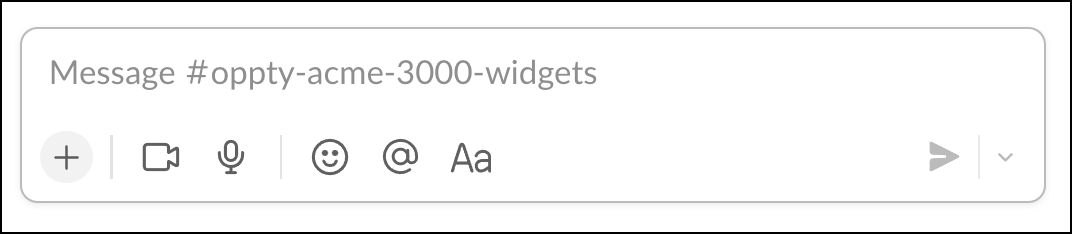
- Select where you want to collaborate.
- If you have a Slack channel that you want to convert to a sales channel, choose Existing channel.
- To create a channel, choose New channel, select whether to make the channel private, and name the channel.
 Note If you can’t find the existing channel you’re searching for, check whether the channel includes any members that are external to your company (also known as a Slack Connect channel). If the channel is a Slack Connect channel, you can still use it for your sales channel if you can remove all external members from the channel. Return to the sales channel shortcut, and search for the existing channel again. You can now finish creating the sales channel. When you’re done, add any external members to the sales channel.
 - Select the Salesforce records that the sales channel is about. You can select only records that you have access to in Salesforce.
- Select whether you want the sales channel to be notified about changes to the linked records.
- Save the sales channel.
Just like that, you have a sales channel! When you’re ready, open the channel and invite your sales team. If you save this step for last, you can manage the first impression and be confident that your sales channel works as you intended.