
Now that you’ve added Apps to your Slack sidebar, use it to find the Sales app. Then open the app and connect Slack with Salesforce.
Required Editions
| User Permissions Needed | |
|---|---|
| To install the Sales Cloud for Slack app: |
Connect Salesforce with Slack AND Slack Sales User |
- From the Slack navigation menu, click Apps. If you don’t see it, open the More menu.
- Type Sales, and then click the app to open it.
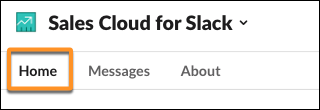
- From the Sales app, click the Home tab.
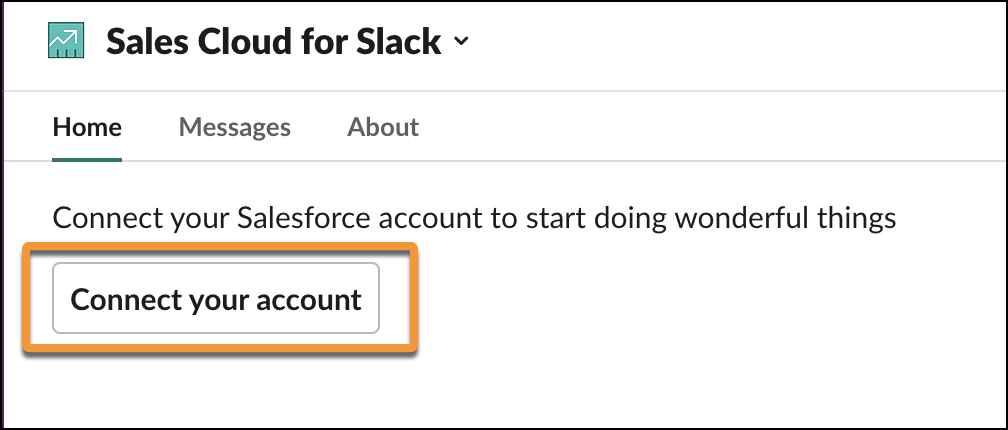
- Click Connect Your Account.
- You’re prompted to enter your Salesforce login credentials.
- You’re prompted to authorize the connection between Slack and Salesforce. Click Allow.
- You’re prompted to allow Slack to access your Salesforce account. Select the checkbox to agree to the terms. Then click Allow.
- Close the successfully authorized browser window.
That’s it! Now start collaborating with your colleagues using Sales Cloud for Slack!