
To capture important team knowledge when a swarm is resolved in Slack, create a knowledge article draft from a Slack message.
To create knowledge articles from Slack messages, complete the Servie Cloud for Slack app and Swarming setup and make sure you have Knowledge creation permissions in Salesforce.
- From a message in Slack, select More actions, and then Create Knowledge Draft.
- If applicable, select a knowledge article type. This determines which Knowledge fields you can map your Slack content to.
- Map the selected content to a field on the knowledge article record. You can edit the
content or add more information in a later step.
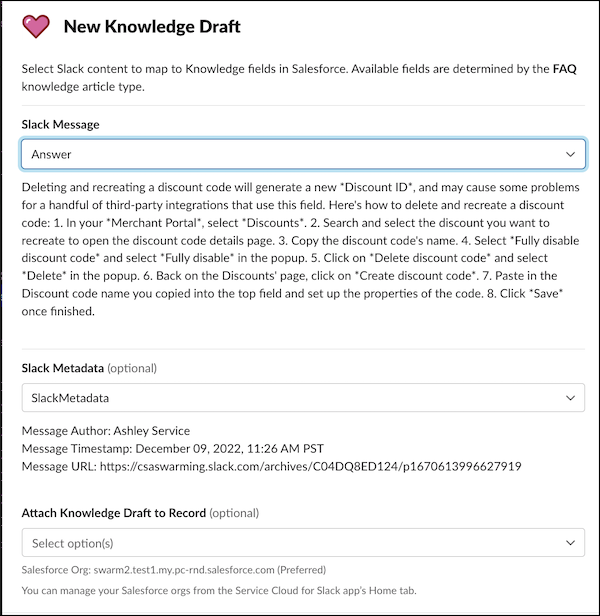
- Optionally, map the Slack metadata, such as the message author or time the message was sent, to a Knowledge field. Click Next.
- Optionally, attach the knowledge article draft to a record in Salesforce, such as the swarm’s parent case record.
- Complete the required Knowledge fields, edit the mapped content, and then save your changes.
After you create a knowledge article draft from Slack, the draft is saved to Salesforce where you can make updates, add formatting and images, and publish it.