View and update your leads and referrals in Slack.
Required Editions
|
Available in: Lightning Experience Available in: Enterprise, Performance, and Unlimited editions Available in: Slack (where approved by a workspace admin) |
| User Permissions Needed | |
|---|---|
| To use Salesforce with Slack: | Connect Salesforce with Slack |
| To use Action Plans: |
Financial Services Cloud Extension permission set AND Customize Application |
- In Slack, open the Financial Services Cloud app.
- Click View Your Leads and Referrals.
If you don’t see the View Your Leads and Referrals button, contact your Salesforce Admin for help.
- Review the list of your leads and referrals. The sort order is by date, oldest lead, or
referral is first.
- To update the status of the lead, click Select….
- Select a status, and click Change.
When you update the status to Closed, the lead is removed from Slack. To see the Closed leads and referrals, go to Salesforce.
- To go to Salesforce for more information, click the name of the lead.
- To see more leads, click View More.
- To view more than the maximum number of leads and referrals Slack can show, click View More in Salesforce. This opens your Salesforce org, on the Open Referrals I’m assigned list view.
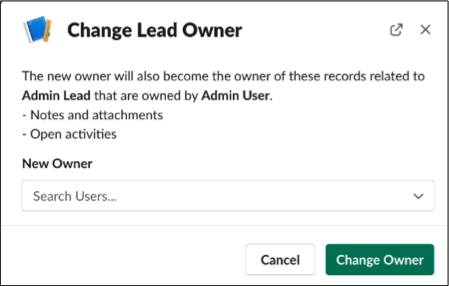
- To reassign a lead to another user, click Change Owner.
- Click Search Users… and select a user.
- Click Change Owner.