Send Slack notifications to users when a lead or referral is created by a user or when a
lead or referral is assigned to a user. Salesforce provides a standard lightning flow template
that you can use to send lead and referral Slack notifications. You can clone the template to
customize it to suit your business process.
Required Editions
|
Available in: Lightning Experience
Available in: Enterprise, Performance, and Unlimited editions
Available in: Slack (where approved by a workspace admin)
|
| User Permissions Needed |
| To open, edit, or create a flow in Flow Builder: |
Manage Flow |
| To run a flow: |
Run Flows |
- From Setup, in the Quick Find box, enter Flows, and then select
Flows.
- Click New Flow, and then click All + Templates.
- In the list of templates, select Send Slack Notifications for Lead and Referral
Creation and Assignment, and then click Create.
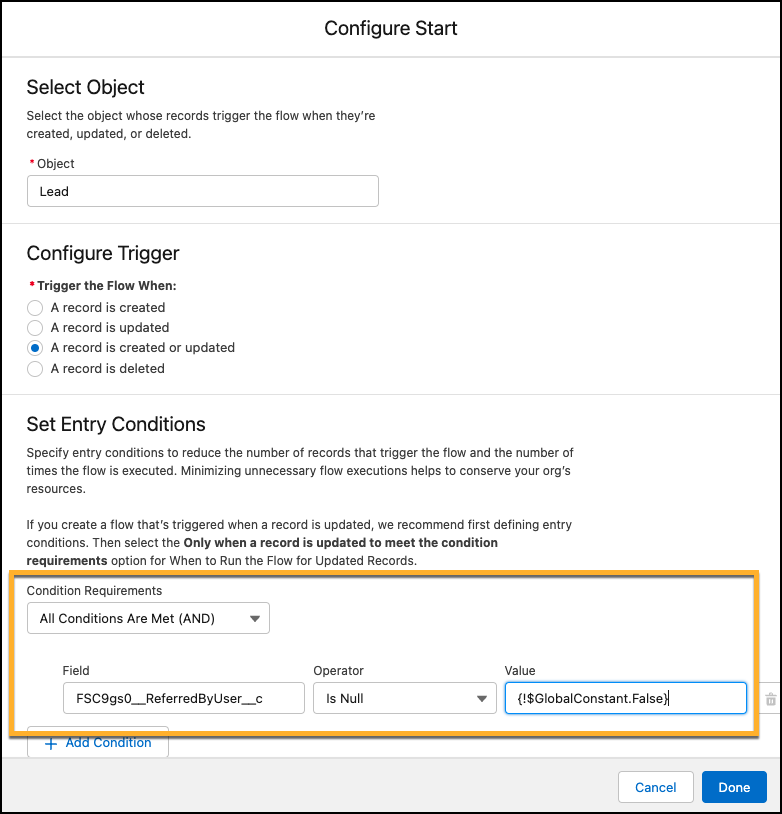
- Edit the Start element, and in Set Entry Conditions, update the conditions.
- Conditions Requirement Select All conditions are met(AND).
- Field: Select Internal Referrer.
- Operator: Select Is Null.
- Value: Select $GlobalConstant.False.
- Click Done.
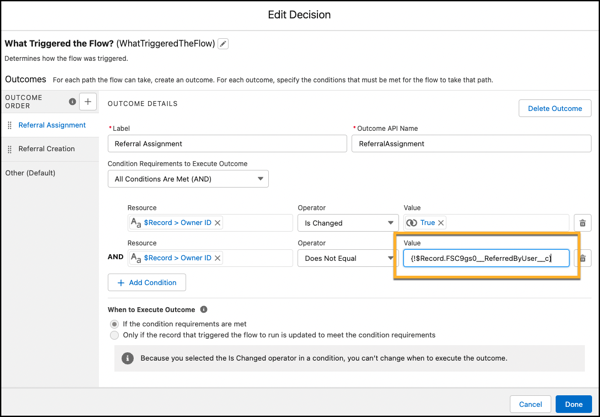
- Edit the Creating or Assignment Decision element.
- Condition Requirements to Execute, update the value for the second condition.
- Value: Select $Record.
- Inside the brackets: Select FSC9gs0__ReferredByUser__c.
- Click Done.
- Customize the flow according to your business requirements, and then save your
changes.
- Save and activate the flow.