
Learn how to add and remove people from a student's success team.
- What's a Success Team?
Everyone who serves in a support role is considered to be part of a student's success team. For students, knowing who to ask for help removes a big barrier to seeking support. For support staff and departments, having visibility into and easy access to other success team members helps you maintain a strong, informed support network for every student. - Add a Success Team Member
Add a member or predefined team of support staff to a student's success team. - Considerations for Removing Success Team Members
Review some considerations before you remove individual members or predefined teams from a student’s success team.
What's a Success Team?
Everyone who serves in a support role is considered to be part of a student's success team. For students, knowing who to ask for help removes a big barrier to seeking support. For support staff and departments, having visibility into and easy access to other success team members helps you maintain a strong, informed support network for every student.
Members of a student's success team can be individuals—such as teachers, counselors, academic advisors, and administrators—or predefined teams—such as teams dedicated to chronic absenteeism or college readiness (in K-12) or Career Services or Financial Aid offices (in higher ed).
You play a part in managing the membership of success teams by keeping individual support staff information up-to-date as your students' needs evolve or your school's personnel changes. Your Student Success Hub administrator creates predefined success teams and manages their membership.
Individual success team members are either Users or Contacts.
- Users are involved with day-to-day success planning and represent a student's core of support. Users can log in to Student Success Hub and, in orgs with student users and portals, can schedule appointments with students.
- Contacts are in secondary support roles, such as peer advising, mentoring, or tutoring. They are represented in Student Success Hub, but can't log in to Student Success Hub. In addition, Contacts aren't eligible for certain actions that Users are. For example, you can assign Tasks and Success Plans to a User, but not to a Contact.
Predefined teams of support staff can include both Users and Contacts.
Add a Success Team Member
Add a member or predefined team of support staff to a student's success team.
- In Student Success Hub, open the student record.
- From the Team tab, click Add Member.
- Search for and then select a User, Contact, or a predefined team to add as a member.
- For a User or a Contact, select the Support Team Role (K-12) or Case Team Role (higher ed) that the member fulfills.
- Save your changes.
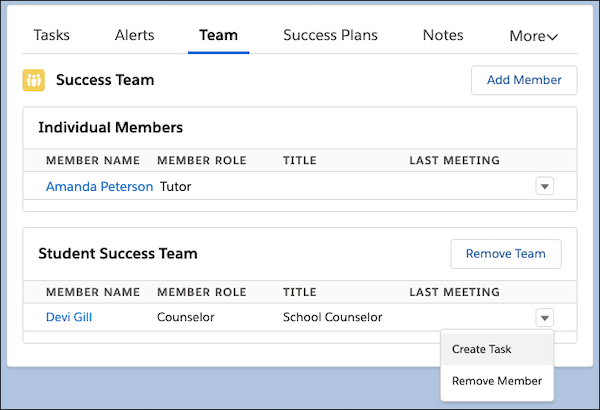
The Team related lists on the student record show the names of the team members, their roles, and, if the team member is a User, their title. Using the action menu, you can create Tasks for team members who are Users (but not for members who are Contacts). If you use appointments, the Last Meeting column shows the date of the student's last appointment with the team member.
Considerations for Removing Success Team Members
Review some considerations before you remove individual members or predefined teams from a student’s success team.
- When you remove a member from the student's success team, they no longer appear on the Assigned tab of the Scheduling Wizard.
- Removing a predefined team from a success team removes both the team and all of its members.
- When someone belongs to multiple predefined teams on the same success team:
- They only appear on the Team tab of the student's record under the first predefined team that they were added to. If you remove the other predefined teams that don’t show that member, then that member remains on both of those predefined teams and the success team. In addition, students can still see that support staff member on the Recent tab of the Scheduling Wizard and schedule time with them.
- To remove them completely from the success team, do so for all of their predefined teams. They then appear on the Recent tab of the Scheduling Wizard as Not Available, and students can't schedule time with them.
Remove a Success Team Member or Predefined Team
Remove an individual member or a predefined team of support staff from a student's success team.
- In Student Success Hub, open a student record.
- Click the Team tab.
- To remove a member, click the action menu for the member, then select Remove Member. To remove a predefined team, click Remove Team.
- Click Yes, Remove.