
Learn how to view Program Plans and create Personal Program Plans to help your students chart a course to graduation.
- View Program Plans
If your Student Success Hub administrator has set up Pathways, you can view a Program Plan's details to make sure a student stays on the right path. - Create a Personal Program Plan
Depending on how your Student Success Hub administrator set up Pathways, you can create a Personal Program Plan for a student to help them know what courses to take in each term. - Make Flexible Plans with Course Placeholders
If your Student Success Hub administrator has enabled access, you and your students can add Course Placeholders to a Personal Program Plan. A Course Placeholder is a "saved spot" that indicates an intention to take a certain type of course and number of credit hours, without picking the specific course yet. For example, your student might need to take a five-credit-hour Upper Elective in the Spring Term, but isn't sure yet if it should be Game Theory in Statistics, Advanced Quantitative Reasoning, or some other course. A Course Placeholder named "Upper Elective" with five credit hours designated indicates the student's intended plan.
View Program Plans
If your Student Success Hub administrator has set up Pathways, you can view a Program Plan's details to make sure a student stays on the right path.

-
From the student record Case, click the Programs tab. You might need to click More first.
-
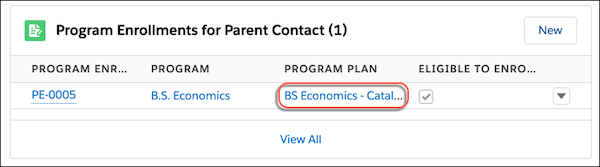
Click the Program Plan link.
-
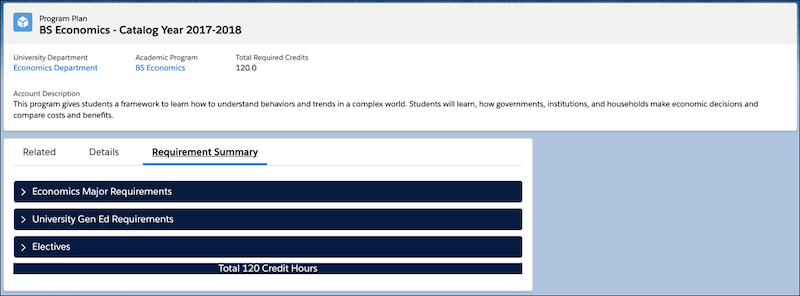
On the Program Plan record page, click the Requirement Summary tab. From here you can review the details of the plan.
See Review How Students Experience the Portal (Support Staff) to understand the student experience with Pathways.
Create a Personal Program Plan
Depending on how your Student Success Hub administrator set up Pathways, you can create a Personal Program Plan for a student to help them know what courses to take in each term.

-
From the student record Case or Contact page, click the Program Plans tab. You might need to click More first.
-
In the Personal Program Plans related list, click New Plan.
-
Enter the plan name, and select a starting term. The Assigned To field is automatically populated.
-
Click Create Plan.
-
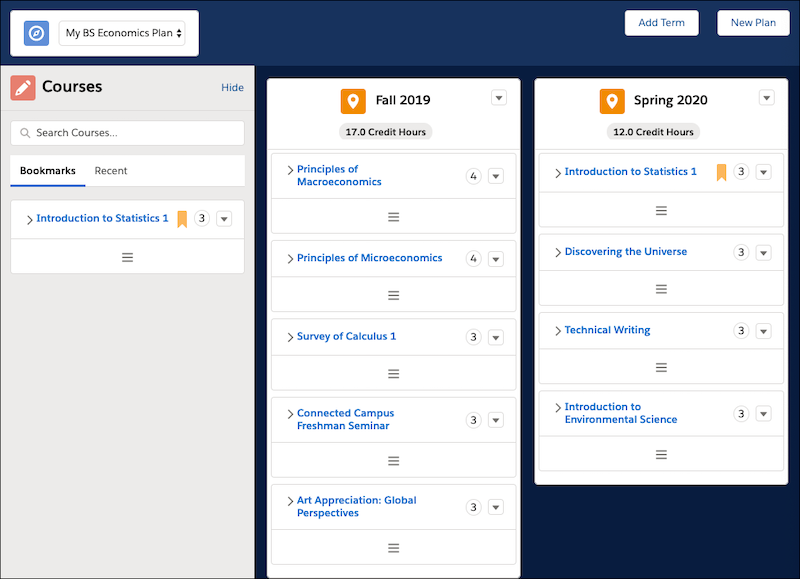
To add predefined terms to the plan, click Add Term. For example, Fall 2019.
-
Search for courses, and drag them to a term or use the action menu to add them.
Students can view and edit the Personal Program Plan in the portal.
Make Flexible Plans with Course Placeholders
If your Student Success Hub administrator has enabled access, you and your students can add Course Placeholders to a Personal Program Plan. A Course Placeholder is a "saved spot" that indicates an intention to take a certain type of course and number of credit hours, without picking the specific course yet. For example, your student might need to take a five-credit-hour Upper Elective in the Spring Term, but isn't sure yet if it should be Game Theory in Statistics, Advanced Quantitative Reasoning, or some other course. A Course Placeholder named "Upper Elective" with five credit hours designated indicates the student's intended plan.
Here's how to add a Course Placeholder to a Personal Plan Builder.
-
Click the action menu for a Term and select Add Placeholder to Term.
-
Enter a Placeholder Name. For example, Upper Elective.
-
Enter Credit Hours. For example, 5 hours.
-
Save the placeholder.
The Course Placeholder appears in the selected Term.