
Learn your way around the Appointment Manager in Student Success Hub.
The Appointment Manager helps you prepare for your day and get the most out of your support engagements.
- Get a high-level overview of your appointments for the day or week ahead.
- Preview records for the students that you're meeting with.
- Reschedule appointments, schedule a follow-up meeting, and assign tasks to a student on the spot.
- Quickly log ad hoc appointments when students drop by your office.
-
Join a virtual appointment with the click of a button.
To open the Appointment Manager, click Appointment Manager in the utility bar in the page footer.

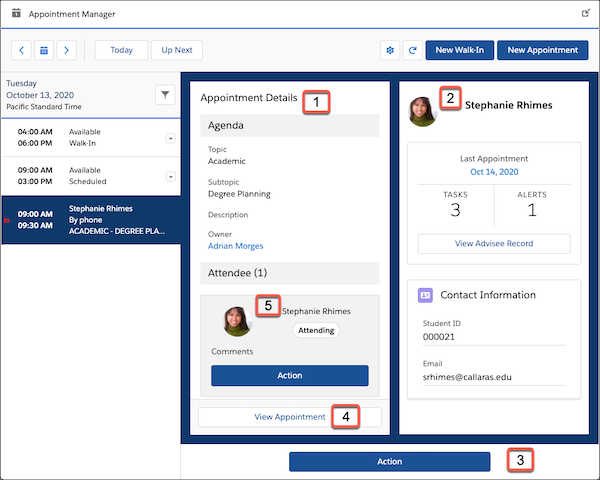
The Appointment Manager window opens over the app. Select an appointment from the schedule to see its details, including the Agenda and the Attendee list in the Appointment Details panel on the left [1]. See key details for a selected appointment attendee in the Attendee Snapshot panel on the right [2].
With an appointment selected, you can do many things.
-
Under the Appointment Details and Attendee Snapshot panels, click Action [3] to cancel, edit, end, or schedule a follow-up appointment. You can also apply a Success Plan, add a Note, or send an email to all appointment attendees who have a student record Case.
-
To open an Appointment record, click View Appointment [4] in the Appointment Details panel.
-
For virtual appointments, click Join Web Meeting in the Appointment Details panel to enter the meeting at the designated start time.
-
To perform actions for a specific student attendee, scroll in the Appointment Details panel to locate the card with the student's name, profile picture (or placeholder), and status [5]. Click Action in the student's card to add a Note, apply a Success Plan, create a Task, or send an email to that student. On or after the appointment start time, you can also mark any attendee (student or not) as a no show.
-
View comments an attendee has entered from the portal. The Comments header appears on the attendee card even if the student hasn't entered any comments.
-
With an attendee selected in the Appointment Details panel, the Attendee Snapshot panel displays the Last Appointment, Tasks, and Alerts fields from the Student Snapshot (the component that appears on the student record Case page). Below that, the Attendee Snapshot displays Contact Information for the student: Their Email, Phone, and Student ID, if available. Click View Student Record to go to the attendee's student record Case page.
If the attendee is another support staff member and not a student, then the Attendee Snapshot shows the individual's title, photo, and Contact Information (Email and Phone) if available, and you can click View Record to go to their Contact or User record page.

Non-support Events, such as a doctor appointment that you created from your Calendar, also appear in the Appointment Manager schedule. Just remember:
-
Non-support Events that span multiple days don't appear.
-
The Action button isn't available for non-support Events.
-
You can click View Appointment to open a non-support Event record.
Use the date selection buttons to navigate to yesterday, today, tomorrow, or another date. Or click Up Next to go to your next scheduled appointment.

To close the Appointment Manager, click ) in the header.

 in the header to open the Appointment Manager in a standalone browser window that you can freely resize. Click
  to restore the floating window when you're done.