Learn how to schedule support appointments with students in Student Success Hub.
- Schedule an Appointment
For appointments that you schedule in advance, create them in the Appointment Manager or from the student record. Remember, don't use your Calendar to create support appointments. You can schedule one-on-one appointments with a single student, or group appointments with multiple students and even other support staff members. - Schedule a Follow-Up Appointment
While viewing an appointment in the Appointment Manager, you can quickly schedule a follow-up appointment. Scheduling follow-up appointments from the Appointment Manager saves time because details such as the invitees' names and the appointment's Location, Topic, and Subtopic are automatically filled out. - Log a Walk-In Appointment
For appointments that aren't scheduled in advance, log a walk-in appointment from the Appointment Manager when a student drops in. Logging walk-ins is quick and easy. You can create walk-in appointments at any time and for any duration—even during times that you've designated as "not available" on your Calendar. Walk-ins are for individual advising appointments only. You can't log a walk-in group appointment. - Schedule an Appointment for Another Staff Member
Scheduling an appointment in advance for others on your team is similar to scheduling an appointment for yourself.
Schedule an Appointment
For appointments that you schedule in advance, create them in the Appointment Manager or from the student record. Remember, don't use your Calendar to create support appointments. You can schedule one-on-one appointments with a single student, or group appointments with multiple students and even other support staff members.
-
Click New Appointment in the Appointment Manager or on the Appointments tab of a student record Case page.
-
Specify the appointment details.
- Invitee(s)
-
Search for and select one or more students from the list of suggestions, which can include both your own students as well as students from success teams that you're not a member of. If you're a member of the success team, you see a badge. You can also invite other support staff—anyone who's a Student Success Hub User. As you type, the search field suggests up to 15 people or the size of the success team, whichever is larger, and it shows success team members before unassigned support staff.
- Location
- Choose an Appointment Location that you've specified in your Availability Settings.
- Web Meeting
-
When you specify a virtual Location, Student Success Hub selects the Web Meeting option automatically and populates the Web Meeting Link and Additional Connection Information fields with the details from your virtual Appointment Location. You can enter a different web meeting URL or connection details if desired. You'll be able to join the web meeting by clicking a button on the Appointment Details panel in the Appointment Manager, and your students will be able to click or tap a button to join the virtual meeting from the portal.
If you specify a virtual Appointment Location that doesn't have a static URL, you can manually enter a URL in the Web Meeting Link field and provide any optional Additional Connection Information.
Be sure to include the http:// or https:// prefix in the web meeting link.
 Note You must create the virtual meeting separately, using a third-party service.
 - Topic
- Choose a topic.
- Subtopic
- Choose a subtopic, if available for the selected Topic.
- Appointment Subject
-
Enter an optional subject for the appointment. If you don't provide an Appointment Subject, Student Success Hub concatenates and uses the selected Topic and Subtopic. The Appointment Subject displays in both the agenda preview on the left side of the Appointment Manager as well as in the complete agenda in the Appointment Details panel.
- Description
-
Enter an optional description for the appointment.
- Date and Time
-
Choose a predefined or one-off time.
Note In Predefined Availability, you can choose any available time in the recurring availability blocks you've defined in your Availability Settings, regardless of which Topics and locations you've associated with the blocks. This ability to override your defined Availability Settings gives you the greatest amount of flexibility and control over your own scheduling. (But don't worry—students scheduling appointments in the portal can't override your defined Availability Settings.)
-
Save your changes.
When you save the appointment, Student Success Hub creates an Appointment record as well as an Appointment Attendee record and an Event record for you and for each invited participant. Your Event record is informational only and is mainly for keeping your Calendar in sync. While you can access the Event record from your Calendar, avoid interacting with it in your Calendar. Always access and work with Appointment and Appointment Attendee records from the Appointment Manager or other points of access from the student record Case.
Schedule a Follow-Up Appointment
While viewing an appointment in the Appointment Manager, you can quickly schedule a follow-up appointment. Scheduling follow-up appointments from the Appointment Manager saves time because details such as the invitees' names and the appointment's Location, Topic, and Subtopic are automatically filled out.
- Select an appointment in the Appointment Manager, then click Action below the Appointment Details and Attendee Snapshot panels and select Schedule Follow-Up.
- Update the agenda details as needed.
-
Specify a date and time.
-
For a routine follow-up appointment, select from the time slots on the Predefined Availability tab.
-
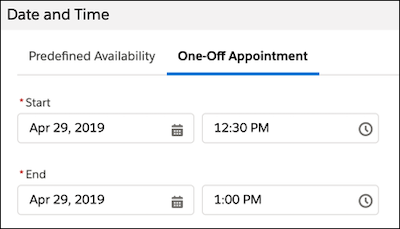
For a non-routine follow-up (such as an appointment that is shorter or longer than your standard appointment length, or to schedule during a time that isn't reserved for support appointments), click the One-Off Appointment tab and specify a date and custom Start and End times.
-
- Save the appointment.
Log a Walk-In Appointment
For appointments that aren't scheduled in advance, log a walk-in appointment from the Appointment Manager when a student drops in. Logging walk-ins is quick and easy. You can create walk-in appointments at any time and for any duration—even during times that you've designated as "not available" on your Calendar. Walk-ins are for individual advising appointments only. You can't log a walk-in group appointment.
-
Click New Walk-In in the Appointment Manager.
-
Specify the appointment details.
- Invitee
- Search for and select a student from the list of suggestions, which can include both your own students as well as students from success teams that you're not a member of.
- Location
- Choose an Appointment Location that you've specified in your Availability Settings.
- Topic
- Choose a topic.
- Subtopic
- Choose a subtopic, if available for the selected Topic.
- Description
- Enter an optional description for the appointment.
- Duration
- If the default appointment duration isn't appropriate for this appointment, choose another duration. Student Success Hub automatically sets the appointment start time to the time that you clicked the New Walk-In button and calculates the end time based on the duration.
- Save the appointment.
To adjust the walk-in's start time, end time, or other details, click View Appointment in the Appointment Manager to edit the appointment's details.
Schedule an Appointment for Another Staff Member
Scheduling an appointment in advance for others on your team is similar to scheduling an appointment for yourself.
- Starting from the Appointment Manager or from the Appointments related list (in the Appointments tab) on the student record Case, click New Appointment.
- In the Assigned Support Staff Member field, search for and select a person's name.
- In the Invitee(s) field, search for and select one or more students.
- Specify other appointment details as needed.
- Save the appointment.
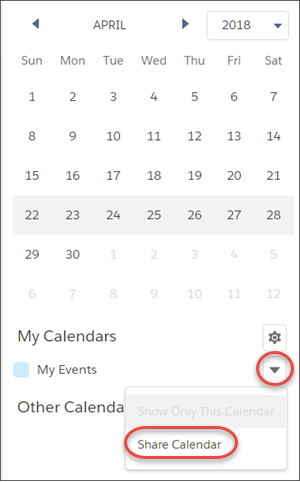
When scheduling appointments for someone else, you typically have enough access to their Calendars to see their availability for scheduling. Depending on how your Student Success Hub administrator has configured Calendar sharing, individual support staff members may want to further extend Calendar access to specific people. Each staff member can edit their own sharing settings on the Calendar tab by clicking the action menu next to the My Events calendar. Use the Share Calendar option to specify who else gets access.