
Learn how to edit appointment details, track no shows, and cancel appointments in Student Success Hub.
- Edit Appointment Details
Edit the details of an appointment by accessing it from the Appointment Manager or the student record Case. Don't edit support appointments from your Calendar. - Add or Change Virtual Meeting Details for an Appointment
Update details for an appointment to suit your needs and your students'. - Cancel an Appointment
Cancel an appointment in the Appointment Manager. - End an In-Progress Appointment
If an in-progress appointment ends earlier than expected, set the appointment's end time to the current time. - Track No Shows and Attendance
Sometimes students show up late to their appointments—and sometimes they don't show up at all. Track appointment attendance in the Appointment Manager. - Write a Note Related to an Appointment
To write a Note related to an appointment, create it from the Appointment Manager, where you're likely already viewing the appointment details. Creating a Note from the Appointment Manager saves time because the appointment Topic is populated automatically and the Note is automatically related to both the student record Case(s) and the Appointment record. - Refresh the Appointment Manager
If you make changes to an appointment but don't see them reflected in the Appointment Manager, refresh the view.
Edit Appointment Details
Edit the details of an appointment by accessing it from the Appointment Manager or the student record Case. Don't edit support appointments from your Calendar.

- You can't add or remove invitees by editing an Appointment record. To change who is invited to a scheduled appointment, cancel the appointment and create a new one with different invitees.
- When editing an appointment created for you by a front-desk staff person, you can't change the Topic or Subtopic of the appointment. You can only change the location or choose a different date or time.
-
Open an appointment from one of these locations.
- From the Appointment Manager, select an appointment and click Action below the Appointment Details and Attendee Snapshot panels. Then, click Edit Appointment.
-
To edit a past appointment's start or end time or to access Appointment Attendee details, from the Appointment Manager, select an appointment and click View Appointment in the Appointment Details panel. Then select Edit from the action menu.
To see the Appointment Attendees related list, click the Related tab on the Appointment record.
-
From the student record Case, select the Appointments tab and locate the appointment. Then select Edit from the action menu.
- Edit appointment details as needed.
- Save your changes.

If you check your Calendar or Appointment Manager and don't
see your changes,  to update the data.
To edit a non-support Event, such as a doctor's appointment that you added to your Calendar, do so from your Calendar: With the Event selected, click More Details, then click Edit on the record. You can also access the Event record by clicking View Appointment in the Appointment Manager.
Add or Change Virtual Meeting Details for an Appointment
Update details for an appointment to suit your needs and your students'.
Add a Web Meeting Link to a Virtual Appointment
If you have virtual support appointments on your Calendar that don't have a meeting link specified, or you don't have a static URL for a virtual Appointment Location, not to worry! It's easy to add a meeting URL to a virtual appointment.
-
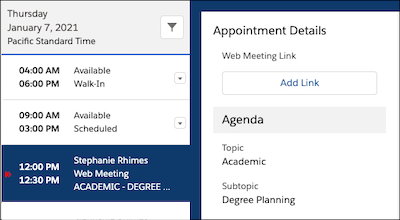
Select a virtual appointment in the Appointment Manager. Notice that the agenda preview says "Web Meeting" below the attendee's name.
-
In the Appointment Details panel, click Add Link.
-
On the Edit Appointment form, enter a Web Meeting Link and any optional Additional Connection Information.
Note If the appointment was scheduled before your Student Success Hub org started using location-based availability, you'll need to click the Location menu and choose a virtual Appointment Location. If you choose one with a Web Meeting Link, Student Success Hub populates that field for you. -
Save your changes.
The appointment updates with the virtual Appointment Location in the agenda preview, and a Join Web Meeting button shows in the Appointment Details panel. If you don't see the changes, refresh the Appointment Manager. The meeting link is also included in the updated appointment email notification, and it shows on the appointment card in the portal.
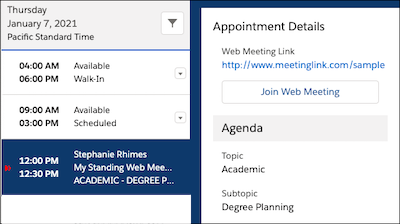
Keep in mind that you've only updated the link for this individual appointment. Any other future scheduled appointments that use the same virtual Appointment Location aren't updated.
Change an In-Person or Phone Appointment to a Virtual Appointment
To change a phone or in-person appointment to a virtual appointment instead, edit the appointment.
-
Select the phone or in-person appointment in the Appointment Manager.
-
Click Action under the Appointment Details and then click Edit Appointment.
-
On the Edit Appointment form, click the Location menu and choose a virtual Appointment Location.
-
Save your changes.
The appointment updates with the virtual Appointment Location, and a Join Web Meeting button shows in the Appointment Details panel. The meeting link is also included in the updated appointment email notification, and it shows on the appointment card in the portal.
Change the Web Meeting Link for a Virtual Appointment
To change the Web Meeting Link on a virtual appointment, edit the appointment.
-
Select the virtual appointment in the Appointment Manager.
-
Click Action under the Appointment Details and then click Edit Appointment.
-
On the Edit Appointment form, click the Location menu and choose a different virtual Appointment Location, or change the Web Meeting Link and the Additional Connection Details, if desired.
-
Save your changes.
The appointment updates with the virtual Appointment Location, and a Join Web Meeting button shows in the Appointment Details panel. The meeting link is also included in the updated appointment email notification, and it shows on the appointment card in the portal.
Keep in mind that if you changed the link on an Appointment Location, you only updated this individual appointment. Any other future scheduled appointments that use the same virtual Appointment Location are not updated.
Cancel an Appointment
Cancel an appointment in the Appointment Manager.
Select the appointment, click Action below the Appointment Details and Attendee Snapshot panels, and then click Cancel Appointment. A window opens to let you enter comments about why you're canceling.
Alternatively, select the appointment in the Appointment Manager, click View Appointment in the Appointment Details panel, and then do either of the following.
-
If your administrator has configured actions on the Appointment record, click Appointment Actions or Cancel Appointment.
-
Go to the Appointment record's Appointment Attendees related list, click the action menu next to your name, and select Edit. On the Edit form that opens, change your Status to Cancelled. You can also enter the cancellation reason in the Status Comments field.
Here are some things to know about canceling appointments.
-
When you cancel an appointment, you cancel it for all attendees.
-
You can't undo cancellations.
-
Only attendees can use the Appointment Actions and Cancel Appointment buttons on the Appointment record. To cancel an appointment for another support staff member when you're not an attendee, open the Appointment record and change the staff member attendee's Status to Cancelled.
-
When an appointment is canceled, the Status for all attendees is updated to Cancelled and Student Success Hub sends cancellation emails to everyone. Comments captured from support staff and students when appointments are canceled are stored on the Appointment Attendee record and included in cancellation emails.
-
Canceled appointments don't appear in the Appointment Manager or Calendar. If you still see the appointment, refresh the Appointment Manager or Calendar. Canceled appointments show only on the student record Case in the Cancelled Appointments related list. See Manage Appointments (Support Staff).
-
Students can cancel appointments, too, from the portal. For one-on-one appointments, cancellations are simple: The student cancels and you're notified. For group appointments, students can only cancel their own attendance. However, if they're the last remaining attendee (besides you, the Organizer) in the group appointment, then canceling their own attendance cancels the appointment entirely.
-
In the Appointment Manager, the status for a student who cancels a reservation in a group appointment shows as Declined.
End an In-Progress Appointment
If an in-progress appointment ends earlier than expected, set the appointment's end time to the current time.
You can end any in-progress support appointment from the Appointment Manager. You can't, however, end non-support Events that you created on your Calendar.
-
Select the appointment in the Appointment Manager.
-
Click Action below the Appointment Details and Attendee Snapshot panels and select End Appointment.
Note The End Appointment option is available only if the appointment is in progress. Otherwise, it's grayed out.
The appointment's scheduled end time changes to the current time. Keep in mind that the end time is updated on both the Appointment record and its corresponding Event record so that the Appointment Manager and your Calendar stay in sync.
To change the end time of a past or future appointment, edit the Appointment record itself.
Track No Shows and Attendance
Sometimes students show up late to their appointments—and sometimes they don't show up at all. Track appointment attendance in the Appointment Manager.
-
Select the appointment in the Appointment Manager.
-
In the Appointment Details panel, scroll the list of attendees and find the student or non-student attendee, then click Action in the attendee's card and select Mark No Show.
The attendee's Status updates to No Show.
Tip This action is available only if the attendee's Status is Attending and the appointment has either started or ended. You can't mark someone a no show before the appointment is scheduled to start. -
If an attendee shows up after you've marked them a no show, locate the attendee again in the Appointment Details panel, click Action in their card, and select Remove No Show.
The attendee's Status updates to Attending.
All appointments appear in the Appointment Manager regardless of attendees' statuses—even if all attendees for a group appointment are no shows. The only time an appointment is removed from the Appointment Manager is when the appointment itself is canceled.
To see a student's attendance history, go to their student record Case and look at the Appointments tab. You can see status for upcoming, past, and canceled appointments.
Write a Note Related to an Appointment
To write a Note related to an appointment, create it from the Appointment Manager, where you're likely already viewing the appointment details. Creating a Note from the Appointment Manager saves time because the appointment Topic is populated automatically and the Note is automatically related to both the student record Case(s) and the Appointment record.
From the Appointment Manager, you can write a Note that applies to all student attendees (for group appointments) or to an individual student attendee. Here's how.
- While viewing an appointment in the Appointment Manager, do
either of the following.
-
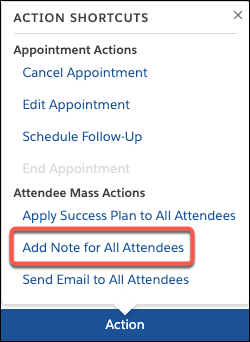
Click Action under the Appointment Details and Attendee Snapshot panels and select Add Note for All Attendees. The Note is added to every attendee's student record Case. If the appointment only has one student attendee, the Note is related to just that one student's Case.
-
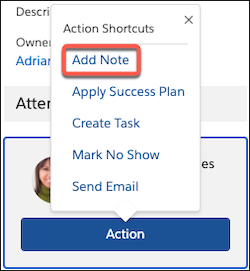
Locate any student's card in the Appointment Details panel, click Action in the card, and select Add Note. The Note is related to that attendee's student record Case.
-
- In the Notes tab that opens, write your Note. The Note is auto-saved when you create it.
- Update other details and visibility settings as needed. Changes are automatically saved.
When you create a Note outside of the Appointment Manager, you can still relate it to an Appointment record. For instructions, see Manage Notes (Support Staff).