
Customize the Student Success Hub app to suit your work style and personal preferences.
- Manage Your Navigation Tabs
Customize the app navigation bar to help your staff complete their tasks. - Update Your Profile Photo and Information
Give students and other success team members a friendly face to connect with by uploading your profile photo. Also, fill out your About Me and contact information.
Manage Your Navigation Tabs
Customize the app navigation bar to help your staff complete their tasks.
Drag tabs in the app navigation bar to rearrange them. Pin essential tabs, such as Notes, to a fixed position next to the app navigation menu so that they're always visible and readily available.
To pin Notes or another item, first select it from the app navigation menu. Then, click the tab's dropdown arrow and select Pin Tab.
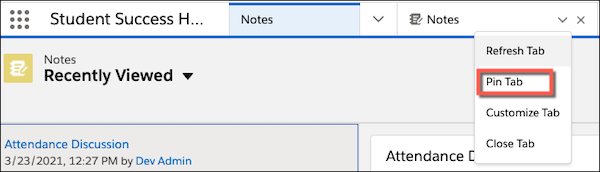
As a bonus, pinned tabs take up less space on the app navigation bar.


Update Your Profile Photo and Information
Give students and other success team members a friendly face to connect with by uploading your profile photo. Also, fill out your About Me and contact information.
-
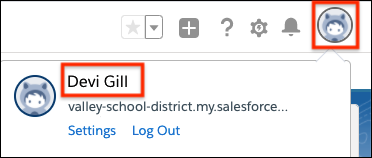
In the page header, click your User icon, and then click your name to view your User profile.
-
Click the camera icon next to the profile photo placeholder, upload your photo, and adjust its position.
-
Save your changes.
Now, fill out your About Me and contact information.
-
From your User profile, click Edit.
-
Enter your details and save your changes.