
Learn what's contained in a student record Case and different ways to access student record Cases in Student Success Hub.
- Learn About Case-Based Student Records
All support-related data for a student is associated with a single, primary Case, the student record. When a student enrolls or matriculates, your institution opens a Case and assigns a unique Case number to track notes, tasks, and other data for the student's entire educational journey, from the first day of school through graduation. - Access Student Records from a Full-Screen List View
The full-screen list view offers the most comprehensive list of your students. In the full-screen list view, you can take actions for multiple students at once, such as sending an email to a group of students or applying a Success Plan. - Access Student Records from a Compact List View
The compact student list view is great for when you need to quickly look up a student record in Student Success Hub. - Access Records Using Search
Learn how to search for student records in Student Success Hub.
Learn About Case-Based Student Records
All support-related data for a student is associated with a single, primary Case, the student record. When a student enrolls or matriculates, your institution opens a Case and assigns a unique Case number to track notes, tasks, and other data for the student's entire educational journey, from the first day of school through graduation.
We sometimes call this type of Case a student record Case, to distinguish it from other types of Cases that may be used to manage non-student support services, like IT Help Desk tickets.
Student Success Hub functionality is built to work with open Student Record Cases. For example, in orgs that support appointments, you'll experience errors if you try to schedule an appointment with a student whose Case record is closed.
The student record Case doesn't tell you the whole story about the student, of course. Academic and personal data—that is, data not specific to student support—is stored under a restricted and separate (but related) student Contact record. This data can include information about courses, grades, and other school or campus affiliations.
You usually don't have to keep track of exactly what's related to the Contact record versus the Case record. Student Success Hub keeps track for you and saves data in the right places. You can see key Case-related data in the Student Snapshot [1] and Contact-related data in the Student Details panel [2]. These convenient panels give you a unified, high-level picture of the student, so you can better understand the whole person that you're supporting.
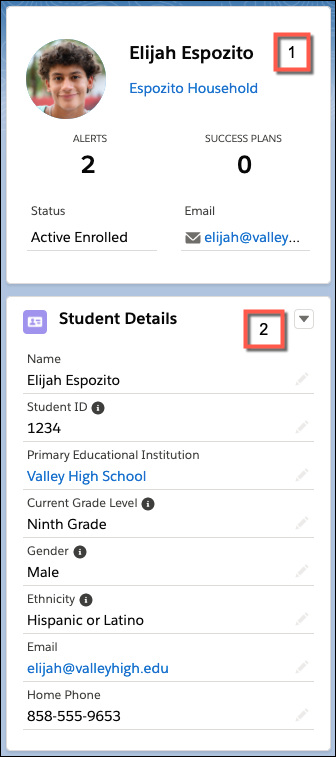
Permissions are an important area where the different data sources matter, because they affect what you can access. As a support staff member, it's obviously appropriate that you have permissions to view and edit your support-related data on the student record Case. It's also appropriate for your school to restrict your access to academic and personal data on the student Contact. Your Student Success Hub administrator configures Student Success Hub to control Case and Contact permissions for necessary access and visibility.
Your Student Success Hub administrator has created one or more lists for you to view your student Cases. Use the lists provided and remember that you can also quickly access records using search.
Access Student Records from a Full-Screen List View
The full-screen list view offers the most comprehensive list of your students. In the full-screen list view, you can take actions for multiple students at once, such as sending an email to a group of students or applying a Success Plan.
-
Click the app navigation menu arrow and select Cases.
-
Click the list view menu arrow and select a list of student records, such as My Students.
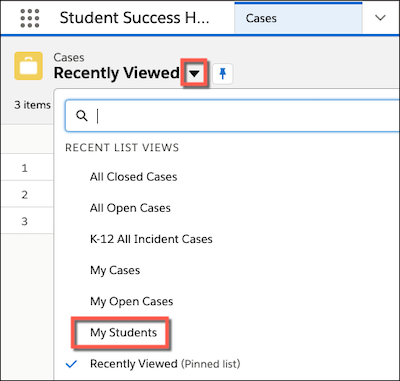
 Tip Need a specific list view that shows a filtered subset of your students, such as first-year students or varsity athletes? Ask your Student Success Hub administrator.
 -
Click a case number to open the student record.
 Note Clicking the student's name opens the student Contact, not the student record Case. Remember, Contact records contain data about the student's courses, grades, and other school affiliations, not data about student support.
Access Student Records from a Compact List View
The compact student list view is great for when you need to quickly look up a student record in Student Success Hub.
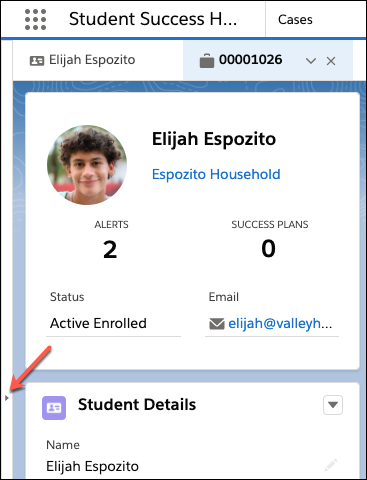
Expand the compact list view, also known as split-view, locate the student you want, and open their record Case. When you're done, click again to close the list view.
-
If you don't see the compact list view on the left, look for the split-view arrow icon at the left edge of the browser window. Click the arrow or anywhere on the vertical bar to open (and close) the view.
-
When split-view is open, click the list view selector and select a list of student records, such as My Students, from the menu.
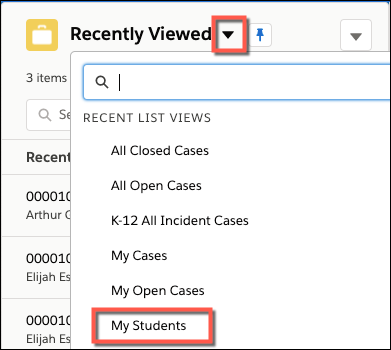
- Click a case number to open the student record.
Access Records Using Search
Learn how to search for student records in Student Success Hub.
Start typing in the search field at the top of the page to locate student records or other data. Search for students by name, phone, a Case number, and so on. As you start typing search terms, suggestions appear in the dropdown list to help you quickly locate records that you're permitted to access.
