
Complete these tasks to allow support staff to identify students who haven't had a recent support appointment.
- Learn About Students Not Served
Sometimes, students don't connect with their support staff as often as necessary. Maybe the student has canceled several appointments, or has yet to make a first-time appointment. The Students Not Served component helps support staff identify and serve these students. - Students Not Served Release Information
Students Not Served was released with Student Success Hub 2.38. Complete the required tasks to get Students Not Served up and running in your org. - Set or Verify Object and Field Permissions for Students Not Served
Using Students Not Served requires support staff to have access to fields on the Prediction object. - Configure Sharing Settings for Students Not Served
Verify your default organization-wide sharing settings for the Prediction object. - Set the Student Appointment Interval
In SSH Hierarchy Settings, set the Student Appointment Interval to define the number of days after which a student is considered "not served." For example, if the interval is set to 180 days, then any student who hasn't met with a support staff member in that period is not served. - Add Students Not Served to the Home Page
Add the Students Not Served component to the Student Success Hub Home page so that support staff can easily identify students with whom they need to meet. - Schedule a Job to Collect Last Appointment Data
To make sure the Students Not Served component always displays an up-to-date list of unserved students, schedule an Apex job to run on a recurring basis. The job collects the date and the Topic of the last appointment between the student and a support staff. - Show Support Staff How to Use Students Not Served
Learn what information the Students Not Served component provides to support staff.
Learn About Students Not Served
Sometimes, students don't connect with their support staff as often as necessary. Maybe the student has canceled several appointments, or has yet to make a first-time appointment. The Students Not Served component helps support staff identify and serve these students.
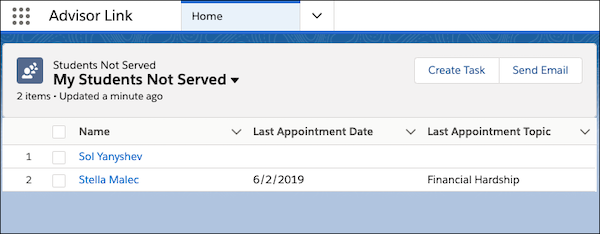
The component shows a list that looks like a standard list view, but functions differently. It pulls together data from multiple objects, including Appointment, Case, and User, and is designed to live on the Student Success Hub app Home page.
Students Not Served reveals data from the Prediction object, a custom object that gathers data about the last time a student met with a support staff member and the Topic of that appointment.
Students Not Served relies on a custom setting in SSH Hierarchy Settings called Student Appointment Interval. The setting defines the time period that constitutes a student being "not served." For example, if you set the interval to the default 180 days, then a student who hasn't met with a support staff member in 181 days or longer is considered "not served" in the staff member's list.
Students Not Served shows all students whose Case Status is an Open value as well as those with a Closed value that is inactive. Students with Case Status that is a Closed and active value don't show in Students Not Served.
Read on to learn how to set up Students Not Served.

Students Not Served Release Information
Students Not Served was released with Student Success Hub 2.38. Complete the required tasks to get Students Not Served up and running in your org.
Unless otherwise noted at the beginning of the task, all setup tasks are required regardless of the version of Student Success Hub that you originally installed. If you don’t know which version you started with, see Keep Student Success Hub Up-to-Date.
Set or Verify Object and Field Permissions for Students Not Served
Using Students Not Served requires support staff to have access to fields on the Prediction object.
For the required permissions, see Configure Higher Ed Support Staff Permissions.
Configure Sharing Settings for Students Not Served
Verify your default organization-wide sharing settings for the Prediction object.
For details, see Student Success Hub Sharing Settings.
Set the Student Appointment Interval
In SSH Hierarchy Settings, set the Student Appointment Interval to define the number of days after which a student is considered "not served." For example, if the interval is set to 180 days, then any student who hasn't met with a support staff member in that period is not served.
-
From Setup, search for and then select Custom Settings.
-
Click SSH Hierarchy Settings, then click Edit next to Student Appointment Interval.
-
Under General Options, set an appointment interval. The default is 180 days.
-
Save your changes.
Add Students Not Served to the Home Page
Add the Students Not Served component to the Student Success Hub Home page so that support staff can easily identify students with whom they need to meet.
Student Success Hub provides a default Home page layout that includes the Students Not Served component.
-
On the Student Success Hub Home page, click the gear icon and choose Edit Page.
-
Drag the Students Not Served component to the page canvas. Or, if you're using the Home page provided by Student Success Hub, reposition the component if desired.
-
Save your changes.
-
If you’re prompted to Activate the page, you can assign it to the Student Success Hub app, the support staff profile, and other profiles as appropriate.
-
Exit Lightning App Builder.
-
Verify that the component appears on the page.
Schedule a Job to Collect Last Appointment Data
To make sure the Students Not Served component always displays an up-to-date list of unserved students, schedule an Apex job to run on a recurring basis. The job collects the date and the Topic of the last appointment between the student and a support staff.
Student Success Hub provides a scheduled Apex batch job called Students Not Served that runs every 24 hours, at midnight. To view it, go to the Scheduled Jobs page in Setup. Keep in mind that scheduled Apex jobs can't be edited. If you want to run the job at a different time or on a different frequency, or if you didn't install the job with Student Success Hub, create your own scheduled Apex job to collect the list of unserved students. If you create a second job, be sure to delete the Student Success Hub job so that it doesn't run in addition to the job you create.
-
From Setup, search for and then select Apex Classes.
-
Click Schedule Apex.
-
Enter a Job Name, then click the lookup icon next to the Apex Class field and search for and select AppointmentPredictionSchedulable.
 Note If you can't find this class using search, cancel and return to the list of Apex classes in your org. Click Compile all classes, wait for confirmation of successful compilation, and then click Schedule Apex and look for the class again.
 -
For scheduled Frequency, select Weekly or Monthly and then specify the cadence. For example, schedule the job to run weekly on Mondays or on the first Sunday of every month.
-
Select the Start and End dates, and your Preferred Start Time.
-
Save your changes.
-
Verify that your newly created job appears in the Scheduled Jobs list.
For more help, see Schedule Jobs Using the Apex Scheduler in Trailhead. If you'd like the job to run more frequently—even hourly—see the "Using the System.Schedule Method" topic to learn how to customize the CRON expression used for scheduling.
You can also run the job at any time—perhaps to test it before you schedule it to recur—from the Developer Console.
-
Click the Setup menu and choose Developer Console.
-
Click the Debug menu and choose Open Execute Anonymous Window.
-
Paste this Apex code in the window and then click Execute.
Database.executeBatch(new
                            sfal.AppointmentPredictionBatchable());
Show Support Staff How to Use Students Not Served
Learn what information the Students Not Served component provides to support staff.
-
Click the list view dropdown menu to choose a view.
-
My Students Not Served, the default, shows the not-served students assigned to the support staff User.
-
All Students Not Served shows the not-served students assigned to the support staff User and, if you've enabled access, the not-served students assigned to other staff on the User's case team or success team.
-
My Students' Last Appointments shows all students, both served and not served during the Student Appointment Interval, assigned to the support staff User.
-
All Students' Last Appointments, the most comprehensive list, shows the most recent appointment for all students—served and not served—for all support staff on a case team or success team, as long as you've enabled that visibility.
-
-
Click a student's Name to go to their Case record.
-
Sort by Name, Last Appointment Date, Last Appointment Topic, or Support Staff Member (if other support staff members' students are listed).
-
Select one or more students and create a task for them or send an email to them.
Be sure to let support staff know that although the Students Not Served component looks like a standard list view, it's not.
-
Standard functions such as Search and inline editing aren't available.
-
The list views can't be customized.
-
You can't create reports from the data in the Students Not Served component.
-
The data is only as fresh as the most recent Apex job. For example, say a support staff member schedules an appointment with a student in the not-served list. That student will remain in the not-served list until the next scheduled Apex job runs. (To that end, it's a good idea to let support staff know how frequently you've scheduled the jobs and your defined Student Appointment Interval.)
It's also important for support staff to understand who appears in their not-served lists. They'll always see students who are assigned to them. They'll see students who are assigned to other staff on their case team or success team only if you, as admin, grant access to those records through Sharing Settings or a sharing rule.