
Let support staff quickly see key details by configuring the Student Snapshot component on the Student Record Case page.
- Learn About the Student Snapshot
The Student Snapshot, a Lightning web component that appears on the Student Record Case page, highlights essential details about a student. The default configuration depends on the Student Success Hub version you install. - Allow Student Snapshot Field Customization
Allow customization of the fields that appear in the Student Snapshot on the Student Record Case page. - Customize the Student Snapshot Field Set
To highlight the data that's most important to see at a glance, you can customize the fields that appear in the Student Snapshot on the Student Record Case page. Use the Student Snapshot Details field set that comes with Student Success Hub. - Use a Student's Chosen Full Name in the Snapshot
By default, the Student Snapshot shows the first and last name from the student's Contact record, which tends to be the student's legal name. However, you can show a student's chosen full name instead. The chosen full name is the name the student prefers, which could differ from their legal name. - Add Student Photos to the Snapshot
Student Success Hub allows you to add photos to the Snapshot so that support staff have a picture of the student to go with the name. - Customize the Item Counters in the Snapshot
The counters that appear by default in the Student Snapshot on the Student Record Case page depend on the Student Success Hub version that you install. - Show the Snapshot on Lightning Record Pages for Other Case Types
The Student Snapshot shows data related to the student's open Case record, but the data—and the component—can be shown on page layouts for other Case record types.
Learn About the Student Snapshot
The Student Snapshot, a Lightning web component that appears on the Student Record Case page, highlights essential details about a student. The default configuration depends on the Student Success Hub version you install.
By default, the K-12 Student Snapshot shows:
-
The student Contact's name.
-
A photo of the student, if one is provided.
-
A headline field that shows the student Contact's related Account.
-
Item counters, including the number of unresolved Alerts and the number of open Success Plans associated with the student's Case.
-
Detail fields that include the student's Case Status and their email address.
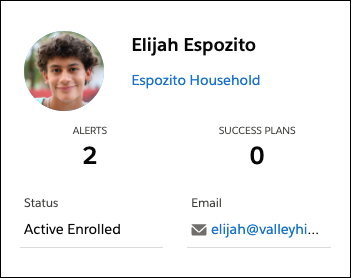
By default, the higher ed Student Snapshot shows:
- The student Contact's name.
- A photo of the student, if one is specified. The photo is either the student's User photo, which the student uploads to the portal, or one that you upload and define using a custom setting.
- Headline fields that show the student Contact's primary academic program and the student Contact's primary department affiliation, if specified.
- Item counters that include the number of incomplete Tasks, the number of unresolved Alerts, and the number of upcoming scheduled appointments.
- Detail fields that show the date of the student's last appointment with a support staff member, the Status of the Student Record Case, and the student's FERPA status (an EDA Contact field).
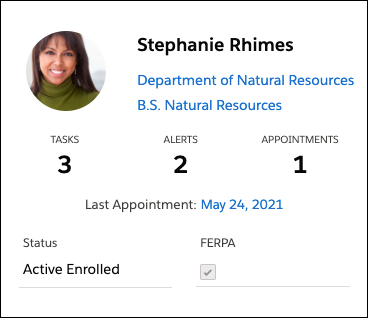
The Student Snapshot is highly customizable. You can change the content of the headline, detail fields, and item counters. You can also show a student's chosen full name instead of their legal name. And you can upload photos to give support staff a picture to go with the student's name.

Allow Student Snapshot Field Customization
Allow customization of the fields that appear in the Student Snapshot on the Student Record Case page.
- From Setup, search for and then select Custom Settings.
- Next to SSH Hierarchy Settings, click Manage.
- Click Edit.
-
Configure the Student Snapshot settings.
- Select Customize Student Snapshot Fields. You can restore the default configuration at any time. In new Student Success Hub installations, Customize Student Snapshot Fields is selected by default.
- For Student Snapshot Headline Fields, specify how many headline fields to show. You can show up to 4. If you don't want any headline fields, enter 0.
- Save your changes.
After you allow Snapshot field customization, edit the field set to show the data you want support staff to see.
Customize the Student Snapshot Field Set
To highlight the data that's most important to see at a glance, you can customize the fields that appear in the Student Snapshot on the Student Record Case page. Use the Student Snapshot Details field set that comes with Student Success Hub.
- From Setup, in Object Manager, select Case, then select Field Sets.
-
Next to Student Snapshot Details, select Edit from the dropdown menu.
-
Drag fields you want in the field set.
- Save your changes.
-
Go to any Student Record Case, refresh the page, and confirm your changes.
Keep in mind these guidelines when selecting fields.
- You can use standard, custom, or EDA fields from the Student Record Case, related Contact, or related Account. If you created a K-12 Student Success Hub org, you can also use K-12 Architecture Kit fields from the Student Record Case, related Contact, or related Account.
- Headline fields appear prominently under the student's name. For example, if you specify a value of 2 in the Student Snapshot Headline Fields custom setting, the Snapshot displays the first two fields in the list as headlines—without field labels and with hyperlinks if they're lookup fields. This means that only fields showing self-explanatory values are well-suited to serve as headlines. Checkbox fields and variants of date/time fields are not good headline candidates.
- The vertical order of the In the Field Set list reflects the display order in the Snapshot. Headline fields, if any, show at the top of the Snapshot under the student's name. All other fields display below the item counters.
- Formatting is optimized for the type of data in the field. Lookup field values render as hyperlinks. Rich text area fields retain their formatting, which means you can include images in the Snapshot—icons, thumbnails, badges, even animated GIFs!
- Fields that don't have a value don't appear in the Snapshot—except checkboxes, which show even if the box is not selected.
- Encrypted fields aren't supported.
- The field set can have up to 25 fields through lookup relationships. Fields can only span one level away from the entity.
Use a Student's Chosen Full Name in the Snapshot
By default, the Student Snapshot shows the first and last name from the student's Contact record, which tends to be the student's legal name. However, you can show a student's chosen full name instead. The chosen full name is the name the student prefers, which could differ from their legal name.
-
From Setup, in the Quick Find box, enter Custom Settings, then select Custom Settings.
-
Next to SSH Hierarchy Settings, click Manage.
-
Click Edit.
-
In the Chosen Full Name Field, enter the API name of the field you're using for a chosen name. For example, enter hed__Chosen_Full_Name__c to use the Chosen Full Name field provided in EDA and K-12 Architecture Kit. The value of your selected field needs to include the student's salutation, first name, last name, suffixes, and so on.
-
Save your changes.
- Contact page layout
- Contact search layouts
- Fields on the Contacts related list
- Compact layouts, such as the one used by the highlights panel on the Student Record Case
- Fields on actions, such as the one used by the Related Record component that displays a student's Contact Details on the Student Record Case (sometimes you need to create a new update action)
- Other layouts that display the Contact Name, such as Program Enrollment and other EDA and K-12 Architecture Kit layouts. Sometimes you need to use a formula field or other method to populate the chosen name field on certain objects.
Add Student Photos to the Snapshot
Student Success Hub allows you to add photos to the Snapshot so that support staff have a picture of the student to go with the name.
First, define the field on the Contact object that will contain the photo—or more precisely, that will contain the ID of the latest document version (Content Version) of the photo.
-
From Setup, in Object Manager, select Contact.
-
Select Fields & Relationships, then click New.
-
For Data Type, select Text, then click Next.
-
For Field Label, enter a value such as Student Photo. The Field Name is automatically populated with Student_Photo.
-
For Length, specify 18, then click Next.
-
Make sure the field is visible on the System Administrator and support staff profiles, then click Next.
-
Include the Student Photo field on any Contact page layouts you use.
-
Save the field.
Next, tell the Student Snapshot to use your newly created field to retrieve the photo.
-
From Setup, in the Quick Find box, enter Custom Settings, then select Custom Settings.
-
Next to SSH Hierarchy Settings, click Manage.
-
Click Edit.
-
In the Contact Photo File ID Field, enter the API name of the field on the Contact object that you're using to contain the photo's Content Version. For example, enter Student_Photo__c.
-
Save your changes.
Now that Student Success Hub is configured to find student photos for the Snapshot, upload photos for it to use and associate each photo with the correct student Contact record. For best results, use photos with a 1:1 (square) aspect ratio.
Upload photos to the Contact Record
BULK UPLOAD
To upload photos in bulk—such as to use the photos from your institution's Student Information System (SIS) or Student ID system—use Data Loader to insert the files to the Content Version object and to associate each photo with the correct Contact record. For instructions, see Insert files with Data Loader in Salesforce Help. And watch the Salesforce How-To Series video: How to Insert Files with Data Loader
SINGLE UPLOAD
To upload a single photo for a single student—say, for testing—go to the student's Contact record. On the Files related list, click Upload Files and upload a .gif, .png, or .jpg image for the record. For more information, see Attach Files to Records in Salesforce Help. Find the uploaded photo's Content Version by using Data Loader or by running a SOQL query, and enter it in the Student Photo field you created on the Contact object.
Upload photos to the Contact Record
Customize the Item Counters in the Snapshot
The counters that appear by default in the Student Snapshot on the Student Record Case page depend on the Student Success Hub version that you install.
In SSH for higher ed, the default Snapshot shows the number of incomplete Tasks, the number of unresolved Alerts, and the number of upcoming scheduled appointments for the student.
In In SSH for K-12, the default Snapshot shows the number of unresolved Alerts and the number of open Success Plans for the student.
You can show up to three counters and choose the information they show.
-
Alerts
-
Appointments
-
Success Plans
-
Tasks
Of course, your institution's Salesforce must be licensed and configured for student users and Experience Cloud sites in order for the Appointments and Tasks counters to show data. And support staff must have the necessary permissions to view the selected objects in order to see the counters. For details, see Configure K-12 Support Staff Permissions and Configure Higher Ed Support Staff Permissions
-
In Student Success Hub, open a Student Record Case record.
-
Click the Setup icon and select Edit Page.
-
Select the Student Snapshot in the Lightning page canvas.
-
In the component's properties pane, select the items you want to show (up to three). To not show any counters in the Snapshot, deselect all options.
- Show Appointment Information
- If selected, the Student Snapshot shows the number of upcoming appointments and the date of the student's last appointment.
- Show Tasks
- If selected, the Student Snapshot shows the number of incomplete Tasks assigned to the student.
- Show Alerts
- If selected, the Student Snapshot shows the number of unresolved Alerts associated with the student.
- Show Success Plans
- If selected, the Student Snapshot shows the number of open Success Plans associated with the Student Record Case, including both published and non-published Success Plans.
-
Save your changes and exit Lightning App Builder.
Your changes appear on the Student Snapshot on the Student Record Case.
Show the Snapshot on Lightning Record Pages for Other Case Types
The Student Snapshot shows data related to the student's open Case record, but the data—and the component—can be shown on page layouts for other Case record types.
For example, maybe you'd like to see it on Cases your institution uses to track IT tickets. If so, you can add the Student Snapshot to the Lightning page layouts for those Case record types. Remember: The Snapshot only shows data associated with Student Case Records whose Status is an Open value.
-
From Setup, in Object Manager, select Case.
-
Click Lightning Record Pages and click the page for the desired record type. For example, click Support Queue.
-
Click Edit.
-
Drag Student Snapshot from the Components panel to the Lightning page canvas and position it where you want it to appear.
-
If desired, in the properties pane, select different items to show in the Snapshot. Changes affect the Snapshot as it appears only on the Lightning record page you're editing, not the Student Record Case page.
-
Save your changes and exit Lightning App Builder.