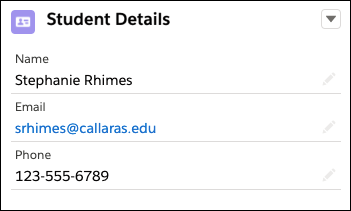
Customize the Student Details component in the Student Success Hub app to show the most relevant data for your support staff.
The Student Details component on the Student Record Case layout in the app shows information about a student that complements the information in the Student Snapshot. It pulls its data from the Contact related record. The default configuration depends on the Student Success Hub org you install.
By default, in K-12 orgs, the Student Details component shows these Contact fields.
-
Name
-
Student ID
-
Primary Educational Institution
-
Current Grade Level
-
Gender
-
Ethnicity
-
Email
-
Home Phone
By default, higher ed orgs include a Contact Details component that we recommend customizing to make it a more useful Student Details component for your support staff.
- Customize the K-12 Student Details Component
Select the information to show in the K-12 Student Snapshot. - Customize the Higher Ed Contact Details Component
In higher ed Student Success Hub orgs, to make the Contact Details component on the Student Record layout the most useful to support staff, we recommend customizing it.
Customize the K-12 Student Details Component
Select the information to show in the K-12 Student Snapshot.
-
From Setup, in Object Manager, click Contact.
-
On the Buttons, Links, and Actions page, click the Student Panel label and then click Edit Layout.
-
Drag any fields you don't want off the panel, and drag other fields onto the panel.
-
Save your changes and return to the app to see the customized Student Details panel. You may need to refresh the page.
Customize the Higher Ed Contact Details Component
In higher ed Student Success Hub orgs, to make the Contact Details component on the Student Record layout the most useful to support staff, we recommend customizing it.
Here's a sample customization.
- In the Student Success Hub app, go to any Student Record Case record.
- From the page header, click the gear icon and select Edit Page.
-
In Lightning App Builder, select the Contact Details component.
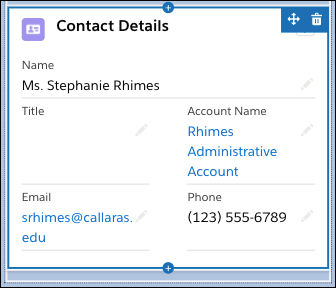
- In the Related Record properties panel, enter the Header Label Student Details.
- Leave the Lookup Field as Contact Name.
The component's layout and contents are determined by a custom action on the Contact. The default Update Action is Update Contact. We're going to change this, but first we must configure the action we're going to use.
- Save your changes and then exit the Lightning App Builder.
-
From Setup, in Object Manager, click Contact.
-
On the Buttons, Links, and Actions page, click New Action.
-
On the Contact Actions New Action page, for Action Type, choose Update a Record.
-
For Label, enter Student Panel, and then tab to populate Name with Student_Panel.
-
Save your changes.
-
Back on the Buttons, Links, and Actions page, click the Student Panel label and then click Edit Layout.
-
Remove Account Name and Title so that only Name, Email, and Phone remain.
-
Save your changes.
- Go back to Lightning App Builder for the Student Record Case page and select the recently renamed Student Details component.
-
In the Related Record properties panel, for Update Action, choose Student Panel.
The Student Details panel refreshes and shows the student's Name, Email, and Phone.
-
Save your changes in Lightning App Builder and return to the app to see the customized Student Details panel. You may need to refresh the page.