
Complete these tasks to allow students to check in to a virtual queue waiting room and join a web meeting for a fully remote support appointment.

- Learn About Virtual Queued Support Experiences
Understand the general steps to set up a virtual queue. - Configure the Virtual Queue Waiting Room
Replace your physical waiting room with a virtual one by adding your queue waiting room site to your institution's larger, authenticated Student Success Hub student portal. That way, students can securely join the queue from their mobile device or computer. - Create an Automated Email Notification Process
When a student is at the top of the queue, send an automated notification that includes a link so they can join the virtual meeting. - Review the Virtual Queued Support Experience
Understand how students access and use a virtual queue.
Learn About Virtual Queued Support Experiences
Understand the general steps to set up a virtual queue.
You remember the Before Time, right? When a waiting room was actually a room, with chairs and magazines and students staring at their phones, half-listening for their name to be called? With Student Success Hub, you can transform the physical waiting room at your campus one-stop or other support office—as well as the in-person appointments that students are waiting for—into a completely virtual queued support experience. Using just a bit of admin elbow grease, you can configure a virtual queue waiting room that students can join from anywhere, using their mobile device. When it's their turn to be seen, they receive a notification with a web meeting link, allowing them to join a virtual meeting with a support staff member.
To create a virtual one-stop center or other virtual queued support experience, from the waiting room to the appointment itself, you need to do two things: First, make the queue waiting room available to students on an Experience Cloud site, preferably one that requires authentication. Second, use process automation to send a notification to students with a link to a web meeting. We'll show you a basic example of how to make a queue waiting room available in your student portal, and how to create a workflow automation process that sends an email notification to students. Use it as a starting point for your own institution's virtual queue management workflow.
Before continuing, make sure you've set up queue management and set up a queue waiting room, including building and configuring access to a queue waiting room through a kiosk or tablet device. This setup article picks up where those tasks end.
Configure the Virtual Queue Waiting Room
Replace your physical waiting room with a virtual one by adding your queue waiting room site to your institution's larger, authenticated Student Success Hub student portal. That way, students can securely join the queue from their mobile device or computer.
-
In Setup, locate the static URL for your queue waiting room site. Search for and then select All Sites. Then, look at the URL column for the site. Add the URL as a button on your student portal Home page, or create a dedicated page for the one-stop center's virtual check-ins. Whatever works for your institution. You could even add the link to a page on your institution's website.
-
Since we're going to send students an email notification when someone is ready to meet with them, students need to provide an email address when they join the queue waiting room. Make sure the Show Email for Check-In Notifications field is selected in SSH Queuing Settings, and deselect Show Phone for Self Check-In Notifications. That way, the Email field will appear and be required on the queue waiting room self check-in form.
You might also want to customize the Waiting Room Instructions, which appear when the student has successfully checked in to the waiting room. For example, write something like, You'll receive an email with a web meeting link when someone is ready to see you.
For more information about the fields, see Set Up a Queue Waiting Room.
Create an Automated Email Notification Process
When a student is at the top of the queue, send an automated notification that includes a link so they can join the virtual meeting.
Using Process Builder is one way to automate the sending of those notifications. If you integrate with a third-party SMS system, you can automate text-based notifications, but for our basic workflow, we'll use built-in Salesforce email functionality.
Our sample process depends on two items: the email itself, which contains the meeting link, and an alert that generates the email to the student Contact. The process sends the email when someone is ready to see the student.
Create the Email Template with the Web Meeting Link
Use a Salesforce email template to create an email that includes a web meeting link. The email is sent to the waiting student when someone is ready to meet with them.
-
In Setup, search for and then select Classic Email Templates.
-
Click New Template.
-
Choose the type of template you want to use, such as Custom.
-
Store the template in the Folder of choice and give it a name like Queue Case Ready.
-
Select Available for Use.
-
For Subject, enter something like A Support Staff Member Is Ready to See You.
-
Use the merge fields to include the Case custom Location field in the body of the email. For example, the email body might say:
A support staff member is ready to meet with you. Click the link to join the meeting.
{!Case.sfal__Location__c}
-
Create the text-only version of the email and save the template.
-
Send a test email to make sure the template reads as expected.
Create the Email Alert
Create an email alert that generates an email, based on the template, to the student Contact who's waiting in the queue. The alert doesn't actually send the email. Process Builder uses it to send the email. For more information about email alerts, see Email Alert Actions in Salesforce Help.
-
In Setup, search for and then select Email Alerts.
-
Click New Email Alert.
-
Specify email alert details.
- Description and Unique Name
- For the description, enter your email template, Queue Case Ready. Press Tab to automatically populate the Unique Name field.
- Object
- Select Case.
- Email Template
- Select Queue Case Ready.
- Recipient Type and Recipients
- For Search, select Related Contact. Then, add Related Contact: Contact Name to the Selected Recipients list.
-
Save your changes.
Create the Process that Sends the Email
Finally, create a process that sends the email alert when a staff member changes the Status of the Case to Ready.
-
In Setup, search for and then select Process Builder.
-
Click New.
-
Name the process Queue Case Ready, and press Tab to automatically populate the API Name field.
-
Instruct the process to start when A record changes.
-
Save your changes.
-
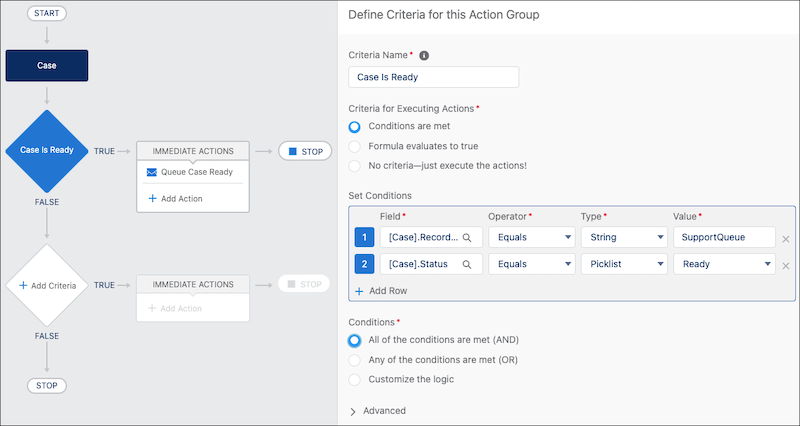
Build the process based on the Case object. For criteria, instruct the process to send the email alert immediately when the Case Status is set to Ready. You may want to set other conditions as well, such as requiring Record Type to be Support Queue. It's up to you. The process looks something like this.
-
Save and activate the process.
Review the Virtual Queued Support Experience
Understand how students access and use a virtual queue.
Using their phone or computer, the student joins the queue waiting room from your student portal. They provide their email address under Notification Information when they sign in.
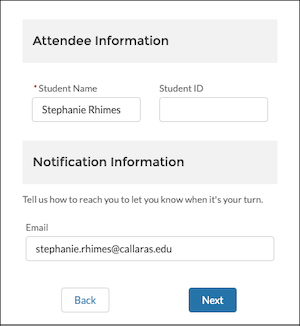
When the student signs in, the Case is added to the support queue, as usual.
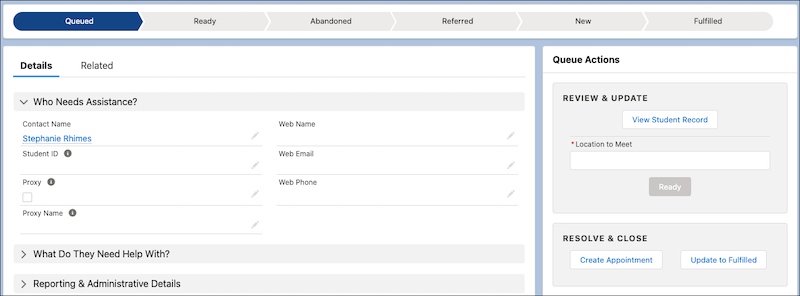
In Student Success Hub, when the support staff member is ready to meet, they go to the Support Queue Case record detail page, enter the web meeting link in the Location to Meet field in the Queue Actions panel, and click Ready.
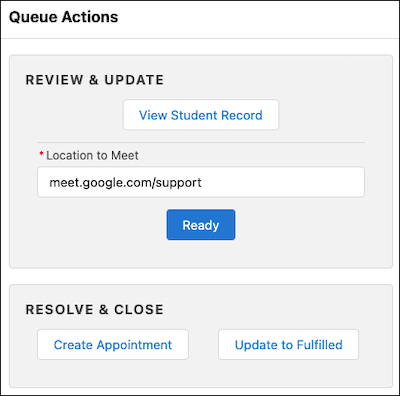
The Queue Case Ready process you created earlier sends the email notification to the student. The support staff member associates the Case with the Contact record, and then they can join the web meeting, too.