Learn about the custom Lightning components you can use in a Student Success Hub student portal.
Student Success Hub provides several custom Lightning components for student portals. Some are compatible only with certain pages, so make sure you add components to the appropriate pages. You can also customize pages with other Lightning components, such as object pages that display object details and related records.
- SSH Appointment Action Menu Component
The SSH Appointment Action Menu component gives students a button to allow them to quickly reschedule or cancel appointments from the Appointment Detail page. - SSH Appointment Scheduler Component
The SSH Appointment Scheduler component allows students to view upcoming, past, and canceled appointments, and to access the Scheduling Wizard. - SSH Assigned Tasks Component
The SSH Assigned Tasks component lets students view their assigned Tasks. The component looks a little different on a mobile device than on the desktop, but it offers similar functionality in both experiences. Tasks are organized by priority and due date to help students focus on the items that need the most attention. If accessed in the context of a specific Success Plan, the component shows the Tasks that are assigned under the Success Plan. If accessed directly, the component shows the Tasks assigned in a Success Plan as well as individual, one-off Tasks assigned to the student. - SSH Launchpad Agenda Component
The SSH Launchpad Agenda component gives students a consolidated view of their scheduled appointments, courses, and calendar Events, such as a study group session or a doctor’s appointment. - SSH Program Plan Builder Component
The SSH Program Plan Builder component allows students to create Personal Program Plans that detail the Courses to take each Term. - SSH Program Plan Highlights Component
The SSH Program Plan Highlights component displays a header that contains key Program Plan fields. Use the SSH Program Plan Highlights component with the SSH Program Plan Requirements Summary component. - SSH Program Plan Requirements Summary Component
The SSH Program Plan Requirements Summary component displays a header that contains key Program Plan fields. Use the SSH Program Plan Requirements Summary component with the SSH Program Plan Highlights component. - SSH Scheduling Wizard Component
The SSH Scheduling Wizard component lets students schedule individual appointments with a support staff member, check for walk-in availability, and reserve a spot in a group appointment. Students choose options in the wizard so that they can meet with the staff member best suited to help at a convenient time and location. - SSH Success Plan Progress Bar Component
The SSH Success Plan Progress Bar component gives students a visual indication of their progress toward completing the Tasks in a Success Plan. - SSH Success Plans Component
The SSH Success Plans component lets students see all of the published Success Plans assigned to them. The component looks a little different on a mobile device than on the desktop, but it offers similar functionality in both experiences. It groups Success Plans into sections by type. Each section and Success Plan can be toggled open or closed. Each Success Plan shows the number of remaining and overdue Tasks and allows students to take action on any Task. - SSH Success Team Component
The SSH Success Team component lets students see the members of their success team. - SSH Support Staff Appointment Settings Component
The SSH Support Staff Member Appointment Settings component shows a support staff member's appointment availability, including their working hours and the locations where they can meet. - SSH User Profile Schedule Button Component
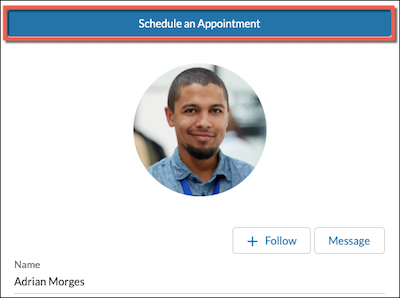
The SSH User Profile Schedule Button component allows students to schedule an appointment when they view a support staff member's User Profile page.
SSH Appointment Action Menu Component
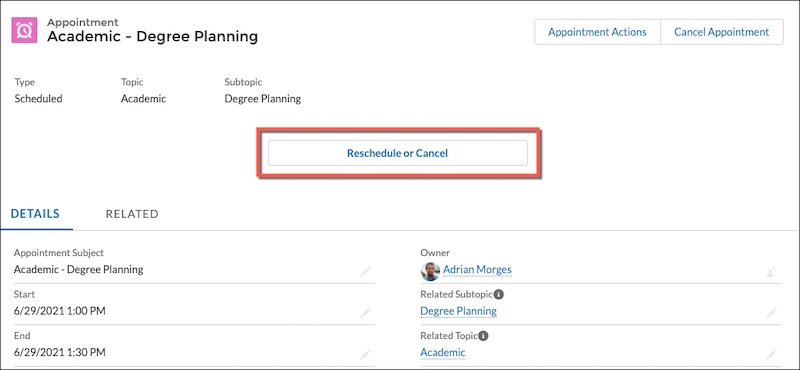
The SSH Appointment Action Menu component gives students a button to allow them to quickly reschedule or cancel appointments from the Appointment Detail page.
To offer the Reschedule or Cancel button, create a custom Appointment object page in the portal and then place this component on the Appointment Detail page.
When a student taps or clicks Reschedule or Cancel for a group appointment that a support staff member scheduled, they're prompted to cancel their own attendance and told to contact the appointment organizer (staff member) if they need to reschedule.
When a student reschedules an individual appointment or a reservation for a group appointment that they signed up for in the portal, they're sent to the Scheduling Wizard and can choose a different appointment of the same type for the same topic. They can also just cancel and not reschedule.
For all group appointments, if the student is the last remaining attendee besides the organizer, then canceling their attendance cancels the appointment itself.
SSH Appointment Scheduler Component
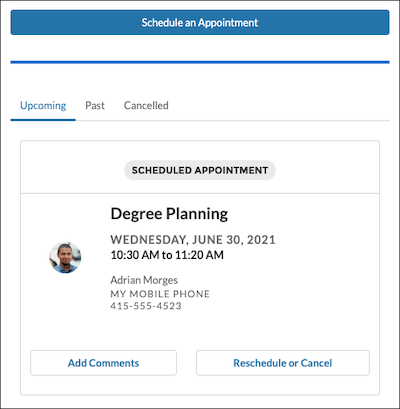
The SSH Appointment Scheduler component allows students to view upcoming, past, and canceled appointments, and to access the Scheduling Wizard.
Place the component on a page where it's convenient for students to access and manage their appointments. For example, create a custom page called My Appointments.
The appointment card may show the Topic, Subtopic, or Appointment Subject as a link that opens the Appointment record. Student Success Hub turns off the link by default. If you want students to be able to access the Appointment record, turn on the link. See Turn Off Student Appointment Record Link in your SSH Hierarchy Custom Settings.

For virtual appointments, the component displays a Join Web Meeting button that the student can tap or click to enter the meeting.
When a student taps or clicks Reschedule or Cancel for a group appointment that a support staff member scheduled, they're prompted to cancel their own attendance and told to contact the appointment organizer (support staff member) if they need to reschedule.
When a student taps or clicks Reschedule or Cancel for an individual appointment or for a group appointment that they signed up for in the portal, they're sent to the Scheduling Wizard and can choose a different appointment of the same type for the same topic. They can also just cancel and not reschedule. If they're the last remaining attendee besides the organizer in the group appointment—any group appointment—then canceling their attendance cancels the appointment itself.
SSH Assigned Tasks Component
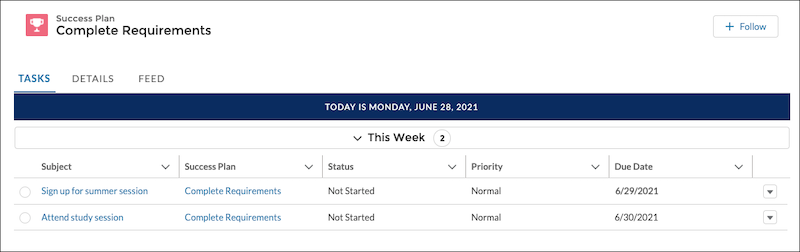
The SSH Assigned Tasks component lets students view their assigned Tasks. The component looks a little different on a mobile device than on the desktop, but it offers similar functionality in both experiences. Tasks are organized by priority and due date to help students focus on the items that need the most attention. If accessed in the context of a specific Success Plan, the component shows the Tasks that are assigned under the Success Plan. If accessed directly, the component shows the Tasks assigned in a Success Plan as well as individual, one-off Tasks assigned to the student.
Place the Assigned Tasks component on a page where it's convenient for students to see a list of their assigned Tasks. For example:
- Create a page called My Tasks to show both the Tasks assigned under Success Plans and the one-off Tasks unrelated to a Success Plan.
- Create custom object pages for the Success Plan object, and on the Success Plan Detail page, create a Tasks tab to show the Tasks specific to a Success Plan.
For instructions on how to set up both a My Tasks page and a Success Plan Detail page with a Tasks tab, see Additional Success Plan Setup for Higher Ed.
SSH Launchpad Agenda Component
The SSH Launchpad Agenda component gives students a consolidated view of their scheduled appointments, courses, and calendar Events, such as a study group session or a doctor’s appointment.
Place the component on the Home page or on a page called My Agenda. If you create a new page, remember to add it to the navigation bar.
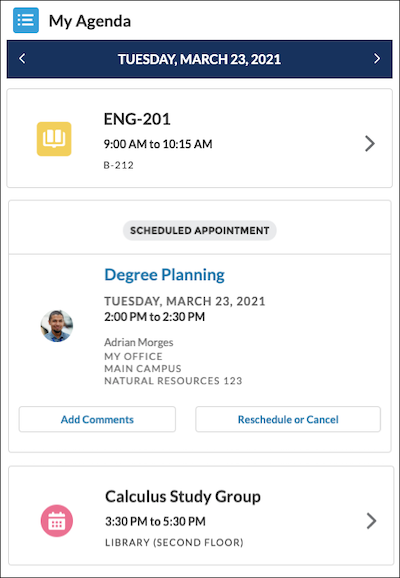
To set up the Launchpad Agenda:
- Set the necessary object permissions and field-level security for these EDA objects: Course, Course Connection, Course Offering, Course Offering Schedule, Facility, and Term. See Configure Student Permissions.
-
Review and update sharing settings for these EDA objects: Course Connection, Course Offering Schedule, and Facility. See Configure Sharing Settings.
-
If you want calendar Events to show in the Agenda, give students a way to create or sync events. Add the Calendar component to a page in your portal. Remember to test the student experience.
-
If you want Courses to show up in the Agenda, import that data first. See Import Your School's Data. Keep in mind that if you have holidays set up, Courses don’t display on specified holidays (however, Events and appointments will show).
-
The appointment card may show the Topic, Subtopic, or Appointment Subject as a link that opens the Appointment record. Student Success Hub turns off the link by default. If you want students to be able to access the Appointment record, turn on the link. See Turn Off Student Appointment Record Link in your SSH Hierarchy Custom Settings.
SSH Program Plan Builder Component
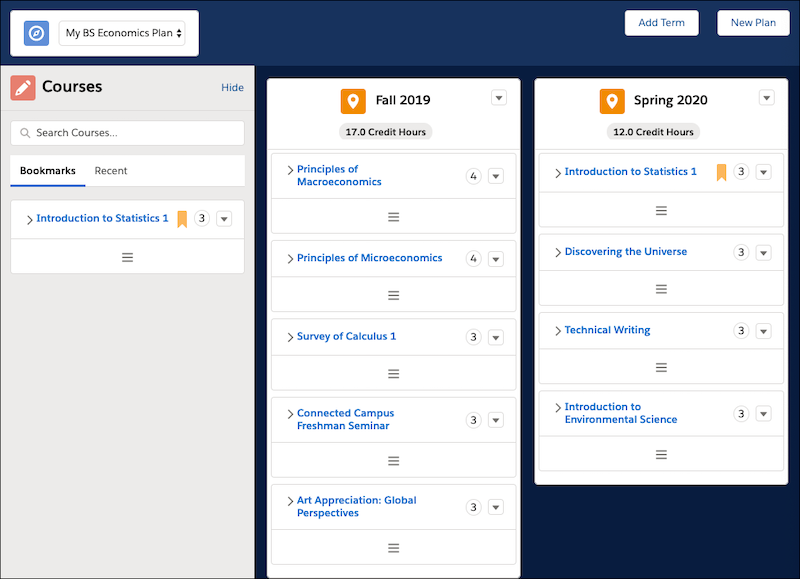
The SSH Program Plan Builder component allows students to create Personal Program Plans that detail the Courses to take each Term.
Place this component on a page that can be accessed from a tab or from the navigation menu. For information, see Set Up Pathways to Build Personal Program Plans.
SSH Program Plan Highlights Component
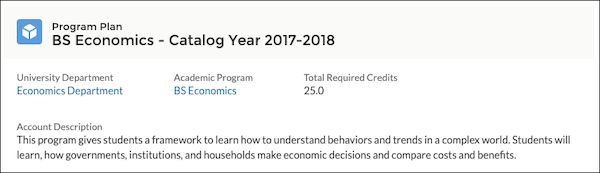
The SSH Program Plan Highlights component displays a header that contains key Program Plan fields. Use the SSH Program Plan Highlights component with the SSH Program Plan Requirements Summary component.
Place the component on a page where it's convenient for students to see the details of a Program Plan. See Set Up Pathways to View Program Plans.
SSH Program Plan Requirements Summary Component
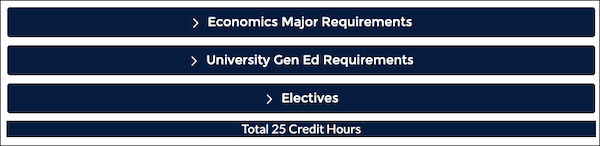
The SSH Program Plan Requirements Summary component displays a header that contains key Program Plan fields. Use the SSH Program Plan Requirements Summary component with the SSH Program Plan Highlights component.
Place the component on a page where it's convenient for students to see the details of a Program Plan. See Set Up Pathways to View Program Plans.
SSH Scheduling Wizard Component
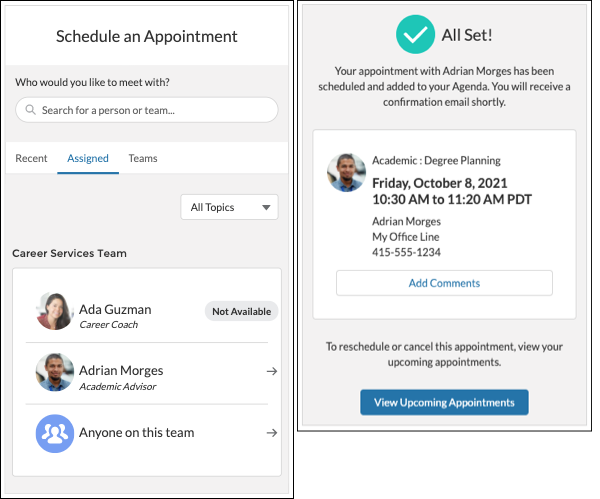
The SSH Scheduling Wizard component lets students schedule individual appointments with a support staff member, check for walk-in availability, and reserve a spot in a group appointment. Students choose options in the wizard so that they can meet with the staff member best suited to help at a convenient time and location.
Place this component on a custom page that you create specifically for scheduling appointments. In the SSH Scheduling Wizard component properties panel, enter the API name of the page on your site with the SSH Appointment Scheduler component. This page opens when a student successfully schedules an appointment using the wizard. If you don't enter the Upcoming Appointments Page API Name, the wizard sends students to the site Home page when they successfully schedule an appointment.
On any other pages that also include or call the Scheduling Wizard, specify the API name of the custom page that you created for the Scheduling Wizard component. For example, on your User Profile page, select the SSH User Profile Schedule Button component and enter the Scheduling Wizard Site Page API Name.

 , and look in the API Name field.
You can also add the component to the portal's navigation menu so that students can click Schedule an Appointment from anywhere on the site.
SSH Success Plan Progress Bar Component
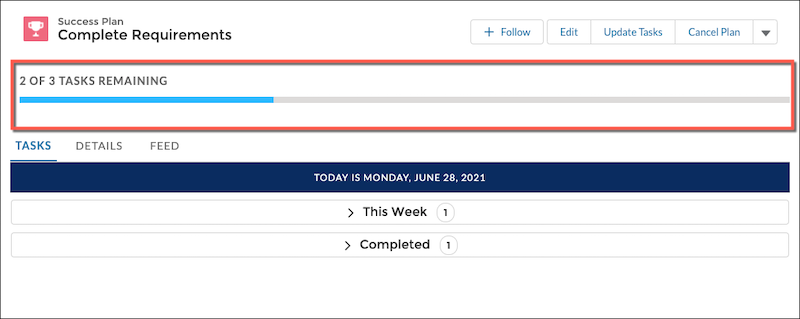
The SSH Success Plan Progress Bar component gives students a visual indication of their progress toward completing the Tasks in a Success Plan.
Place the component at the top of a Success Plan Detail page above the SSH Assigned Tasks component. For setup instructions, see Additional Success Plan Setup for Higher Ed.
SSH Success Plans Component
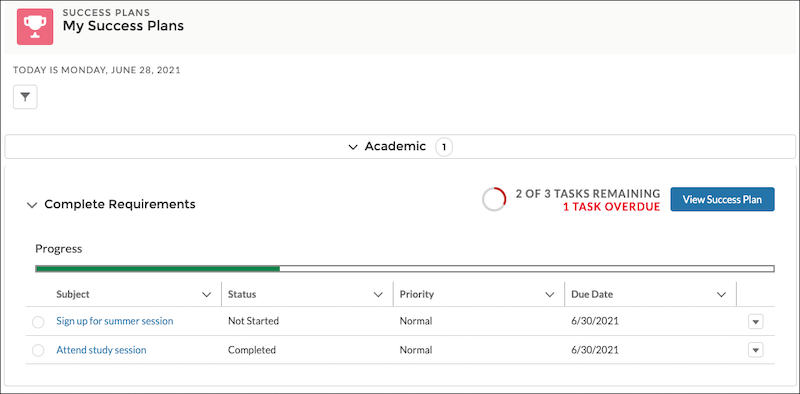
The SSH Success Plans component lets students see all of the published Success Plans assigned to them. The component looks a little different on a mobile device than on the desktop, but it offers similar functionality in both experiences. It groups Success Plans into sections by type. Each section and Success Plan can be toggled open or closed. Each Success Plan shows the number of remaining and overdue Tasks and allows students to take action on any Task.
Place the component on a page where it's convenient for students to see a list of their Success Plans. For example, create a page called My Success Plans.
SSH Success Team Component
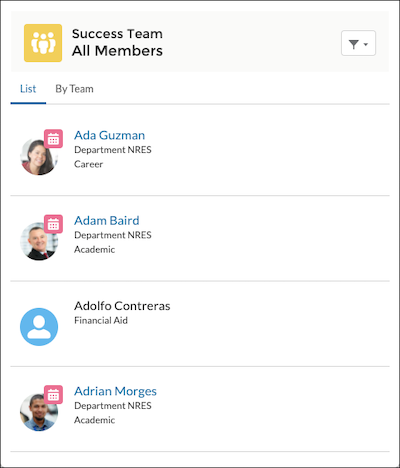
The SSH Success Team component lets students see the members of their success team.
Place the component on a page where it's convenient for students to see their success team, such as the Home page or a custom page.
SSH Support Staff Appointment Settings Component
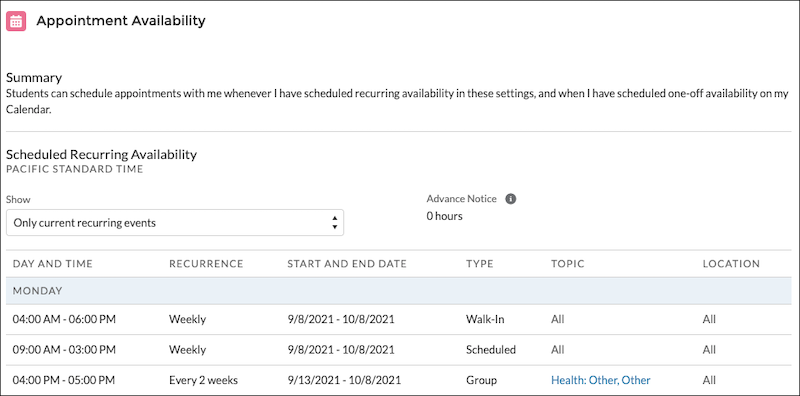
The SSH Support Staff Member Appointment Settings component shows a support staff member's appointment availability, including their working hours and the locations where they can meet.

SSH User Profile Schedule Button Component
The SSH User Profile Schedule Button component allows students to schedule an appointment when they view a support staff member's User Profile page.