
Complete these tasks to set up your org to use the Student Success chatbot.
- Before You Begin
There's a lot to set up before you can activate a chatbot. The process takes time, so plan accordingly. - Set Up Messaging
To deploy the Student Success chatbot, you need an SMS number. We recommend that you use a short code, which is a 5- or 6-digit phone number suitable for high-volume messaging. In the US and Canada, a toll-free 10-digit number also works. - Set Up Messaging Templates
The Student Success chatbot needs two templated messages to send to students. One asks them to engage with the bot, and the other reminds them that they have tasks to complete. You can compose messages in a voice that matches your institution’s style, but the keywords (in CAPS) are required. - Set Up Your Experience Cloud Site
To deploy the Student Success chatbot to an Experience Cloud site such as a community or portal, configure the site for public access. - Enable and Configure Omni-Channel
Omni-Channel helps you manage interactions between your students and the Student Success chatbot. Configure Omni-Channel to route SMS sessions from students to the Student Success chatbot. - Verify and Create a Queue
To set up Chat and ensure that students can access the Student Success chatbot, create a queue. - Enable and Configure Chat
Make sure that Chat is enabled and configured in your org. - Create an Embedded Service Deployment
If you're deploying the Student Success Chatbot to an Experience Cloud site or by using a messaging channel, create an embedded service deployment. We don't provide a default deployment. - Configure the Chatbot Welcome Outbound Flow
The Student Success chatbot uses an outbound flow to invite students to interact with the bot. Customize the flow, Student Success Chatbot: Welcome, with the details of your messaging channel. - Configure the Chatbot Task Reminder Flow
The Student Success chatbot uses an outbound flow to update students about upcoming Task deadlines. Customize the flow, Student Success Chatbot: Due Date Reminder, with the details of your messaging channel.
Before You Begin
There's a lot to set up before you can activate a chatbot. The process takes time, so plan accordingly.
The Student Success chatbot is designed to be accessed via SMS. Although chatbots exist independently of the messaging channels by which they are accessed, it’s useful to have a basic Experience Cloud Site that helps you test the chatbot.
Use this table to help you identify which setup tasks are required.
|
Task |
Required for SMS? |
Required for Experience Cloud Site? |
|---|---|---|
|
Yes |
No |
|
|
Yes |
No |
|
|
No |
Yes |
|
|
Yes |
Yes |
|
|
Yes |
Yes |
|
|
Yes |
Yes |
|
|
Recommended |
Yes |
|
|
Yes |
No |
|
|
Yes |
No |
Set Up Messaging
To deploy the Student Success chatbot, you need an SMS number. We recommend that you use a short code, which is a 5- or 6-digit phone number suitable for high-volume messaging. In the US and Canada, a toll-free 10-digit number also works.
See Considerations for Text Messaging and SMS Messaging Carrier Filtering in Salesforce Help.
-
Follow the instructions to Set Up Messaging Channels. Make sure that you set the channel as Active.
-
When complete, make a note of your Developer Name (API Name) and Messaging Platform Key (SMS number), which you'll need later when you configure the outbound flow and set up the chatbot channel.
-
In the Routing section, add Student Success Chatbot to the Queue.
-
For Opt-In Confirmation, add this message: Thanks for opting in! I'll continue to send you messages to help you stay on top of tasks in your Success Plans.
This confirmation message is used in all SMS opt-ins in your org, including any that already exist. Make sure that the message you compose can be used in all circumstances.
-
Remove end from the default list of opt-out keywords.
 Note The keywords in Messaging Channel Settings take precedence over any keywords in the bot.
Set Up Messaging Templates
The Student Success chatbot needs two templated messages to send to students. One asks them to engage with the bot, and the other reminds them that they have tasks to complete. You can compose messages in a voice that matches your institution’s style, but the keywords (in CAPS) are required.
-
Create a message to welcome students and allow them to engage with the bot.
-
In Setup, search for and select Messaging Templates.
-
Click New.
-
For Template Name, enter Student Success Chatbot: Welcome and then press Tab to autopopulate the Developer Name with Student_Success_Chatbot_Welcome. Make a note of the developer name, which you’ll need later.
-
For Description, enter The message that the bot sends to a student when they're added to the Student Success chatbot recipients.
-
Enter your message:
Hi {!Contact.FirstName}! :wave: I'm the Student Success bot, a digital assistant. I'm here to help you have a successful student journey.
Reply with PREFERENCES to manage when I contact you or SUCCESS to update your Success Plan.
-
Select Channels: SMS.
-
Save your changes.
-
-
Create a message that reminds students that they have tasks to complete.
-
Click New.
-
For Template Name, enter Student Success Chatbot: Task Reminder and then press Tab to autopopulate the Developer Name with Student_Success_Chatbot_Task_Reminder.
-
For Description, enter The message that the bot sends to a student to remind them that they have tasks to complete.
-
Enter your message:
Hi {!Contact.FirstName}! :wave: This is a reminder that you have tasks to complete.
Reply with SUCCESS to update your Success Plan or PREFERENCES to manage when I contact you.
-
Select Channels: SMS.
-
Save your changes.
-
Set Up Your Experience Cloud Site
To deploy the Student Success chatbot to an Experience Cloud site such as a community or portal, configure the site for public access.
Here's how to create a basic site by using a template. If you already have a site, just make sure that it's configured for public access.
-
From Setup, search for and then select All Sites. If you don't see this option, enable Digital Experiences.
-
Click New.
-
Select a template. We recommend that you use the Customer Service template.
-
Click Get Started.
-
Enter a name and the part of the site's URL that identifies the site.
-
Click Create.
Make sure that you consult with your support staff and other strategic leaders in your institution as you build out your Student Success chatbot site. For a comprehensive guide to the many aspects of Experience Cloud, see Set Up and Manage Experience Cloud Sites.
Now make sure that the site is available to your students.
-
To open Experience Builder, from the site's Workspace, click Builder.
-
To open the site's Settings page, click
 .
. -
On the General tab, select Public can access this site.
When you're ready, click Publish so that your site is ready for the chatbot.
Enable and Configure Omni-Channel
Omni-Channel helps you manage interactions between your students and the Student Success chatbot. Configure Omni-Channel to route SMS sessions from students to the Student Success chatbot.
-
Enable Omni-Channel (if you haven't already).
-
From Setup, search for and then select Omni-Channel Settings.
-
Select Enable Omni-Channel.
-
Save your changes.
-
-
Verify or create the Student Success chatbot routing configuration.
-
From Setup, search for and then select Routing Configurations.
-
Click the default Student Success Chatbot configuration and verify these details. If you don't have this configuration, create it.
-
Routing Configuration Name: Student Success Chatbot
-
Developer Name: Student_Success_Chatbot
-
Routing Priority: 1
-
Routing Model: Most Available
-
Units of Capacity: 1.00
-
-
Save your changes.
-
Verify and Create a Queue
To set up Chat and ensure that students can access the Student Success chatbot, create a queue.
-
From Setup, search for and then select Queues.
-
Click the default Student Success Chatbot queue and verify these details. If you don't have this queue, create it.
-
Label: Student Success Chatbot
-
Queue Name: Student_Success_Chatbot
-
Supported Objects: Messaging User, Chat Session, Chat Transcript, and Messaging Session
-
Routing Configuration: Student Success Chatbot
-
Queue Members: Leave blank if using the Basic Chatbot User, or add your custom User.
-
-
Save your changes.
Enable and Configure Chat
Make sure that Chat is enabled and configured in your org.
-
Enable Chat.
-
From Setup, search for and then select Chat Settings.
-
Select Enable Chat.
-
Save your changes.
-
-
Create a new chat button.
We don't provide a default button.
-
From Setup, search for and then select Chat Buttons & Invitations.
-
Click New.
-
Fill out these details.
-
Type: Chat Button
-
Name: Student Success Chatbot
-
Developer Name: Student_Success_Chatbot
-
Routing Type: Omni-Channel
-
Queue: Student Success Chatbot
-
-
Save your changes.
-
-
Verify or create a Student Success Agent chat deployment.
-
From Setup, in the Chat section, search for and then select Deployments.
-
Click the default Chat Setup Flow deployment and verify these details. If you don't have this deployment, create it.
-
Chat Deployment Name: Chat Setup Flow
-
Developer Name: live_agent_setup_flow
-
Chat Window Title: Live Chat
-
-
Save your changes.
-
Create an Embedded Service Deployment
If you're deploying the Student Success Chatbot to an Experience Cloud site or by using a messaging channel, create an embedded service deployment. We don't provide a default deployment.
-
From Setup, search for and then select Embedded Service Deployments.
-
Click New Deployment.
-
Choose a conversation type by selecting Embedded Chat, and then click Next.
-
Fill out these details.
-
Embedded Service Deployment Name: Student Success Chatbot
-
API Name: Student_Success_Chatbot
-
Site Endpoint: Select your Experience Cloud site.
-
-
Save your changes.
-
On the Student Success Chatbot page, under Chat Settings, click Start.
-
Verify these details.
-
Chat Deployment is set to the Chat Setup Flow.
-
Chat Button is set to the Student Success Chatbot.
-
-
Save your changes.
-
Switch the Pre-Chat page setting to inactive.
-
In the Offline support section, a warning message about Guest Access to the Support API appears. To remove this warning message, click Enable on “Your_Experience_Cloud_Site”.
Configure the Chatbot Welcome Outbound Flow
The Student Success chatbot uses an outbound flow to invite students to interact with the bot. Customize the flow, Student Success Chatbot: Welcome, with the details of your messaging channel.
-
From Setup, search for and then select Flows.
-
Click Student Success Chatbot: Welcome.
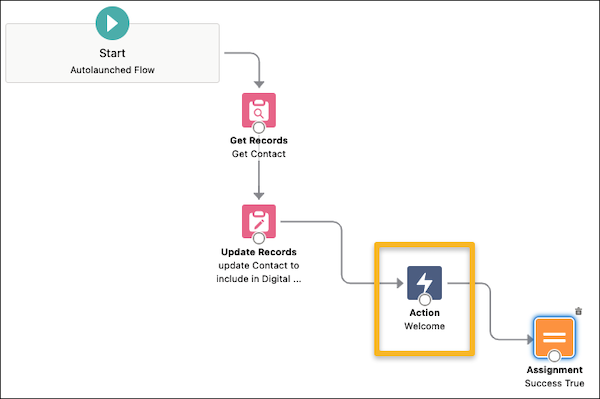
The flow has a gap that we will close with an action.
-
From Toolbox, select the Elements tab, and then add an Action to the canvas.
-
Select the Messaging category, and then search for and select the Messaging Notification action.
-
Complete these fields.
- Label
- Enter Welcome, and then press Tab to autopopulate the API Name.
- Description
-
Enter a description such as Sends an SMS to students to invite them to engage with the Student Success Chatbot.
- Messaging Channel Unique Name
- The developer name that’s associated with the messaging channel, such as Text_US_18001231234. If you didn't make a note of the Developer Name when you set up the messaging channel, in Setup, search for and select Messaging Settings. In Channels, click the action menu for the number that you're using, select Edit, and then look for the Developer Name.
- Messaging Template Unique Name
-
The developer name that’s associated with the messaging template. Enter Student_Success_Chatbot_Welcome.
- Context Record ID
- A record that provides context for the merge fields. Select Include, and then enter {!Get_Contact.Id}.
- ConversationBroadcast Record ID
- Don't include.
- Recipient Phone Number
- The destination phone number for the message. Select Include, and then enter {!Get_Contact.MobilePhone}.
- Recipient Record ID
-
The ID of a MessagingEndUser or record with a phone number. Select Include, and then enter {!Get_Contact.Id}.
- Triggered Outbound Type
- Don't include.
-
Click Done.
-
Create a connection from the Update Records node to the Welcome Action node.
-
Create a connection from the Welcome Action node to the Assignment node.
-
Click Save As, and then select A New Version.
-
Keep the name, and then save and activate the new version of the flow.
Configure the Chatbot Task Reminder Flow
The Student Success chatbot uses an outbound flow to update students about upcoming Task deadlines. Customize the flow, Student Success Chatbot: Due Date Reminder, with the details of your messaging channel.
-
From Setup, search for and then select Flows.
-
Click Student Success Chatbot: Due Date Reminder.
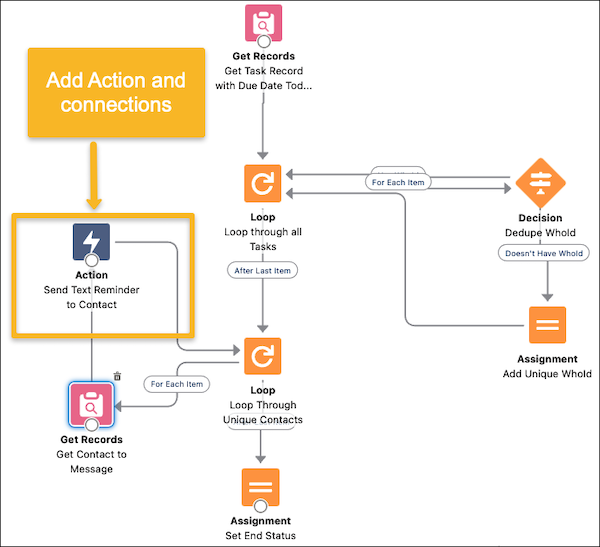
Add your send reminder text to the flow.
-
From Toolbox, select the Elements tab, and then add an Action to the canvas.
-
Select the Messaging category, and then search for and select the Messaging Notification action.
-
Complete these fields.
- Label
- Enter Send Text Reminder to Contact, and then press Tab to autopopulate the API Name.
- Description
-
Enter a description such as Sends an SMS to remind the student that they have upcoming Tasks, and invites the student to provide updates.
- Messaging Channel Unique Name
- The developer name that’s associated with the messaging channel, such as Text_US_18001231234. If you didn't make a note of the Developer Name when you set up the messaging channel, in Setup, search for and select Messaging Settings. In Channels, click the action menu for the number that you're using, select Edit, and then look for the Developer Name.
- Messaging Template Unique Name
-
The developer name that’s associated with the messaging template. Enter Student_Success_Chatbot_Task_Reminder.
- Context Record ID
- A record that provides context for the merge fields. Select Include, and then enter {!Get_Contact_to_Message.Id}.
- ConversationBroadcast Record ID
- Don't include.
- Recipient Phone Number
- The destination phone number for the message. Select Include, and then enter {!Loop_Through_Unique_Contacts}.
- Recipient Record ID
-
The ID of a MessagingEndUser or record with a phone number. Select Include, and then enter {!Get_Contact.Id}.
- Triggered Outbound Type
- Don't include.
-
Click Done.
-
Create a connection from the Get Contact to Message node to the Welcome Action node.
-
Create a connection from the Send Text Reminder Action node to the Loop Through Unique Contacts node.
-
In the Start node, in the first Flow Starts section, click Edit.
You can see here that the flow is scheduled to run every day at 5:30 PM. This is when students will be reminded about their upcoming Tasks.
-
If desired, change the time when the flow runs.
-
Click Save As, and then select A New Version.
-
Keep the name, and then save and activate the new version of the flow. Ignore the warning about the Get Tasks element.