
Complete these tasks to get location-based availability (flex scheduling) up and running in your Student Success Hub org.
- Learn About Location-Based Availability
Time management has never been more challenging for support staff in higher education, because it's not just about coordinating when you can meet, but also where. - Location-Based Availability Release Information
The Appointment Location, Availability, and Availability Location objects were released with Student Success Hub 2.46 (Winter '21). - Set or Verify Object and Field Permissions for Location-Based Availability
Location-based availability requires access to the Availability, Appointment Location, and Availability Location objects. Support staff and students also need Edit access to Appointment Location and several other fields on the Appointment object. - Configure Sharing Settings for Location-Based Availability
Verify your default organization-wide sharing settings for the Availability, Appointment Location, and Availability Location objects. - Add the Appointment Location Field to Appointment Records
Update the Appointment Detail page layout to include the Appointment Location field. That way, everyone who views the Appointment Details—support staff in the app and students in the portal—can see where the appointment is taking place. - Understand Support Staff Users' First Experience with Location-Based Availability
Support staff users' first experiences with location-based availability depends on whether you manually enabled the new model in an existing org, or whether it's automatically enabled in a new org.
Learn About Location-Based Availability
Time management has never been more challenging for support staff in higher education, because it's not just about coordinating when you can meet, but also where.
Location-based availability allows support staff to designate blocks of time to meet with students, and associate those availability blocks with one or more locations. For example, say an academic support staff member, Adrian Morges, works from home three days a week. When he's home, he can meet with students by phone (his mobile phone) and virtually, using the university's approved web-conferencing tool. One day a week he's on campus, where he can meet with students in-person in his office, by phone (his office or his mobile phone), or virtually. And on Fridays he has to juggle childcare and he never knows where he'll be, so scheduled appointments must be voice calls on his mobile phone. Adrian and support staff like him rely on the flexible scheduling made possible by associating their availability with specific locations—including virtual locations.
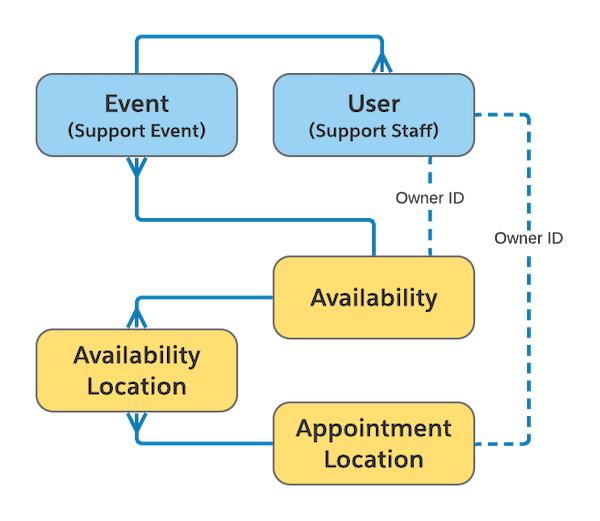
Location-based availability uses these custom objects.
- Availability
-
The Availability object stores blocks of time when a support staff member can meet with students. Each Availability record consists of a series of Event records and includes the type of availability, either walk-in, scheduled, or group.
- Appointment Location
-
The Appointment Location object stores the locations where a support staff member can meet with students. Appointment Location records include such details as the type of location (in-person, phone, or virtual) and the information students need to attend the meeting. For example, phone locations include the phone number, in-person locations include the building and room name or number, and virtual locations include a meeting link.
- Availability Location
-
A junction object, Availability Location associates a support staff member's Availability and Appointment Location records.
Here's how these custom objects, shown in yellow, relate to one another and to the standard Salesforce Event and User objects, shown in blue.

Location-Based Availability Release Information
The Appointment Location, Availability, and Availability Location objects were released with Student Success Hub 2.46 (Winter '21).
To get location-based availability up and running in your org, complete the tasks in this article.
Unless otherwise noted at the beginning of the task, all setup tasks are required regardless of the version of Student Success Hub that you originally installed. If you don't know which version you started with, see Keep Student Success Hub Up-to-Date.
Set or Verify Object and Field Permissions for Location-Based Availability
Location-based availability requires access to the Availability, Appointment Location, and Availability Location objects. Support staff and students also need Edit access to Appointment Location and several other fields on the Appointment object.
See Configure Higher Ed Support Staff Permissions and Configure Student Permissions.
Configure Sharing Settings for Location-Based Availability
Verify your default organization-wide sharing settings for the Availability, Appointment Location, and Availability Location objects.
Add the Appointment Location Field to Appointment Records
Update the Appointment Detail page layout to include the Appointment Location field. That way, everyone who views the Appointment Details—support staff in the app and students in the portal—can see where the appointment is taking place.
-
In Setup, in Object Manager, click Appointment.
-
On the Page Layouts page, click the Appointment Layout.
-
Drag the Appointment Location field from the palette to the Information area of the Appointment Detail page. Place it below the End field.
-
Optionally, remove the Location field from the page. Or, you can wait and remove the Location field at a later time, when you're sure your support staff users don't have any legacy, Event-based appointments on their schedule.
-
Save your changes.
Understand Support Staff Users' First Experience with Location-Based Availability
Support staff users' first experiences with location-based availability depends on whether you manually enabled the new model in an existing org, or whether it's automatically enabled in a new org.
After location-based availability is manually enabled in an existing org, Student Success Hub maps existing appointment locations (values from the Location text field on the Appointment object) to the location-based availability model. When support staff first visit their Availability Settings page post-enablement, they must acknowledge a message about the change. Then, they see their existing locations mapped to Appointment Location records whose Type is Other. Support staff need to review the migrated records, change their Type from Other to In Person, Phone, or Virtual as needed, and add any optional Additional Details.
Existing recurring availability blocks remain in the old, text-based Location field. Optionally, support staff can update existing recurring availability blocks with the appropriate Appointment Locations.
In an org with location-based availability automatically enabled, Student Success Hub provides two default Appointment Locations records whose Type is Other: one is named In Person and one is named By Phone. Support staff need to review these default Appointment Location records, change them to the correct Type, and add other details.
After reviewing migrated or default Appointment Locations, support staff can create new Appointment Locations as well as new availability blocks associated with one or more Appointment Locations.
