
Complete these tasks to get appointment topics up and running in your Student Success Hub org.
- Appointment Topics Release Information
The appointment topic objects—Topic, Role Topic Setting, and User Topic Setting—were released with Student Success Hub 2.17. The Queue Topic Setting object was released with Student Success Hub 2.22. - Set or Verify Object and Field Permissions for Appointment Topics
Update your profiles with object and field permissions for the Topic, Role Topic Setting, and User Topic Setting objects. If you're using queue management, update your profiles for the Queue Topic Setting object, too. - Configure Sharing Settings for Appointment Topics
Make sure you update your default org-wide sharing settings for the Topic objects. - Add Topics to the App Navigation Menu
For convenience, add the Topic item to the app navigation menu. - Create and Edit Appointment Topics and Subtopics
Create and edit appointment Topics, including their User Topic Settings and Role Topic Settings, from the Student Success Hub app. - Create and Edit Queuing Topics and Subtopics
Topics and Subtopics that are used with the queue management support model are stored in the Queue Topic Setting object, which has a child relationship to the Topic and Support Pool objects. As a result, Queue Topic Settings are available only to Support Pools that use queue management, and not to individual support staff members who use a queue to manage walk-in hours.
Appointment Topics Release Information
The appointment topic objects—Topic, Role Topic Setting, and User Topic Setting—were released with Student Success Hub 2.17. The Queue Topic Setting object was released with Student Success Hub 2.22.
To get appointment topics up and running in your org, complete the tasks in this article.
Unless otherwise noted at the beginning of the task, all setup tasks are required regardless of the version of Student Success Hub that you originally installed. If you don't know which version you started with, see Keep Student Success Hub Up-to-Date.
Set or Verify Object and Field Permissions for Appointment Topics
Update your profiles with object and field permissions for the Topic, Role Topic Setting, and User Topic Setting objects. If you're using queue management, update your profiles for the Queue Topic Setting object, too.
As part of setting object permissions, check the Tab Settings for the Topic object. Give tab access only to profiles that you want creating records.

See Configure Higher Ed Support Staff Permissions and Configure Student Permissions for permissions requirements for the Topic objects.
Configure Sharing Settings for Appointment Topics
Make sure you update your default org-wide sharing settings for the Topic objects.
Create and Edit Appointment Topics and Subtopics
Create and edit appointment Topics, including their User Topic Settings and Role Topic Settings, from the Student Success Hub app.
This task is completed typically by Student Success Hub administrators, but support staff can also complete this task if they have the right permissions.
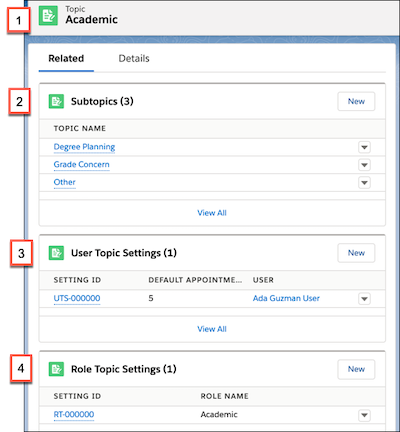
Let's first make sure that you understand how the Topic objects work together.
-
The Topic object is where you specify the topic of discussion for an appointment. You create a parent Topic (1) and, optionally, child Topics, which are listed in the Subtopics related list (2). Throughout Student Success Hub, Subtopics are available in picklists and appear in related lists and Lightning components only if they're defined for a parent Topic. Otherwise, only the parent Topic appears for selection.
-
The User Topic Setting object is where your support staff members' individual settings per Topic get saved. For example, an appointment duration that varies for each Topic. (3)
-
The Role Topic Setting object lets you associate case team member roles with Topics. This association determines who shows as available for a specific appointment Topic when students schedule an appointment. (4)
-
If you're using queue management, the Queue Topic Setting object lets you associate Support Pools with Topics. This association ensures that only the Topics relevant to a queue are available to staff managing the queue.
Here's how to create a Topic and its associated settings.
-
In the Student Success Hub app, select Topics from the app navigation menu. If you don't see Topics, see Set Up Student Success Hub App Basics.
-
To create a Topic, click New. To edit a Topic, select one from the list view.
-
Specify the appropriate fields.
- Topic Name
- Topic Names can be general or specific, such as
Academic or Degree Planning.Tip We recommend that you limit the name to 25 characters. Names longer than 25 characters get truncated in the Appointment Wizard.
- Sort Order
- Control a Topic's display order within the Topic picklist, such as forcing a topic named Other to display last.
- Parent Topic
- If the Topic is a parent Topic, leave this field blank. If the Topic is a child Topic, search for and select the parent Topic.
-
Save the Topic.
-
To see a list of the Topic's related Subtopics, User Topic Settings, and Role Topic Settings, click Related on the Topic's record page. If you're using queue management, you also see Queue Topic Settings.
-
To create associated records for the Topic, click New on a related list.
For Subtopics, specify the appropriate Topic fields.
For User Topic Settings, it's recommended that you not enter the values here. Instead, have support staff specify them in their individual availability settings.
- Setting ID
- An auto-generated ID for this record.
- User
- A lookup to the associated support staff User record.
- Topic
- This field is auto-filled with the associated Topic.
- Default Appointment Duration
- The default appointment duration in minutes for the Topic and User.
For Role Topic Settings, specify the appropriate fields.
- Setting ID
- Leave this field blank. It's an auto-generated ID for this record.
- Role Name
- The name of the case team member role associated with the setting. Match the exact spelling and casing of the Member Role Name from the associated Case Team Member Role record. For more information, see Set Up Success Teams.
- Topic
- This field is auto-filled with the associated Topic.
- Save your changes.
Create and Edit Queuing Topics and Subtopics
Topics and Subtopics that are used with the queue management support model are stored in the Queue Topic Setting object, which has a child relationship to the Topic and Support Pool objects. As a result, Queue Topic Settings are available only to Support Pools that use queue management, and not to individual support staff members who use a queue to manage walk-in hours.
Queue Topic Settings allow you to restrict the topics that appear for a specific Support Pool. So, for example, when a staff member adds someone to the Career Services Support Pool queue, they don’t see Financial Aid topics cluttering the list of available Career topics. Queue Topic Settings also let you make topics available to a queue but not to students who are scheduling appointments using the Scheduling Wizard. For example, a Student ID Request might be a common service for a one-stop shop, but not something commonly addressed during scheduled appointments.
Before you create Queue Topic Settings, we recommend that you first create the regular Topics and Subtopics eligible for use with Support Pool queues. Then it's easy to map the Topics and Subtopics to their respective Support Pools. This mapping determines the Topic and Subtopic picklist values that appear when adding someone to a queue. The Queue Topic Setting mapping is flexible and, as with regular Topics and Subtopics, the display of picklist values is guided by this logic:
-
A Topic can exist and appear without a Subtopic.
-
A Subtopic appears only when a parent Topic is defined.
To help illustrate the logic, here's a table with some example data and the resultant behavior in the Add to Queue form.
|
Topic |
Parent Topic |
Topic Mapped to a Queue Topic Setting? |
Picklist Behavior in Add to Queue Window |
|---|---|---|---|
|
Academic |
Yes |
The Topic picklist includes Academic. When Academic is selected, the Subtopic picklist appears. |
|
|
Degree Planning |
Academic |
No |
When Academic is selected as the Topic, Degree Planning doesn't show as an available Subtopic. |
|
Course Authorization |
Academic |
Yes |
When Academic is selected as the Topic, Course Authorization shows as an available Subtopic. |
|
Student ID Request |
Yes |
The Topic picklist includes Student ID Request. When selected, the Subtopic picklist doesn't appear. |
|
|
Replacement Card |
Student ID Request |
No |
Replacement Card doesn't show as a Subtopic because even though it has a parent Topic mapped to the queue, the Subtopic itself isn't mapped to the queue. |
|
General Question |
Yes |
The Topic picklist includes General Question. When selected, the Subtopic picklist doesn't appear. |
|
|
Billing |
No |
The Topic picklist doesn't include Billing. |
|
|
Financial Hold |
Billing |
Yes |
Financial Hold doesn't show as a Subtopic because the parent Topic isn't mapped to the queue. |
You create Queue Topic Settings using the related list on either a Topic record page or a Support Pool record page. When you set up queue management, specify your Queue Topic Settings right after you set up the Support Pool. Let's try it that way.
-
In the Student Success Hub app, select Support Pools from the navigation menu.
-
Select the Pool for which you want to create Queue Topic Settings (for example, Career Services), and click the Related tab.
-
In the Queue Topic Settings related list, click New.
-
Click in the Topic field and either:
-
Select an existing Topic, or
-
Select New Topic and then specify a Topic Name and, optionally, a Sort Order and a Parent Topic. For details on the fields see Set Up Appointment Topics.
 Note Only parent topics show in the Topic picklist.
-
-
Save the Topic and then save the Queue Topic Setting.
Queue Topic Settings have a child relationship to Topics and Support Pools. This relationship means that you can't edit the Topics from the Queue Topic Settings related list on a Support Pool record page or from the Queue Topic Settings page. To edit a Queue Topic Setting, go to the Topics page and select Edit from the record's action menu.
You can, however, delete a Queue Topic Setting from anywhere you can access a Queue Topic Setting record. Locations include the Topics page, the Queue Topic Settings page, and the Queue Topic Settings related list on the Topic or Support Pool record page.