
Complete these tasks to make it easier for support staff to create appointments and see the data they need on Appointment records.
- Create a Global Action for Creating Appointments
Enable support staff to create appointments from the global actions menu on any page in Student Success Hub. Edit the global publisher layout to add the Create Appointment button. - Create Custom Quick Actions for Appointments
Add custom quick actions to the page layout you're using for Appointment records so that support staff can easily take action on their appointments. You can create actions that invoke apptActionsQuickAction or apptCancel, which are Lightning components included with Student Success Hub. - Create a Support Event Page Layout
Your support staff might navigate to an Appointment record from their Calendars, which opens the Event record detail page. Student Success Hub installs a page layout for these records, called Support Event Layout, that you can use as is or customize. It even assigns the layout to the support staff and System Administrator profiles. - Create a Support Time Page Layout
Support Time is such a central part of your support staff workflow that we recommend using a dedicated page layout for it, separate from other Event record types. A dedicated layout can surface the data most relevant to support availability and optimize navigation for support staff creating one-off availability. Student Success Hub installs a page layout for these records, called Support Time Layout, that you can use as is or customize. It even assigns the layout to the support staff and System Administrator profiles.
Create a Global Action for Creating Appointments
Enable support staff to create appointments from the global actions menu on any page in Student Success Hub. Edit the global publisher layout to add the Create Appointment button.
- From Setup, click Publisher Layouts.
- Click Edit next to Global Layout.
- In the palette, click Mobile & Lightning Actions.
- In the Salesforce Mobile and Lightning Experience Actions section, click the wrench icon.
- Drag the Create Appointment button to this section.
- Save your layout changes.
-
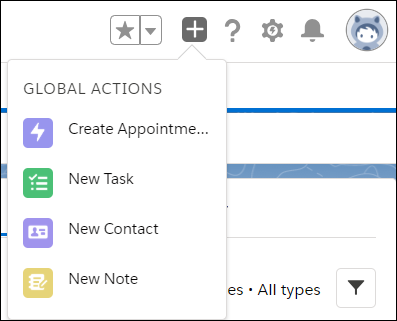
In the Student Success Hub app, click the global actions menu in the header and verify that Create Appointment is available.
Create Custom Quick Actions for Appointments
Add custom quick actions to the page layout you're using for Appointment records so that support staff can easily take action on their appointments. You can create actions that invoke apptActionsQuickAction or apptCancel, which are Lightning components included with Student Success Hub.

- From Setup, in Object Manager, click Appointment.
-
Go to the Buttons, Links, and Actions page, then click New Action.
Now, configure the action.
- For Action Type, select Lightning Component.
- For Lightning Component, select apptActionsQuickAction or apptCancel. The apptActionsQuickAction component displays a window that lets support staff edit or cancel the appointment. The apptCancel component just cancels an appointment.
- Give the action a label to use on the button. For example, Appointment Actions or Cancel Appointment.
- Give the action a name, which is visible to admins only. For example, Appointment_Actions or Cancel_Appointment.
-
Edit the other fields as needed or accept the defaults.
- Save your changes.
Create a Support Event Page Layout
Your support staff might navigate to an Appointment record from their Calendars, which opens the Event record detail page. Student Success Hub installs a page layout for these records, called Support Event Layout, that you can use as is or customize. It even assigns the layout to the support staff and System Administrator profiles.
We recommend keeping the fields on the support Event page layout to a minimum and setting any visible fields as read only in field properties. For example, we recommend making sure that the Description field is read only. Limit interactions on the Event records associated with Appointment records to discourage support staff from editing the Event records directly.
- From Setup, in Object Manager, click Event.
- Click Page Layouts and select Support Event Layout. To create a layout manually, click New and base the layout on the Event Layout.
- Review the fields on the page to make sure that only the necessary fields are included. Also consider making them read only.
-
Save your changes.
Now, assign the support Event page layout to the Support Event record type. Remember that Student Success Hub assigns the Support Event Layout for you.
- On the Page Layouts page, click Page Layout Assignment.
- Click Edit Assignment.
- Click the Page Layout To Use menu and select your support Event layout. Then, click the System Administrator and support staff profiles (Cmd-click or Ctrl-click to select multiple).
- Save your assignments.
Create a Support Time Page Layout
Support Time is such a central part of your support staff workflow that we recommend using a dedicated page layout for it, separate from other Event record types. A dedicated layout can surface the data most relevant to support availability and optimize navigation for support staff creating one-off availability. Student Success Hub installs a page layout for these records, called Support Time Layout, that you can use as is or customize. It even assigns the layout to the support staff and System Administrator profiles.
-
From Setup, in Object Manager, click Event.
-
Click Page Layouts and select Support Time Layout. To create a layout manually, click New and base the layout on the Event Layout.
-
Review the fields on the page and remove unnecessary ones.
-
Save your changes.
Now, assign the support Event page layout to the Support Time record type. Remember that Student Success Hub assigns the Support Time Layout for you.
-
On the Page Layouts page, click Page Layout Assignment.
-
Click Edit Assignment.
-
Click the Page Layout To Use menu and select your support time layout. Then, click the System Administrator and support staff profiles (Cmd-click or Ctrl-click to select multiple).
-
Save your assignments.
