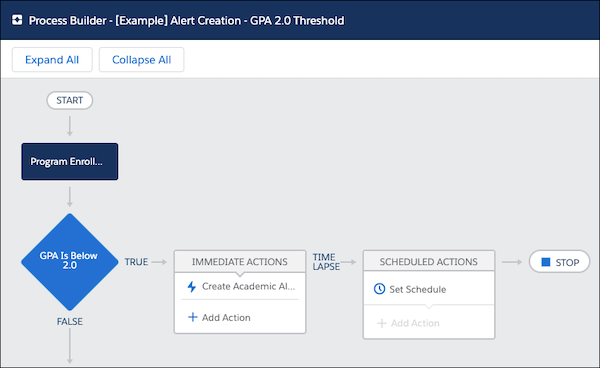
Create the automated Alert workflow processes included in Student Success Hub.
- Create the Process for Automatic Alert Resolution
If you originally installed Student Success Hub 1. 6 or earlier, you can create a workflow process to automate Alert resolution. Here's how to replicate the process included in Student Success Hub 1.7 and later. - Create the Sample Process for Automatic Alert Creation
If you originally installed Student Success Hub 1.11 or earlier, you can create a sample workflow process to automate Alert creation. Here's how to replicate the process included in Student Success Hub 1.12 and later.
Create the Process for Automatic Alert Resolution
If you originally installed Student Success Hub 1. 6 or earlier, you can create a workflow process to automate Alert resolution. Here's how to replicate the process included in Student Success Hub 1.7 and later.
-
Create the process.
- From Setup, search for and then select Process Builder.
- Click New.
- Name the process Alert Resolution.
- Tab to the API Name field to automatically populate the API name, Alert_Resolution.
- For the Description, enter If an alert's status is closed, set Is Closed to true. If an alert's status changes from closed, set Is Closed to false.
- Set the process to start when A record changes.
- Click Save.
- Click the Add Object symbol.
- From the Properties, select the Alert object.
-
Set the process to start when a record is created or edited.
- Save your changes.
-
Add criteria to determine whether the Alert has been closed.
- Click the Add Criteria symbol.
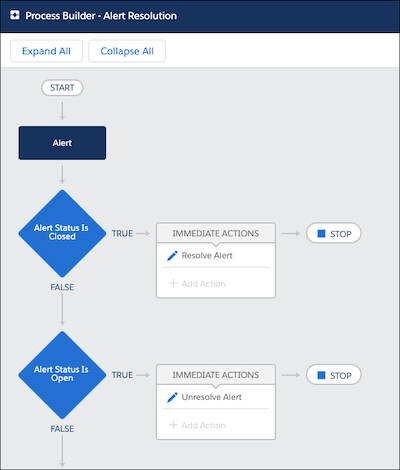
- Name the criteria Alert Status Is Closed.
- Leave Conditions are met selected to evaluate specified field values for the Alert record.
-
Set two filter conditions for the process to check the [Alert__c].Status__c field—the first to check for a value of Closed: Action Taken and the second for Closed: No Action Needed.
- For Conditions, specify Any of the conditions are met (OR).
-
Save your changes.
-
Add the action to execute when the Alert has been closed.
- Under Immediate Actions, click Add Action.
- For the action type, select Update Records.
- Name the action Resolve Alert.
- For Record Type, choose Select the Alert record that started your process.
- Leave No criteria—just update the records! selected.
-
Specify the Field (Is Closed), Type (Boolean), and Value (True) for Alert records to be updated.
- Save your changes.
-
Repeat the Add Criteria steps (Step 2 above) to add a second criteria named Alert Status Is Open. The details are similar to the first criteria, except:
- Set two filter conditions for the process to check the [Alert__c].Status__c field for a value that does not equal Closed: Action Taken and the second for a value that does not equal Closed: No Action Needed.
- For Conditions, specify All of the conditions are met (AND).
- Repeat the Add Action steps (Step 3 above) to add a second action named Unresolve Alert. The details are similar to the first action, except: Specify the Field (Is Closed), Type (Boolean), and Value (False) for Alert records to be updated.
- When you're done, activate the process.
Your completed Alert Resolution process looks something like this.
Create the Sample Process for Automatic Alert Creation
If you originally installed Student Success Hub 1.11 or earlier, you can create a sample workflow process to automate Alert creation. Here's how to replicate the process included in Student Success Hub 1.12 and later.
-
First create a global action, which is used later to specify the record type of the Alert that the sample process creates (an Academic Alert).
 Note We require a global action because every org has a unique ID per Alert record type. The sample process is designed to be generic enough to work across all orgs. Rather than specifying the exact record type ID in the process definition, we get the ID through the global action and make it available to the process.
- From Setup, search for and then select Global Actions.
- Click New Action.
-
Specify these values:
- Action Type—Create a Record
- Target Object—Alert
- Record Type—Academic
- Label—Create Academic Alert
- Name—Create_Academic_Alert
- Create Feed Item—Leave deselected
- Save your changes.
-
When the layout editor opens, add these fields to the fields already displayed on the action layout: Priority, Reason, Program Enrollment, Assign Using Active Assignment Rules, and Comments.
- Save your changes.
-
On the action detail page, verify the newly created action.
Note Academic is one of the default Alert record types used in Student Success Hub. The sample process creates an Academic Alert. If you're using different record types than the default ones, when you create your own actual process, make sure to specify the correct record type value. And if you intend to use multiple processes to create different types of Alerts, make sure to first create multiple global actions as needed.
-
Now create the sample process.
- From Setup, search for and then select Process Builder.
- Click New.
- Name the process [Example] Alert Creation - GPA 2.0 Threshold.
- Specify the API name Alert_Creation_GPA_2_0_Threshold.
- For the description, enter [Example] Create an academic Alert when a student's GPA drops below 2.0.
- Set the process to start when A record changes.
- Save your changes.
- Click the Add Object symbol.
- From the Properties, select the Program Enrollment object.
- Set the process to start when a record is created or edited.
- Save your changes.
-
Add criteria to determine whether a student's GPA is below the minimum threshold.
- Click the Add Criteria symbol.
- Name the criteria GPA Is Below 2.0.
- Select Formula evaluates to true for the criteria.
-
Insert this formula:
AND([hed__Program_Enrollment__c].hed__GPA__c < 2, NOT(ISBLANK([hed__Program_Enrollment__c].hed__GPA__c)), OR(ISBLANK(PRIORVALUE([hed__Program_Enrollment__c].hed__GPA__c)), PRIORVALUE([hed__Program_Enrollment__c].hed__GPA__c) >= 2, AND([hed__Program_Enrollment__c].hed__GPA__c <> 0, OR(PRIORVALUE([hed__Program_Enrollment__c].hed__GPA__c) == 0, ISNEW()))))NoteThis formula excludes the cases when a Program Enrollment is created with a GPA value of 0.0 or a blank value, such as for newly enrolled students. A GPA meets the criteria only if it changed from a 0.0 or blank value to a value below 2.0, or if the previous value was above 2.0 and the current value is below. You may want to include additional criteria when defining your own actual processes.
For example, exclude withdrawn or graduated (inactive) students, or specify different thresholds for different student categories (undergraduate versus graduate students, by college, etc.), or also consider the values of the Alert's Status, Priority, Reason fields, as well as any custom picklist values or custom fields you've added.
- Click Advanced and select Yes to require that the action execute only upon relevant changes to the record.
- Save your changes.
-
Add the action to execute when the GPA threshold criteria are met.
- Under Immediate Actions, click Add Action.
- For the Action Type, select Quick Actions.
- Name the action Create Academic Alert.
-
Specify that the action use the global action that you created earlier:
- Filter Search By—Global actions
- Type—Create a Record
- Action—Create_Academic_Alert
-
After Process Builder locates the Create_Academic_Alert action, specify these field values. (The first two fields are loaded by default. Click Add Row to add each of the additional fields.)
Field Type Value Student Contact
Field Reference
[hed__Program_Enrollment__c].hed__Contact__r.IdNote Select the Contact ID on the related Contact object. Because of a known issue, when you initially save the completed process, the value displays as[hed__Program_Enrollment__c].hed__Contact__c.Id. If you exit Process Builder, return to the process, and hover on this field value, it displays with the correct __r.Status
Picklist
New
Priority
Picklist
Urgent
Reason
Picklist
Grade Concern
Program Enrollment
Field Reference
[hed__Program_Enrollment__c].Id(Select the Record ID.)Assign Using Active Assignment Rules
Boolean
True
Comments
Formula
"GPA has dropped to " & TEXT([hed__Program_Enrollment__c].hed__GPA__c) & "." - Save your changes.
-
Verify the completed sample process.