
Find out more about configuring soft credit rollups.
- About Soft Credit Rollups
The Soft Credit rollup fields on Contact records roll up as the result of data from these sources. - Configure Contact Roles Settings
Which Opportunity Contact Roles count as soft credits depends on if you're using Customizable Rollups or legacy out-of-box rollups. - About the Always Roll Up to Primary Contact Role Checkbox
The Always Roll Up to Primary Contact Role checkbox ONLY applies to gifts (Opportunities) from an Organization Account. When checked, if the Opportunity Account is an Organization Account and the Primary Contact field is populated, both the Account and the Primary Contact on the Opportunity receive hard credit.
About Soft Credit Rollups
The Soft Credit rollup fields on Contact records roll up as the result of data from these sources.
- Opportunity Contact Roles (OCRs) you've assigned to Contacts on Opportunity records
- Partial Soft Credits
- Contact Role Configuration
Any Opportunity Contact Role is eligible for soft credit rollups if that value is specified in NPSP Settings.

Configure Contact Roles Settings
Which Opportunity Contact Roles count as soft credits depends on if you're using Customizable Rollups or legacy out-of-box rollups.
If you're using Customizable Rollups, Contact Roles are set in filter groups and then applied to the rollups themselves:
-
Click the NPSP Settings tab. If you don't see the tab, find it in the App Launcher (
 ).
). - Click .
- Click Configure Customizable Rollups.
- Click View Filter Groups.
- Either click New to create a new filter group with Contact Roles or click Edit to modify an existing filter group.
- Add a filter rule with these values:
- Object = Soft Credit
- Field = Soft Credit: Role Name
- Operator = In List
- Value = Select the Contact Roles you want to include when calculating rollups and move them to the Selected Value list.
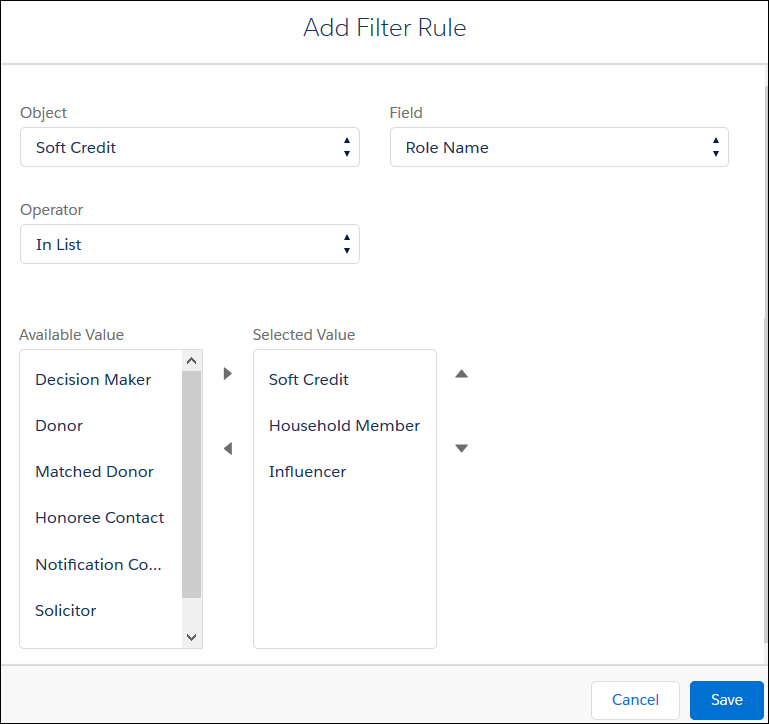
- Click Save.
- Be sure to apply this filter group to the rollup(s) you want to calculate soft credits based on the Contact Roles you selected.
If you're using out-of-box legacy NPSP rollups or User Defined Rollups:
- In NPSP Settings, click .
- Click Edit.
- In the Soft Credit Roles field, make sure you've specified all Contact Roles you want treated as soft credits.
- Click Save.
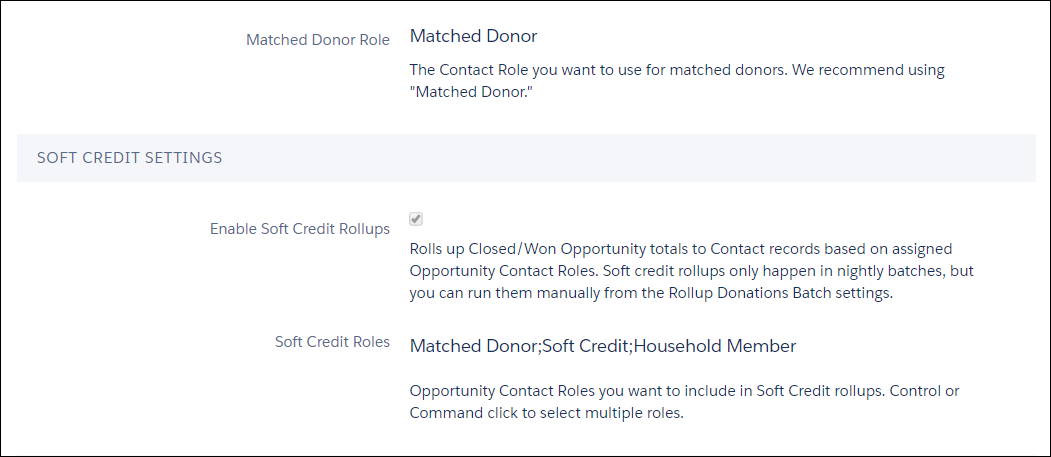
You also need to specify which Contact Role you want NPSP to apply to matched donors. This role should be one of the roles you selected for the Soft Credit Roles. To set this value:
- In NPSP Settings, click .
- Click Edit.
- In the Matched Donor Role field, select a value. We recommend using Matched Donor.
- Click Save.
For Organizational gifts, you may wish to assign a soft credit to someone who helped you win the gift, for example, a board member. NPSP can automatically credit the Contact named in the Primary Contact field on an Organizational Opportunity.
To use this automated soft credit, you’ll need to set the Contact Role for Organizational Opps in NPSP Settings.
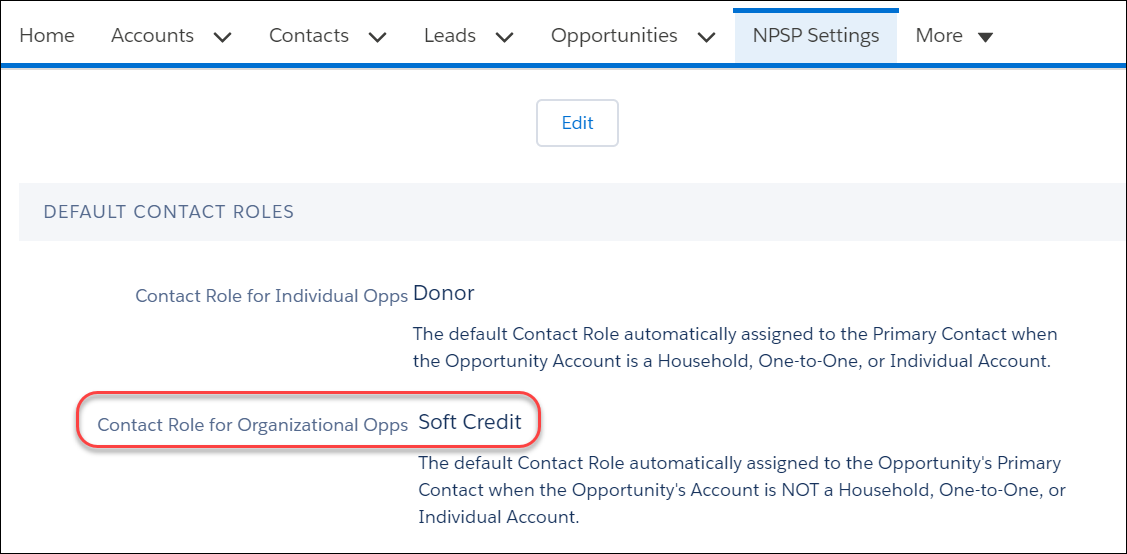
About the Always Roll Up to Primary Contact Role Checkbox
The Always Roll Up to Primary Contact Role checkbox ONLY applies to gifts (Opportunities) from an Organization Account. When checked, if the Opportunity Account is an Organization Account and the Primary Contact field is populated, both the Account and the Primary Contact on the Opportunity receive hard credit.
Therefore, the gift is double counted by rollups. It's important to note that Organizational gift hard credits to the Contact ARE NOT reflected on their Household Account. Additionally, the Contact doesn't receive a soft credit.
While some orgs may choose to use this setting because they want to see the hard credit reflected in Contact rollups, this is not the generally accepted best practice. We recommend that you follow best practice and not use this checkbox.
The Always Roll Up to Primary Contact Role checkbox is located in NPSP Settings. You can find it under .