
Create and add a button to launch the flow to compare and assign mentors. When you run the screen flow on the benefit assignment page, the flow uses the fields from the mentoring profile to compare a mentee with potential mentors.
| User Permissions Needed | |
|---|---|
| To update record pages: |
Education Cloud Full Access AND View Setup & Configuration AND Customize Application |
| Available in: Lightning Experience |
| Available in: Enterprise, Performance, Unlimited, and Developer Editions with Education Cloud |
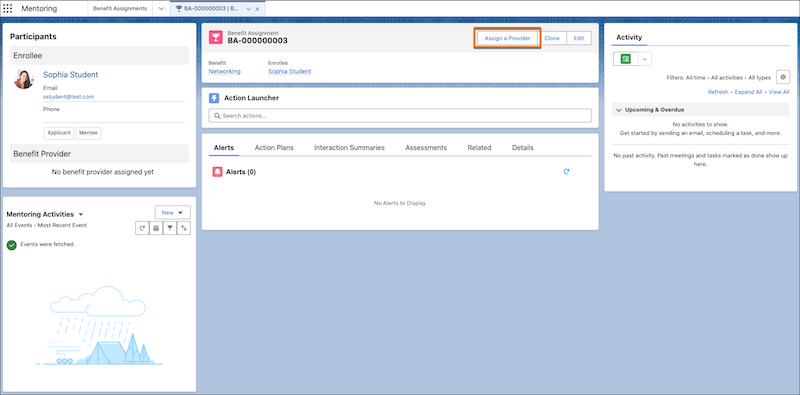
- From the object management settings for Benefit Assignment, select Buttons, Links, and Actions.
- Click New Button or Link.
- In Label, enter Assign a Provider. Press Tab to automatically fill the Name field.
- From Display Type, select Detail Page Button.
- From Behavior, select Display in new window.
- From Content Source, select URL.
-
In the text box, enter the URL for your copy of
the Mentoring: Match Mentor and Mentee screen flow. Make sure to include the
input variable for Benefit Assignment and a return URL.
For example, /flow/<your_flow_name>?BenefitAssignmentId={!BenefitAssignment.Id}&retUrl=/{!BenefitAssignment.Id}.
- Save your changes.
- From the object management settings for Benefit Assignment, select Page Layouts.
- Click the page layout that you want to add the button to.
- In Salesforce Mobile and Lightning Experience Actions, click override the predefined actions.
- Click Buttons, and then drag Assign a Provider to the Salesforce Mobile and Lightning Experience Actions section.
- Arrange the buttons as necessary, and then save your changes.