
The Admissions and Reviewer Consoles give admissions officers and application reviewers a central place to focus on application reviews, see critical tasks, and take important next steps.
| Available in: Lightning Experience |
| Available in: Enterprise, Performance, Unlimited, and Developer Editions with Education Cloud |
When you open the Recruitment & Admissions app, you arrive on a home page that's designed for your role and license type. Education Cloud has separate consoles for the admissions officer and application reviewer.
- Set Up the Admissions Console
Create a home page for the Recruitment & Admissions app that shows admissions data, reviews, and tasks. - Set Up the Director Console for Recruitment and Admissions
Create a home page for the Recruitment & Admissions app, where a director can see admissions and recruitment analytics, create actionable lists and assign them to staff. - Set Up the Recruiter Console
Create a home page for the Recruitment & Admissions app for recruiters. - Set Up the Reviewer Console
Create a home page for the Recruitment & Admissions app for application reviewers.
Explore the Consoles
Each console gives both admissions officers and application reviewers a place to see the application reviews assigned to them, along with their daily and upcoming tasks and events. Admissions officers can also see high-level data insights related to the status of applicants for their institution.
Admissions Console
The Admissions Console is for the admissions officers in your institution. These users have the Education Cloud Full Access permission set license. Because they have the broadest access to Education Cloud, they have more data and information to work with.
-
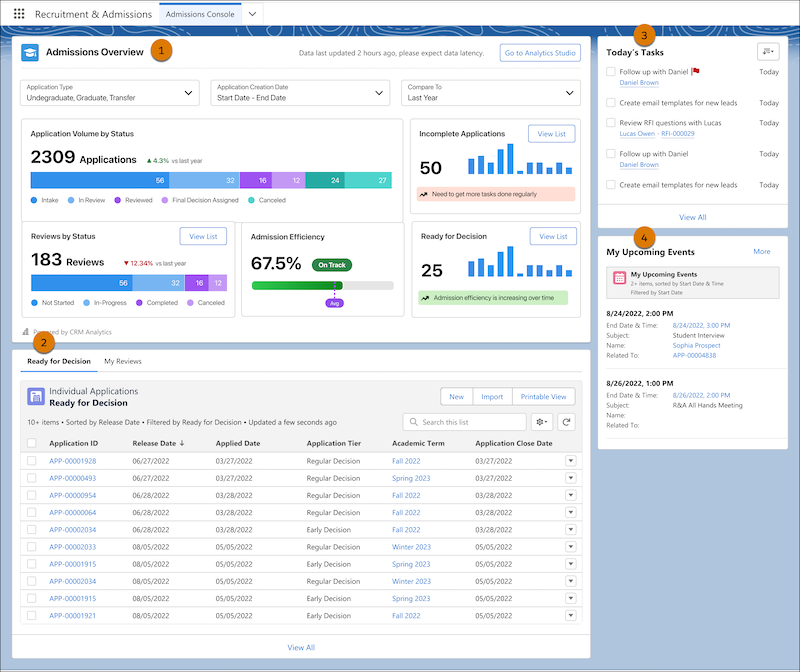
See application volume, status of application reviews, admission efficiency, incomplete applications, and applications ready for a decision (1).
-
See lists of applications that are ready for a decision, incomplete applications, and applications that are assigned for review (2).
-
See tasks that are due today. Click View All to see all tasks (3).
-
See upcoming events and tasks that are due soon (4).
Reviewer Console
The Reviewer Console is for the people who conduct application reviews for your institution. Reviewers can be anyone in your institution or external partners. These users have the Education Cloud Reviewer permission set license. This gives them access to the elements that they need to view and approve applications.
-
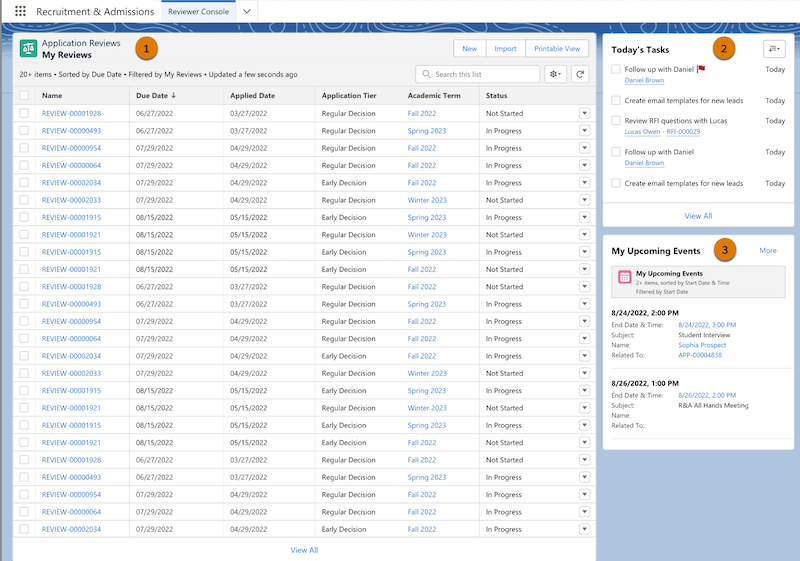
See a list of the applications that are assigned for review (1).
-
View tasks that are due today. Click View All to see all tasks (2).
-
View upcoming events and tasks that are due soon (3).