
Customize the Create Employee flow to collect specific information when it creates employee records for faculty. Agent actions use these fields to identify faculty Slack users.
Required Editions
| Available in: Lightning Experience |
| Available in: Enterprise, Unlimited, and Developer Editions with Education Cloud |
| User Permissions Needed | |
|---|---|
| To configure flows: |
Education Cloud Full Access AND Manage Flow |
- From Setup, find and select Flows.
- Select Create Employee.
- Click Save as New Flow.
-
Simplify your flow to collect employee details, create a contact ID and a user ID, and
create an employee record.
Customize the flow based on how your institution defines and handles employee record creation. The example only presents one possible approach.
- Save and activate the flow.

Example
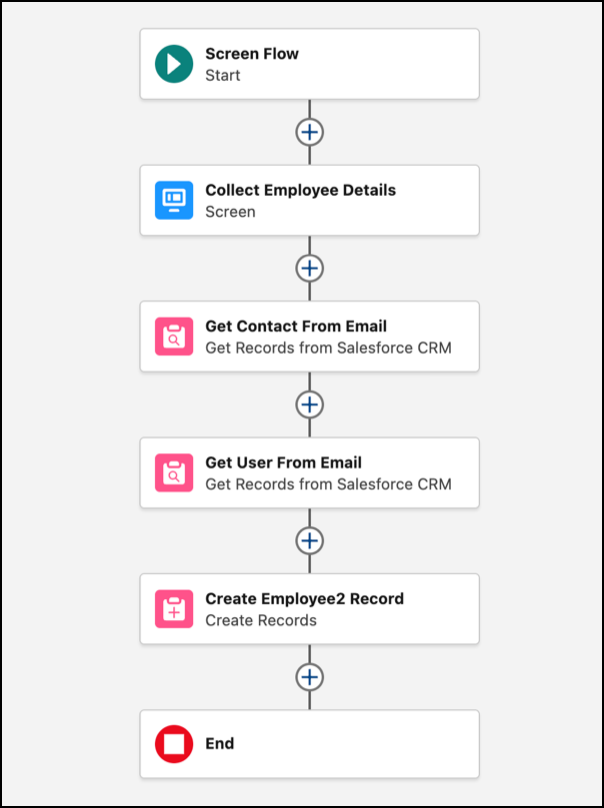
Create a simplified flow with four elements after the Start element.
- Use the existing Collect Employee Details screen flow element to collect details about a faculty member. The details later populate the corresponding fields on their employee record. Modify the form to include at least these required fields: Employee Number, Email, Employee Status, and Status Start Date.
- Add a Get Records element that gets the contact ID from the email address that's associated with a faculty member's person account. Name the element Get Contact From Email, and add a filter condition where Email equals Collect Employee Details > Email > Value.
- Add a Get Records element that gets the user ID from the email address that's associated with a faculty member's person account. Name the element Get User From Email, and add a filter condition where Email equals Collect Employee Details > Email > Value.
- Use the existing Create Employee2 Record element to create an employee record. Set these
required field values to populate the employee record.
Field Value Contact ID Contact from Get Contact From Email > Contact ID Employee Number Collect Employee Details > Employee Number Employee Status Collect Employee Details > Employee Status Status Start Date Collect Employee Details > Status Start Date User ID User from Get User From Email > User ID