
Create a home page for the Recruitment & Admissions app for application reviewers.
| Available in: Lightning Experience |
| Available in: Enterprise, Performance, Unlimited, and Developer Editions with Education Cloud |
| User Permissions Needed | |
|---|---|
| To set up the Reviewer Console: |
Education Cloud Full Access AND CRM Analytics for Education Cloud Admin |
The reviewer console is where you can see the reviews assigned to you, along with your daily and upcoming tasks and events.
- Create a Home Page
Use Lightning App Builder to create a reviewer console home page for the Recruitment & Admissions app. - Add Components to the Home Page
Configure Lightning web components on your Reviewer Console home page. - Activate the Home Page
Activate your home page and assign the home page to the profiles that you want to have access.
Create a Home Page
Use Lightning App Builder to create a reviewer console home page for the Recruitment & Admissions app.
- From Setup, in the Quick Find box, enter App Builder, and then select Lightning App Builder.
- Click New.
- Select Home Page and then click Next.
- In the Label field, enter Reviewer Console and then click Next.
- Select Standard Home Page and click Finish.
Now that you created your home page, add components to the console.
Add Components to the Home Page
Configure Lightning web components on your Reviewer Console home page.
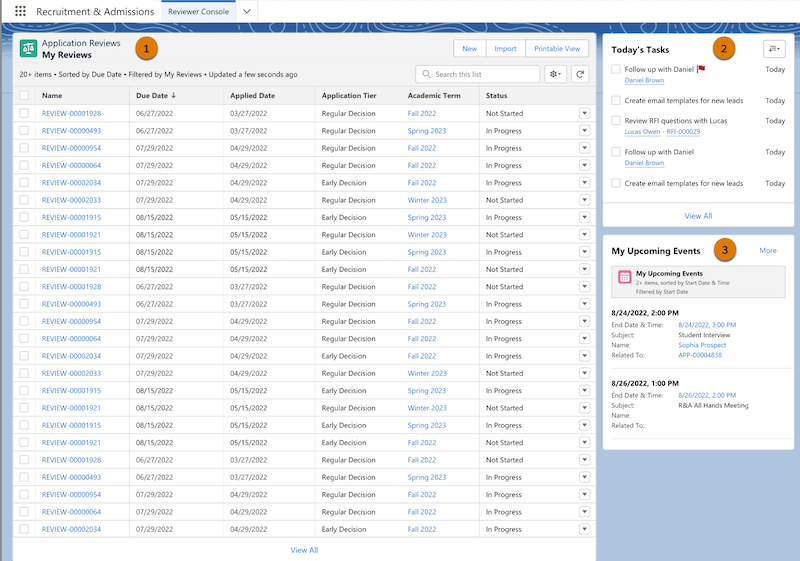

- Drag the List View component to the top section and set these fields (1):
- For the Object field, select Application Review.
- For the Filter field, select My Reviews.
 Tip To keep the home page within the window and to avoid scrolling, we recommend that you set the number of records to be shown in the Ready for Decision and My Reviews List View components to 25.
- Drag the Today's Tasks component to the right column (2).
- Drag the List View component to the right column, just below Today's Tasks, and set these items (3):
- Object: Select Event.
- Filter: Select My Upcoming Events.
- Number of Records to Display: Enter 2.
After you add the components, save your changes and move on to the next section.
Activate the Home Page
Activate your home page and assign the home page to the profiles that you want to have access.
- Click Activate.
- Select App and Profile.
- Click Assign to Apps and Profiles.
- For Lightning Apps, select Recruitment & Admissions and click Next.
- For Profiles, select the profiles that you want to have access to the home page and click Next.