
Create a home page for the Student Success app, where a director can create programs and benefits, assign advisors, view analytics dashboards for student success, view institutional Key Performance Indicators (KPIs), and more.
| Available in: Lightning Experience |
| Available in: Enterprise, Performance, Unlimited, and Developer Editions with Education Cloud |
| User Permissions Needed | |
|---|---|
| To set up the Director Console for Student Success: |
Education Cloud Full Access AND CRM Analytics for Education Cloud Admin |
- Create a Home Page
Use Lightning App Builder to create a director console home page for the Student Success app. - Add Components to the Home Page
Configure Lightning web components on your Director Console home page for Student Success. - Activate the Home Page
Activate your home page and assign the home page to the profiles that you want to have access.
Create a Home Page
Use Lightning App Builder to create a director console home page for the Student Success app.
- From Setup, in the Quick Find box, enter App Builder, and then select Lightning App Builder.
- Click New.
- Select Home Page and then click Next.
- In the Label field, enter Director Console and then click Next.
- Select Standard Home Page and click Finish.
Now that you created your home page, add components to the console.
Add Components to the Home Page
Configure Lightning web components on your Director Console home page for Student Success.
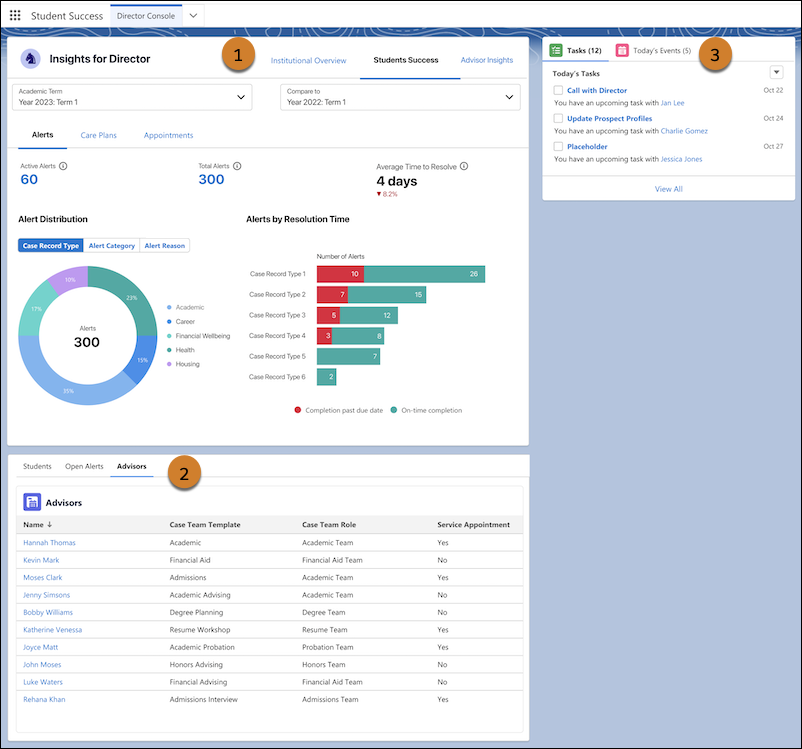

- Drag the CRM
Analytics Dashboard component (1) to the top section.
- In the component properties to the right, for Dashboard, select Student Success. If you can't select a dashboard, make sure that Education Analytics is set up. See Set Up the Education Analytics App.
- Drag the Tabs component (2) below the dashboard component.
- Add the custom tabs Students, Open Alerts, and Advisors.
- Drag the CRM Analytics Dashboard component to the Students tab, and select Dashboard as Education Students Without Success Team.
- Drag the CRM Analytics Dashboard component to the Open Alert tab, and select Dashboard as Education Directors Open Alerts.
- Drag the CRM Analytics Dashboard component to the Advisors tab, and select Dashboard as Education Advisors List.
- Drag the Tabs component (3) to the sidebar on the right of the page.
- Add the custom tabs Upcoming Events and Due Tasks.
- Add the Today's Events component to the Upcoming Events tab.
- Add the Today's Tasks component to the Due Tasks tab.
After you add the components, save your changes and move on to the next section.
Activate the Home Page
Activate your home page and assign the home page to the profiles that you want to have access.
- Click Activate.
- Select App and Profile.
- Click Assign to Apps and Profiles.
- For Lightning Apps, select Student Success and click Next.
- For Profiles, select the profiles that you want to have access to the home page and click Next.