
Create an Alumni Relations app home page where a coordinator or manager can review alumni information and identify opportunities for engagement.
| Available in: Lightning Experience |
| Available in: Enterprise, Performance, Unlimited, and Developer Editions with Education Cloud |
| User Permissions Needed | |
|---|---|
| To set up the Alumni Relations Console: |
Education Cloud Full Access AND CRM Analytics for Education Cloud Admin |
- Explore the Alumni Relations Console
The Alumni Relations Console gives alumni coordinators a central place to focus on alumni engagement. - Create a Home Page
Use Lightning App Builder to create a home page for the Alumni Relations app. - Add Components to the Home Page
Add the CRM Analytics Dashboard component to your home page. - Save and Activate the Home Page
Activate your home page and assign the home page to the profiles that you want to have access.
Explore the Alumni Relations Console
The Alumni Relations Console gives alumni coordinators a central place to focus on alumni engagement.
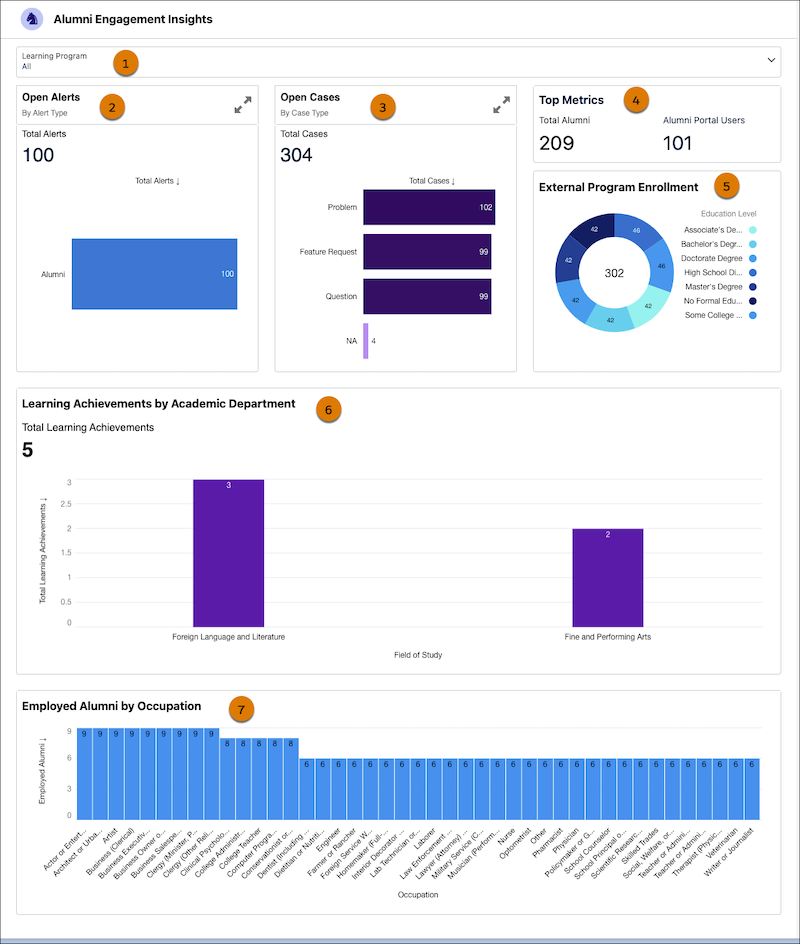
The dashboard has multiple charts that visualize alumni engagement based on key performance indicators (KPIs).
-
Filter information by college or department (1).
-
See the number of alumni with open alerts (2).
-
See the number of alumni with open cases (3).
-
See the number of alumni in your org and the number who have created an account on your portal (4).
-
See the number of learning achievements alumni have earned from other institutions (5).
-
See the number of learning achievements alumni have earned from your institution (6).
-
See the occupations in which alumni are employed (7).
Create a Home Page
Use Lightning App Builder to create a home page for the Alumni Relations app.
-
From Setup, in the Quick Find box, enter App Builder, and then select Lightning App Builder.
-
Click New.
-
Select Home Page and then click Next.
-
For Label, enter Alumni Console and then click Next.
-
Select Standard Home Page and click Done.
Now that your home page is created, add components to it.
Add Components to the Home Page
Add the CRM Analytics Dashboard component to your home page.
-
Drag the CRM Analytics Dashboard component to the top section.
-
In the component properties, for Dashboard, select Alumni Engagement Insights. If you can't select a dashboard, make sure that Education Analytics is set up. See Set Up the Education Analytics App.
Save and Activate the Home Page
Activate your home page and assign the home page to the profiles that you want to have access.
- After you save your changes, click Activate.
-
Select App and Profile.
-
Click Assign to Apps and Profiles.
-
For Lightning Apps, select Alumni and click Next.
-
For Profiles, select the profiles that you want to have access to the home page and click Next.
-
Save your changes.