
Set up Mentoring in Education Cloud to provide and manage mentoring benefits and programs that connect learners with mentors based on shared interests and goals.
| Available in: Lightning Experience |
| Available in: Enterprise, Performance, Unlimited, and Developer Editions with Education Cloud |
| User Permission Needed | |
|---|---|
| To enable and configure Mentoring: |
Education Cloud Full Access AND View Setup & Configuration AND Customize Application |
- Enable Mentoring
Use Mentoring to create and manage mentoring programs, to strengthen relationships between mentors and mentees, and to assign benefits. - Dependent Features for Mentoring
Enable features to get all functionalities of the Mentoring app. - Set Up the Mentoring App Home Page
Use the Mentoring app home page to review mentoring information and manage mentor and mentee relationships. - Update Page Layouts for Mentoring
Configure the benefit assignment and account record pages to be used with Mentoring. - External Sharing Settings for Mentoring
The external sharing settings specified in your org-wide defaults apply to users with a Customer Community Plus license. See Set Your External Organization-Wide Sharing Defaults.
Enable Mentoring
Use Mentoring to create and manage mentoring programs, to strengthen relationships between mentors and mentees, and to assign benefits.

-
From Setup, in the Quick Find box, enter Education Cloud, and then select Set Up Education Cloud.
-
Turn on Mentoring.
Dependent Features for Mentoring
Enable features to get all functionalities of the Mentoring app.
| Dependent Feature | How the feature helps |
|---|---|
| Discovery Framework | Create and manage assessments. |
| Interaction Summaries | Track meetings and sessions between mentors and mentees. |
| Program and Benefit Management | Create mentoring programs and assign benefits to users. |
| Record Alerts | Indicate what mentoring needs require attention now or soon. |
| Timeline | See a history of mentoring activities. |
Set Up the Mentoring App Home Page
Use the Mentoring app home page to review mentoring information and manage mentor and mentee relationships.
| Available in: Lightning Experience |
| Available in: Enterprise, Performance, Unlimited, and Developer Editions with Education Cloud |
| User Permissions Needed | |
|---|---|
| To set up the Mentoring app home page: | Education Cloud Full Access |
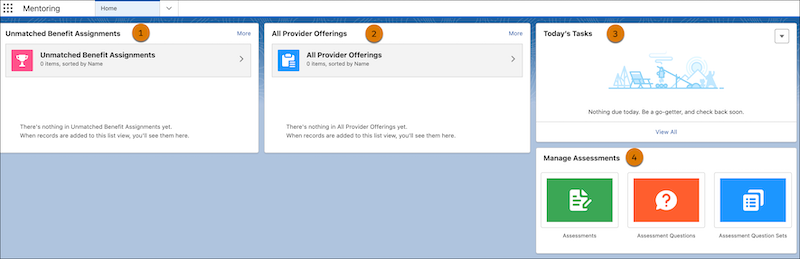
On the Mentoring home page, facilitators can see benefit assignments, benefit providers, and daily and upcoming tasks. They can also manage the assessments that are used for the mentoring program.
-
See benefit assignment records that don't have a mentor assigned to the enrollee (1).
-
See records for users who serve as mentors and the type of benefit that they provide to mentees (2).
-
See the tasks that are due today. Click View All to see all tasks (3).
-
Manage the assessments that are used to connect a mentee with a mentor (4).
Use Lightning App Builder to set up the Mentoring home page.
-
From the App Launcher, find and select Mentoring.
-
From Setup, find and select Lightning App Builder.
-
Click New.
-
Select Home Page, and then click Next.
-
In Label, enter Mentoring, and then click Next.
-
Click Clone Salesforce Default Page.
-
Select Mentoring App Home Page, and then click Done.
-
Make any additional configurations, and save your changes.
Considerations for Benefit Assignments List Views
Enabling Mentoring creates the Unmatched Benefit Assignment list view for the Benefit Assignment object. This list view shows all benefit assignments where provider offering isn't specified. To include fields from the Benefit object, add that list view to the Mentoring home page and add filters to match your Mentoring benefits. If you delete the Unmatched Benefit Assignments list view and replace it with a different list view, the Mentoring app home page doesn't show a list view for benefit assignments.
If the list view gets deleted, create a list view and make sure that you set these parameters.
-
Set the API name to UnmatchedBenefitAssignments.
-
Make sure that all users can see the new list view.
-
For Filter by Owner, select All Benefit Assignments.
-
Add a filter.
-
For field, select Provider.
-
For operator, select equals.
-
Leave the value unspecified.
-
See Also:
Update Page Layouts for Mentoring
Configure the benefit assignment and account record pages to be used with Mentoring.
Create a Benefit Page Layout for Mentees
Create a page layout for the Benefit object to use in the mentee Experience Cloud site portal.
-
From Setup, in Object Manager, click Benefit.
-
Click Page Layouts, and then click New.
-
From Existing Page Layout, select Benefit Layout.
-
Enter a name, such as Mentee Benefit Layout.
-
Save your changes.
-
Click Buttons.
-
Remove all buttons from the page layout, and then save your changes.
-
Click New Page Layout Assignment, and then click Edit.
-
Select your mentee profile.
-
From Page Layout To Use, select your mentee benefit page layout, and then save your changes.
Add Provider Field to the Benefit Assignment Page Layout
A mentoring facilitator can match a mentor and mentee by specifying the contact value for the provider field on the benefit assignment record page.
-
From Setup, in Object Manager, click Benefit Assignment.
-
Click Page Layouts, and then click Benefit Assignment Layout.
-
Click Fields, and then drag Provider to the Benefit & Enrollment Details section.
-
Save your changes.
Update the Person Account Record Page
Add related lists that support Mentoring to the account record page.
-
From Setup, in Object Manager, click Person Account.
-
Click Page Layouts, and then click Person Account Layout.
-
Click Related Lists, and then add these related lists to the page layout.
-
Person Contact
-
Provider Offerings
-
Person Contact Program Enrollments
-
Program Enrollments
-
-
Save your changes.
External Sharing Settings for Mentoring
The external sharing settings specified in your org-wide defaults apply to users with a Customer Community Plus license. See Set Your External Organization-Wide Sharing Defaults.
Update the external sharing settings for the objects that are used in the Mentoring app.
See Also:
| Object | Access Type |
|---|---|
| Action Plans | Private |
| Assessment | Private |
| Assessment Question | Public Read Only |
| Assessment Question Set | Public Read Only |
| Benefit Type | Public Read Only |
| Benefit Assignment | Private |
| Person Public Profile Preference Set | Private |
| Program | Public Read Only |
| Provider Offering | Private |
| Service Resource | Public Read Only |
| Unit of Measure | Public Read Only |