
Education Cloud comes with a preconfigured Education Applicant Portal template that enables learners to access the scheduling feature. These steps are only required if you want to create your own portal.
| Available in: Lightning Experience |
| Available in: Enterprise, Performance, Unlimited, and Developer Editions with Education Cloud |
| User Permissions Needed | |
|---|---|
| To set up an Experience site for Education Cloud: |
Education Cloud Full Access AND OmniStudio Admin AND OmniStudio User |
- From Setup, in the Quick Find box, enter Digital Experiences, and then select All Sites.
- Click New, and then choose a template such as Build Your Own (Aura).
- Click Get Started.
- Enter a name, complete the URL, and then click Create.
- Click Builder, and then
 .
. - Search for and then drag the My Appointment component onto your canvas.
- Open the Pages menu on the top toolbar, and then click New Page.
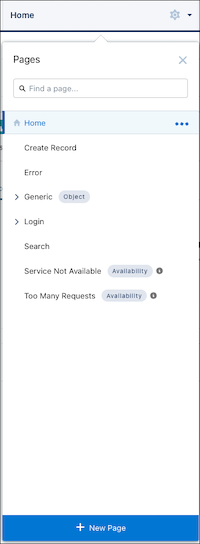
- Click Standard Page, and then New Blank Page.
- Choose a layout, and then click Next.
- Enter a name and a URL, for example Schedule Appointments and schedule-appointments.
- Enter an API Name, for example ScheduleAppointment__c, and then click Create.
- Click .
- Search for and then drag the Omniscript component onto your canvas.
- Select the EDUScheduler/StudentAppointment type.
- Open the Pages menu on the top toolbar, and then click Home.
- Click .
- Search for and then drag the Flexcard component onto your canvas.
- Select the EDUSchedulerScheduleAppointmentSite Flexcard name.
- In the Exposed Attributes field, enter the name of the page that you created for the Omniscript component in this format: {"ApiPageName" : "<Page API name>"}. In our example, this value is {"ApiPageName" : "ScheduleAppointment__c"}.
- Apply other customizations as necessary.
- Click Publish twice, and then Got It.
For information about using the preconfigured template, see Set Up an Education Portal.