
Configure record pages for the Account object in Education Cloud.
| Available in: Lightning Experience |
| Available in: Enterprise, Performance, Unlimited, and Developer Editions with Education Cloud |
| User Permissions Needed | |
|---|---|
| To set up the Account record page: |
Education Cloud Full Access AND View Setup & Configuration AND Customize Application AND OmniStudio Admin AND OmniStudio User |
- Create Account Record Pages
Create record pages for students and alumni for the Account object in Lightning App Builder. - Set Up a Relationship Graph for Person Accounts
Set up a relationship graph in Actionable Relationship Center that you can use on the Account record page. - Add Components to the Account Record Page
Add and configure Lightning Web Components to the student and alumni Account record pages. - Activate the Record Pages
After you configure your pages, make them the default record pages for the Student Success and Alumni Relations apps. - Set Up the Person Account Record Page for Financial Aid Insights
Equip staff with a comprehensive view of a student's financial aid data directly in Salesforce. By configuring Lightning web components on the Person Account record page, staff can access student applications, awards, cost estimates, and disbursements without navigating to external systems.
Create Account Record Pages
Create record pages for students and alumni for the Account object in Lightning App Builder.
Create a Student Record Page
-
From Setup, in the Quick Find box, enter App Manager, and then select App Manager.
-
Next to Student Success, click
 , and then select Edit.
 -
Click Pages, and then select New Page.
-
Click Record Page, and then click Next.
-
Enter a label for the record page. For example, enter Student Record Page.
-
In the Object field, search for and then select Account.
-
Under Choose Page Template, select Three Regions, and then click Done.
Create an Alumni Record Page
-
From Setup, in the Quick Find box, enter App Manager, and then select App Manager.
-
Next to Alumni, click
, and then select Edit. -
Click Pages, and then select New Page.
-
Click Record Page, and then click Next.
-
Enter a label for the record page. For example, enter Alumni Record Page.
-
In the Object field, search for and then select Account.
-
Under Choose Page Template, select Three Regions, and then click Done.
Set Up a Relationship Graph for Person Accounts
Set up a relationship graph in Actionable Relationship Center that you can use on the Account record page.
-
From Setup, in the Quick Find box, enter Account Settings, and then select Account Settings.
-
Click Edit.
-
Select Allow users to relate a contact to multiple accounts, and then save your changes.
-
In the Quick Find box, enter Group Membership Settings, and then select Group Membership Settings.
-
Enable Group Membership.
-
In the Quick Find box, enter Actionable Relationship Center, and then select Actionable Relationship Center.
-
Click New Relationship Graph.
-
Select Education Cloud Person Account Relations, and then click Create Graph.
-
Enter a label and developer name, and then save your changes.
Add Components to the Account Record Page
Add and configure Lightning Web Components to the student and alumni Account record pages.
Student Record Page
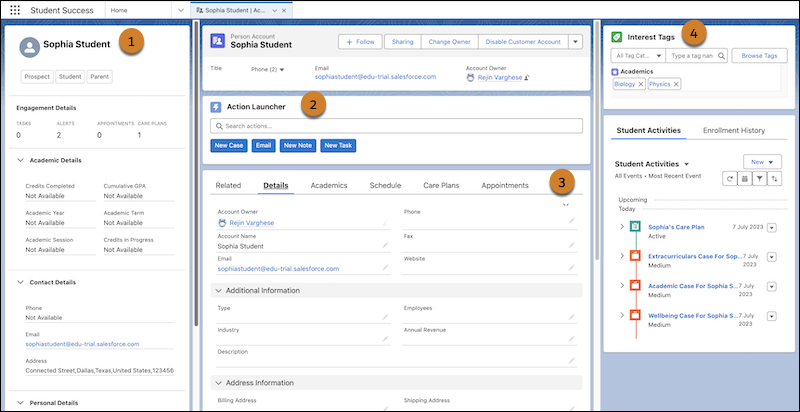
With the student Account record page open in Lightning App builder, add these components to the page.
| Component | Configuration Steps |
|---|---|
| Student Profile Flexcard (1) |
|
| Advising Center Flexcard (1) |
|
| Timeline (1) | Drag the Timeline component to the left column below the student profile or advising center Flexcard component. |
| Action Launcher (2) |
|
| Tabs (3) |
|
| Cases (3) |
|
| Interaction Summary (3) |
|
| Academics (3) |
|
| Appointments (3) |
|
| Staff Scheduler (3) |
|
| Interest Tags (4) | Drag the Interest Tags component to the right column. |
Alumni Record Page
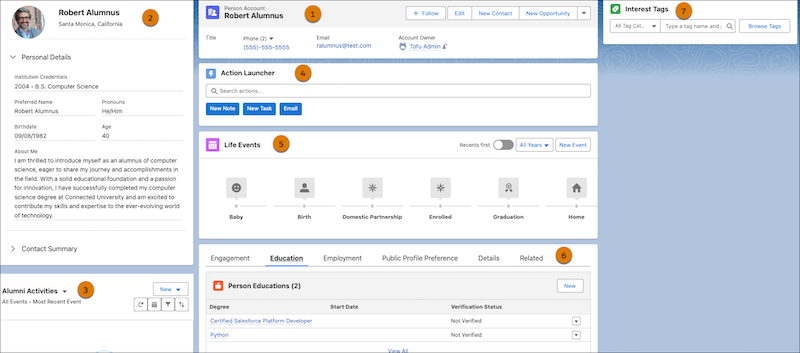
| Component | Configuration Steps |
|---|---|
| Highlights Panel (1) | Drag the Highlights Panel component to the center column. |
| Alumni Profile Card (2) |
|
| Timeline (3) |
|
| Action Launcher (4) |
|
| Life Events (5) | Drag the Events and Milestones component to the center column below the Action Launcher. |
| Tabs (6) |
|
| Engagement (6) |
|
| Relationships (6) |
|
| Education (6) |
|
| Employment (6) |
|
| Details (6) |
|
| Portal Profile Preference (6) |
|
| Related (6) |
|
| Interest Tags (7) |
Drag the Interest Tags component to the right column. |
After you add the components, save your changes and continue to the next section.
Activate the Record Pages
After you configure your pages, make them the default record pages for the Student Success and Alumni Relations apps.
See Also:
Set Up the Person Account Record Page for Financial Aid Insights
Equip staff with a comprehensive view of a student's financial aid data directly in Salesforce. By configuring Lightning web components on the Person Account record page, staff can access student applications, awards, cost estimates, and disbursements without navigating to external systems.
