
Learners schedule appointments through your Education Portal. When you add the My Appointments Header to your portal, a student can check whether an advisor is available before selecting their preferred time slot to create the appointment.
| Available in: Lightning Experience |
| Available in: Enterprise, Performance, Unlimited, and Developer Editions with Education Cloud |
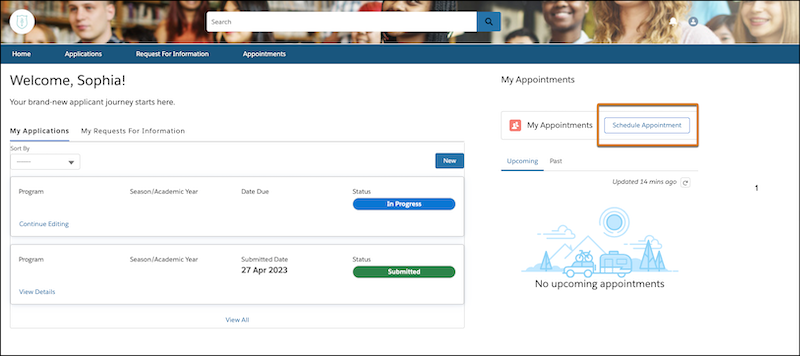
To schedule an appointment, learners click Schedule Appointment on your Education Portal.
The workflow guides the learner through a series of picklists that help determine the available teams and advisors.
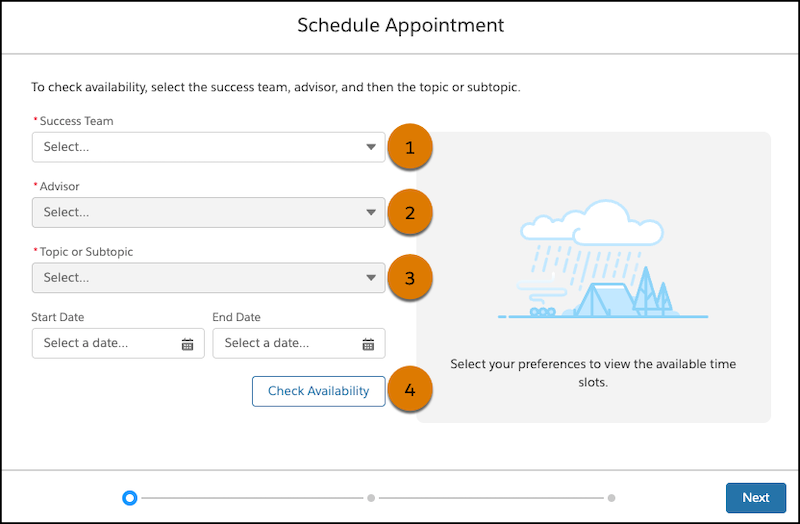
- This Success Team picklist (1) determines which advisors or teams are available for the
student to select. It shows a consolidated list from these sources:
- Assigned Advisors/Teams—All individuals and teams assigned to the student's active cases, but only if the case's record type is specified on an active Success Team record.
- Bookable (Unassigned) Teams—Pre-defined teams that have the Can Self Schedule option checked on a Success Team record. A team will only appear here if the student has an active case with the record type specified on that same Success Team record.
- The Advisor picklist (2) shows the individual members of the selected success team. If permitted by Success Team record settings, you can also see a combined availability for all members of the team, and an auto-assign option.
- The Advisor picklist (2) shows the individual members of the selected success team. If permitted by Success Team record settings, you can also see a combined availability for all members of the team, and an auto-assign option.
- The Topic or Subtopic picklist (3) intelligently filters the appointment topics based on who the selected advisor(s) can help with. Search results show up to 4,000 appointment topics.
- The learner clicks Check Availability (4) to see if the selected advisors are available for appointments in the next 30 days. Shift records define availability for advisors.
Topic and Subtopic Filtering Logic
Every topic is associated with at least one advisor role. Use Work Type Groups to define topics and Case Team Roles to define advisor roles.
- The system looks at the advisor's role across all active advising cases. It then shows topics that match that exact role for the assigned advisor.
- When the learner selects All Members or Assign someone to me, a topic appears in the list if at least one member of the team holds the required role to service that topic.
- The system uses the member's role within the predefined case team to find matching topics for a member of a bookable (unassigned) team.
Every topic is associated with at least one service territory. The topics returned by matching all roles are then filtered based on the service territory of the selected advisor.
- The system looks at the service territories covered by an assigned advisor. Then it shows available topics for those territories.
- When the learner selects All Members or Assign someone to me, a topic appears in the list if at least one member of the team services a territory for which the topic is available.
Only the topics which are linked to at least one engagement channel are displayed in the picklist.