Schedule appointments with staff members for students from the account record page.
Editions Needed
| Available in: Lightning Experience |
| Available in: Enterprise, Performance, Unlimited, and Developer Editions with Education Cloud |
| User Permissions Needed |
|
| To to schedule appointments in Education Cloud: |
Education Cloud Full Access |
-
Before you schedule an appointment, complete these prerequisites.
-
Make sure that users have at least Read access to the Resource Assignment Type
field on the Success Team object. See Schedule Appointments with My Appointments Header.
-
Add the staff Appointment Scheduling component to your account record page. See
Set Up the Account Record Page.
-
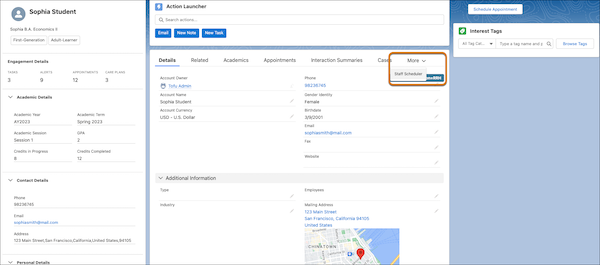
On the learner's person account record page, select Staff
Scheduler. If you don't see Staff Scheduler, click
More.
-
Under Filters, enter this criteria.
-
Search for and select the support staff member or team.
-
Select a topic based on the selected support staff member or team.
-
Select the channel.
-
Click Search.
-
To book a meeting with a staff member, select a time from the list of results. You can
sort the list of results to show the earliest available appointments or the staff most
recently seen by the learner.
-
Enter any comments and schedule the appointment.