
When an applicant submits an application to your institution, the person who processes applications checks that the applicant provided all of the required information. With all of the information in place, the application is ready for review.
| User Permissions Needed | |
|---|---|
| To review applications: |
Education Cloud Full Access OR Education Cloud Limited Access |
| Available in: Lightning Experience |
| Available in: Enterprise, Performance, Unlimited, and Developer Editions with Education Cloud |
To open an application for review, use either the Admissions Console or Reviewer Console as your starting point. From here, you'll find applications that are assigned to you and you can familiarize yourself with the application. See Understand the Admissions and Reviewer Consoles.
- Get Oriented with the Review Page
The review page neatly organizes application materials for your review. - Assess the Status of Requirements
The navigation section of the individual application has different icons based on the status of each requirement. - Review Documents and Data
Review items that an applicant submits to your institution, including transcripts, letters of recommendation, and more. - Submit Your Recommendation
Make a recommendation for an individual application to admit or deny the applicant. - Considerations for Reviewing Applications
Prepare your org and users for the application review process.
Get Oriented with the Review Page
The review page neatly organizes application materials for your review.
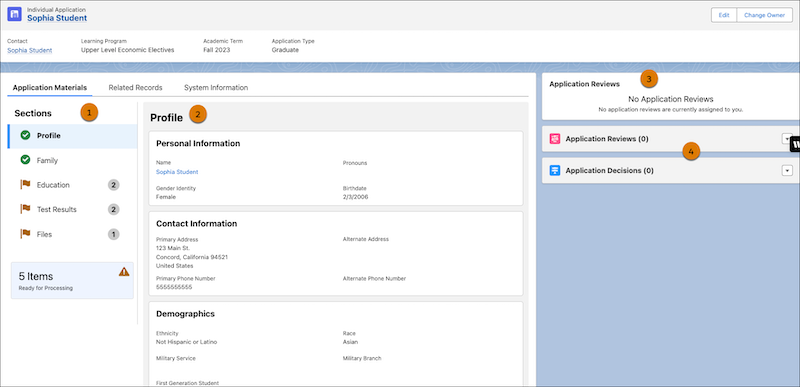
-
See the overall progress in the navigation region. Each item shows a status icon (1).
-
Click a requirement in the navigation region to see the requirement in a single scrollable view. PDFs display in a built-in viewer with tools like focus, zoom, and page rotation. Applicant-provided data, like their birthdate or other questions they answered, appear in line with documents (2).
- See application reviews that are currently assigned to you (3).
-
Enter comments and submit your recommendation (4).
See Also:
Assess the Status of Requirements
The navigation section of the individual application has different icons based on the status of each requirement.
Here's how the requirement statuses map to the icons.
| Icon | Checklist Status | Item Is A File | Item Is Data | Requirement Heading |
|---|---|---|---|---|

|
Ready for Processing | A file is attached and the status is set to Not Verified. | The status is Not Verified, but hasn't been marked as Accepted, Rejected, or Waived yet. | If at least one requirement is pending, the rollup heading is pending. |

|
Completed | A file is attached and the status set to Accepted or Waived. | The status is Accepted or Waived | All requirements in this area are completed. |

|
Rejected | A file is attached and the status is set to Rejected. | The status is set to Rejected. | Not applicable. |
Review Documents and Data
Review items that an applicant submits to your institution, including transcripts, letters of recommendation, and more.
To open a document in a preview window, click the name of a checklist item and then click the preview image. After you review the document, close the preview window. Some information, such as test scores, don't open in a separate preview window. You review the information in the application record.
Submit Your Recommendation
Make a recommendation for an individual application to admit or deny the applicant.
-
From the Recruitment & Admissions app, open an individual application record.
The Admissions: Review Application component displays the rubric configured for the selected application.
-
Select a rating for each criteria.
-
Click Next.
The review score that's calculated by the ratings that you provided is shown.
-
Select an option for the application recommendation.
-
Pending
-
Admit
-
Admit with Conditions
-
Deny
-
-
In Comments, enter any other relevant information.
- Click Submit.

Considerations for Reviewing Applications
Prepare your org and users for the application review process.
-
When reviewers submit their admissions recommendation, the Review End Date is automatically entered. They can't edit this date unless they have special permissions.
-
The Salesforce administrator configures the record actions for the application review page. These actions include, Edit, Change Owner, and Delete. Some of these actions require special permissions. Talk to your admissions team about what action you can take on the review page.