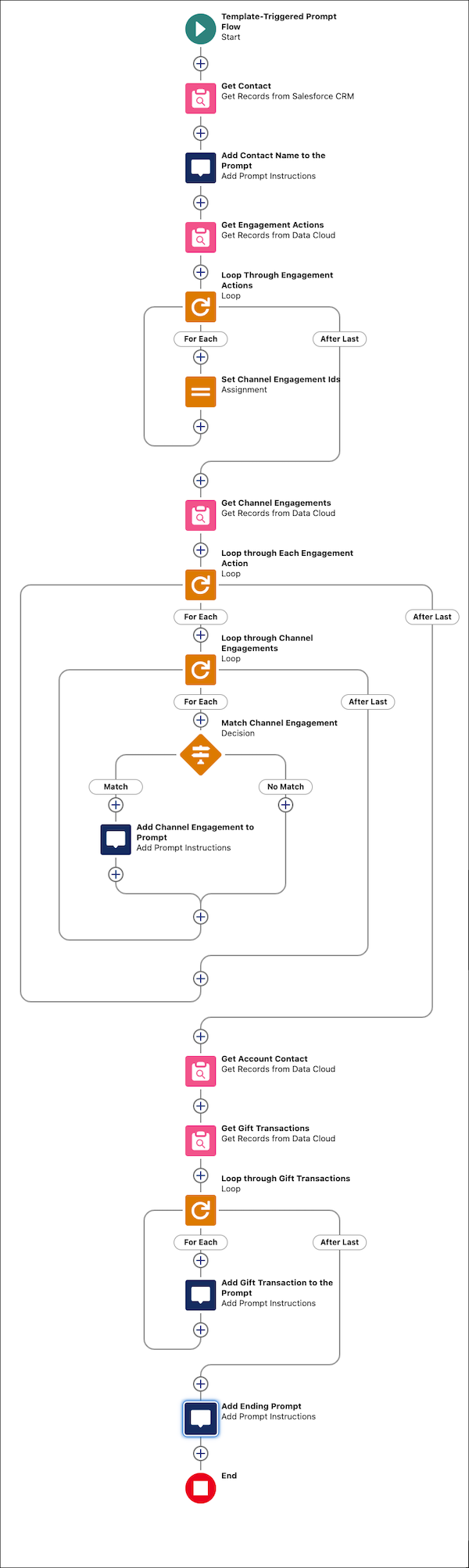
| Start |
-
Select Automatic Inputs as the input
type.
-
Select Engagement Visualization Template
Capability as the prompt template type.
|
| Get Records |
-
In Label, enter Get Contact, and then
press Tab to automatically populate the API name.
-
Select Salesforce Object as the data
source.
-
Select Contact as the object.
-
Select All Conditions Are Met (AND) as
the condition requirement.
-
In Field, find and select Id.
-
Select Equals as the operator.
-
In Value, select $Input > ContextRecord >
Contact ID.
-
Select Only the first record.
-
Select Automatically store all
fields.
|
| Add Prompt Instructions |
-
In Label, enter Add Contact Name to the
Prompt, and then press Tab to automatically
populate the API name.
-
In Prompt Instructions, enter { "Name" :
"{!Get_Contact.Name}", "Details": [.
|
| Get Records |
-
In Label, enter Get Engagement
Actions, and then press Tab to automatically
populate the API name.
-
Select Data Cloud Object as the data
source.
-
Select default as the data space.
-
Select Engagement Action as the
object.
-
Enter 1 AND (2 OR 3 OR 4) AND 5 as the
condition logic.
-
Set these conditions.
-
ssot__IndividualId__c Equals
-
ssot__EngagementCategory__c Equals
CommunicationsCategory ssot__EngagementCategory__c
Equals ExperientialCategory
-
ssot__EngagementCategory__c Equals
VolunteerismCategory
-
ssot__EngagementDateTime__c Greater Than or Equal
CurrentYear
-
Select All Records.
-
Select Automatically store all
fields.
|
| Loop |
-
In Label, enter Loop Through Engagement
Actions, and then press Tab to automatically
populate the API name.
-
Select Get Engagement Actions as the
collection variable.
-
Select First item to last item as the
direction.
|
| Assignment |
-
In Label, enter Set Channel Engagement
Ids, and then press Tab to automatically
populate the API name.
-
Select ChannelEngagementIds as the
variable.
-
Select Add as the operator.
-
In Value, select Engagement Actions > Channel
Engagement.
|
| Get Records |
-
In Label, enter Get Channel
Engagements, and then press Tab to
automatically populate the API name.
-
Select Data Cloud Object as the data
source.
-
Select Default as the data space.
-
Select Channel Engagement as the
object.
-
Select All Conditions Are Met (AND) as
the condition requirement.
-
In Field, find and select ssot__Id__c.
-
Select In as the operator.
-
In Value, find and select
ChannelEngagementIds.
-
Select Not Sorted as the sort order.
-
Select All Records.
-
Select Automatically store all
fields.
|
| Loop |
-
In Label, enter Loop Through Engagement
Action, and then press Tab to automatically
populate the API name.
-
Select Get Engagement Actions as the
collection variable.
-
Select First item to last item as the
direction.
|
| Loop |
-
In Label, enter Loop Through Channel
Engagements, and then press Tab to
automatically populate the API name.
-
Select Get Channel Engagements as the
collection variable.
-
Select First item to last item as the
direction.
|
| Decision |
-
In Label, enter Match Channel
Engagement, and then press Tab to
automatically populate the API name.
-
Select Match and enter these details.
-
In Label and Outcome API name, enter
Match.
-
Select All Conditions Are Met
(AND) as the outcome.
-
Select Engagement Action > Channel
Engagement as the resource.
-
Select Equals as the operator.
-
Select Channel Engagements > Channel
Engagement Id as the value.
|
| Add Prompt Instructions |
-
In Label, enter Add Channel Engagement to
Prompt, and then press Tab to automatically
populate the API name.
-
In Prompt Instructions, enter { "Date"
"{!Loop_through_Each_Engagement_Action.ssot__EngagementDateTime__c}",
"Subject" :
"{!Loop_through_Channel_Engagements.ssot__Subject__c}"
},.
|
| Get Records |
-
In Label, enter Get Account Contact,
and then press Tab to automatically populate the API name.
-
Select Data Cloud Object as the data
source.
-
Select Default as the data space.
-
Select Account Contact as the object.
-
Select All Conditions Are Met (AND) as
the condition requirements.
-
In Field, find and select
ssot__IndividualId__c.
-
Select Equals as the operator.
-
Select Not Sorted as the sort order.
-
Select Only the first record.
-
Select Automatically store all
fields.
|
| Get Records |
-
In Label, enter Get Gift Transactions,
and then press Tab to automatically populate the API name.
-
Select Data Cloud Object as the data
source.
-
Select Default as the data space.
-
Select GiftTransaction as the object.
-
Select All Conditions Are Met (AND) as
the condition requirements.
-
In Field, find and select
ssot__DonorId__c.
-
Select Equals as the operator.
-
In Value, select Account Contact from
Get_Account_Contact > ssot__AccountId__c.
-
Click Add Condition.
-
In Field, find and select
ssot__TransactionDate__c.
-
Select Greater Than or Equal as the
operator.
-
In Value, select CurrentYear.
-
Select Not Sorted as the sort order.
-
Select All records.
-
Select Automatically store all
fields.
|
| Loop |
-
In Label, enter Loop through Gift
Transactions, and then press Tab to
automatically populate the API name.
-
Select Get Gift Transactions as the
collection variable.
-
Select First item to last item.
|
| Add Prompt Instructions |
-
In Label, enter Add Gift Transaction to the
Prompt, and then press Tab to automatically
populate the API name.
-
In Prompt Instructions, enter { "Description" :
"{!Loop_through_Gift_Transactions.ssot__Description__c}",
"Current Amount" :
"{!Loop_through_Gift_Transactions.ssot__CurrentAmount__c}",
"Gift Type":
"{!Loop_through_Gift_Transactions.ssot__GiftType__c}",
"Transaction Date":
"{!Loop_through_Gift_Transactions.ssot__TransactionDate__c}"
},.
|
| Add Prompt Instructions |
-
In Label, enter Add Ending Prompt, and
then press Tab to automatically populate the API name.
-
In Prompt Instructions, enter ]}..
|