
Use Education Cloud objects to model your academic year, terms, and sessions.
| Available in: Lightning Experience |
| Available in: Enterprise, Performance, Unlimited, and Developer Editions with Education Cloud |
| User Permissions Needed | |
|---|---|
| To model your academic calendar: | Education Cloud Full Access |
Create a hierarchy of records to model your academic calendar using these objects:
- Academic Year—Defines the entirety of your academic year.
- Academic Term—Specifies an academic period, which can hold other time periods within it to create a specific timeframe for reporting and course offerings.
- Academic Session—Specifies the course offering time periods based on your institution's calendar, whether that's semesters, quarters, trimesters, or something else.
To get a better understanding about how these objects work together, let's look at an example from Astro University. Astro University has two semesters in its academic year, each lasting 18 weeks. While many courses at Astro University last for an entire semester, there are some that are shorter. So, Astro University divides each semester into two sessions to accommodate the shorter courses. Introduction to Economics is a course that lasts 9 weeks and is only offered twice during the academic year. The first offering is in the academic session called Fall 1, and the second offering is in the academic session called Spring 2.
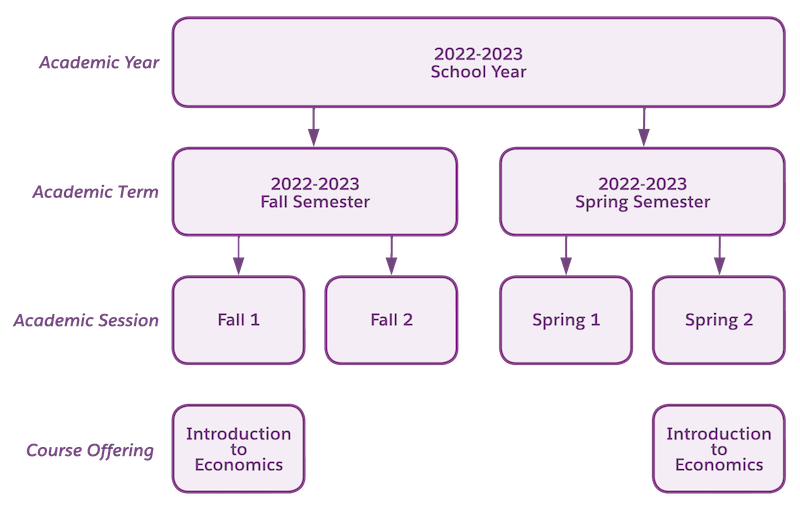
These objects are flexible, so it doesn't matter how complicated your calendar is. You can create a calendar that accommodates different schedules, like these examples from Astro University:
-
The School of Law and the School of Business follow different schedules. So they create a different Academic Term record for each school that relates to the same academic year.
-
Astro University offers virtual programs in addition to in-person instruction. Virtual programs follow nontraditional intake cycles, accommodating enrollment every six to eight weeks. Intervals for academic terms can be as short as you need.
-
A special immersion program runs for an extended period and overlaps with the regular academic term that non-immersion students follow. It's fine to have academic terms with overlapping dates.
Set Up Your Academic Calendar
Before you can start to accept applications, create a course schedule, or enroll people into your institution, it's necessary to set up your academic calendar.
Create an Academic Year Record
- From the App Launcher, find and select Academic Years.
- Click New.
-
Enter a name for the academic year.
 Tip If your institution has multiple academic years, use this field to identify what the academic year represents.
 - Enter the year and a description, if you like, and save your changes.
Create an Academic Term Record
- From the App Launcher, find and select Academic Terms.
- Click New.
- Enter a name for the academic term.
- To make this the active term, select Active.
- Enter any other relevant information and save your changes.
Create an Academic Session Record
An academic session is the period when you offer a course. You can specify time periods based on your institution's calendar whether that is semesters, quarters, trimesters, or other.
- From the App Launcher, find and select Academic Sessions.
- Click New.
- Enter a name for the academic session.
- To make this the active academic session, select Active.
- Enter any other relevant information and save your changes.