
After you create a learning program, use Program Plan Builder to organize the program's specific elements, such as required and elective courses.
Required Editions
With Winter '25, you can use the builder without creating all requirements from scratch first. You can import your program plan requirements and start working with them in the Program Plan Builder. See Education Cloud Business APIs.
| Available in: Lightning Experience |
| Available in: Enterprise, Performance, Unlimited, and Developer Editions with Education Cloud |
Before you work with the Program Plan Builder, set up the Academic Operations app.
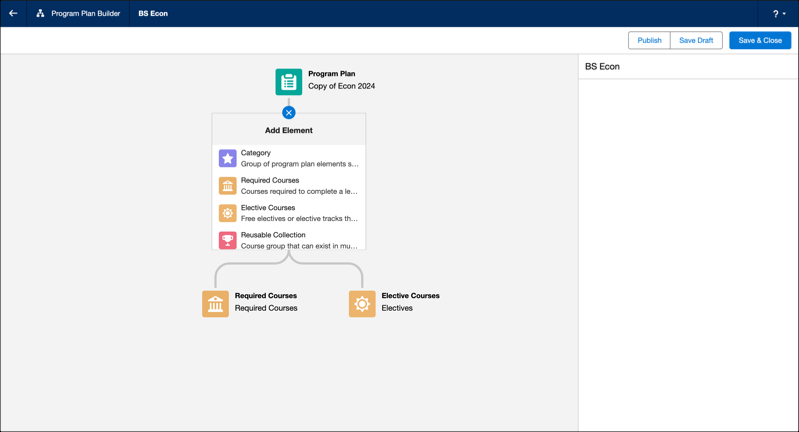
On the window that launches the Program Plan Builder, you associate a learning program with the plan that you’re about to create. Then, you can add courses to these types of grouping elements to create the plan.
-
The Required Courses element contains courses that are required to complete a learning program.
-
The Elective Courses element contains available electives or elective tracks that learners can add to their program.
-
The Reusable Collection element is a group of courses that can exist in multiple program plans.
-
The Category element contains other plan elements, such as Required Courses or Reusable Collections.
- Create a Learning Program Plan
Use Program Plan Builder to view, edit, save, cancel, and publish all your program plans. You can also organize the program's specific elements, such as required and elective courses, and add active versions of learning courses to each element. - Edit a Learning Program Plan
To ensure accurate data capture and visibility, edit program plans by using the Program Plan Builder. - Delete a Learning Program Plan
To maintain data accuracy, delete unused learning program plans. - Create and Use Reusable Collections
Build program plans more efficiently with reusable collections, which are course groups that appear in multiple program plans. For example, you can create a “General Education” collection of courses that applies to several different program plans.