
Manage everything about your alumni users in Education Cloud, from their access to your Experience Cloud site to the account, profile, and engagement details on their records.
Required Editions
| Available in: Lightning Experience |
| Available in: Enterprise, Unlimited, and Developer Editions with Education Cloud |
| User Permissions Needed | |
|---|---|
| To manage alumni users: | Education Cloud Full Access |
- Set Up Alumni Users
Prepare your alumni users to access your Experience Cloud site. - View and Update Information for an Alumni User
See account and profile details, education and employment history,
Set Up Alumni Users
Prepare your alumni users to access your Experience Cloud site.
Create an Alumni Permission Set
Create and configure a permission set for alumni users.
- From Setup, in the Quick Find box, enter Permission Sets, and then select Permission Sets.
- For Education Cloud for Experience Cloud Access, click Clone.
- Enter a label and API name for the alumni permission set, and then save your changes.
- Click your alumni permission set, and then click Object Settings.
- Click Person Educations, and then click Edit.
- For Object Permissions, select Read, Create, Edit, and Delete.
- Under Field Permissions, for Institution, select Read Access and Edit Access.
- Save your changes.
- For Person Educations, click
 , and then select Person Employments.
 - Click Edit.
- For Object Permissions, select Read, Create, Edit, and Delete.
- Save your changes.
Create an Alumni Profile
Create a profile for alumni users.
- From Setup, in the Quick Find box, enter Profiles, and then select Profiles.
- For Customer Community Plus User, click Clone.
- For Profile Name, enter Alumni Community User, and then save your changes.
Create an Alumni Sharing Set
Create a sharing set for alumni users.
- From Setup, in the Quick Find box, enter Digital Experiences, and then select Settings.
- Under Sharing Sets, click New.
- Enter a label for the sharing set, such as Alumni Sharing. Press Tab to automatically fill the Sharing Set Name field.
- For Available Profiles, add your alumni profile to the Selected Profiles column.
- For Objects, add Account and Person Academic Credential to the Selected Objects column.
- Under Configure Access, for Account, click Set Up.
- Select these mapping values:
- For User, select Contact.Account.
- For Target Account, select Id.
- For Access Level, select Read/Write.
- Click Update.
- Under Configure Access, for Person Academic Credential, click Set Up.
- Select these mapping values:
- For User, select Contact.
- For Target Person Academic Credential, select LearnerContact.
- For Access Level, select Read Only.
- Click Update.
- Save your changes.
Create Alumni Experience Cloud Site Users
Assign a the alumni profile and permissions set to grant alumni users access to your alumni Experience Cloud site.
- From the App Launcher, find and select Accounts.
- Click an account.
- On the account's Contacts related list, view or add the contact record for the person that you want to add to the site.
- On the contact detail page, click , and then select Enable Customer User. Salesforce
creates a user record with some details prepopulated.
- On the New User page, select the profile that you created to grant access to the Experience Cloud site.
- Populate other fields as needed, and then save your changes.
- Assign the user the permission set that you created for alumni.
View and Update Information for an Alumni User
See account and profile details, education and employment history,
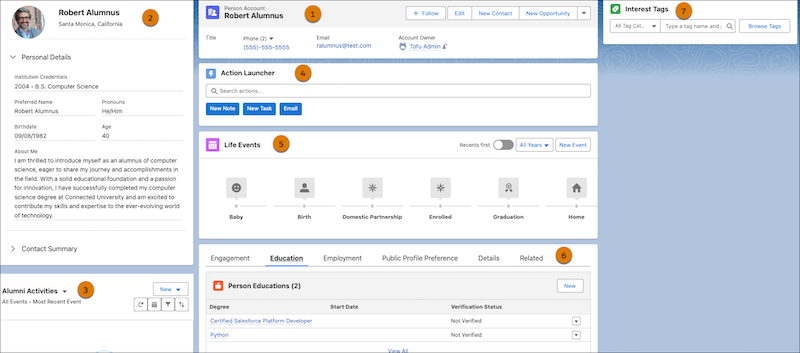
Here's what you can do and see on an alumni's account record page.
| Component | What can I do? |
|---|---|
| Highlights Panel (1) | See account details for the user. |
| Alumni Profile Card (2) |
See the details that the user added to their alumni profile page.  Note The location
for the user comes from the mailing address on their account
record page. If you don't have a mailing address for the user,
you won't see a location on the profile card.
|
| Timeline (3) | See a timeline of activities and engagement with the user. To create a case, service appointment, record alert, or care plan for the alumni user, click New. To see the new record on the timeline, click Refresh. |
| Action Launcher (4) | Add a note, create a task, or send an email. |
| Life Events (5) | See events and milestones in the alumni user's life. To add an event, click New Event. |
| Engagement (6) |
See cases and alerts that are assigned to the user. Note To see
record alerts that you created in the Timeline component, click
Refresh in both the Timeline component
and in the Alerts component. Record alerts that have the person
account assigned as the parent record and a different object
assigned to the What Record field don't show in the Alerts
component.
|
| Relationships (6) | See the alumni user's relationships in a graph. |
| Education (6) | See person education and person academic credential records for the alumni user. Person academic credential records are created when the user's learner program record is marked as complete. |
| Employment (6) |
See the alumni user's employment history from the Person Employment related list. You can also create person employment records for the user.  Important To show person employment records on
the alumni user's profile page in the alumni portal, connect person
employment records to the user's contact record.
|
| Details (6) | See user account details. |
| Portal Profile Preference (6) | See if the alumni has made their directory profile public. |
| Related (6) | See related lists for Individual Applications, Person Employments, Person Public Profile Preference Sets, Person Academic Credentials, and Person Educations. |
| Interest Tags (7) | See and add tags related to the alumni user's needs, interests, and engagement opportunities. |
See Also: