
Clone the Mentor Comparison screen flow, and then identify the fields on the participants' mentoring profiles that you want to use to select and compare potential mentors.
| Available in: Lightning Experience |
| Available in: Enterprise, Performance, Unlimited, and Developer Editions with Education Cloud |
| User Permissions Needed | |
|---|---|
| To clone and configure the screen flow: |
Education Cloud Full Access AND Compare Using Einstein AND Manage Prompt Templates |
Clone the Screen Flow
Clone the Mentoring: Match Mentor and Mentee screen flow so that you can configure it for your Mentoring program.
-
From Setup, in the Quick Find box, enter Flows, and select Flows.
-
Click Mentoring: Match Mentor and Mentee.
-
Click Save As, enter a label and name, and save your changes.
Configure the Selection View
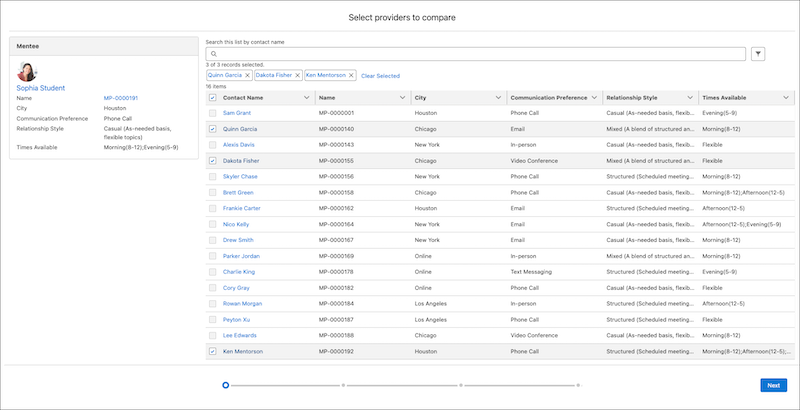
Identify the fields from the mentoring profile record that you want to use to select potential mentors.
-
In your version of the Mentoring: Match Mentor and Mentee screen flow, click Display Select Mentors for Comparison, and then click Edit Element.

-
Click Select Mentors for Comparison.
-
In Select Fields to Display, select the fields that you want to show when you select possible mentors, and then click Done.
Configure the Comparison View
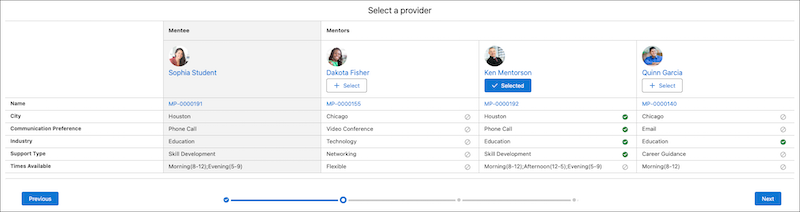
Identify the fields from the mentoring profile record that you want to use to compare mentors and to indicate a match with the mentee.
-
Click Display Compare and Assign Mentor, and then click Edit Element.

-
Click Compare and Assign Mentor.
-
From Select Fields to Display, select the fields that you want to show when you compare mentors with the mentee.
-
From Select Fields for Matching, select the fields that you want to use to indicate a match.
Fields that match are marked with a checkmark.
-
To use Einstein Mentoring Summaries, complete these steps.
-
Select Enable Similarity Score.
-
From Select fields to use for similarity score, select the fields that you want to use to generate the similarity score for the record.
-
Select Enable prompt response.
-
From Prompt Template, select your mentoring summaries prompt template.
See Create a Prompt Template for Einstein Mentoring Summaries.
-
Enter a label for the prompt response.
-
Enter help text for the prompt response.
-
Enter a label for the prompt response button.
-
-
Click Done.
Configure the Preview Screen
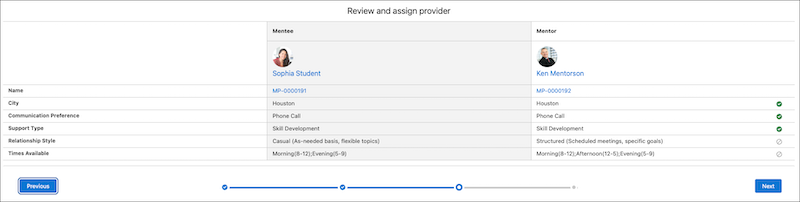
Identify the fields from the mentoring profile record that you want to use to compare the selected mentor with the mentee.
-
Click Display Mentor Assignment Preview, and then click Edit Element.

-
Click Compare and Assign Mentor.
-
From Select Fields to Display, select the fields that you want to show when you compare the selected mentor with the mentee.
-
From Select Fields for Matching, select the fields that you want to use to indicate a match.
-
Click Done.
Save and Activate Your Flow
After you configure the flow, save your changes and then activate the flow. See Activate or Deactivate a Flow Version.