
Clone the Compare Learning Program Plans screen flow, and then identify the fields on the learning programs that you want to use for learners, advisors, registrars, and faculty to select and compare programs.
| Available in: Lightning Experience |
| Available in: Enterprise, Performance, Unlimited, and Developer Editions with Education Cloud |
| User Permissions Needed | |
|---|---|
| To clone and configure the screen flow: | Education Cloud Full Access |
Configure Sharing and Permissions
Before you set up the Intelligent Program Comparison Engine, update the sharing settings for objects and create a permission set for community members to run flows.
- Create sharing sets for learners.
-
To provide access for learners in the Education portal, create and assign a permission set.
-
In Setup, find and select Permission Sets.
-
Click New.
-
Enter a label for your permission set, and then press Tab to fill the API name.
For example, enter Community Member Flow Permission.
-
Save your changes.
-
In Find Settings, find and select Run Flows.
-
Click Edit.
-
Select Run Flows, and save your changes.
-
Assign the permission set to the community members who run the comparison flow.
-
-
Add the new permission set to your Education portal.
Clone the Screen Flow
Clone the Compare Learning Program Plans screen flow so that you can configure it for students and advisors to use.
-
In Setup, find and select Flows.
-
Click Compare Learning Program Plans.
-
Click Save As New Flow.
-
Enter a flow label and an API name.
-
Save your changes.
Configure the Selection View
Identify the fields from the learning program and learning program plan records that you want to show when students, advisors, registrars, and faculty select the programs that they want to compare.
-
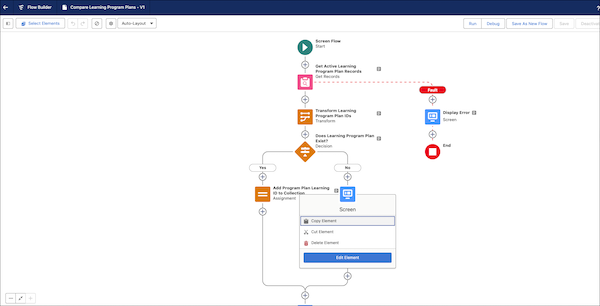
In your version of the Compare Learning Program Plans screen flow, click the Show Learning Program Plans to Compare screen element, and then click Edit Element.
-
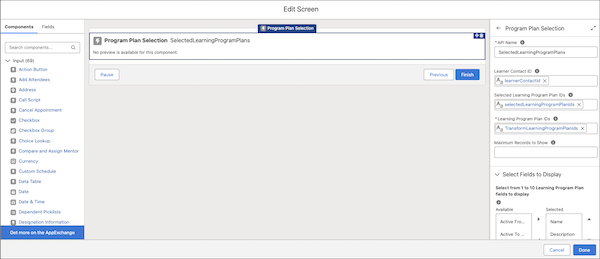
Click the Program Plan Selection component.
-
In the Select Fields to Display section on the properties panel, move the fields that you want to use for comparison from the Available list to the Selected list.
-
Click Done.
Configure the Comparison View
Identify the fields from the learning program and learning program plan records that you want to use to compare the student's enrolled program with the programs selected for evaluation.
-
Click the Compare Programs screen element, and then click Edit Element.
-
Click the Program Plan Comparison View component.
-
In the Select Fields to Display section on the properties panel, move the fields that you want to show for comparison from the Available list to the Selected list.
-
Click Done.
Set the Maximum Number of Programs to Compare
The maximum number of programs that users can compare is set to 100 by default. If you change this limit, for best results, we recommend setting it to a number below 500.
-
In Setup, find and select Flows.
-
Click the Compare Learning Program Plans flow.
-
In the flow diagram, click the element Show Learning Program Plans to Compare. Click Edit Element.
- On the Edit Screen dialog box, select the Program Plan Selection component.
- In the properties panel, enter a number in the Maximum Records to Show field.
Save and Activate Your Flow
After you configure the flow, save your changes and then activate the flow. See Activate or Deactivate a Flow Version.