Update the overall status and information about client progress.
- Update Overall Case Plan Status
As a Client progresses with their Case Plan, you will need to update the status. - Update Client Progress
As a Client progresses through their Case Plan, you'll need to make updates to the status of Action Items and update Action Item Due Dates. It's quick and easy to do this on the Case Plan Detail.
Update Overall Case Plan Status
As a Client progresses with their Case Plan, you will need to update the status.
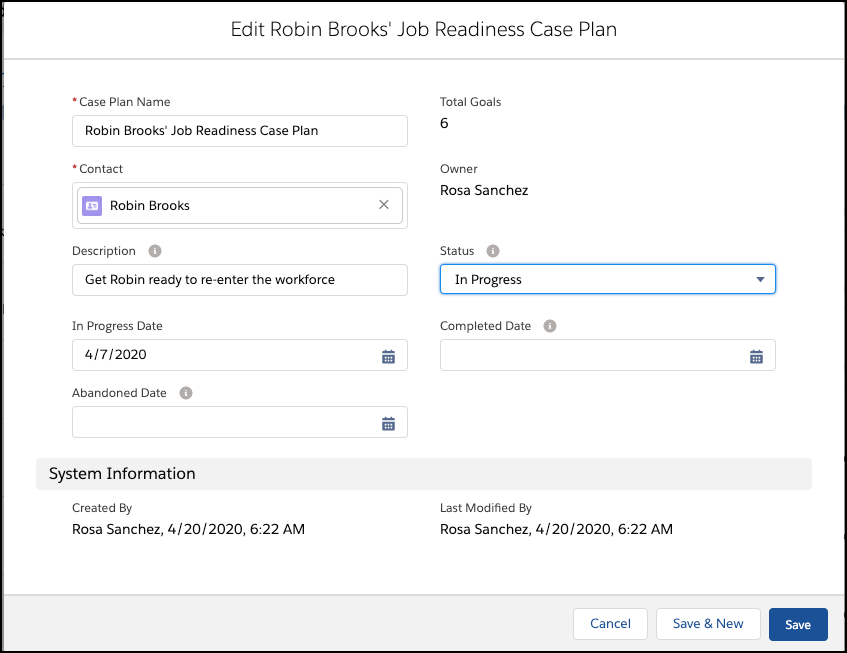
In this example, we'll indicate that the Case Plan is now In Progress and add a Description that will show up in the highlight panel. From the Case Plan Detail View:

-
Click Edit.
-
Select In Progress from the Status picklist. Your Salesforce Administrator can customize the values in this picklist.
-
Set the In Progress Date and add a brief description of the Case Plan.
-
Click Save.
Update Client Progress
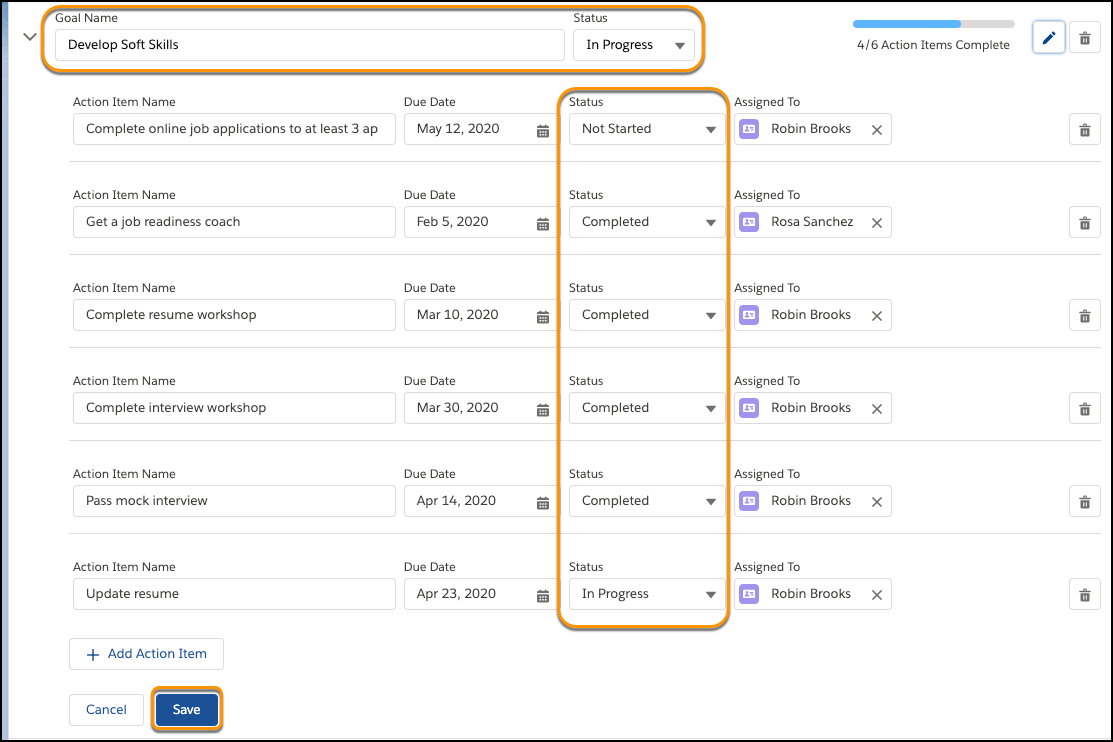
As a Client progresses through their Case Plan, you'll need to make updates to the status of Action Items and update Action Item Due Dates. It's quick and easy to do this on the Case Plan Detail.

 to view action items, due dates, and statuses.
-
Click
to open the first goal. -
Click the
 and mark finished action items Completed. You can also add new goals or action items if needed.
 -
Mark the goal status Completed when you're confident that your Client has reached their goal.
-
Click Save.
As you complete Action Items, the progress bar for the Goal automatically updates.