Learn about the Case Management app and where to find the information you need.
- Home Tab
The Home tab shows an overview of your work and is the first tab you see when you log in to Case Management. - Contacts Tab
Use the Contacts Tab to view all of your clients.
Home Tab
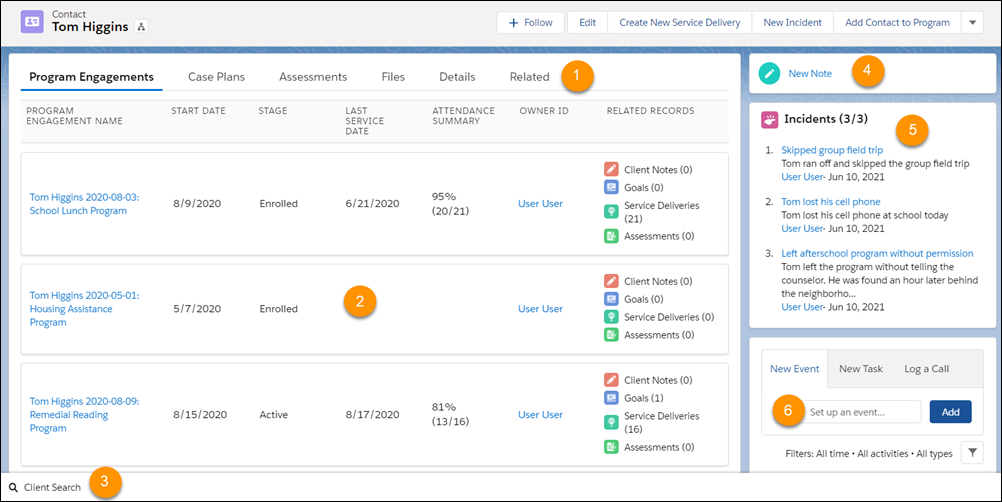
The Home tab shows an overview of your work and is the first tab you see when you log in to Case Management.
-
Today's Events (1)
-
Attendance dashboard, where you can see Contacts who may require followup (2)
-
Reports include: Contacts Absent for Last Service Delivery, Contacts with 3 Consecutive Absences, and Contacts without Recent Interactions
 Note Due to dynamic dashboard limits, we’re shipping this dashboard as a standard dashboard. This means that the numbers on the dashboard will reflect what the installing user sees (the totals for the entire org). However, if you click through to the reports, you'll see correct data. If your org hasn't reached the dashboard limit, you can make the dashboard dynamic so that the numbers are up-to-date for the viewing user. On the dashboard component, click Open, then click Edit. Click
 to edit dashboard properties. Change View Dashboard As to The dashboard viewer. Click Save, then click Done.
-
-
New Contact, Go To My Notes, and View My Program Engagements buttons (3)
-
Recent Sessions, sortable by list view or time frame (4)
-
Open Tasks, including overdue tasks linked to related Contact and Task records (5)
-
Incidents that have been recently logged (6)
-
Client Search, where you can search for Contacts who are designated as Clients (7)
Contacts Tab
Use the Contacts Tab to view all of your clients.
The Contacts tab is where you can see all of your Contacts. Click a Contact name to see their Contact record, with the details listed below.
Client Card
The Client Card includes the following information, unless your Salesforce admin customized the layout.
-
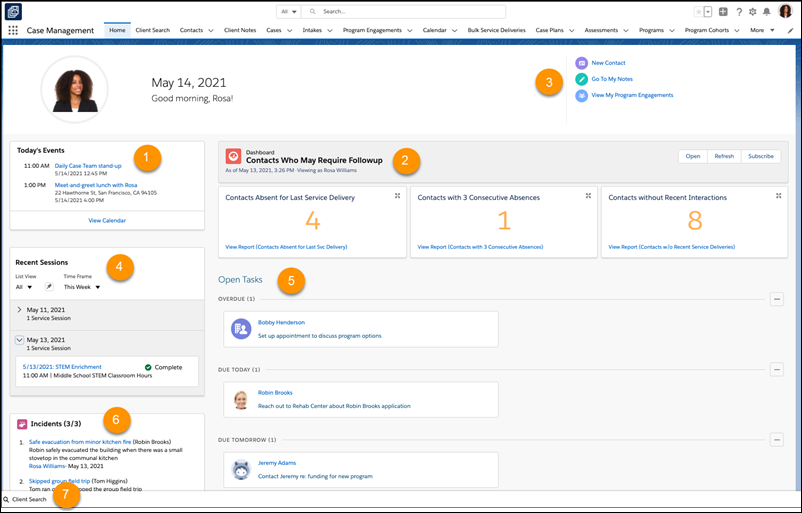
Client photo (1)
-
Client's preferred name and pronouns, and a watch list icon
 if the client needs heightened attention (2)
 -
Client's roles with your organization; default is Client (3)
-
Client's Full Name, Legal Name, Business Phone, and Email (4)
-
Critical Client Alerts (5)
-
Client ID generator with link to Manage Client ID (6)
Contact Information
The Contact information below the client card provides a comprehensive overview of your client's case management engagement, including:
-
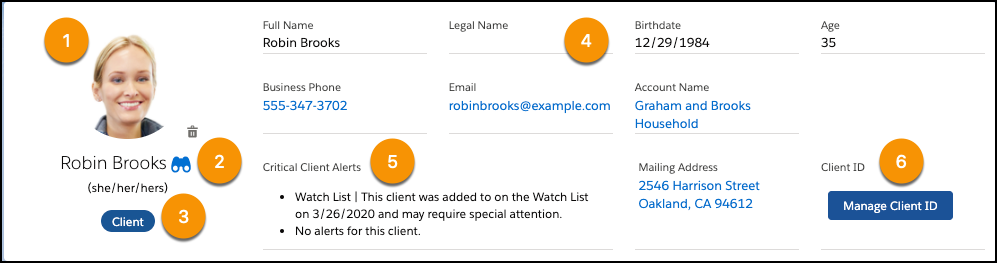
Tabs (1) to view related records. Each tab shows a summary of information (2), and you can click the name of a record to see it
-
Program Engagements: See information about the Contact's Program Engagements, including the Program Engagement’s start date and last service date, the client's stage in the Program, an Attendance Summary showing percentage of participants that were Present out of the total participants Present and Absent, and related records.
-
Client Notes: See full history of notes for this Client.
-
Case Plans: See detailed information about the Contact's Case Plans, including when a Case Plan was created, status, goals, and the details of each plan.
-
Assessments: See a graph with the Client's Assessment scores and dates of completion.
-
Details: See all of the client's contact information.
-
Files: See or add files to the Contact.
-
Related: See related lists that include Intakes, Service Participants, Case Plans, Cases, Related Accounts, Client Alerts, Client Notes, Client Note Relationships, Assessments, and Relationships from NPSP, if you use NPSP.
-
-
Client Search (3)
-
New Note to create a New Client Note (4)
-
Incidents reported for the client (5)
-
New Event, New Task, and Log a Call to show a client's activities and event timeline (6)