
Experience Cloud sites are highly customizable, allowing you to determine exactly how your site will look and what actions users will be able to take. To get the most out of your client site, we're providing a recommended layout and steps for how to create it.
- Recommended Customizations
You can customize your site in many different ways, but we recommended specific components to get the most out of your site's home page and Case Plans page. - Customize Your Client Site
Select a theme and customize components for your client site. - Customize the Login and Registration Pages
You have lots of options when it comes to setting up your login and registration pages—everything from which page you use to branding and more.
Recommended Customizations
You can customize your site in many different ways, but we recommended specific components to get the most out of your site's home page and Case Plans page.
Check out this video to see how we set up our recommended customizations.
The home page includes these custom components:
-
CM: Action Items
-
CM: Case Plan Progress
-
HTML Editor
-
Feed
-
CM: My Team
The Case Plans page includes these custom components:
-
On the list page, Record List
-
On the detail page, Record Banner and CM: Case Plan
-
On the related list page, Relate Record List
Customize Your Client Site
Select a theme and customize components for your client site.
-
In the My Workspace section, click Builder.
-
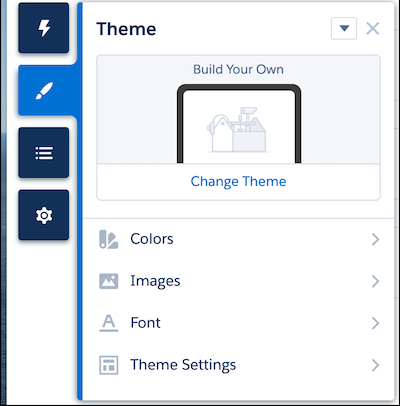
Click the theme icon and then click Change Theme.
-
Select the Jepson theme, and then click Activate Theme.
-
To ensure that you see all the available components, click the settings icon and then click Advanced.
- Select Show All Components, then close the Settings modal.
- Customize the page as you like.
-
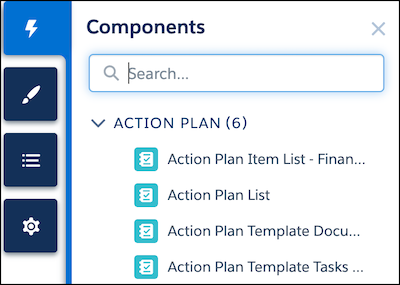
Click the components icon to find and drag components on to the page.
-
To access a different page, click the Pages menu in the top toolbar.
-
To create a new page, click the Pages menu in the top toolbar and then click New Page.
-
To preview your site changes, click Preview.
-
-
Happy with what you see? Click Publish in the toolbar and the behind-the-scenes publication process kicks off. You'll get an email when the site is live. Nice work!
Customize the Login and Registration Pages
You have lots of options when it comes to setting up your login and registration pages—everything from which page you use to branding and more.
-
Add a Self-Registration Page takes you through the steps of setting up a page where your users can register without your assistance.
-
After they've registered, users can access your customized login page to enter your site. Customize Your Login Page has all the how-to details.